How to Create a MySQL Database and User in cPanel
Last updated Changelog
On this page
Most websites and apps (WordPress, shops, forums) store their content in a MySQL database. You’ll need three things: a database, a database user with a password, and permission for that user to use the database. cPanel’s Database Wizard walks you through all three.
Tip: Installing WordPress or another app with Softaculous? It creates the database for you, so you can skip this guide. See Install WordPress.
Steps
-
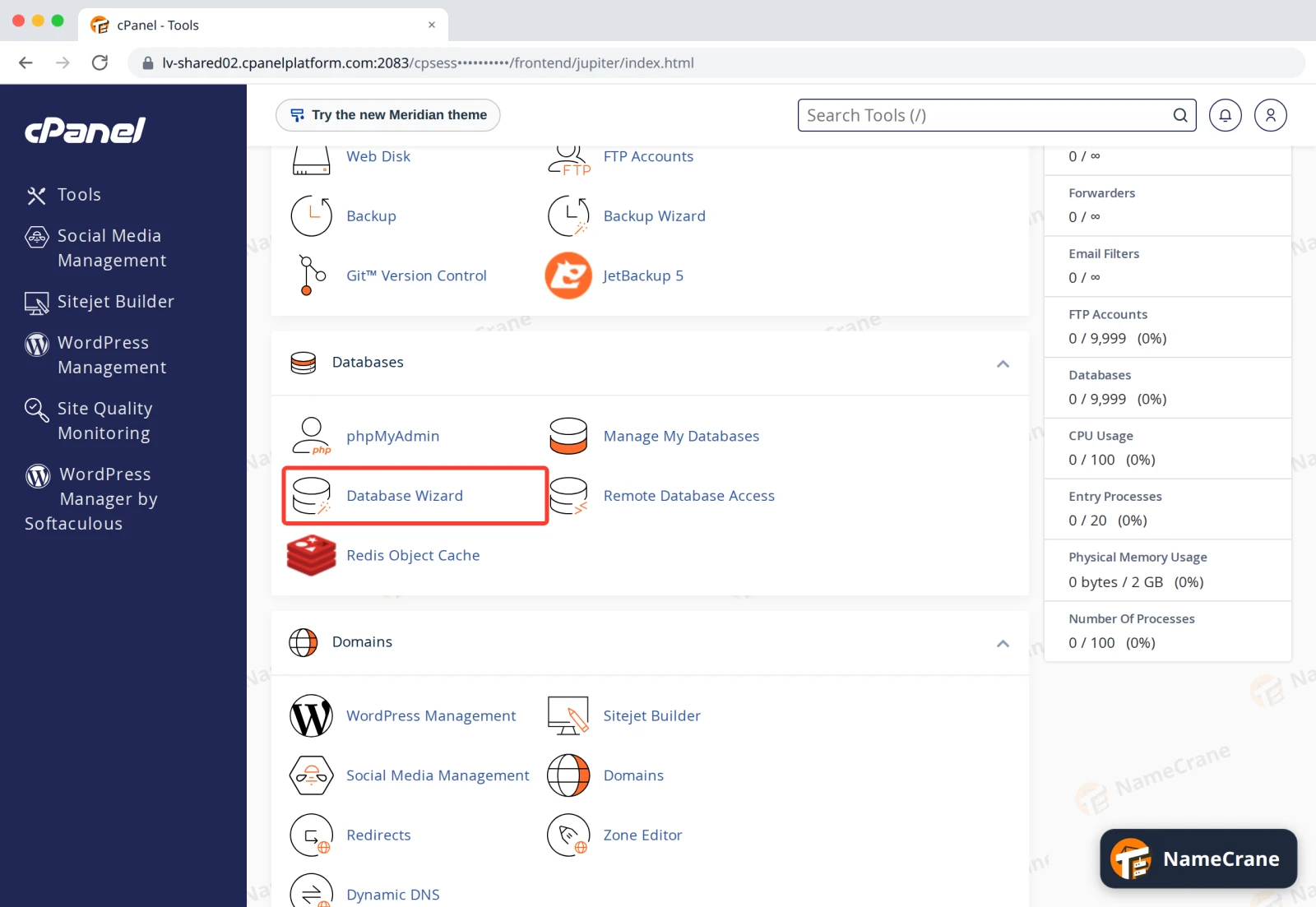
Log in to cPanel. In the Databases section, click Database Wizard.
-
Step 1: type a name for the database and click Next Step. cPanel adds your account name at the front, so
shopbecomescranedemo_shop.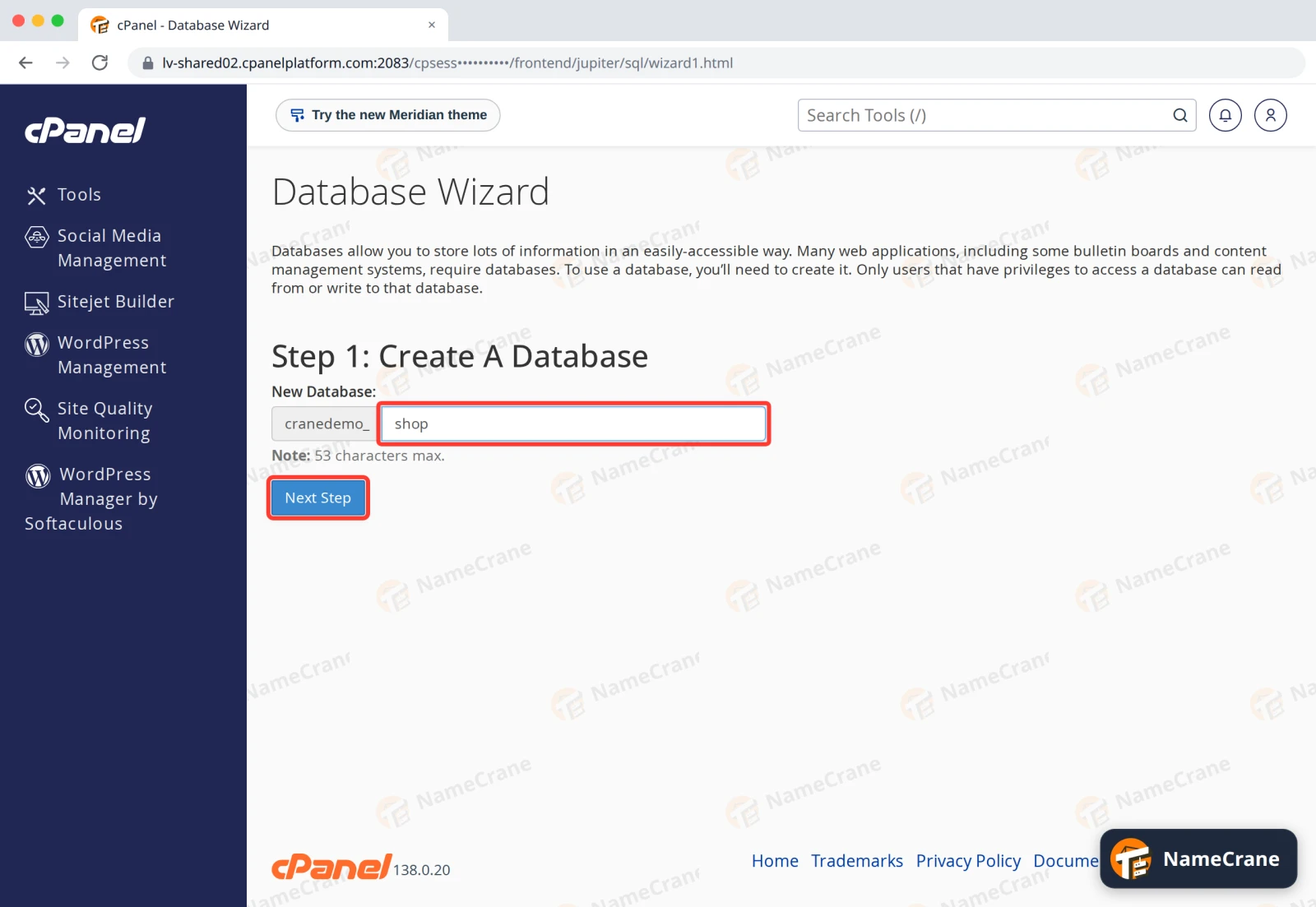
-
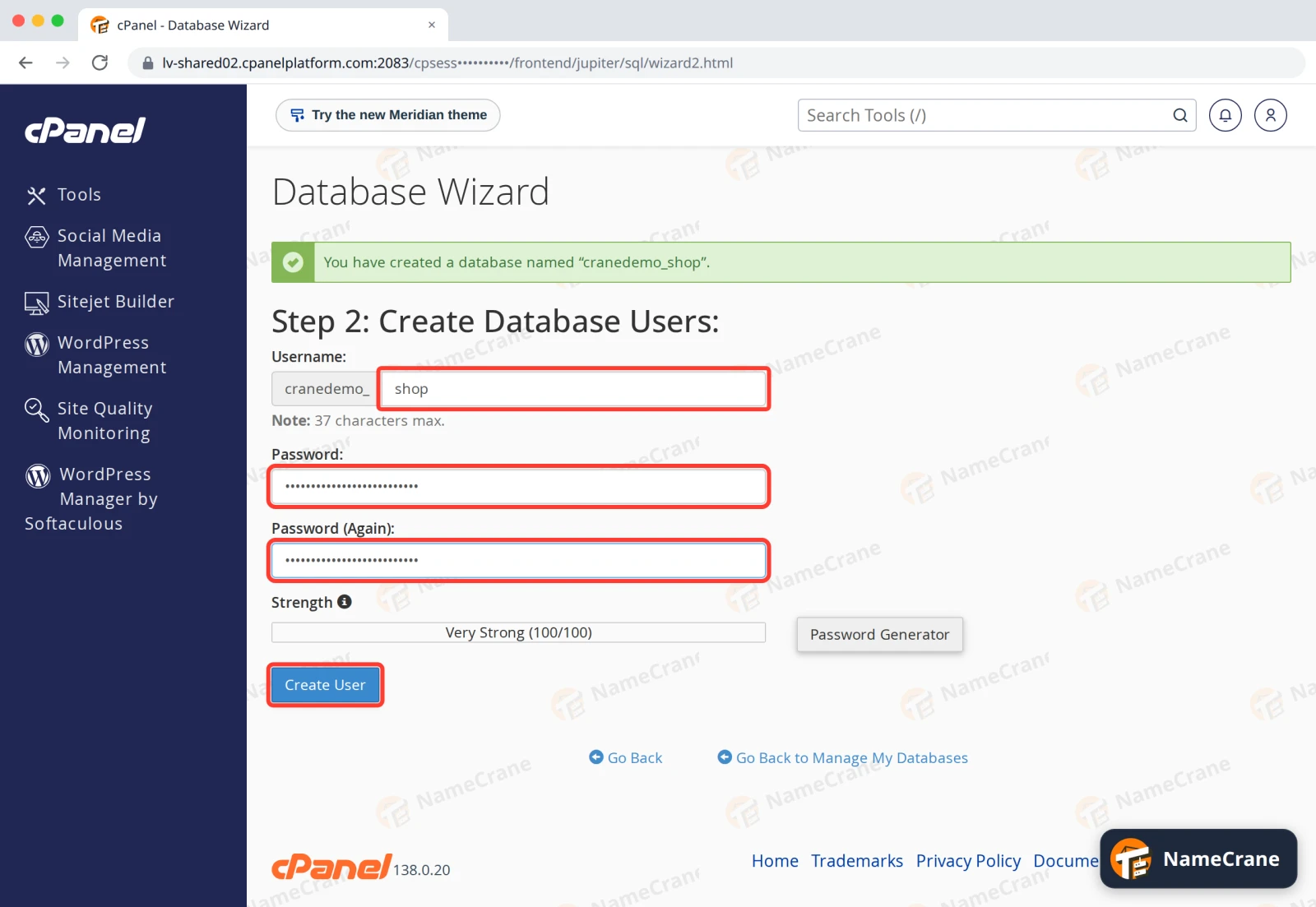
Step 2: choose a Username (again, your account name is added at the front) and a strong Password, twice. Password Generator can make one for you. Note the password down, then click Create User.
-
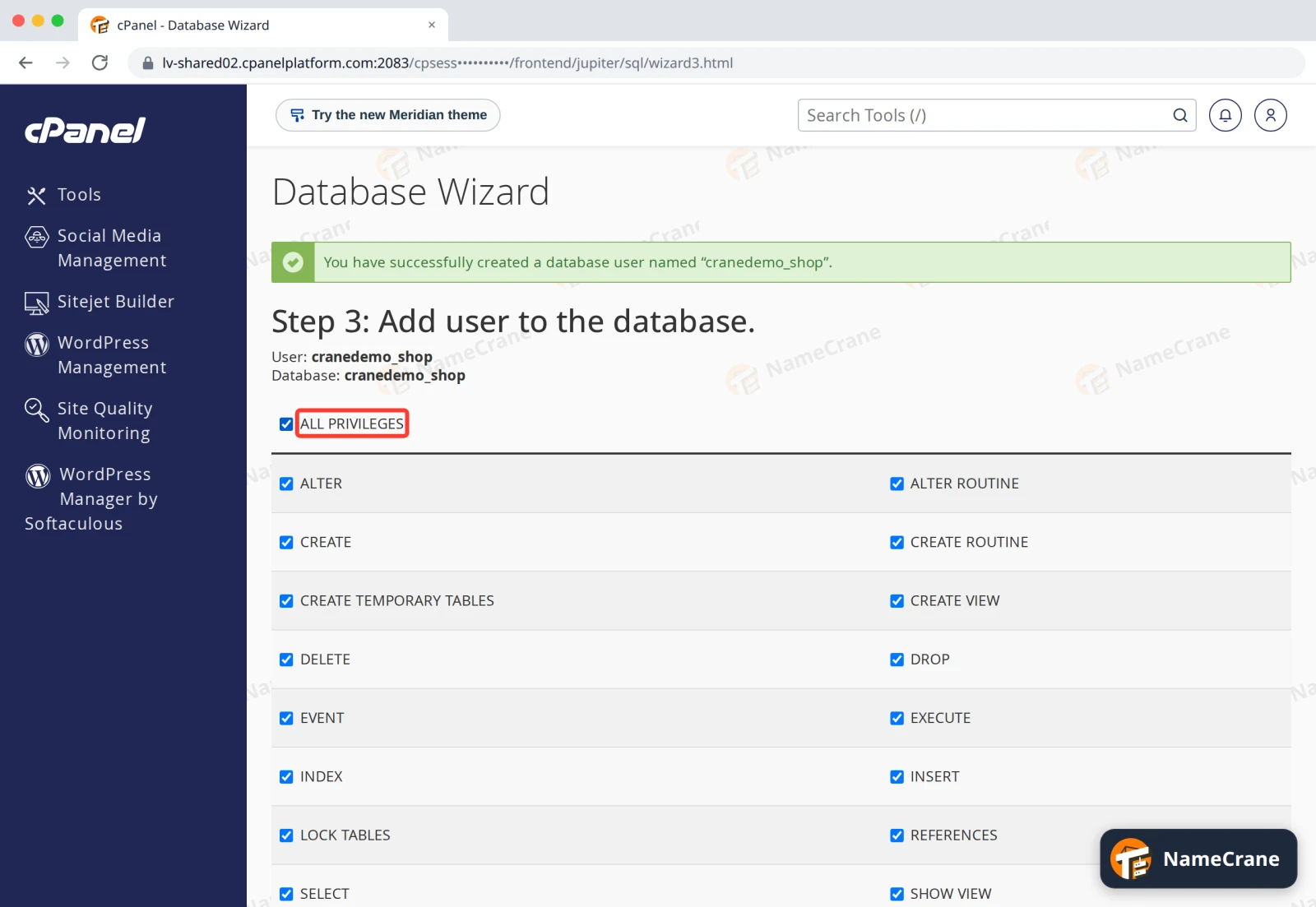
Step 3: tick ALL PRIVILEGES, which ticks every box below it. Then scroll down and click Next Step.
-
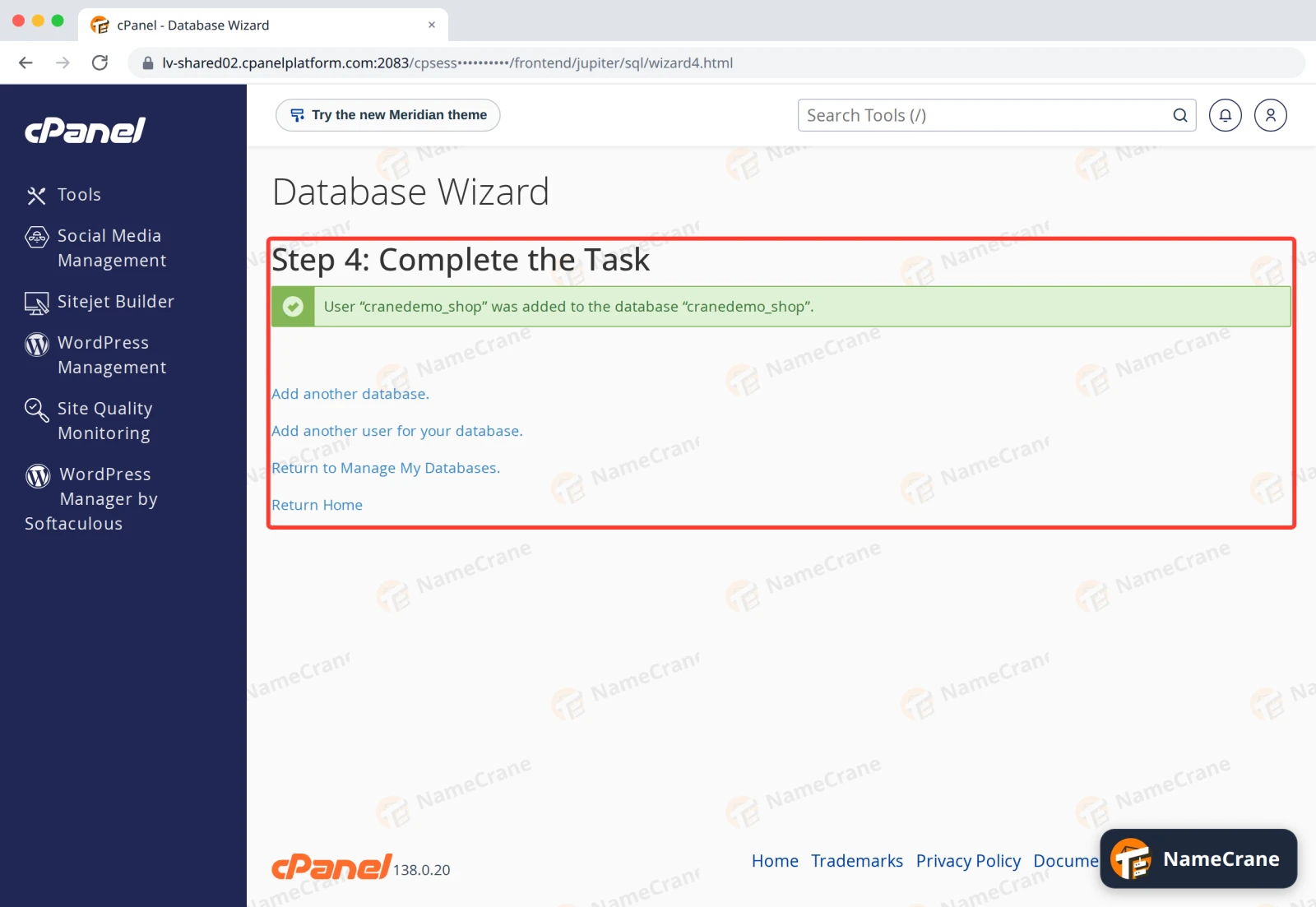
Step 4: cPanel confirms the user was added to the database. You’re done.
Connecting your app
Most apps ask for these four details:
| Setting | What to enter |
|---|---|
| Database name | The full name with prefix, such as cranedemo_shop |
| Username | The full username with prefix, such as cranedemo_shop |
| Password | The password you set in step 3 |
| Host | localhost (for apps on your NameCrane hosting) |
Troubleshooting
| Problem | What to do |
|---|---|
| “Access denied for user” | Check you’re using the full username and database name, including the prefix. Make sure the user was added to the database with privileges, under Manage My Databases. |
| I forgot the database password | In Manage My Databases, find the user under Current Users and click Change Password, then update your app’s settings. |
| I need to connect from my own computer | Your IP address must be allowed first. See Remote database access. |
Snagged on something? Contact support and we’ll get you sorted.