How to Create a Filter Rule in MXFilter
Last updated Changelog
On this page
Filter rules let you decide exactly what happens to incoming email from a particular sender, domain or recipient, no matter how the spam filter scores it. A rule applies to all incoming mail for your domain. In this example we’ll quarantine a newsletter so it’s held for review instead of landing in the inbox.
Before you start
- Open MXFilter from your control panel: from cPanel or from DirectAdmin.
Steps
-
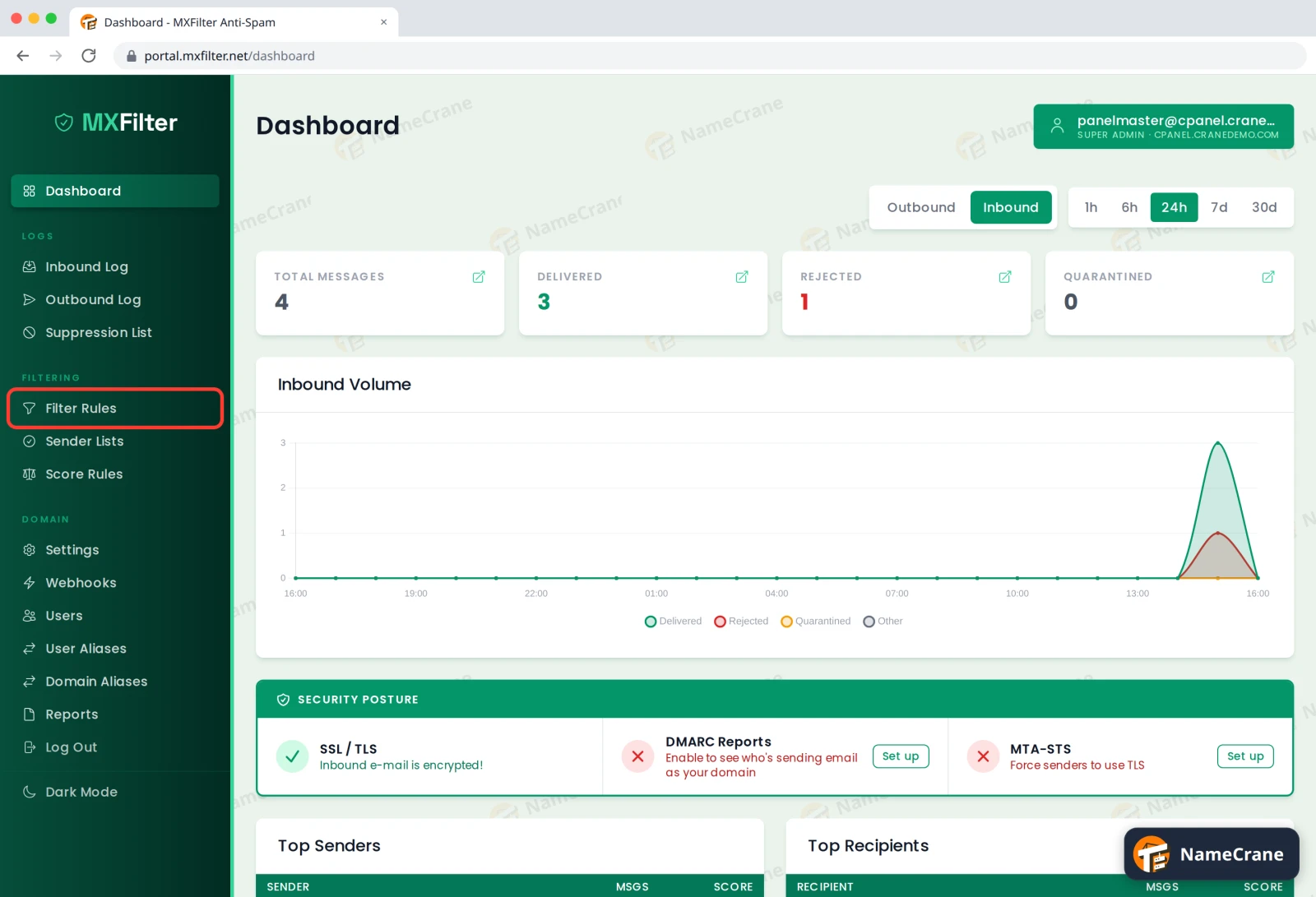
In the MXFilter menu, under Filtering, click Filter Rules.
-
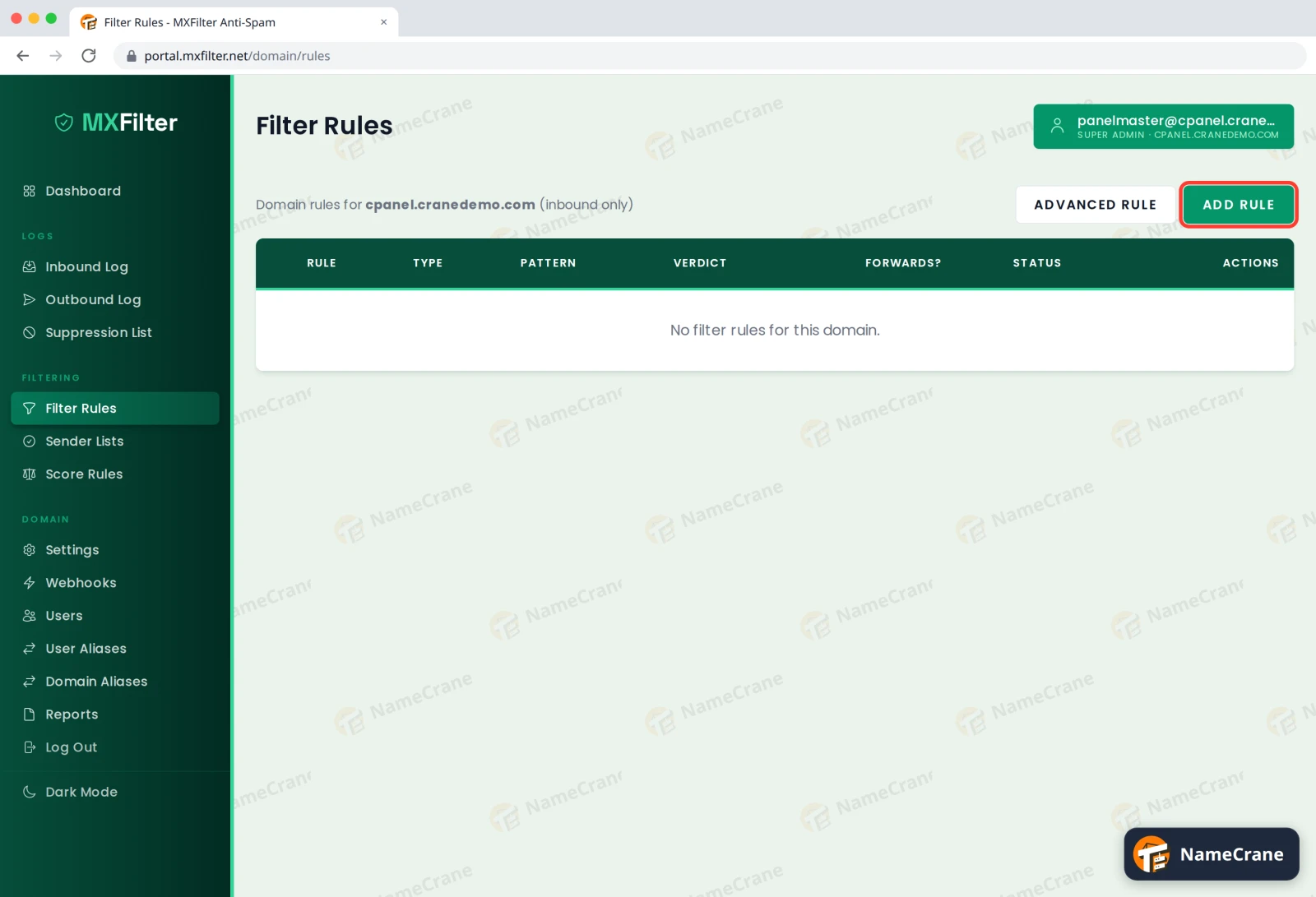
Click Add Rule.
-
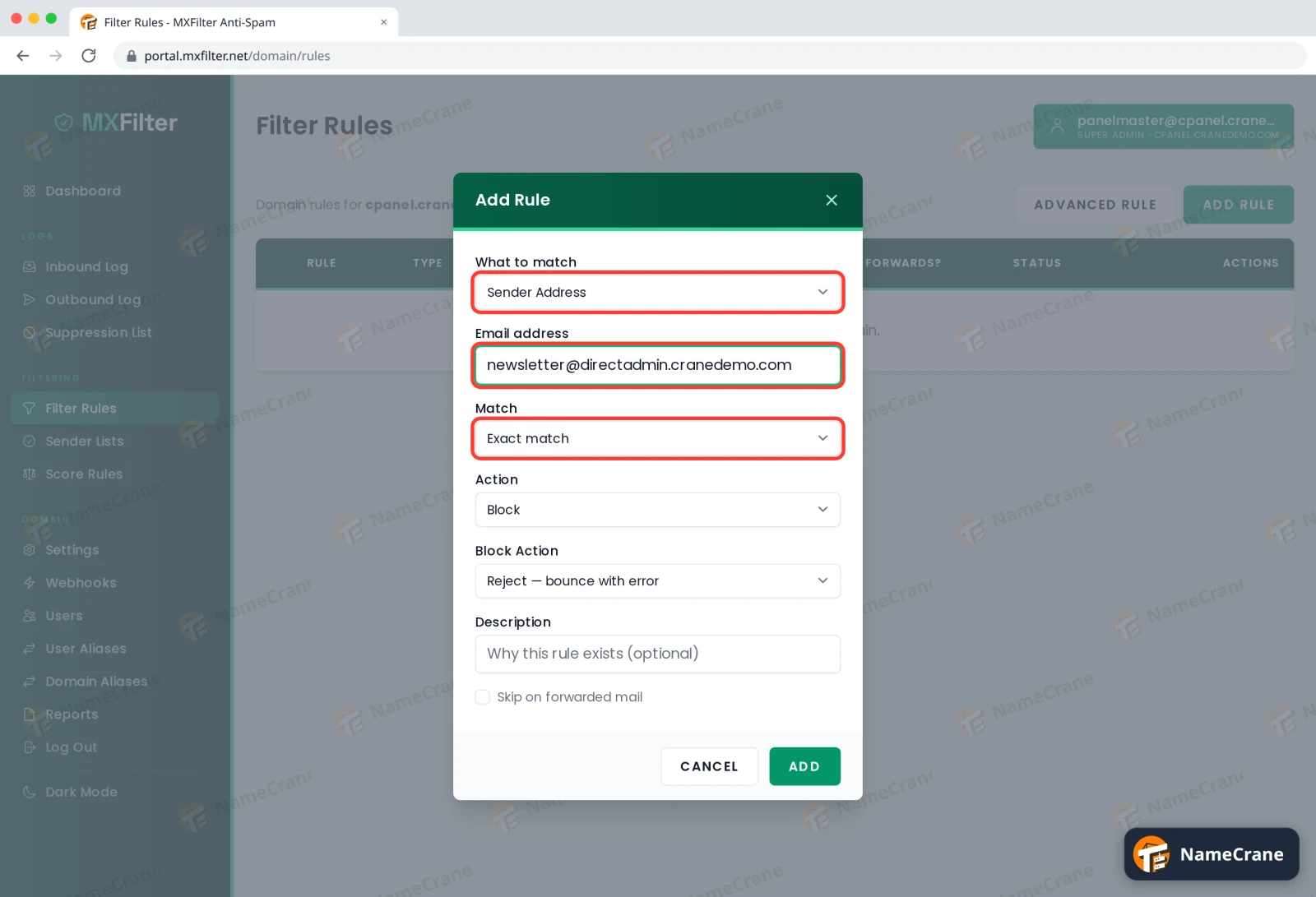
Choose what the rule should look at under What to match, then fill in the address or domain:
- Sender Domain: everything from one domain, such as
example.com. - Sender Address: one specific sender, such as
newsletter@example.com. - Recipient: mail sent to one of your own addresses.
Under Match, pick Exact match, or Contains to match any address with that text in it.
- Sender Domain: everything from one domain, such as
-
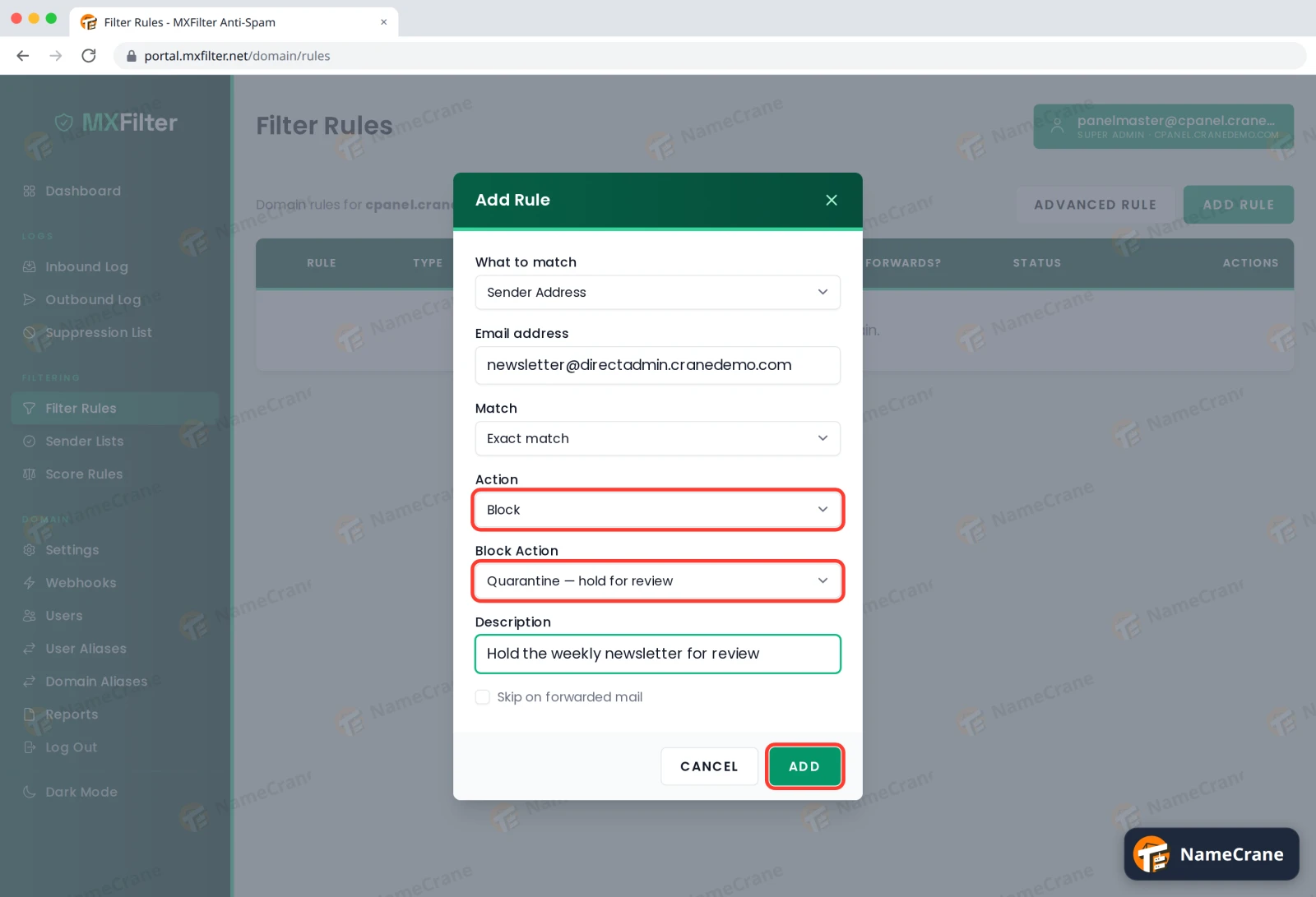
Under Action, choose Block or Allow. For a block rule, choose a Block Action (see the table below). Add a Description so you’ll remember why the rule exists, then click Add.
-
Your rule appears in the list and starts working straight away.
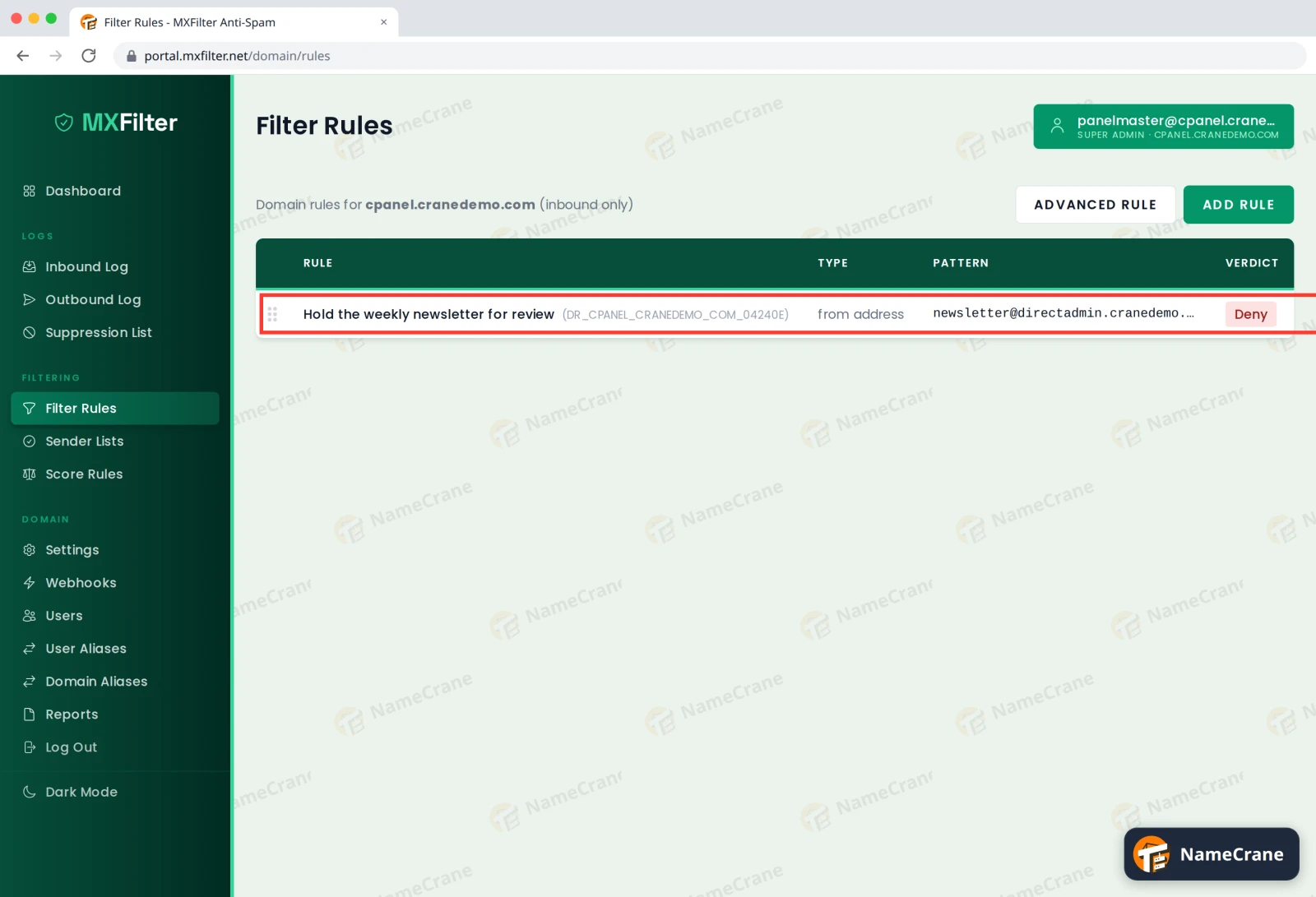
Note: The Verdict column shows Deny for every block rule, whichever block action you chose. In our test, the next newsletter was quarantined as expected.
Which block action to choose
| Block action | What happens to the email |
|---|---|
| Reject — bounce with error | Refused outright. The sender gets a bounce message and you never see it. |
| Quarantine — hold for review | Held in MXFilter. You can release it if you change your mind. |
| Tag only — deliver with spam tag | Delivered, but marked as spam so your mail app can file it away. |
Tip: If you just want to always allow or always block a few senders, Sender Lists are quicker. Rules you set for the domain take priority over any personal lists your mailbox users set up.
Skip on forwarded mail: tick this if the rule shouldn’t apply to messages that were forwarded to you from another mailbox.
Troubleshooting
| Problem | What to do |
|---|---|
| The rule doesn’t seem to apply | Rules only affect email that arrives after you create them. Check the address is spelled correctly, or switch Match to Contains. |
| I need to match the subject or message text | Use an advanced rule instead. |
| I want to change or remove a rule | Use Edit or Delete in the Actions column. On a small screen, scroll the table sideways to see it. |
| Good email is being caught by my rule | Look it up in the Inbound Log, release it, then edit the rule to be more specific. |
Snagged on something? Contact support and we’ll get you sorted.