How to Remove (Terminate) a Customer's Account in WHM
Last updated Changelog
On this page
When a customer leaves for good, terminate their account. This deletes everything in it: website files, email, databases and the account’s DNS records. It can’t be undone, so if the customer only needs a break, suspend the account instead. In this example we remove our test account, clientcranedemo.
Important: Make sure there’s a backup first. The customer can download a full copy of their account from cPanel: see Download a backup.
Steps
-
Log in to WHM. Type
terminatein the search box at the top left, then click Terminate Accounts under Account Functions.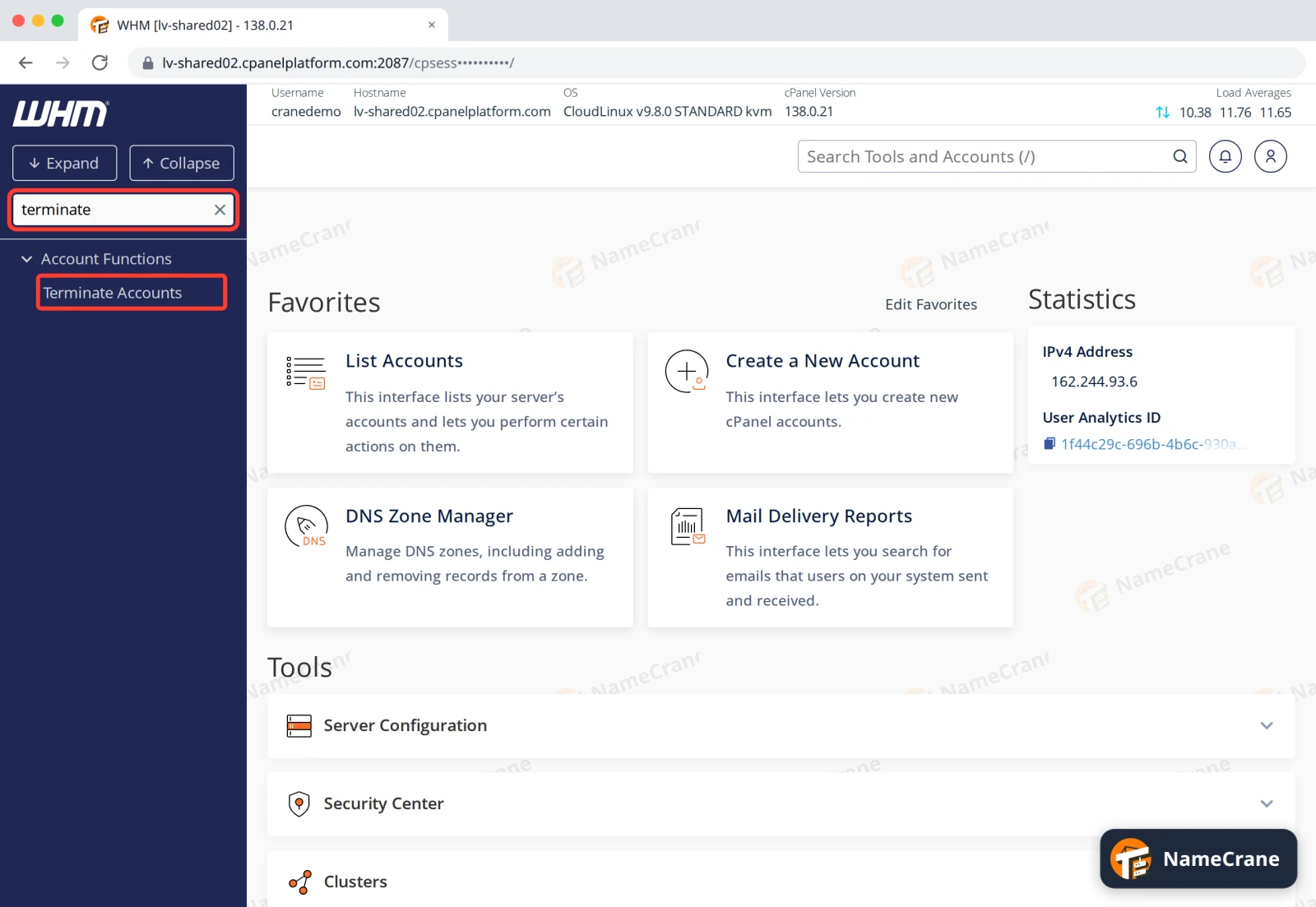
-
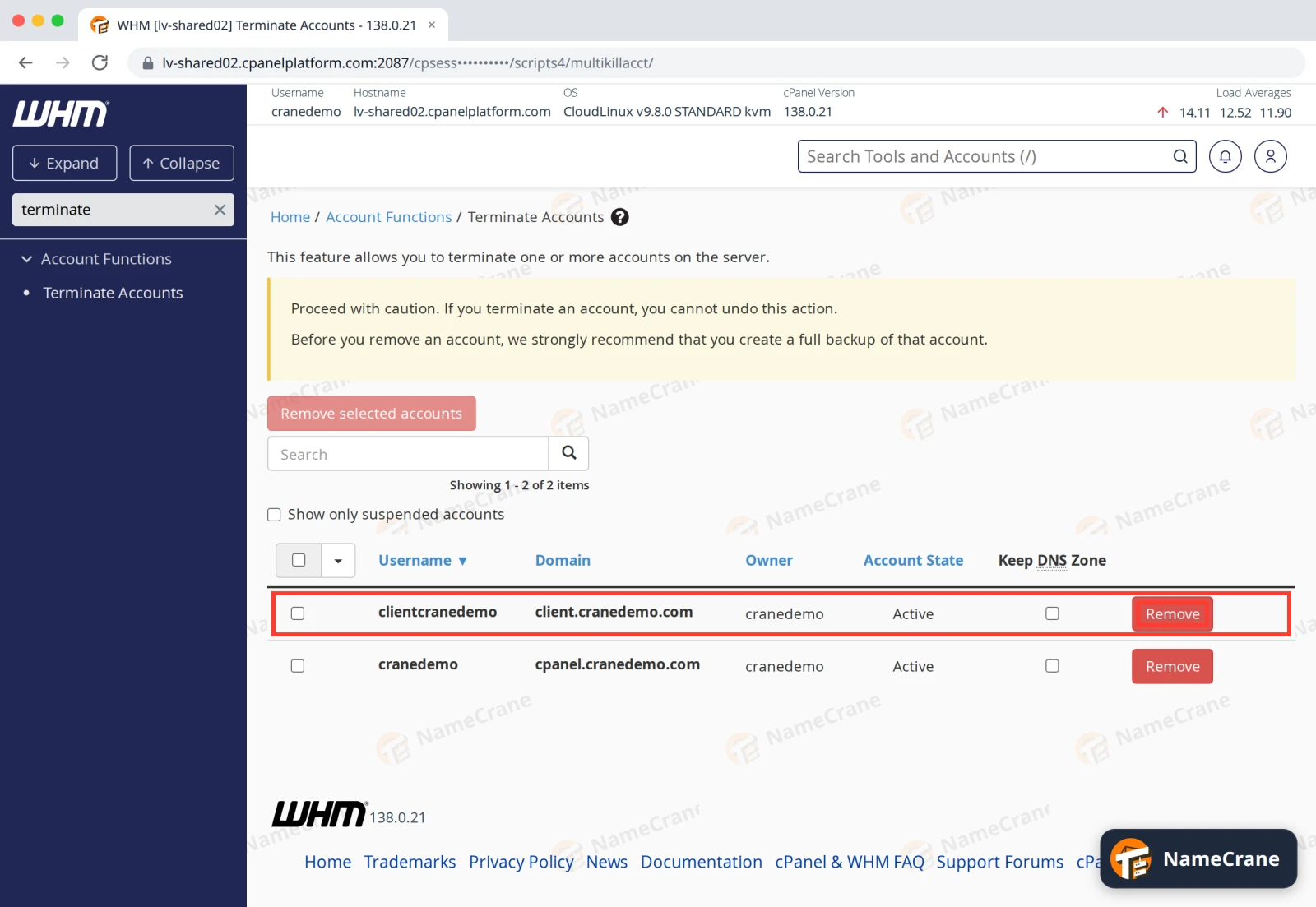
Find the customer’s account. Leave Keep DNS Zone unticked, so their domain’s DNS records go too. Then click Remove at the end of their row.
-
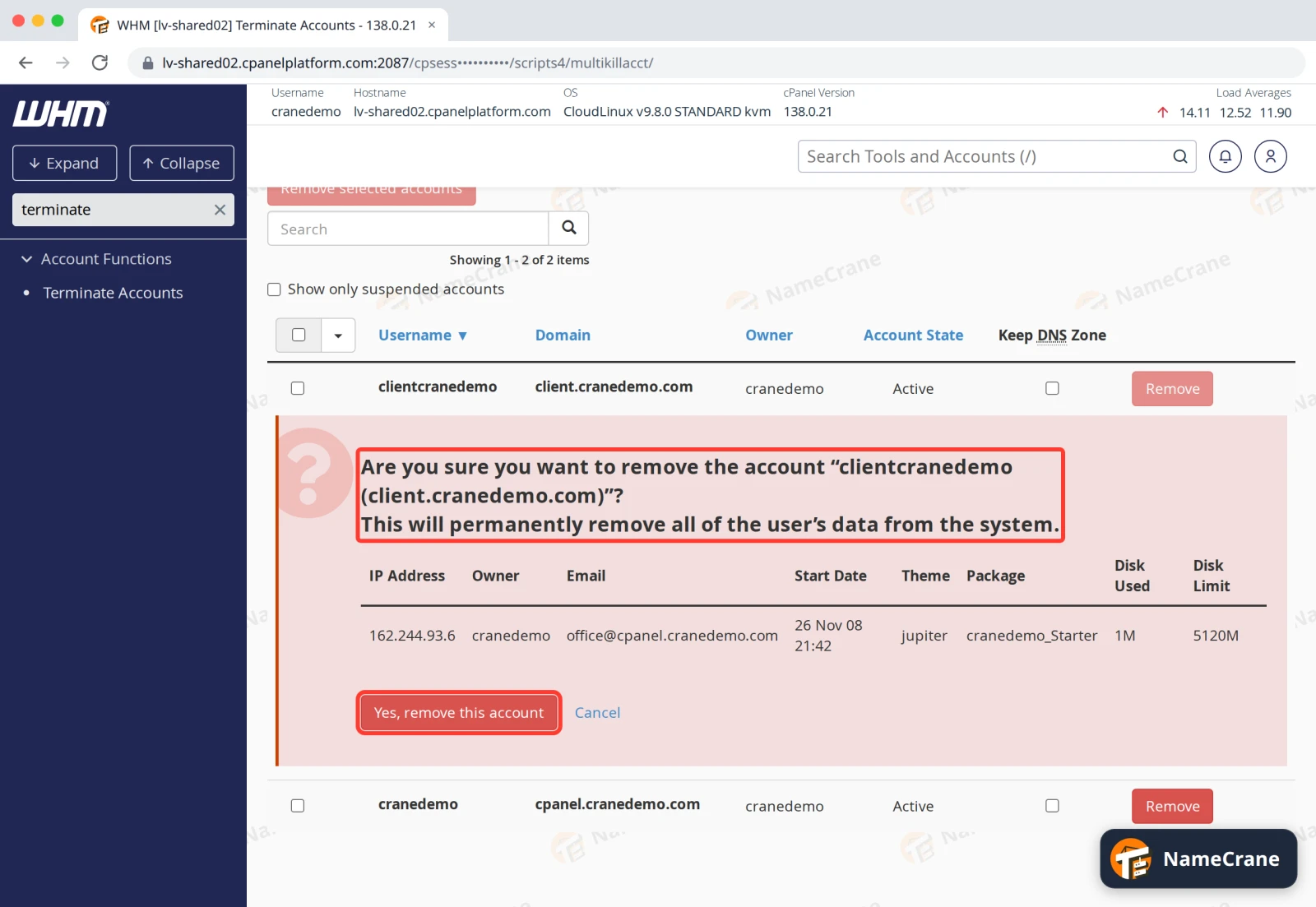
WHM asks if you’re sure, and shows the account’s details. Check it’s the right account, then click Yes, remove this account.
-
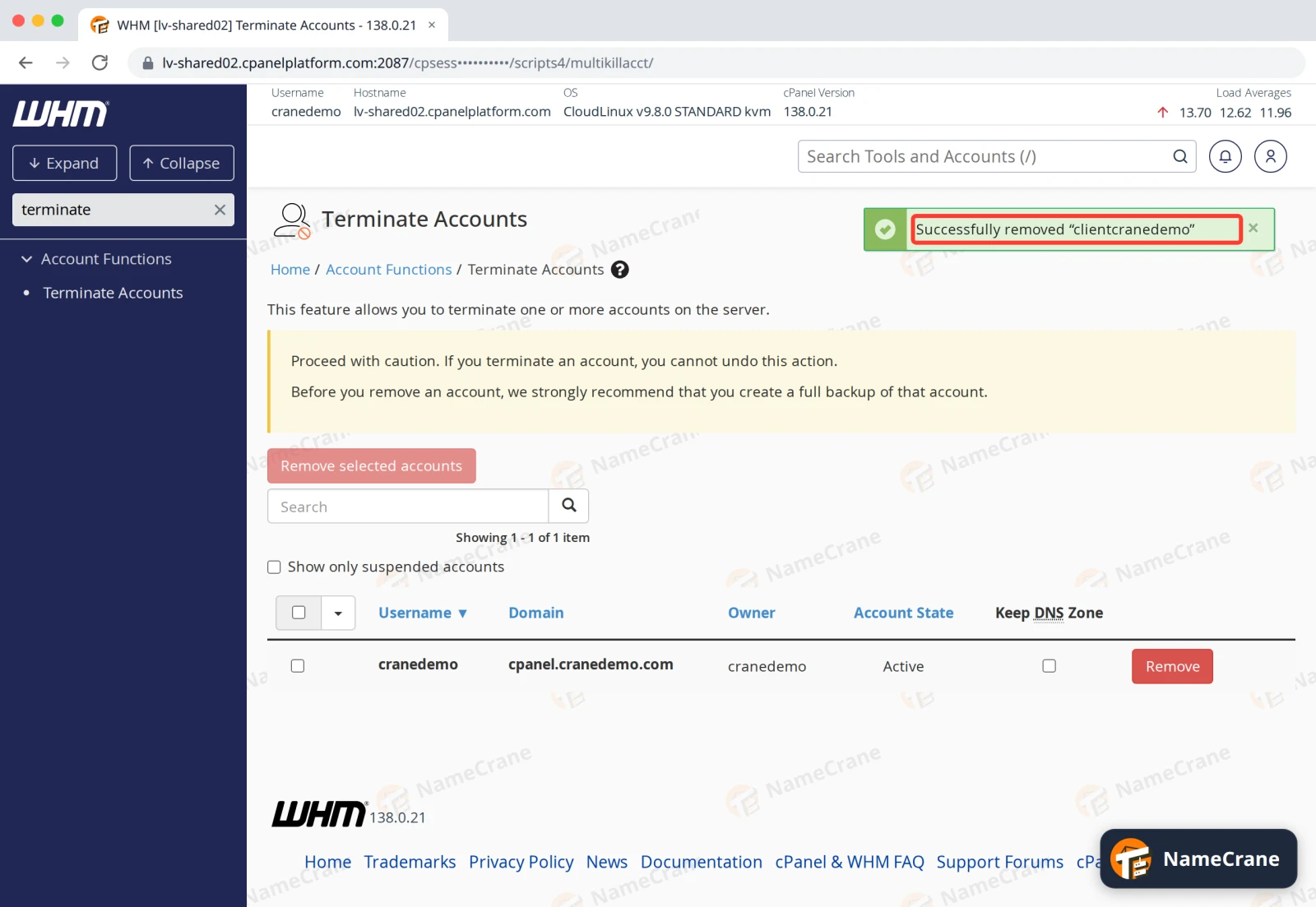
WHM shows Successfully removed and the account leaves the list. In our test it took a few seconds.
The account no longer counts towards your reseller plan’s account limit.
Tip: To remove several accounts at once, tick them and click Remove selected accounts. Show only suspended accounts helps you find old, suspended ones.
Troubleshooting
| Problem | What to do |
|---|---|
| I removed the wrong account | Contact support straight away. We can’t promise to get it back, but the sooner we know, the better. |
| The customer’s domain still shows DNS records | If you ticked Keep DNS Zone, the records stay until you delete the zone in DNS Functions. Otherwise, contact support and we’ll clear them. |
Snagged on something? Contact support and we’ll get you sorted.