How to Install WordPress in cPanel with Softaculous
Last updated Changelog
On this page
Softaculous installs WordPress, and hundreds of other apps, for you. It creates the database, uploads the files and sets up your admin login in about a minute. In this guide we’ll install WordPress on the main domain, at https://yourdomain.com.
Before you start
- Make sure your account uses PHP 7.4 or newer (we recommend 8.3). See Change your PHP version. Otherwise Softaculous will stop with “PHP version is less than the required 7.4.0”.
- Your domain should already have its free SSL certificate. See Free SSL.
Steps
-
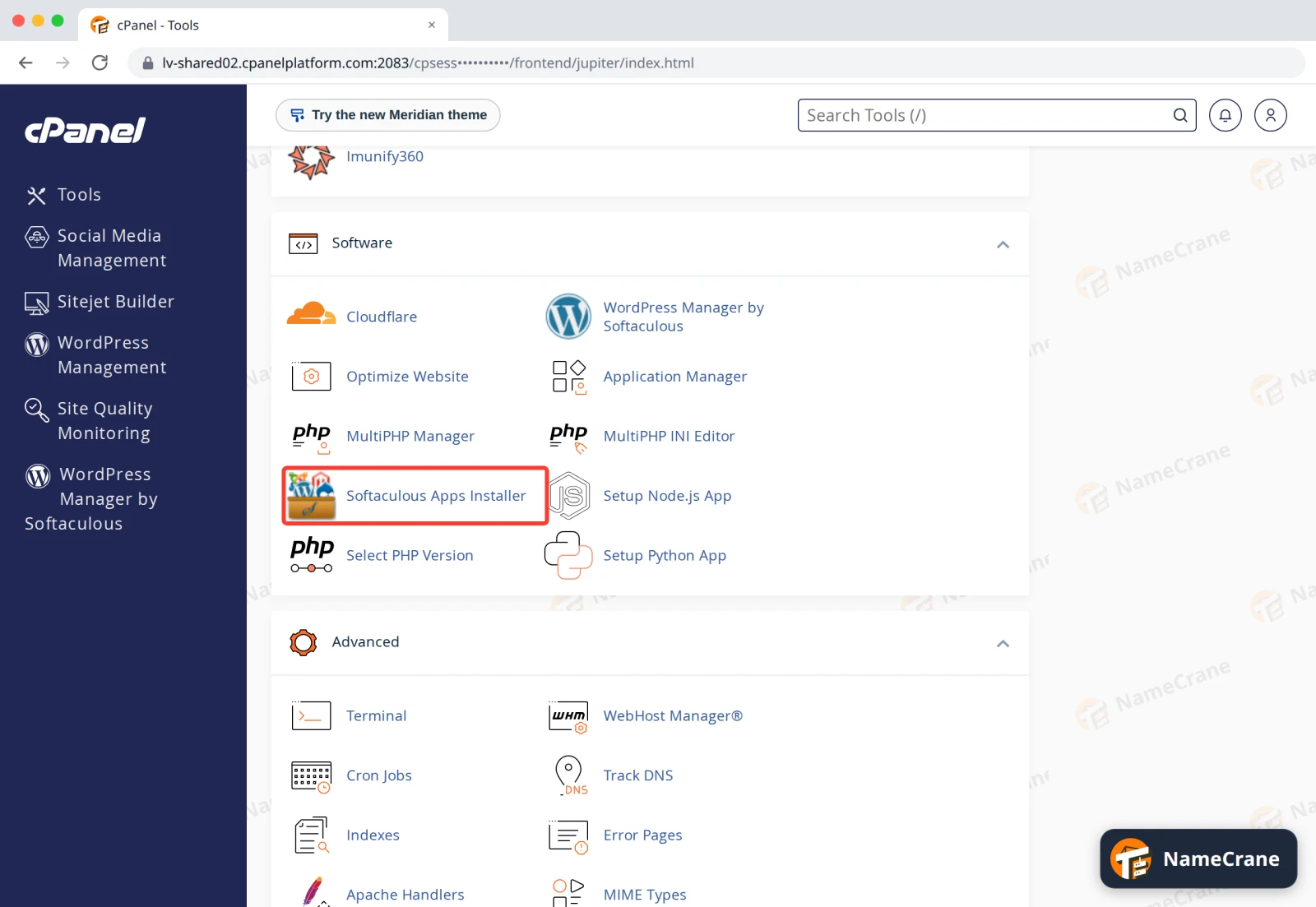
Log in to cPanel. In the Software section, click Softaculous Apps Installer.
-
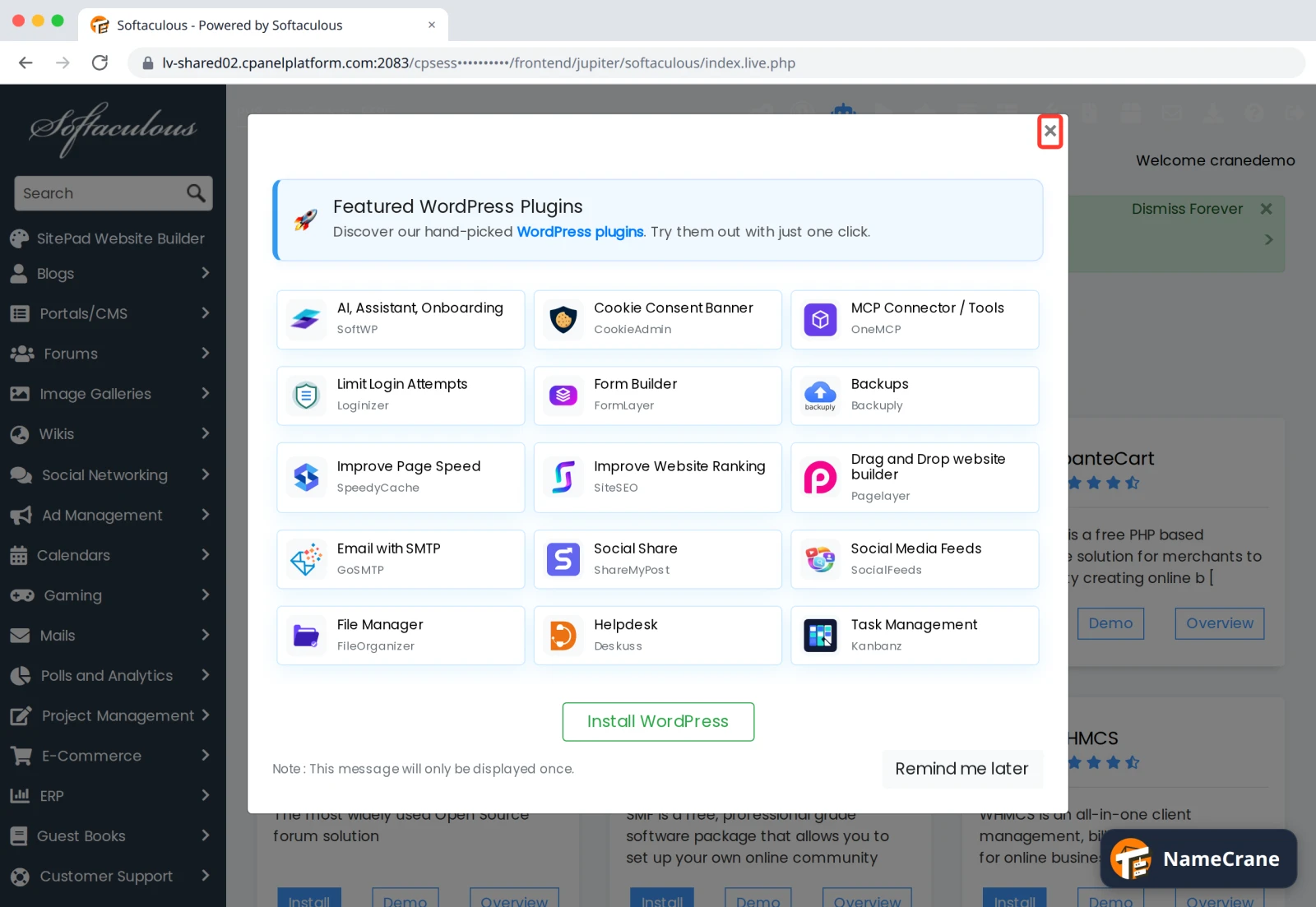
The first time you open Softaculous, it may show Featured WordPress Plugins. Close it with the × in the corner.
-
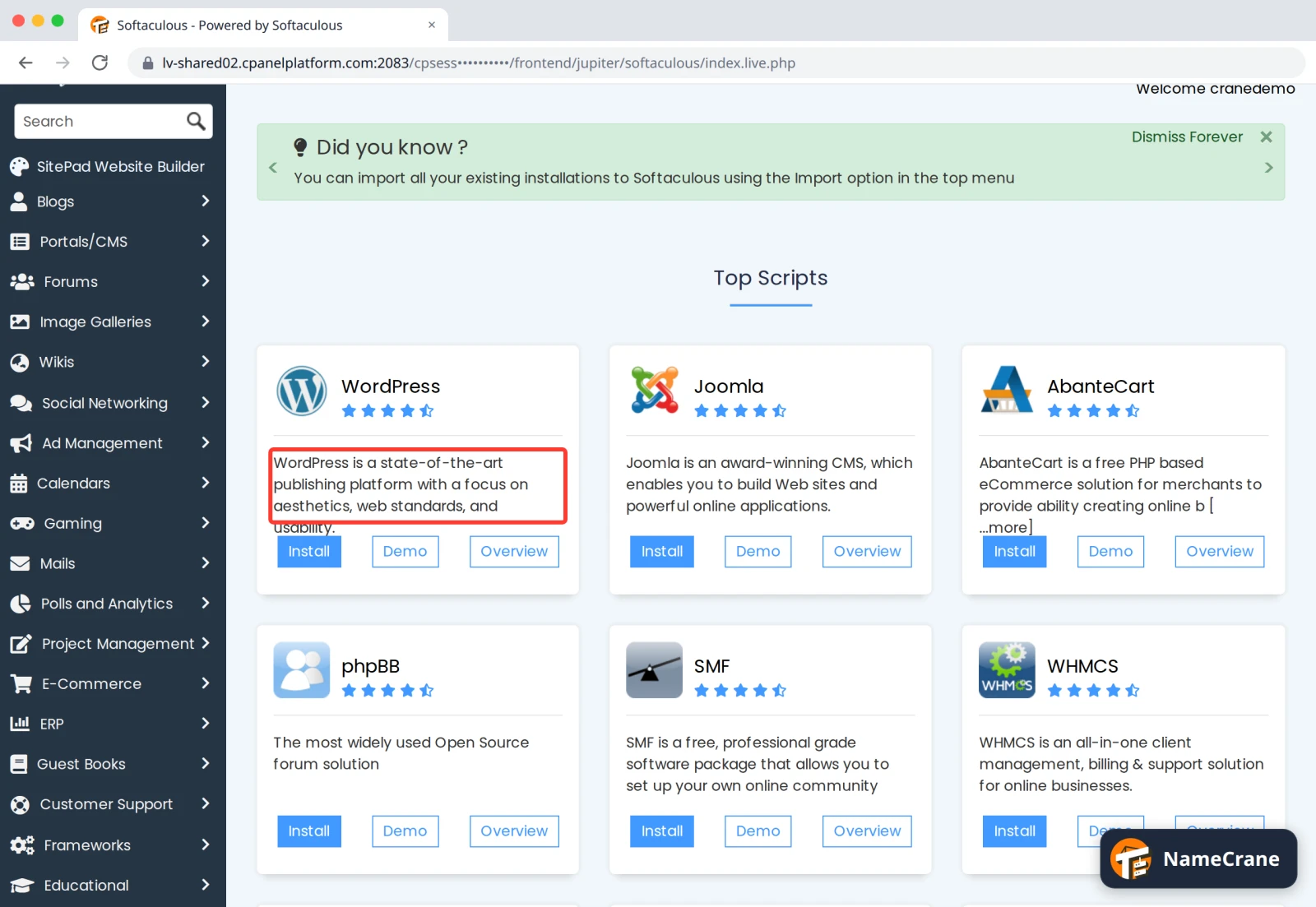
Under Top Scripts, click WordPress.
-
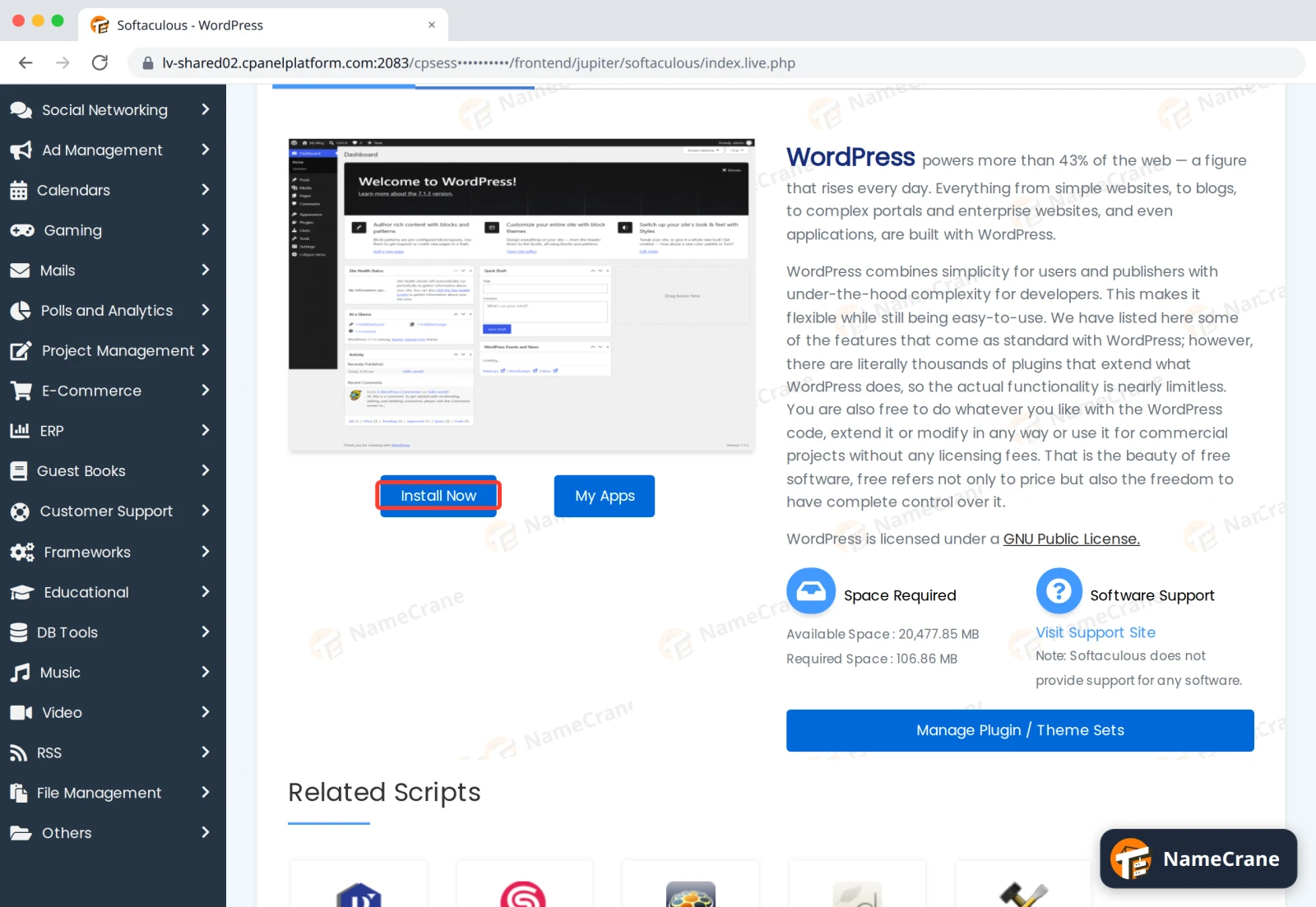
Click Install Now.
-
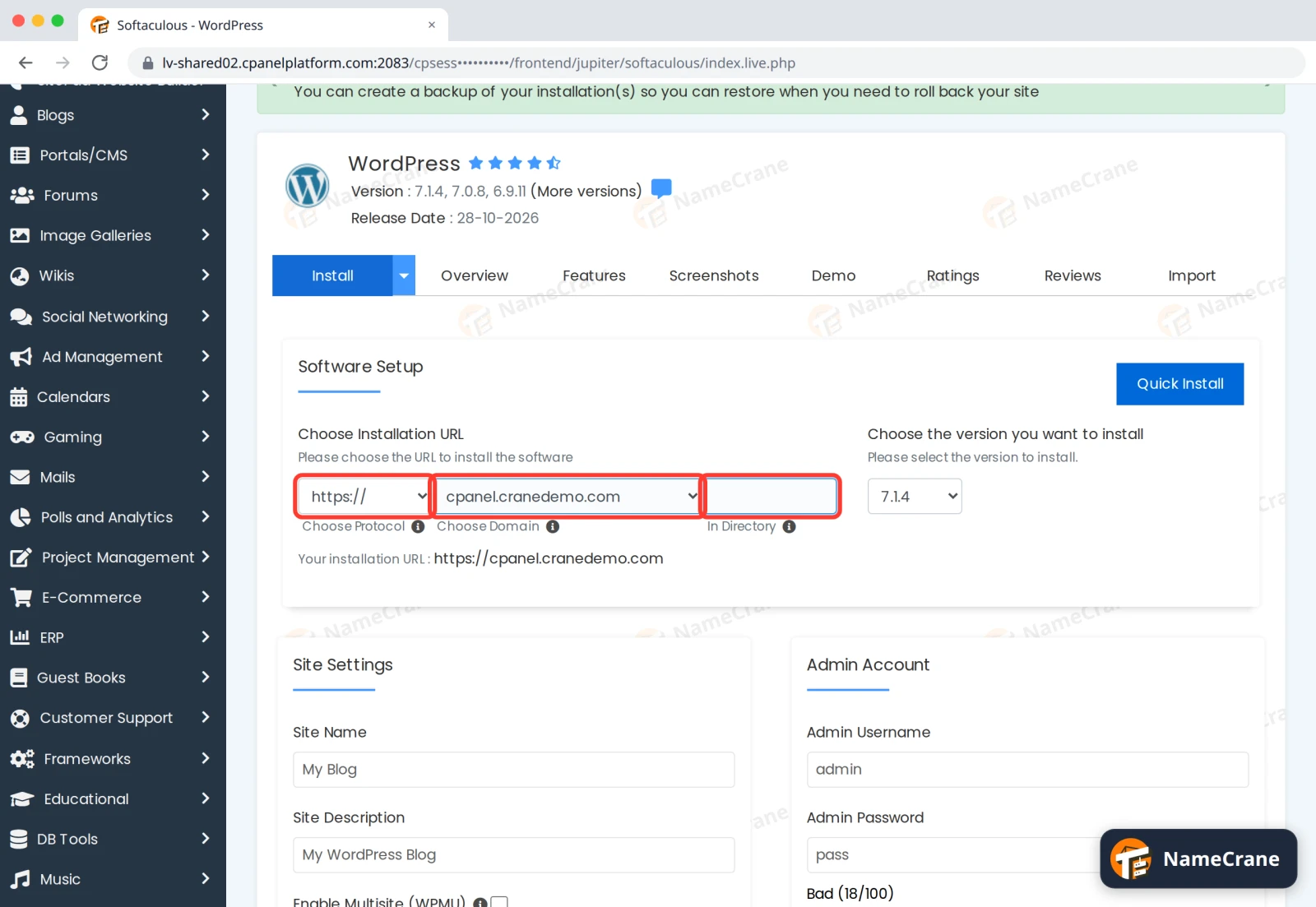
Under Software Setup, choose where to install:
- Choose Protocol: pick
https://. - Choose Domain: pick your domain.
- In Directory: delete
wpand leave it empty to install athttps://yourdomain.com. If you leavewp, the site ends up athttps://yourdomain.com/wp.
- Choose Protocol: pick
-
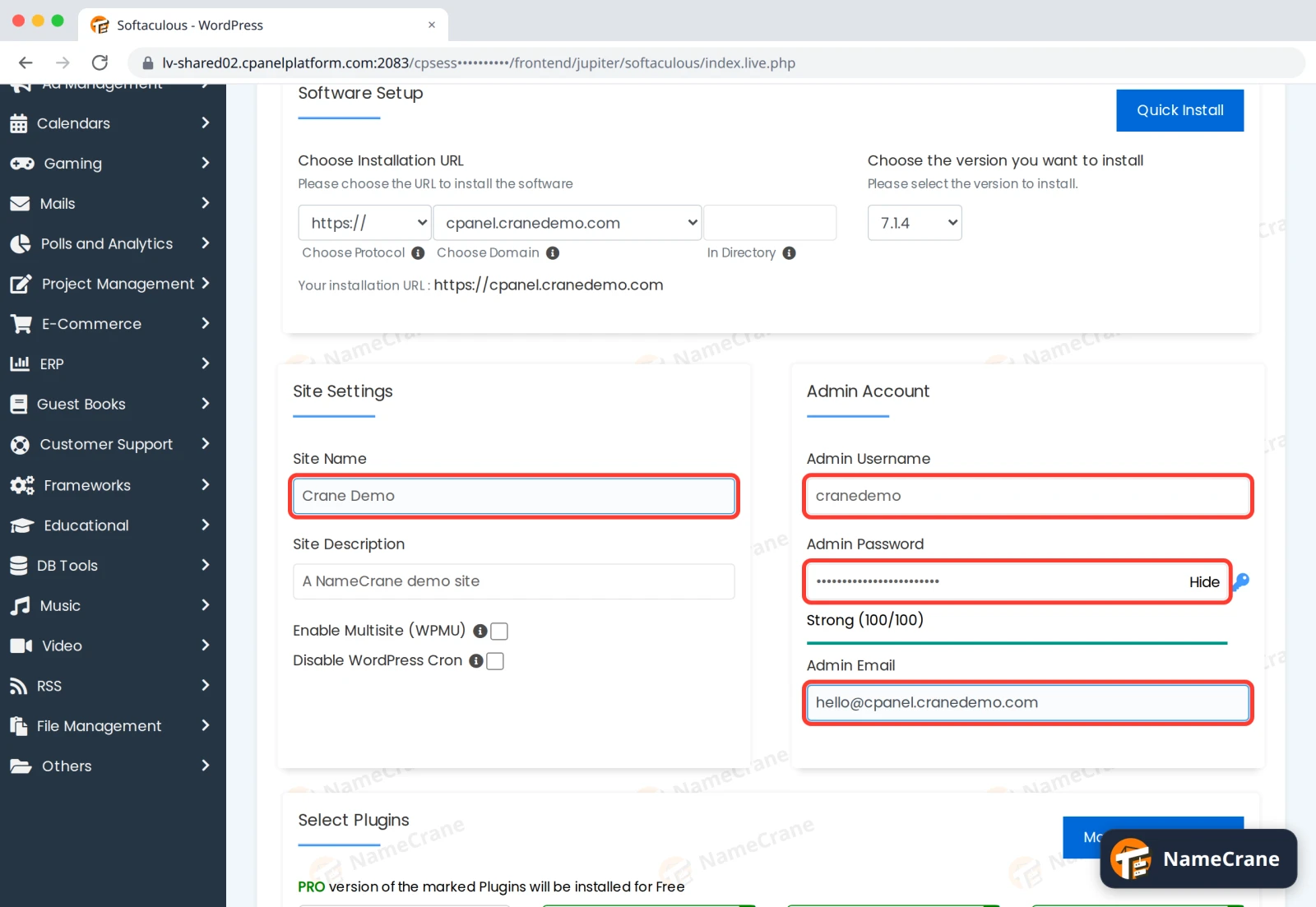
Under Site Settings and Admin Account, change the defaults:
- Site Name and Site Description: your site’s name and tagline. You can change these later in WordPress.
- Admin Username: don’t use
admin. It’s the first name attackers try. - Admin Password: replace the default with a strong password, until the meter says Strong. Note it down.
- Admin Email: an address you check. Password resets go here.
-
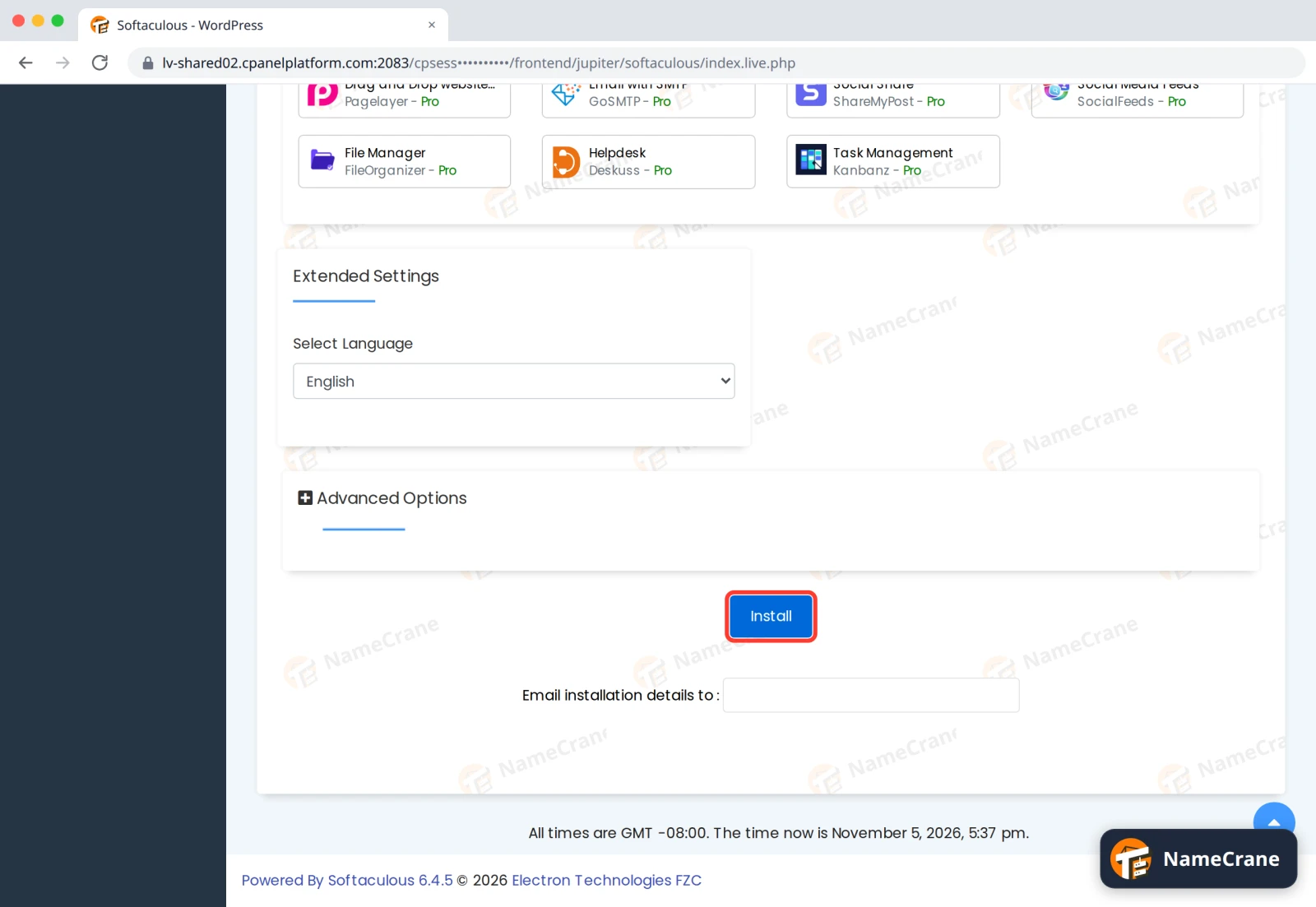
Scroll down and click Install. It takes about a minute.
-
Softaculous shows Congratulations, the software was installed successfully, with your site’s address and its Administrative URL. Visit that URL (it ends in
/wp-admin/) and log in with the username and password you chose.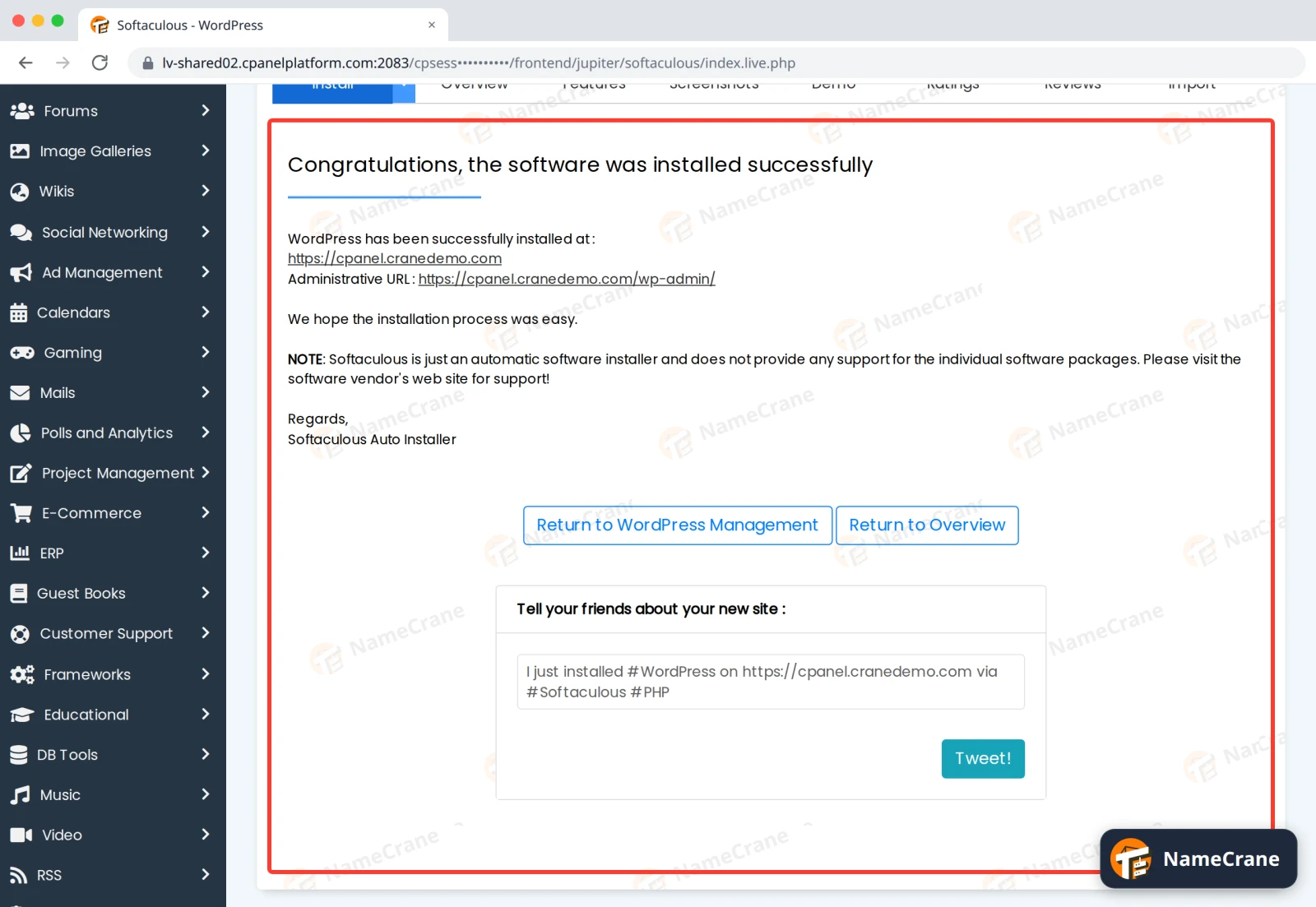
Tip: WordPress Manager by Softaculous, in cPanel’s Software section, lets you update WordPress, plugins and themes, and take backups, without logging in to each site.
Troubleshooting
| Problem | What to do |
|---|---|
| “PHP version is less than the required 7.4.0” | Switch to PHP 8.3 and try again. |
| My site is at /wp instead of the main address | You left wp in In Directory. Remove the install in Softaculous and install again with it empty, or move the site. |
| Softaculous says the folder already has files | Something is already installed there. Back it up, then remove it first, or install in a new folder. |
| I forgot my WordPress password | Use Lost your password? on the login page, which emails your Admin Email. |
Snagged on something? Contact support and we’ll get you sorted.