How to Add or Edit DNS Records in cPanel (Zone Editor)
Last updated Changelog
On this page
DNS records tell the internet where to find your website, where to deliver your email, and prove you own your domain to services like Google or Microsoft. In cPanel you manage them in the Zone Editor. In this example we’ll add an A record so staging.yourdomain.com points at your hosting server.
Note: The Zone Editor only affects your domain if it uses the nameservers shown at the top of the zone (Configured nameservers for this zone). If your domain’s DNS is managed somewhere else, such as at your registrar or Cloudflare, make the change there instead.
Steps
-
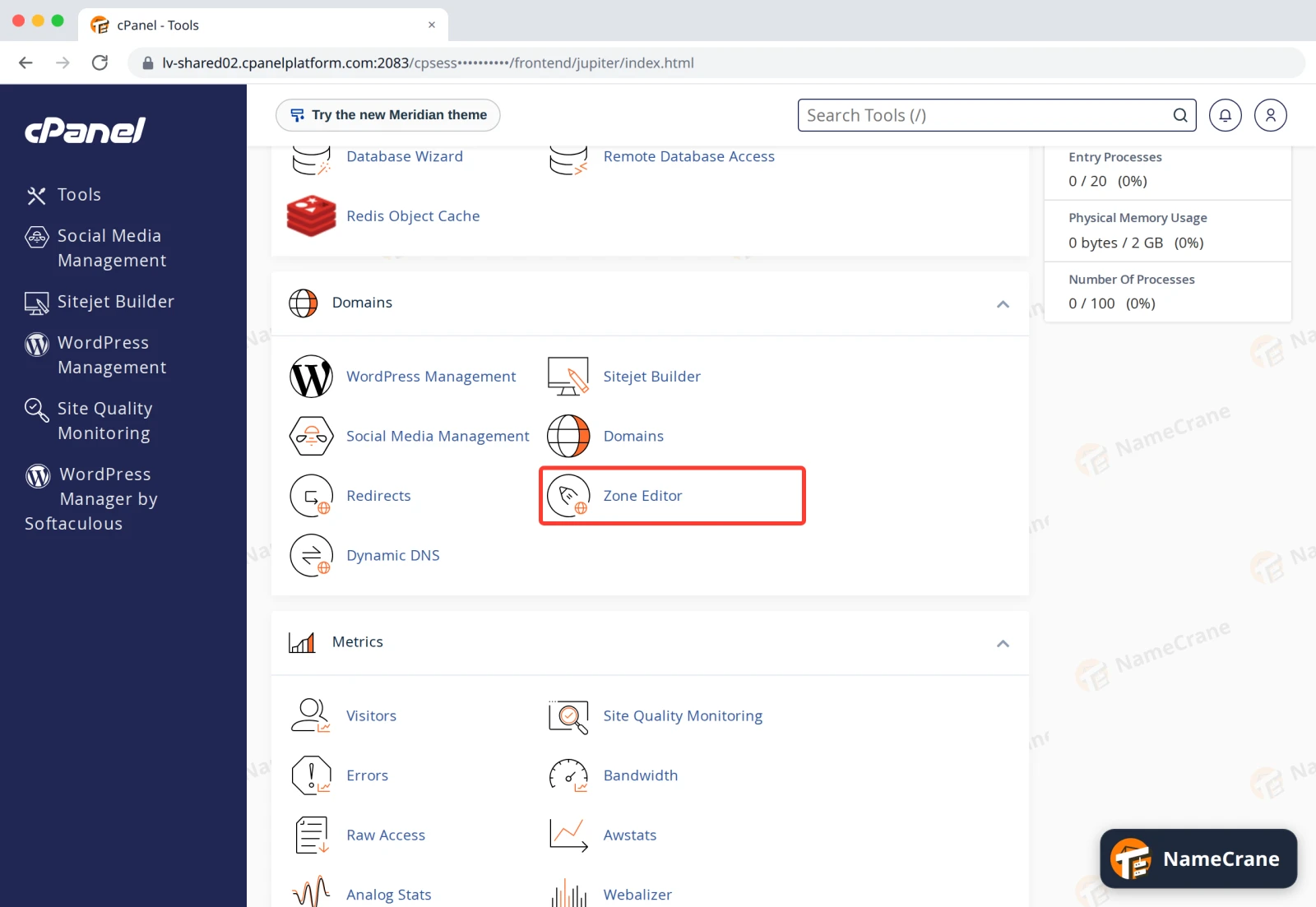
Log in to cPanel. In the Domains section, click Zone Editor.
-
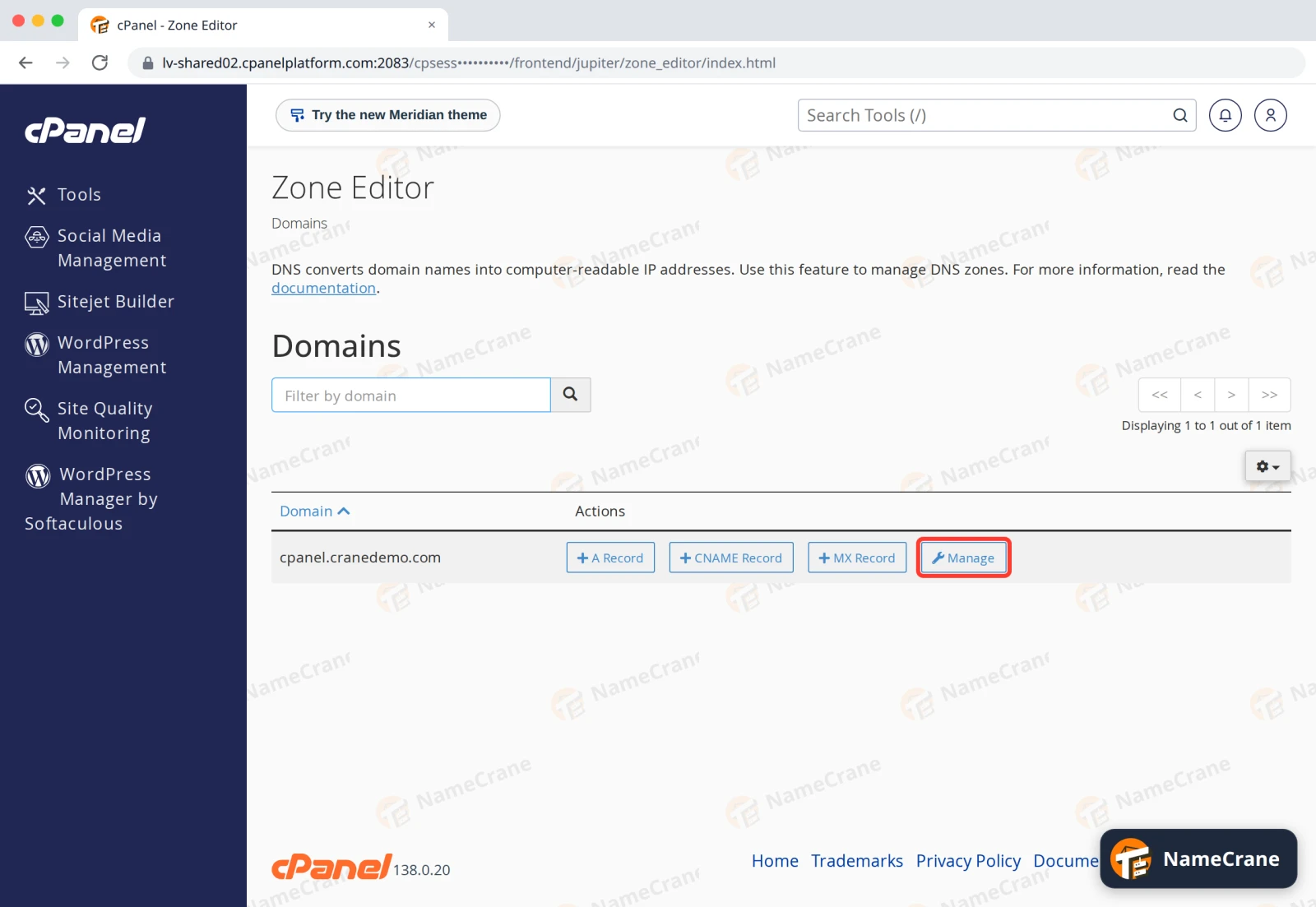
Next to your domain, click Manage. The + A Record, + CNAME Record and + MX Record buttons are shortcuts for adding those types quickly.
-
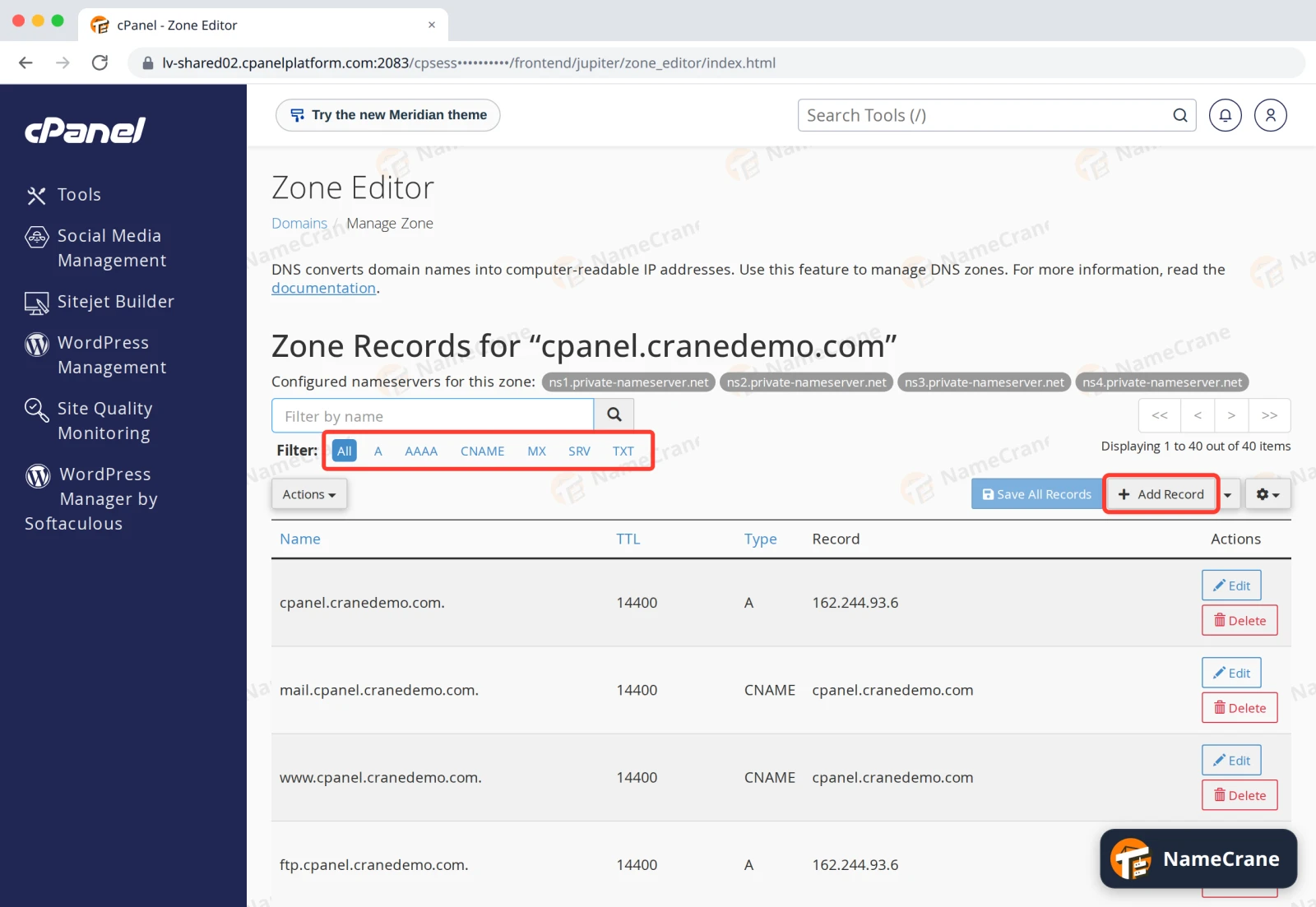
You’ll see every record in the zone. Use the Filter links (A, CNAME, MX, TXT and so on) to narrow the list. Click Add Record.
-
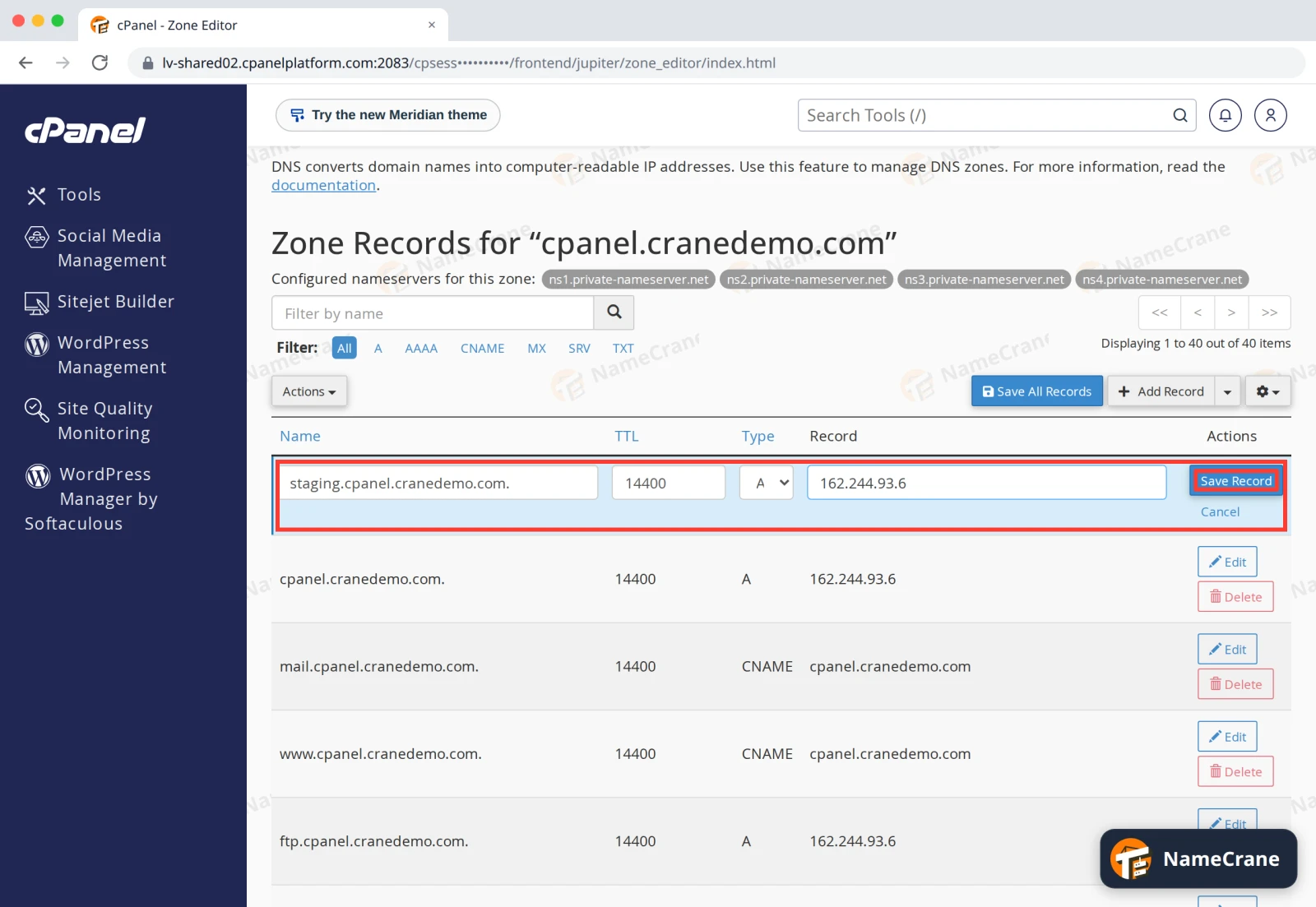
A new row appears at the top. Fill it in:
- Name: the subdomain, such as
staging. cPanel completes it tostaging.yourdomain.com.. For the domain itself, use just your domain name. - TTL: how long, in seconds, other servers may cache the record. The default, 14400 (4 hours), is fine.
- Type and Record: see the table below. For an
Arecord, enter an IPv4 address.
Then click Save Record.
- Name: the subdomain, such as
-
cPanel confirms the record was saved, and it appears in the list. To change or remove a record later, use Edit or Delete next to it.
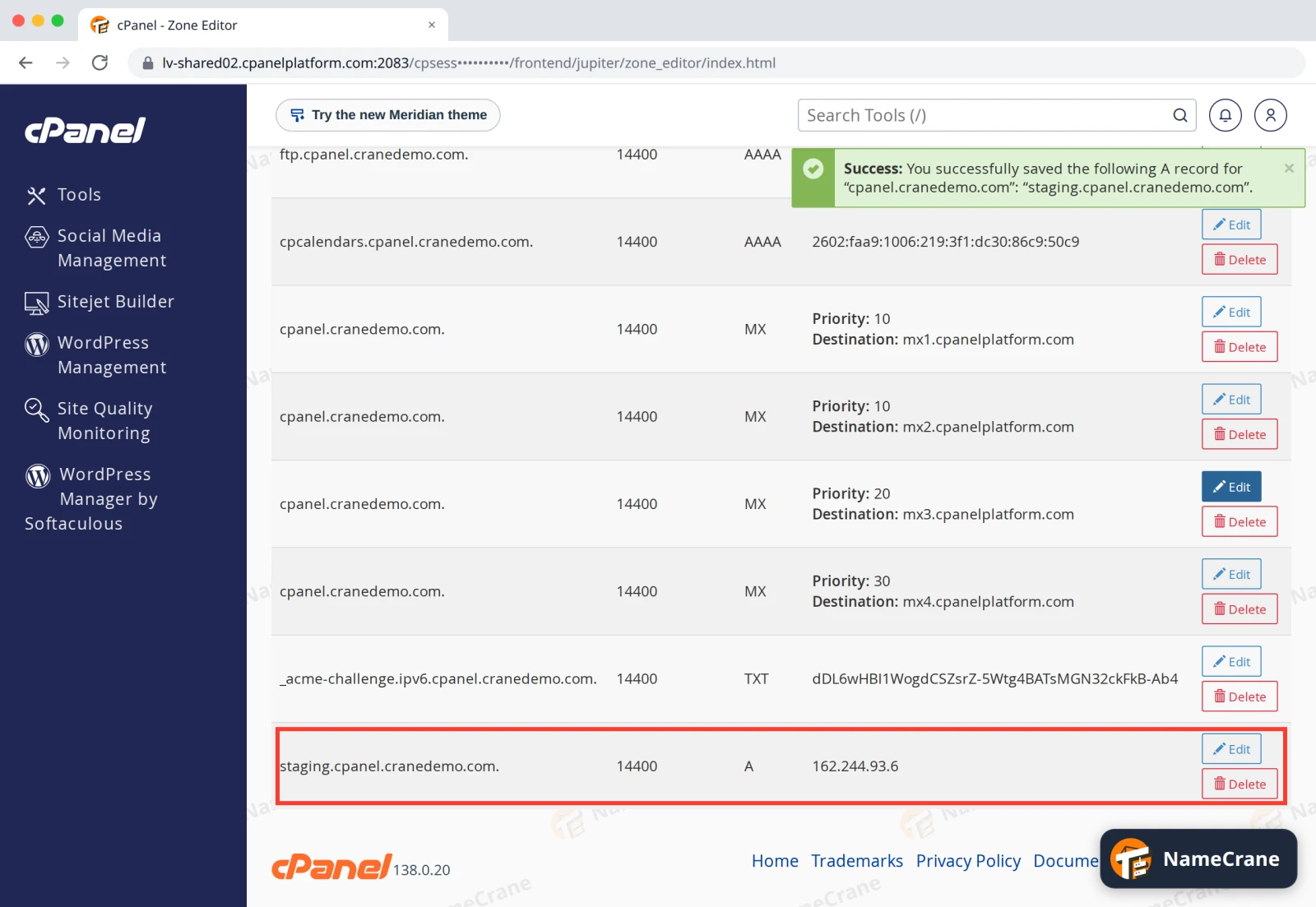
Changes usually work within minutes. Other networks may keep using the old answer until its TTL runs out.
Common record types
| Type | Use it for | The record value is |
|---|---|---|
| A | Pointing a name at a server | An IPv4 address, such as 162.244.93.6 |
| AAAA | The same, for IPv6 | An IPv6 address |
| CNAME | Making a name an alias of another name | A hostname, such as shops.myshopify.com |
| MX | Telling the world where to deliver your email | A mail server and a priority (lower is tried first) |
| TXT | Verifying your domain, and email security (SPF, DKIM, DMARC) | Text supplied by the service, such as v=spf1 … |
| CAA | Limiting which companies can issue SSL certificates for you | An issuer, such as letsencrypt.org |
| SRV | Services like VoIP or Microsoft Teams | Priority, weight, port and target, supplied by the service |
Warning: Your domain’s MX records send email through NameCrane’s spam filtering (
mx1–mx4.cpanelplatform.com). Only change them if you’re moving your email elsewhere. See Use Google Workspace or Microsoft 365.
Troubleshooting
| Problem | What to do |
|---|---|
| My change isn’t showing up | Wait for the old TTL to run out, up to 4 hours with the default. You can check what the world sees with an online DNS lookup tool. |
| cPanel says the record already exists | Edit the existing record instead of adding a second one, unless the service asks for several, as with multiple TXT records. |
| A service says it can’t find my TXT record | Check you put the Name exactly as they asked. Some want just your domain, others a prefix such as _dmarc. |
| I deleted something by mistake | Add it again with the same values. If you’re unsure what it was, contact support. |
Snagged on something? Contact support and we’ll get you sorted.