A Quick Tour of Your DirectAdmin Dashboard
Last updated Changelog
On this page
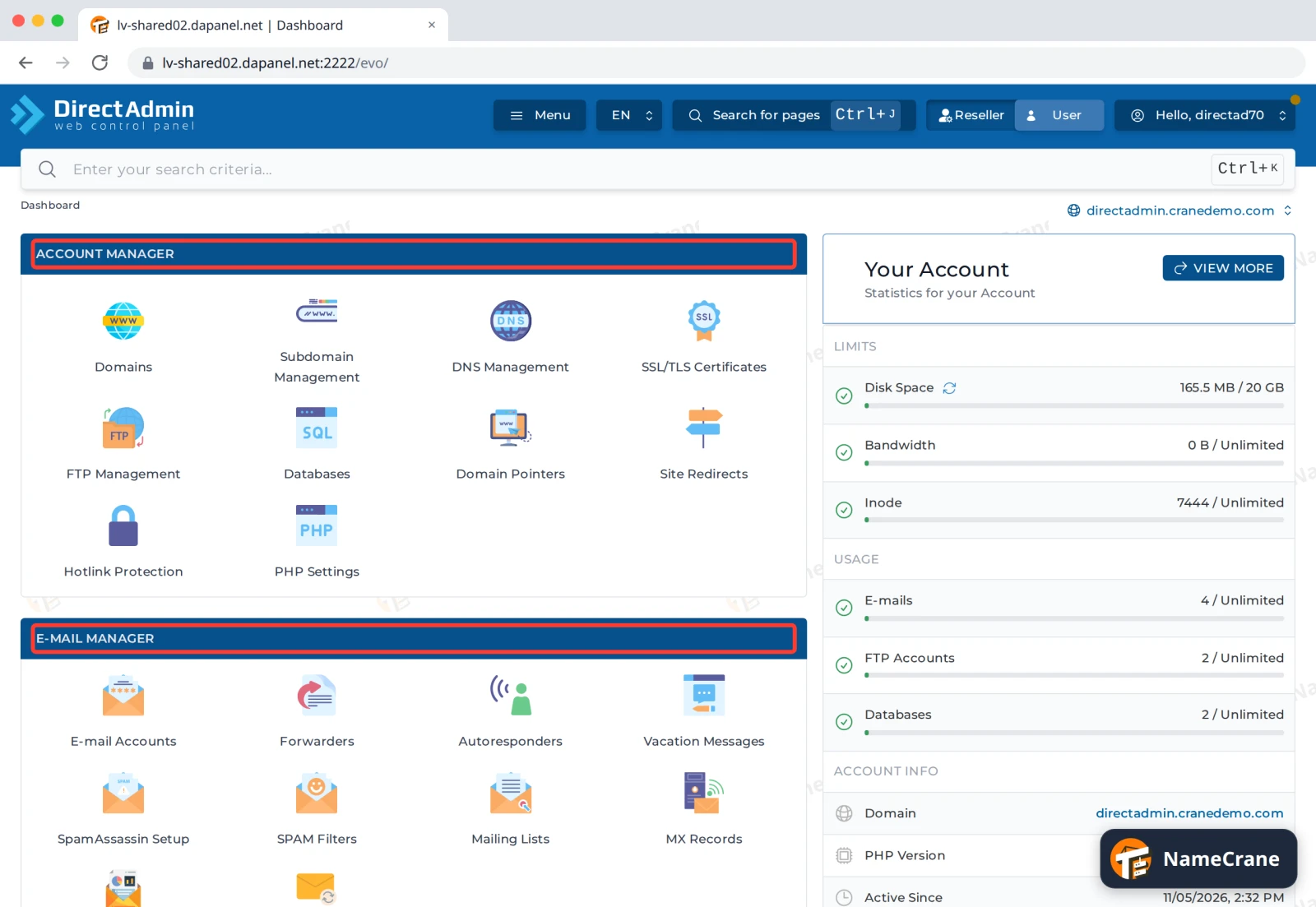
When you log in, DirectAdmin opens on its Dashboard. Everything you need is reachable from here. This tour shows where things are, so the rest of our guides make sense straight away. Our pictures use the Icons Grid layout; see the end of this guide to switch to it.
Browse the sections
The tools are grouped into sections: Account Manager (domains, DNS, SSL, FTP, databases), E-mail Manager, Advanced Features, System Info & Files and Extra Features. Click an icon to open the tool.
Find a tool
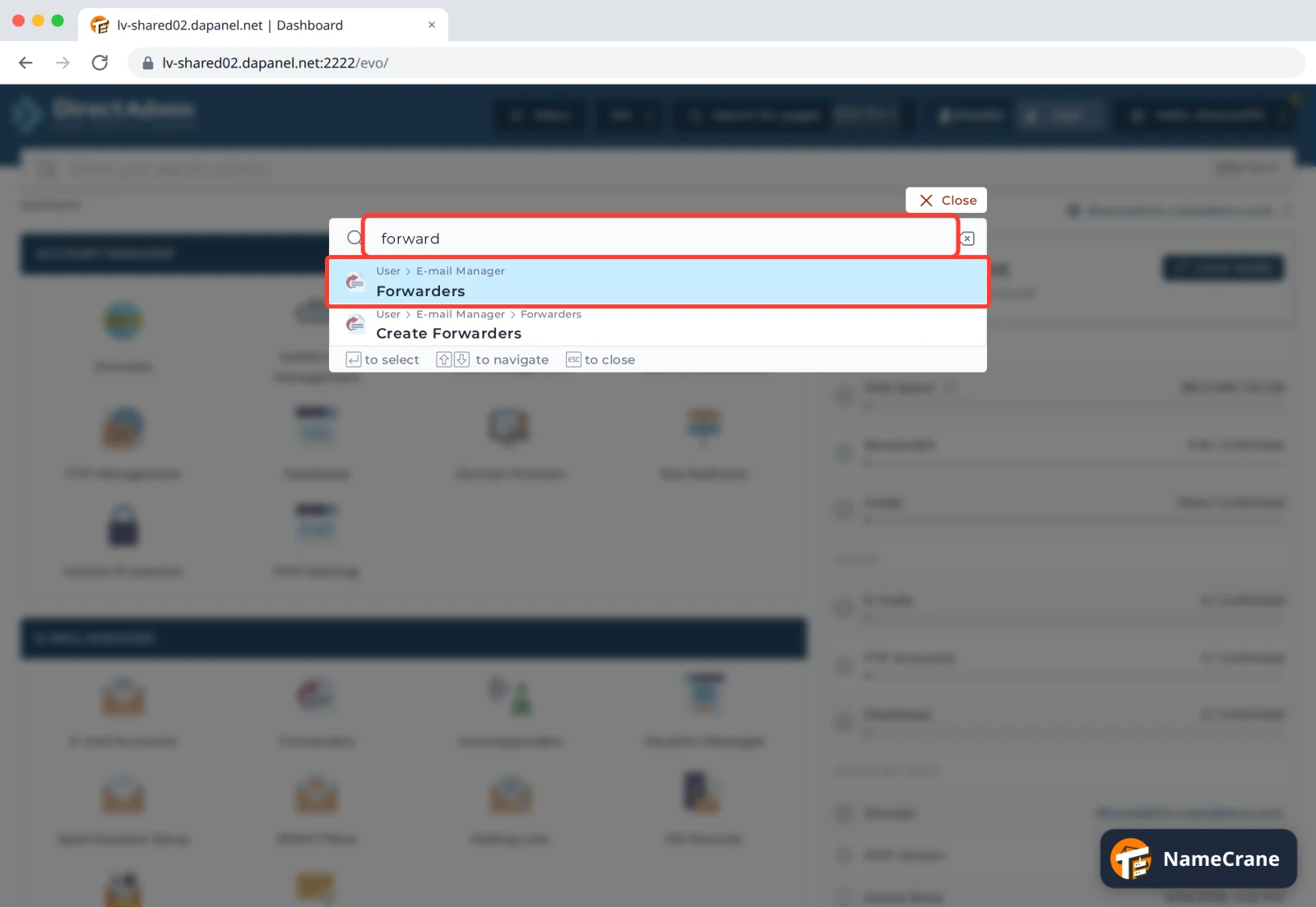
Click Search for pages in the top bar (or press Ctrl + J), type what you want, such as forward, and pick the page from the list.
Find your own things
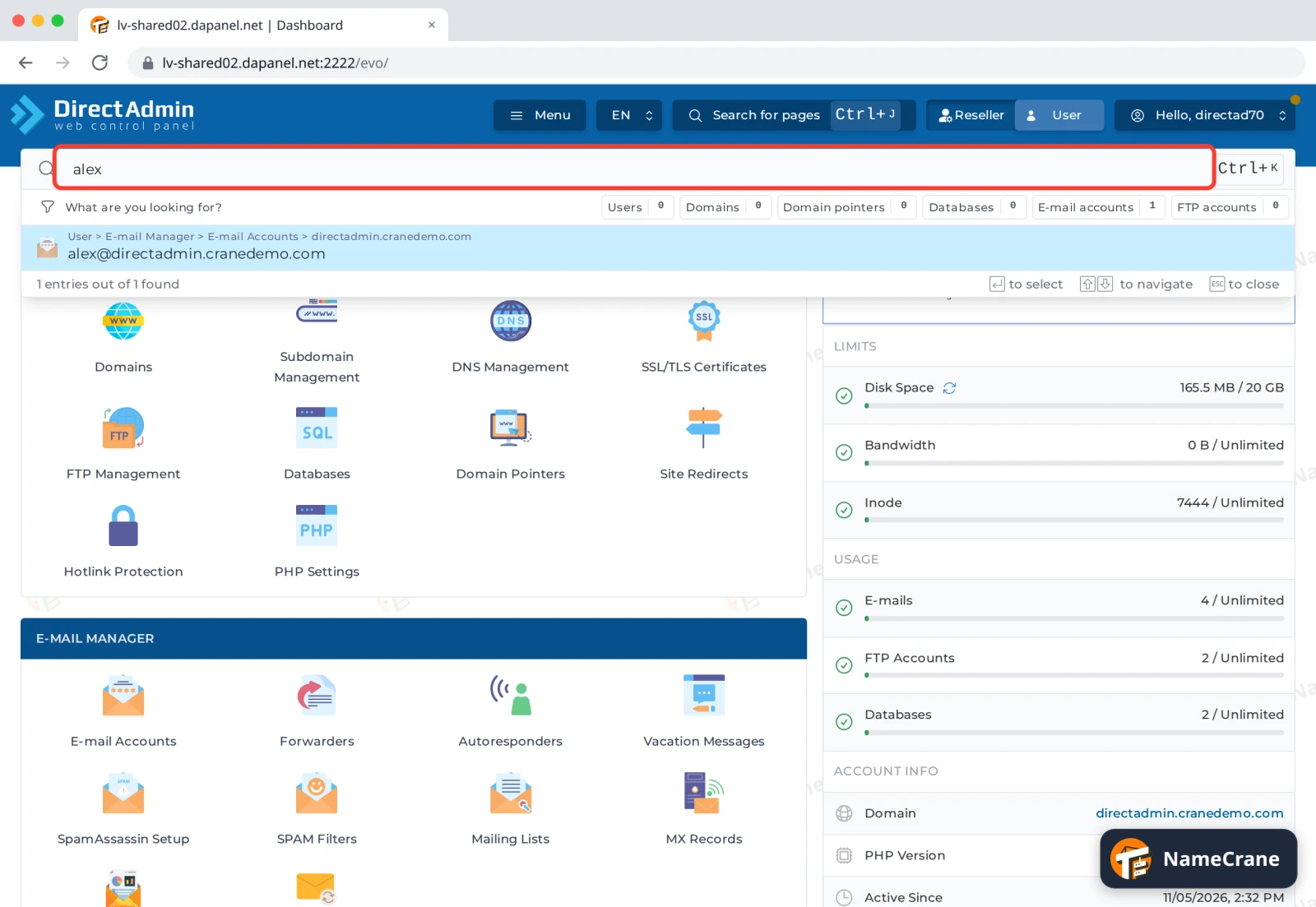
The search box below the top bar (Ctrl + K) searches what’s in your account instead: domains, email accounts, databases and FTP accounts. Type part of a name, such as alex, to jump straight to it.
What you’ve used
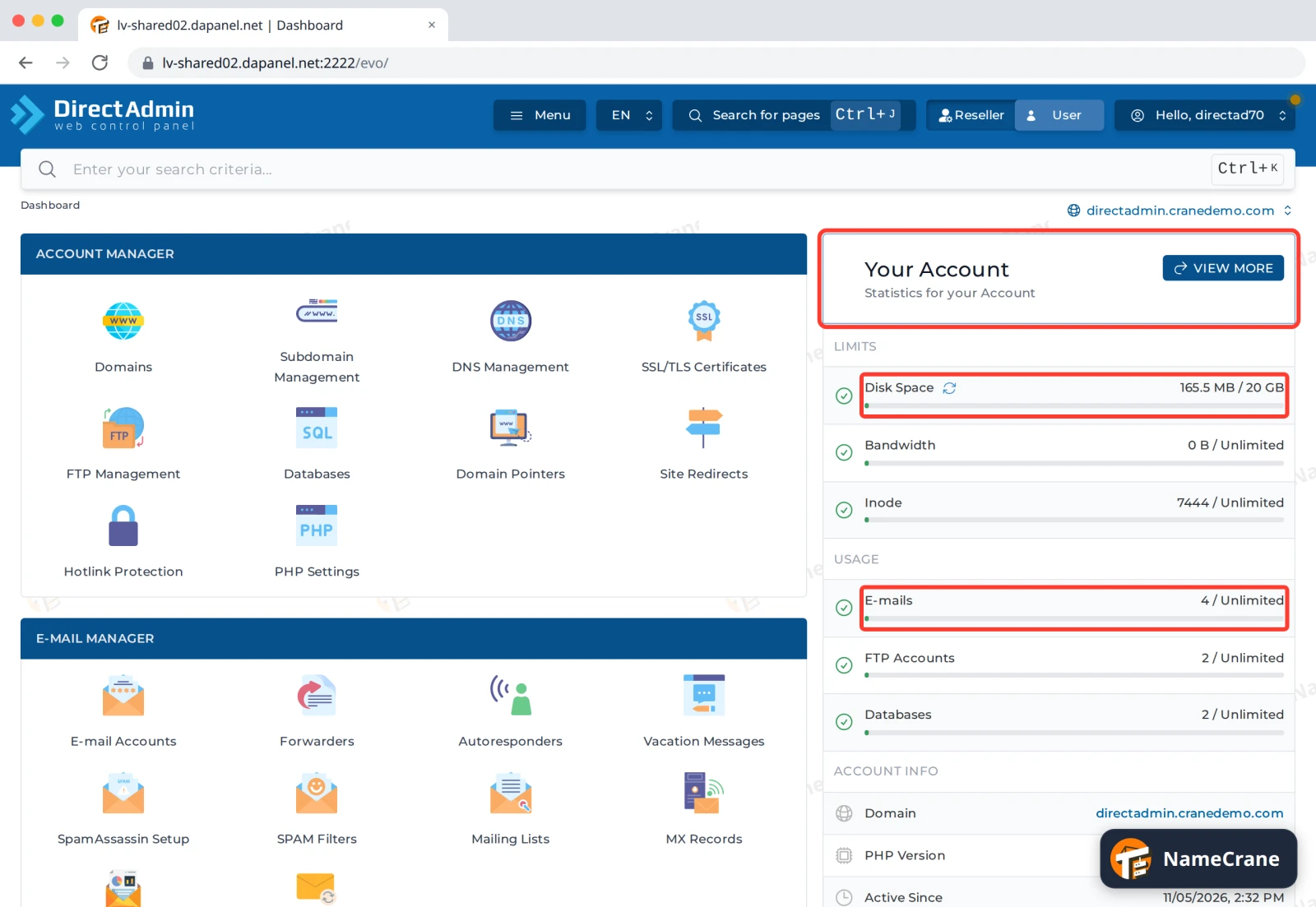
Your Account on the right shows your plan’s limits and how much you’ve used, such as disk space and email accounts. Click VIEW MORE for the details. See Check your disk space.
Switch between your domains
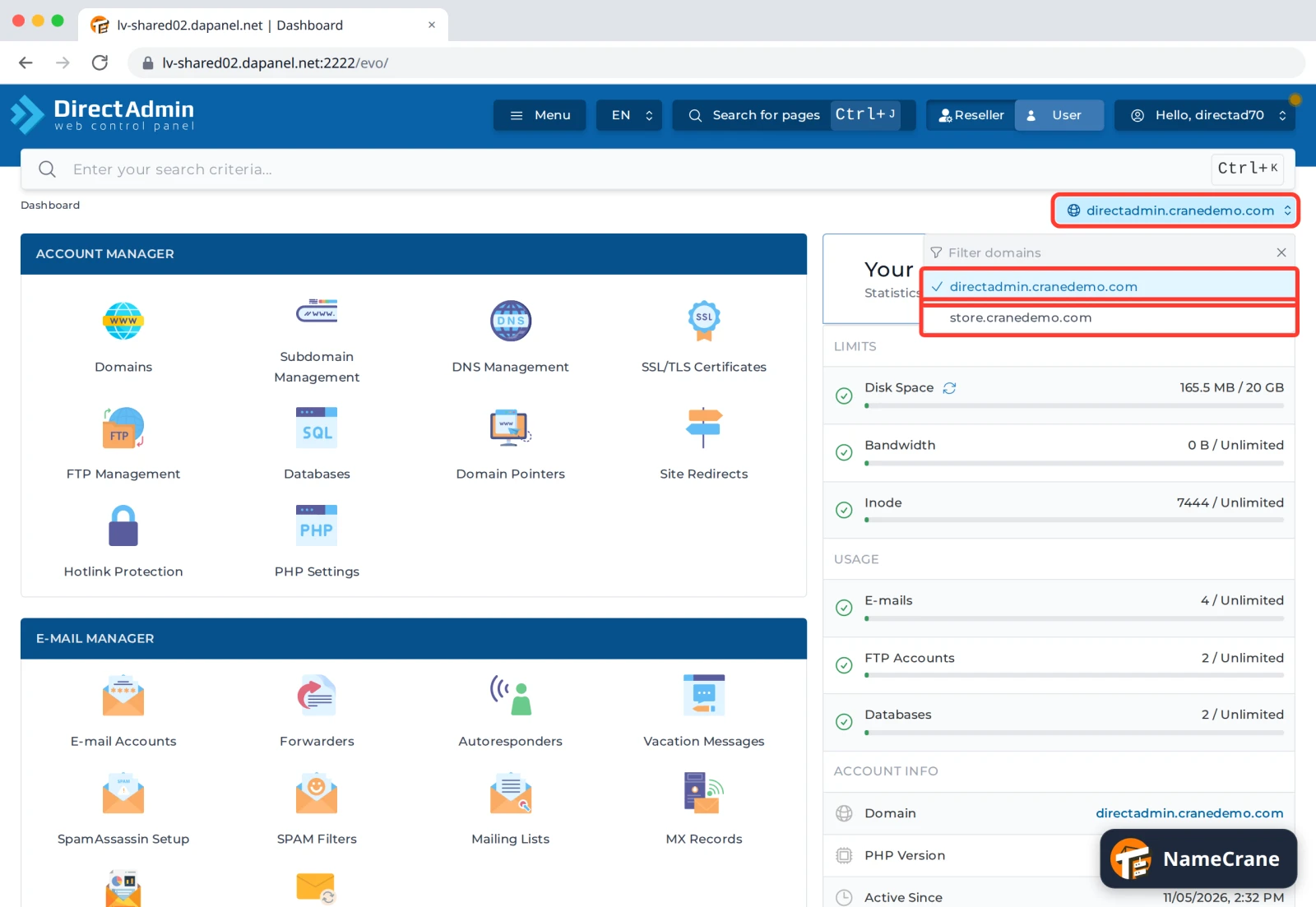
If you have more than one domain, the domain name at the top right of each page shows which one you’re working on. Click it to switch. Pages like E-mail Accounts and Site Redirects then show that domain’s settings.
Your account menu
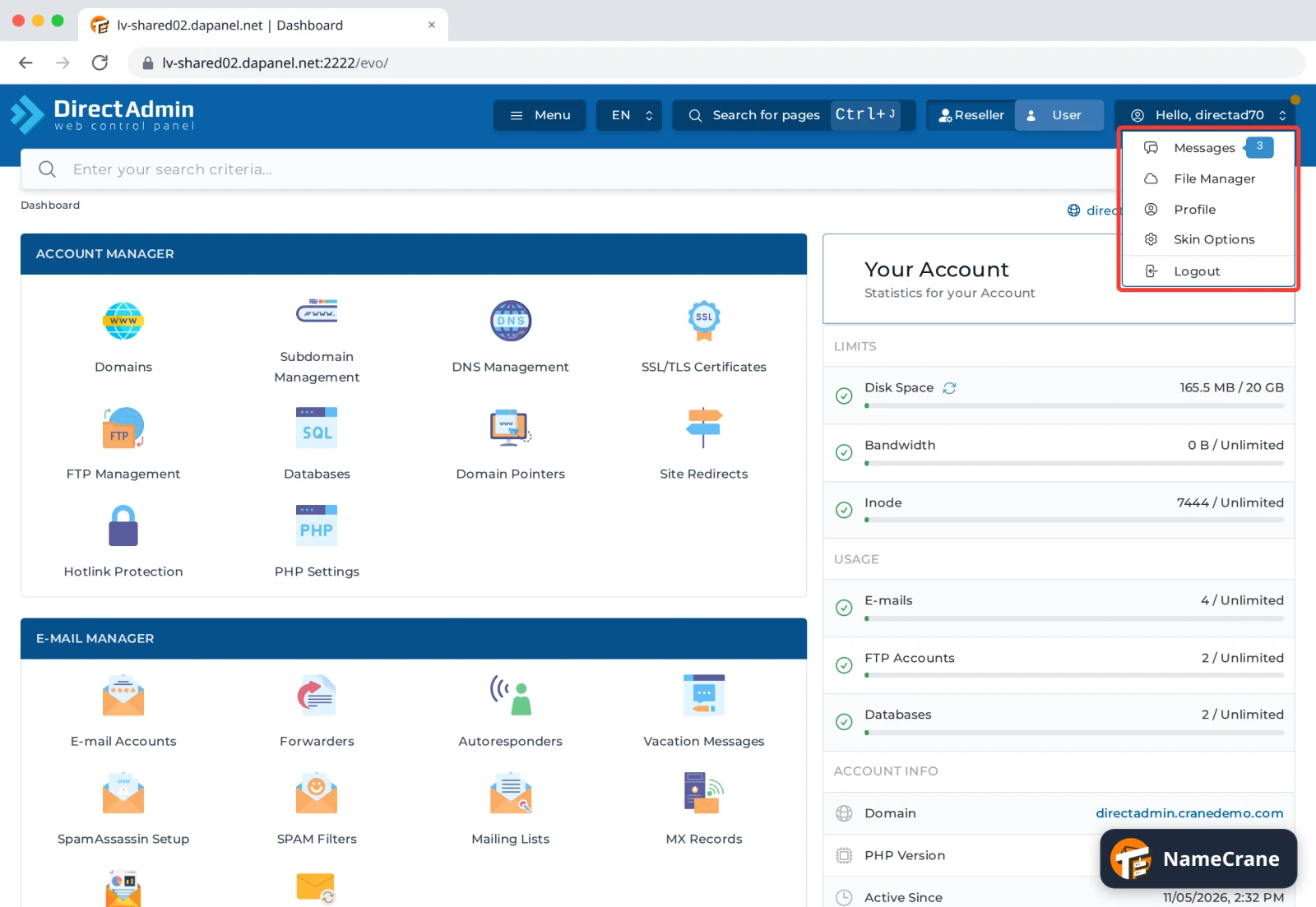
Click Hello, [your username] at the top right for Messages (notes from DirectAdmin, such as when a backup is ready), File Manager, Profile, Skin Options and Logout.
Change the layout or colours
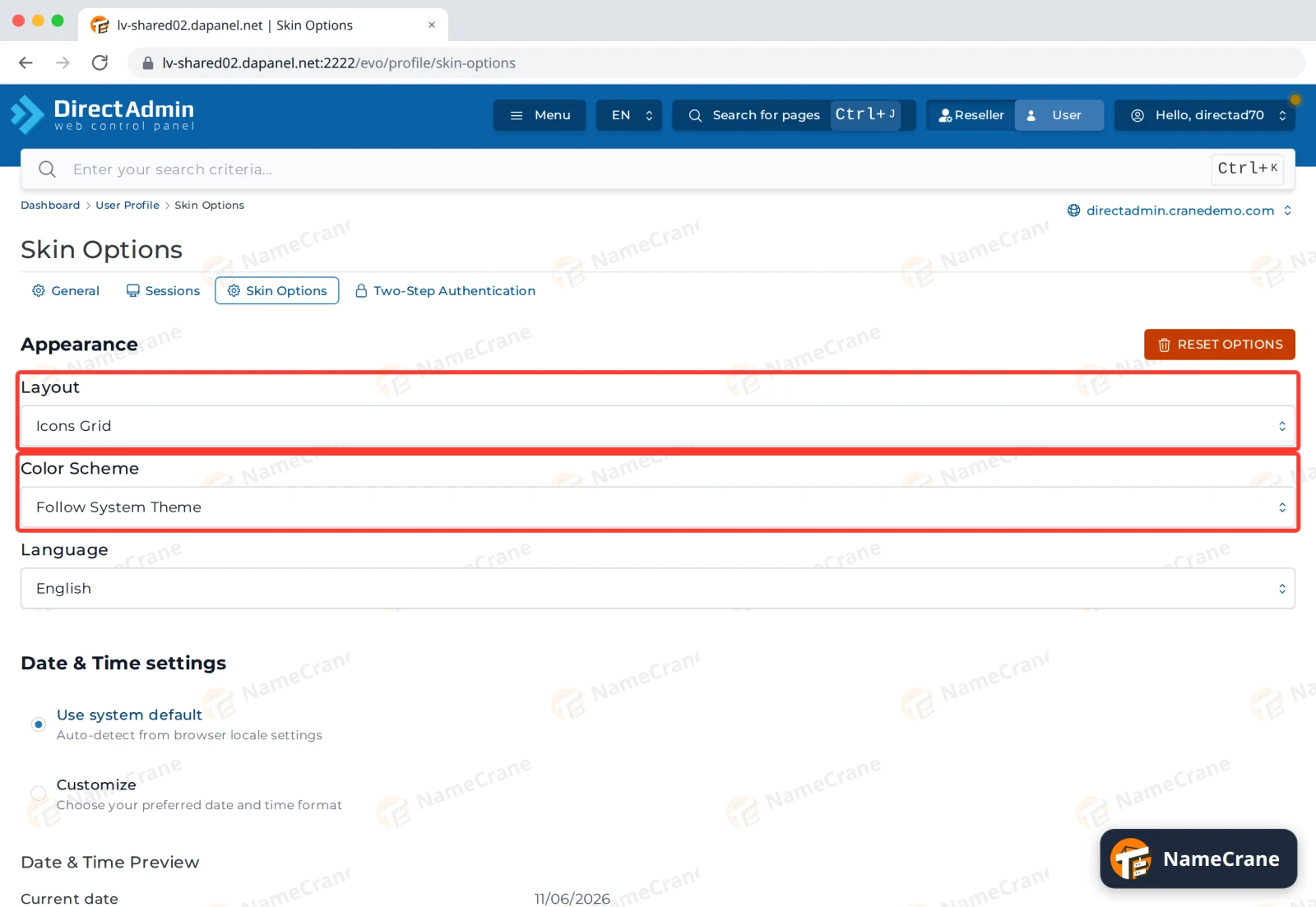
Skin Options lets you choose the Layout (Standard, Sidebar, Icons Grid or Refreshed; our guides use Icons Grid), a light or dark Color Scheme, and your Language. A new layout applies as soon as you pick it.
Note: If you have a reseller account, you’ll also see Reseller and User buttons in the top bar. User is your own hosting; Reseller is where you manage your customers.
Troubleshooting
| Problem | What to do |
|---|---|
| My dashboard looks different from the pictures | You’re probably on another layout. Open Skin Options from the account menu and choose Icons Grid. |
| A page shows the wrong domain’s settings | Check the domain name at the top right of the page and switch to the right one. |
| I can’t find a tool our guide mentions | Use Search for pages in the top bar. Some tools only appear if your plan includes them. |
Snagged on something? Contact support and we’ll get you sorted.