How to Point Your Domain to Your NameCrane cPanel Hosting
Last updated Changelog
On this page
To show your website and get your email on NameCrane, your domain needs to point to us. You do this where the domain is registered, in one of two ways:
| Way | What you change | Best for |
|---|---|---|
| Nameservers (recommended) | The domain’s nameservers, to ours | Most people. We look after all your DNS, so your website, email and free SSL work without any more setup. |
| A records | One or two DNS records at your current DNS provider | Keeping your DNS somewhere else, for example because other services depend on it. |
Find our details in cPanel
-
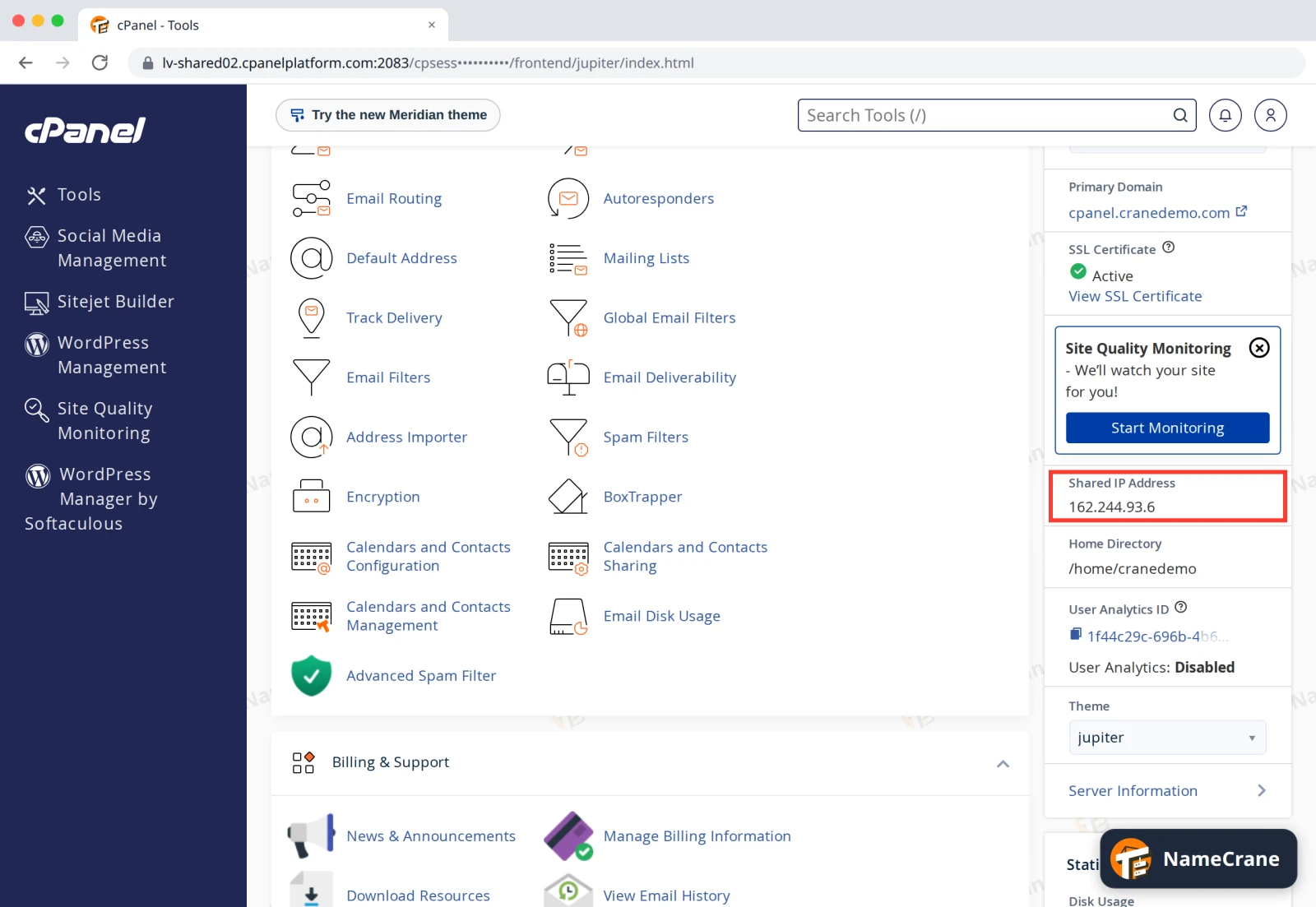
Your server’s address is the Shared IP Address under General Information on the cPanel home page. You only need it for the A record way.
-
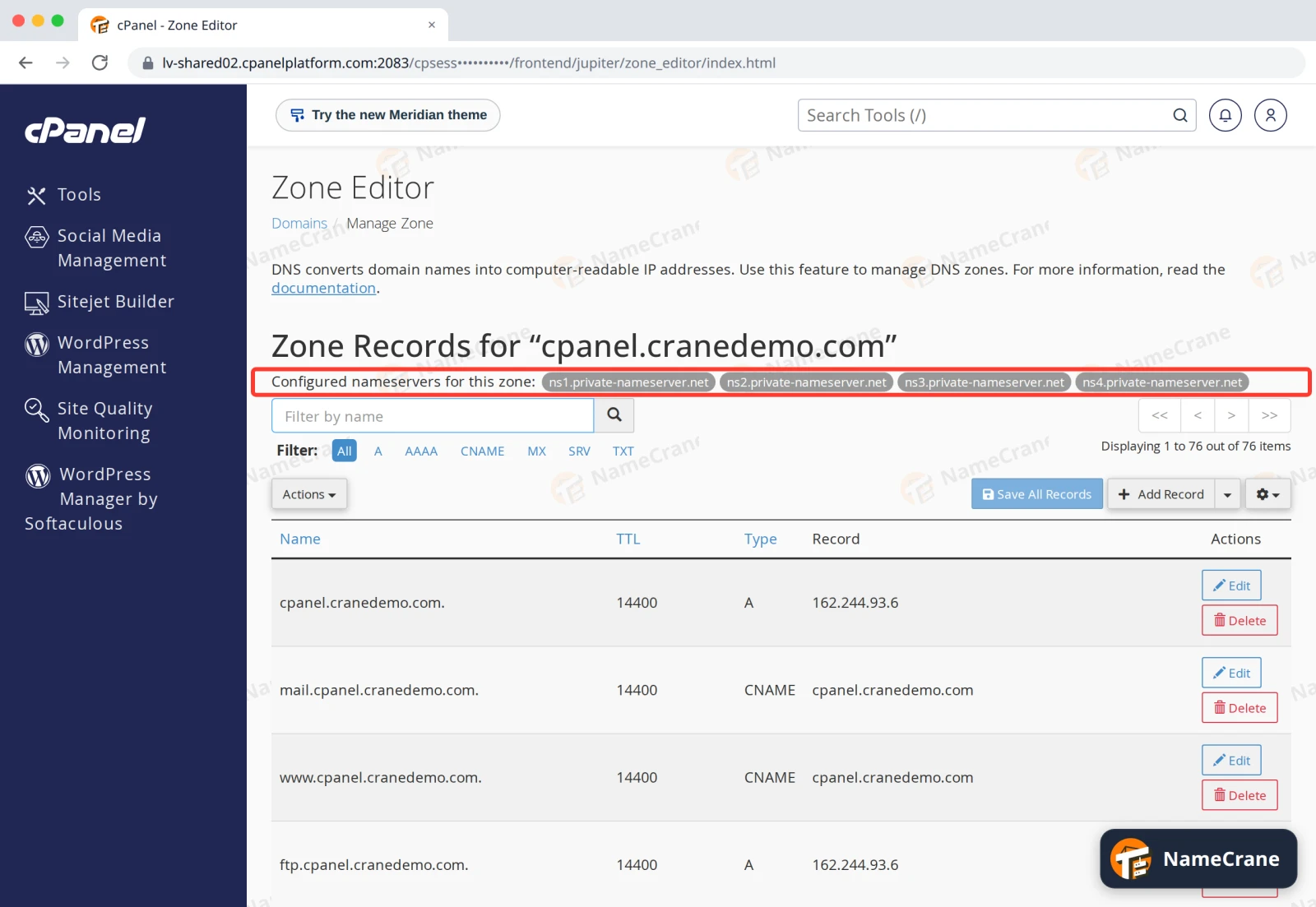
Your nameservers are listed in Zone Editor. Click Manage next to your domain and look at Configured nameservers for this zone. On our cPanel servers they’re ns1.private-nameserver.net to ns4.private-nameserver.net. If your hosting company gave you other nameservers in your welcome email, use those.
Way 1: change your nameservers
- Log in where your domain is registered and find its nameservers (sometimes called DNS servers).
- Choose custom nameservers and replace the current ones with all four of ours:
ns1.private-nameserver.netns2.private-nameserver.netns3.private-nameserver.netns4.private-nameserver.net
- Save. Your email and website follow automatically once the change has spread.
Way 2: add A records
At your current DNS provider, set these records, using your own Shared IP Address:
| Name | Type | Points to |
|---|---|---|
@ (your domain itself) |
A | your Shared IP Address, such as 162.244.93.6 |
www |
A | the same address |
If you also want your email with us, copy the MX, SPF and DKIM records from your cPanel Zone Editor to your DNS provider. See Set up SPF, DKIM and DMARC.
After the change
- Changes usually show within a few hours, but can take up to 48 hours to reach everyone.
- To check, run
dig +short NS yourdomain.com(Way 1) ordig +short yourdomain.com(Way 2), or look your domain up at whatsmydns.net. - Once the domain points to us, cPanel issues its free SSL certificate by itself. See Turn on free SSL.
Note: The domain must be on your hosting account too. If it isn’t your main domain, add it first. See Add another domain.
Troubleshooting
| Problem | What to do |
|---|---|
| My registrar asks for at least two nameservers | Enter all four. Most registrars have room for four or more. |
| My site still shows the old host | The change hasn’t reached your computer yet. Wait a few hours, or check from your phone on mobile data. |
| My website works but email doesn’t | With Way 2, check you copied the MX record. With Way 1, wait for the change to finish spreading. |
| My browser says the site isn’t secure | The free SSL certificate is issued after the domain points to us. Give it an hour, then see Turn on free SSL. |
Snagged on something? Contact support and we’ll get you sorted.