How to Read and Send Email with Webmail (cPanel)
Last updated Changelog
On this page
Webmail lets you read and send email from any browser, on any computer, without setting up an email app. Your email addresses on NameCrane use Roundcube webmail.
Log in
-
Go to
https://webmail.yourdomain.com(orhttps://yourdomain.com/webmail). Enter your full email address and its password, then click Log in.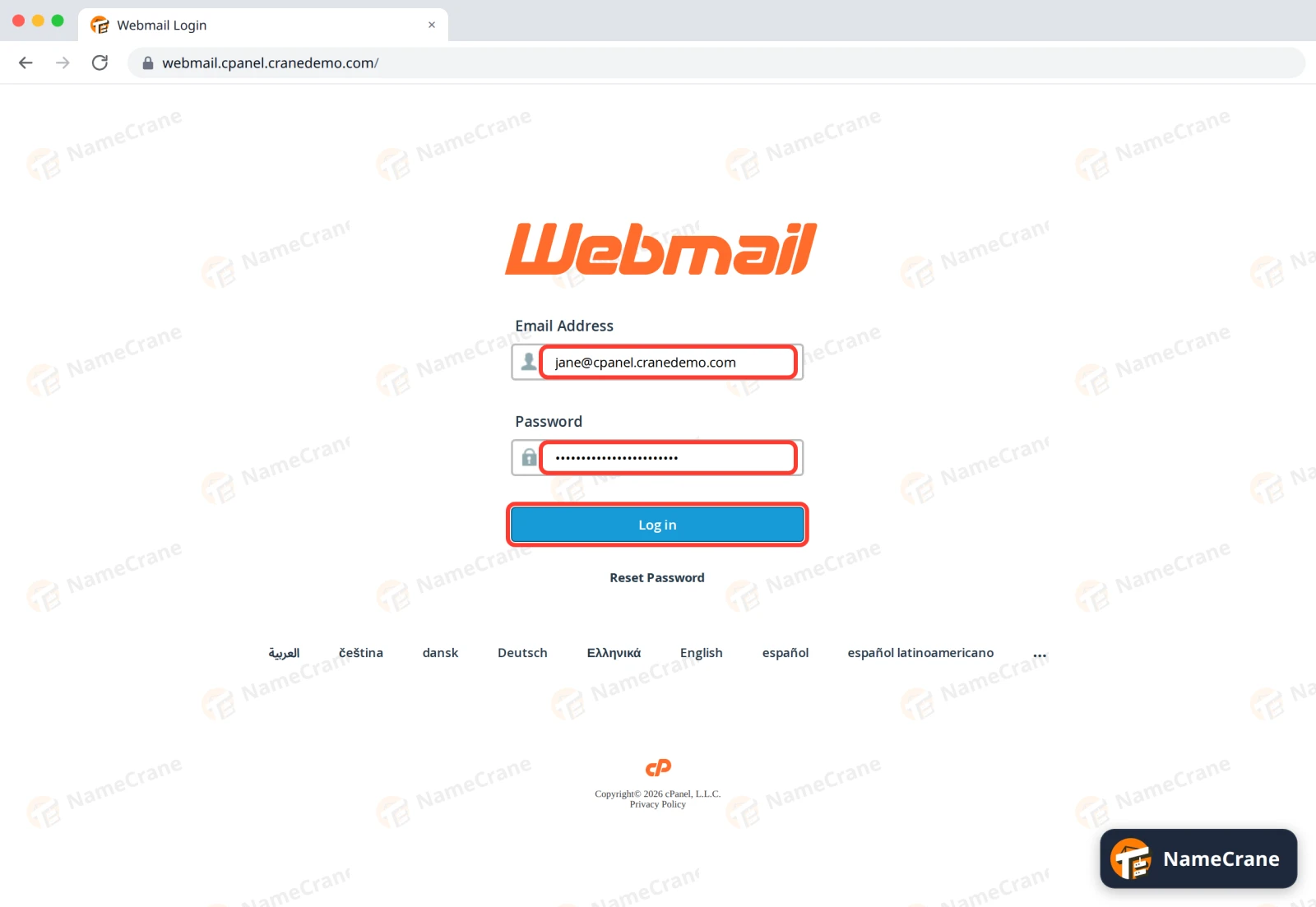
-
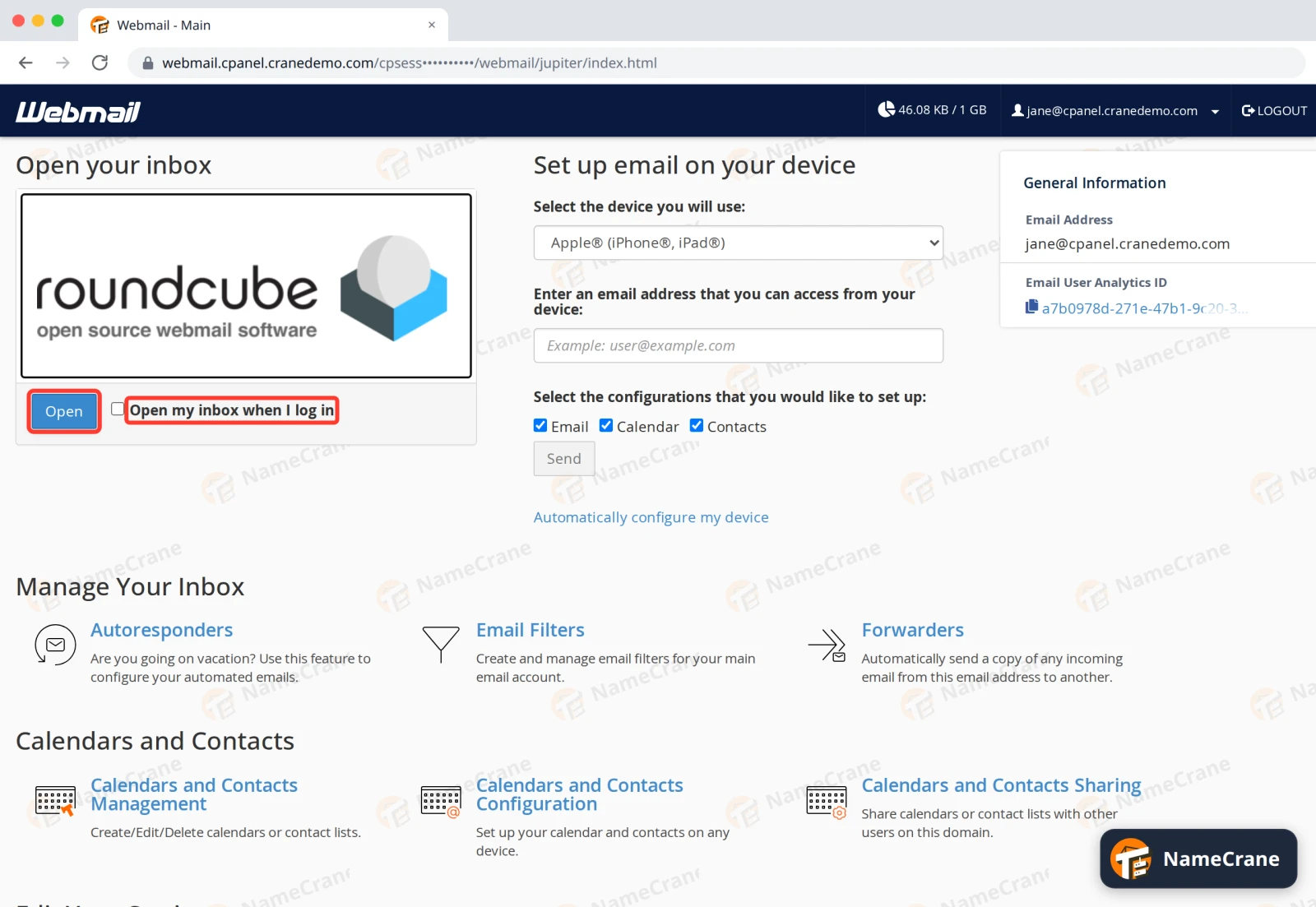
Under Open your inbox, click Open. Tick Open my inbox when I log in to skip this page next time.
Read and send email
-
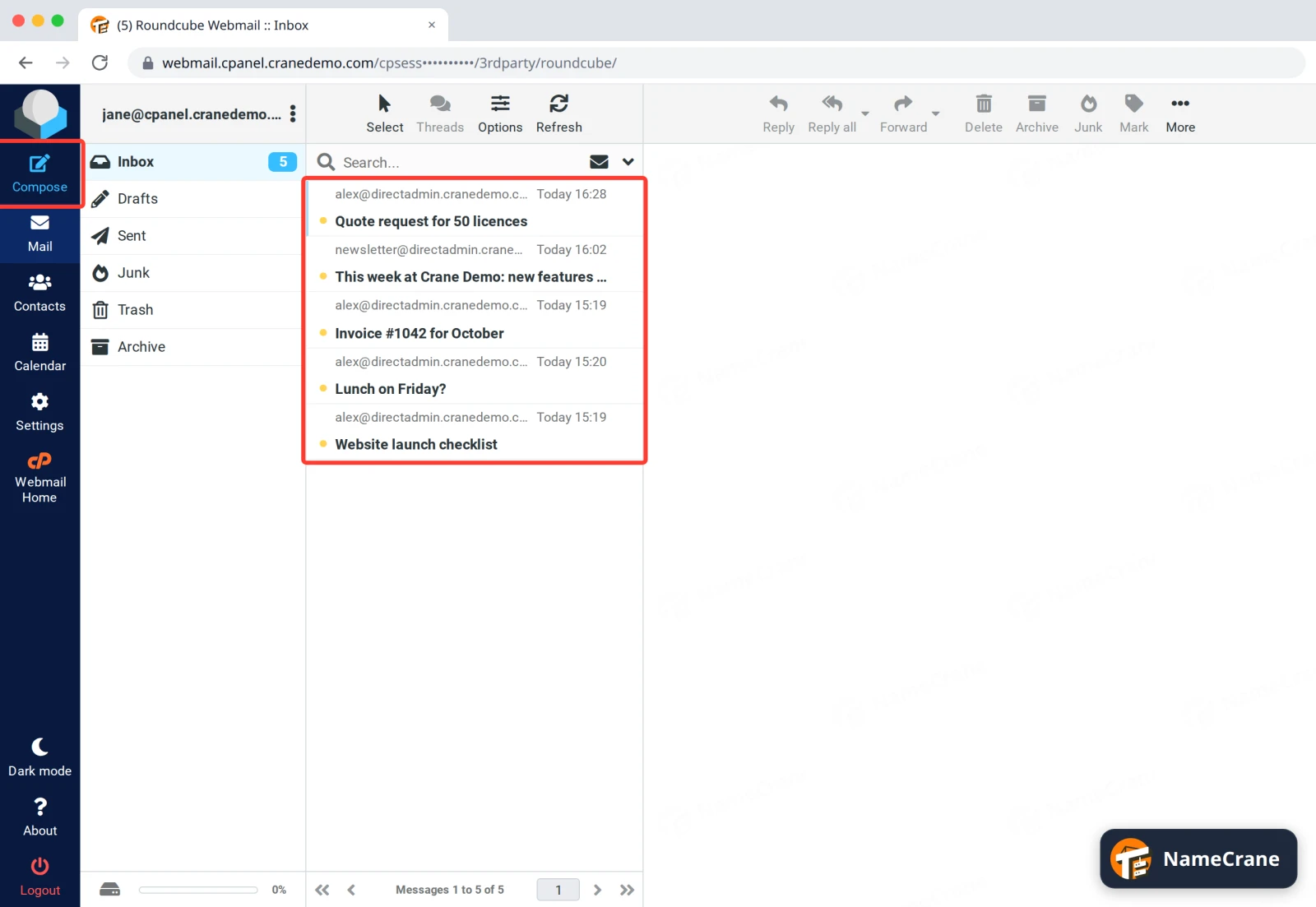
Your inbox opens. Click a message to read it. To write a new one, click Compose.
-
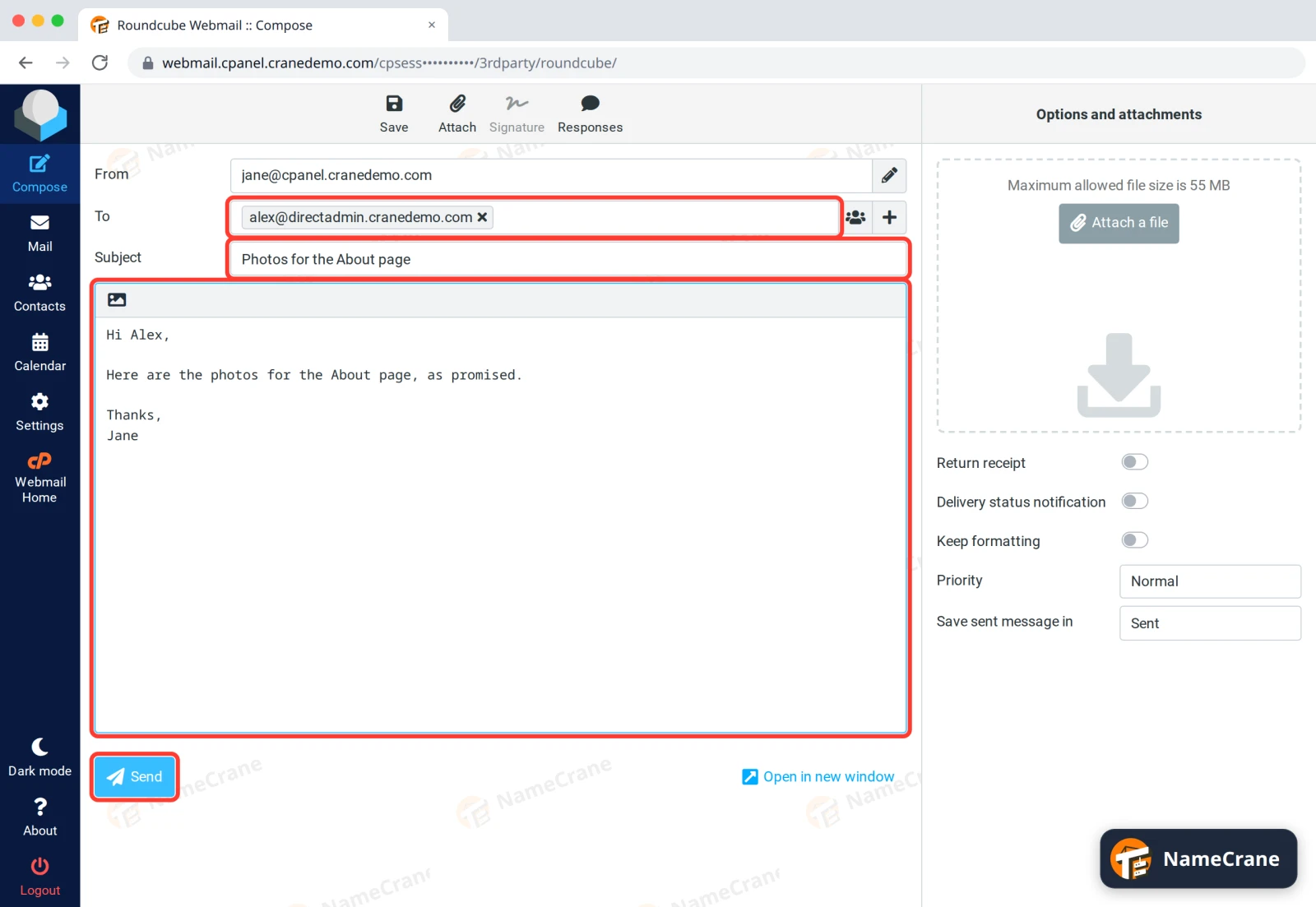
Fill in To, Subject and your message, then click Send. To add a file, click Attach a file on the right.
Tip: Click Webmail Home in the left-hand bar to get back to the home page. It has handy settings for this address, such as Autoresponders, Email Filters and Forwarders.
Troubleshooting
| Problem | What to do |
|---|---|
| I can’t log in | Use the full email address, such as jane@yourdomain.com, not just jane. If you’ve forgotten the password, the cPanel account owner can set a new one in Email Accounts. |
| An email I’m expecting hasn’t arrived | Look in the Junk folder. Your email is also spam-filtered by MXFilter, so check whether it’s being held. See Release an email from quarantine. |
| My attachment won’t send | Webmail allows attachments up to 55 MB, but many receivers only accept about 25 MB. For bigger files, share a download link instead. |
| I’d rather use an app on my phone or computer | See Set up email on your phone or computer. |
Snagged on something? Contact support and we’ll get you sorted.