How to Suspend and Unsuspend a Customer as a DirectAdmin Reseller
Last updated Changelog
Suspending a customer switches off their website and stops them logging in to DirectAdmin, without deleting anything. It’s the usual step for an unpaid invoice or a site that’s causing trouble. Unsuspend them and everything comes back as it was. In this example we suspend our demo customer, customer (customer.cranedemo.com).
Suspend a customer
-
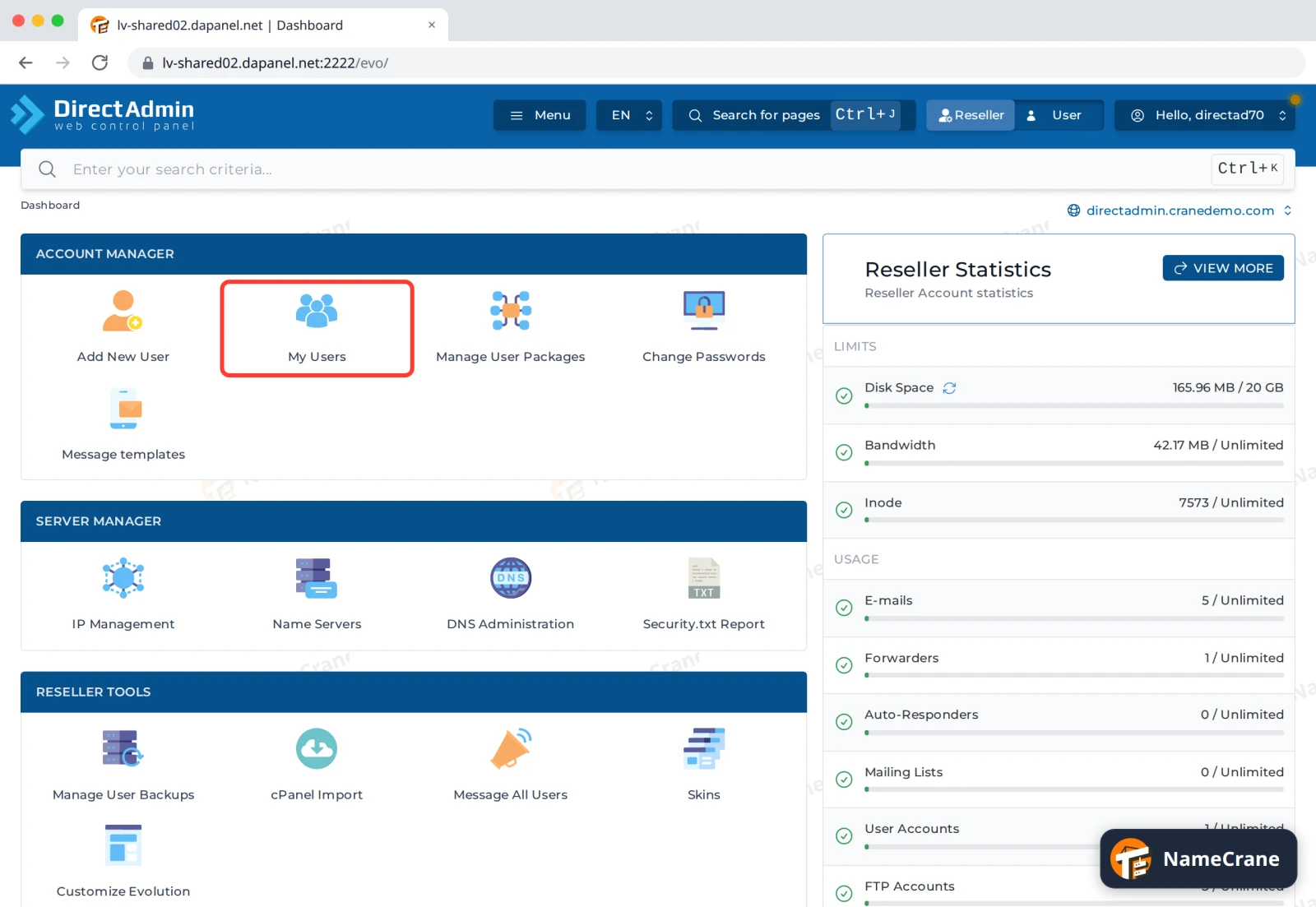
Log in to DirectAdmin and click Reseller in the top bar. Under Account Manager, click My Users.
-
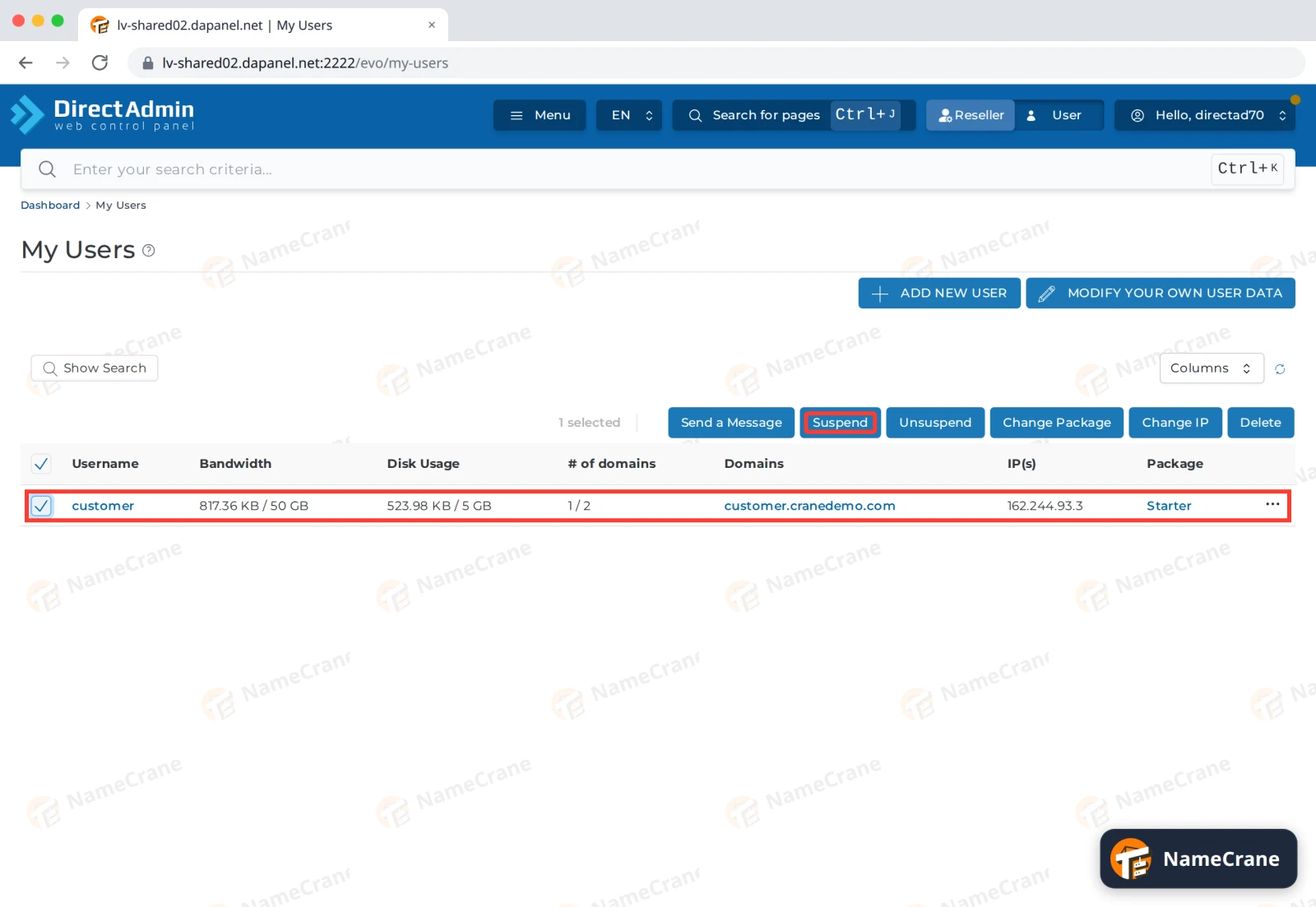
Tick the customer’s row and click Suspend.
-
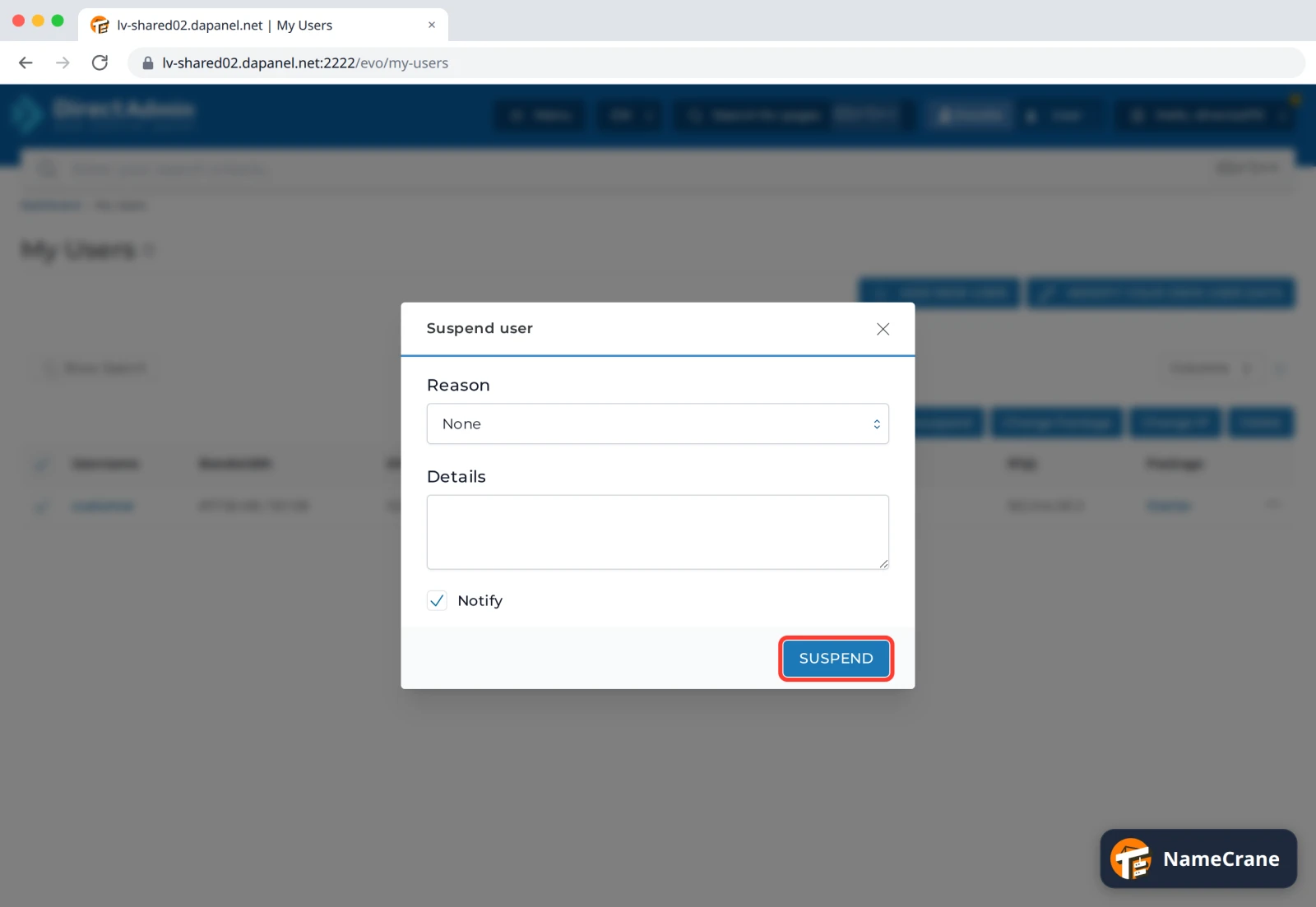
Choose a Reason and add Details if you like. Leave Notify ticked to send the customer a message about it. Click SUSPEND.
-
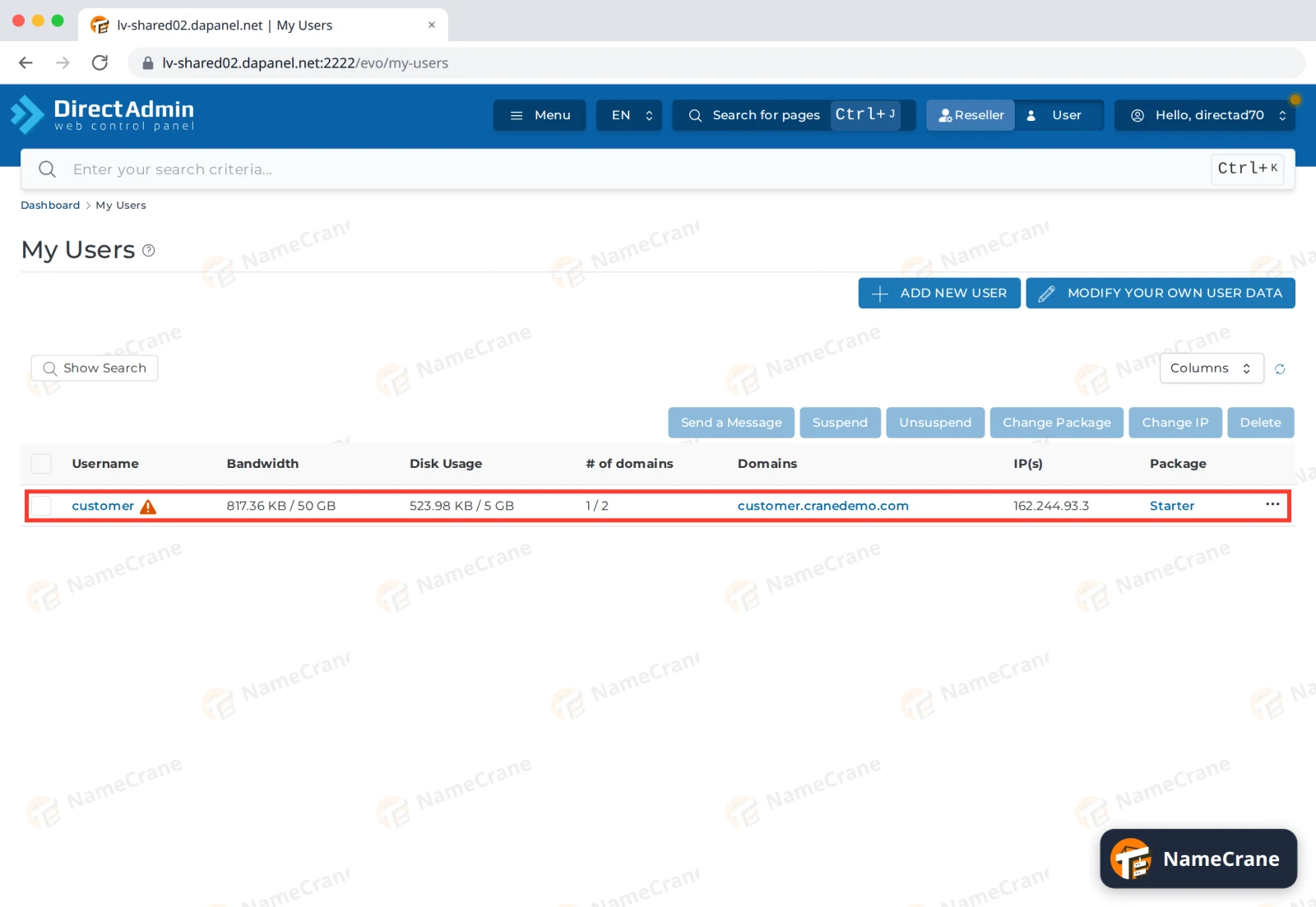
A ⚠ next to the username shows the customer is suspended.
What your customer sees
-
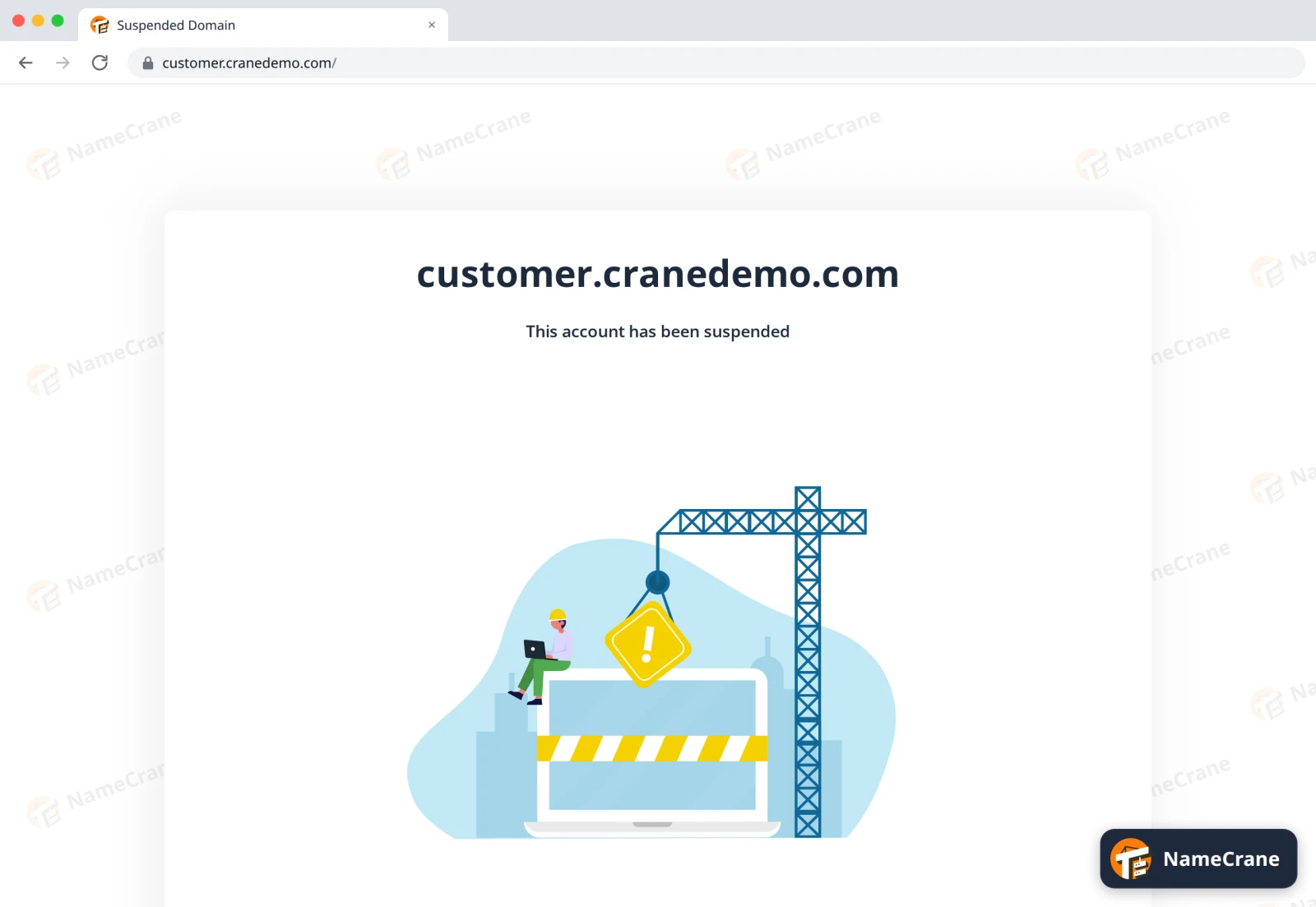
Visitors to their website get a page saying This account has been suspended. On our test it took a few minutes to appear.
-
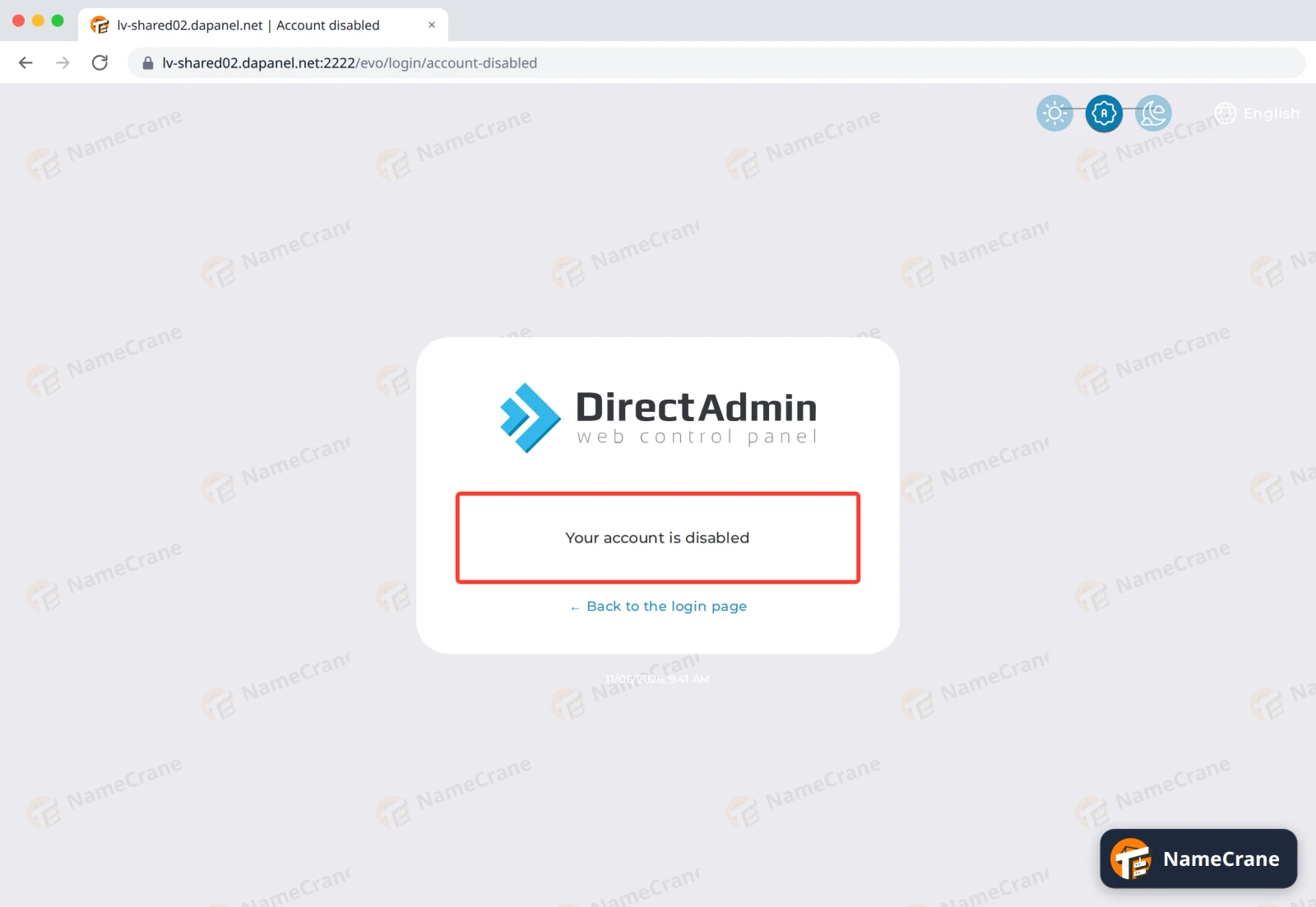
The customer can’t log in to DirectAdmin. They see Your account is disabled.
Their files, databases and email accounts stay as they were.
Unsuspend a customer
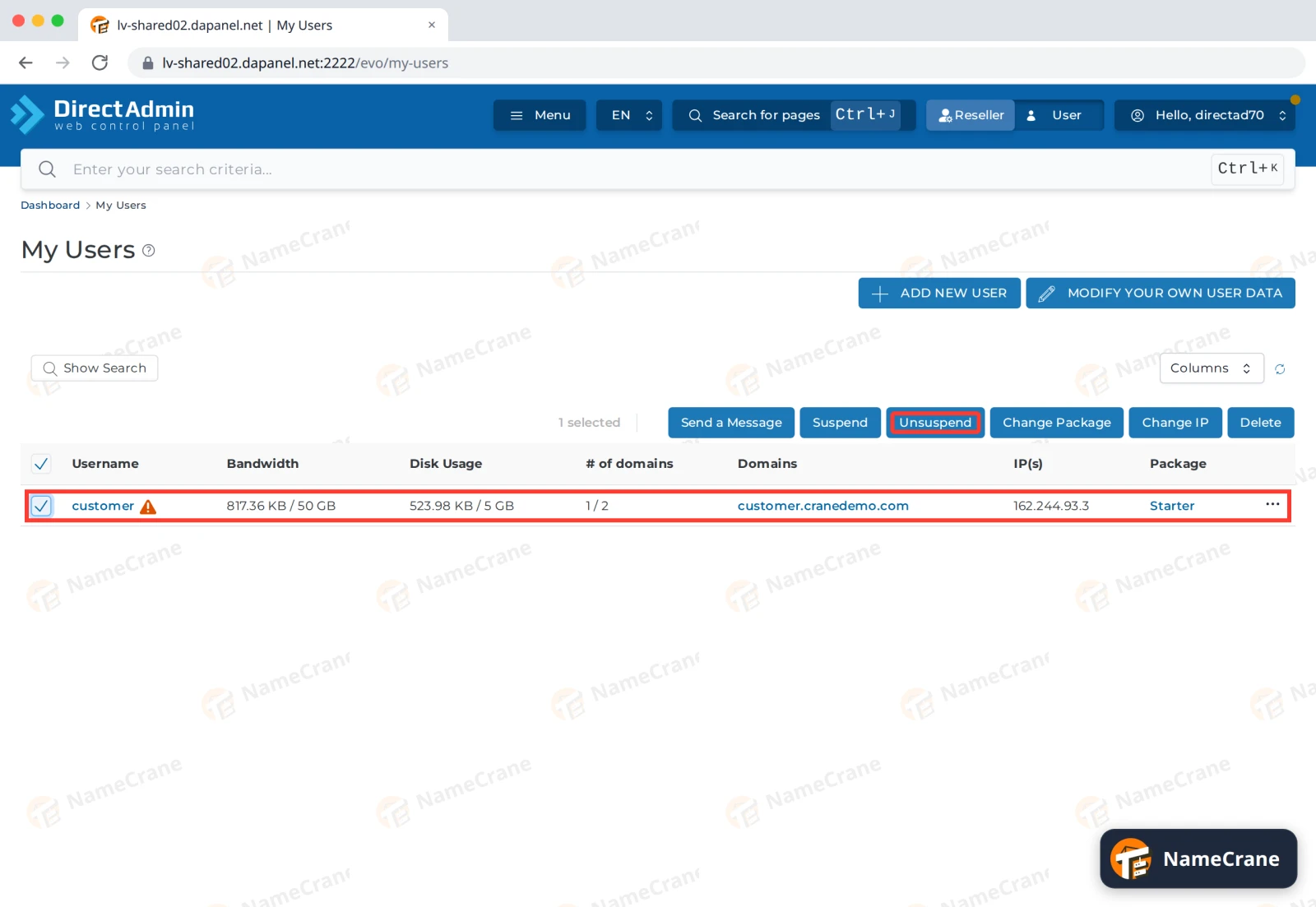
On My Users, tick the customer’s row and click Unsuspend. There’s no extra question. The ⚠ goes away and the customer can log in again. Their website came back about a minute later in our test.
Troubleshooting
| Problem | What to do |
|---|---|
| The website still works right after I suspended it | DirectAdmin updates the website in the background. Give it a few minutes, then reload the page with Ctrl + F5. |
| The website still shows the suspended page after I unsuspended | Give it a minute or two, then reload with Ctrl + F5. |
| Suspend is greyed out | Tick the customer’s row first. |
Snagged on something? Contact support and we’ll get you sorted.