How to Change Your DirectAdmin Password and Turn On Two-Step Authentication
Last updated Changelog
A strong password plus two-step authentication is the best protection for your hosting. With two-step on, nobody can log in to your DirectAdmin without the code from your phone, even if they know your password.
Change your password
-
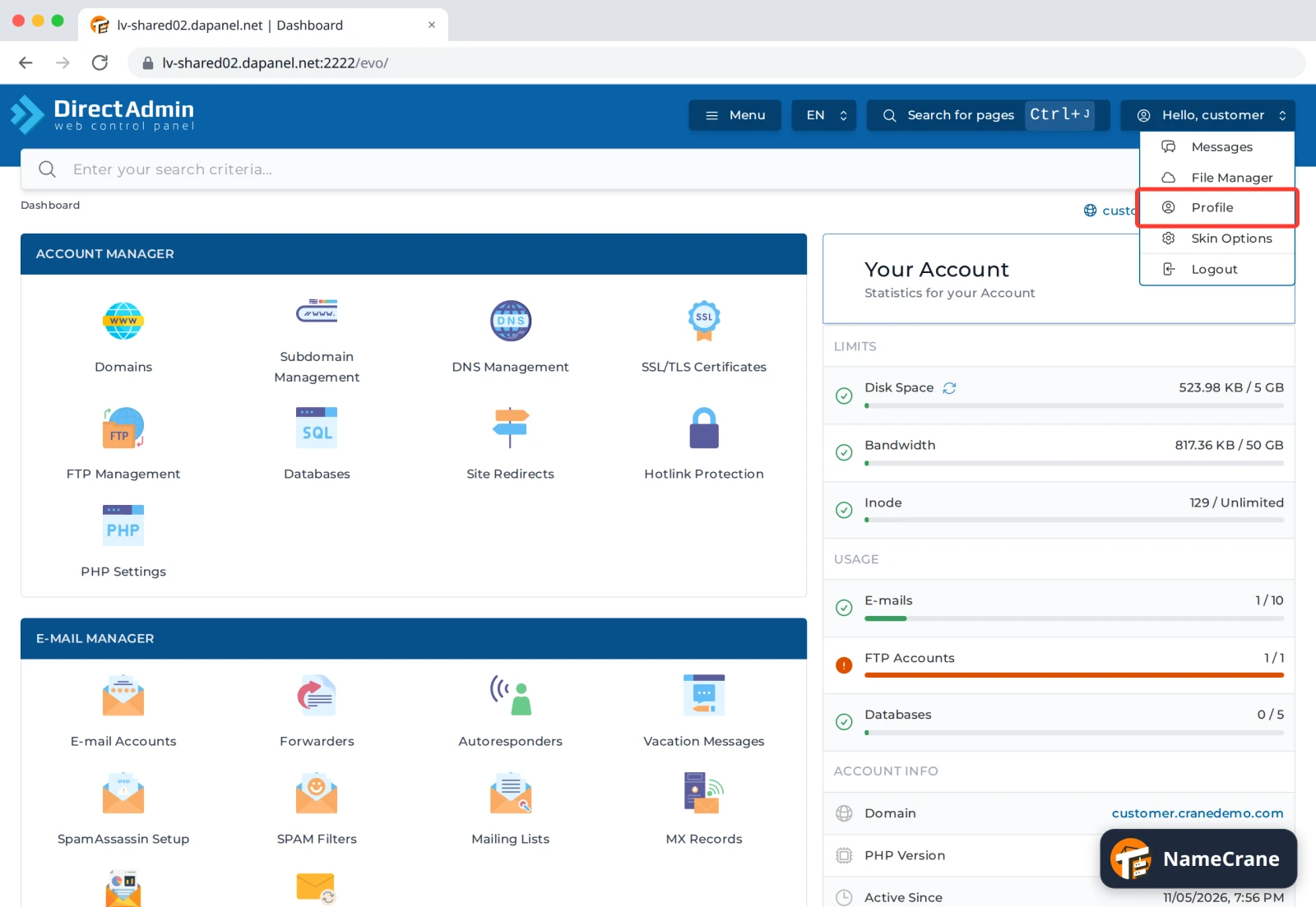
Log in to DirectAdmin. Click Hello, [your username] at the top right and choose Profile.
-
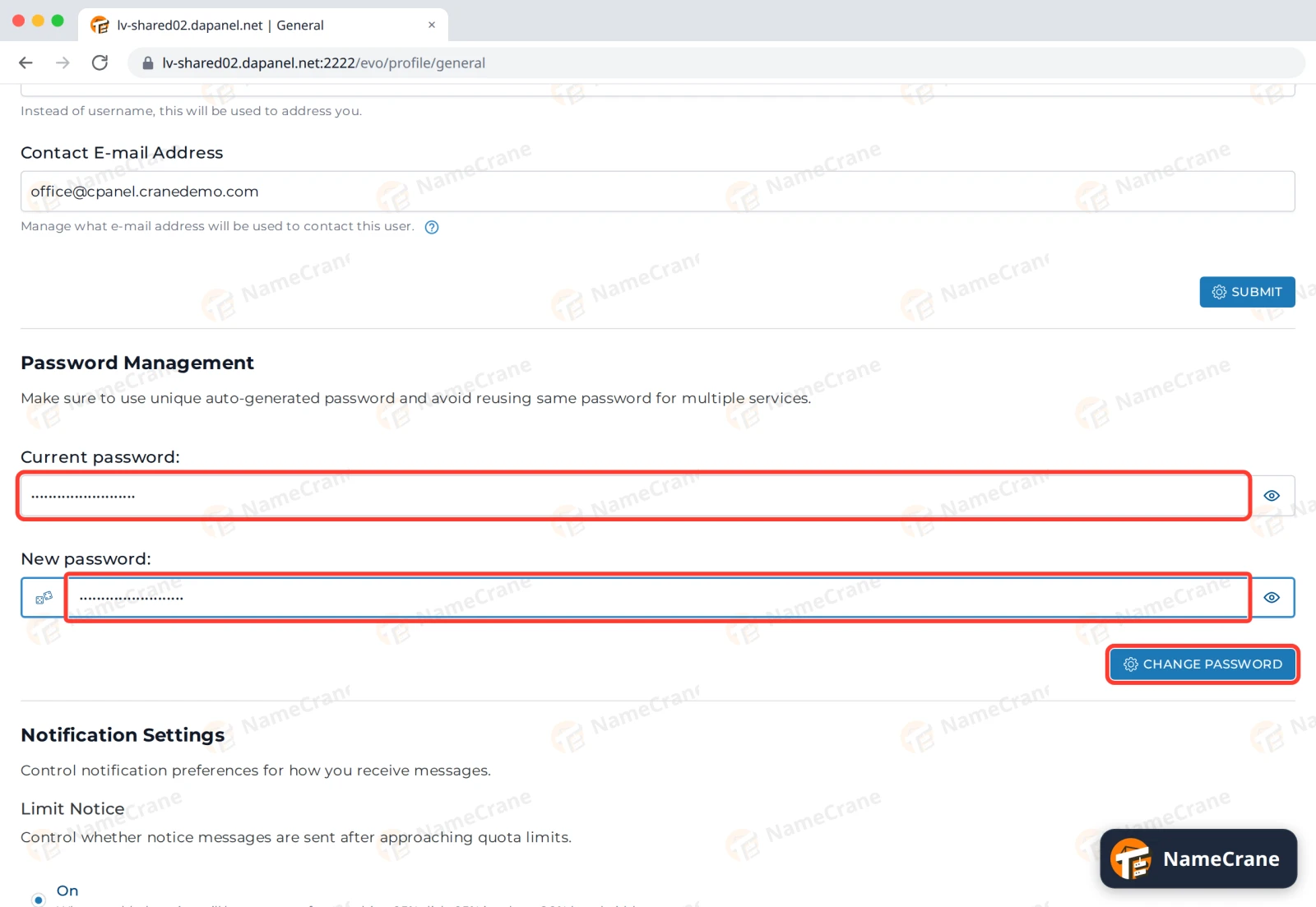
On the General tab, under Password Management, enter your Current password and your New password. Use a long, unique password, ideally one made by your password manager. Click CHANGE PASSWORD.
-
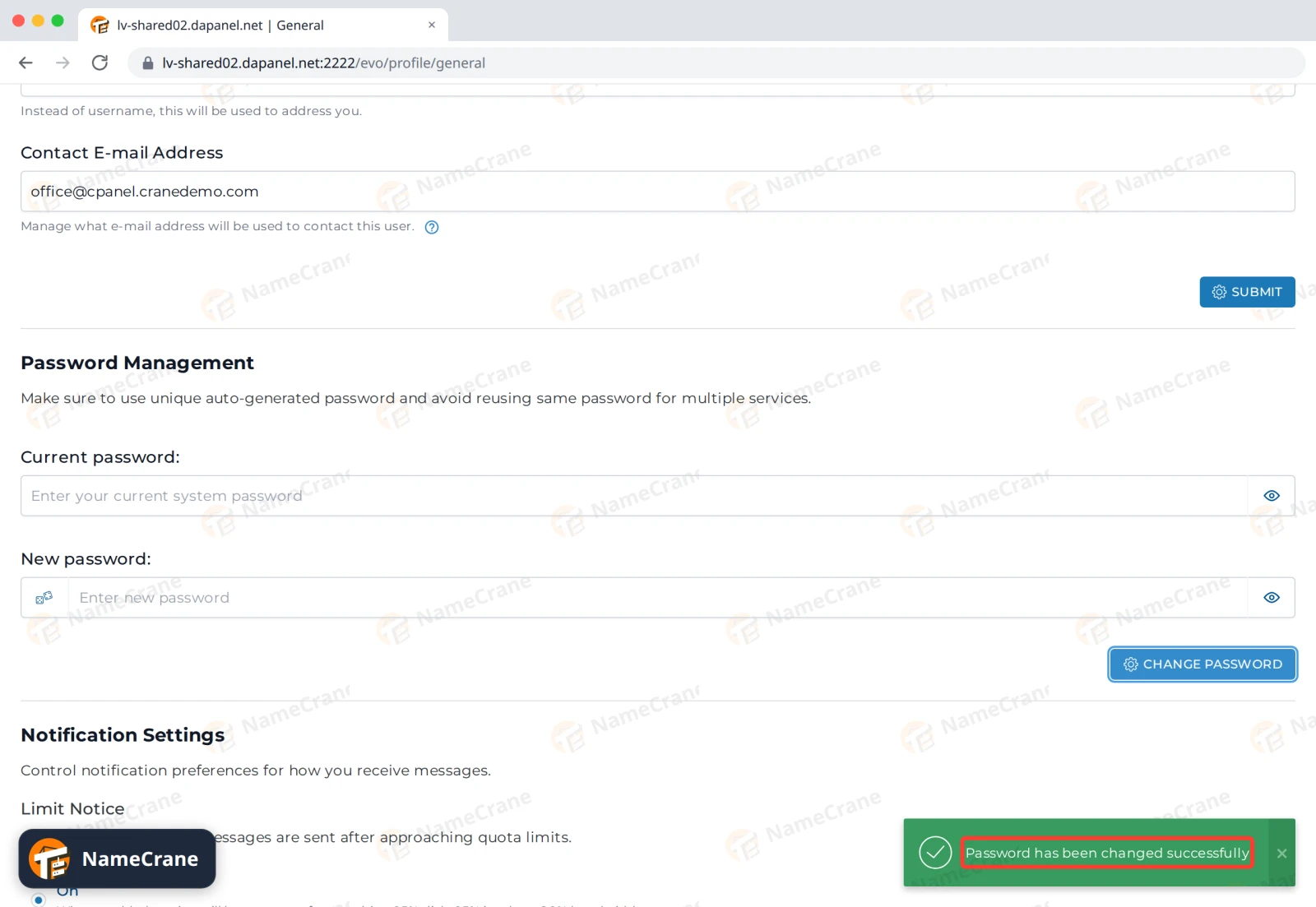
DirectAdmin shows Password has been changed successfully. You stay logged in. Use the new password next time you log in.
Note: Your email accounts keep their own passwords, so changing your DirectAdmin password doesn’t affect them.
Turn on two-step authentication
You’ll need an authenticator app on your phone, such as Google Authenticator, Microsoft Authenticator or 1Password.
-
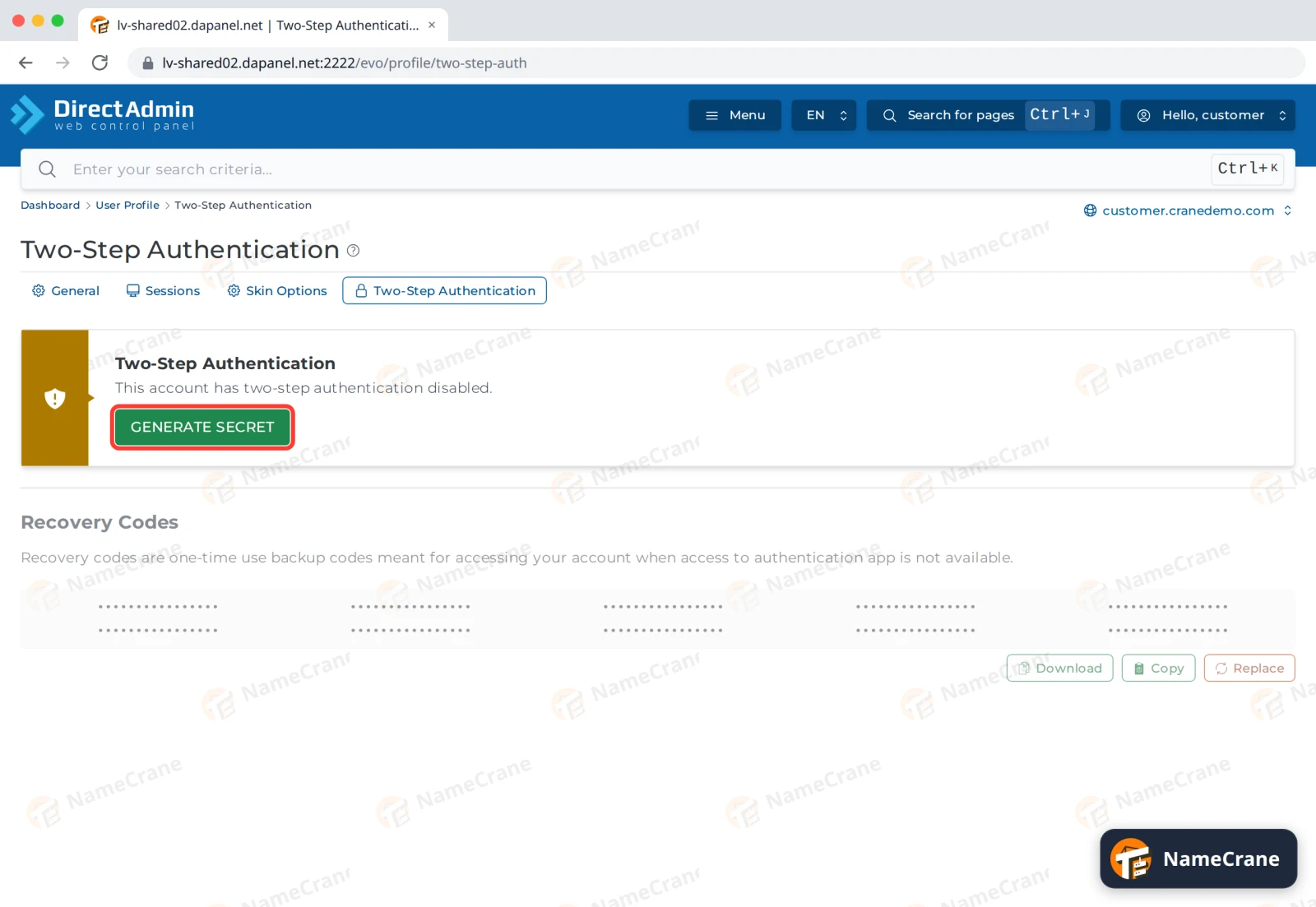
In Profile, open the Two-Step Authentication tab and click GENERATE SECRET.
-
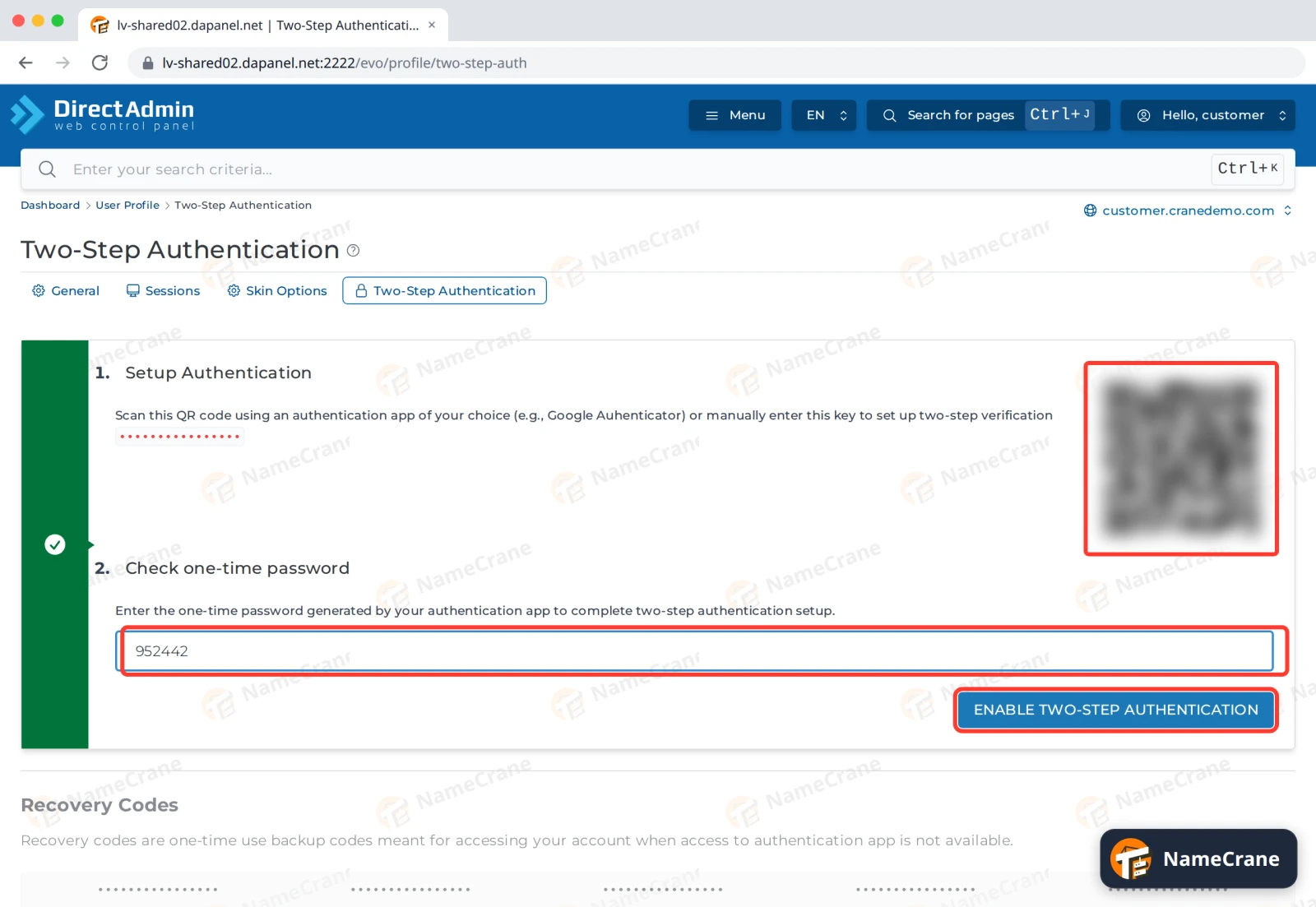
In your app, add an account and scan the QR code, or type in the key shown under it. Enter the 6-digit code from the app under Check one-time password and click ENABLE TWO-STEP AUTHENTICATION.
-
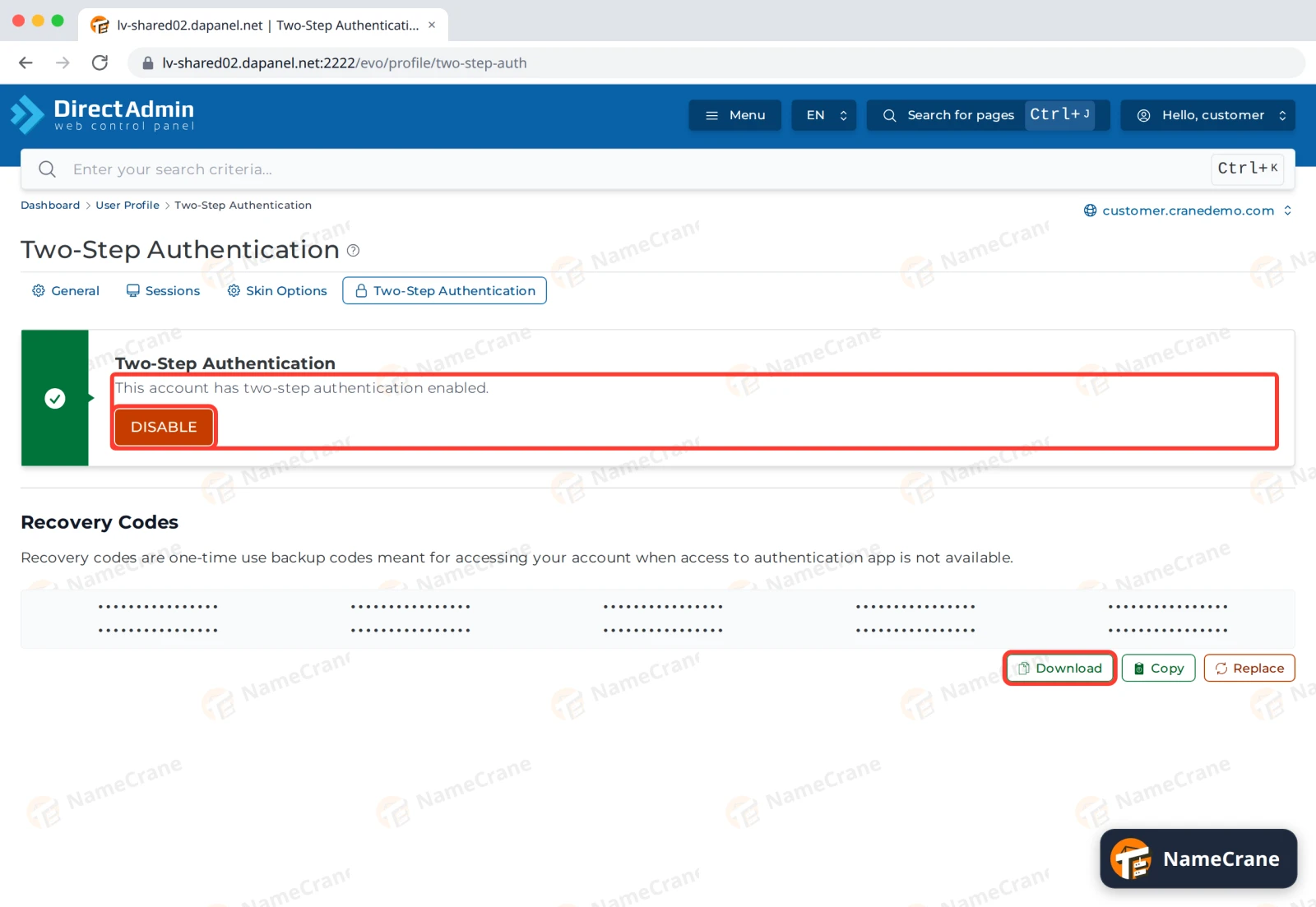
The page now says This account has two-step authentication enabled. Below it, DirectAdmin has made you a set of Recovery Codes. Click Download or Copy and keep them somewhere safe, away from your phone. Each code works once, if you can’t get to your app.
-
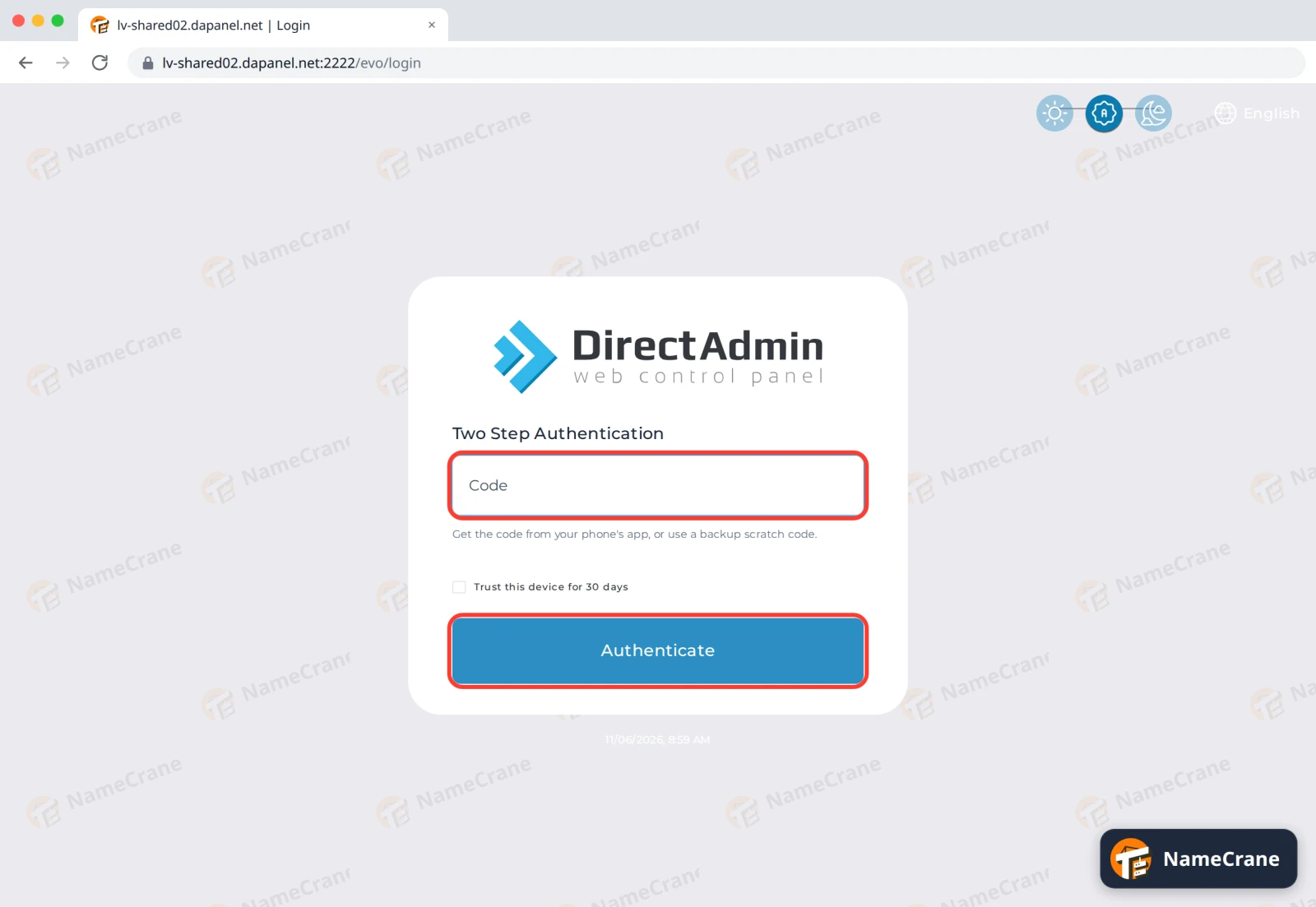
From now on, after your password DirectAdmin asks for a Code. Type in the code from your app, or one of your recovery codes, and click Authenticate. Tick Trust this device for 30 days on your own computer if you don’t want to be asked every time.
Tip: On the General tab of your Profile, Notify About Failed Two-Step Authentication Login Attempts sends you a message after every failed two-step login attempt, so you’ll know if someone else has your password.
Turn it off
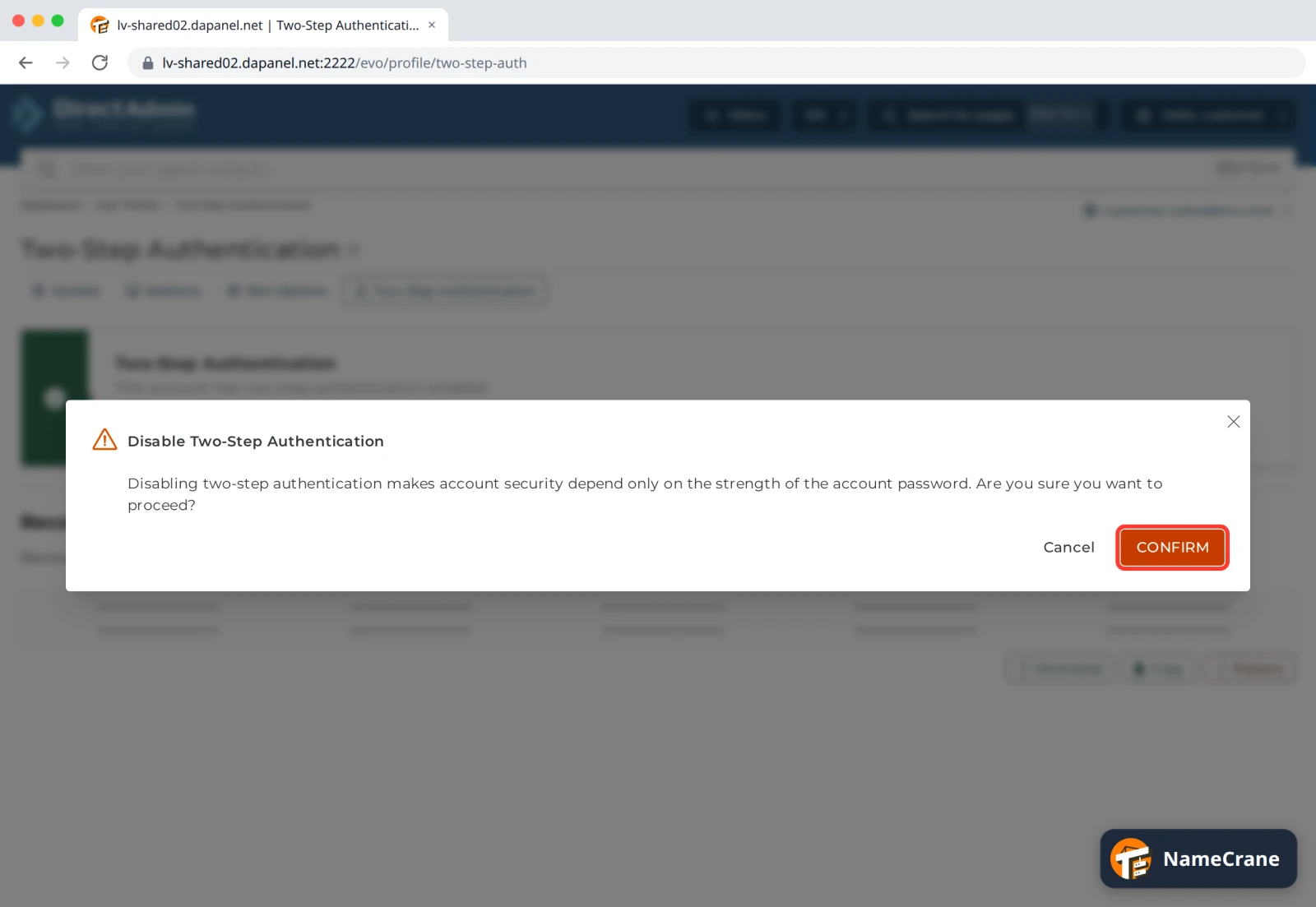
On the Two-Step Authentication tab, click DISABLE, then CONFIRM.
To move to a new phone, turn it off and set it up again with the new phone.
Troubleshooting
| Problem | What to do |
|---|---|
| I’ve forgotten my password | Contact support and we’ll help you get back in. |
| My FTP program stopped connecting after I changed my password | If it logs in with your DirectAdmin username, it uses your DirectAdmin password. Update it in the program. |
| The code is refused | Codes change every 30 seconds, so type in the one showing now. Check that your phone sets its time automatically. |
| I’ve lost my phone | Log in with one of your recovery codes, then DISABLE two-step and set it up again on your new phone. No recovery codes? Contact support. |
| I’ve used most of my recovery codes | Click Replace under Recovery Codes for a fresh set, then save the new ones. |
Snagged on something? Contact support and we’ll get you sorted.