How to Open MXFilter (Advanced Spam Filter) from cPanel
Last updated Changelog
On this page
NameCrane’s Advanced Spam Filter, powered by MXFilter, checks your incoming email before it reaches your mailbox, and its portal lets you search your mail logs, release quarantined messages, and block or allow senders. You can open it from cPanel in two clicks, and you’re signed in automatically.
Steps
-
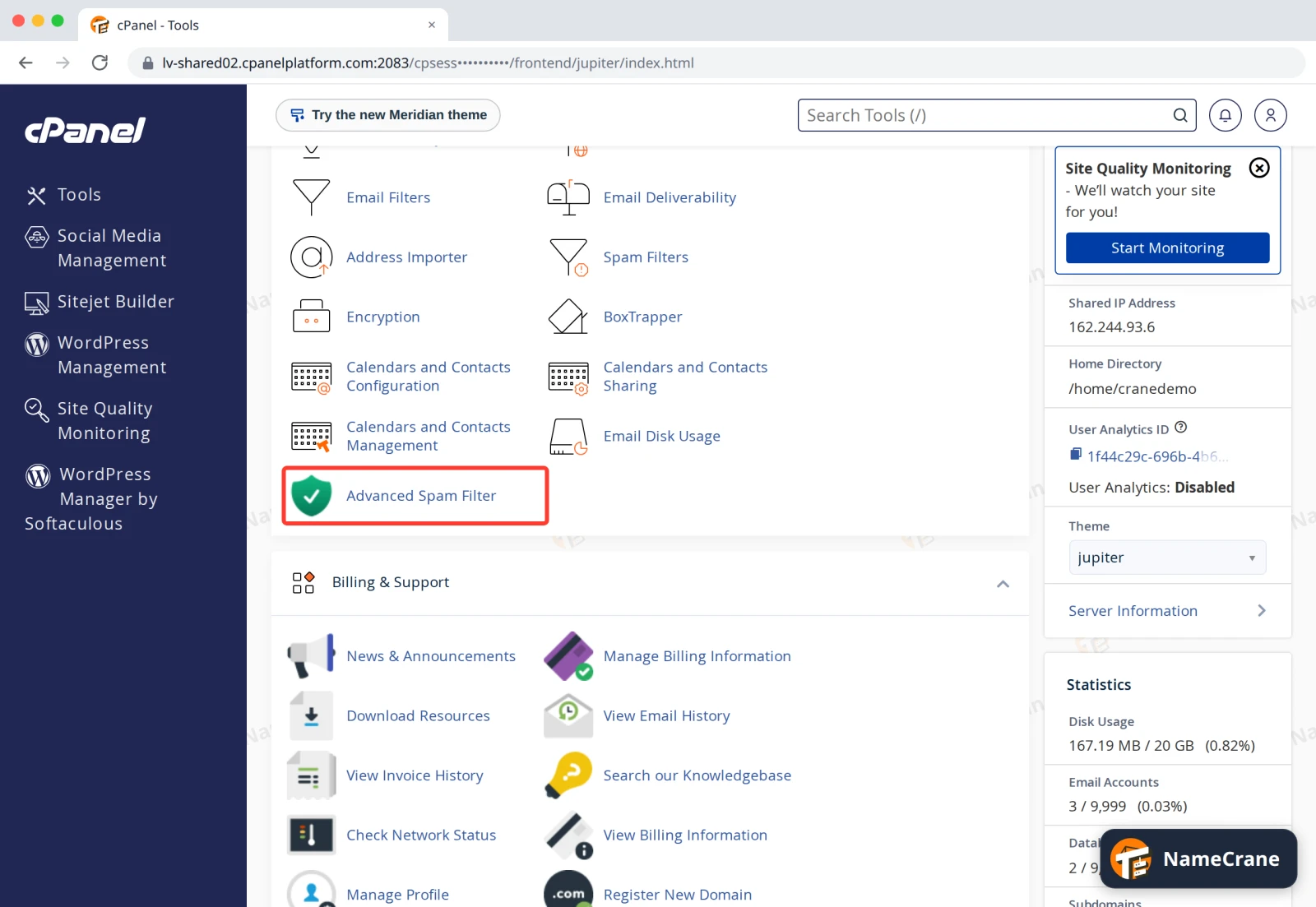
Log in to cPanel. In the Email section, click Advanced Spam Filter.
-
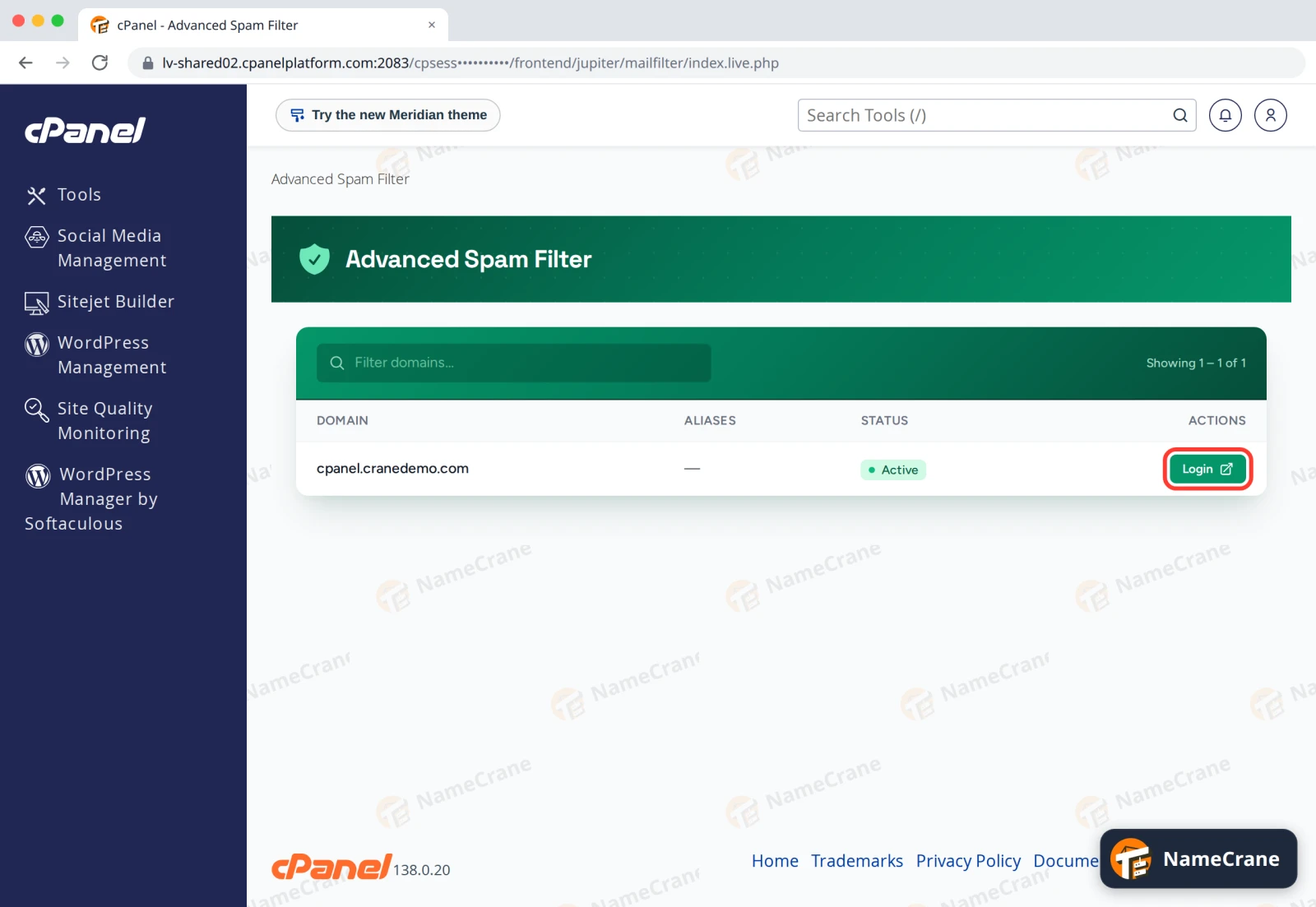
You’ll see each of your domains and its filter status. Next to the domain you want to manage, click Login.
-
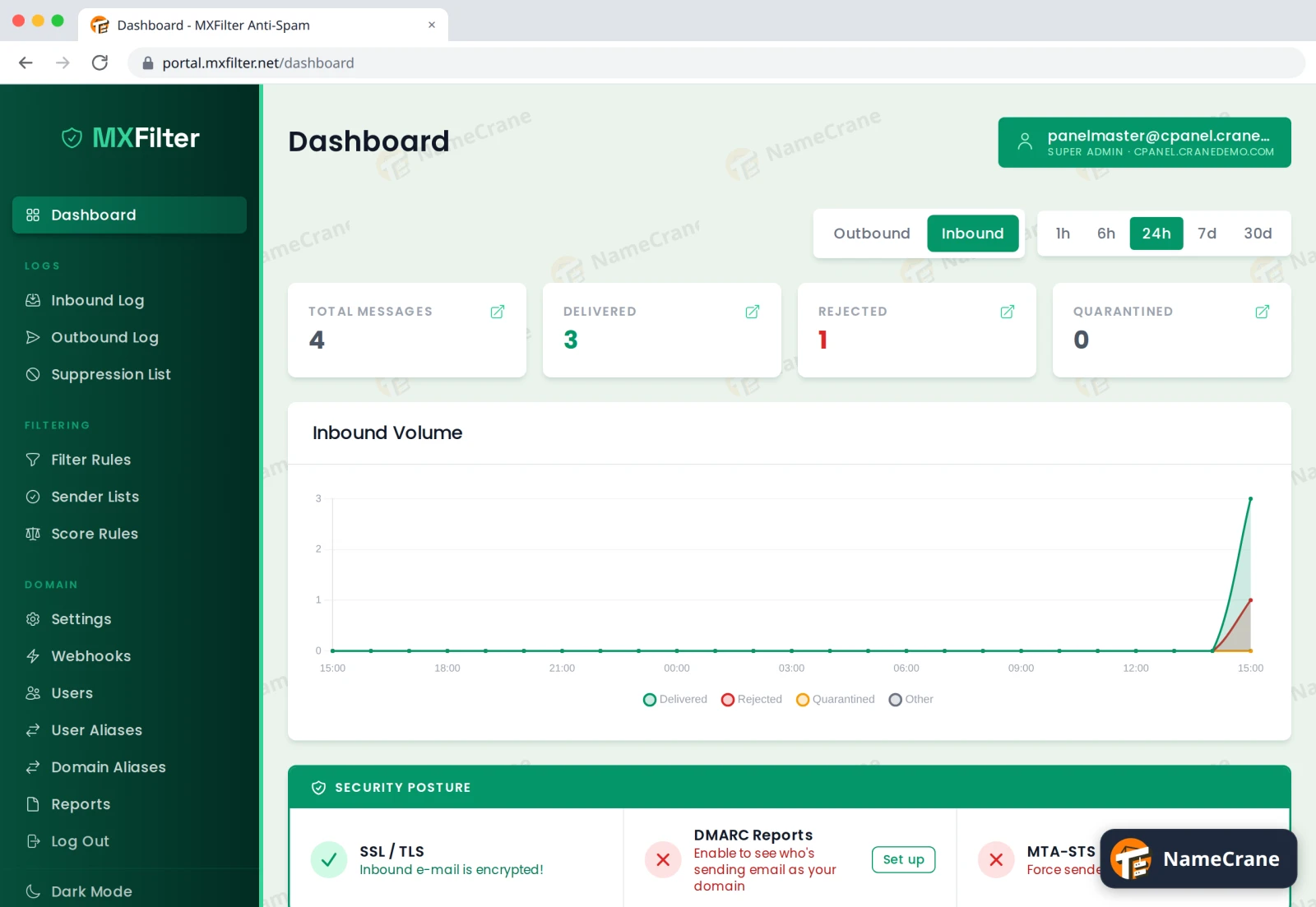
MXFilter opens in a new tab, already signed in as the administrator for that domain. The dashboard shows how much mail you’ve received, how much was delivered, rejected or quarantined, and your domain’s security checks.
Tip: You can use the Log Out link at the bottom of MXFilter’s menu when you’re done. Your cPanel session stays signed in.
Troubleshooting
| Problem | What to do |
|---|---|
| Clicking Login doesn’t open anything | Your browser may be blocking pop-ups. Allow pop-ups for your cPanel address and click Login again. |
| A domain is missing or its status isn’t Active | Contact support so we can check it for you. |
| The MXFilter logs are empty | Your domain’s MX records may not point at MXFilter. In Zone Editor, check the MX records are mx1–mx4.cpanelplatform.com. |
Snagged on something? Contact support and we’ll get you sorted.