How to Get a Free SSL Certificate and Force HTTPS in DirectAdmin
Last updated Changelog
On this page
A free SSL certificate from Let’s Encrypt puts the padlock and https:// on your website. DirectAdmin issues and renews these for you, and normally does it automatically within 24 hours of adding a domain. This guide shows how to check your certificate, issue it straight away if it’s still waiting, and force visitors onto the secure version of your site.
Issue your certificate
-
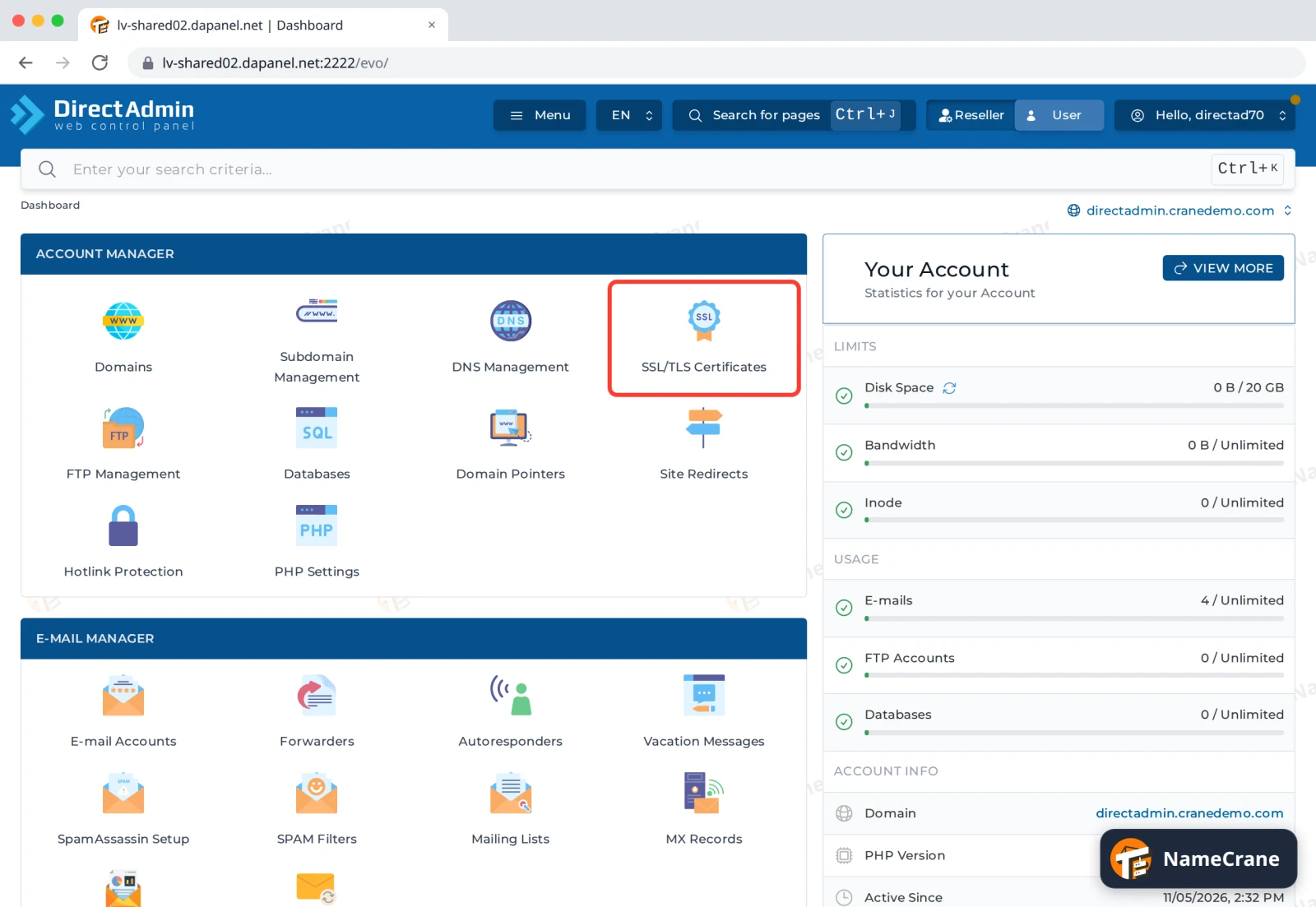
Log in to DirectAdmin. In the Account Manager section, click SSL/TLS Certificates.
-
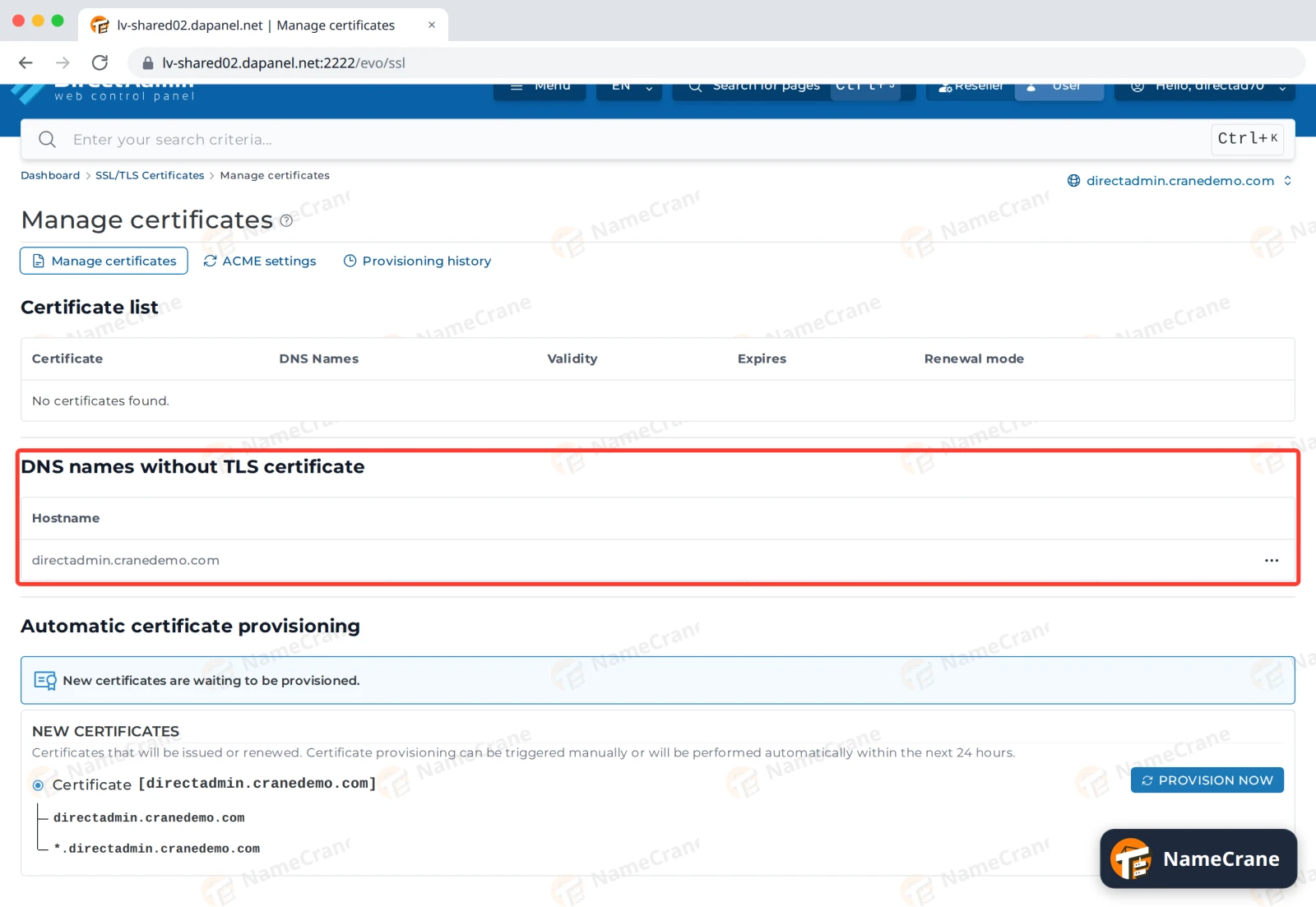
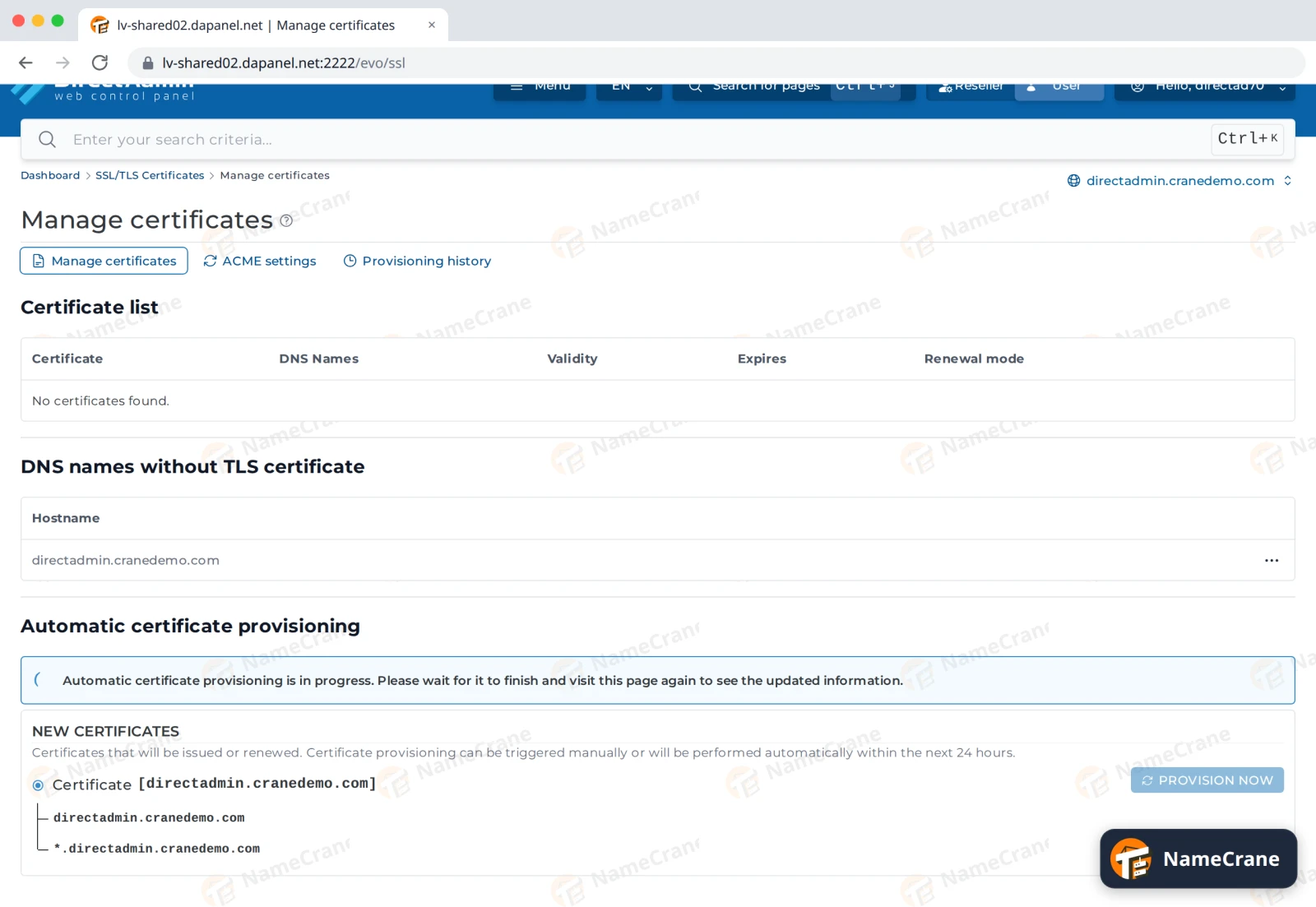
If your domain doesn’t have a certificate yet, the Certificate list says “No certificates found” and your domain is listed under DNS names without TLS certificate.
-
Under Automatic certificate provisioning, you’ll see “New certificates are waiting to be provisioned”, with the names it will cover. That includes a wildcard (
*.yourdomain.com), which covers every subdomain. Click Provision Now rather than waiting.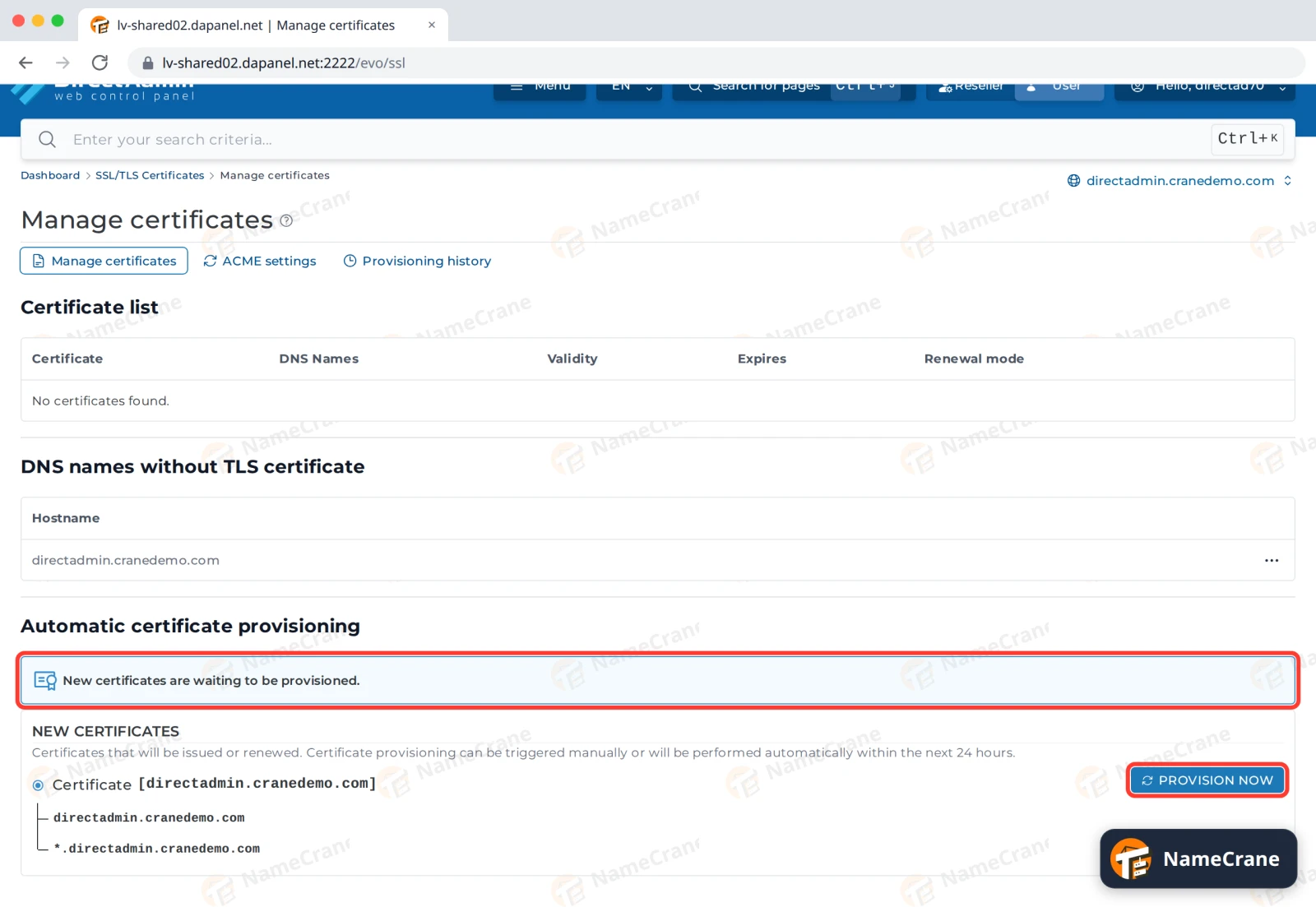
-
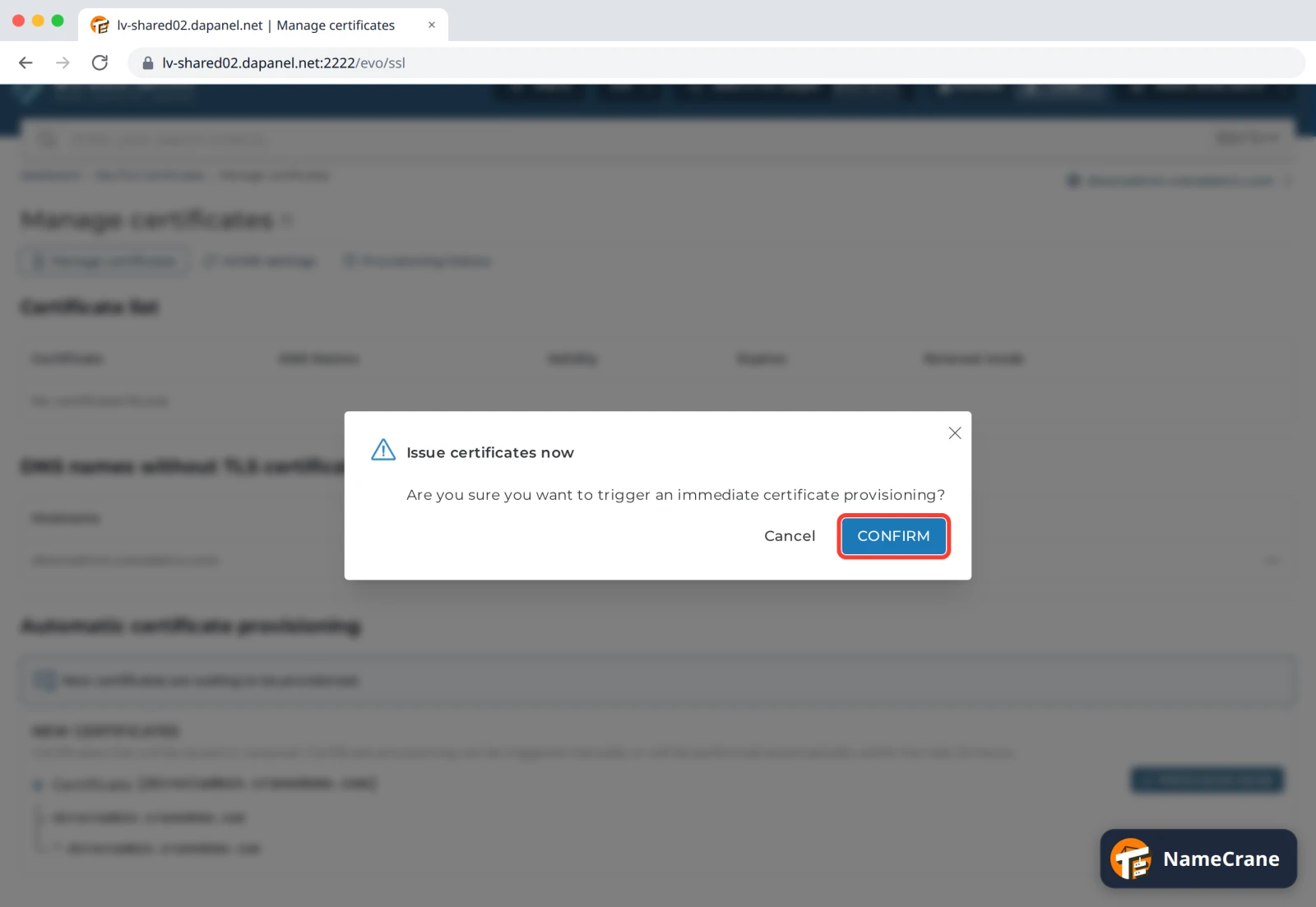
Click Confirm.
-
DirectAdmin starts issuing the certificate: “Automatic certificate provisioning is in progress”. Leave it a few minutes. Ours took about five.
-
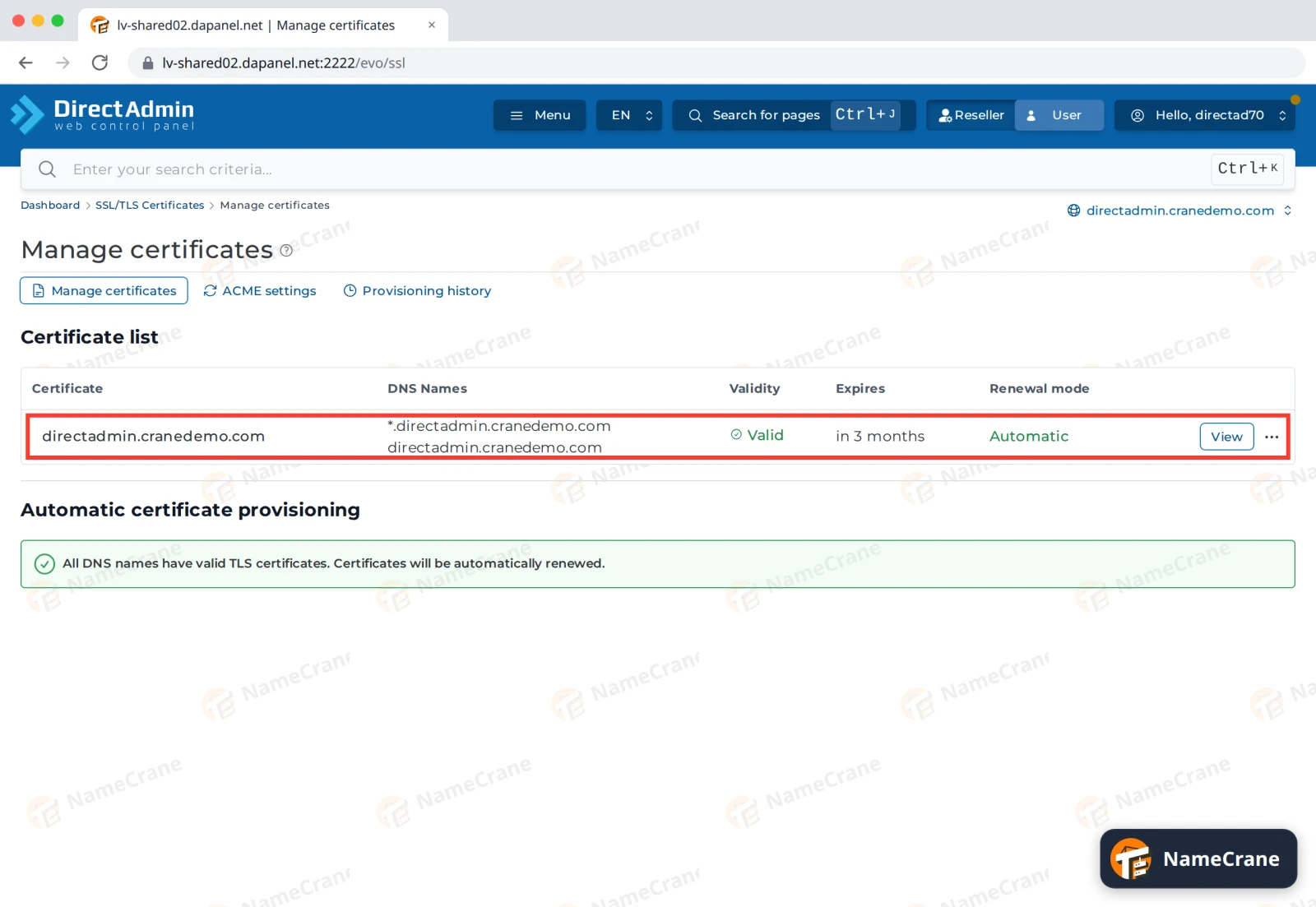
Refresh the page. Your certificate now appears in the Certificate list as Valid, with Renewal mode: Automatic, and the notice says all DNS names have valid certificates.
Note: Your domain must point at your NameCrane hosting, using our nameservers, before a certificate can be issued. If it fails, the Provisioning history tab shows each attempt and why.
Force HTTPS
-
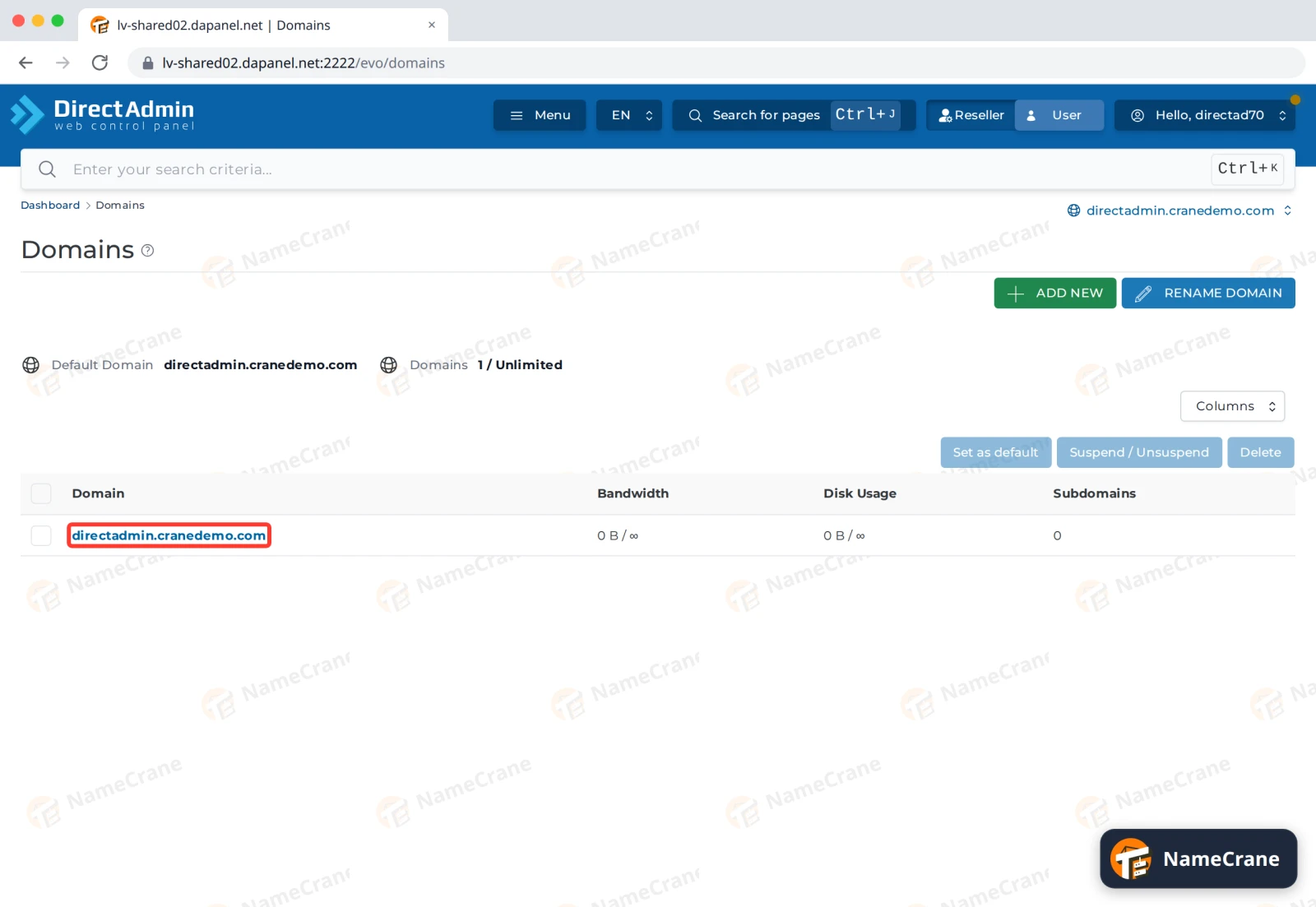
Go to Domains in the Account Manager section, and click your domain’s name.
-
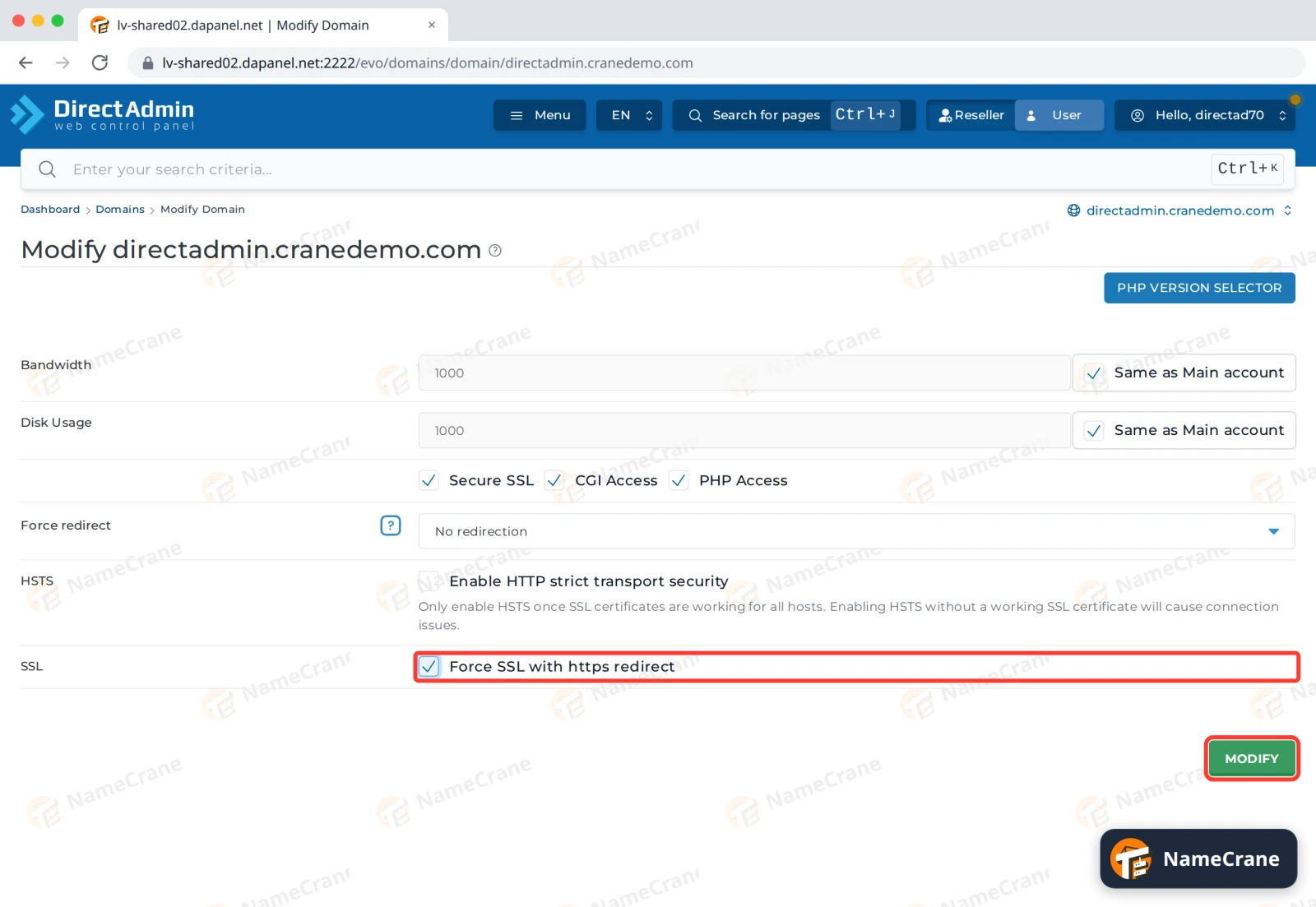
Under SSL, tick Force SSL with https redirect, then click Modify.
-
DirectAdmin saves the change. Within a minute or two,
http://addresses are redirected tohttps://.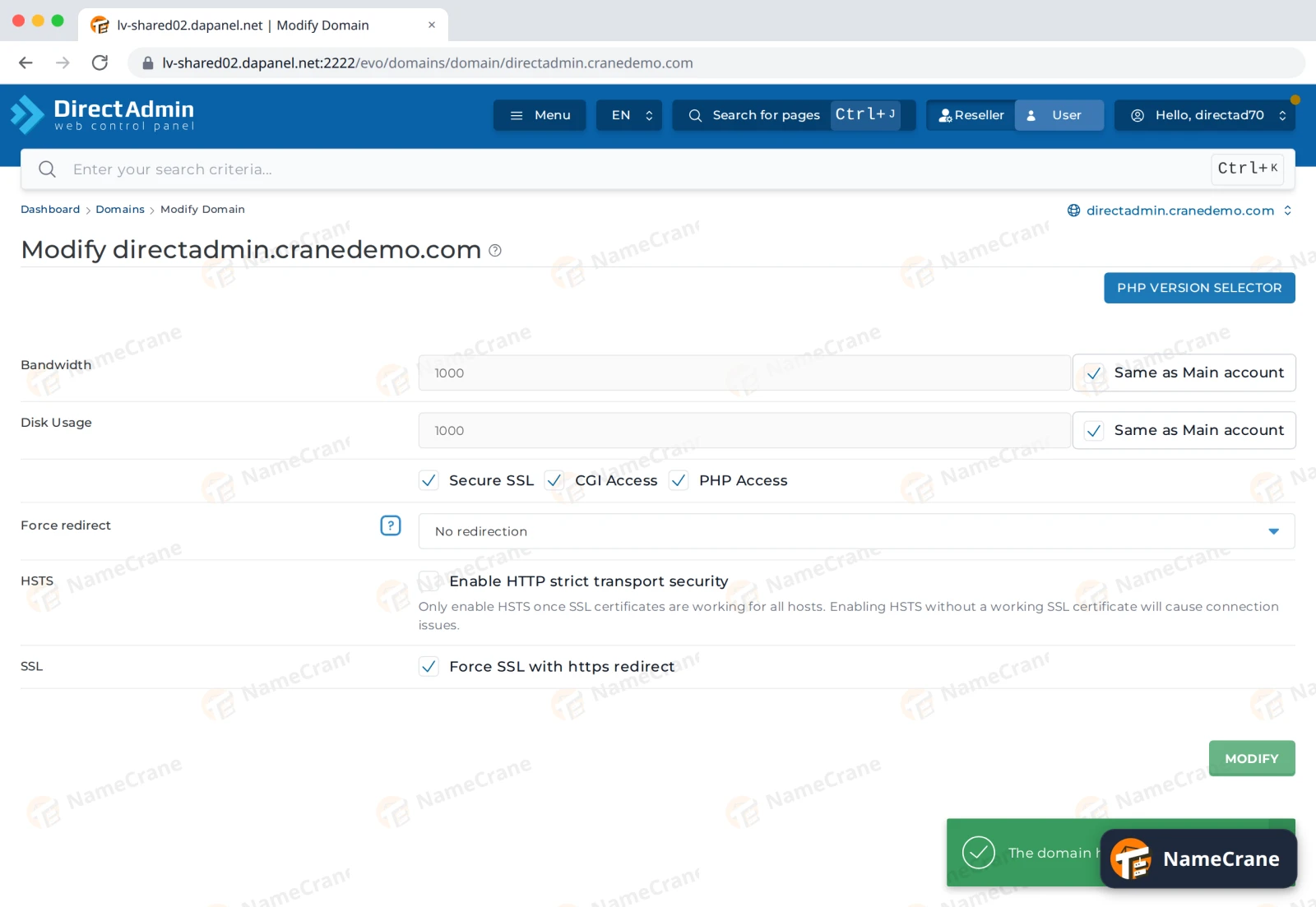
Warning: Leave HSTS off unless you’re sure every subdomain has a working certificate. Once browsers have seen it, they’ll refuse to load any part of your site without SSL.
Troubleshooting
| Problem | What to do |
|---|---|
| Provisioning failed | Open Provisioning history and click View for the reason. Usually the domain doesn’t point at us yet. Fix the DNS, then try Provision Now again. |
| The browser still says “Not secure” | Clear your browser cache. If your site loads images or scripts over http://, update those links (for WordPress, update the site address under Settings › General). |
| I need a certificate I bought elsewhere | See Install a custom SSL certificate. |
| The site loops between pages after forcing HTTPS | Untick Force SSL with https redirect, and check your site or .htaccess doesn’t add its own redirect too. |
Snagged on something? Contact support and we’ll get you sorted.