How to Add an Alias Domain in MXFilter
Last updated Changelog
On this page
If you have more than one domain for the same mailboxes, for example yourbrand.co.uk as well as yourbrand.com, you can add the extra one as an alias domain. Its email goes through your main domain’s filtering, using the same settings, rules and sender lists, so you only have to manage everything once.
Before you start
- Open MXFilter from your control panel: from cPanel or from DirectAdmin.
- The extra domain should already be set up in your control panel as an alias (or parked) domain, and its MX records must point at MXFilter, the same as your main domain.
Steps
-
In the MXFilter menu, under Domain, click Domain Aliases, then click Add Alias.
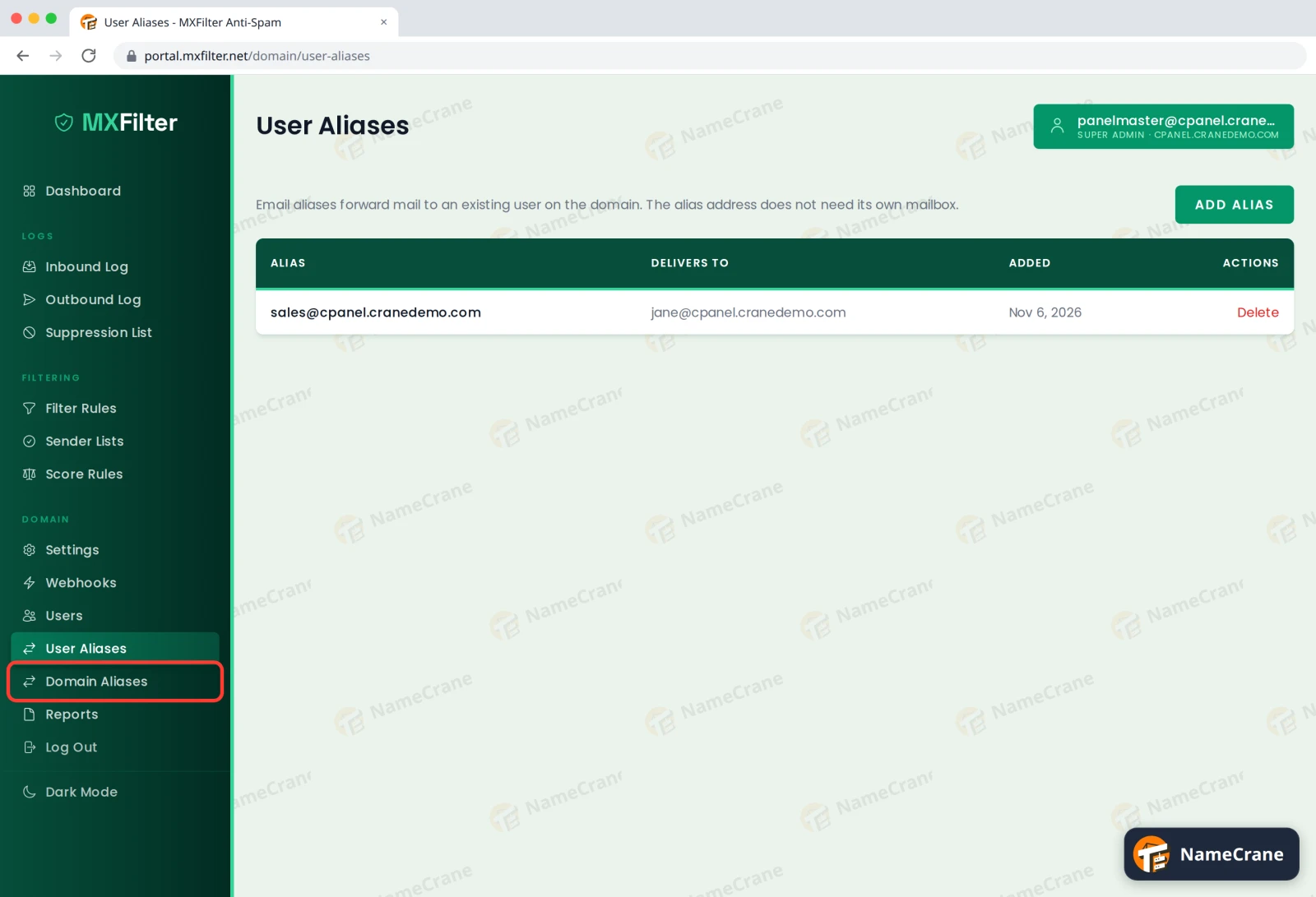
-
Type the extra domain’s name and click Add.
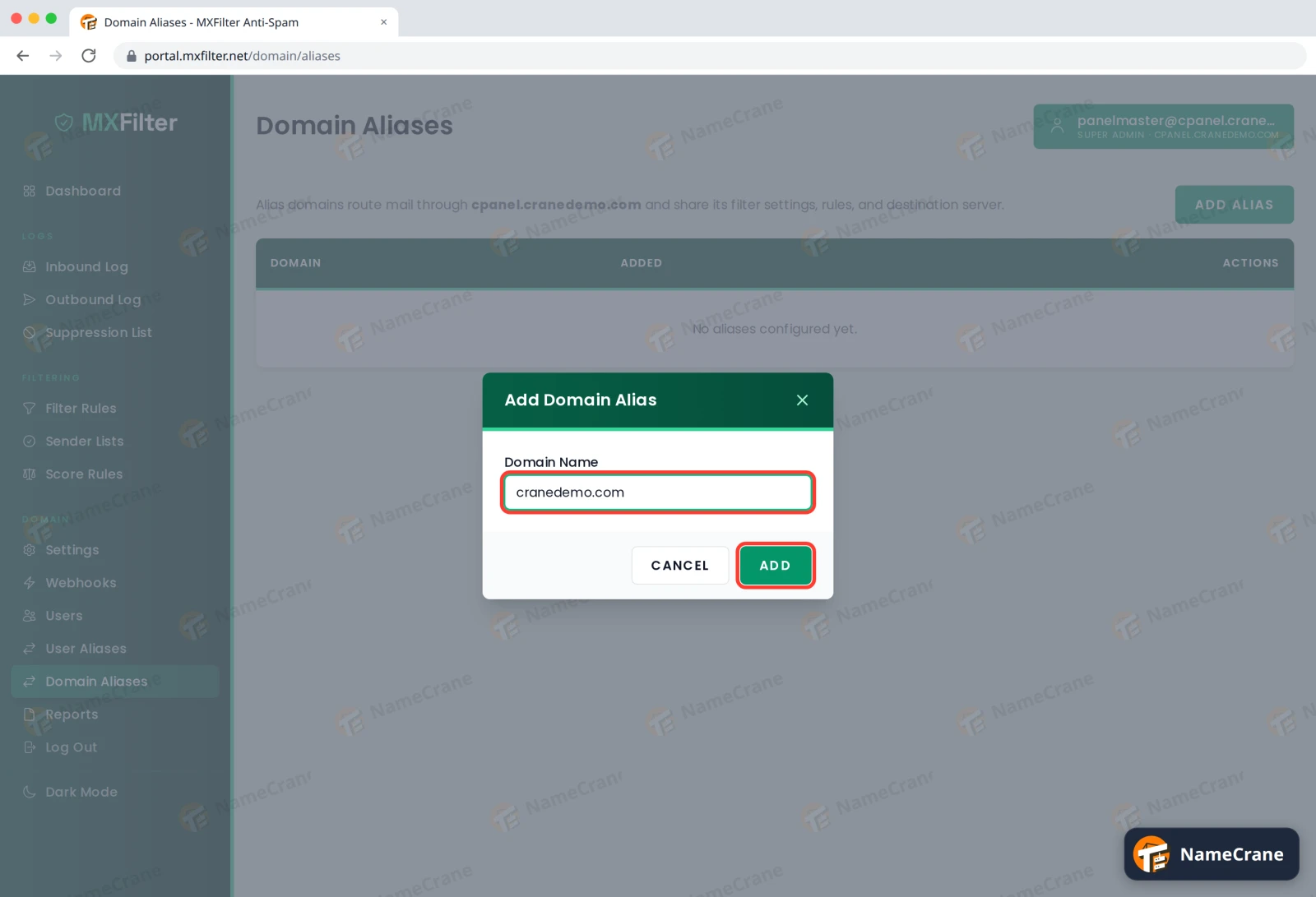
The alias domain now shares your main domain’s filtering. Messages to it appear in your main domain’s Inbound Log.
Note: An alias domain uses all of the main domain’s settings. If the extra domain needs different rules, ask us about setting it up as its own domain instead.
Troubleshooting
| Problem | What to do |
|---|---|
| Email to the alias domain isn’t filtered | Check the alias domain’s MX records point at MXFilter. In cPanel they should be mx1–mx4.cpanelplatform.com. In DirectAdmin, use the MXFilter MX template. |
| The domain is already listed | Aliases set up in your control panel may be added for you. Check the Aliases column on your control panel’s spam filter page. |
Snagged on something? Contact support and we’ll get you sorted.