How to Run a Node.js or Python App in DirectAdmin
Last updated Changelog
On this page
Besides PHP sites, your DirectAdmin account can run Node.js and Python web apps. In this example we run a Node.js app at directadmin.cranedemo.com/hello, then a Python (Flask) app at directadmin.cranedemo.com/hello-py.
Create a Node.js app
-
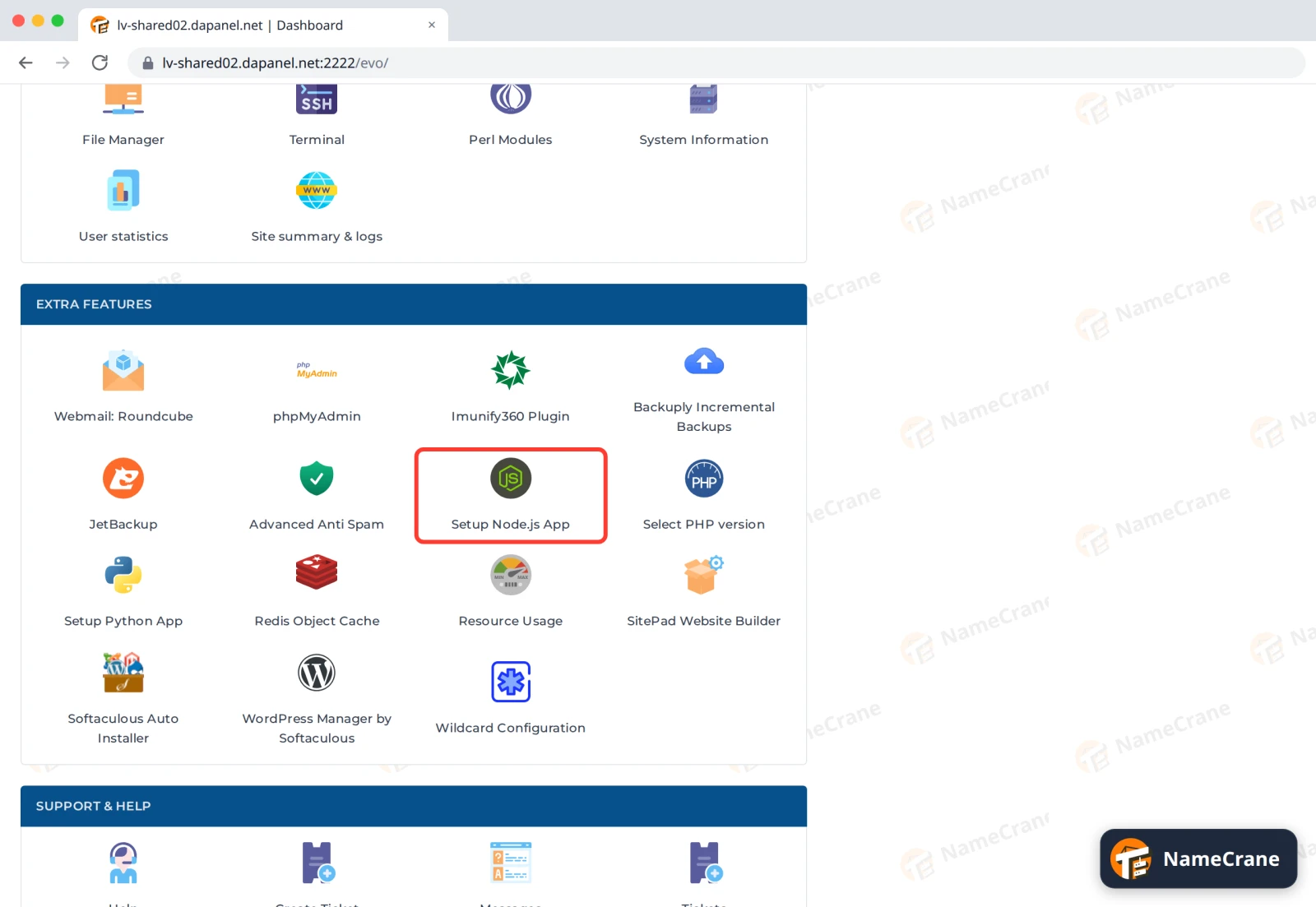
Log in to DirectAdmin. In the Extra Features section, click Setup Node.js App.
-
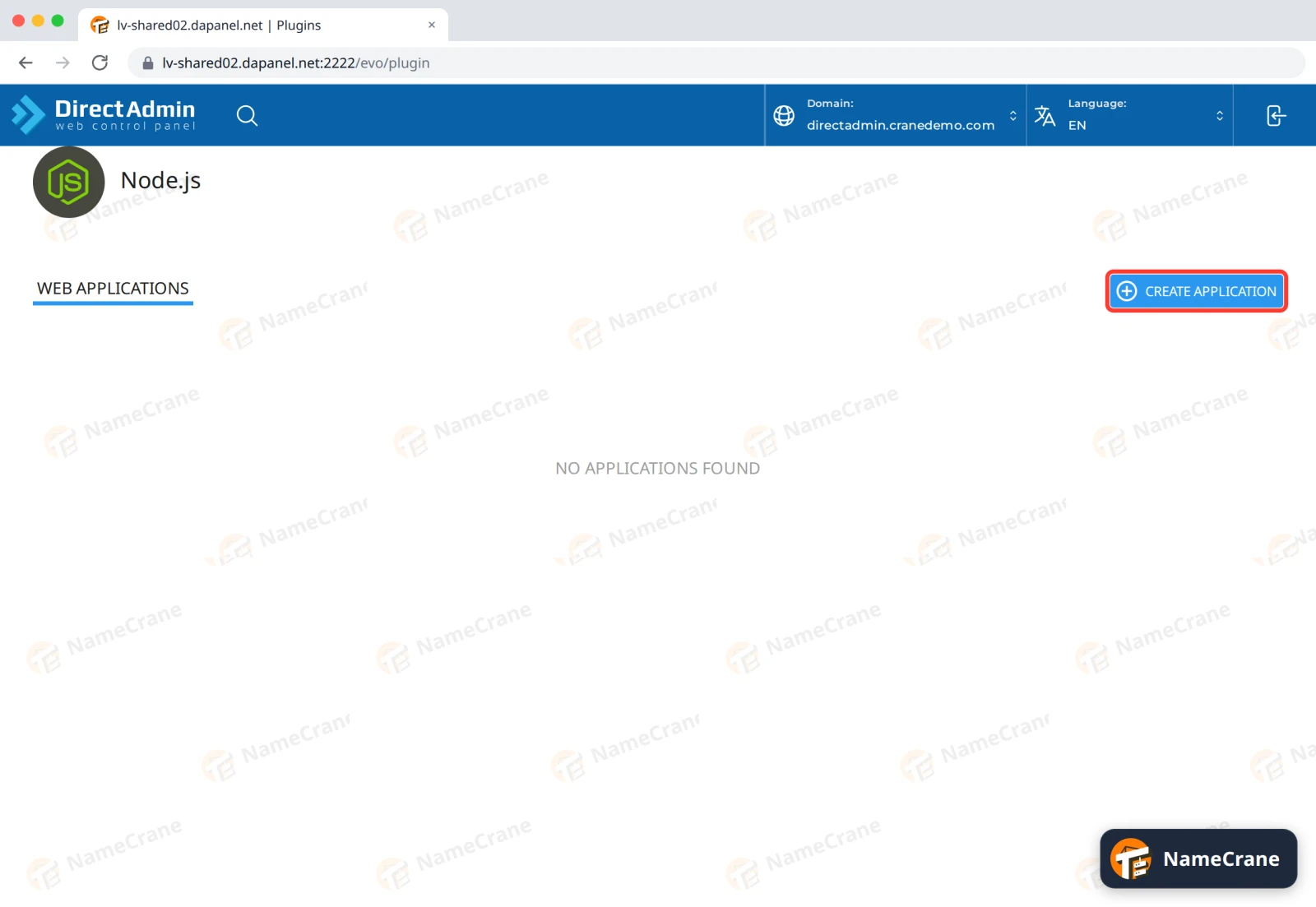
Click CREATE APPLICATION.
-
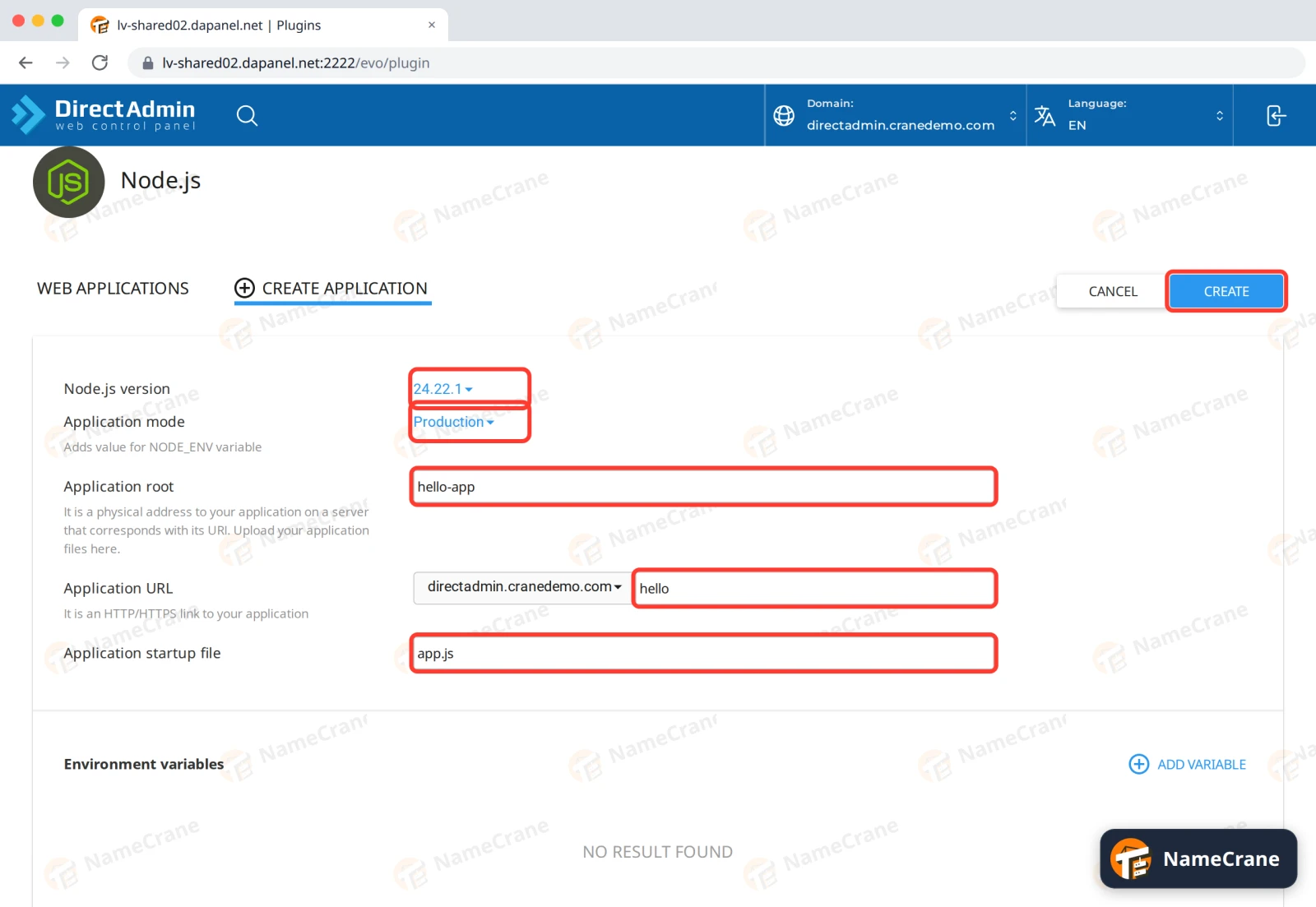
Fill in the form, then click CREATE:
- Node.js version: pick the version your app needs. If you’re not sure, choose the newest.
- Application mode: Production for a live site.
- Application root: the folder for your app’s files, inside your home folder. We used
hello-app. - Application URL: where the app shows up. We chose
directadmin.cranedemo.comand typedhello. Leave the box after the domain empty to run the app on the whole domain. - Application startup file: the file that starts your app, such as
app.js.
-
DirectAdmin creates the app and starts it. At the top you’ll see a command to use your app’s Node.js from SSH or Terminal, for example to run
npmyourself.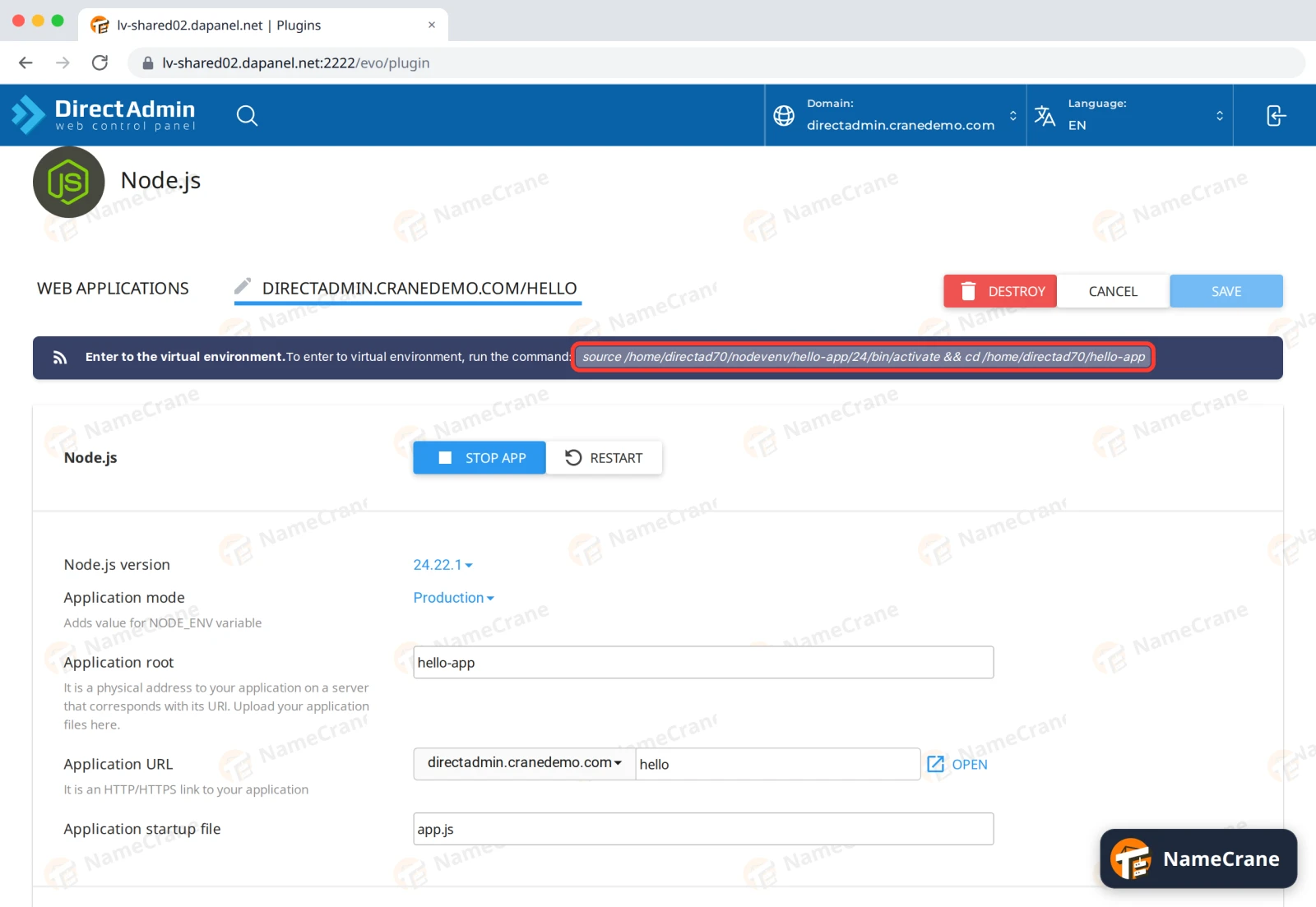
-
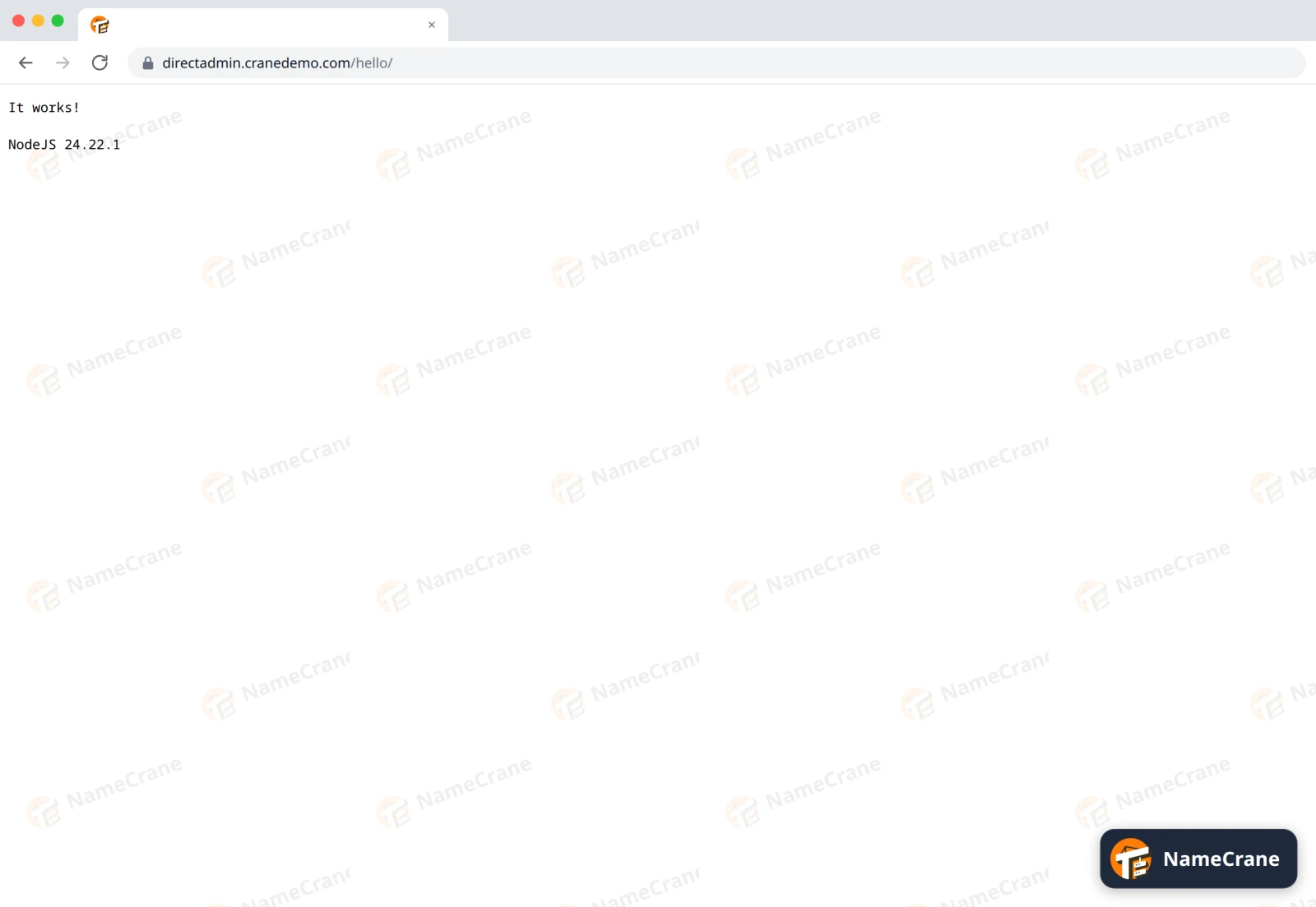
Open your app’s address in a browser. Until you upload your own app, a sample app answers with It works!
Put your own Node.js app in place
-
Upload your app’s files to the application root (here,
hello-app) with File Manager, replacing the sampleapp.js. Includepackage.json, but leave out thenode_modulesfolder. Your app should start its web server withapp.listen(process.env.PORT || 3000)or similar, not on a fixed port. -
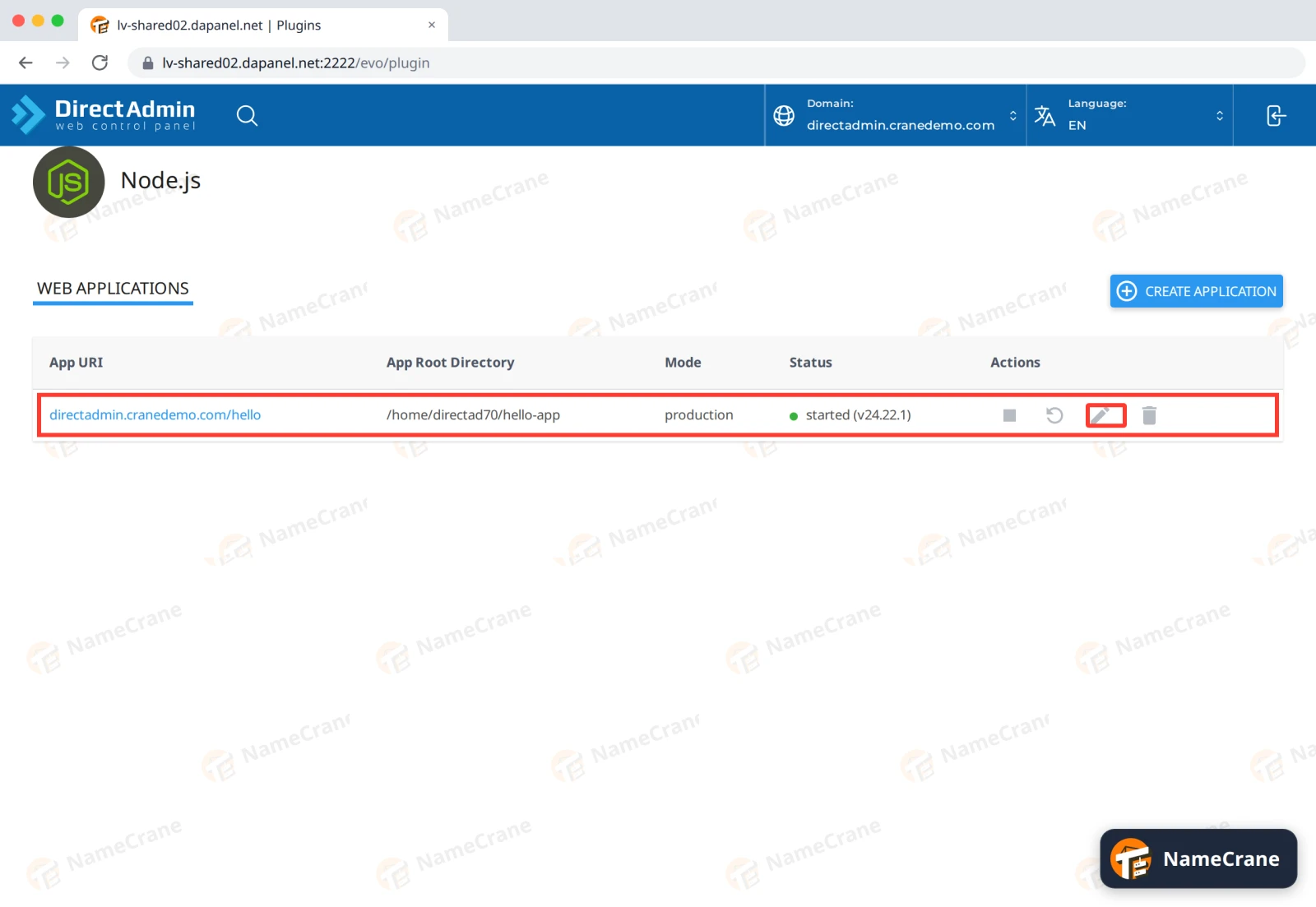
Back in Setup Node.js App, click the pencil next to your app.
-
Under Detected configuration files, click Run NPM Install and wait for it to finish. It installs the packages listed in your
package.json.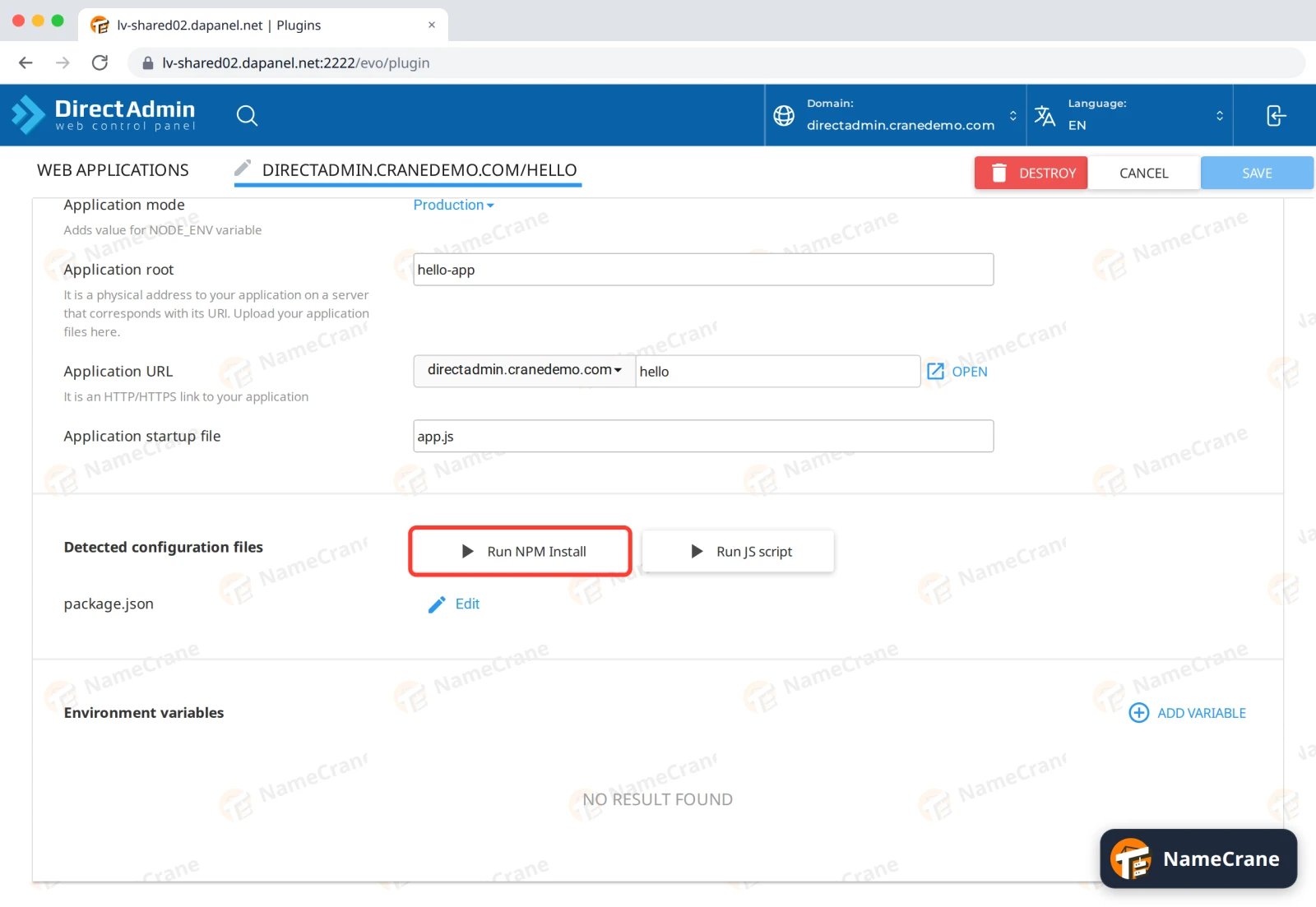
-
Scroll up and click RESTART. Your app is live.
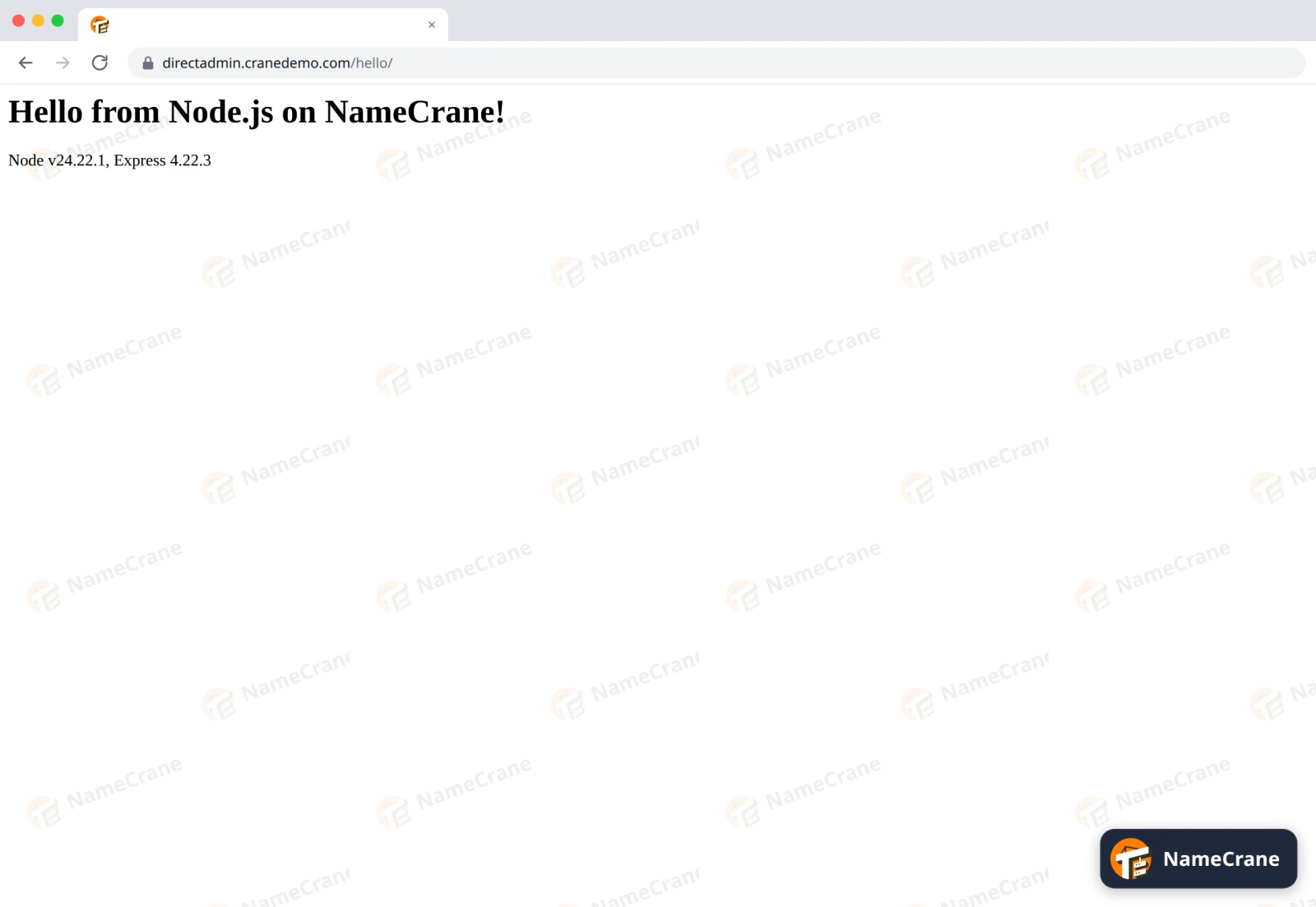
Tip: After you change your app’s files, click RESTART so the changes take effect.
Create a Python app
-
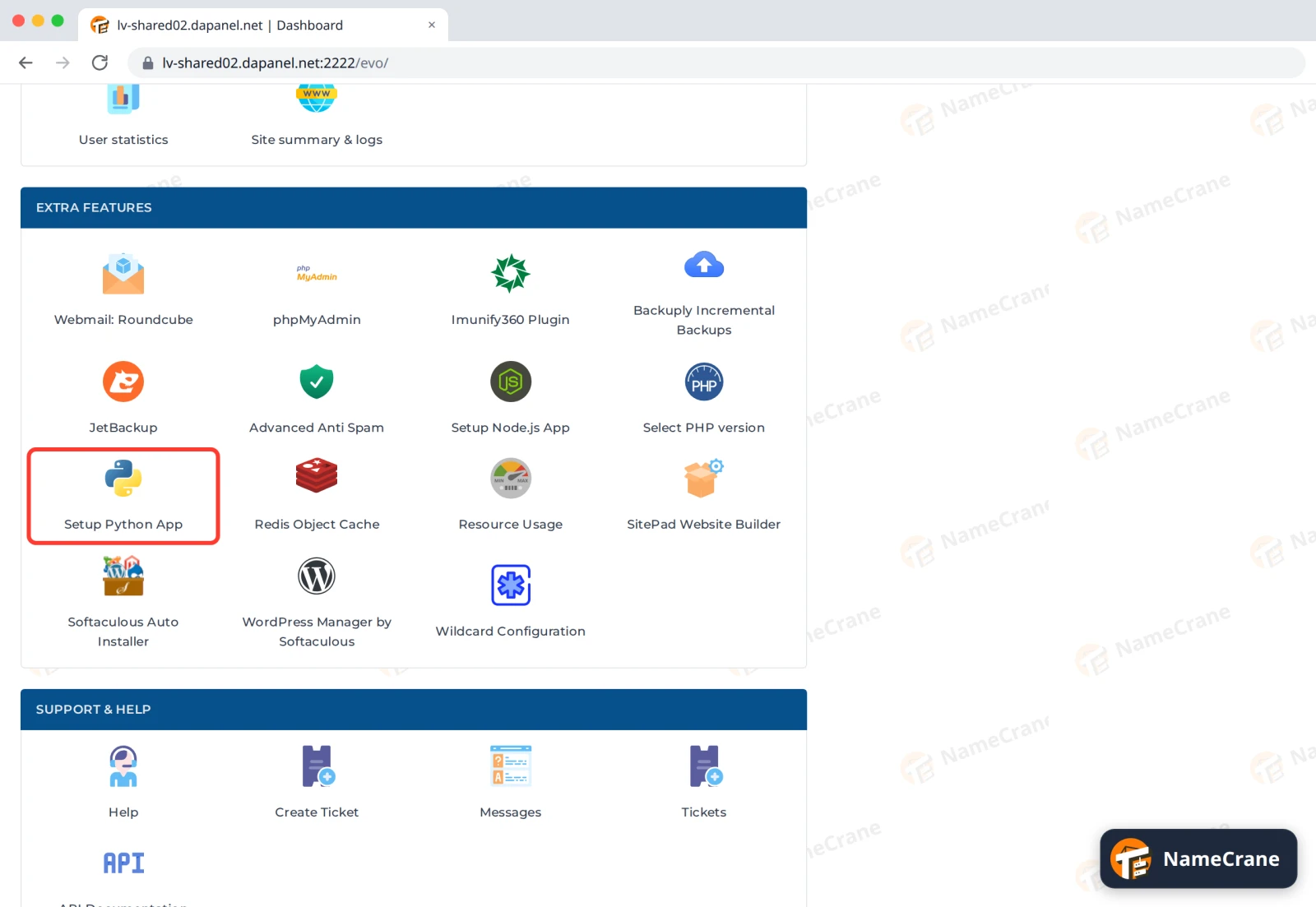
In the Extra Features section, click Setup Python App, then CREATE APPLICATION.
-
Choose a Python version, an Application root and an Application URL. Type
passenger_wsgi.pyas the Application startup file. Leave Application Entry point empty: DirectAdmin fills inapplication. Click CREATE.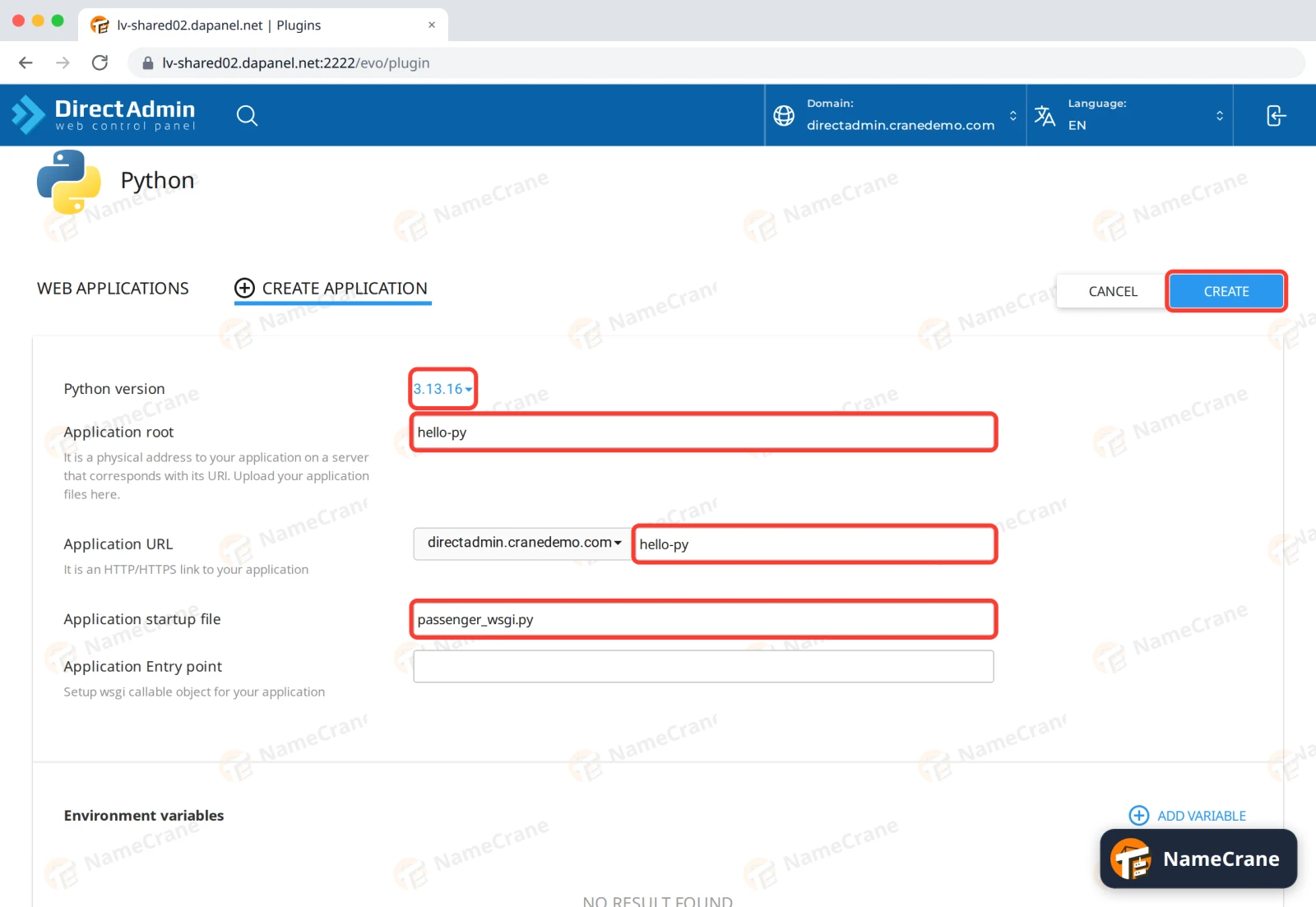
-
DirectAdmin creates the app with a sample
passenger_wsgi.pyand starts it.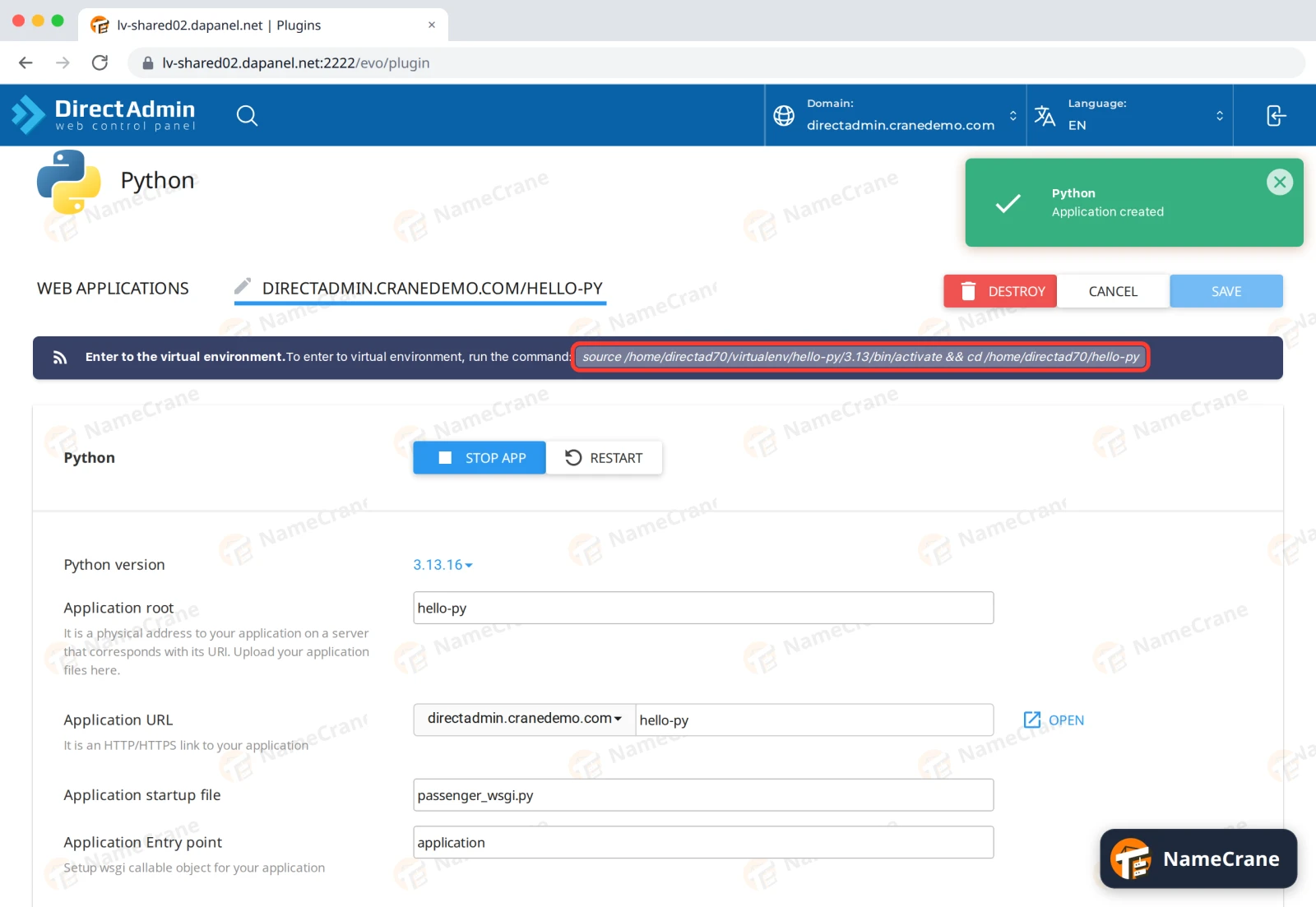
Put your own Python app in place
-
Upload your app’s files to the application root (here,
hello-py), includingrequirements.txt.passenger_wsgi.pymust provide your app asapplication. For a Flask app inapp.py, replace its contents with this one line:from app import app as application -
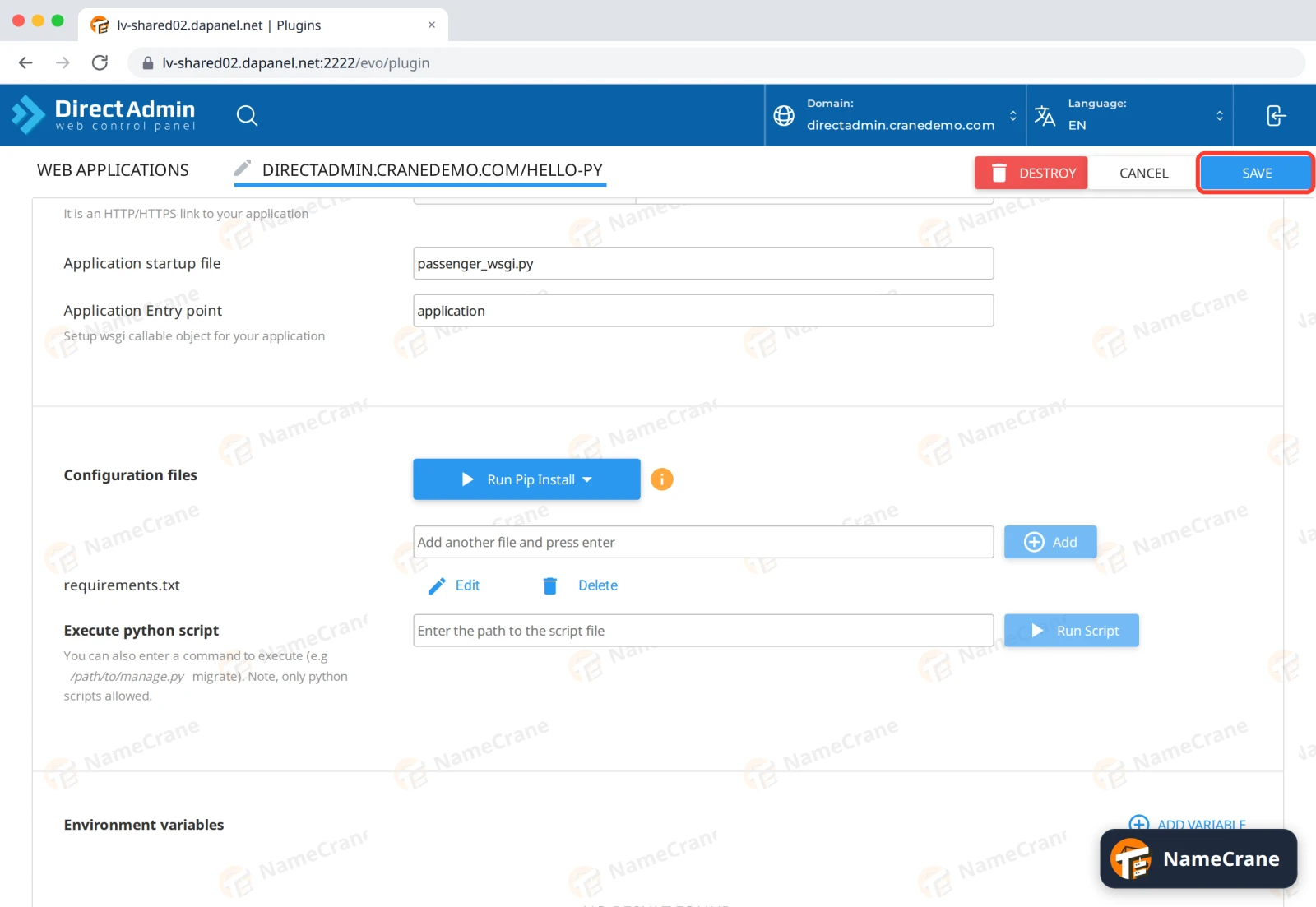
Open your app (the pencil in the list). Under Configuration files, type
requirements.txtin the box and click Add.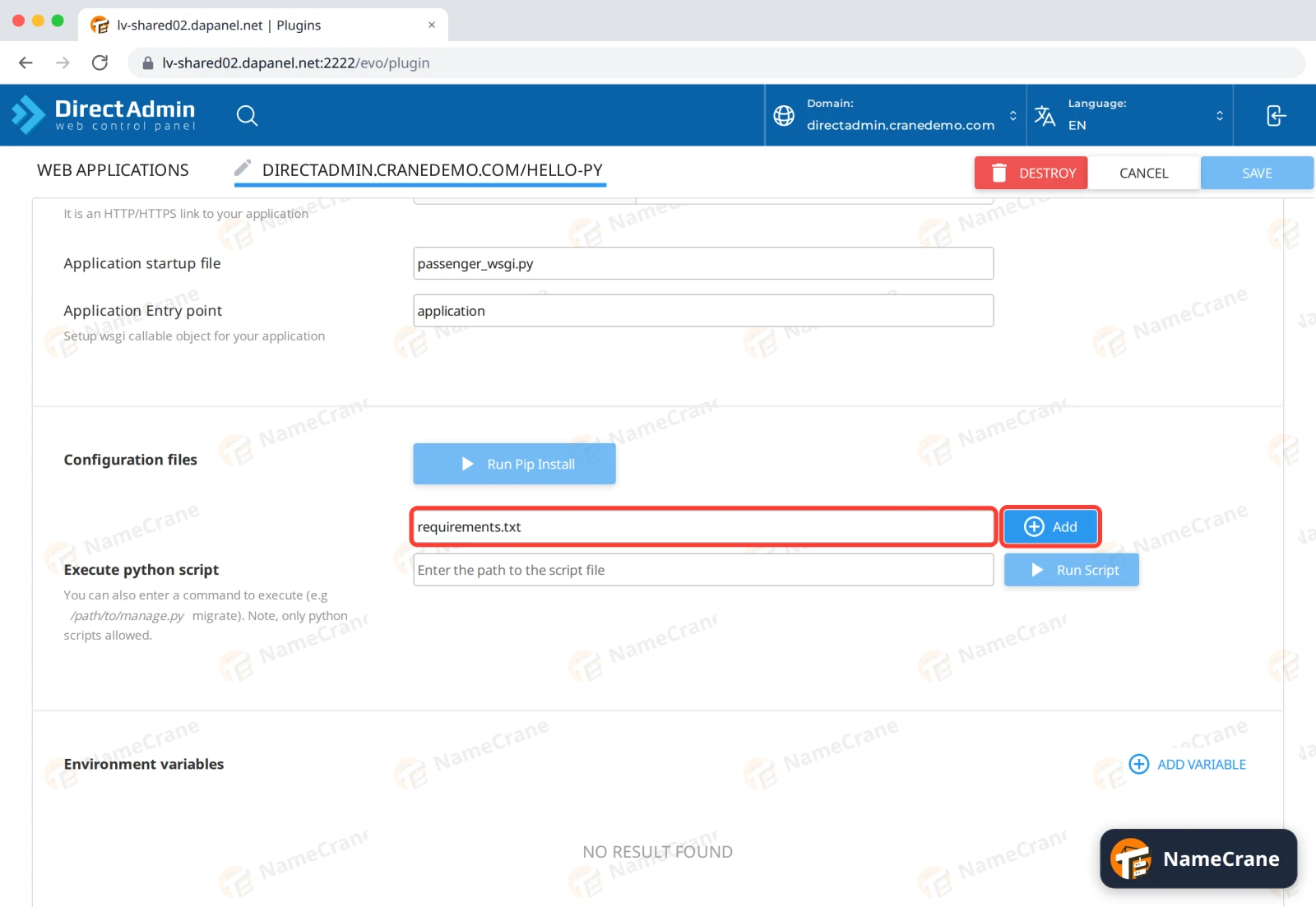
-
Click SAVE at the top.
-
Click Run Pip Install and choose
requirements.txt. It installs your packages.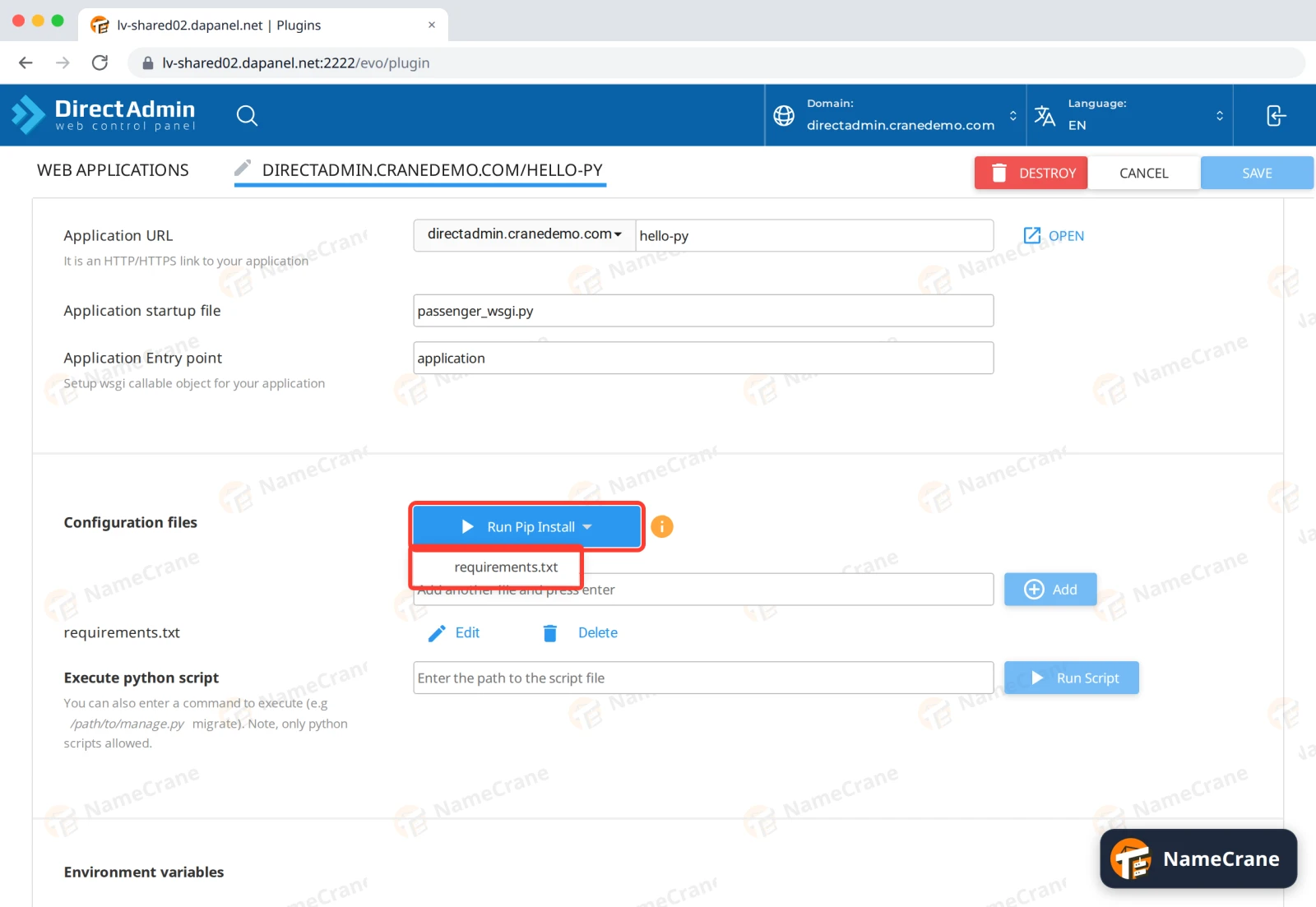
-
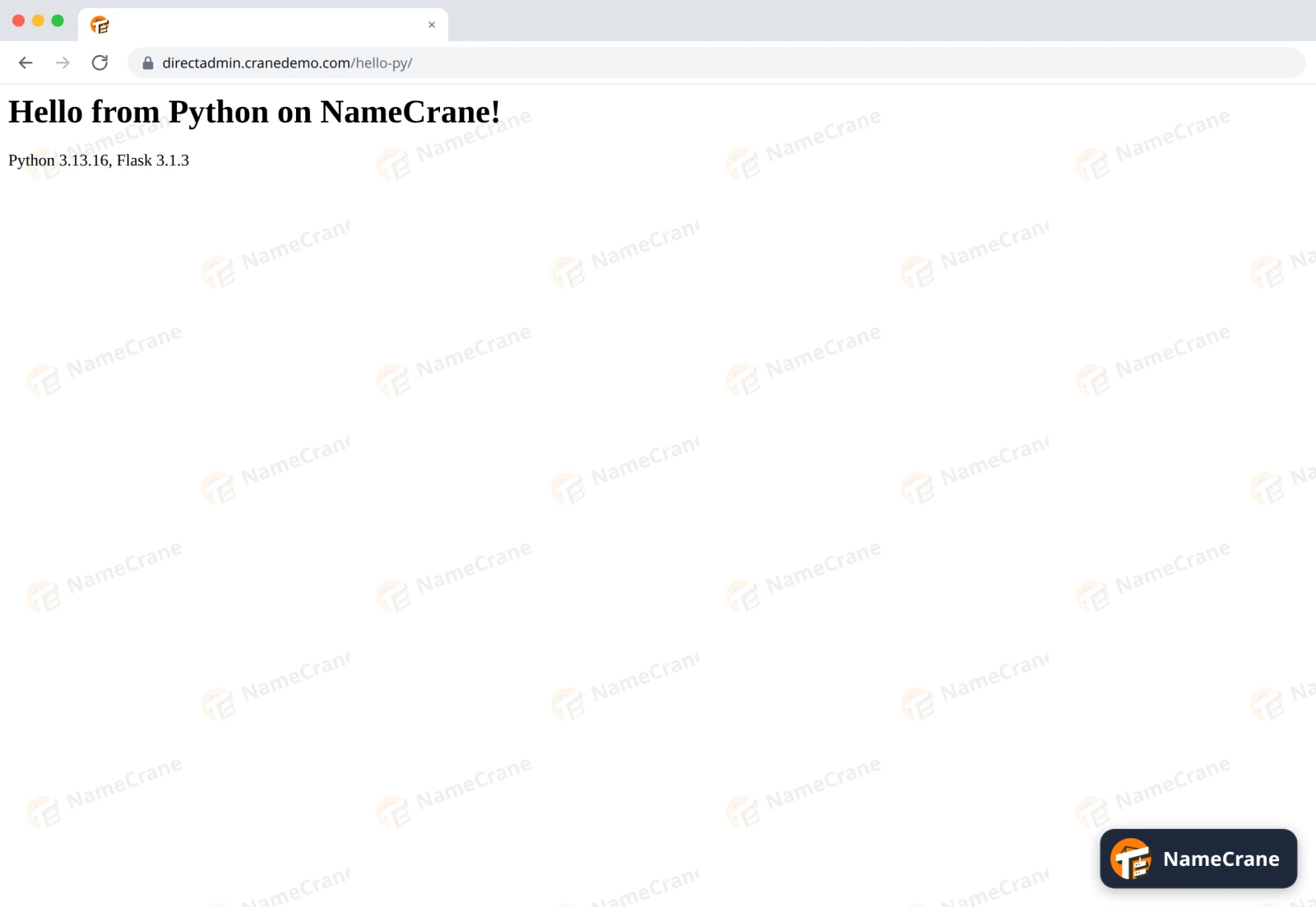
Click RESTART. Your app is live.
Remove an app
Open the app and click DESTROY, then AGREE.
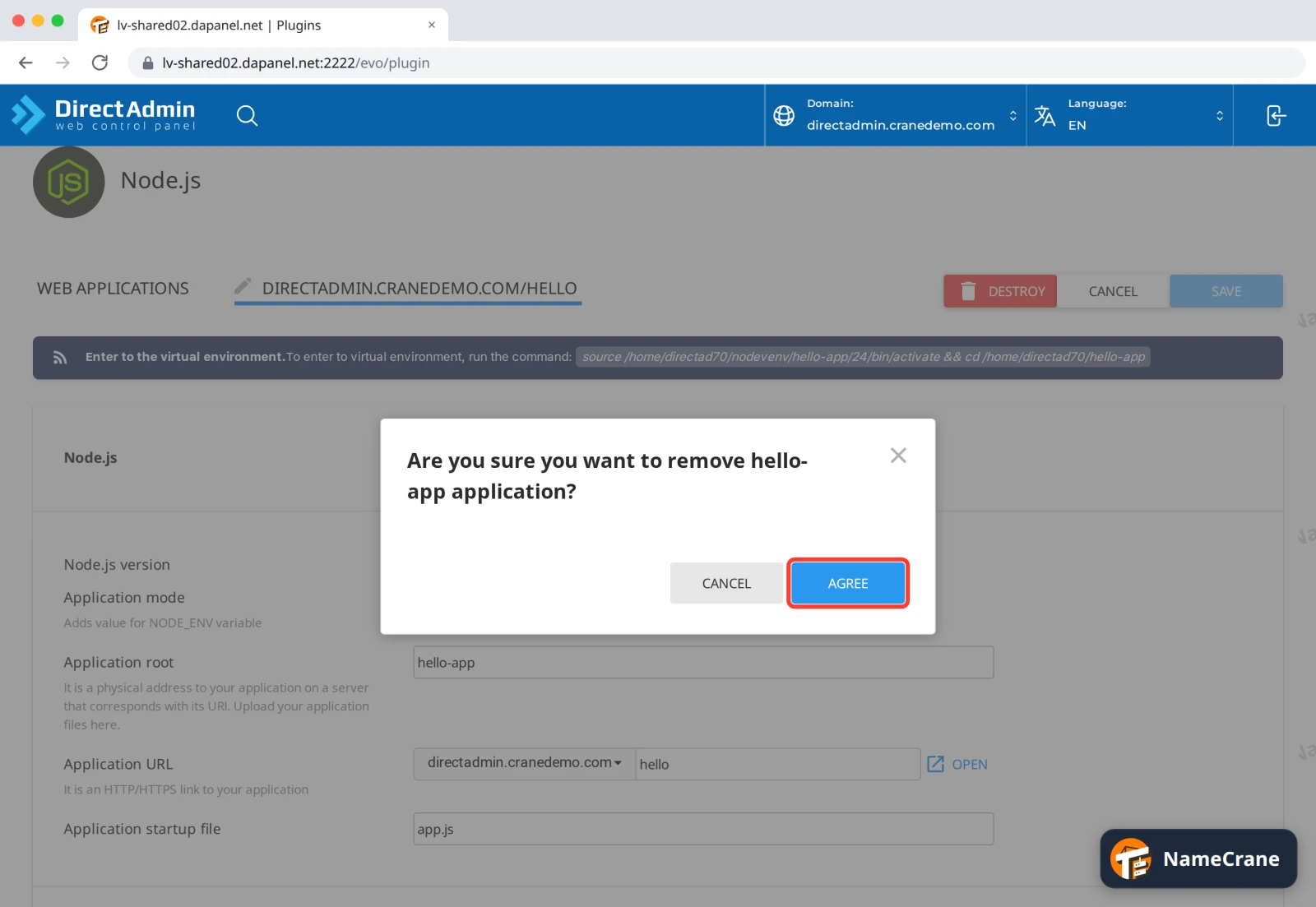
The app stops and disappears from the list. Its files stay in the application root: delete that folder in File Manager if you don’t need them.
Troubleshooting
| Problem | What to do |
|---|---|
| The app’s address shows 500 Internal Server Error | Look in stderr.log in the application root: your app writes its errors there. In our test, a missing package caused it until we ran Run Pip Install. |
| The app’s address shows 403 Forbidden | The app is stopped. Open it and click START APP. |
| Run Pip Install says “An error occured during installation of modules” | In our test this showed up even though everything installed fine: pip only warned that a newer pip exists. Click RESTART and check your app. If it still fails, look in stderr.log. |
| Run Pip Install is greyed out | Add requirements.txt under Configuration files and click SAVE first. |
| My changes don’t show up | Click RESTART in Setup Node.js App or Setup Python App. |
| The app uses too much memory or gets slow | Check Resource Usage. Apps share your plan’s memory and process limits with your website. |
Snagged on something? Contact support and we’ll get you sorted.