How to Forward Email to Another Address in DirectAdmin
Last updated Changelog
On this page
A forwarder sends every email for one address on to another address. For example, you can send everything for info@yourdomain.com to your own inbox, so you only have one inbox to check. The forwarded address doesn’t need its own mailbox.
Steps
-
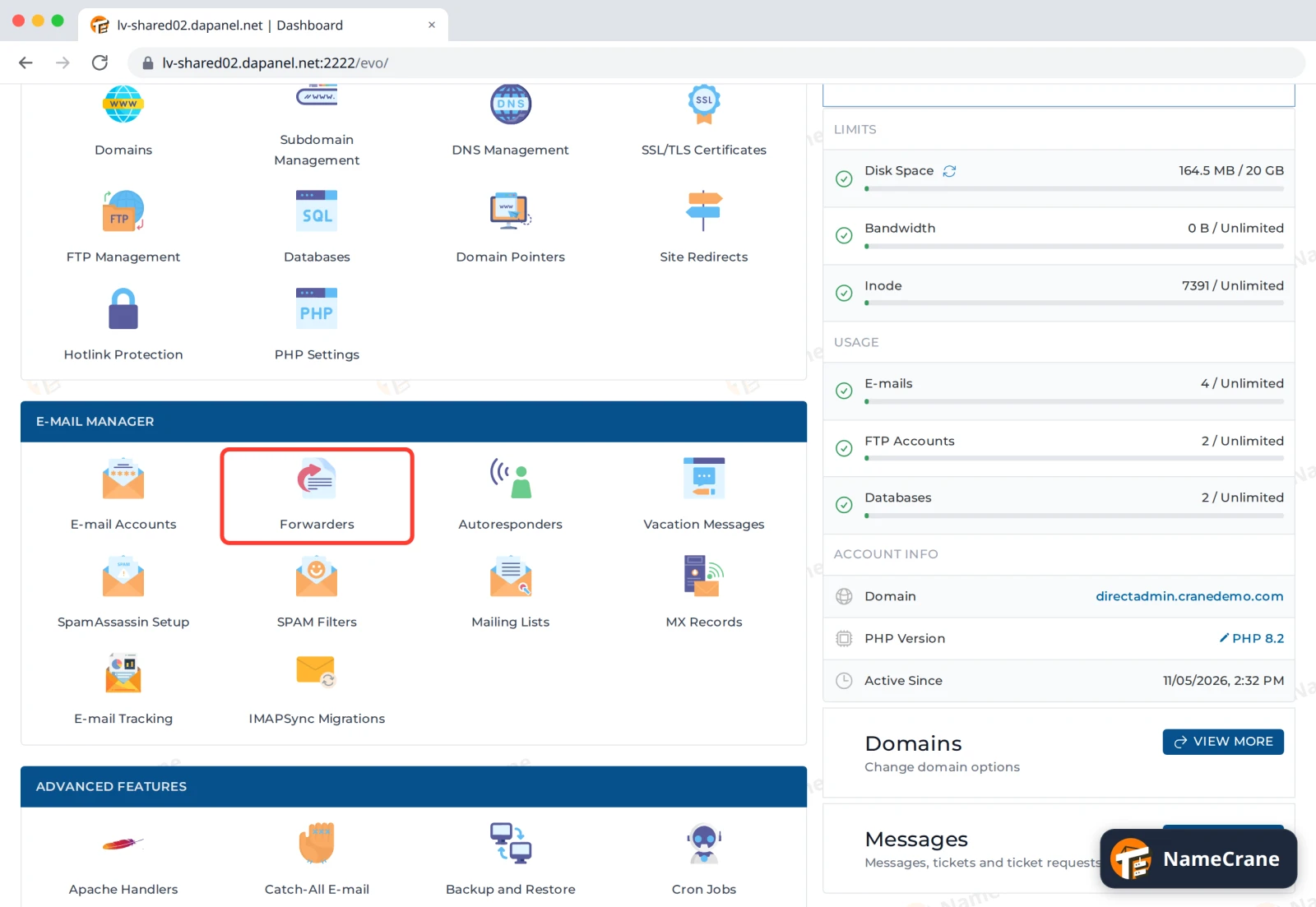
Log in to DirectAdmin. In the E-mail Manager section, click Forwarders.
-
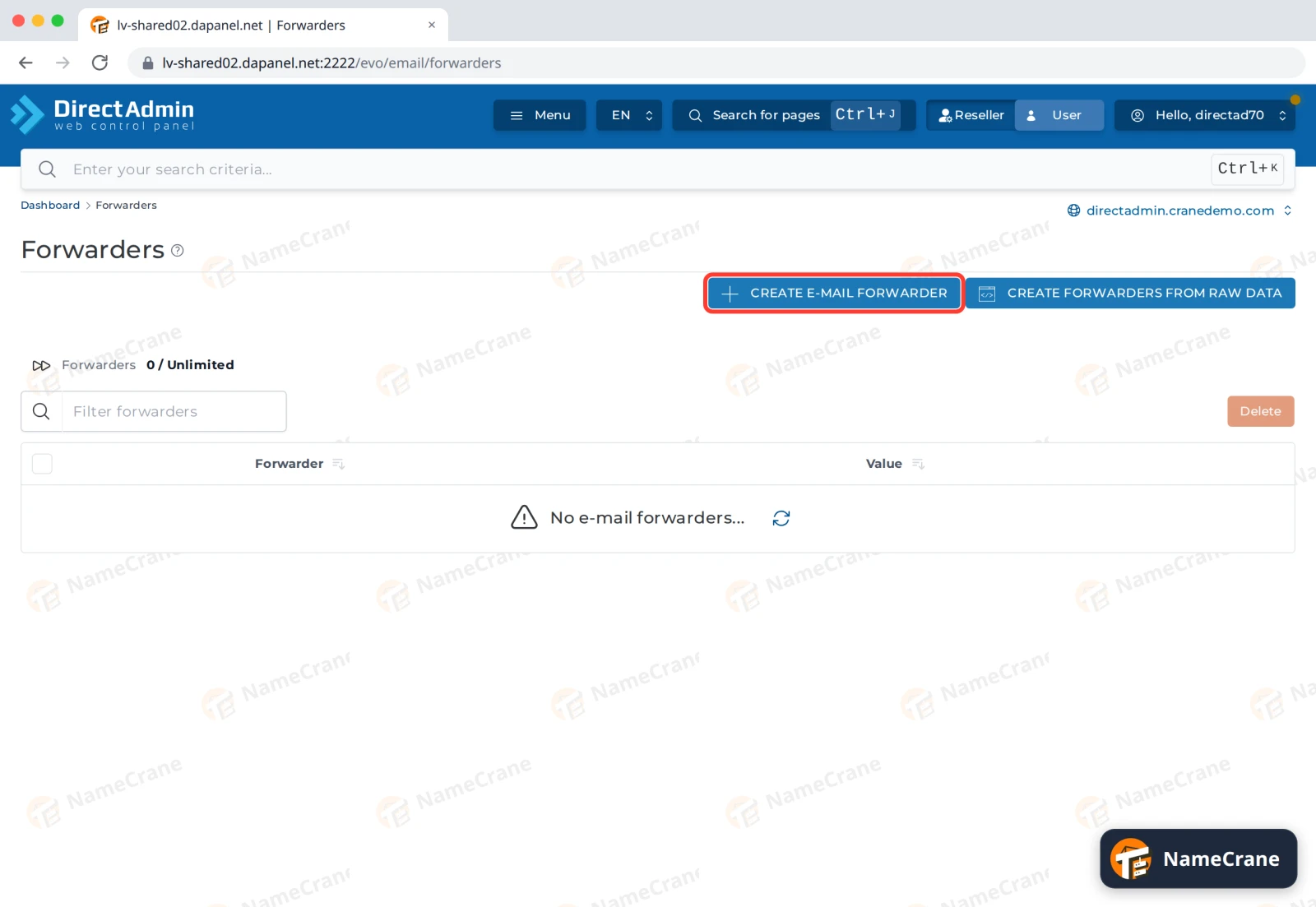
Click Create E-mail Forwarder.
-
In New Forwarder Name, type the part before the
@, such asinfo, and click Add.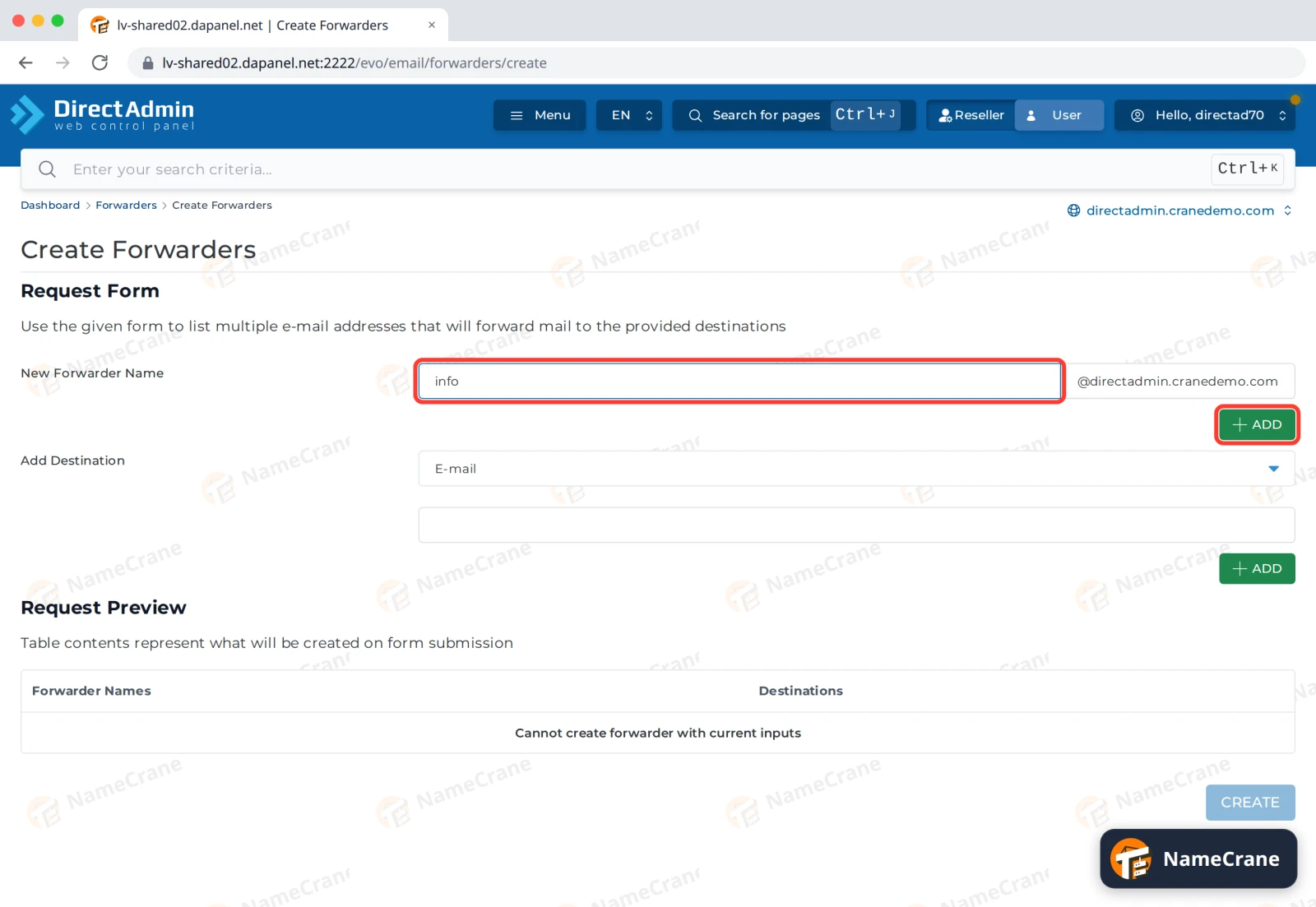
-
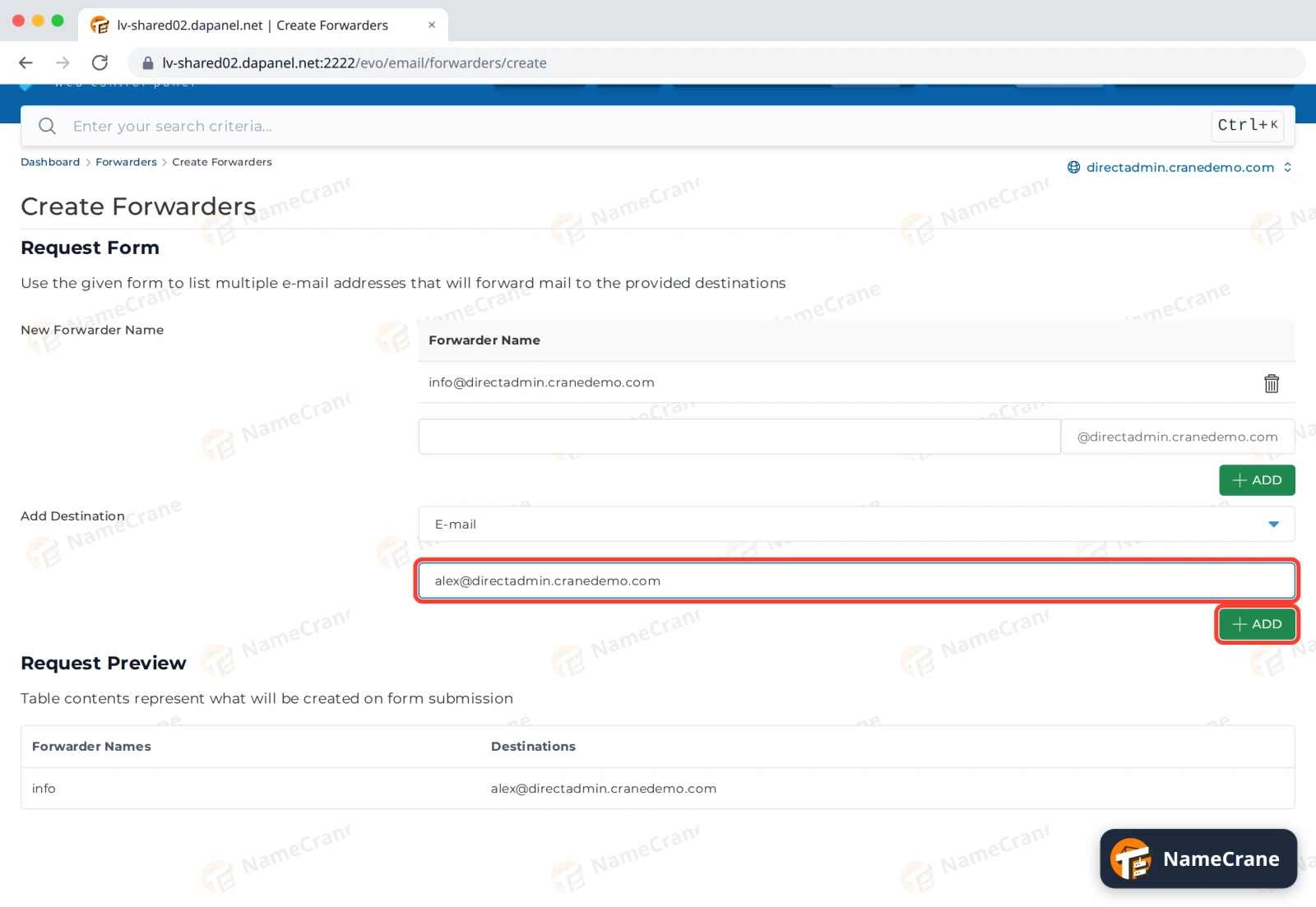
Under Add Destination, leave E-mail selected, type the address to send the email to and click Add.
-
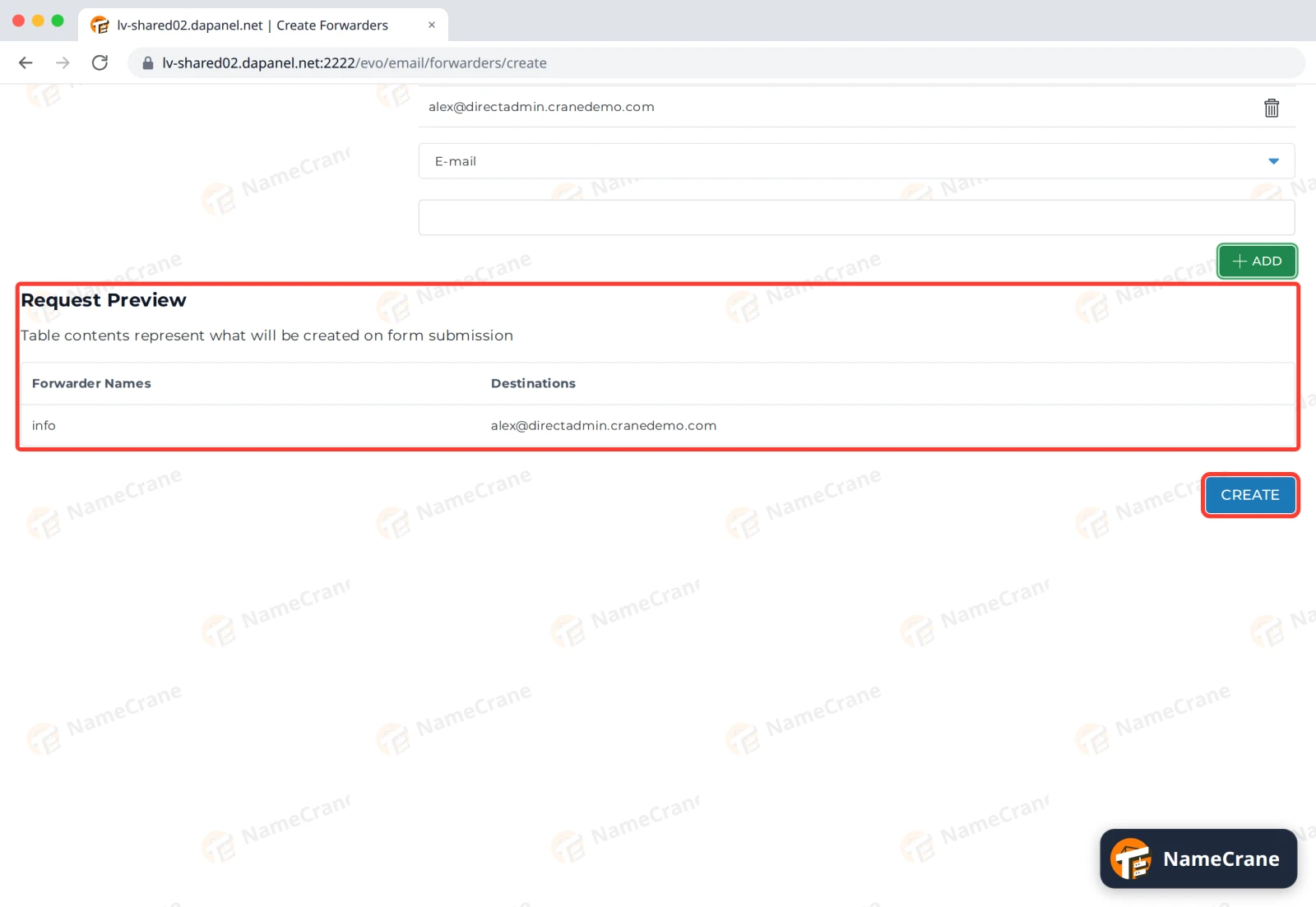
Check Request Preview shows the right name and destination, then click Create.
-
The forwarder appears in the list. To change it, click Modify.
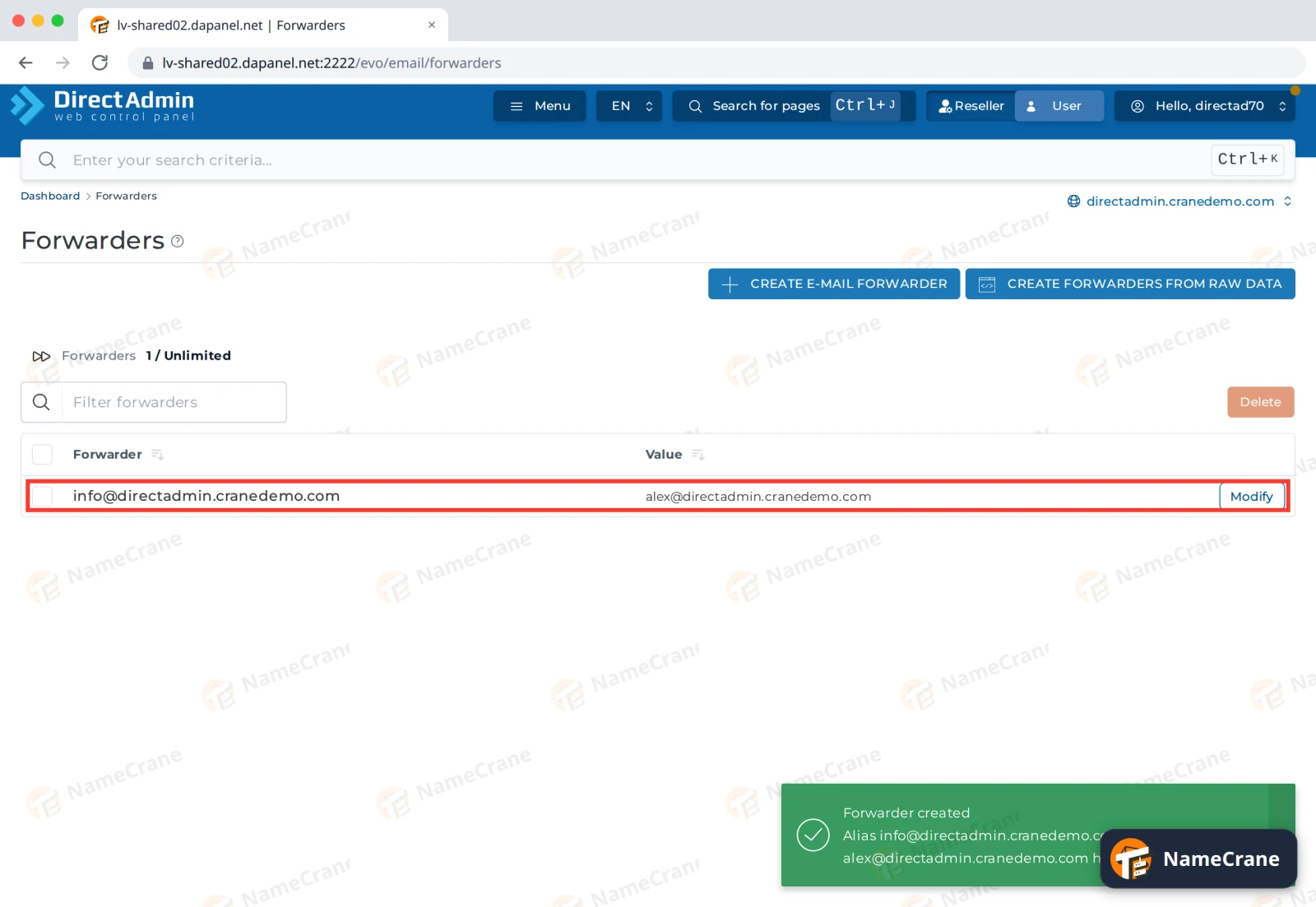
In our test, an email sent to info@directadmin.cranedemo.com arrived in Alex’s inbox within a minute.
Tip: You can add more than one name or destination before clicking Create. Check Request Preview to see exactly what will be created.
Note: You can also set up forwarding in MXFilter itself, as an email alias.
Troubleshooting
| Problem | What to do |
|---|---|
| Forwarded email doesn’t arrive | Check the destination address is spelled correctly, and look in its spam or junk folder. |
| Create is greyed out with “Cannot create forwarder with current inputs” | Click Add after typing the name and after typing the destination. Both must appear in Request Preview. |
| I want to stop forwarding | Tick the forwarder in the list and click Delete. |
Snagged on something? Contact support and we’ll get you sorted.