MXFilter for Mailbox Users: Check Your Own Spam and Quarantine
Last updated Changelog
On this page
If your email is protected by MXFilter, you can sign in to see your own email: what arrived, what was held as possible spam, and what was rejected. You can release messages you want, and choose which senders you always trust or block. Share this guide with your team.
Sign in
-
Go to https://portal.mxfilter.net/login. Choose how to sign in:
- Email Link: type your email address and click Send Login Link. Open the email you receive and click the link. No password needed.
- Password: type your email address and password, tick I’m not a robot, and click Sign In.
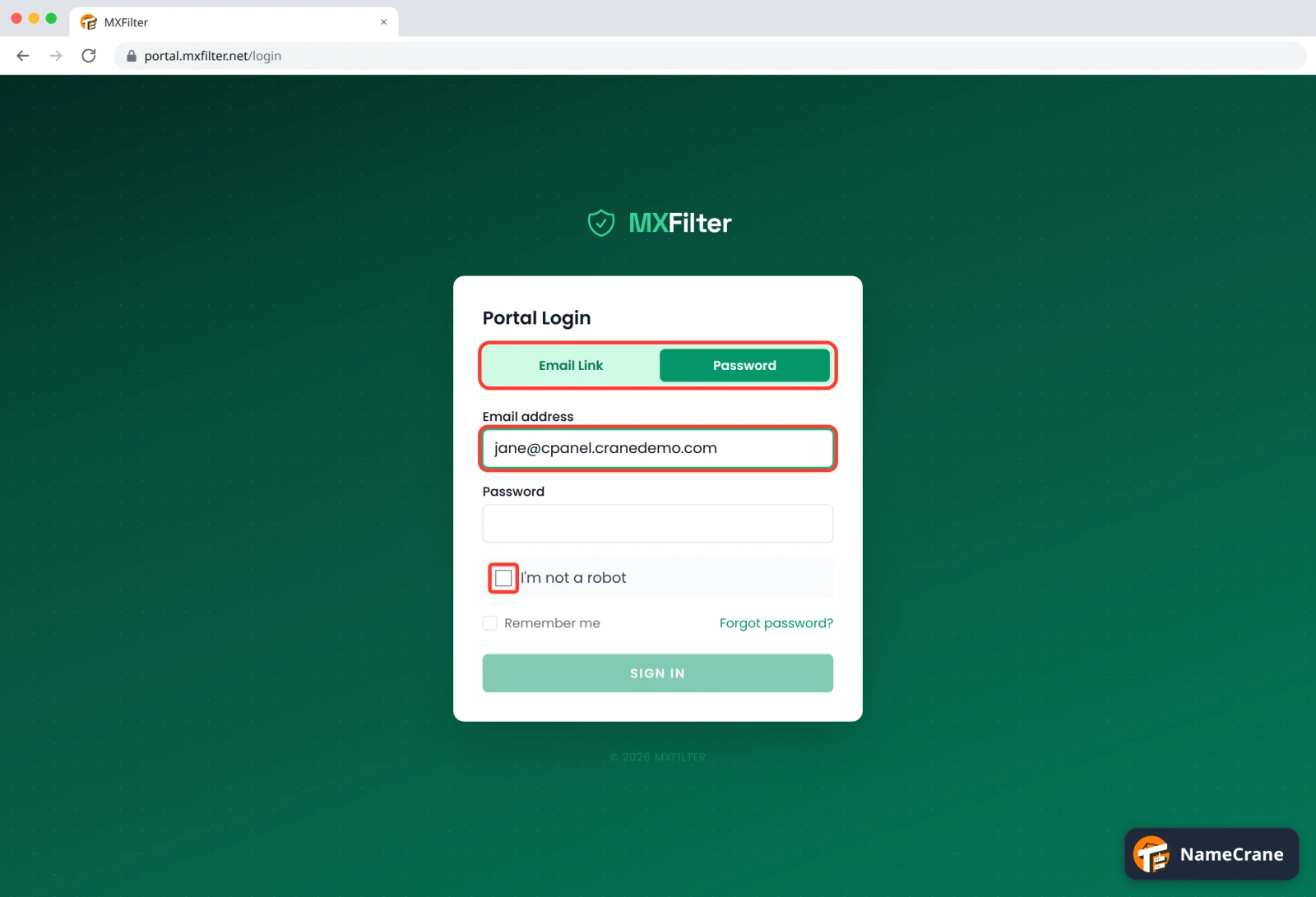
Tip: No password yet? Sign in with Email Link, then set one under My Settings. Your administrator can also set one for you.
Find your way around
-
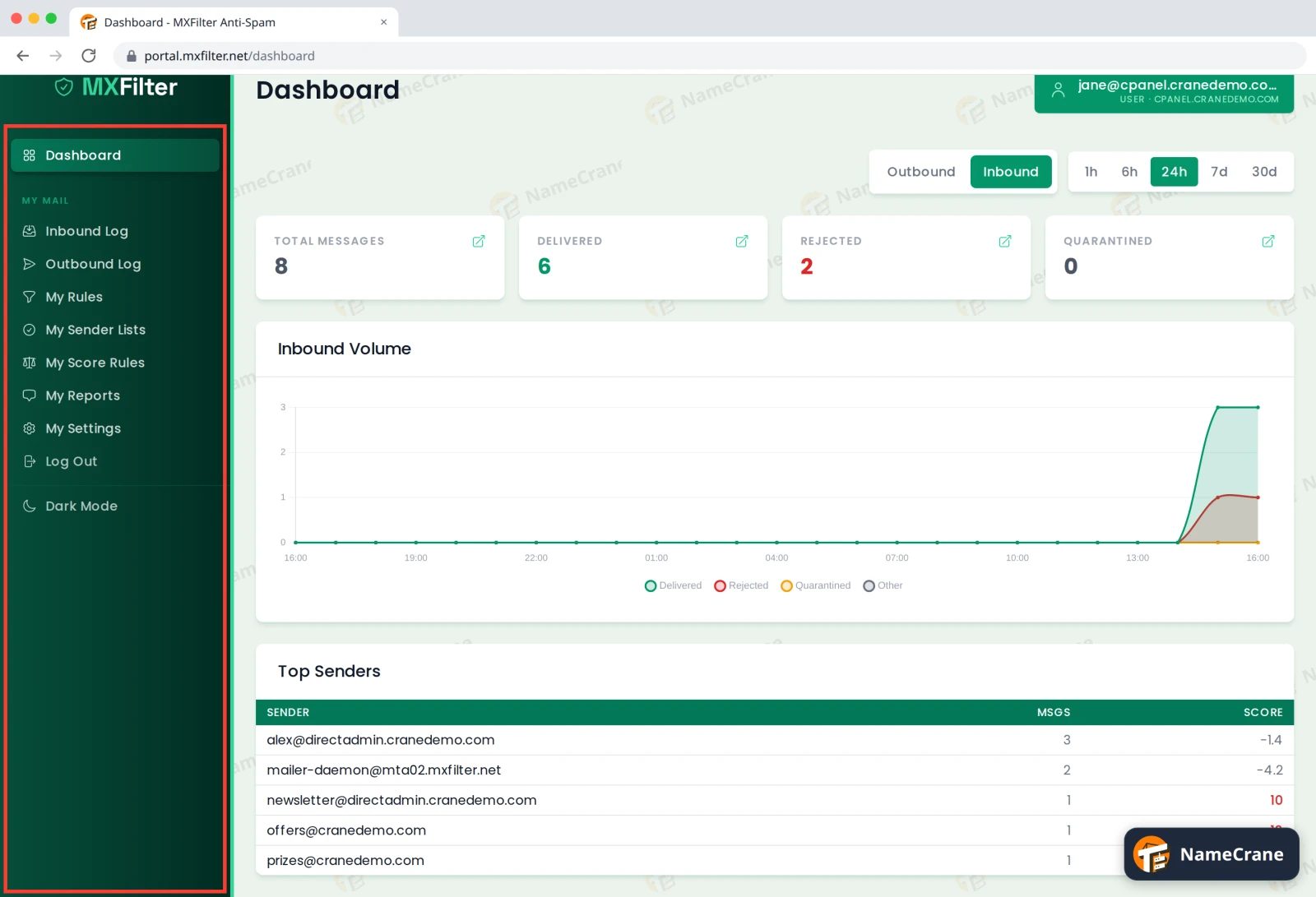
The menu on the left only shows things about your own mailbox. The dashboard sums up your recent email.
-
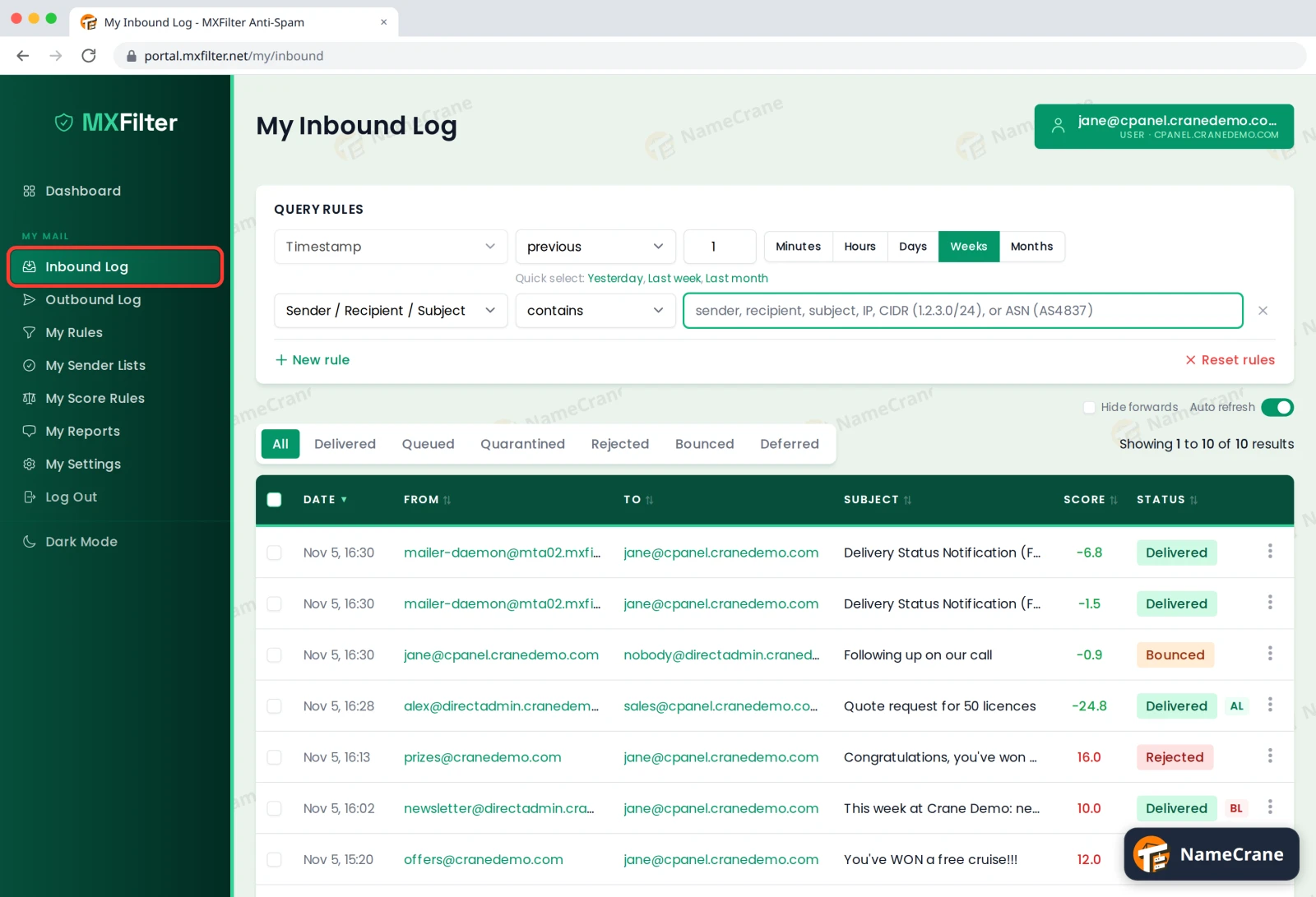
Inbound Log lists every email sent to you, with its spam score and status. To get a quarantined message, click the ⋮ at the end of its row and choose Release. See Release an email from quarantine for more.
-
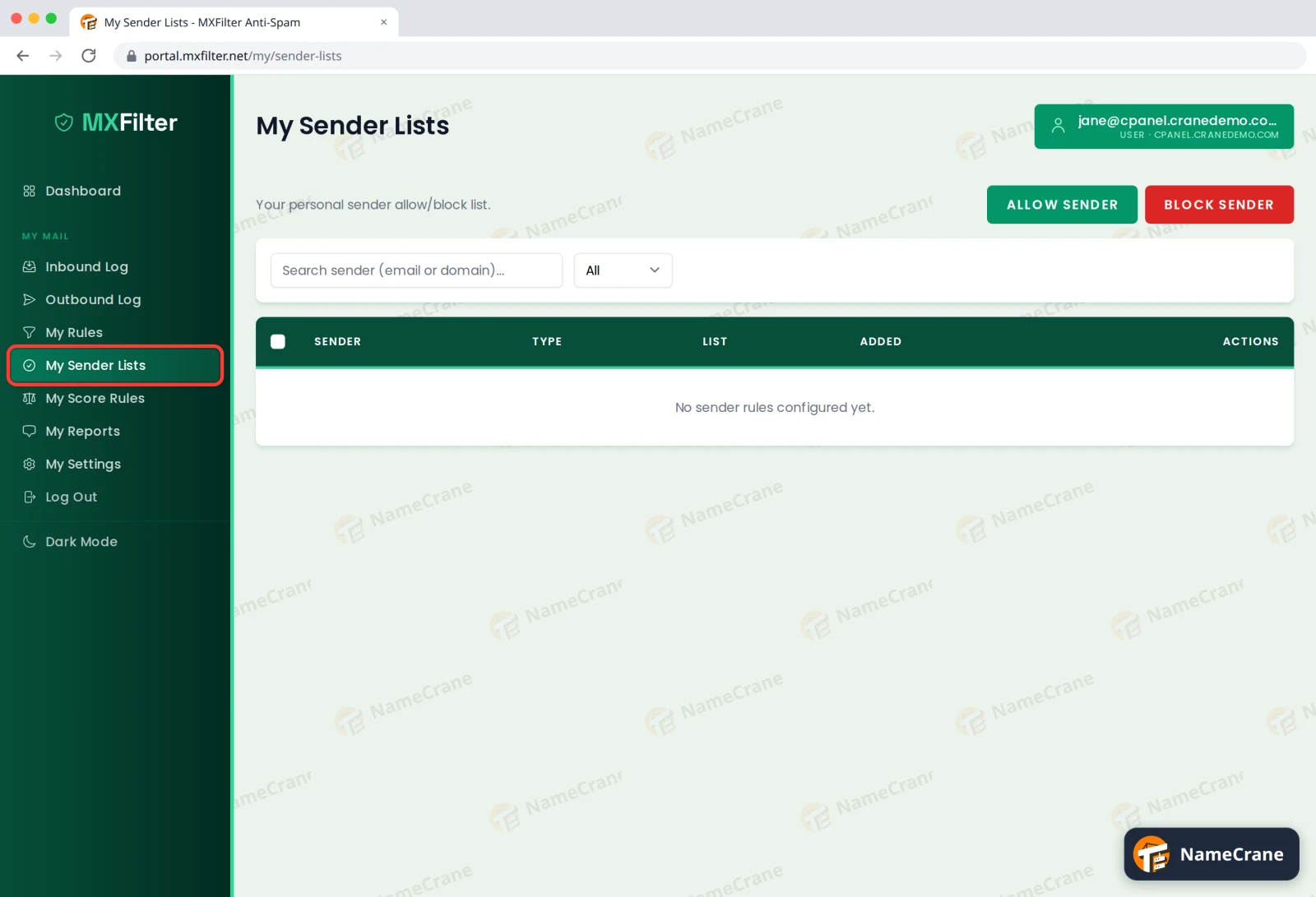
My Sender Lists is your personal allow and block list. Click Allow Sender or Block Sender and type addresses or domains, one per line. Your administrator’s domain-wide lists still take priority.
-
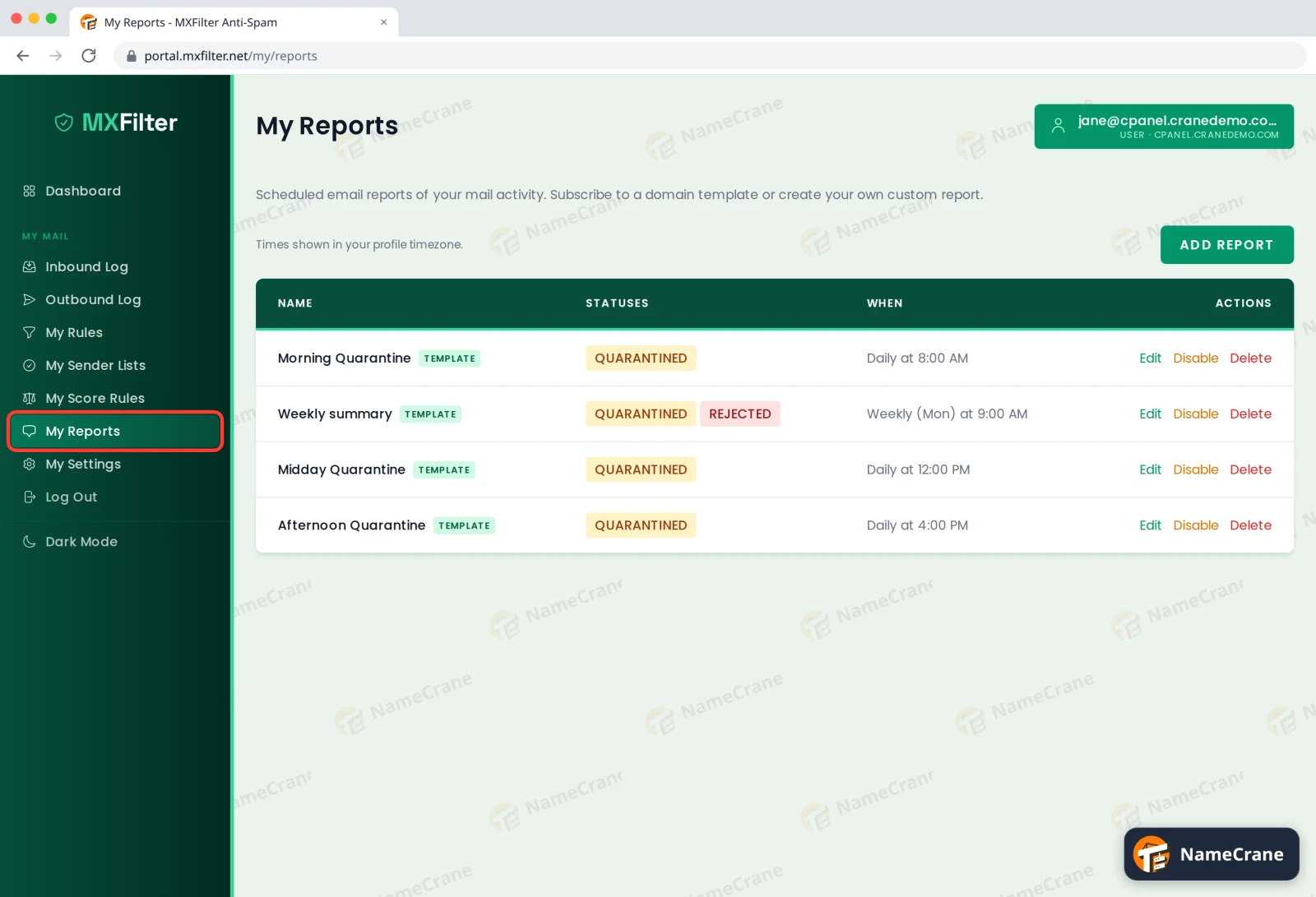
My Reports shows the summary emails you get about held messages, and when they arrive. Click Disable on any you don’t want, or Add Report to make your own.
-
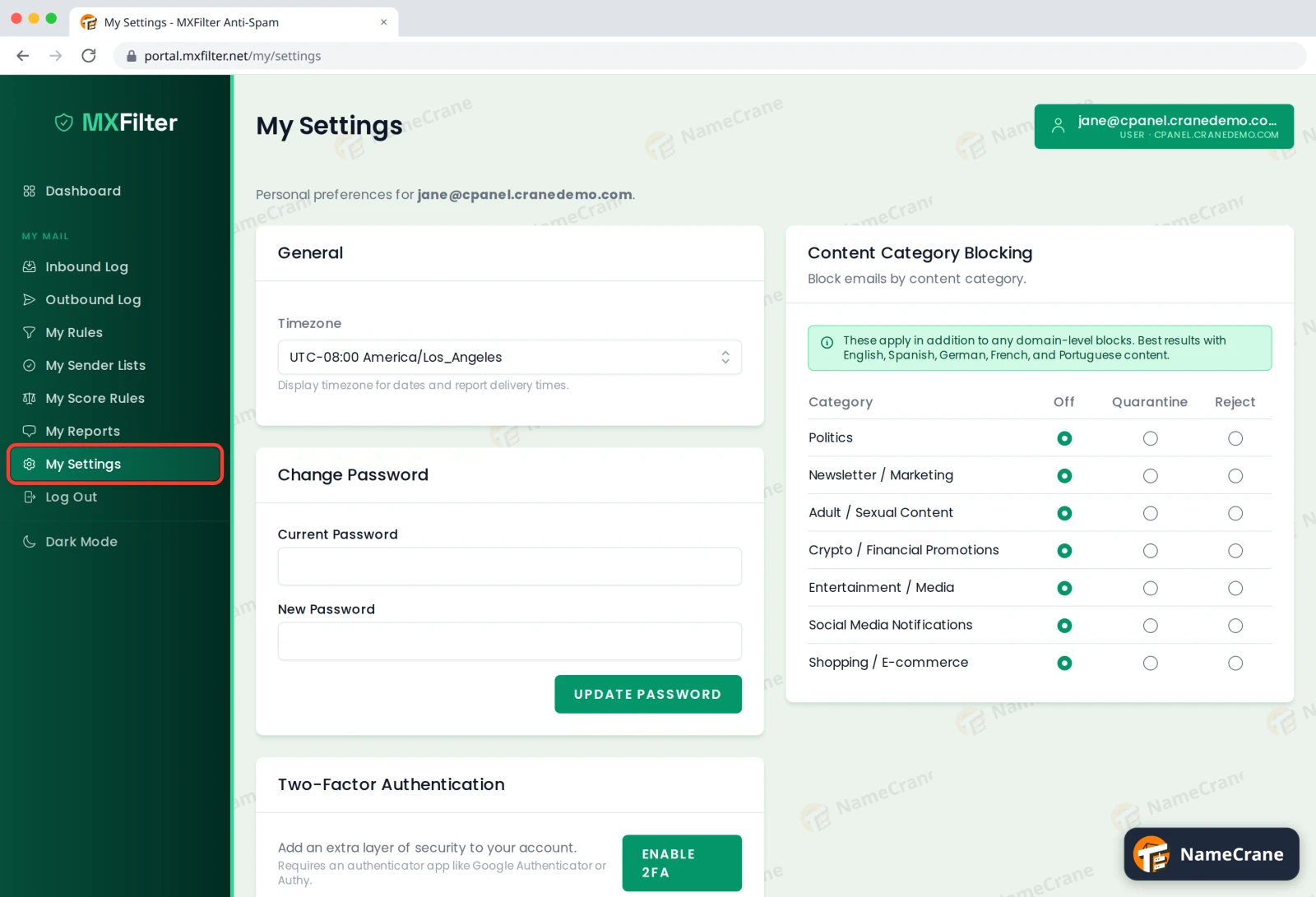
My Settings is where you set your Timezone (used for dates and report times), change your password, turn on two-factor authentication, and add your own Content Category Blocking on top of your domain’s.
Note: My Rules and My Score Rules work like the domain-wide filter rules and score rules, but only for your own mailbox.
Troubleshooting
| Problem | What to do |
|---|---|
| The login link email didn’t arrive | Check your spam or junk folder, and that you typed your address correctly. You can request a new link at any time. |
| Sign In is greyed out | Tick I’m not a robot first and wait for it to finish checking. |
| I can’t find an email | Widen the date range in the Inbound Log and search by the sender’s address. If it was Rejected, ask the sender to resend after you’ve allowed them. |
| I don’t want three reports a day | Go to My Reports and click Disable on the ones you don’t need. |
Snagged on something? Contact support and we’ll get you sorted.