How to Sort Incoming Email With Filters in Webmail
Last updated Changelog
On this page
An email filter checks every new message for one email address and acts on the ones that match. For example, it can file every invoice into its own folder, forward messages from your accountant, or delete newsletters you never read. You set filters up in Roundcube webmail, and they keep working even when webmail is closed. In this example we file every email with Invoice in its subject into an Invoices folder for alex@directadmin.cranedemo.com.
Note: Spam is handled before your filters, by MXFilter. For spam rules that cover your whole domain, see Create a filter rule in MXFilter.
Before you start
To file messages into a folder, create the folder first. In Roundcube, open Settings › Folders, click Create and add it.
Steps
-
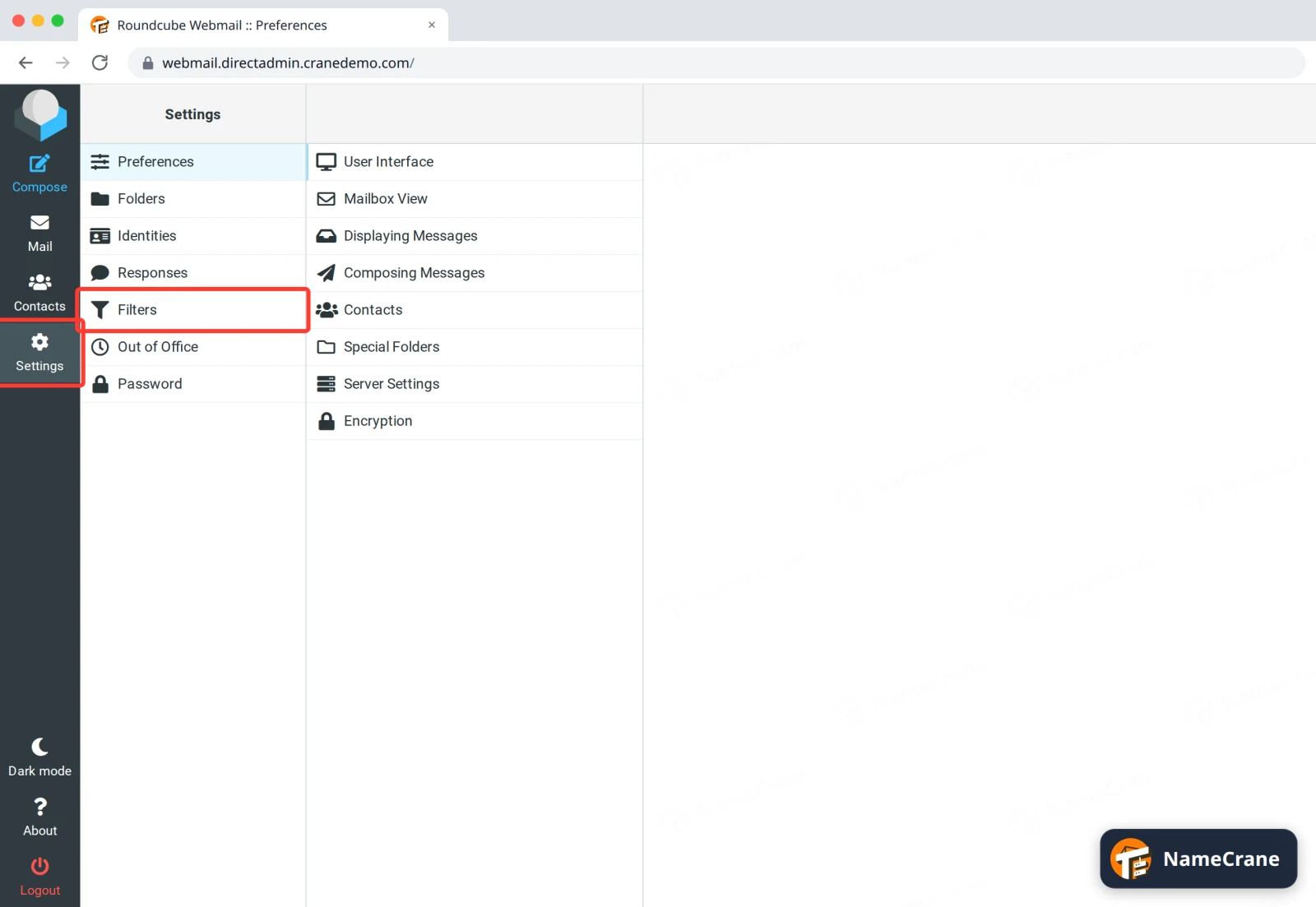
Log in to Webmail with the email address you want to filter. Click Settings, then Filters.
-
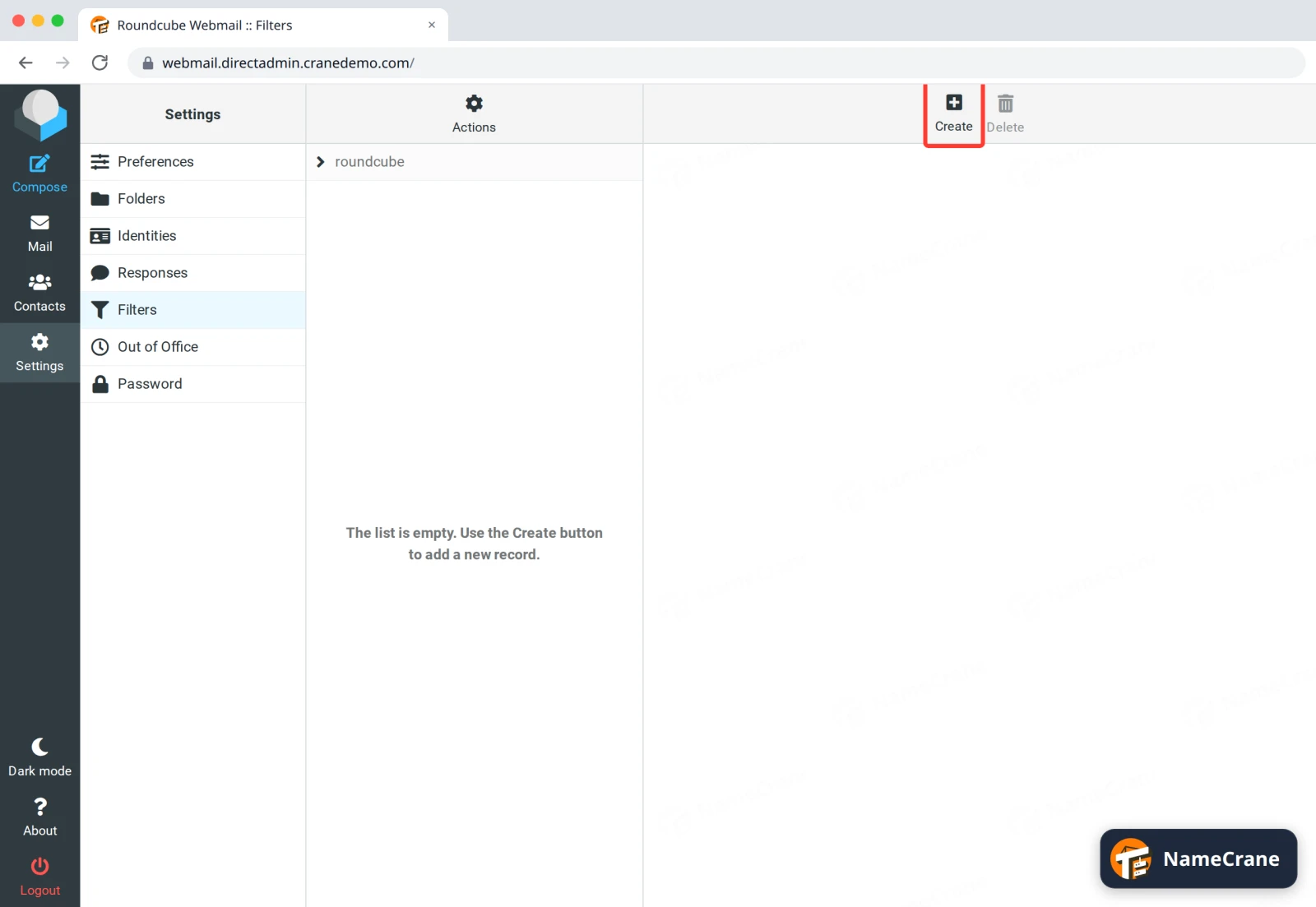
Click Create.
-
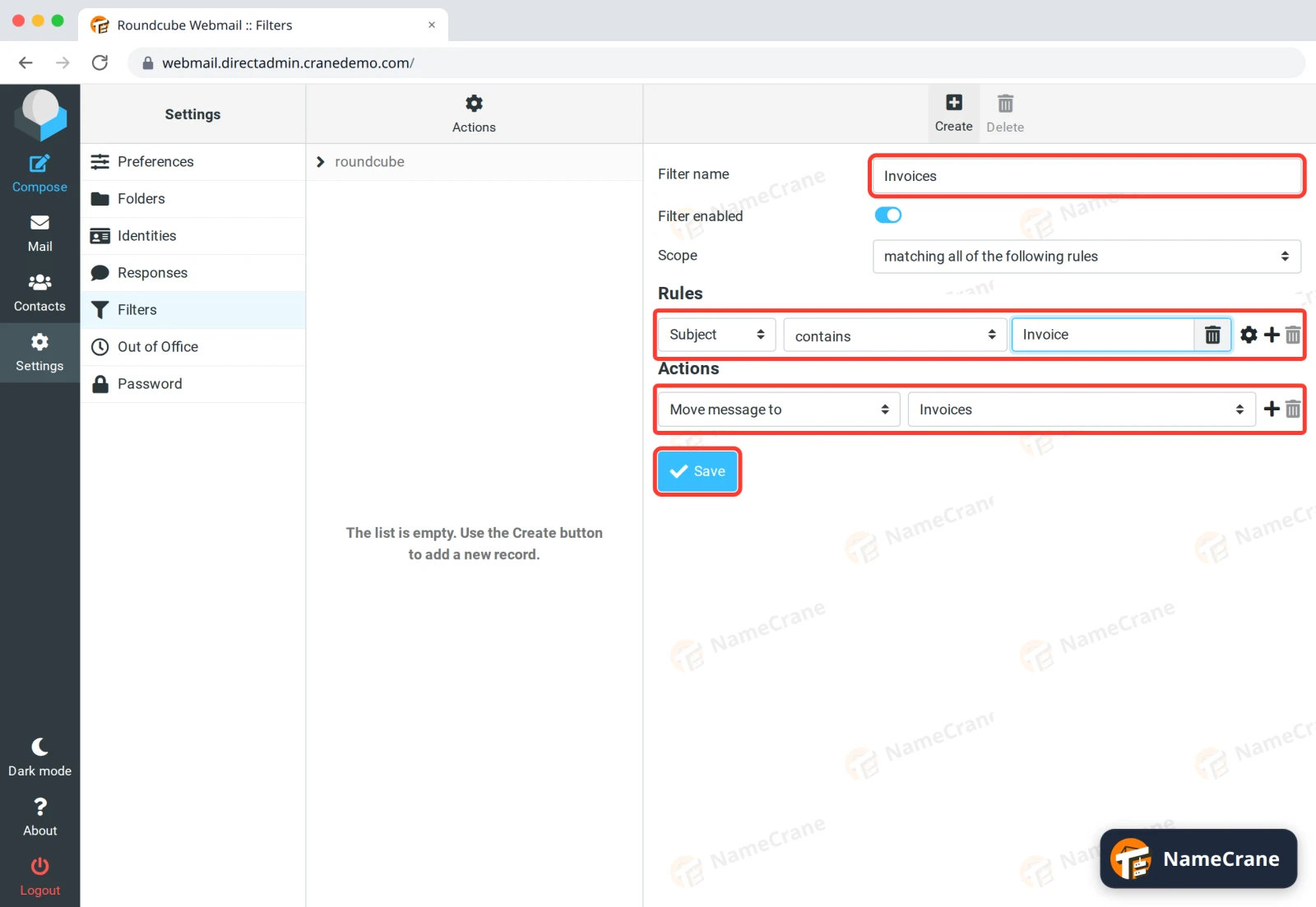
Fill in the filter:
- Filter name: anything that helps you recognise it, such as
Invoices. - Rules: what to look for. We chose Subject, contains and typed
Invoice. Click + to add more rules. - Actions: what to do with a match. We chose Move message to and the Invoices folder.
Then click Save.
- Filter name: anything that helps you recognise it, such as
-
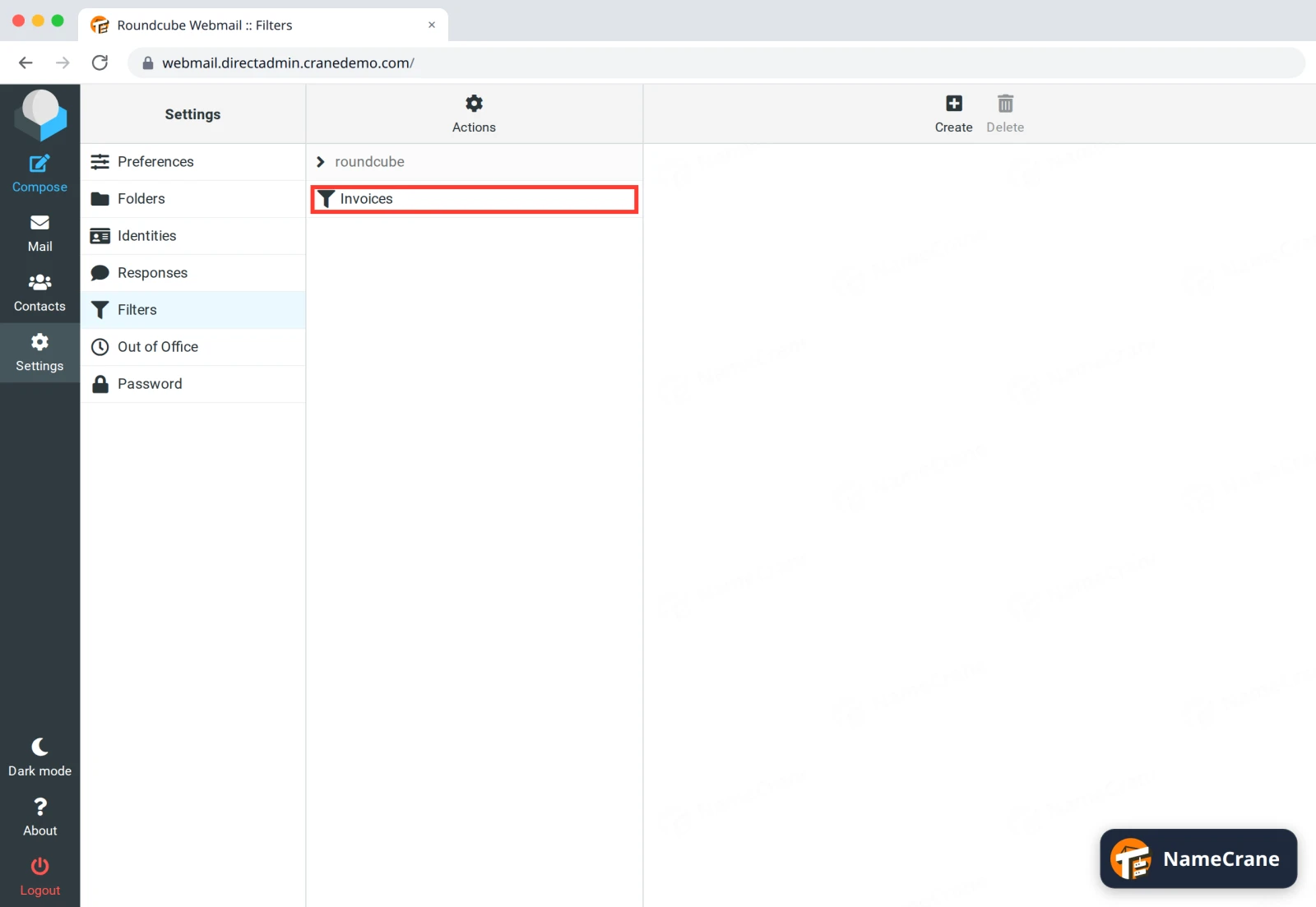
Roundcube shows Filter saved successfully. and lists your filter. It works on new mail from now on. Click it to change it, or select it and click Delete to remove it.
We tested this filter with two real emails. “Invoice 1042 from Crane Demo Supplies” went straight into Invoices, and “Lunch on Friday?” stayed in the inbox.
Useful actions
| Action | What it does |
|---|---|
| Move message to | Moves the message into a folder. |
| Copy message to | Puts a copy in a folder and leaves the original in the inbox. |
| Redirect message to | Sends the message on to another address instead of keeping it. |
| Send message copy to | Sends a copy to another address and keeps the original. |
| Delete message | Deletes the message without telling the sender. |
Tip: Scope at the top of the form decides how rules combine. matching all of the following rules needs every rule to match, matching any of the following rules needs just one.
Troubleshooting
| Problem | What to do |
|---|---|
| My folder isn’t in the list | Create it under Settings › Folders first, then open the filter again. |
| Messages already in my inbox weren’t moved | Filters only act on new mail as it arrives. Move older messages yourself. |
| The filter catches the wrong emails | Make the rule stricter, such as is equal to instead of contains, or add a second rule. |
| Nothing is filtered | Check that Filter enabled is on, and that you’re logged in to webmail as the right email address. |
Snagged on something? Contact support and we’ll get you sorted.