How to Download a Full Backup of Your DirectAdmin Account
Last updated Changelog
On this page
A full backup is one file containing everything in your DirectAdmin account: website files, email, databases and settings. It’s useful to keep a copy of your own, or to move your sites to another host.
Make the backup
-
Log in to DirectAdmin. In the Advanced Features section, click Backup and Restore.
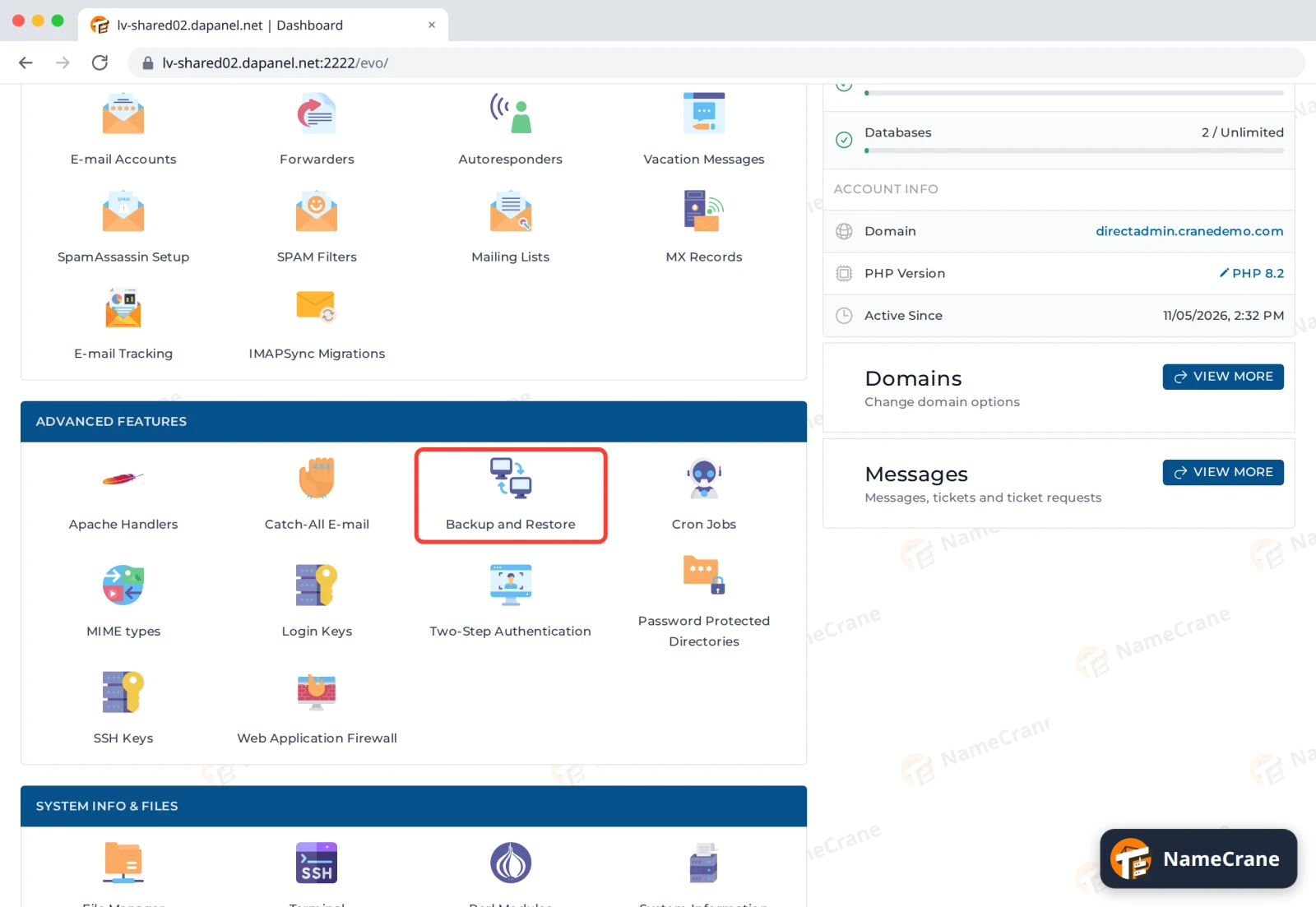
-
On the Create Backup tab, leave All Domains selected. Under Options, everything is ticked: leave it that way for a complete backup, or untick anything you don’t need.
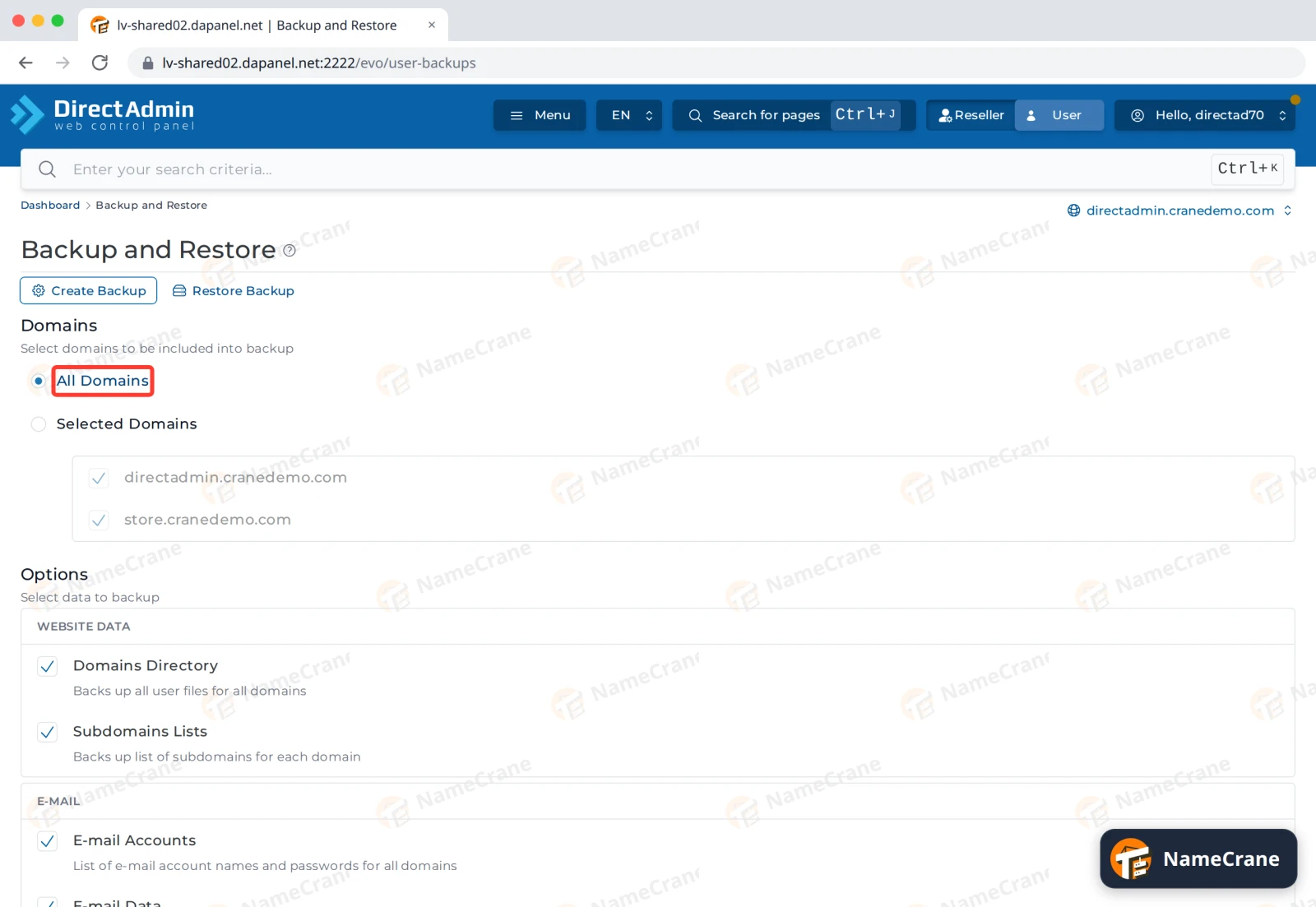
-
Scroll down and click Backup. DirectAdmin says the backup has been added to queue and you’ll get a message when it’s complete.
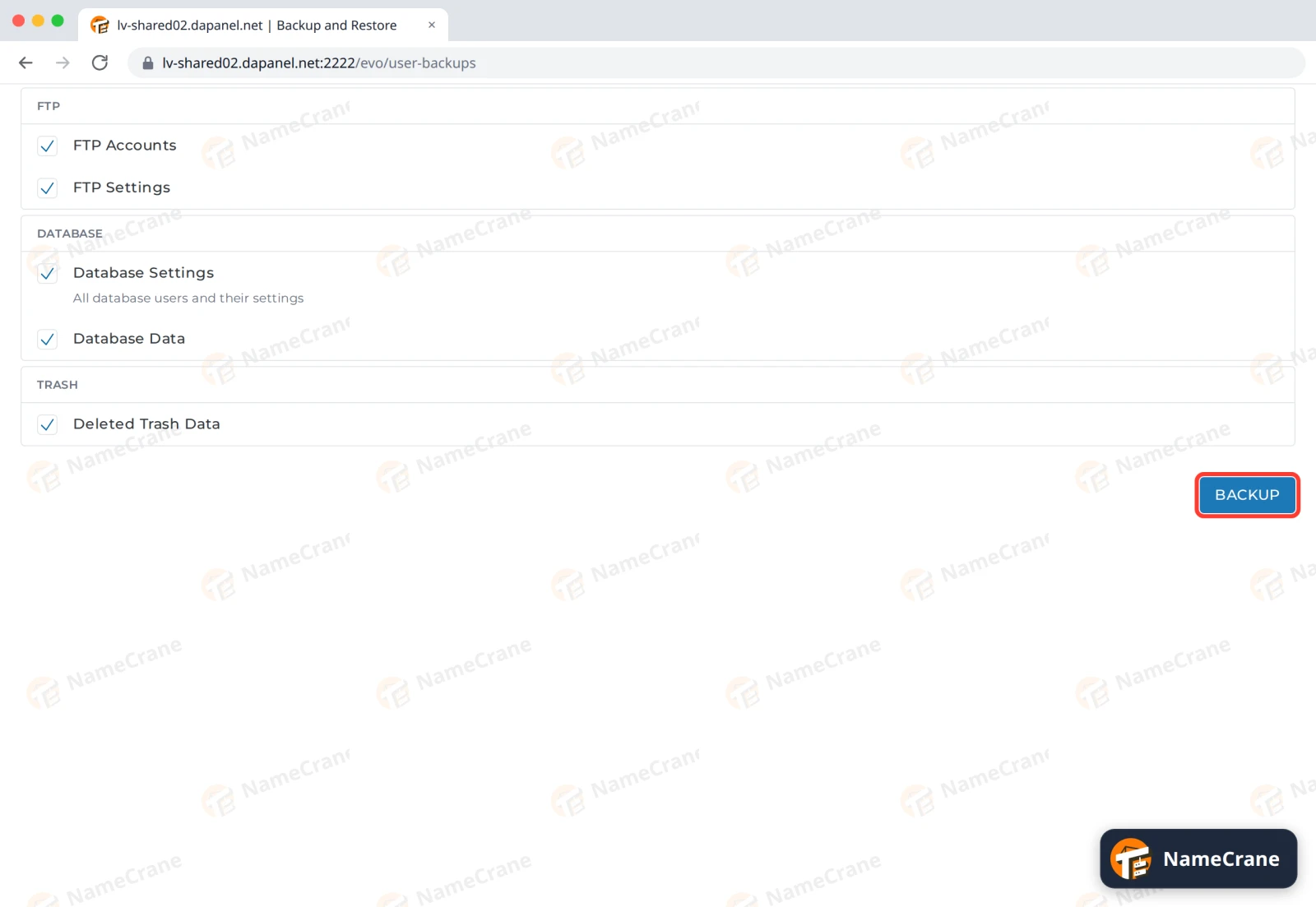
-
Our 55 MB test account was ready in under a minute. The finished backup appears on the Restore Backup tab, named
backup-date-1.tar.gz, and the message Your backups are now ready arrives under Messages on your dashboard.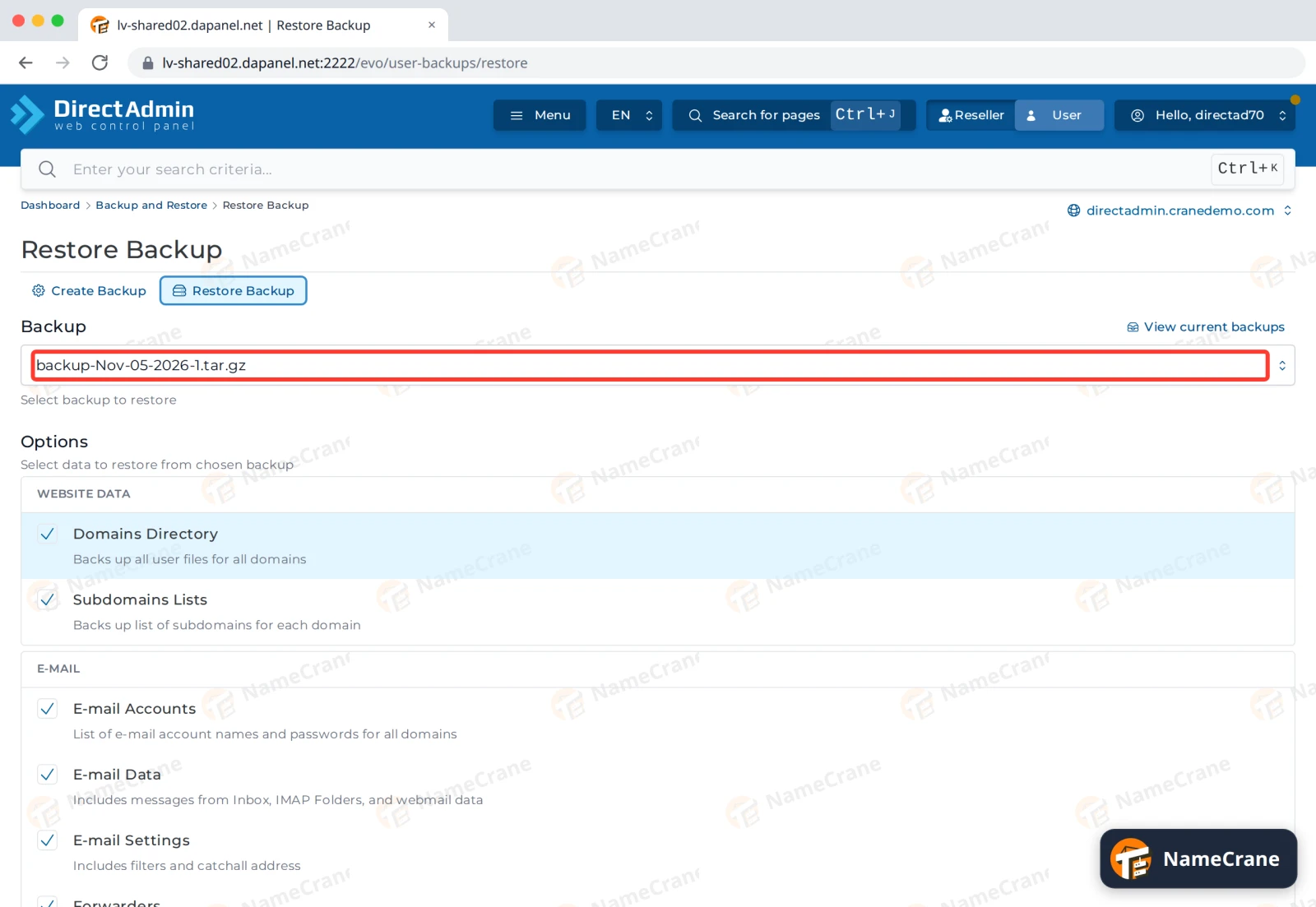
Download it
-
Open File Manager (in System Info & Files) and click the backups folder. Tick your backup file and click Download.
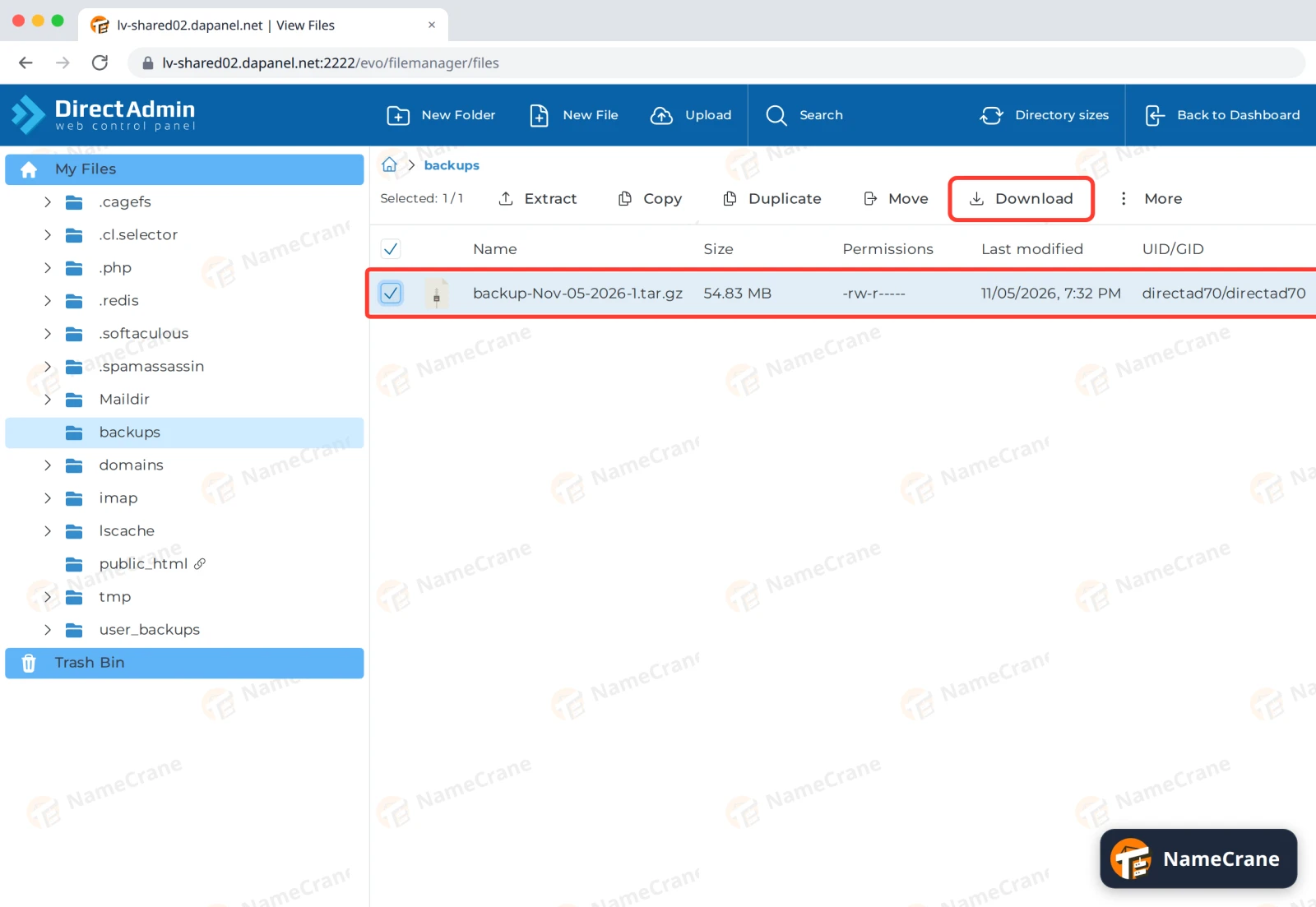
Warning: The backup contains all your email and databases. Keep it somewhere safe. It’s also stored in your account, where it uses your disk space, so delete it from the backups folder (tick it, then More › Remove) once you’ve downloaded it.
Troubleshooting
| Problem | What to do |
|---|---|
| The backup isn’t on the Restore Backup tab yet | Large accounts take longer. Wait for the message on your dashboard, then refresh the page. |
| The backup failed | The backup is saved in your account first, so it needs free disk space roughly the size of your account. Free some up, or untick parts you don’t need, such as E-mail Data. |
| I want to restore from a backup | See Restore a backup. |
Snagged on something? Contact support and we’ll get you sorted.