How to Create a Hosting Package as a DirectAdmin Reseller
Last updated Changelog
On this page
A package is a hosting plan: how much disk space and bandwidth an account gets, how many email addresses, databases and domains it can have, and which features it can use. You choose a package each time you add a customer, so create one for each plan you sell.
Steps
-
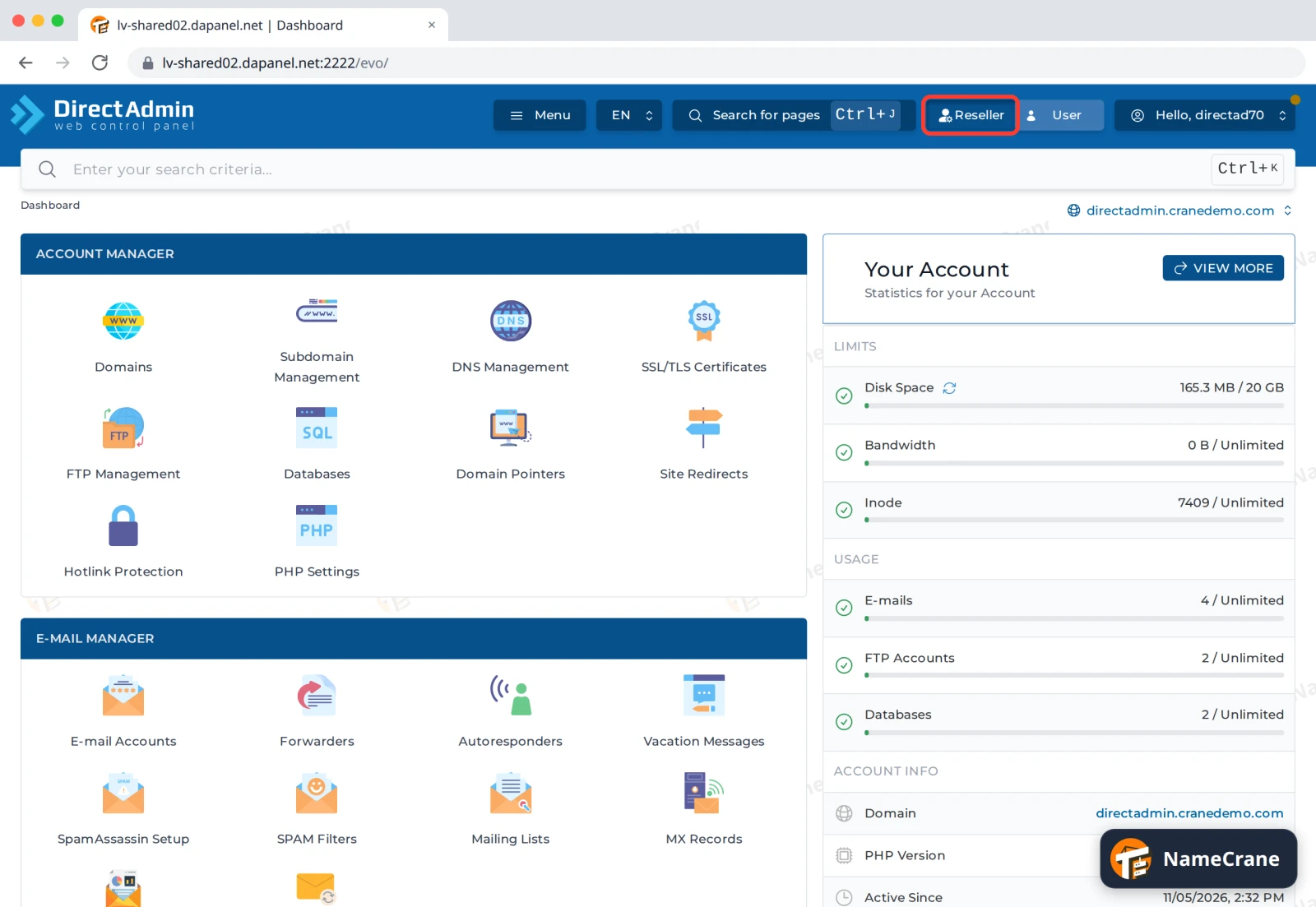
Log in to DirectAdmin. In the top bar, click Reseller to switch to your reseller tools.
-
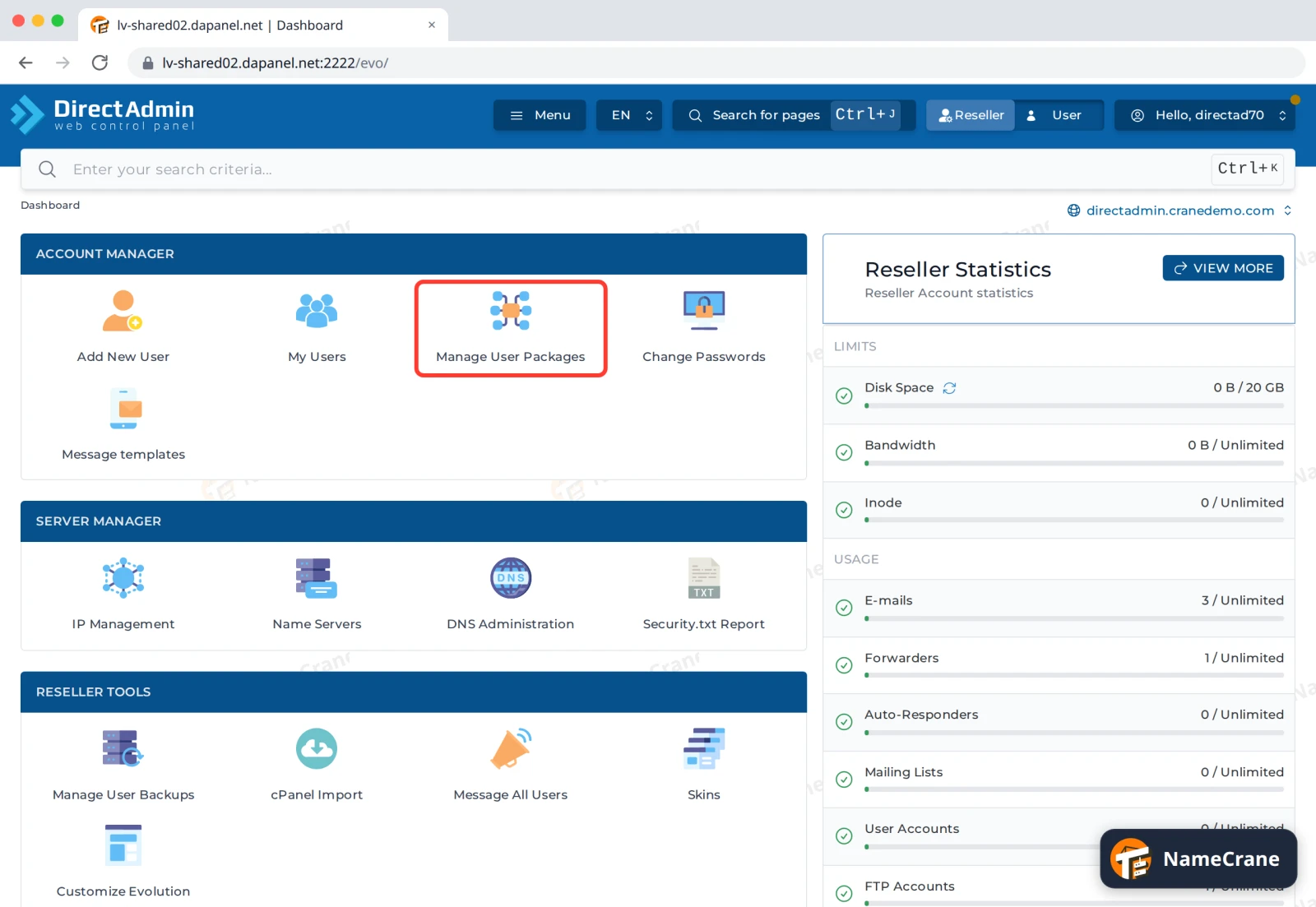
In the Account Manager section, click Manage User Packages.
-
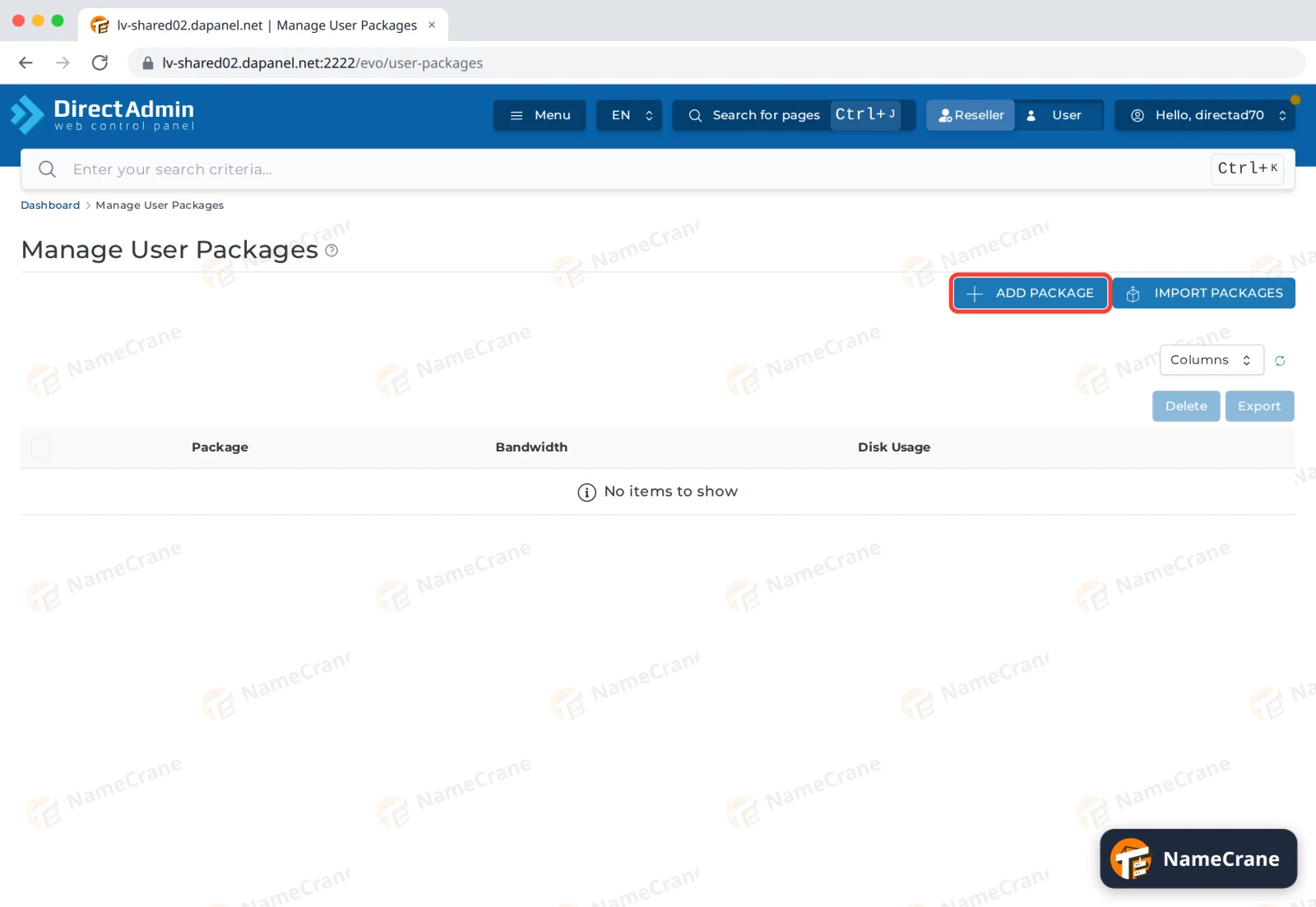
Click Add Package.
-
Set the limits. Type a number in MB for Bandwidth and Disk Space: for example
51200is 50 GB and5120is 5 GB. For each of the other limits, type a number or tick Unlimited.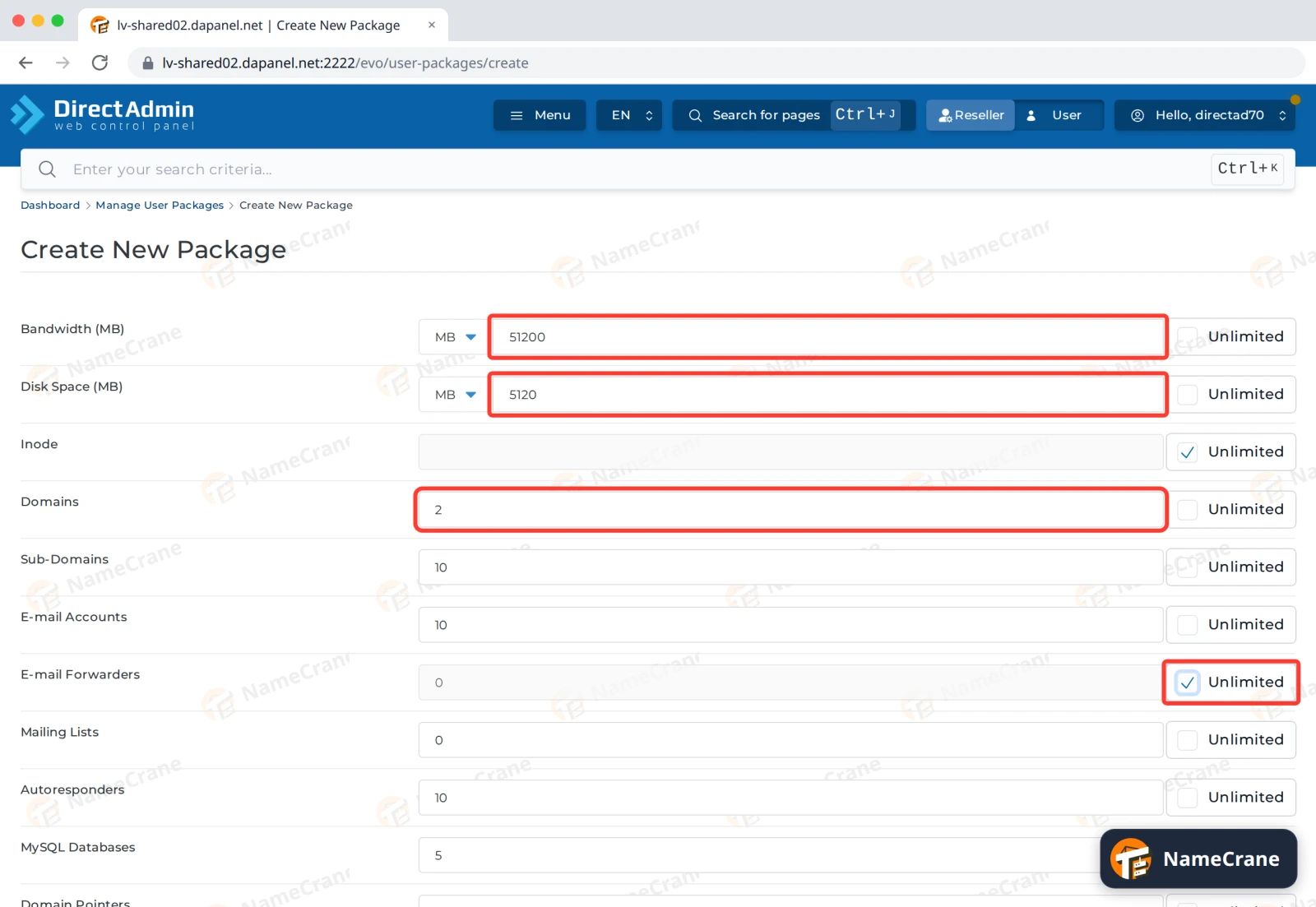
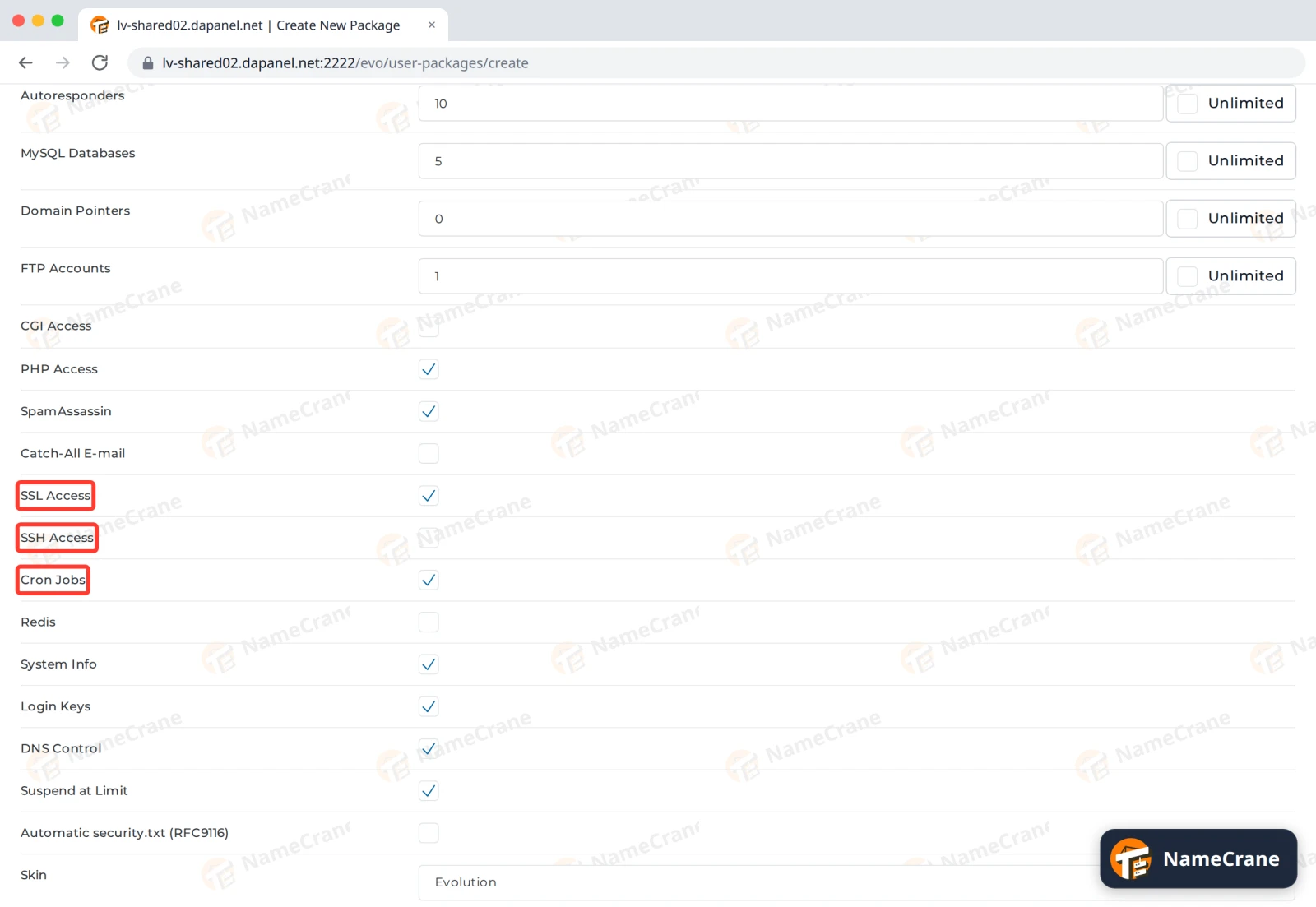
Warning: Several limits start low: E-mail Forwarders, Mailing Lists and Domain Pointers start at
0, which turns that feature off completely, and FTP Accounts starts at1. Check every row before you save.
-
Further down, tick the features the plan includes. SSL Access, Cron Jobs and PHP Access are ticked to start with. SSH Access isn’t, so tick it only if your customers need command-line access.
-
At the bottom, type a Package Name, such as
Starter, and click Save.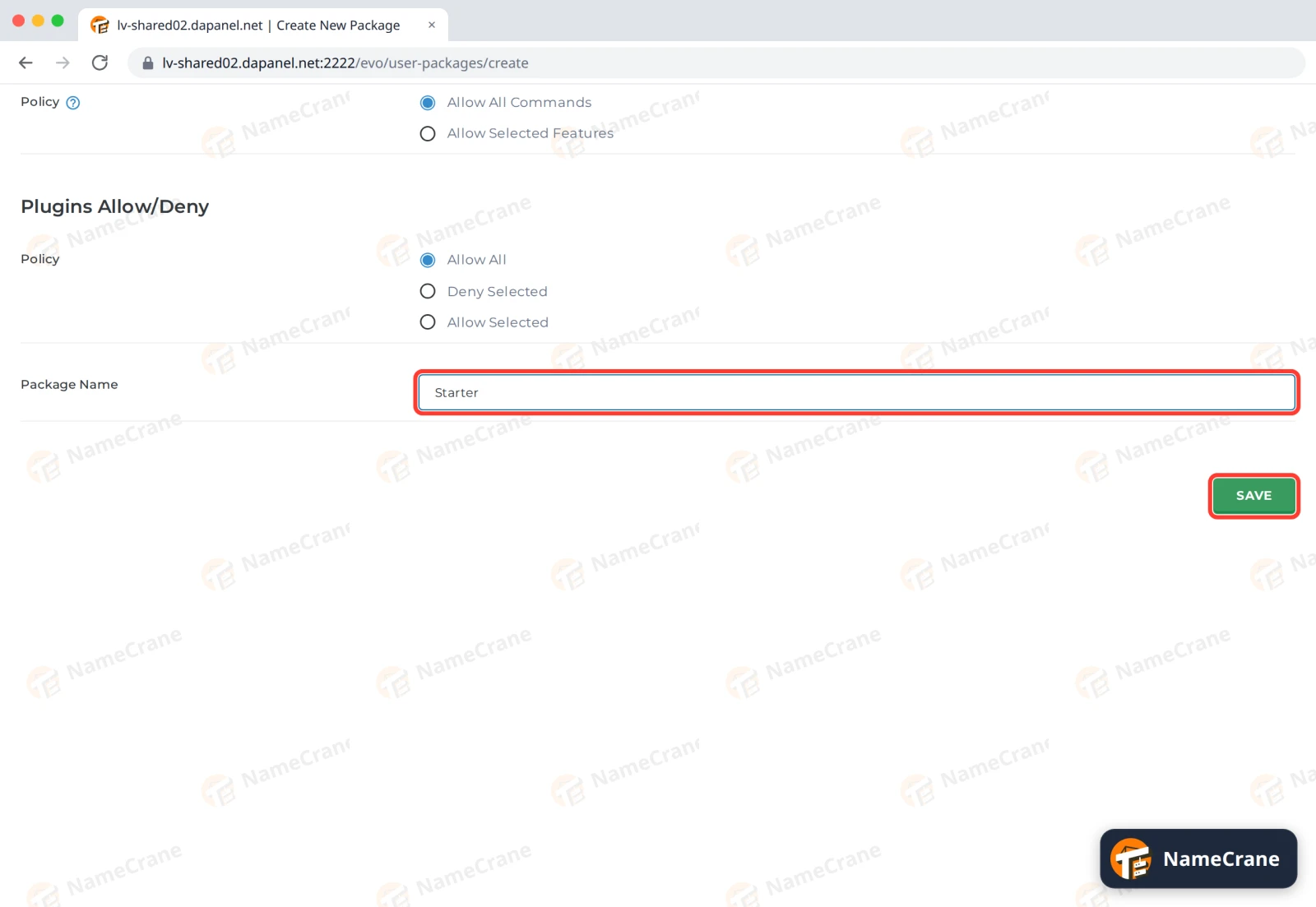
-
DirectAdmin shows Saved, and the package appears in the list with its bandwidth and disk space.
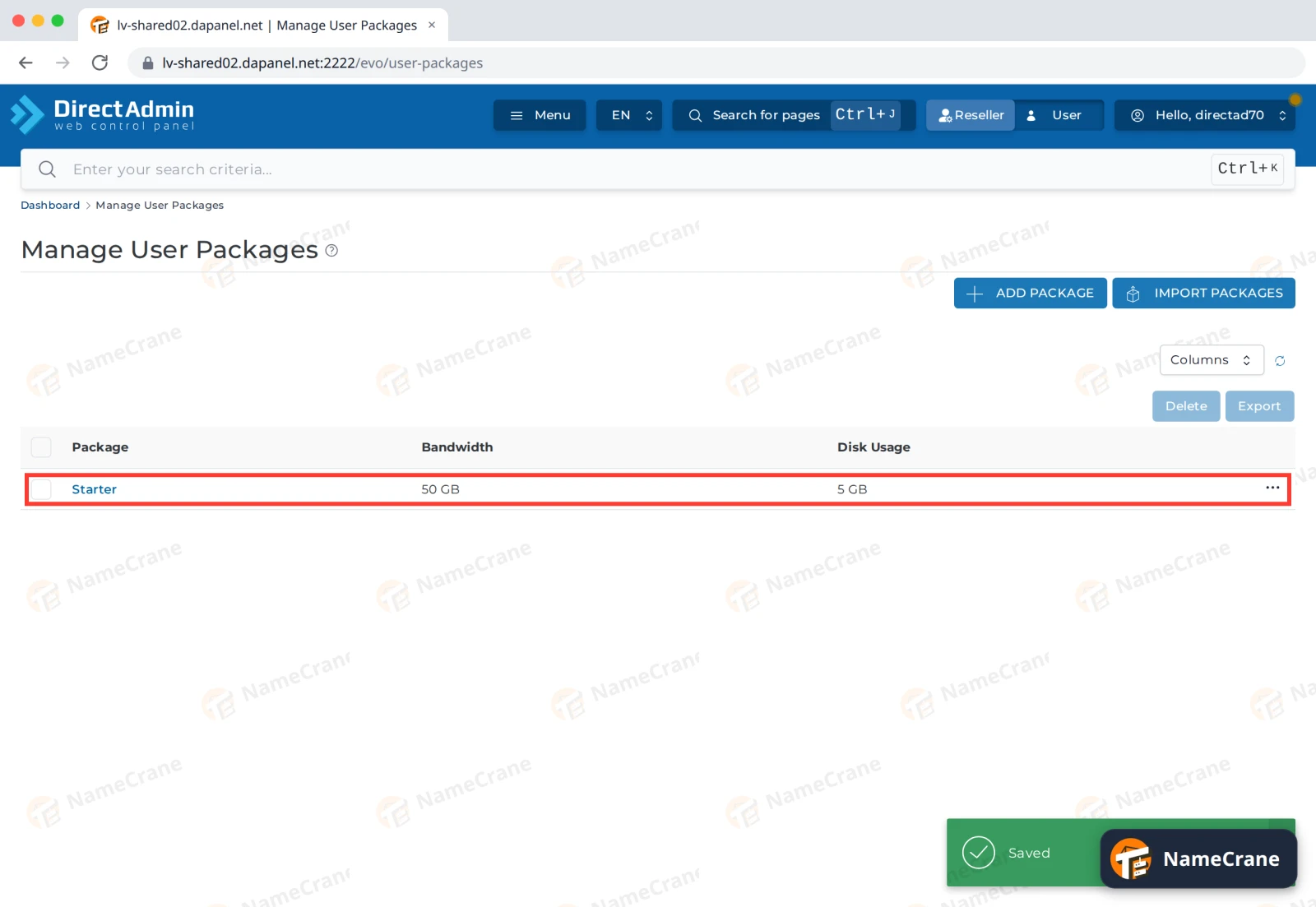
The package is now ready to pick when you add a new user. When you’re done, click User in the top bar to go back to your own hosting tools.
Tip: To change a package later, click its name in Manage User Packages. Suspend at Limit (ticked to start with) suspends an account that goes over its bandwidth limit.
Troubleshooting
| Problem | What to do |
|---|---|
| A customer says forwarders or mailing lists are missing | Their package has that limit at 0. Edit the package and set a number or tick Unlimited. |
| I can’t see Manage User Packages | You’re on the User level. Click Reseller in the top bar. |
| A customer’s account was suspended | Suspend at Limit suspends accounts that use up their bandwidth. Raise the package’s Bandwidth, or untick Suspend at Limit. |
Snagged on something? Contact support and we’ll get you sorted.