How to Connect to Your cPanel Hosting With SSH
Last updated Changelog
On this page
SSH gives you a command line on your hosting, for tools like WP-CLI, Git and Composer. NameCrane’s servers use port 53667 for SSH, not the usual port 22.
| Setting | What to use |
|---|---|
| Host | Your domain, for example cpanel.cranedemo.com |
| Port | 53667 |
| Username | Your cPanel username, for example cranedemo |
| Password | Your cPanel password, or an SSH key (below) |
Connect with your password
Open Terminal on a Mac or Linux, or PowerShell on Windows 10 or 11, and run:
ssh -p 53667 cranedemo@cpanel.cranedemo.com
The first time, you’re asked if you trust the server. Type yes. Then type your cPanel password. Nothing shows as you type, which is normal. You’re in when you see a prompt like [cranedemo@lv-shared02 ~]$.
Log in with an SSH key
A key is safer than a password, and you won’t need to type your password each time.
-
If you don’t have a key yet, make one on your computer with
ssh-keygen -t ed25519and press Enter to accept the defaults. Then show your public key withcat ~/.ssh/id_ed25519.puband copy the whole line. -
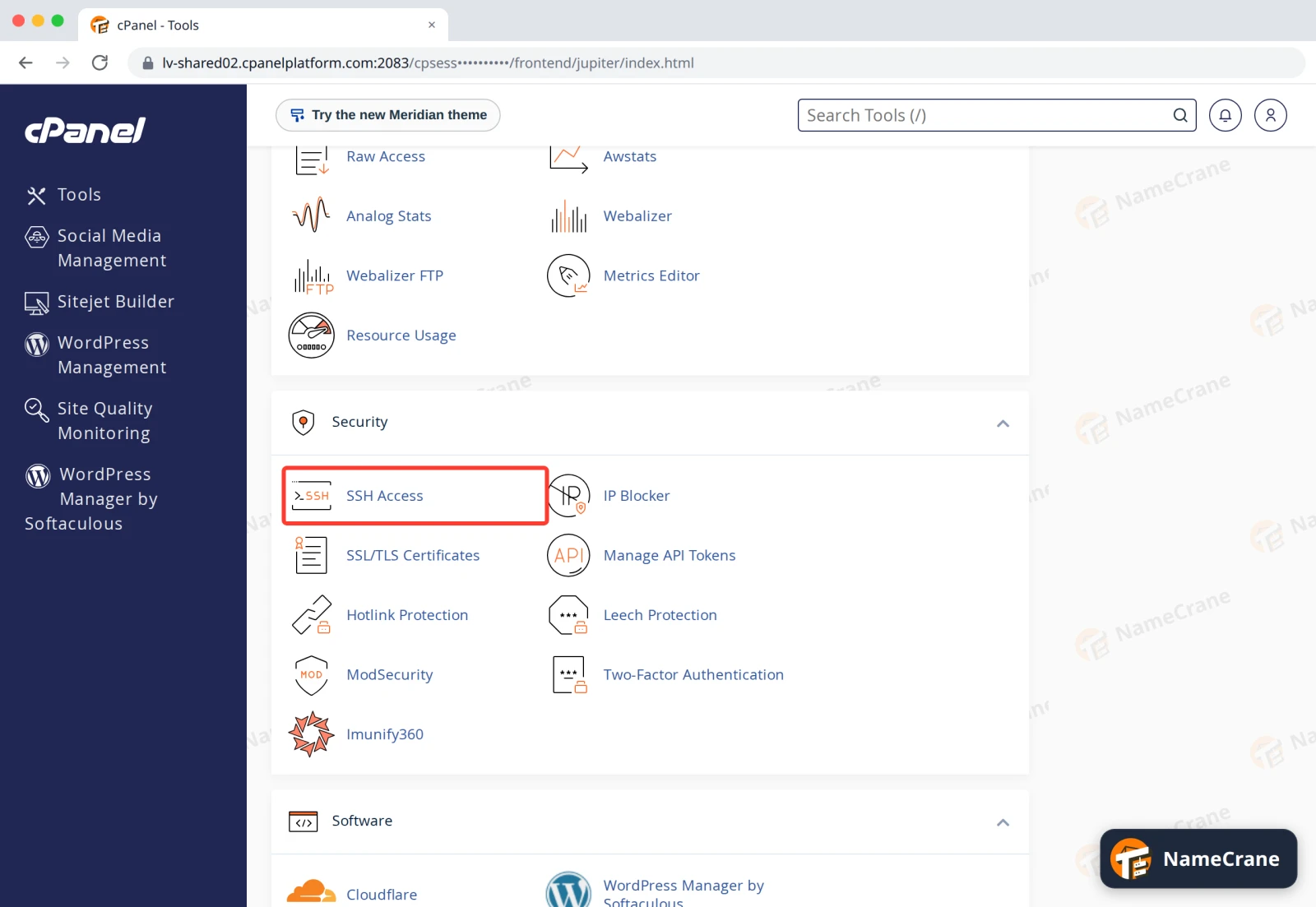
Log in to cPanel and click SSH Access in the Security section.
-
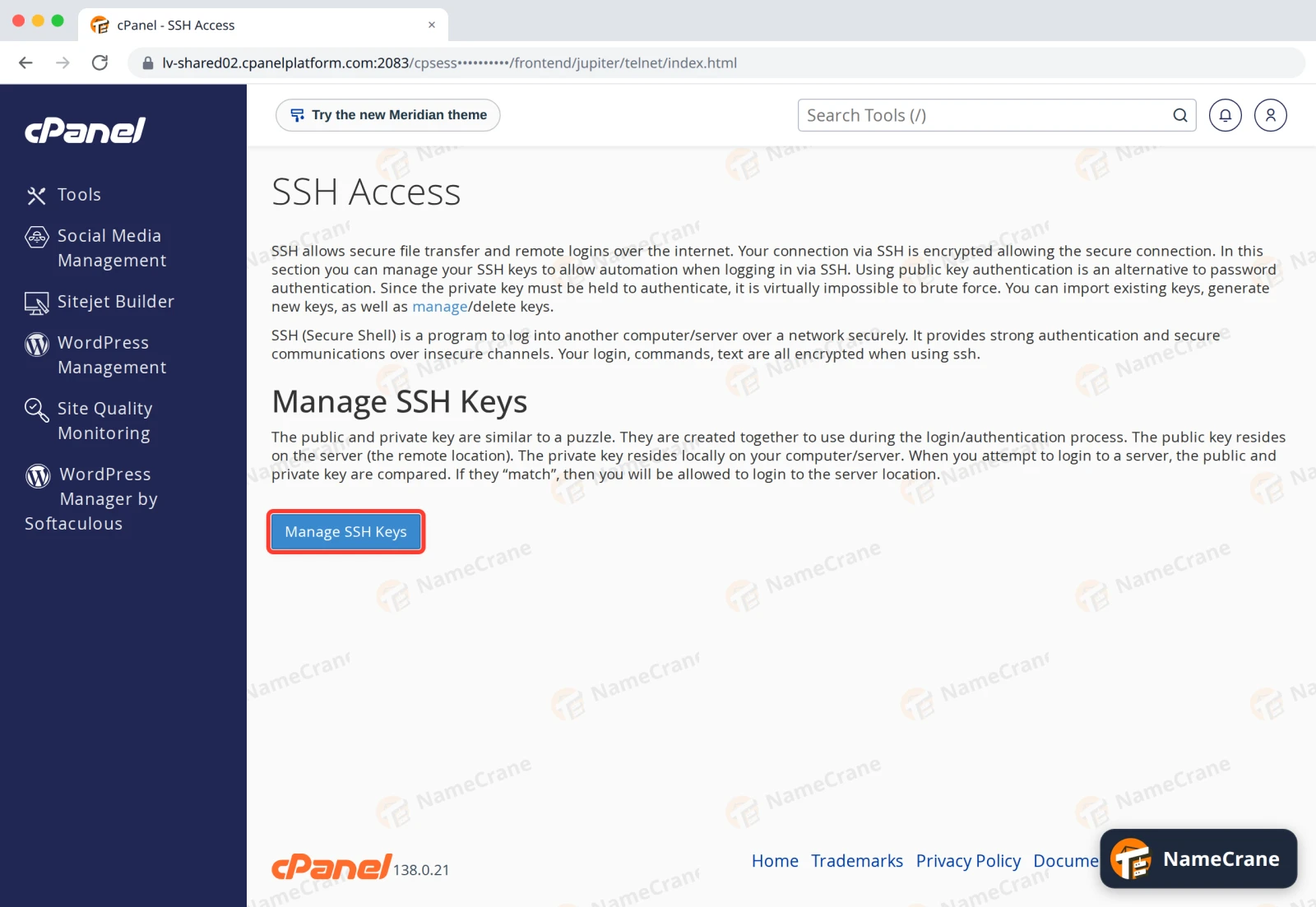
Click Manage SSH Keys.
-
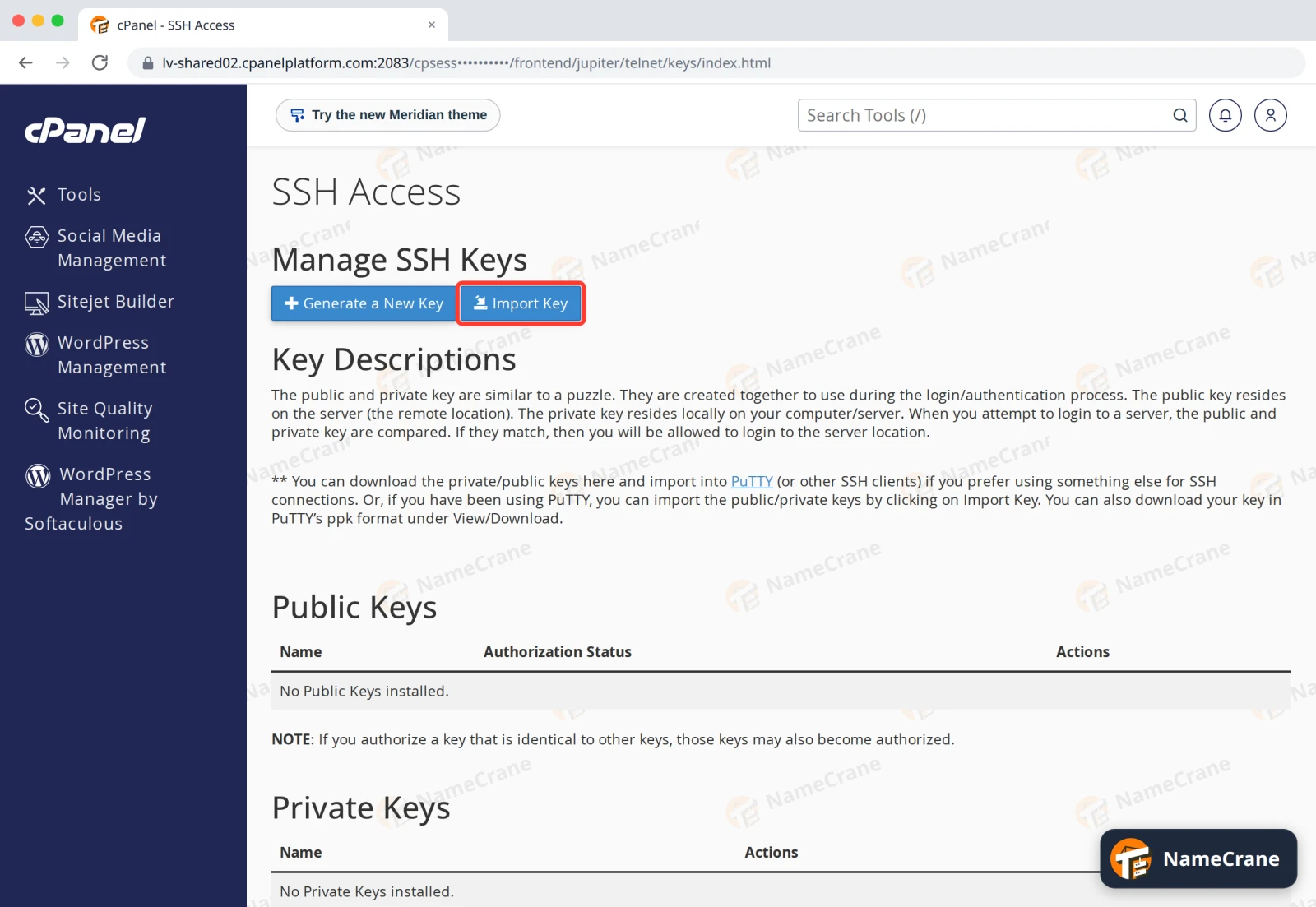
Click Import Key.
-
Give the key a name, paste your public key into the public key box and click Import. Leave the private key box empty.
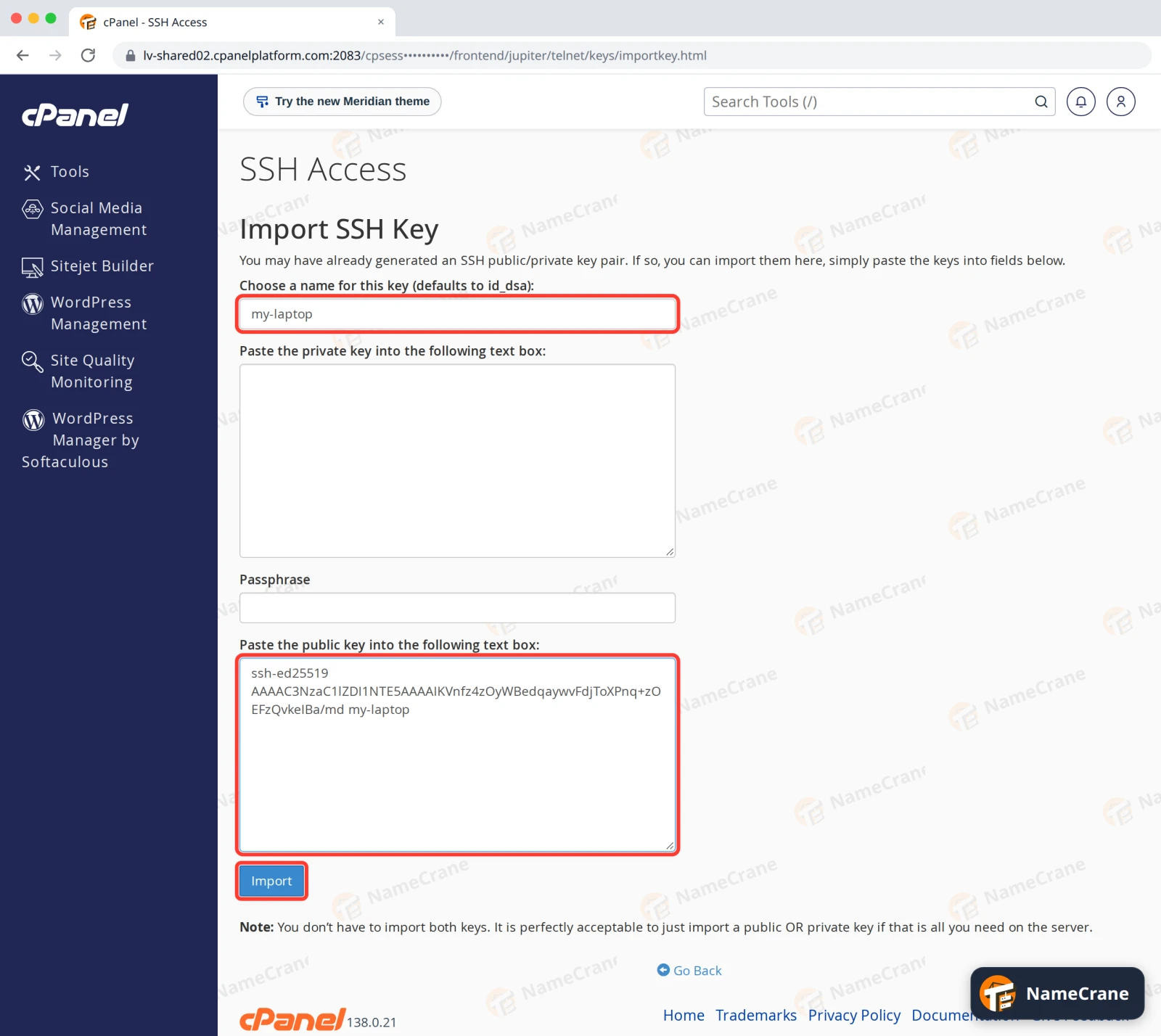
Warning: Only ever paste the public key (the line starting
ssh-ed25519orssh-rsa, from the file ending.pub). Your private key stays on your computer. -
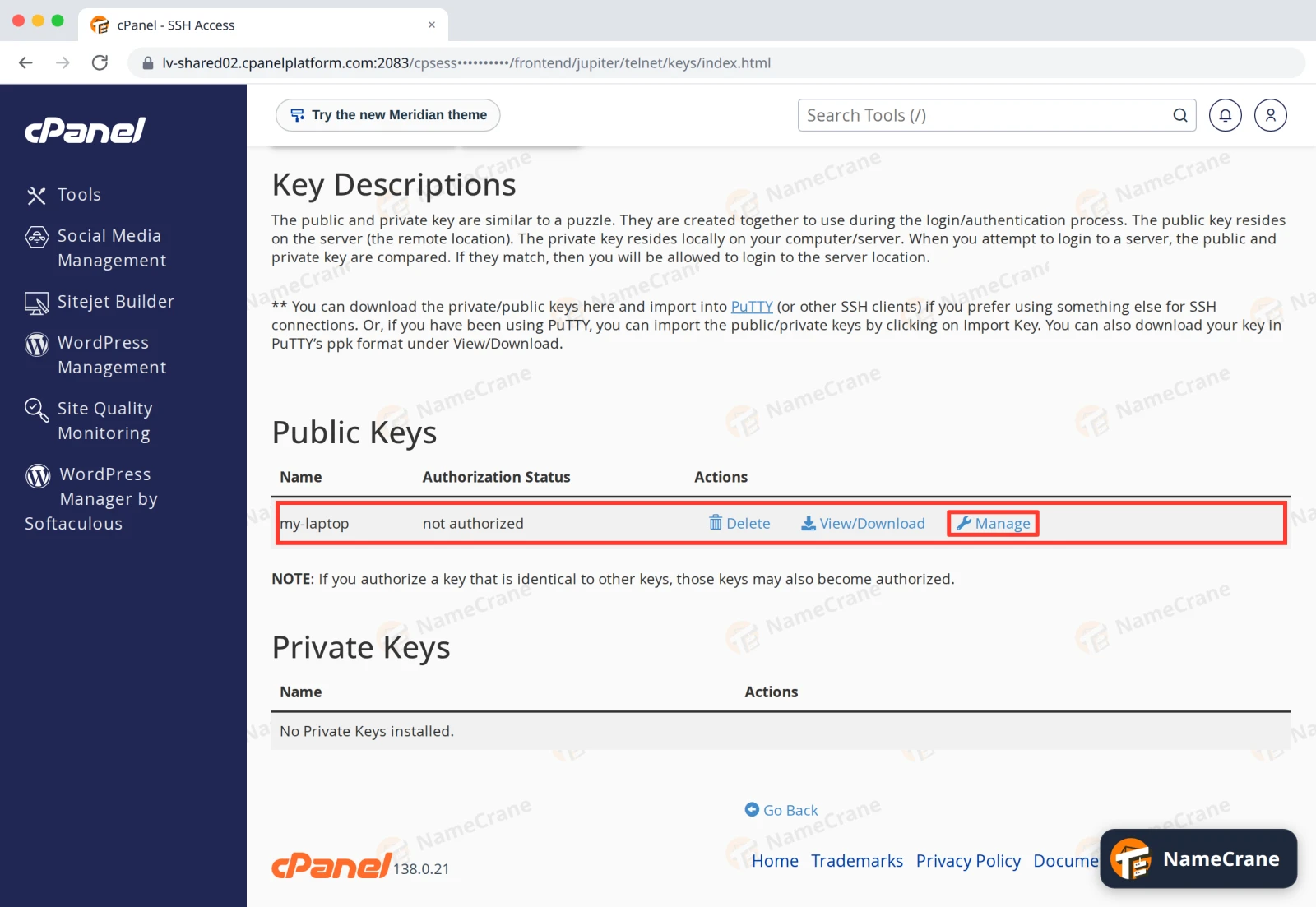
Click Back to Manage Keys. Your key is listed as not authorized. Click Manage next to it.
-
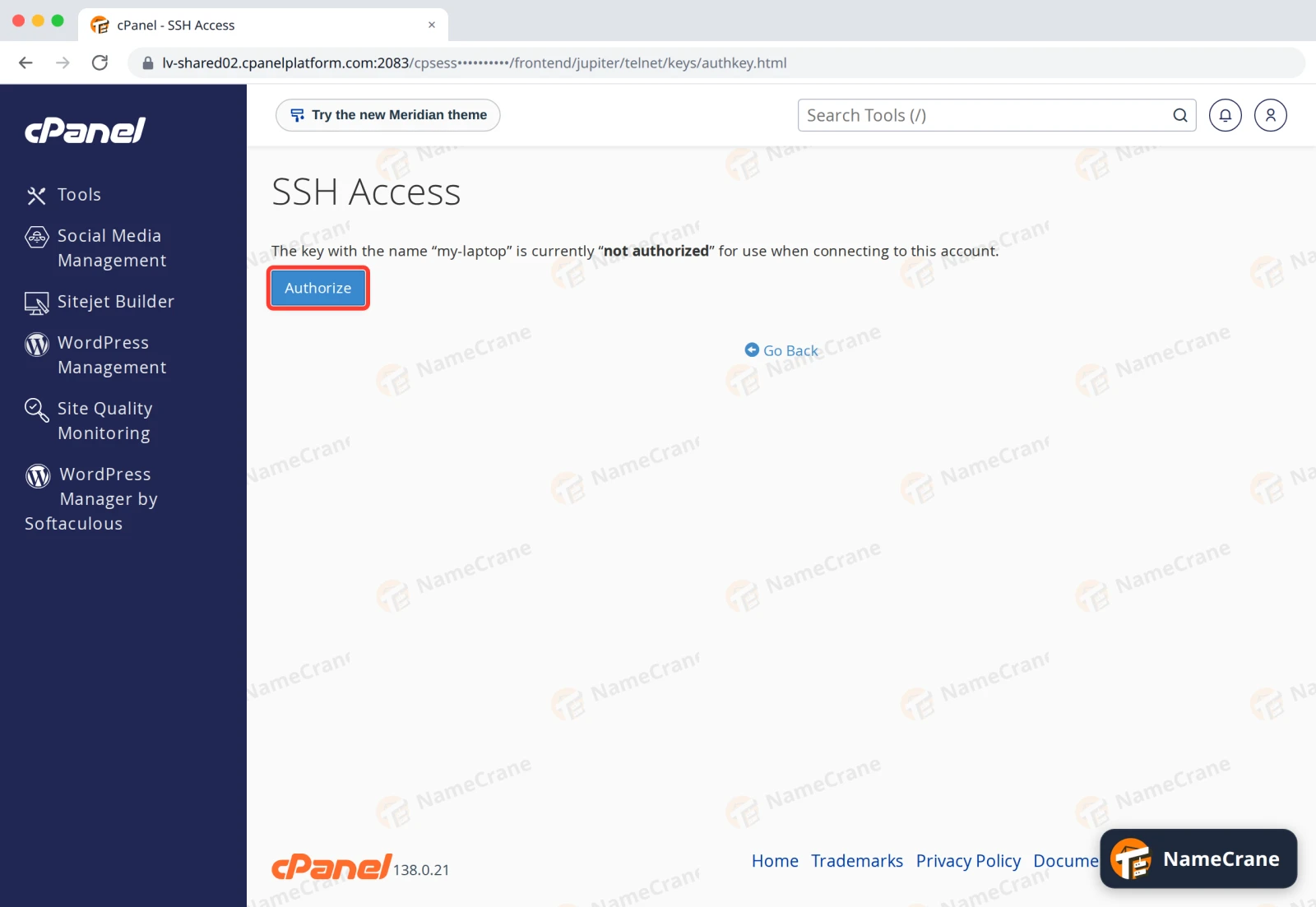
Click Authorize.
-
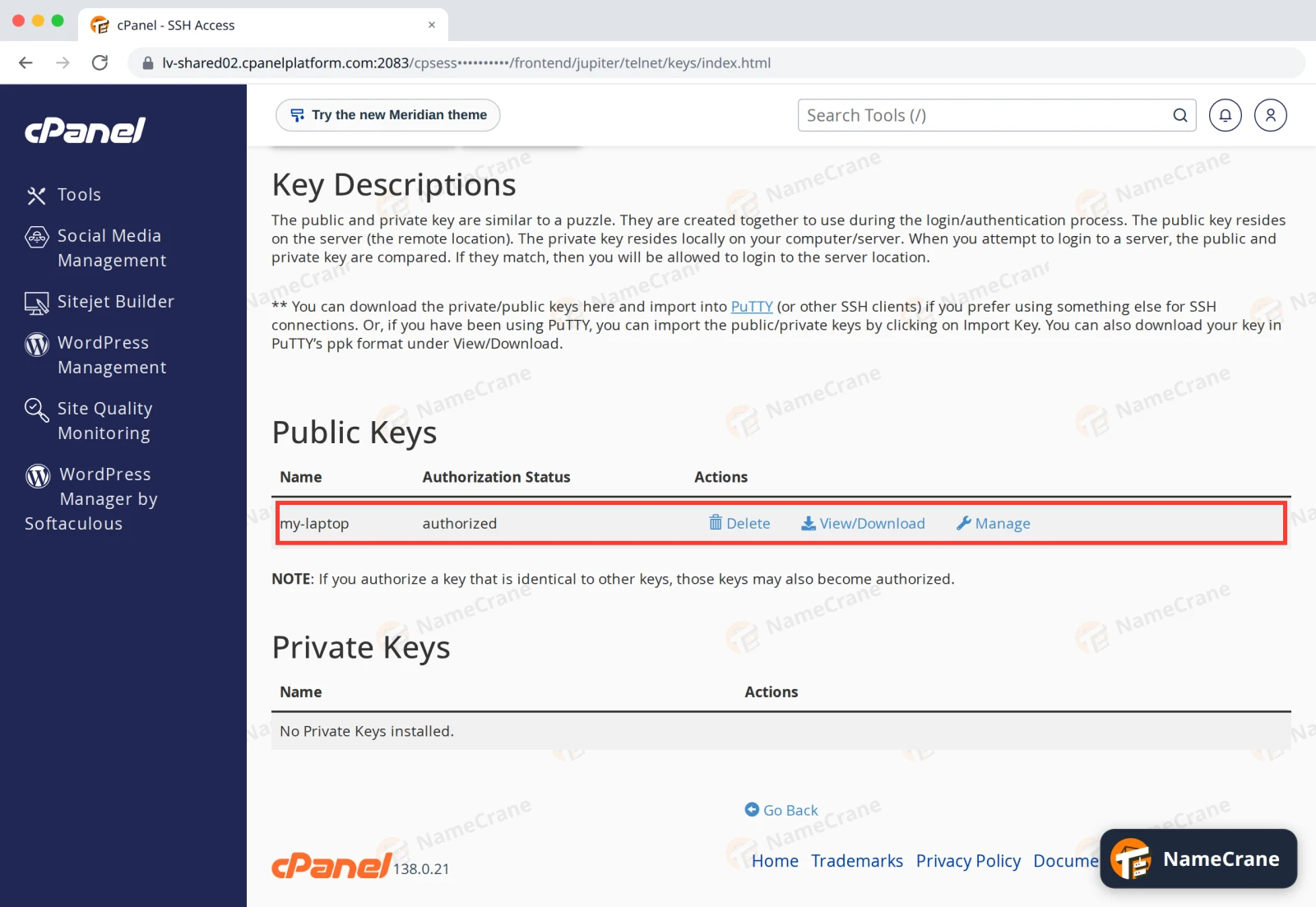
Click Go Back. The key now shows authorized.
-
Connect with the same command as before. This time you won’t be asked for your password.
ssh -p 53667 cranedemo@cpanel.cranedemo.com
Tip: To skip typing the port and username, add this to the file
~/.ssh/configon your computer. Then just runssh namecrane.Host namecrane HostName cpanel.cranedemo.com Port 53667 User cranedemo
Upload files with SFTP
SFTP uses the same details. In FileZilla, enter Host sftp://cpanel.cranedemo.com, your cPanel username and password, and Port 53667. For FTP instead, see Create an FTP account.
No SSH app? Use Terminal in cPanel
-
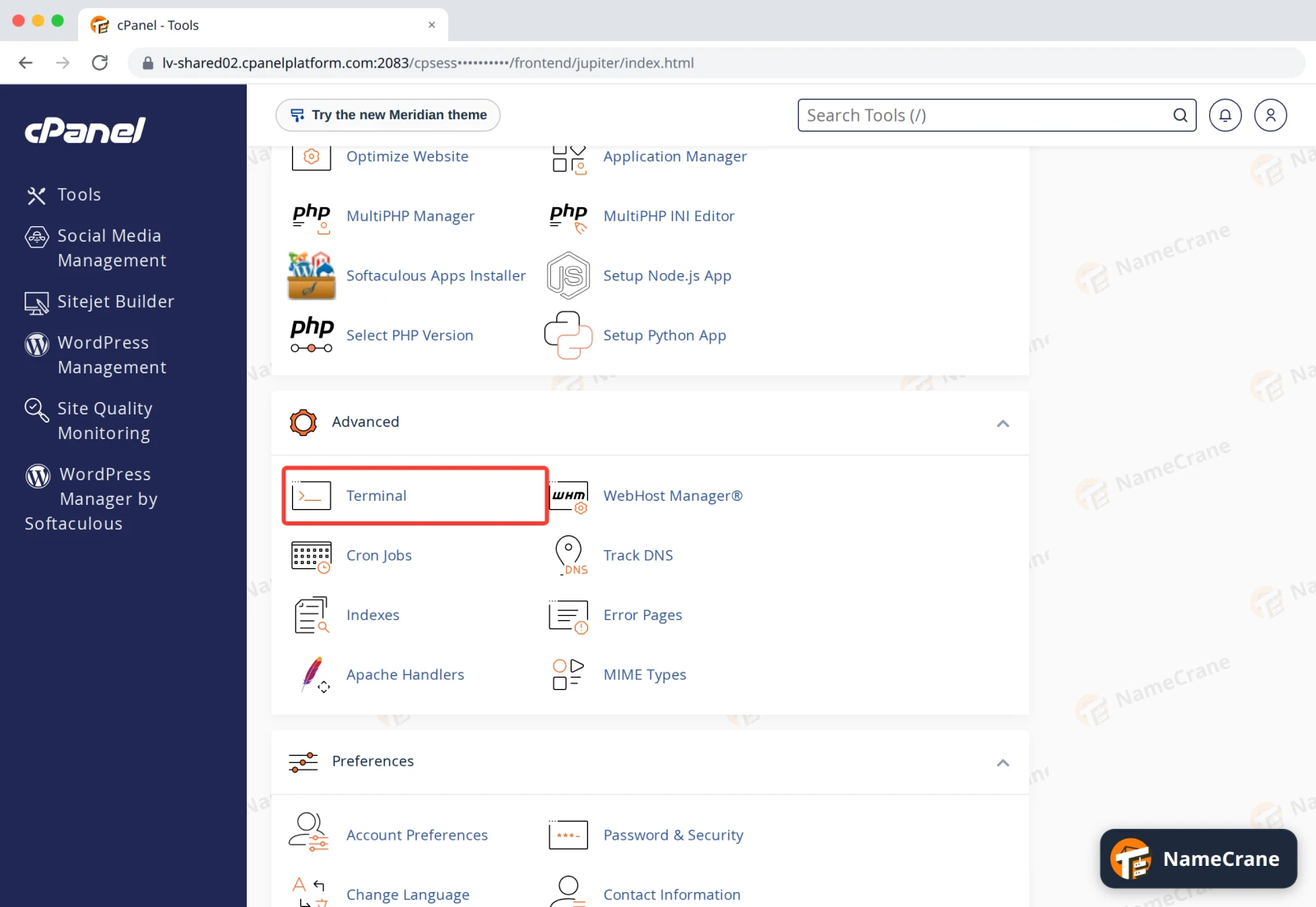
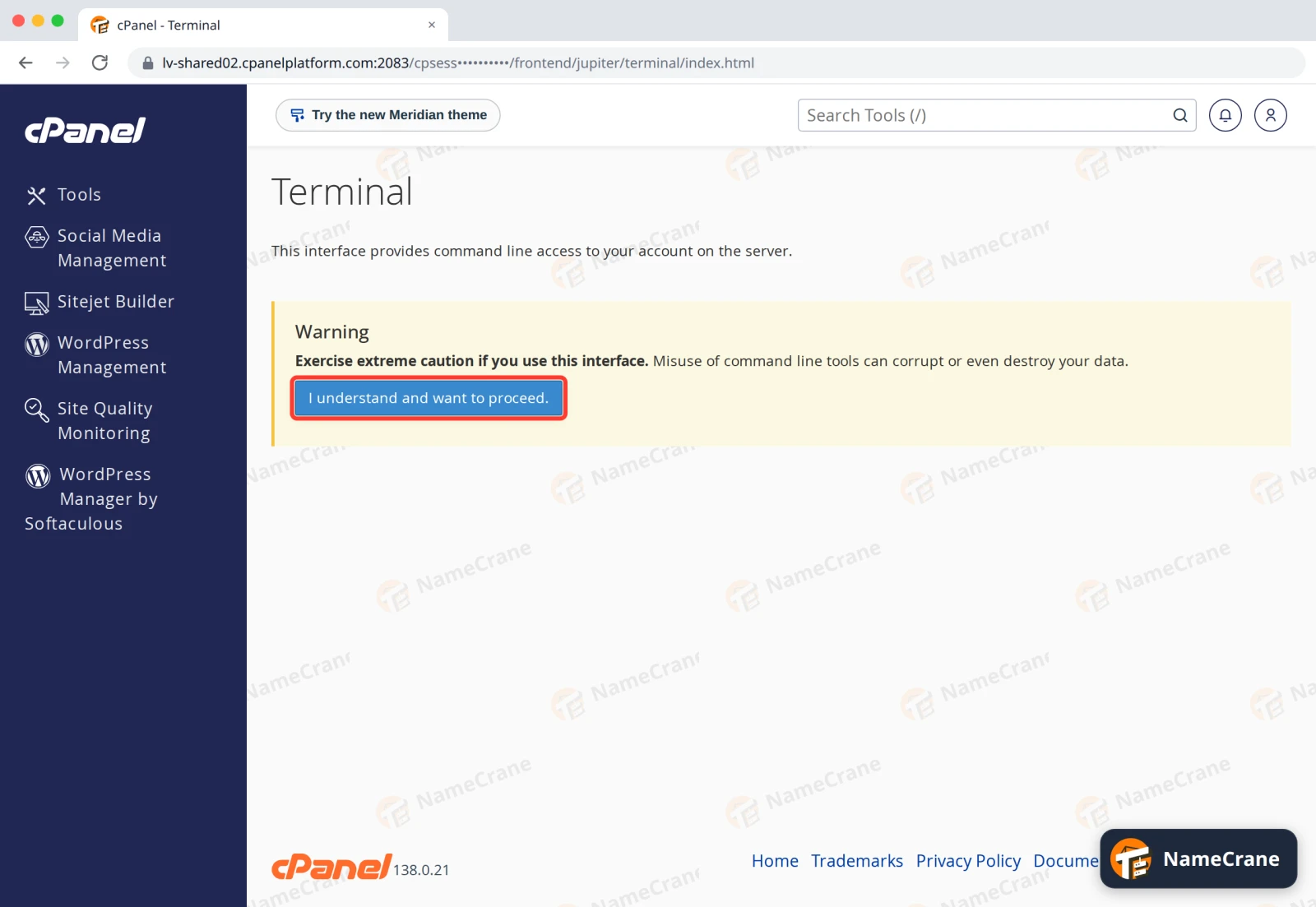
Click Terminal in the Advanced section.
-
The first time, read the warning and click I understand and want to proceed.
-
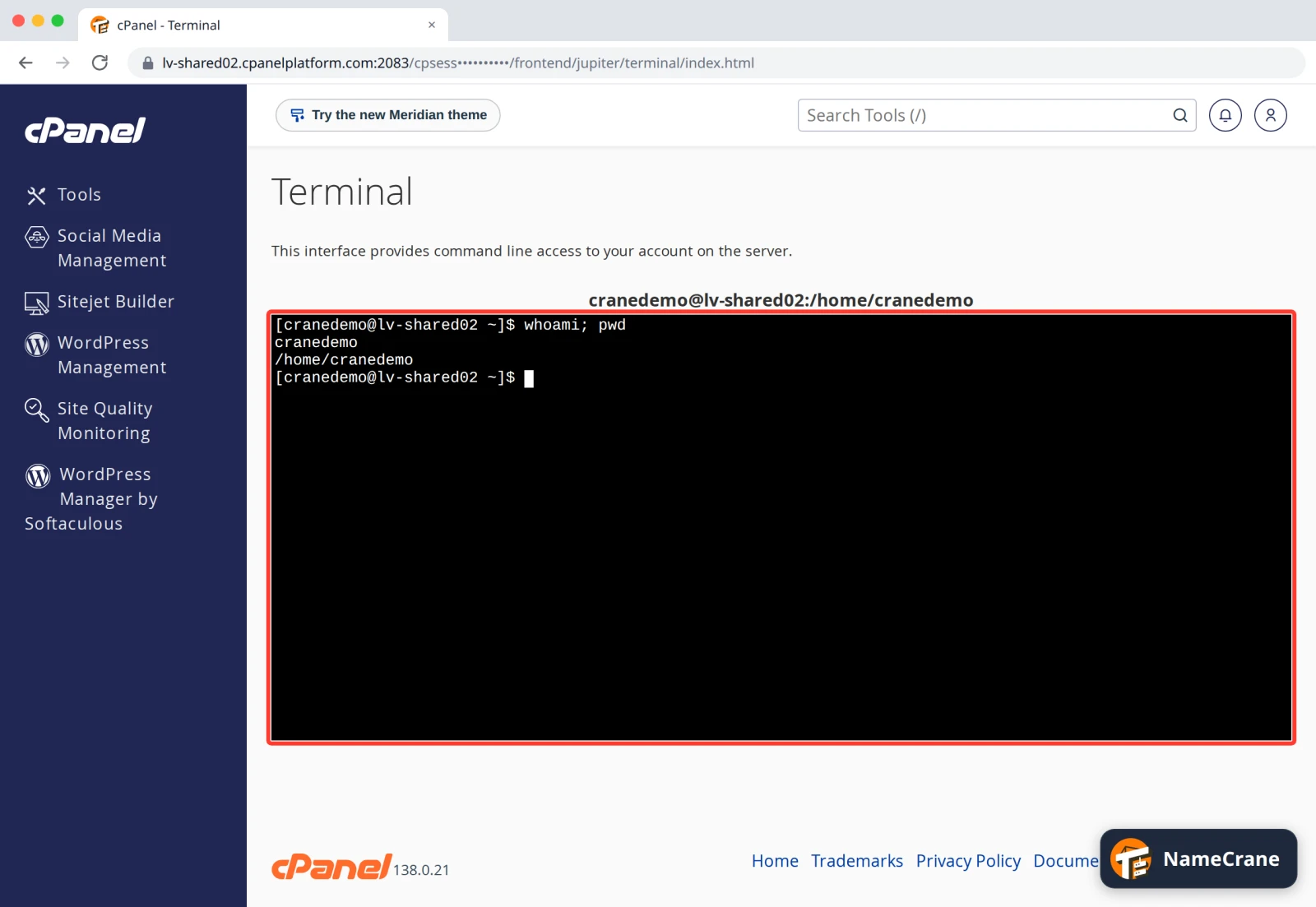
A command line opens in your home folder, just like SSH.
Troubleshooting
| Problem | What to do |
|---|---|
| The connection times out | Use port 53667. Port 22 is closed on our servers. If it still times out, your network may block that port, so try another connection. |
Permission denied |
Check you’re using your cPanel username (not your email address) and your cPanel password. For keys, check the key shows authorized in Manage SSH Keys. |
REMOTE HOST IDENTIFICATION HAS CHANGED |
Contact support to confirm the server changed. Then remove the old entry with ssh-keygen -R "[cpanel.cranedemo.com]:53667" and connect again. |
| My key still asks for a password | Check the key shows authorized. If it does, the key on your computer doesn’t match the one you imported: show it with cat ~/.ssh/id_ed25519.pub and compare. |
Snagged on something? Contact support and we’ll get you sorted.