How to Install an SSL Certificate You Bought in DirectAdmin
Last updated Changelog
On this page
Your site already gets a free SSL certificate from DirectAdmin (see Free SSL). Follow this guide only if you’ve bought a certificate from an SSL provider, for example one with your company name checked.
It takes two parts: you create a CSR (certificate signing request) for your provider, and then you install the certificate they send back. In this example we install a certificate for store.cranedemo.com. We got it from Let’s Encrypt for the test; certificates from any provider work the same way.
1. Create a CSR
-
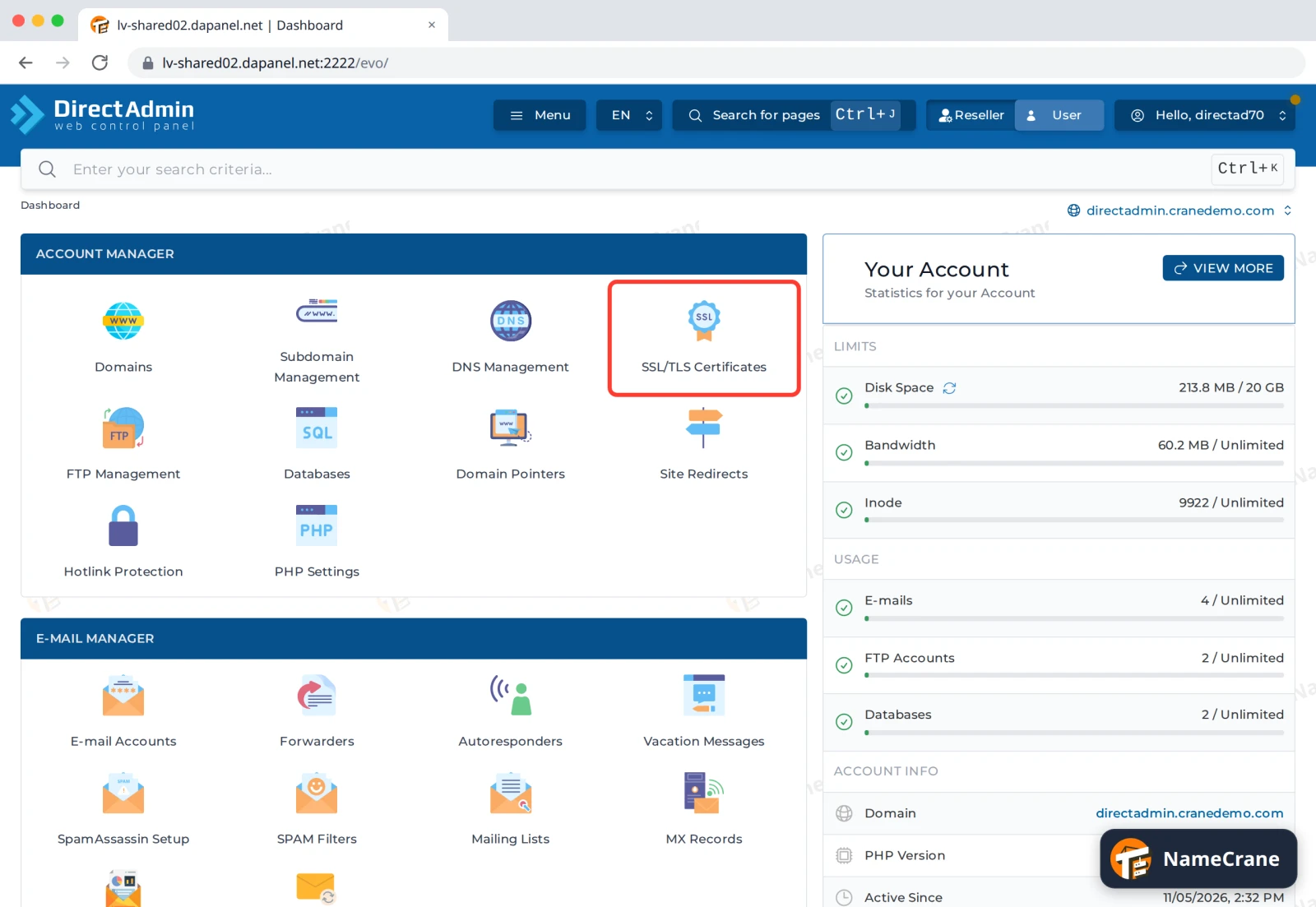
Log in to DirectAdmin. In the Account Manager section, click SSL/TLS Certificates.
-
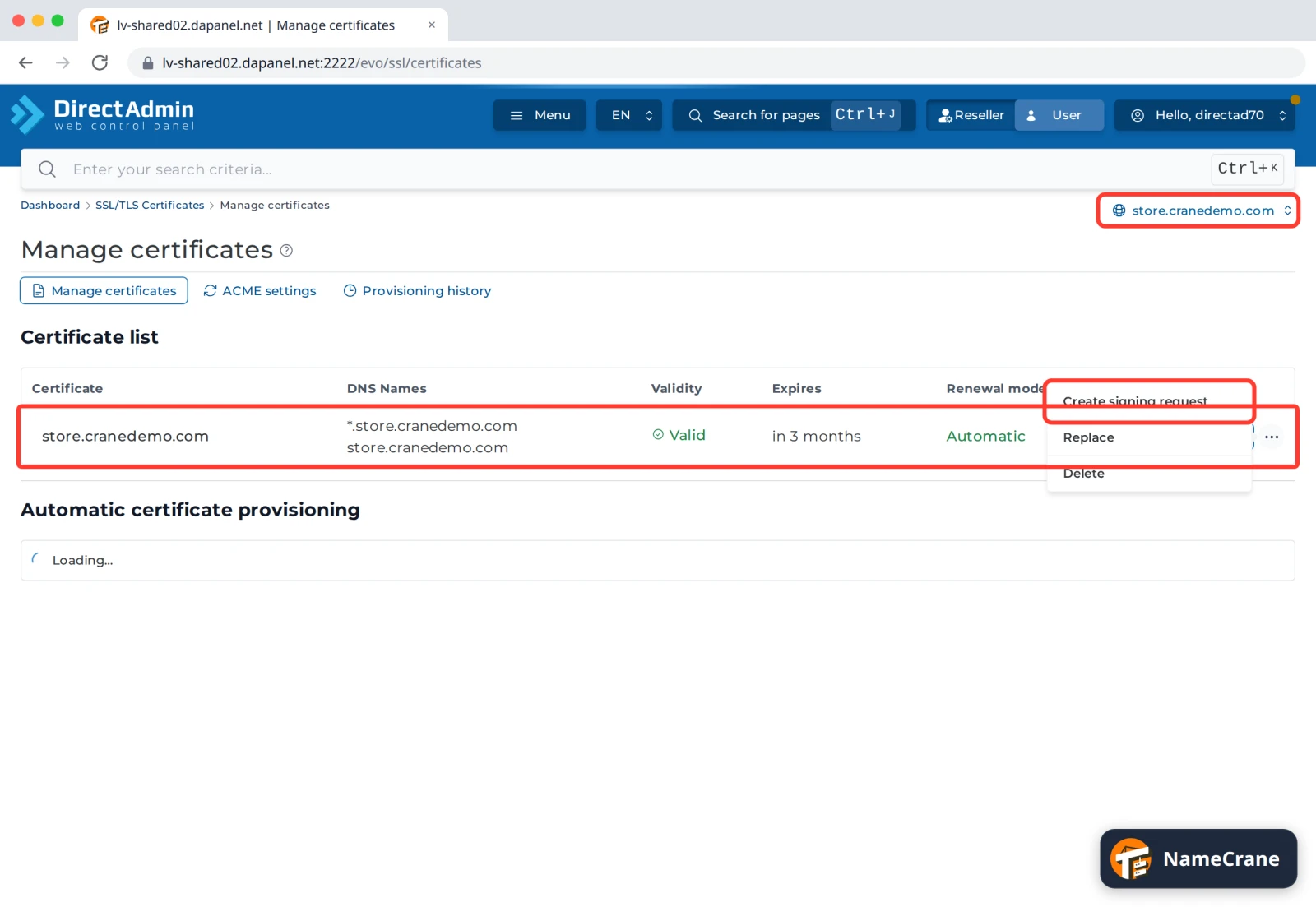
Choose your domain at the top right. In the Certificate list, click ⋯ next to your domain’s certificate and choose Create signing request.
-
Click Copy under Certificate signing request (or Download), and give it to your SSL provider.
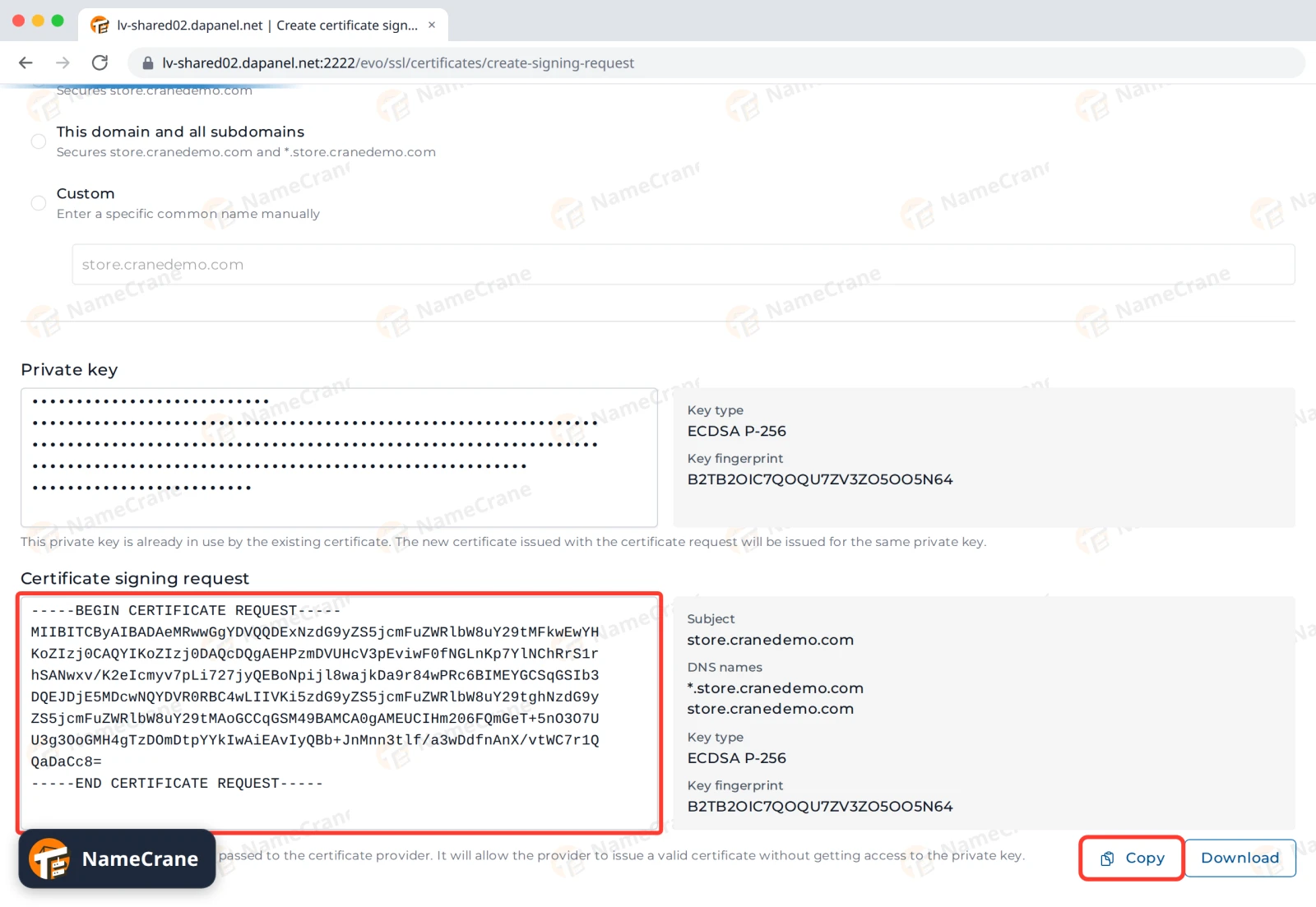
Warning: This page also shows your private key. Never send it to anyone, your SSL provider included. DirectAdmin keeps it: the CSR uses the same private key as your current certificate.
2. Install the certificate
When your provider sends the certificate, open SSL/TLS Certificates again and choose your domain at the top right.
-
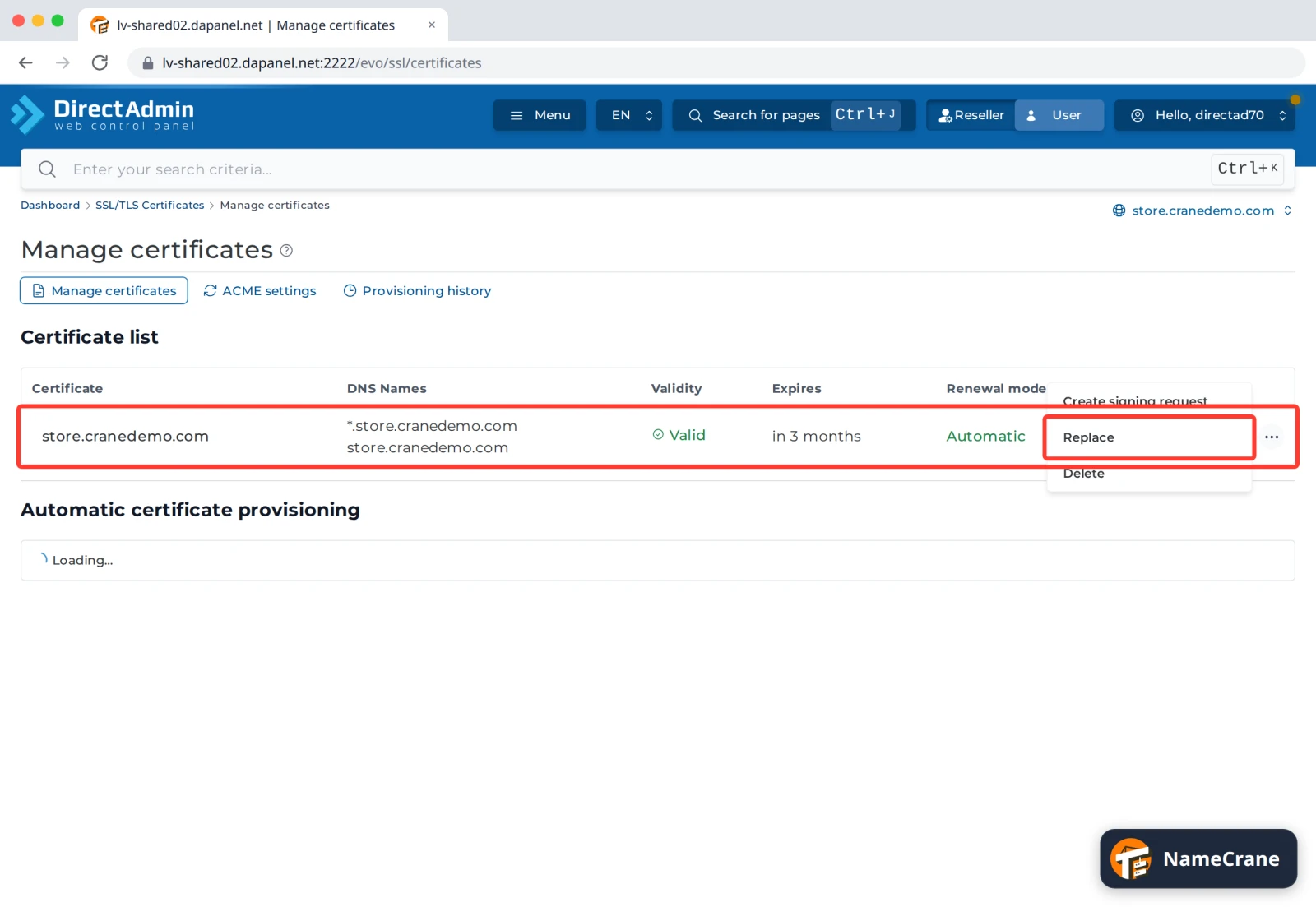
Click ⋯ next to your domain’s certificate and choose Replace.
-
The form is filled in with your current certificate. Leave Private Key as it is. Under Certificate chain, click Remove next to each old entry. Then paste everything your provider sent into Certificate: your certificate first, then the CA bundle. DirectAdmin moves the extra certificates into Certificate chain for you.
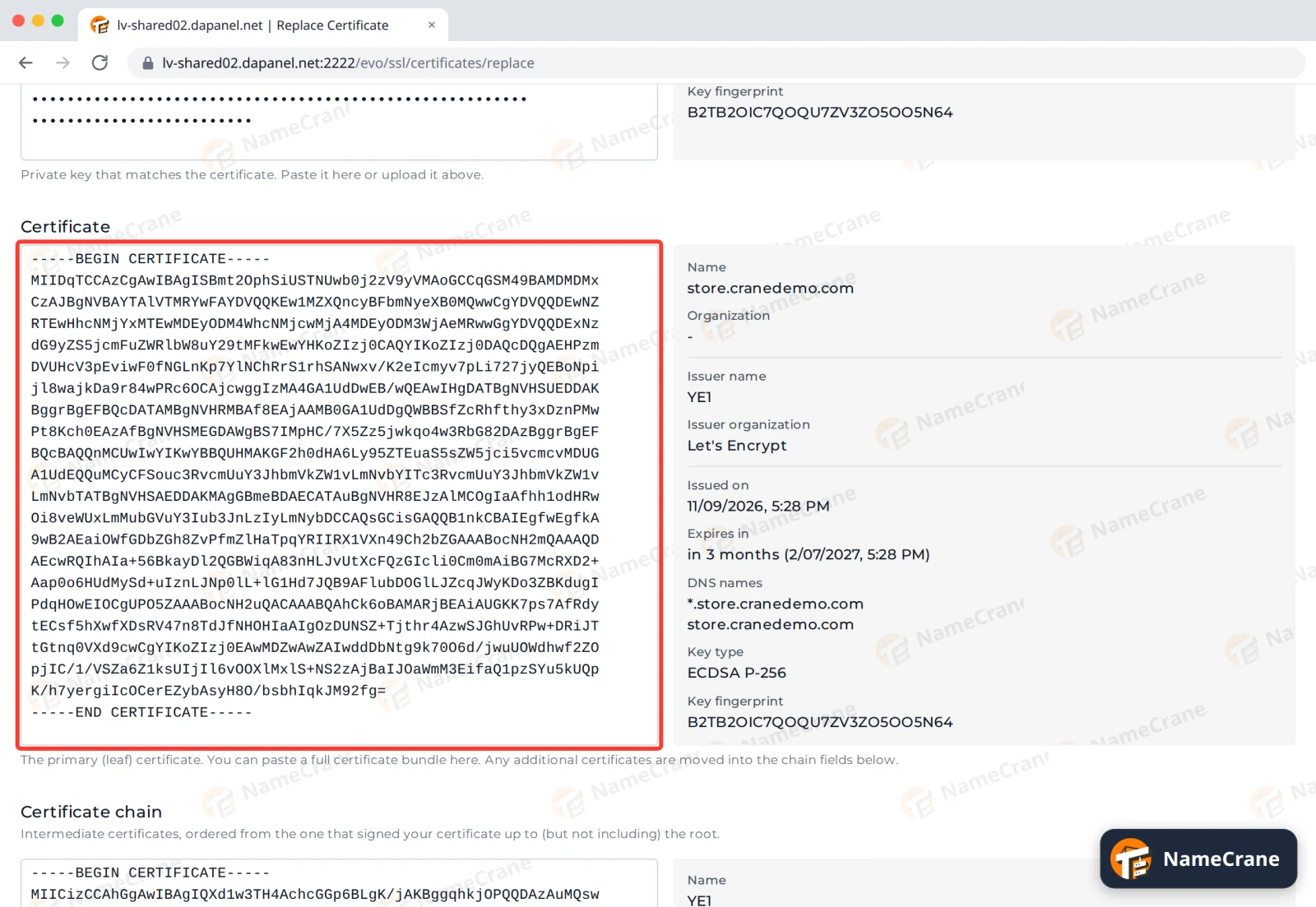
-
Leave Add to the ACME skip list ticked. It stops DirectAdmin from replacing your certificate with a free one. Click Replace.
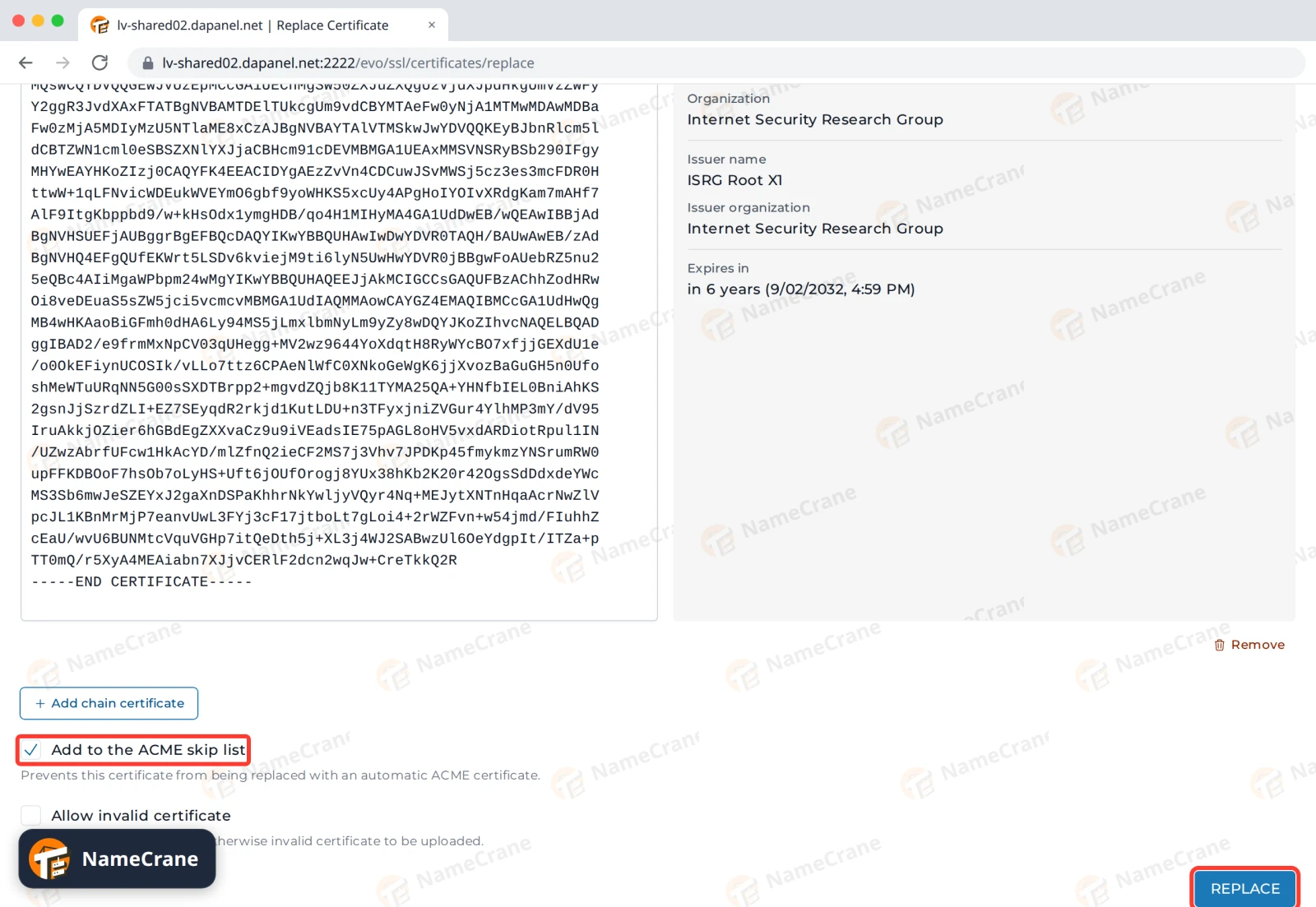
-
The certificate list shows your certificate, with Renewal mode: Manual.
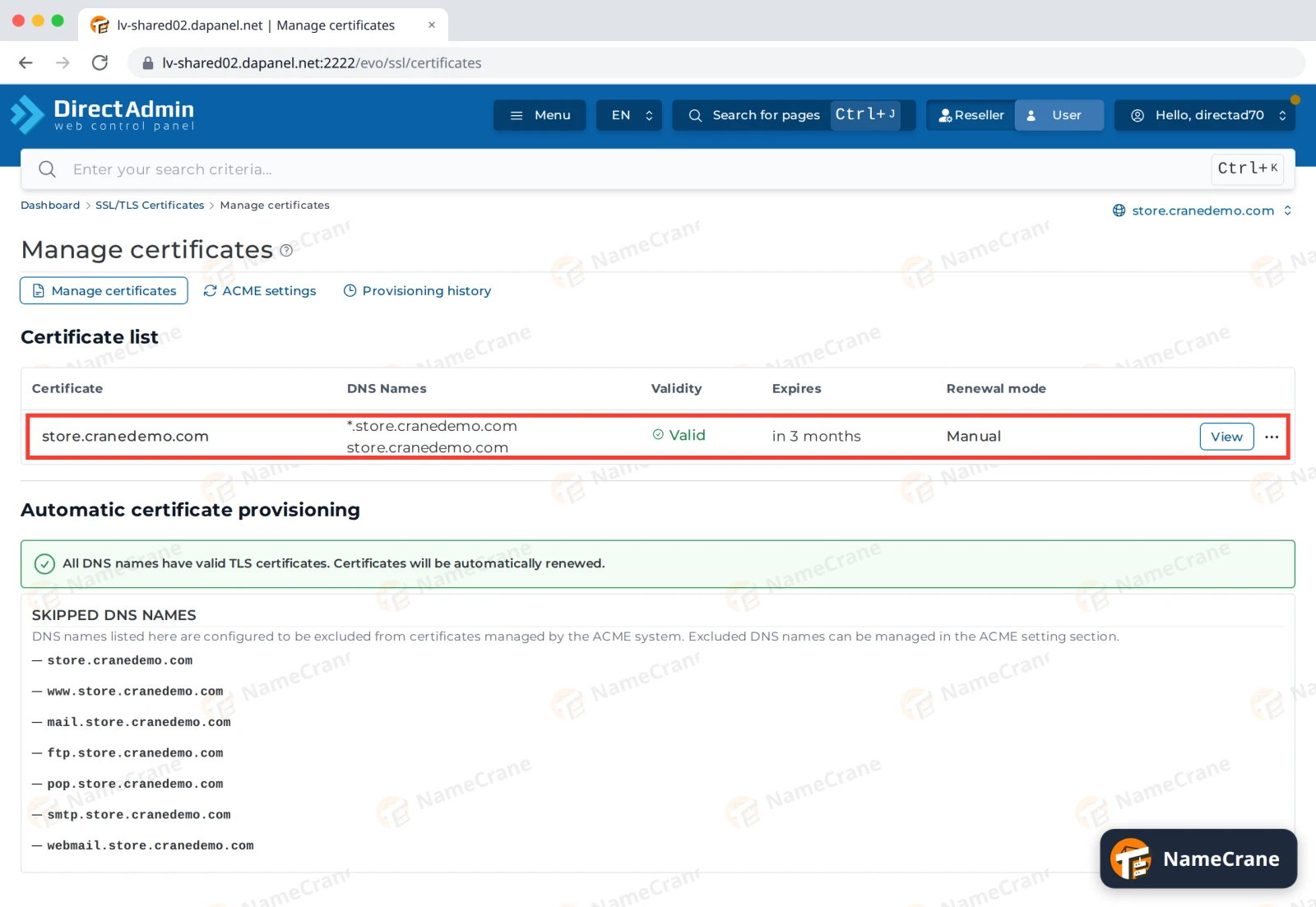
Note: A certificate you bought doesn’t renew itself. Before it expires, get the renewed certificate from your provider and install it the same way, from step 4.
Go back to the free certificate
Click the ACME settings tab. Under Skip list, click Remove next to your certificate, then click Save Changes. Its renewal mode goes back to Automatic.
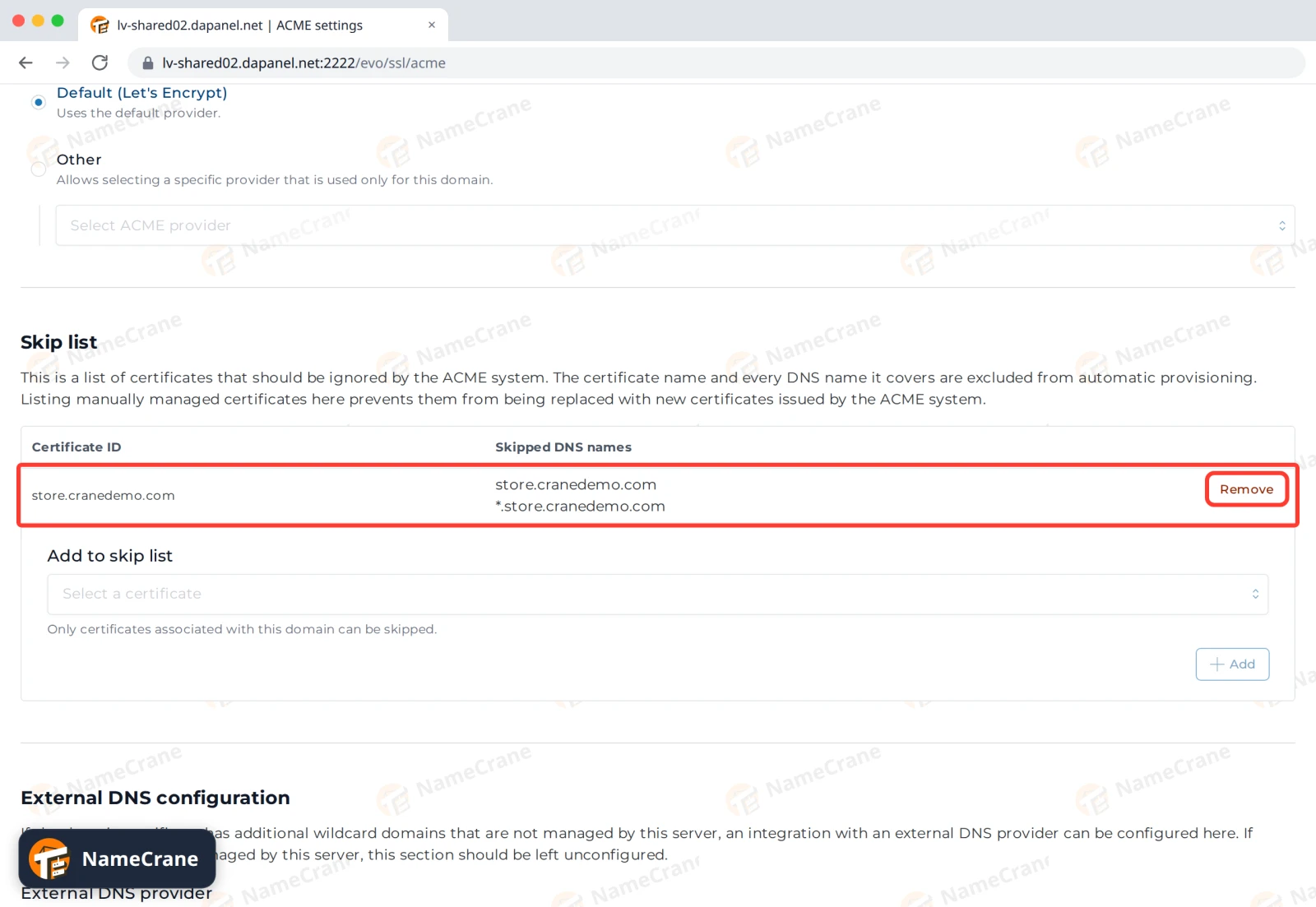
Troubleshooting
| Problem | What to do |
|---|---|
| Replace is greyed out, and the chain says “Duplicate certificate” | The old chain is still there. Click Remove next to each old entry, then paste your certificate again. |
| The private key doesn’t match the certificate | The certificate wasn’t made from a CSR created here. Paste the private key you used to request it into Private Key. |
| DirectAdmin replaced my certificate with a free one | Add to the ACME skip list was unticked. Install your certificate again with the box ticked. |
| The browser still shows the old certificate | Clear your browser cache, or try a private window. |
Snagged on something? Contact support and we’ll get you sorted.