How to Download a Backup Copy from JetBackup
Last updated Changelog
On this page
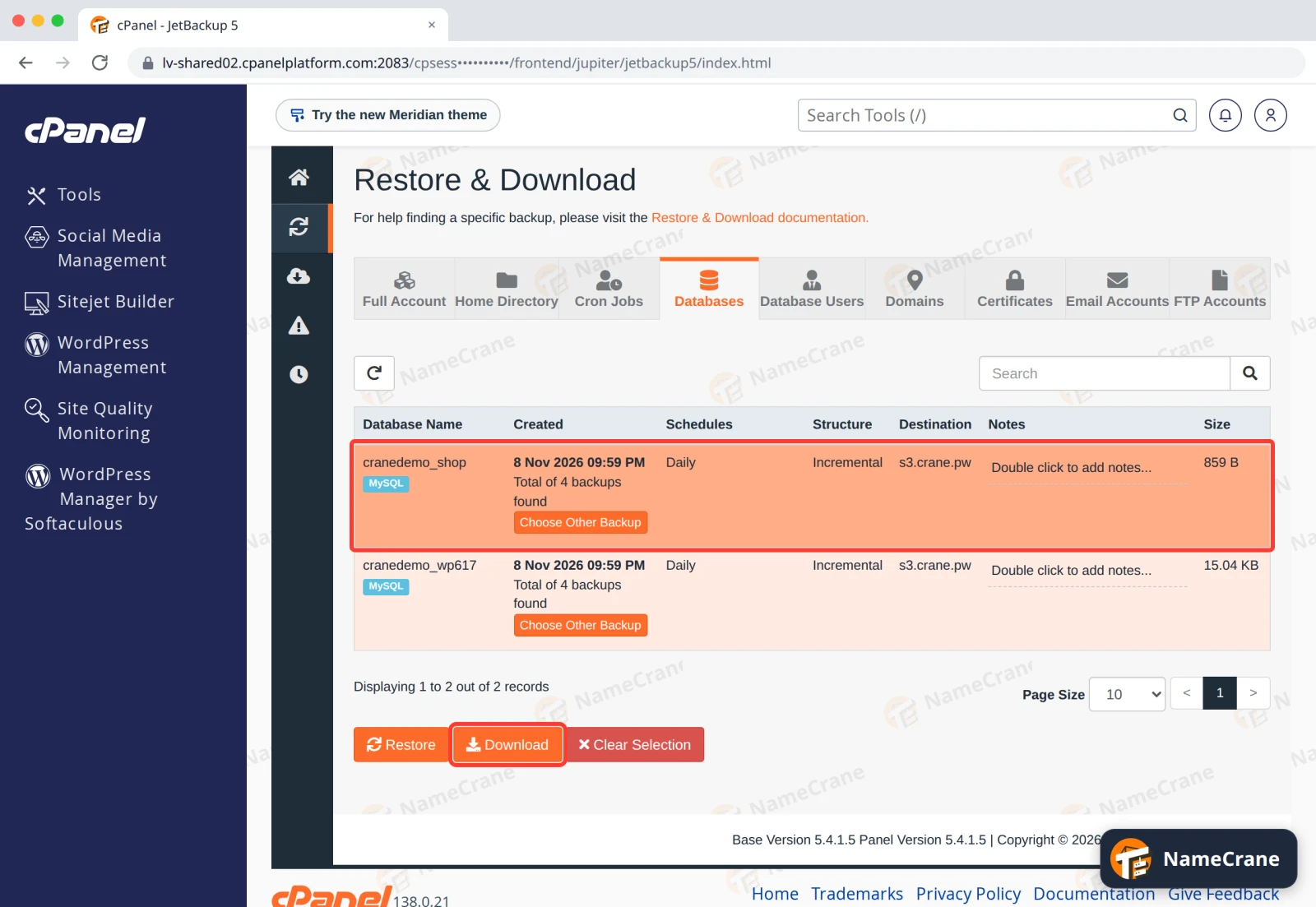
Instead of restoring, you can download a copy of anything in our nightly backups and keep it on your computer. It’s handy when you only need part of something back, such as one table from a database, or before a restore that would overwrite newer changes. In this example we download last night’s copy of our cranedemo_shop database. Our screenshots are from cPanel; it works the same in DirectAdmin.
Steps
-
Open JetBackup (see how to open it) and click the section you need, such as Databases. Click the row you want. It turns orange. To use an older backup, click Choose Other Backup first and pick the date. Click Download.
-
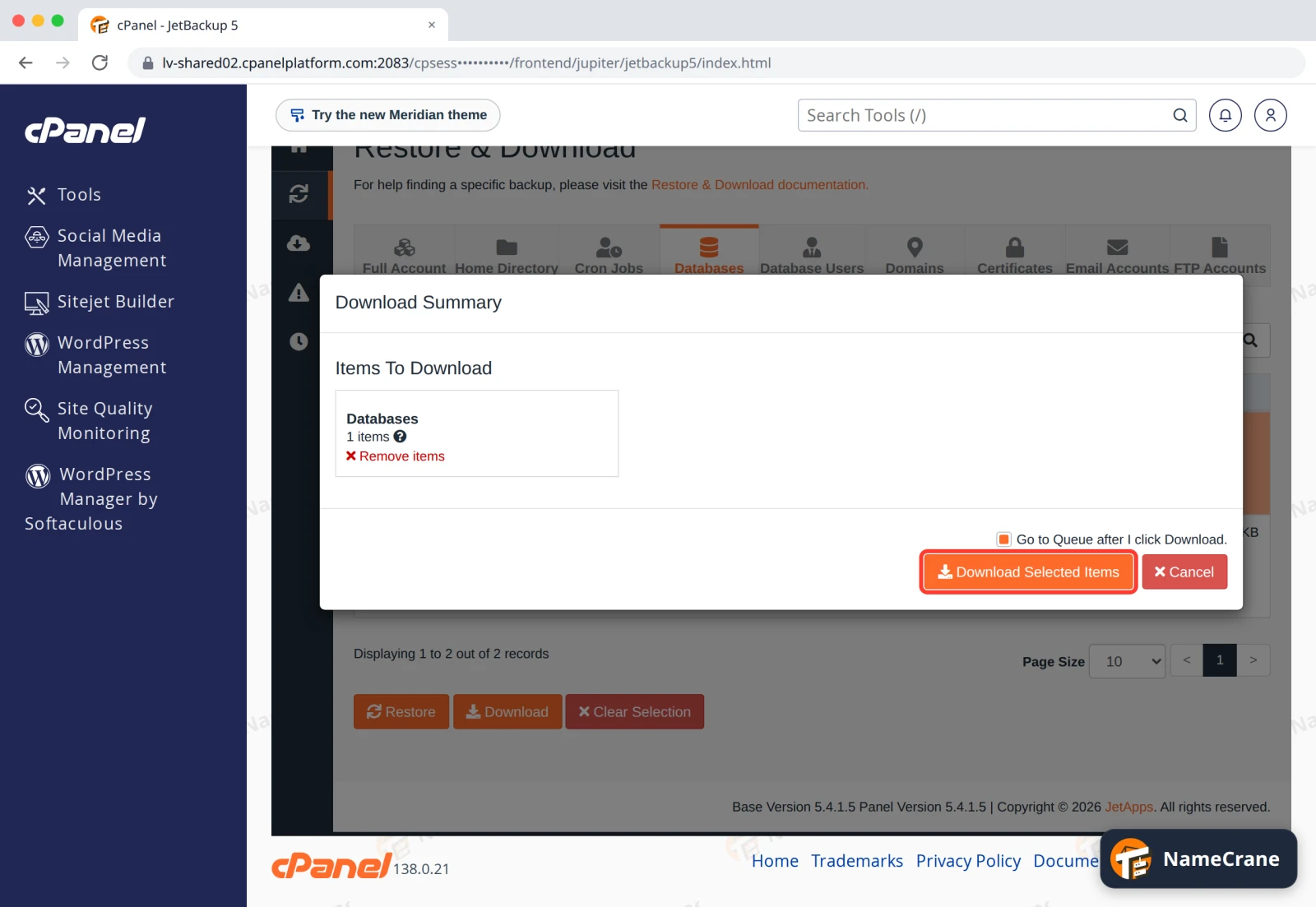
The Download Summary lists what will be included. Click Download Selected Items.
-
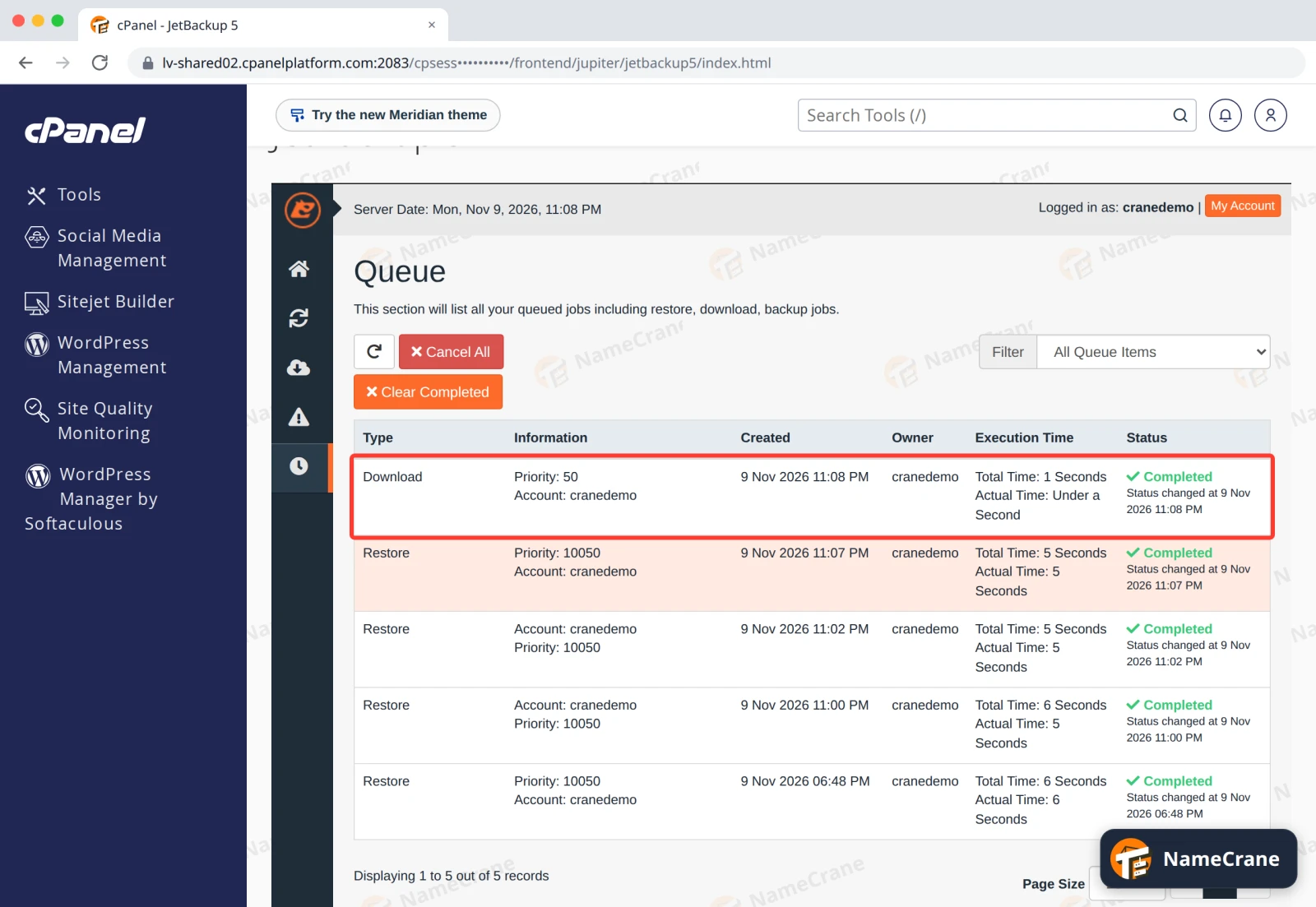
JetBackup prepares the file and opens the Queue. Wait until the Status says Completed. Ours took under a second; a whole account takes longer.
-
Click the cloud icon in JetBackup’s left-hand menu to open Downloads, then click Download next to your copy. Your browser saves it as a
.tar.gzfile.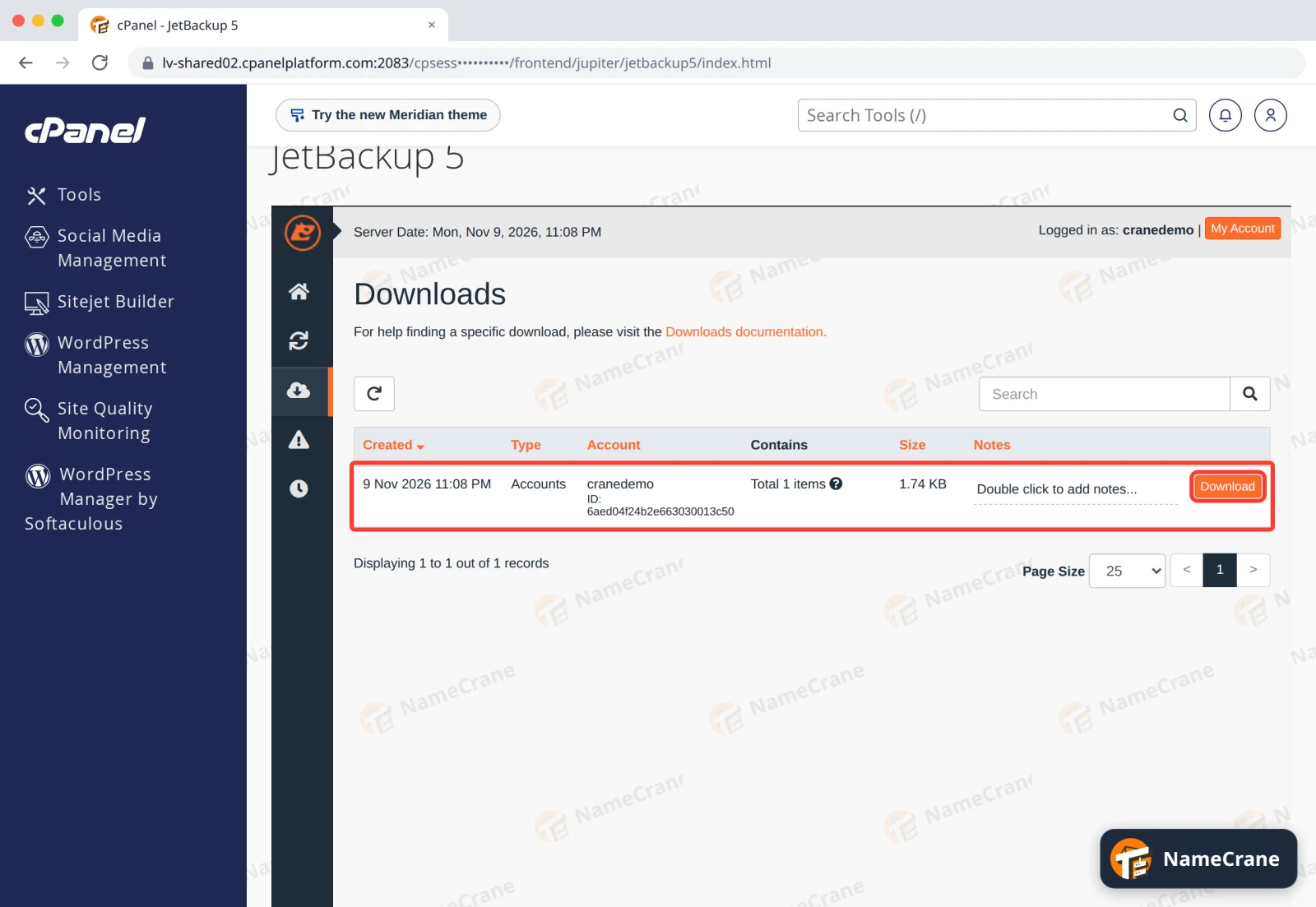
What’s in the file
The .tar.gz file is a compressed archive. Open it with your computer’s archive tool, or with 7-Zip on Windows. Ours, download_cranedemo_….tar.gz, held our database as backup/database/cranedemo_shop.sql.gz. That’s a normal database export, which you can import with phpMyAdmin (cPanel, DirectAdmin).
Tip: If you’ve added your email address in JetBackup, you get an email when the download is ready. See Get email alerts.
Troubleshooting
| Problem | What to do |
|---|---|
| The Download button is greyed out | Click a row first, so it turns orange. |
| My download isn’t in Downloads | Check the Queue: it only appears once the status is Completed. If it’s gone from the list later, make the download again. |
| The download shows Failed in the Queue | Contact support with what you tried to download and the backup date. |
Snagged on something? Contact support and we’ll get you sorted.