How to Change Your cPanel Password and Turn On Two-Factor Authentication
Last updated Changelog
On this page
A strong password plus two-factor authentication (2FA) is the best protection for your hosting. With 2FA on, nobody can log in to your cPanel without the code from your phone, even if they know your password.
Change your password
-
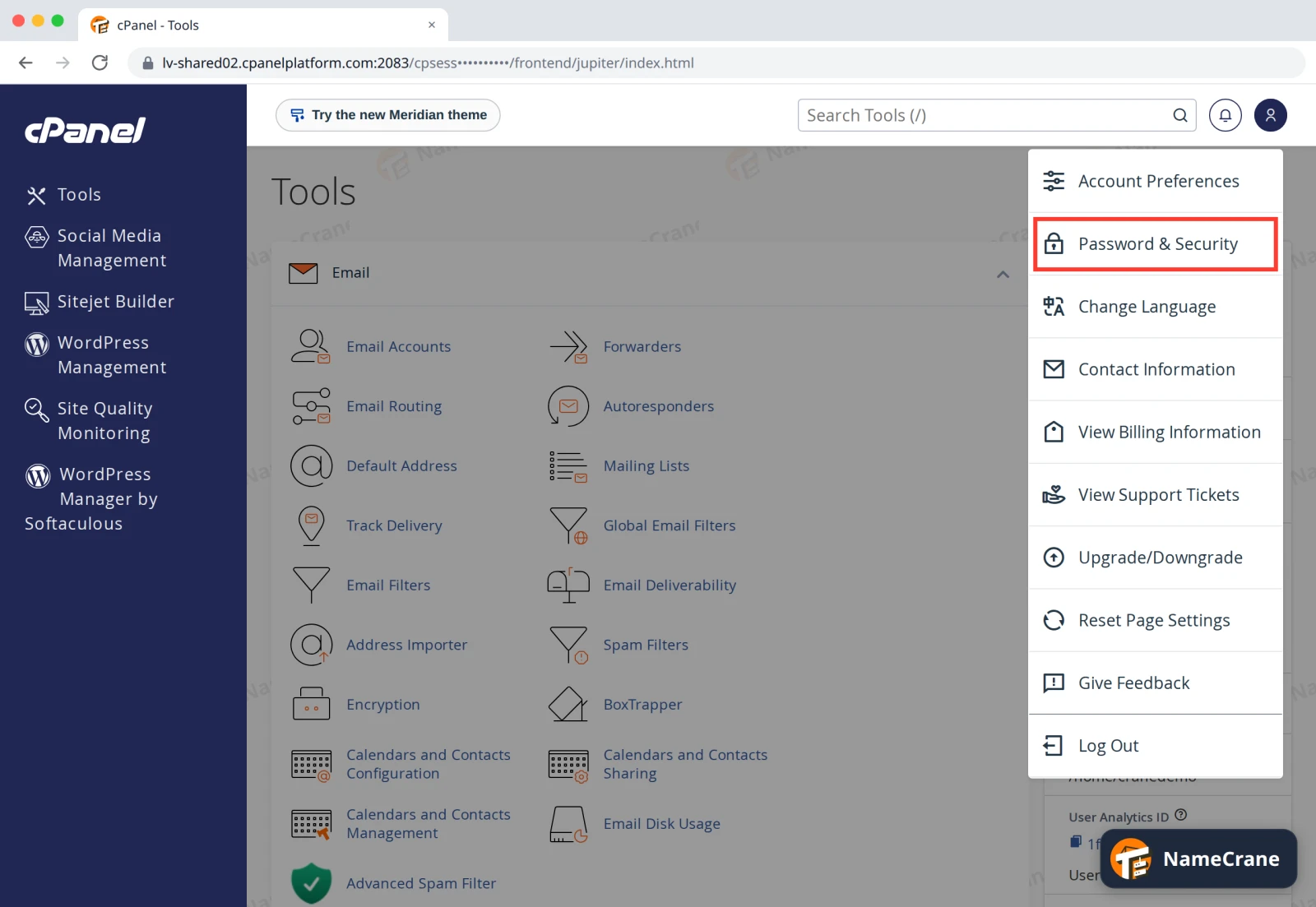
Log in to cPanel. Click the person icon at the top right and choose Password & Security. It’s also under Preferences on the home page.
-
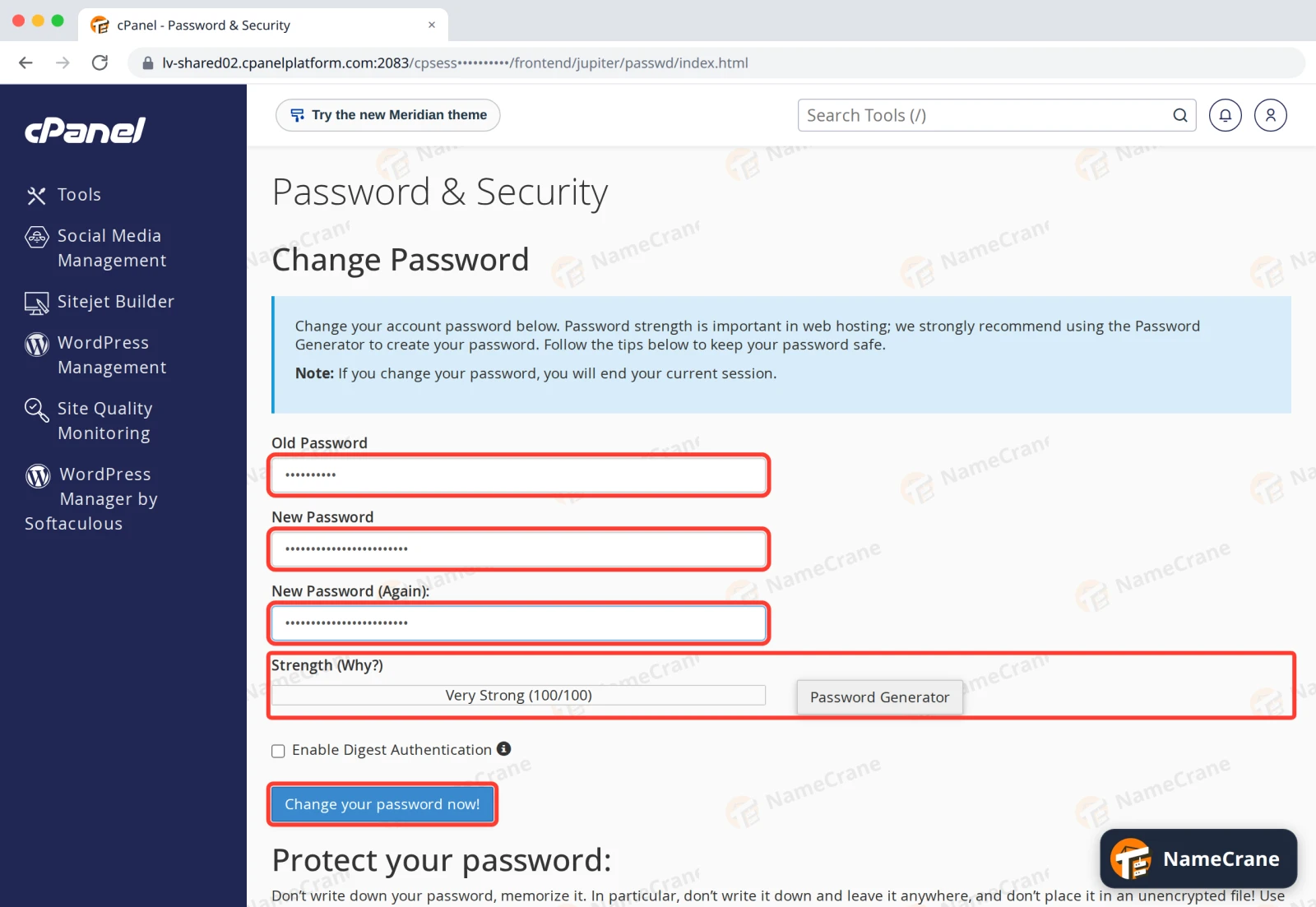
Fill in Old Password, then your new one under New Password and New Password (Again). Aim for Very Strong on the Strength bar. Password Generator makes one for you; save it in your password manager before you use it. Then click Change your password now!
-
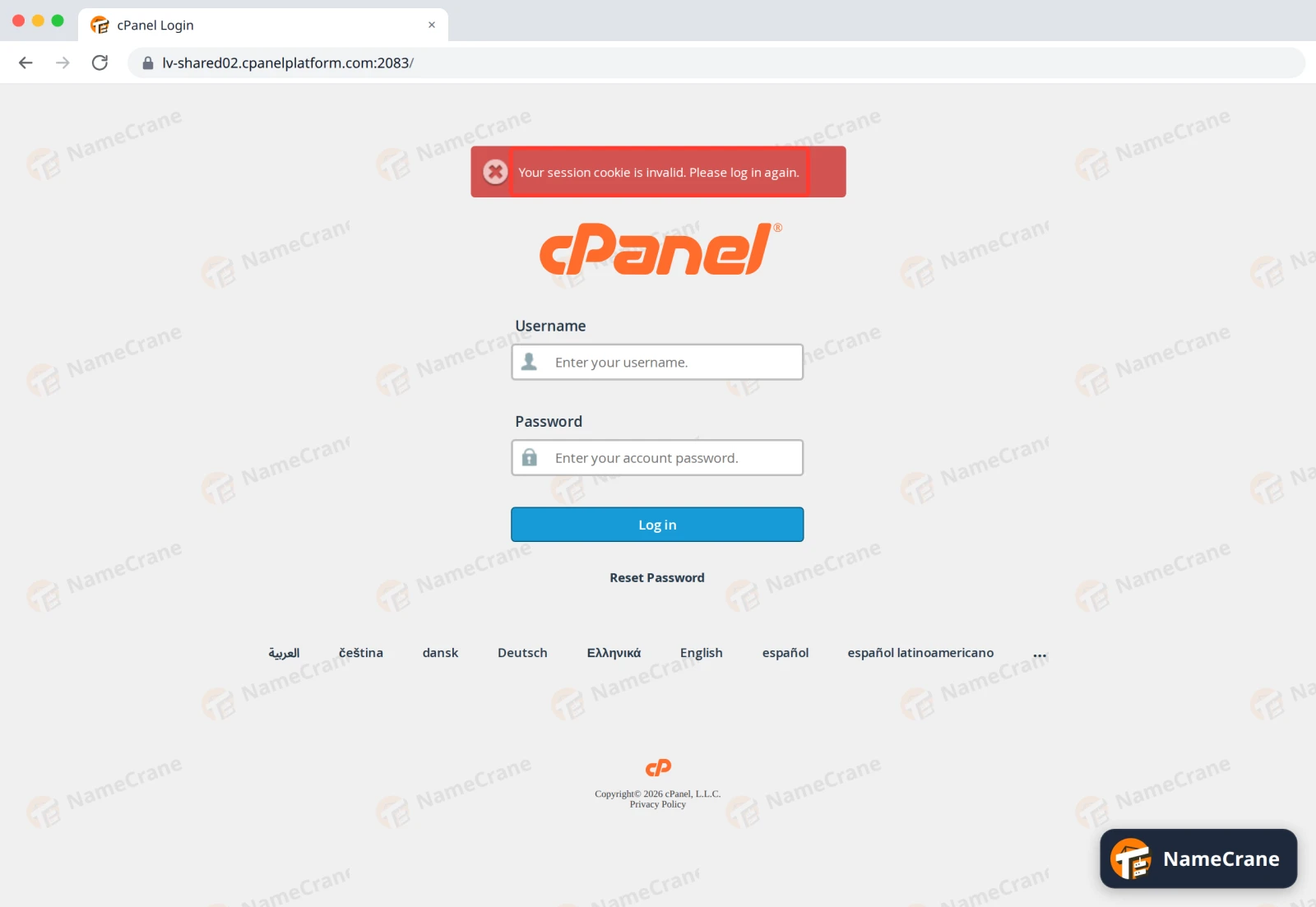
cPanel logs you out straight away and shows Your session cookie is invalid. Please log in again. That’s expected. Log in with your new password.
Note: Your email accounts keep their own passwords, so changing your cPanel password doesn’t affect them. You can leave Enable Digest Authentication off. It’s only needed for Web Disk on some versions of Windows.
Turn on two-factor authentication
You’ll need an authenticator app on your phone, such as Google Authenticator, Microsoft Authenticator or 1Password.
-
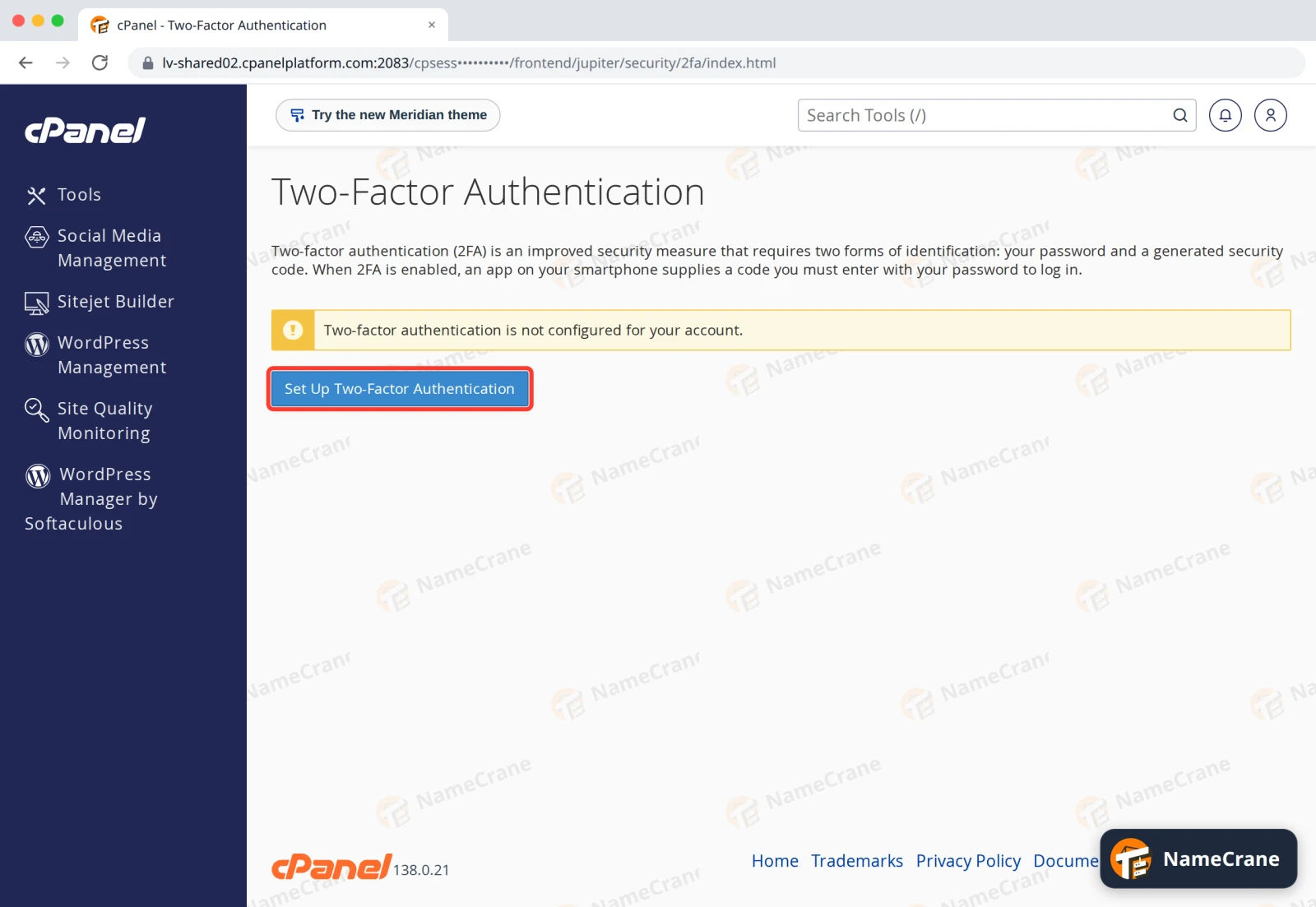
On the cPanel home page, open Security › Two-Factor Authentication and click Set Up Two-Factor Authentication.
-
In your app, add an account and scan the QR code. If you can’t scan it, type in the Account and Key shown under Don’t have a QR code reader? instead. Enter the 6-digit code from the app as the Security Code and click Configure Two-Factor Authentication.
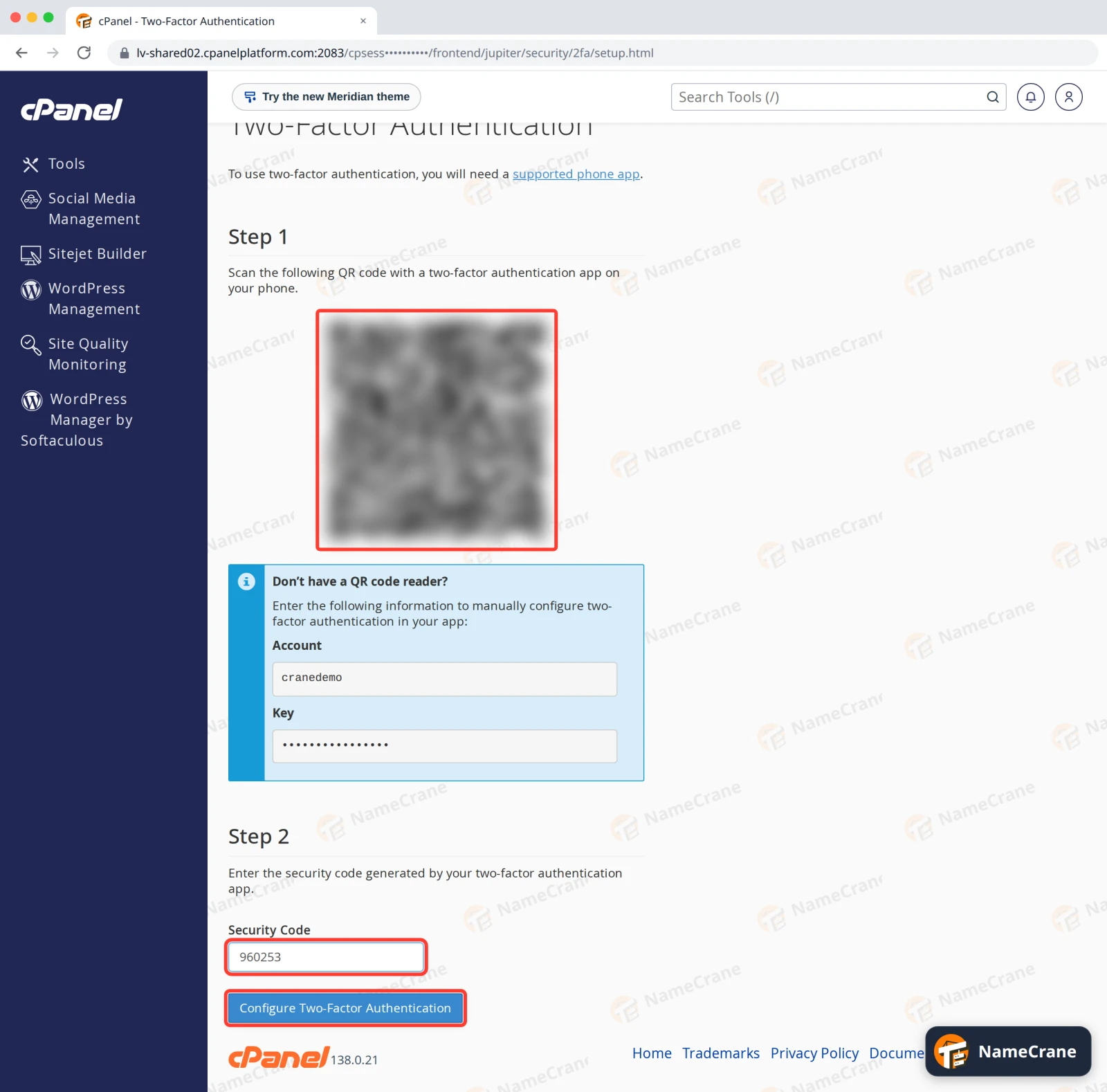
-
cPanel says Two-factor authentication is now configured on your account. The Two-Factor Authentication page now shows it’s on.
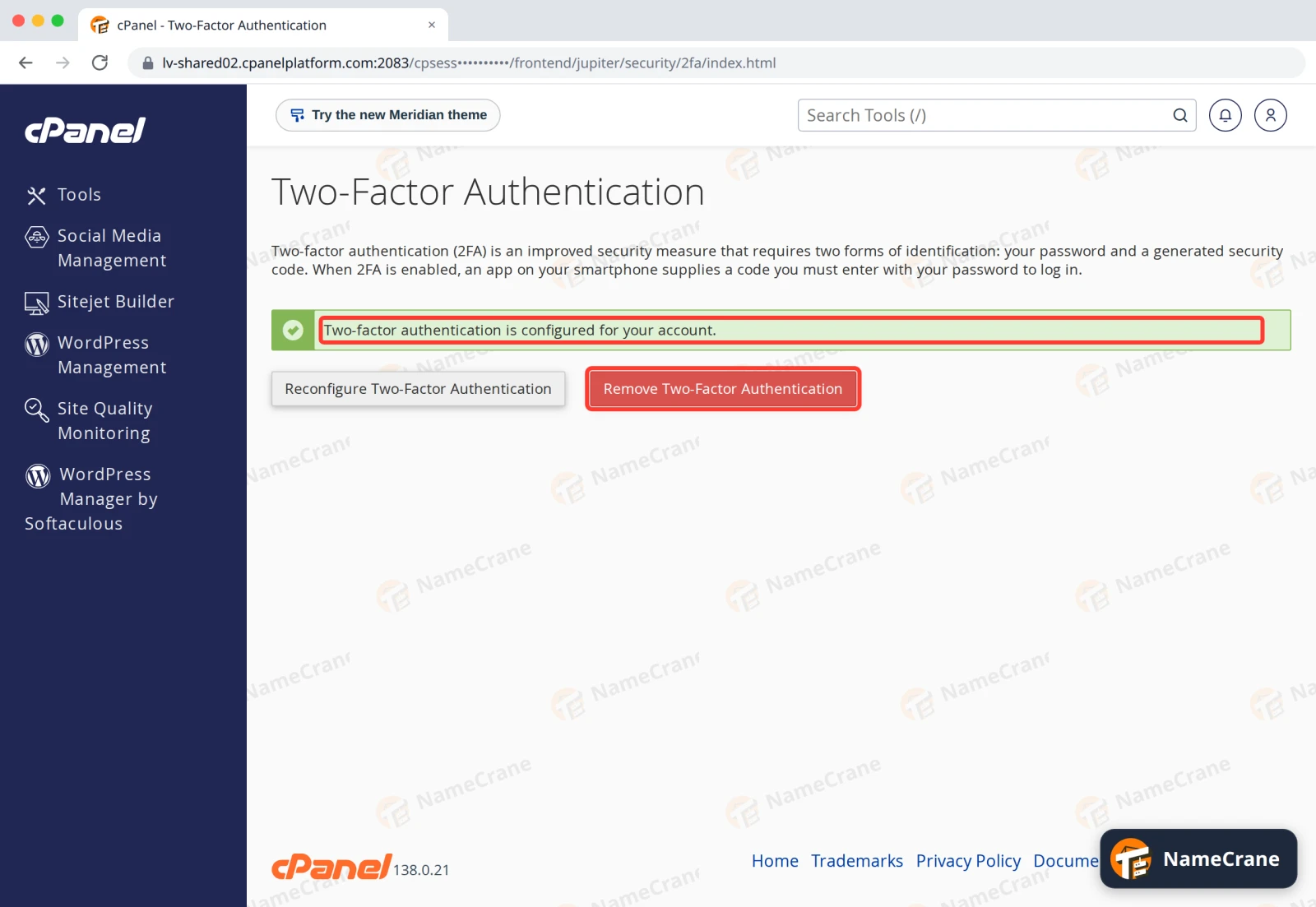
-
From now on, after your password cPanel asks for the security code. Open your app, type in the current code and click Continue.
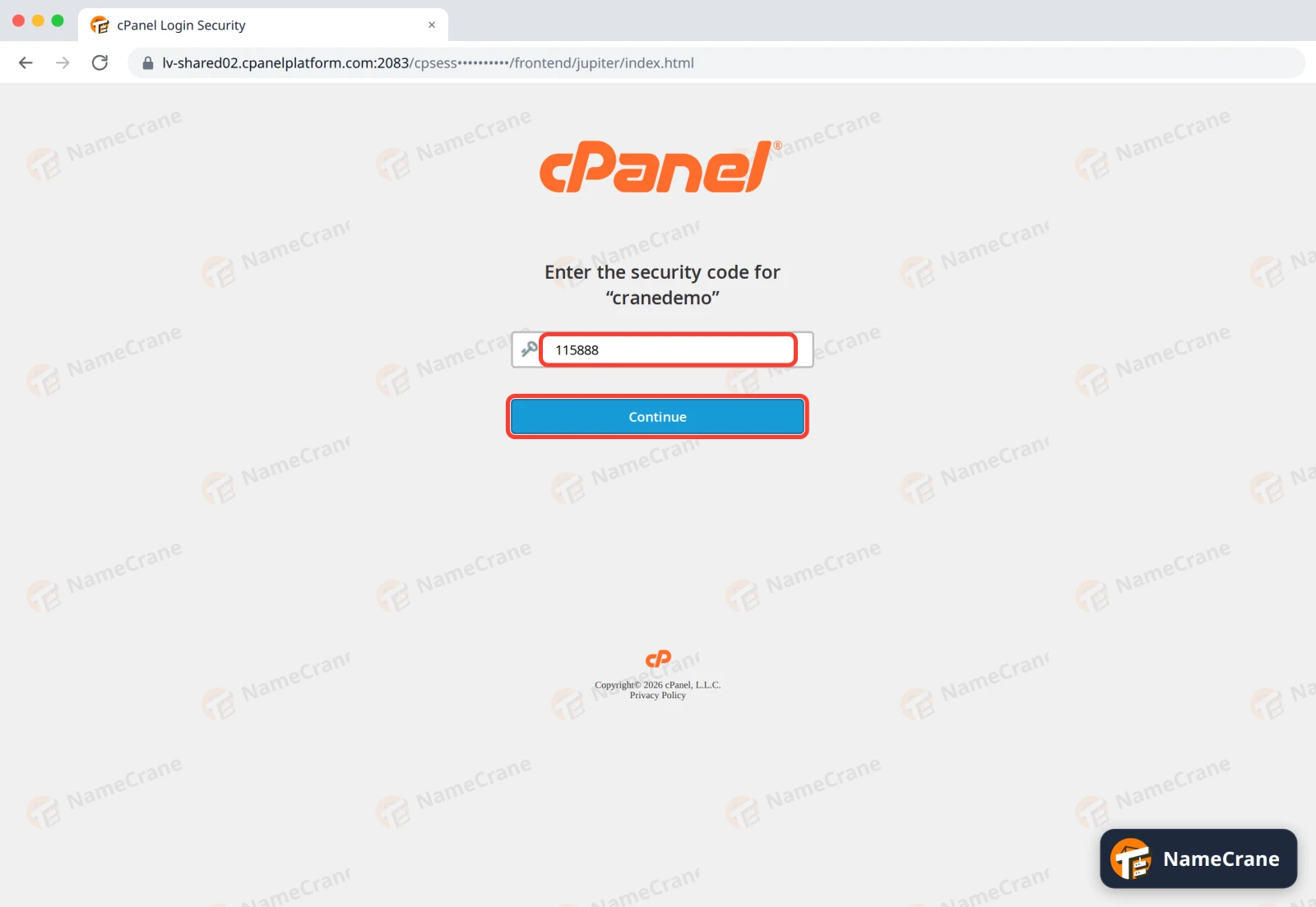
Turn it off or move it to a new phone
On the Two-Factor Authentication page, click Remove Two-Factor Authentication, then Remove to confirm. To move to a new phone, click Reconfigure Two-Factor Authentication and scan the new QR code with your new phone.
Troubleshooting
| Problem | What to do |
|---|---|
| My new password isn’t accepted | Make it longer and mix in capitals, numbers and symbols until Strength is high enough, or use Password Generator. |
| I’ve forgotten my password | Click Reset Password on the cPanel login page, or contact support. |
| My FTP program stopped connecting after I changed my password | If it logs in with your cPanel username, it uses your cPanel password. Update it in the program. |
| The security code is refused | Codes change every 30 seconds, so type in the one showing now. Check that your phone sets its time automatically. |
| I’ve lost my phone | Contact support and we’ll help you get back in. |
| A script or app that logs in to cPanel with my password stopped working | With 2FA on, cPanel refuses password logins from scripts and apps. Create a token under Security › Manage API Tokens and use that instead. |
Snagged on something? Contact support and we’ll get you sorted.