How to Allow or Block a Sender in MXFilter
Last updated Changelog
Sender Lists are the quickest way to tell MXFilter who you trust and who you don’t. Allowed senders are always let through, and blocked senders are stopped before they reach anyone at your domain. You can add a single email address or a whole domain, and several at once.
Before you start
- Open MXFilter from your control panel: from cPanel or from DirectAdmin.
Allow a sender
-
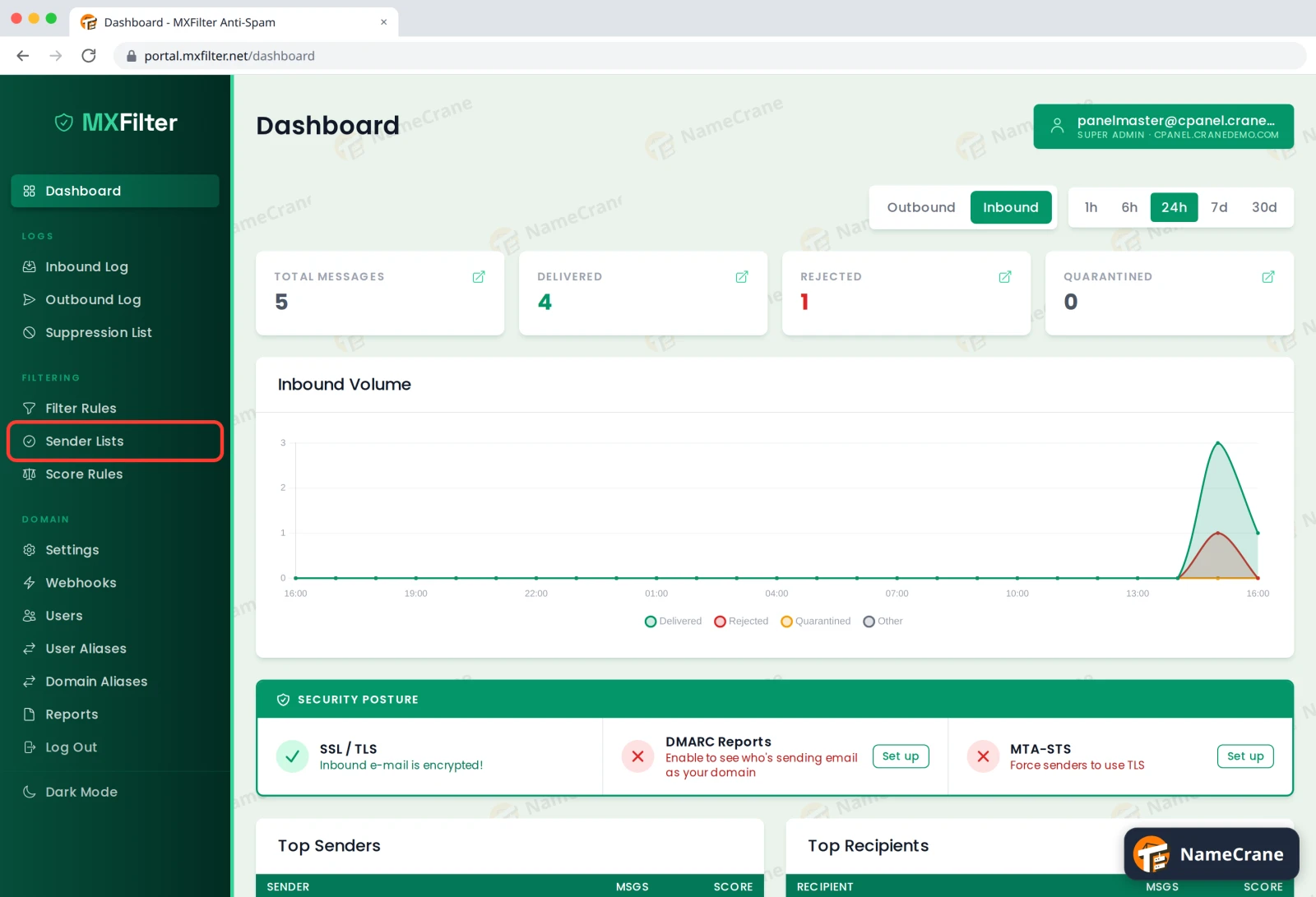
In the MXFilter menu, under Filtering, click Sender Lists.
-
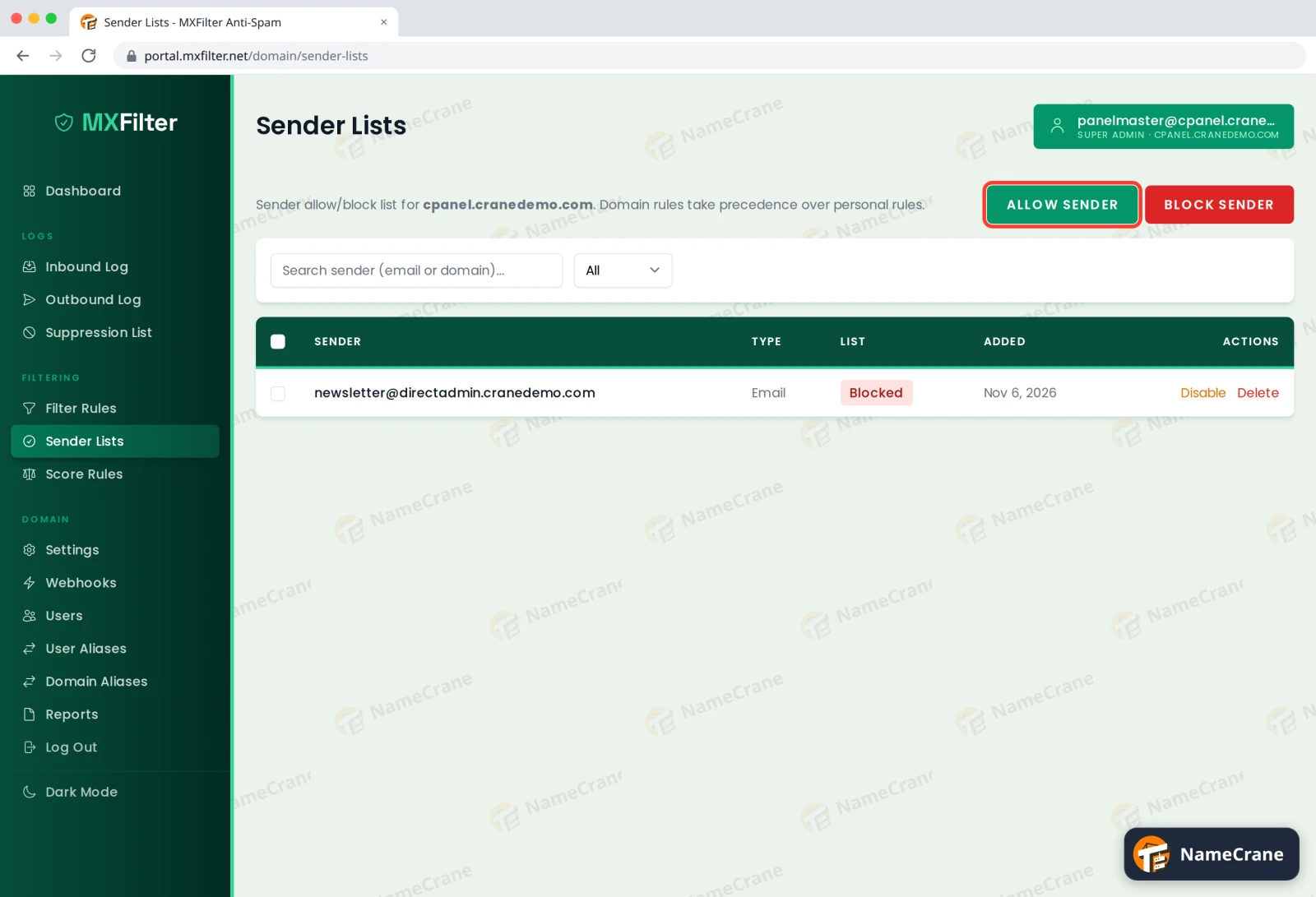
Click Allow Sender.
-
Enter the email addresses or domains you trust, one per line, then click Allow. You can mix addresses (
name@example.com) and domains (example.com). MXFilter works out which is which and skips any duplicates.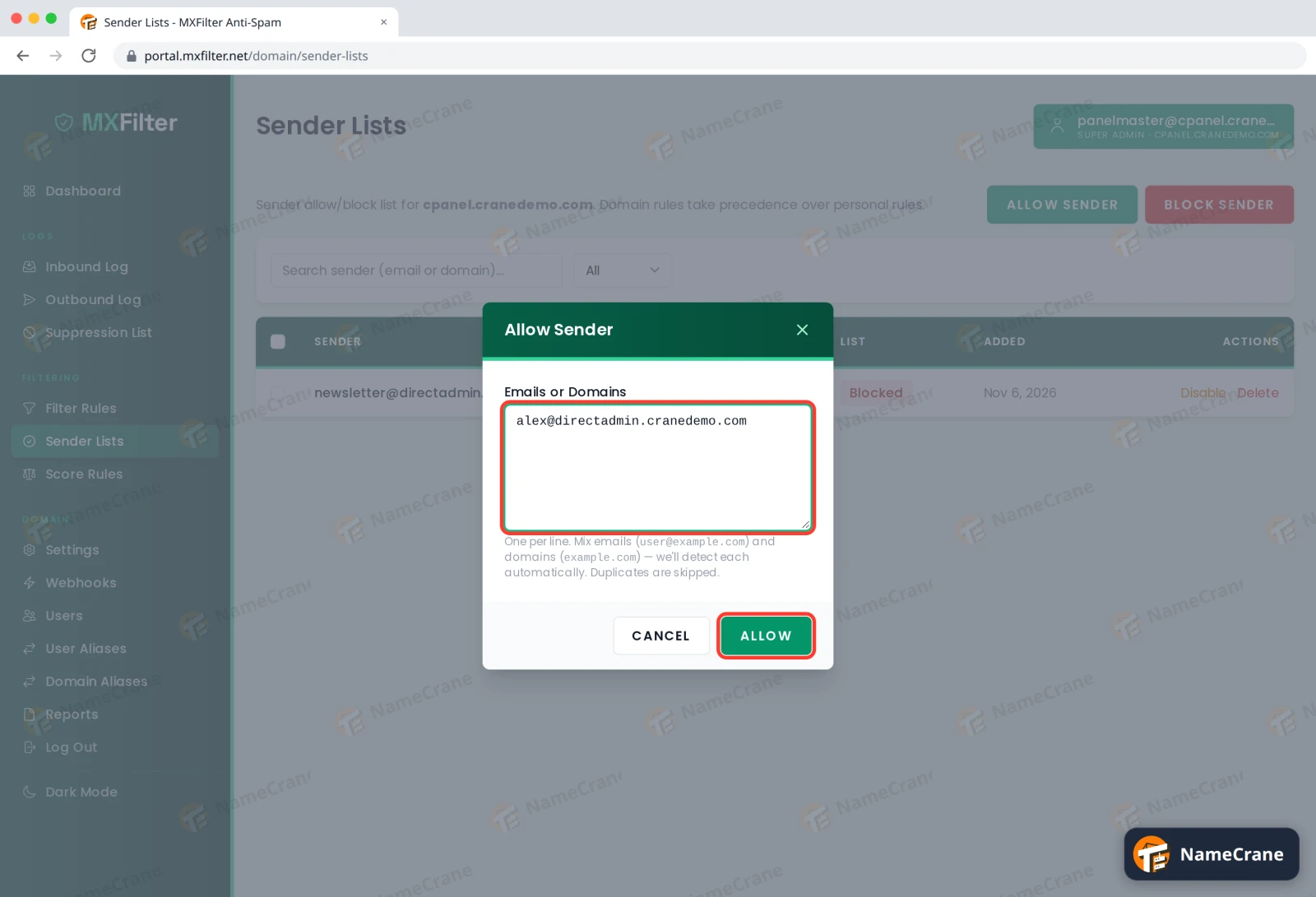
Block a sender
-
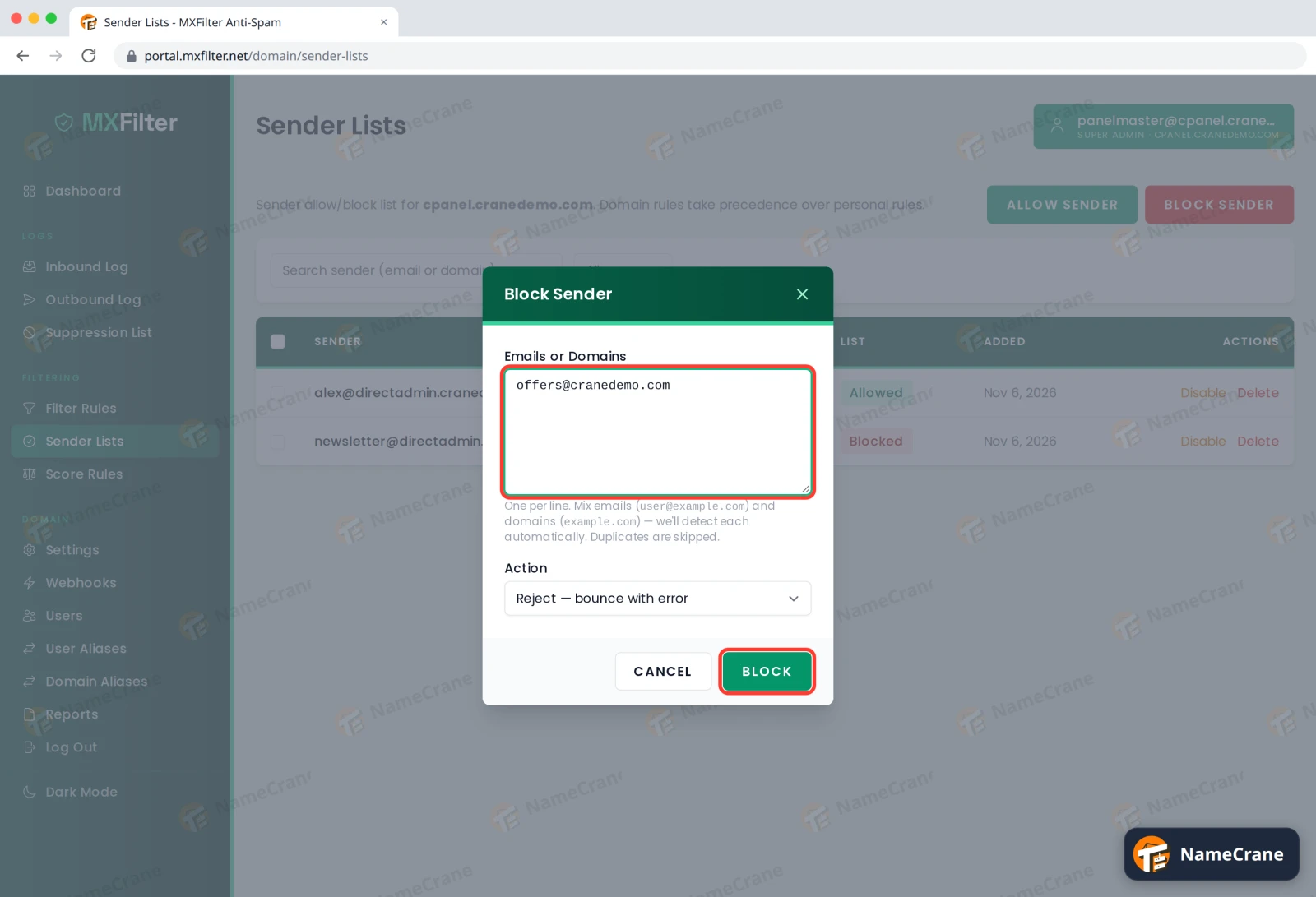
Click Block Sender, enter the addresses or domains to block, one per line, and choose an Action:
- Reject — bounce with error: refuse the email and tell the sender (the default).
- Quarantine — hold for review: keep it in MXFilter in case you need it.
- Tag only — deliver with spam tag: deliver it, marked as spam.
Then click Block.
-
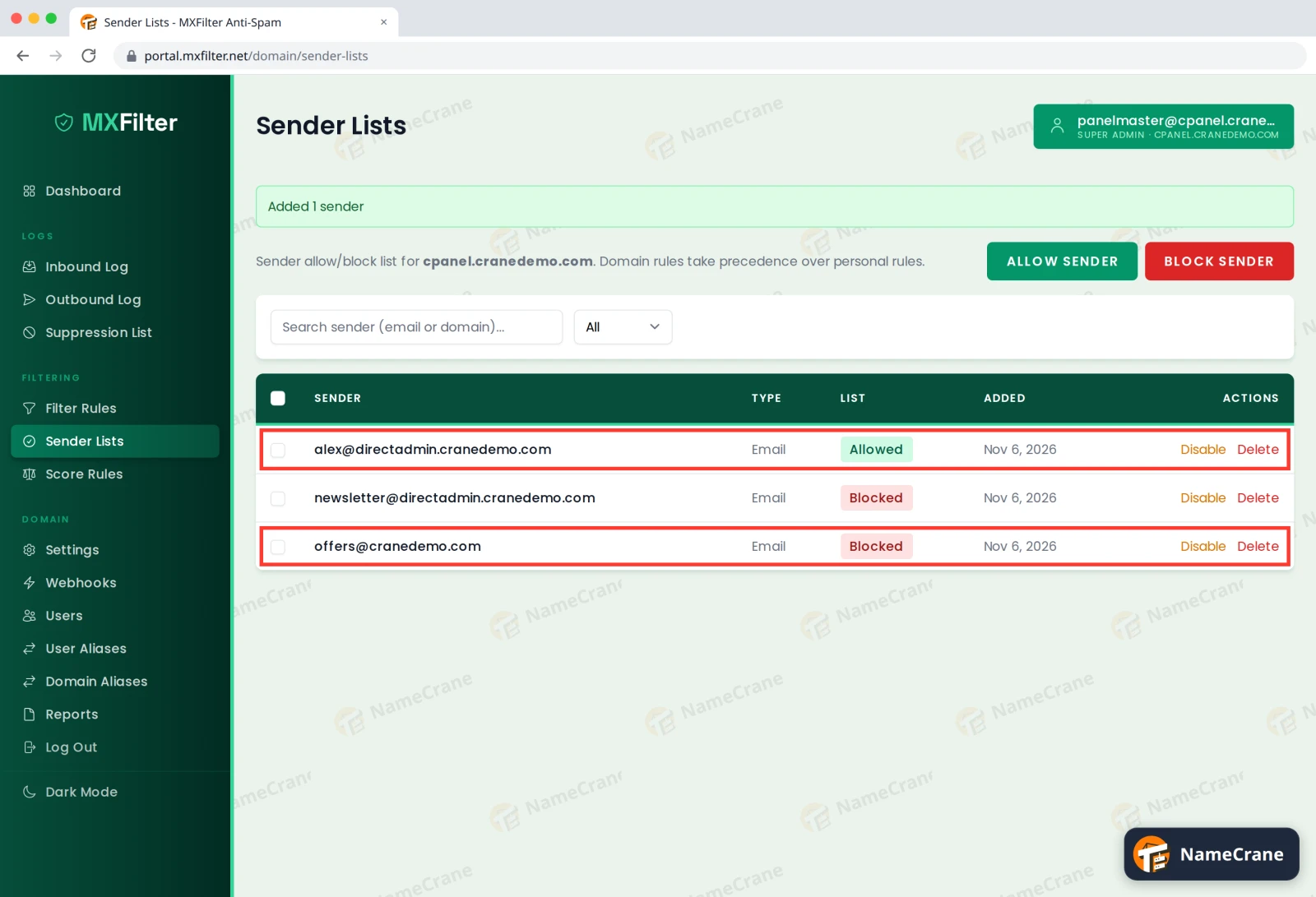
Both entries now appear in the list as Allowed or Blocked.
Tip: You can also allow or block someone straight from the Inbound Log. Open the ⋮ menu on one of their messages and choose Allow Sender or Block Sender.
Managing your list
- Use the search box and the All / Allowed / Blocked menu to find an entry.
- Click Disable to switch an entry off for now, or Delete to remove it.
- Filter rules you’ve made for a single address also appear here.
- These lists apply to everyone at your domain, and they take priority over any personal lists your mailbox users set up.
Troubleshooting
| Problem | What to do |
|---|---|
| A blocked sender’s email still arrives | Check the address matches exactly. Spammers often change addresses, so try blocking the whole domain instead. |
| An allowed sender is still being caught | Make sure the entry isn’t Disabled, and check there isn’t a filter rule blocking them. |
| I blocked the wrong address | Click Delete next to it. Email they sent while blocked with Reject can’t be recovered, so ask them to resend. |
Snagged on something? Contact support and we’ll get you sorted.