How to Set Up SPF, DKIM and DMARC for Your Email in DirectAdmin
Last updated Changelog
Mail servers such as Gmail and Outlook check three DNS records before they trust an email from your domain. If any are missing, your email is far more likely to land in spam.
| Record | What it does |
|---|---|
| SPF | Lists the servers allowed to send email for your domain. |
| DKIM | Adds a digital signature to each email you send, so the receiver can tell it really came from you and wasn’t changed. |
| DMARC | Tells receivers what to do with email that fails SPF and DKIM. |
On NameCrane, SPF and DMARC are set up for you. DKIM may need switching on once per domain, which takes one click.
Switch on DKIM
-
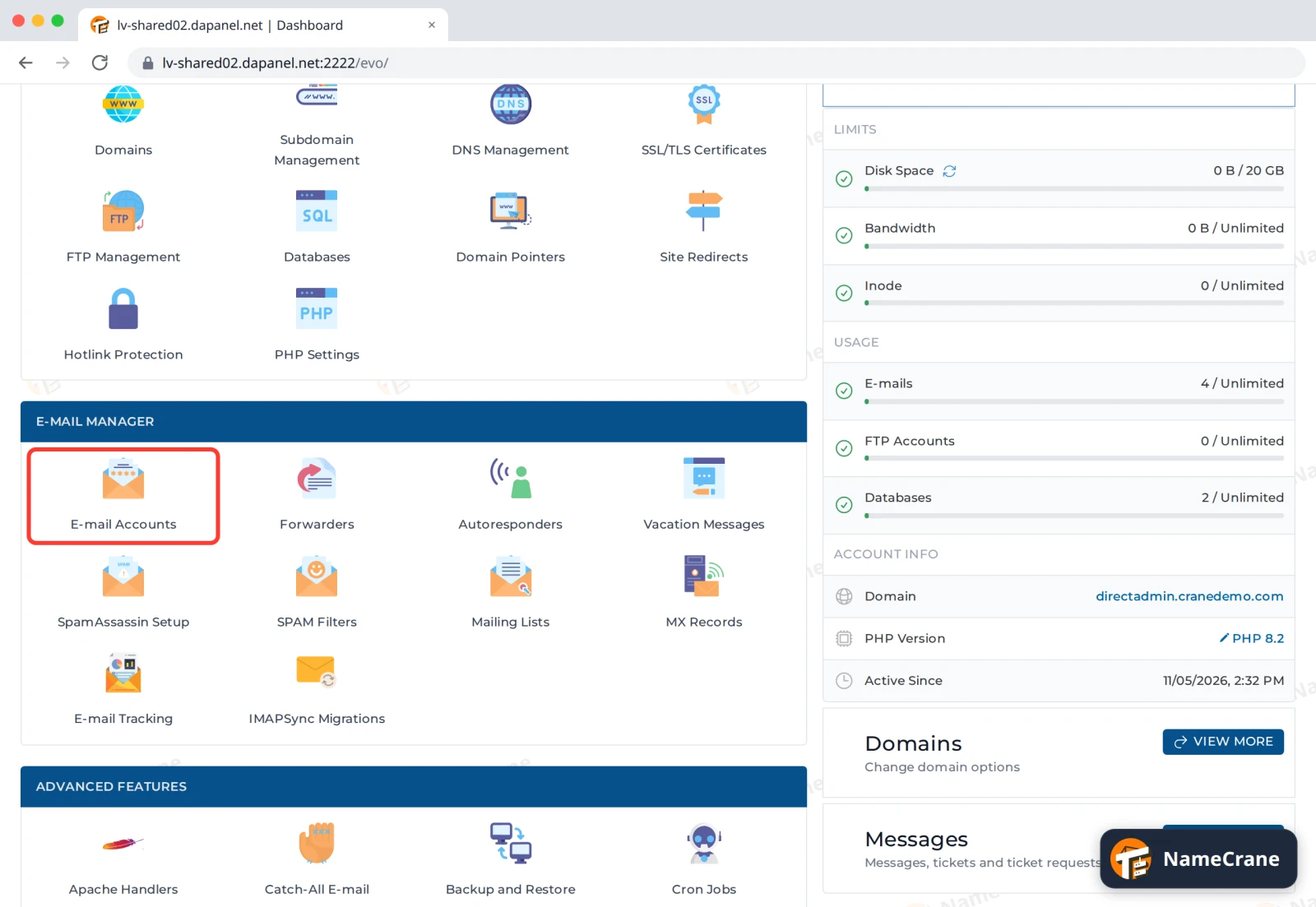
Log in to DirectAdmin. In the E-mail Manager section, click E-mail Accounts.
-
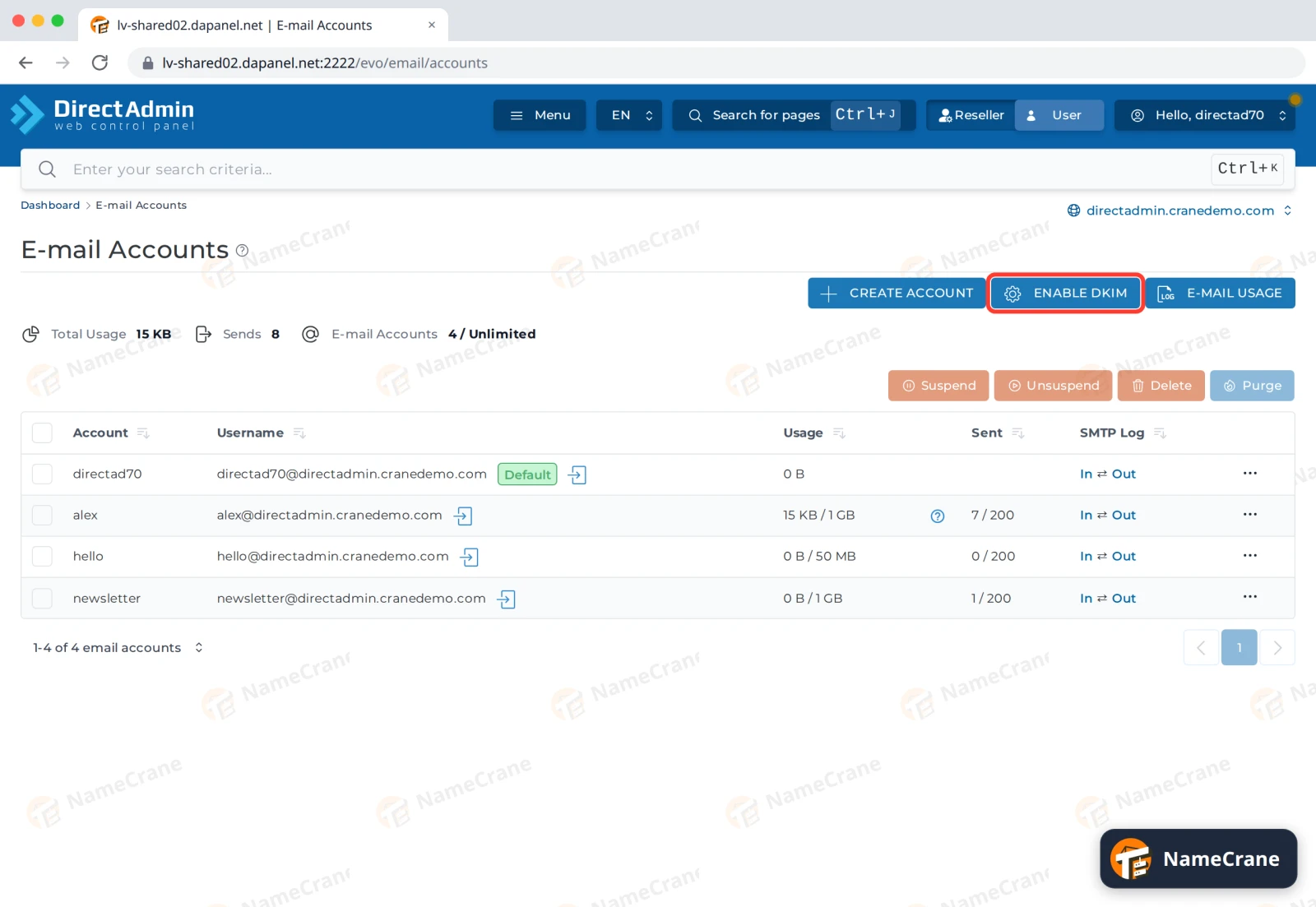
At the top of the page, click Enable DKIM. If the button says Disable DKIM instead, DKIM is already on, so leave it alone.
-
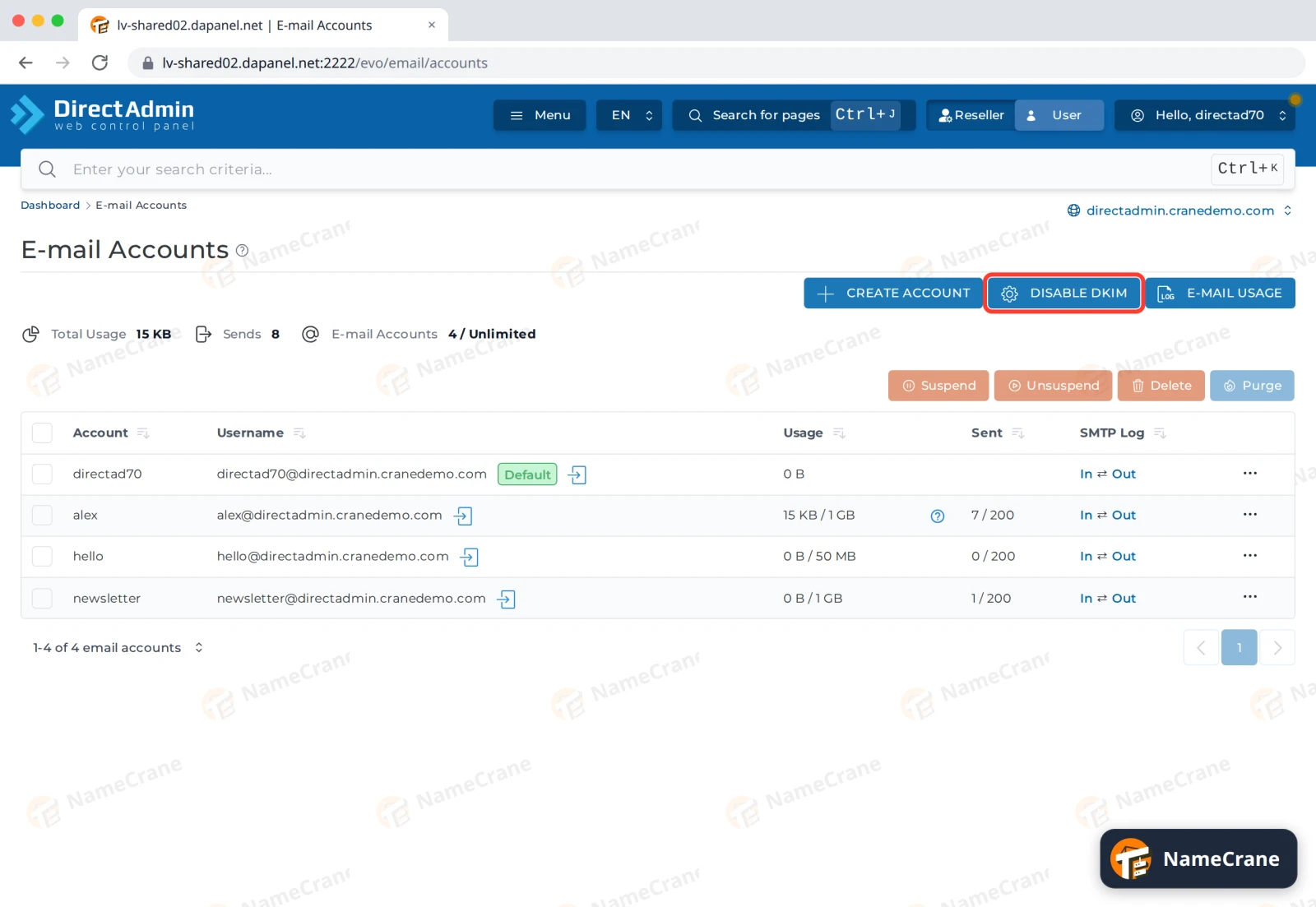
The button changes to Disable DKIM. DKIM is now on, and DirectAdmin has added the DKIM record to your DNS.
Note: It can take up to an hour for other mail servers to see a new DKIM record.
Warning: Don’t switch DKIM off and on again. Each time you switch it on, DirectAdmin creates a new key, and your emails fail DKIM checks until other servers pick up the new one.
Check your records
-
Go back to the dashboard and click DNS Management in the Account Manager section. You should see three TXT records:
Name Starts with Record _dmarcv=DMARC1DMARC your domain v=spf1SPF x._domainkeyv=DKIM1DKIM 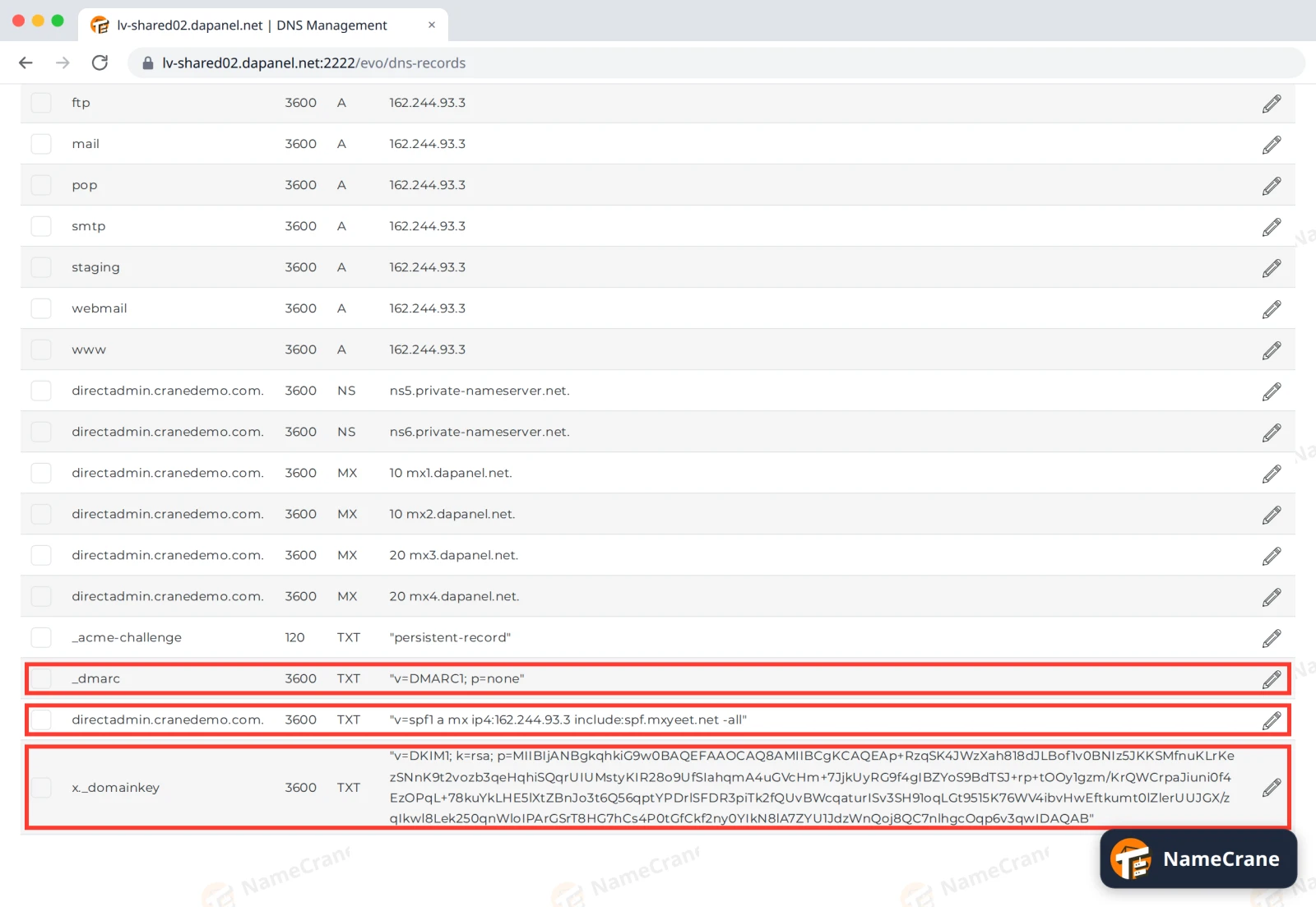
Warning: Your SPF record includes
include:spf.mxyeet.net. These are the NameCrane servers that send your outgoing email, so never remove that part.
If your domain’s DNS is hosted somewhere else (for example Cloudflare or your registrar), copy these three TXT records from DNS Management and add them with your DNS provider.
Using another service to send email
Only have one SPF record per domain. If you also send email through another service, such as a newsletter tool, edit your existing SPF record and add the service’s include: before the -all at the end. Don’t add a second SPF record. See Edit DNS records.
Your DMARC record starts as v=DMARC1; p=none, which means receivers report problems but still deliver the email. Once SPF and DKIM have been working for a while, you can change p=none to p=quarantine, so emails that fail go to spam.
Troubleshooting
| Problem | What to do |
|---|---|
I can’t see the x._domainkey record |
Check the button on E-mail Accounts says Disable DKIM, then refresh DNS Management. |
| My email still goes to spam | Check all three records are there. To see how a receiver judged one of your emails in Gmail, open it and choose Show original: SPF, DKIM and DMARC should all say PASS. If DKIM fails just after switching it on, wait an hour and try again. |
| I use Google Workspace or Microsoft 365 for email | Your email isn’t sent from NameCrane, so use the SPF and DKIM records your email provider gives you. See Use Google or Microsoft 365 email. |
| A newsletter service’s emails fail SPF | Add the service to your existing SPF record. Two SPF records break both. |
Snagged on something? Contact support and we’ll get you sorted.