How to Set Up Quarantine Reports in MXFilter
Last updated Changelog
On this page
Quarantine reports are emails from MXFilter that list the messages it held for review, so your users can spot a genuine email that got caught without having to log in and look. Reports are set up as templates. Each template is copied to every active user at your domain, and each person gets their own report about their own mail.
Before you start
- Open MXFilter from your control panel: from cPanel or from DirectAdmin.
See what’s set up already
-
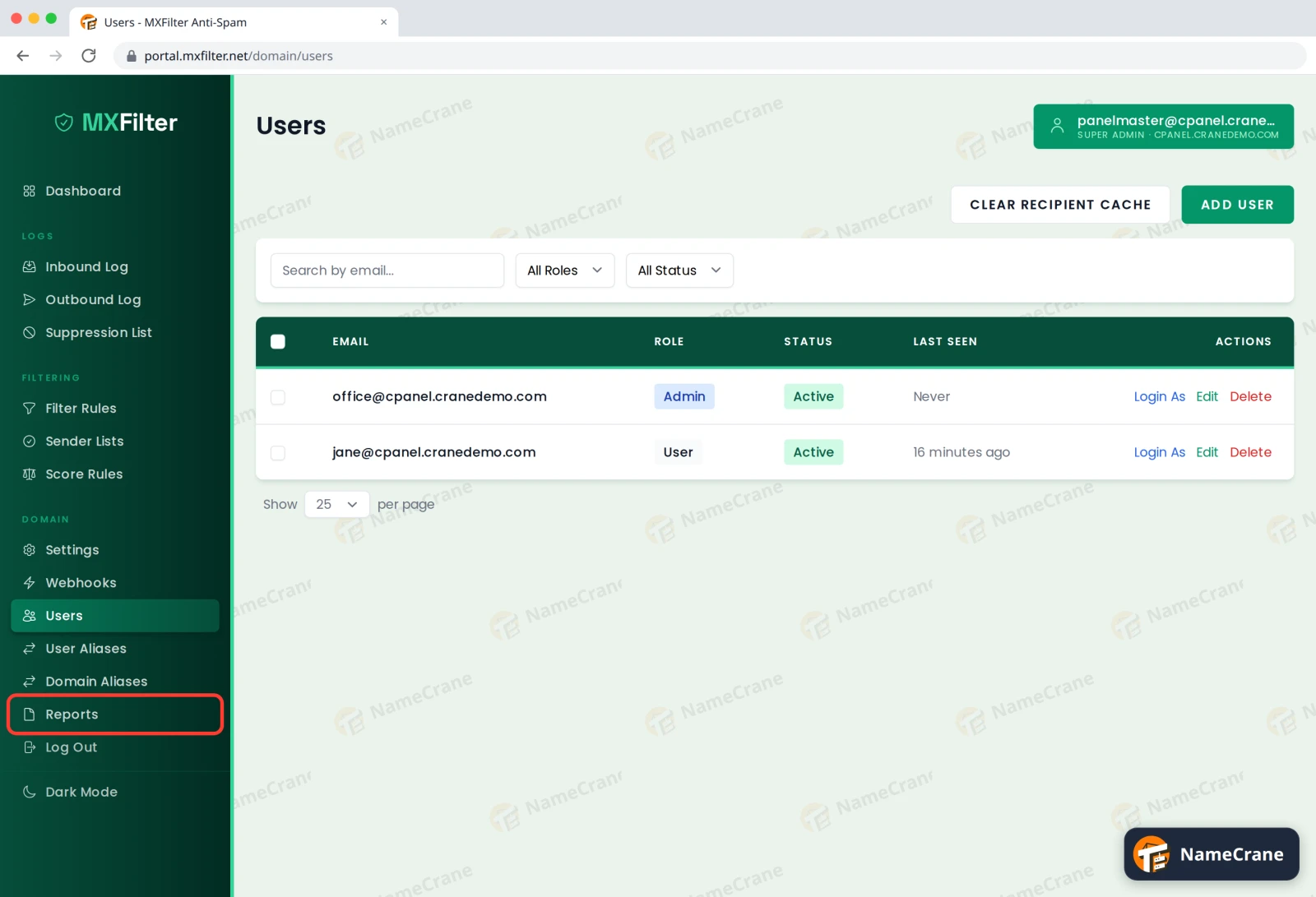
In the MXFilter menu, under Domain, click Reports.
-
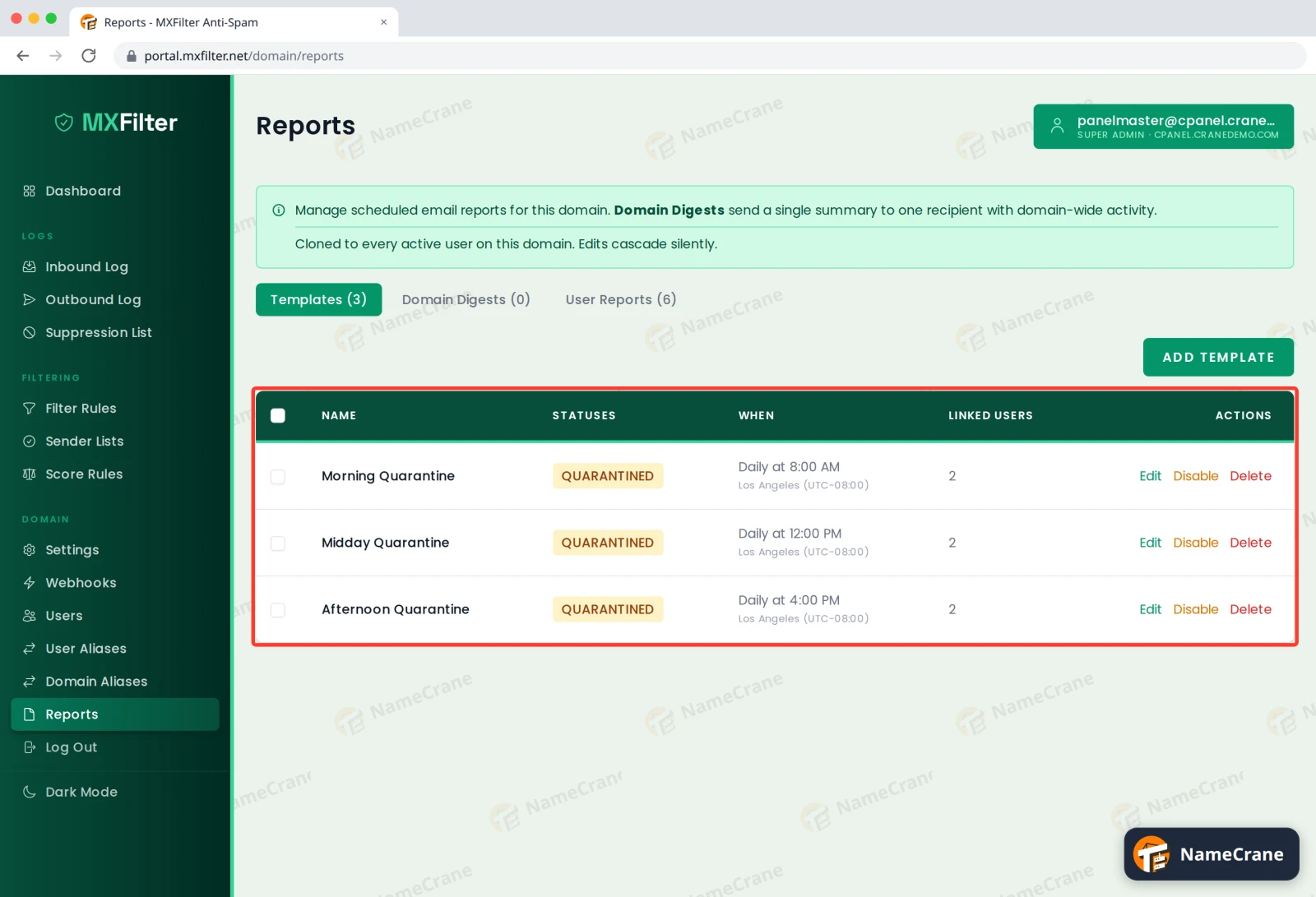
Your domain starts with three templates: Morning, Midday and Afternoon Quarantine, sent daily at 8:00 AM, 12:00 PM and 4:00 PM. Linked Users shows how many people receive each one.
Add your own template
-
Click Add Template. Under What to include, give it a Name and tick the Include Statuses to list. We’re making a weekly summary of Quarantined and Rejected mail. You can also set an Email Subject using the variables shown, such as
{count}for the number of messages.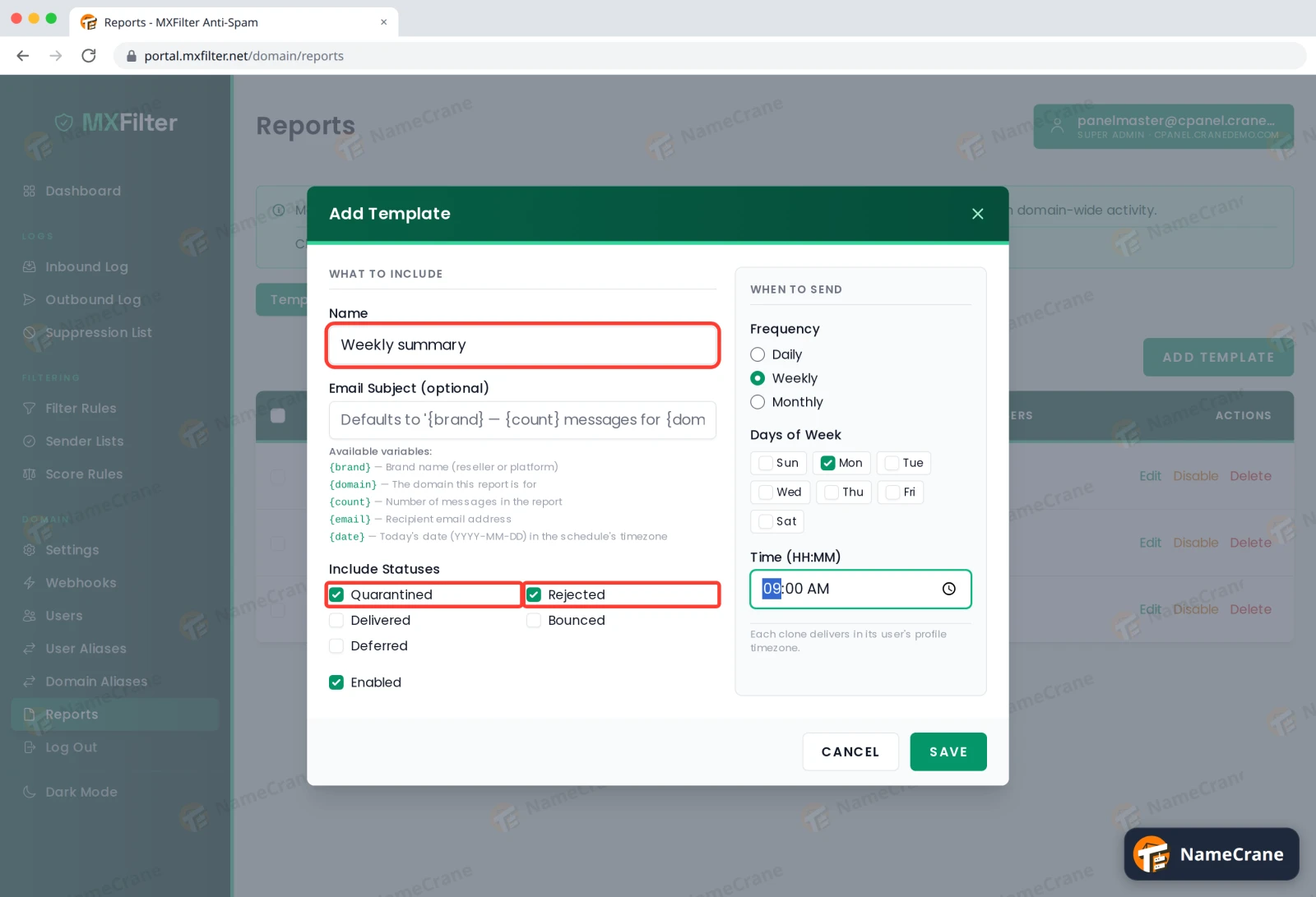
-
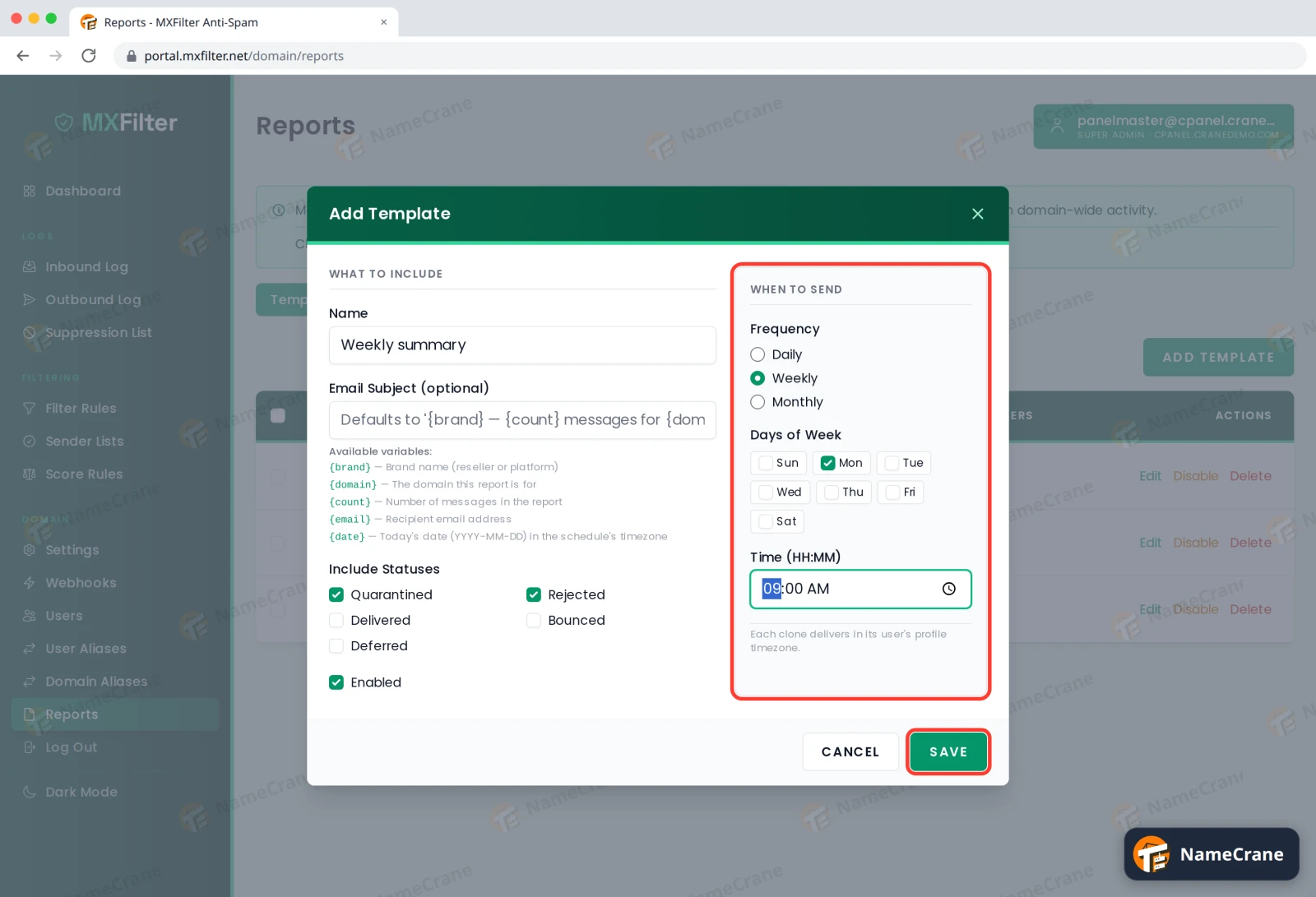
Under When to send, choose Daily, Weekly or Monthly. For weekly, tick at least one day. Set the Time, then click Save.
-
Your template appears in the list and is linked to every active user.
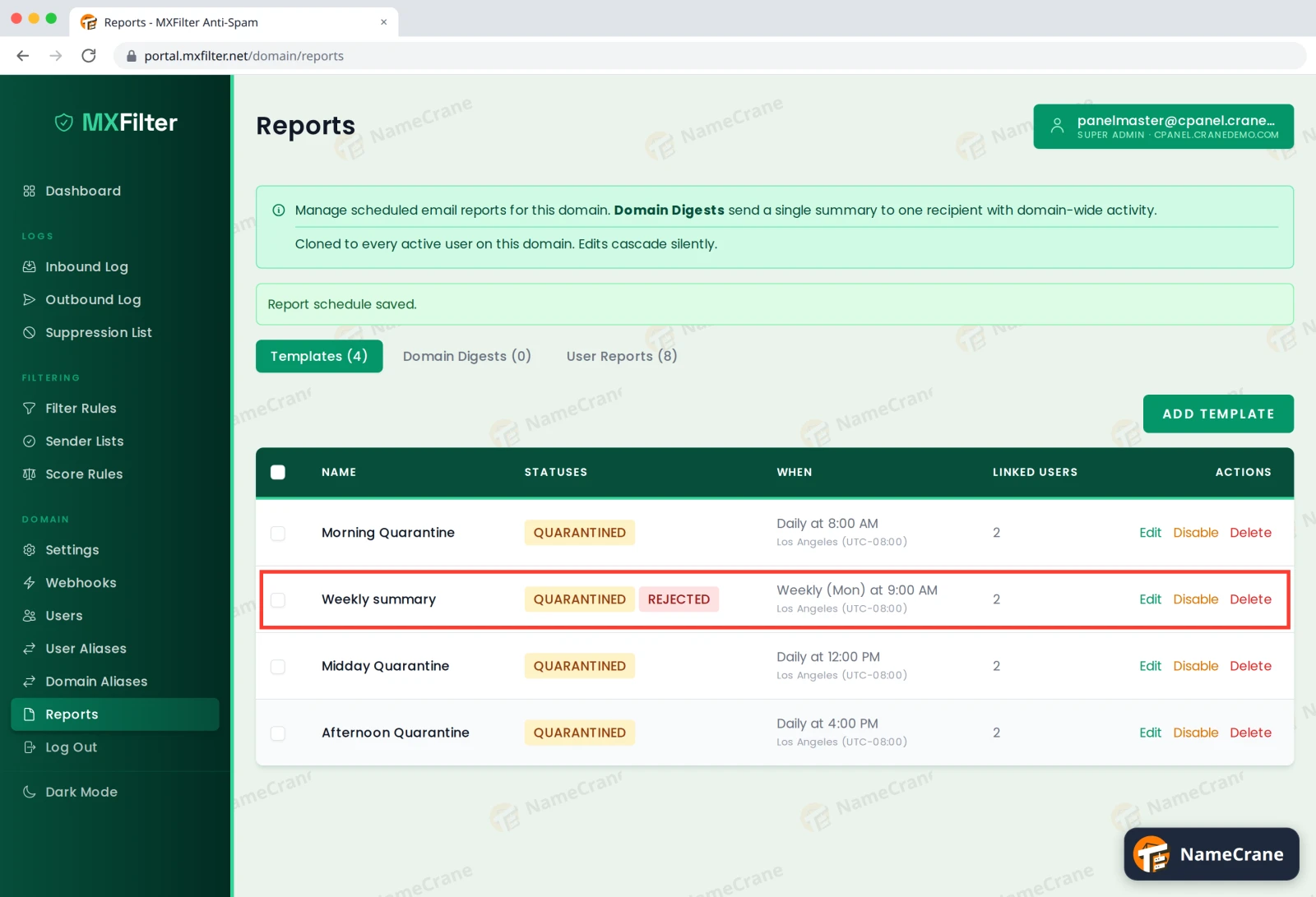
-
The User Reports tab shows each person’s copy. You can edit or disable one person’s report here without changing anyone else’s.
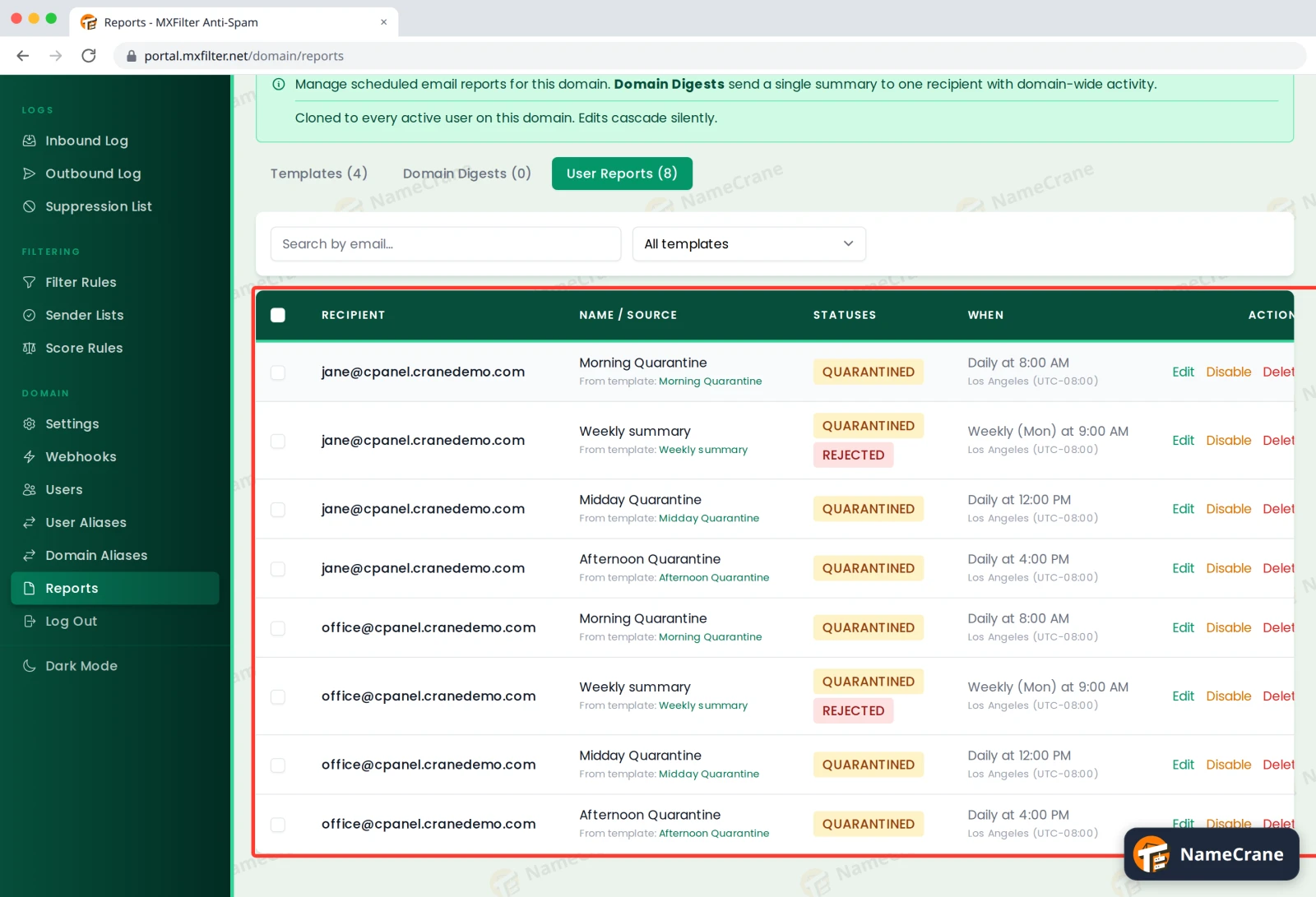
Note: Each person’s report is sent at the chosen time in their own timezone. Editing a template updates everyone’s copy automatically.
Report types
| Tab | What it is |
|---|---|
| Templates | The reports everyone gets. Copied to every active user. |
| Domain Digests | A single summary of activity across the whole domain, sent to one recipient. Good for an administrator. |
| User Reports | Each user’s own copy of the templates. |
Troubleshooting
| Problem | What to do |
|---|---|
| Clicking Save does nothing | For Weekly, make sure at least one day is ticked. |
| A user doesn’t get reports | Check they’re Active under Users, and that their copy isn’t disabled on the User Reports tab. Also ask them to check their spam folder. |
| Three reports a day is too many | Click Disable next to the templates you don’t want, or delete them and keep one. |
Snagged on something? Contact support and we’ll get you sorted.