How to Reset a Customer's cPanel Password in WHM
Last updated Changelog
On this page
If a customer forgets their cPanel password, you can set a new one for them in WHM. In this example we reset it for clientcranedemo.
Steps
-
Log in to WHM. Type
password modin the search box at the top left, then click Password Modification under Account Functions.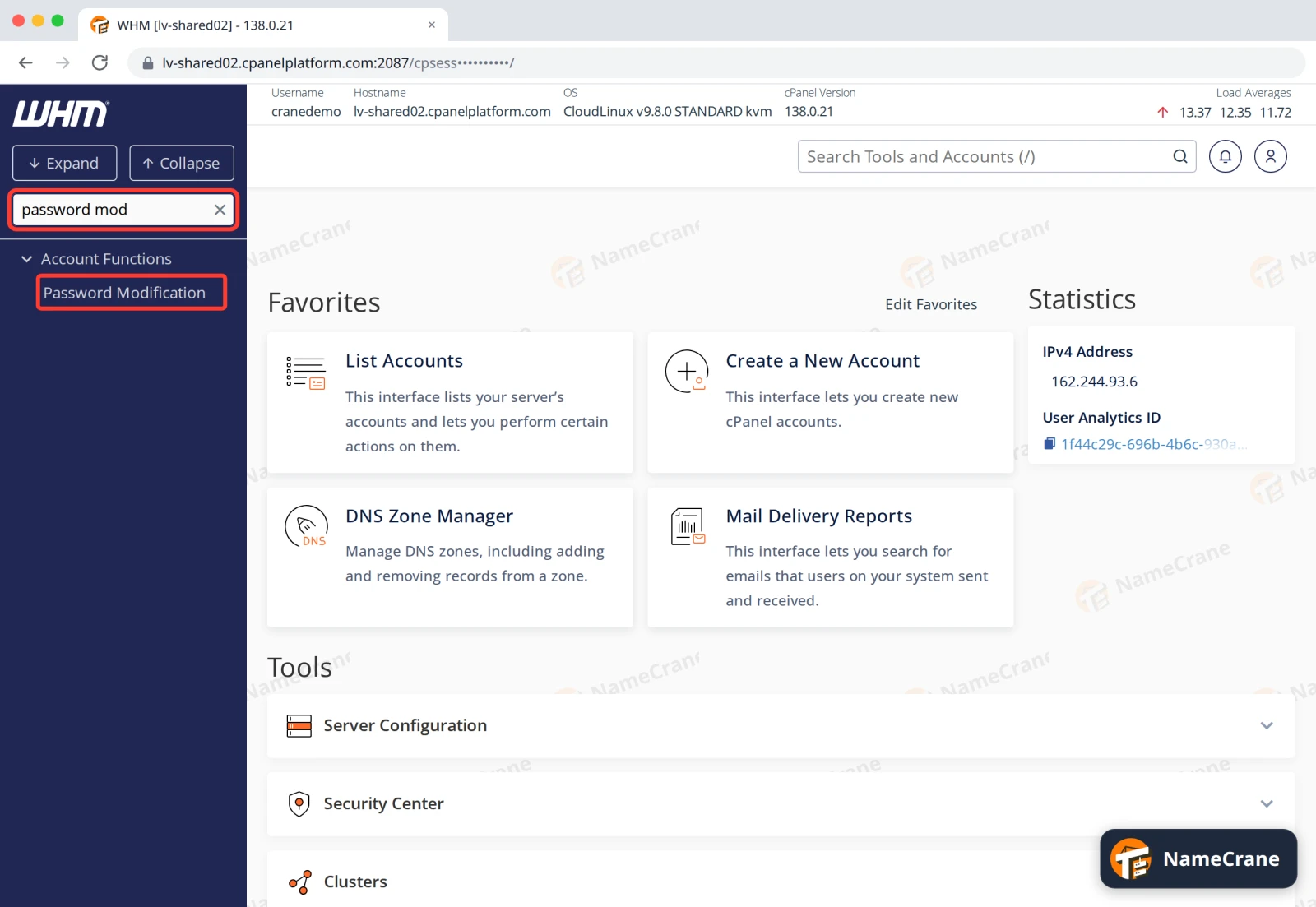
-
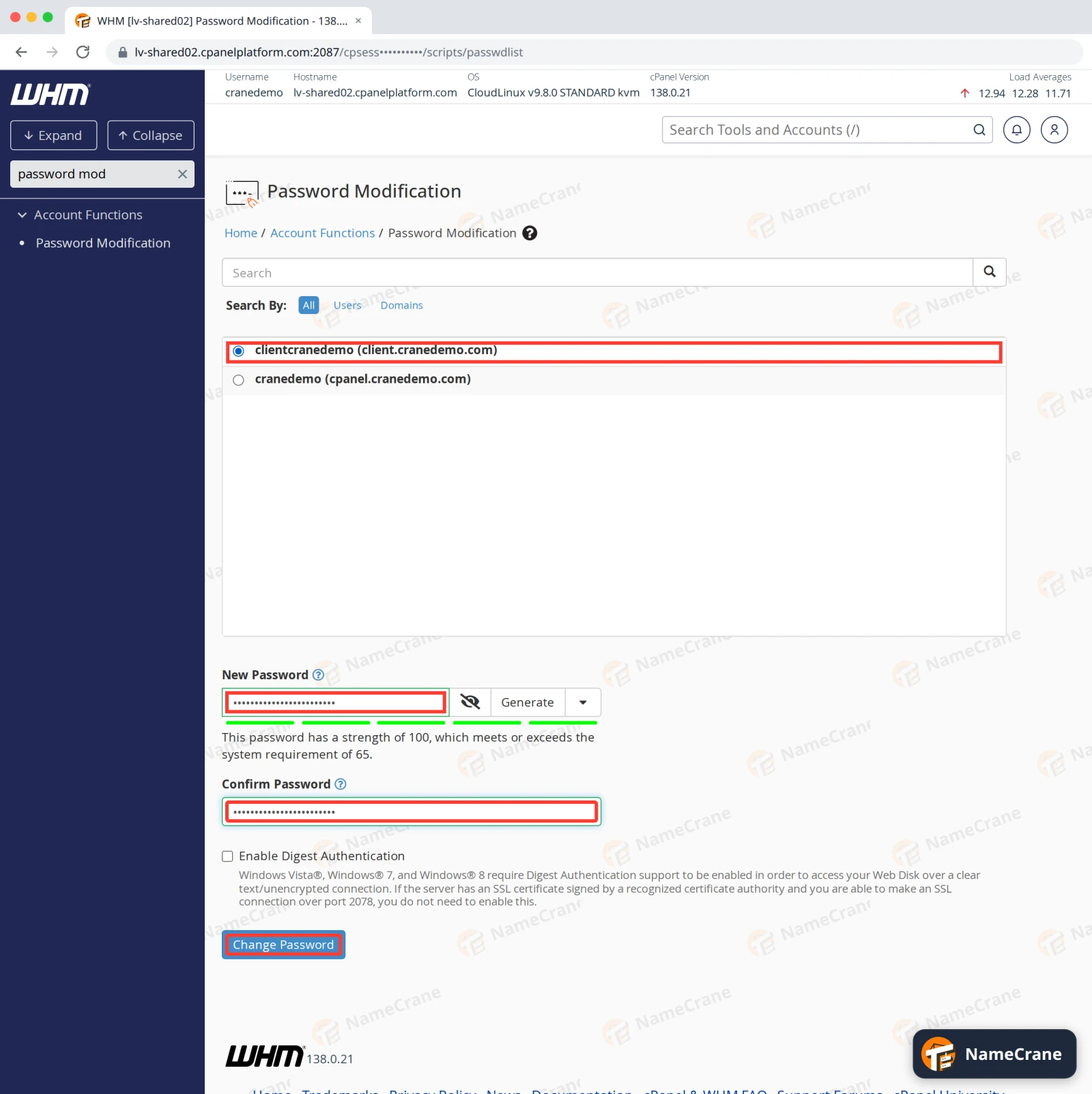
Choose the customer’s account. Type a new password in New Password and again in Confirm Password, or click Generate to make a strong one. The bar under the box needs to reach the minimum strength. Leave Enable Digest Authentication unticked, then click Change Password.
-
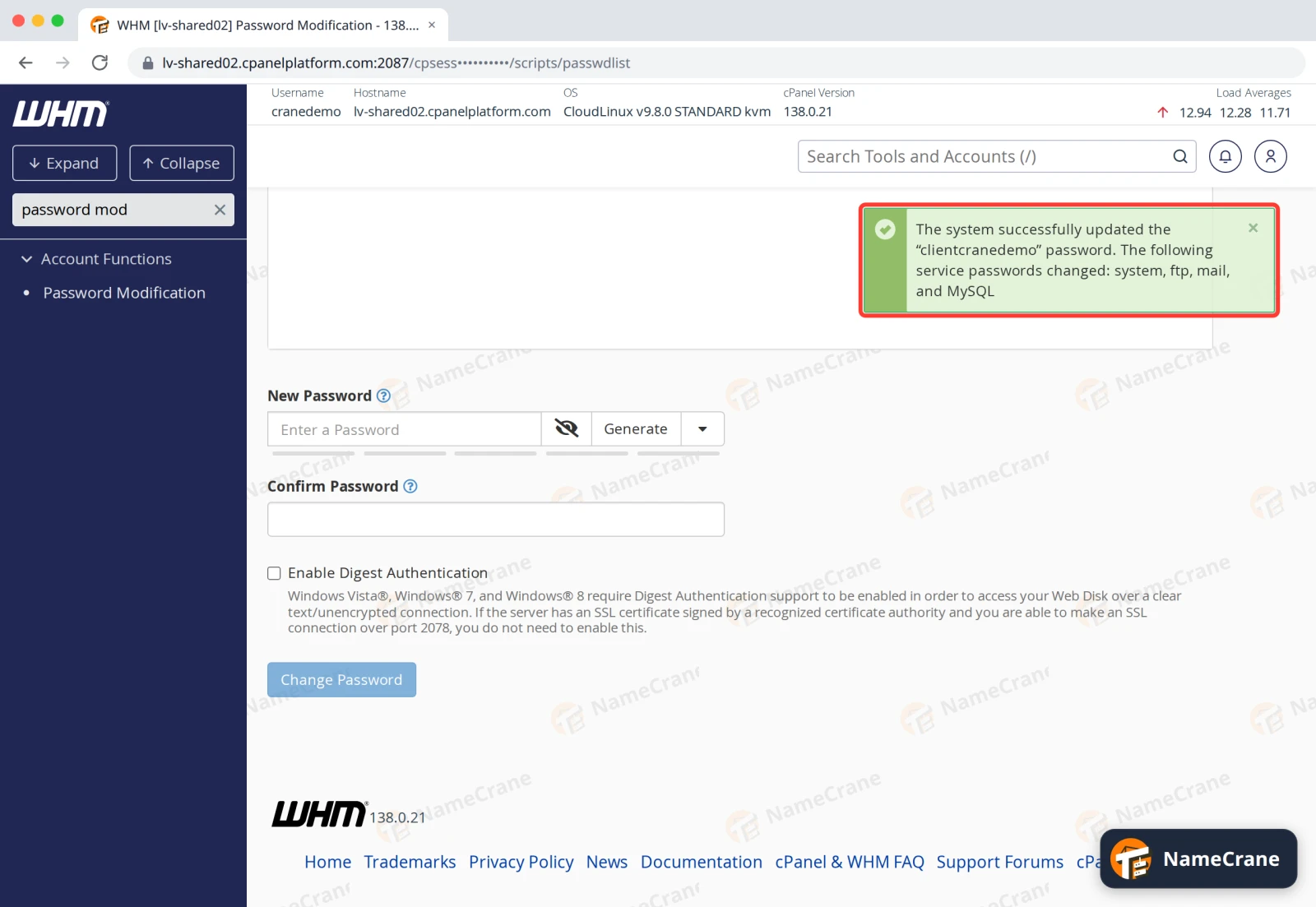
WHM confirms the change. The message lists everything that now uses the new password: the cPanel login, the account’s main FTP login, its main mailbox and its main MySQL user.
In our test, the customer could log in to cPanel with the new password straight away. Send it to them securely, and suggest they change it after they log in to cPanel.
Note: Email addresses and extra FTP accounts that the customer created themselves keep their own passwords. This only changes the account’s main login.
Troubleshooting
| Problem | What to do |
|---|---|
| Change Password stays greyed out | The password isn’t strong enough, or the two boxes don’t match. Make it longer, or click Generate. |
| The customer still can’t log in | Check they’re using their cPanel username, not their email address. If their account is suspended, the login also fails: see Suspend and unsuspend a customer. |
Snagged on something? Contact support and we’ll get you sorted.