How to Set Up Your DirectAdmin Email on Your Phone or Computer
Last updated Changelog
On this page
Once you’ve created an email account, you can add it to any email app: the Mail app on iPhone or Mac, Gmail or Outlook on Android, Outlook on Windows, Thunderbird, and more. You just need your email address, its password, and your server’s name.
Find your server’s name
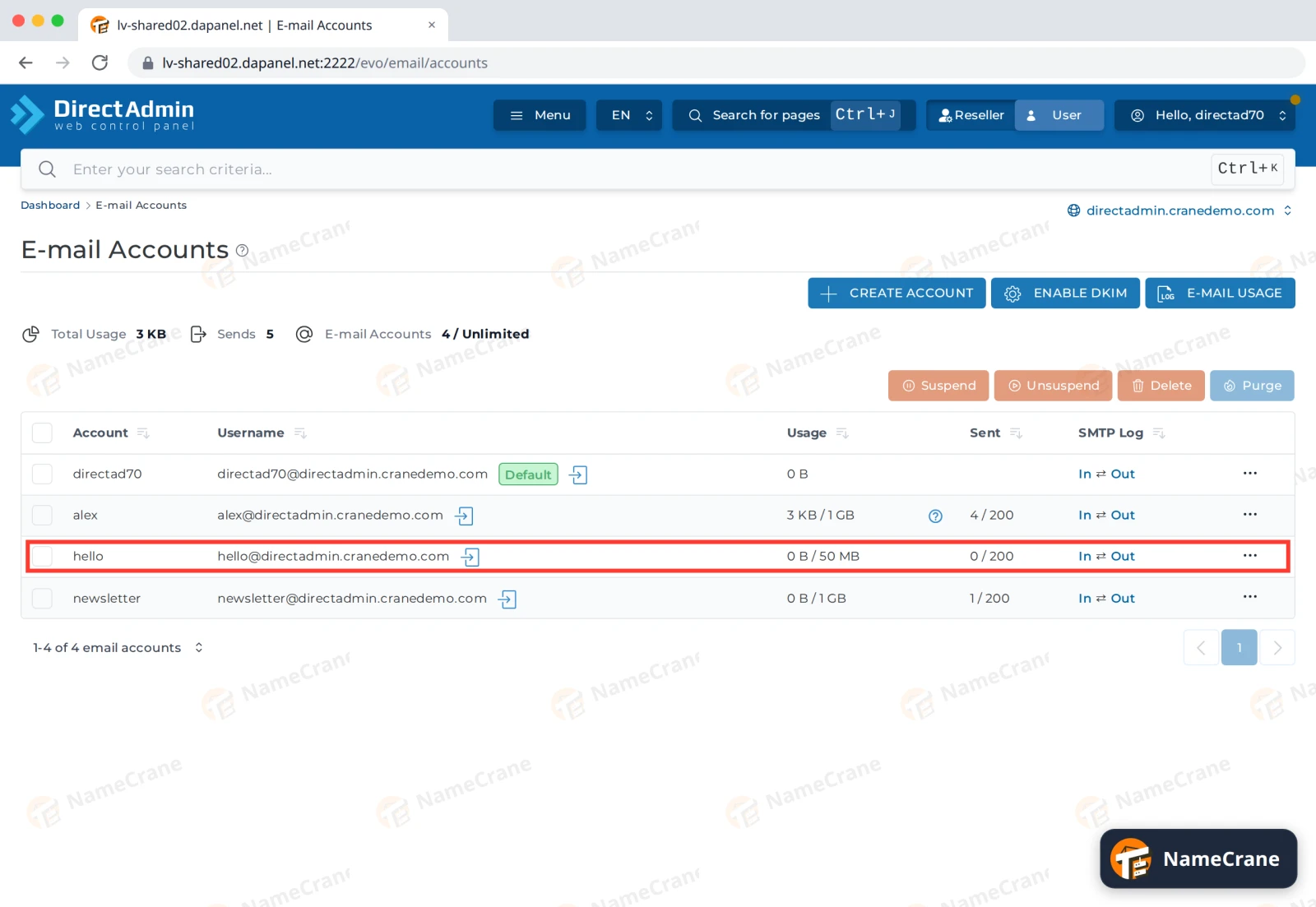
Your server’s name is the address you use to log in to DirectAdmin, without the https:// and :2222. For example, if you log in at https://lv-shared02.dapanel.net:2222, your server is lv-shared02.dapanel.net. You can see it in your browser’s address bar while you’re logged in, as in the picture below.
-
To check the exact email address, open E-mail Accounts in DirectAdmin.
The settings
| Setting | What to enter |
|---|---|
| Username | Your full email address, for example hello@yourdomain.com |
| Password | The email account’s password |
| Incoming server | Your server’s name, using IMAP on port 993 with SSL/TLS (or POP3 on port 995) |
| Outgoing server | Your server’s name, using SMTP on port 465 with SSL/TLS |
| Authentication | Required for both incoming and outgoing. Use the same username and password. |
We tested these settings: IMAP, POP3 and SMTP all signed in over a secure connection with a valid certificate. If port 465 is blocked on your network, SMTP on port 587 with STARTTLS works too.
Tip: Use your server’s name, rather than
mail.yourdomain.com, for both incoming and outgoing. It always matches our security certificate, so your app won’t show certificate warnings.
Tip: Choose IMAP unless you have a reason not to. It keeps your email in sync across your phone, computer and webmail. POP3 downloads mail to one device only.
Adding the account in popular apps
| App | Where to add it |
|---|---|
| iPhone / iPad | Settings › Apps › Mail › Mail Accounts › Add Account › Other › Add Mail Account. Choose IMAP and enter the settings above. |
| Mac Mail | Mail › Add Account… › Other Mail Account. If it can’t find the settings, enter them by hand. |
| Android (Gmail app) | Settings › Add account › Other, enter your address, then choose Personal (IMAP). |
| Outlook (Windows or Mac) | File › Add Account (or Settings › Accounts), enter your address, and choose IMAP if asked. |
| Thunderbird | Account Settings › Account Actions › Add Mail Account, then Configure manually and enter the settings above. |
Menu names can vary a little between app versions.
Troubleshooting
| Problem | What to do |
|---|---|
| “Cannot verify server identity” or a certificate warning | Change both servers to your server’s name, as shown above, with SSL/TLS on. |
| Login keeps failing | Use your full email address as the username. Reset the password in E-mail Accounts if you’re not sure of it. |
| I can receive but not send | Check the outgoing server needs authentication, using the same username and password, on port 465 (SSL/TLS) or 587 (STARTTLS). |
| Email only shows on one device | You’ve set it up with POP3. Remove the account and add it again using IMAP. |
Snagged on something? Contact support and we’ll get you sorted.