How to Set Up a Cron Job in cPanel
Last updated Changelog
On this page
A cron job runs a command for you on a schedule, such as every 30 minutes or once a day. Apps often ask for one to send emails, clear out old data or run their scheduled tasks. In this example we’ll run WordPress’s scheduled tasks (wp-cron.php) twice an hour.
Steps
-
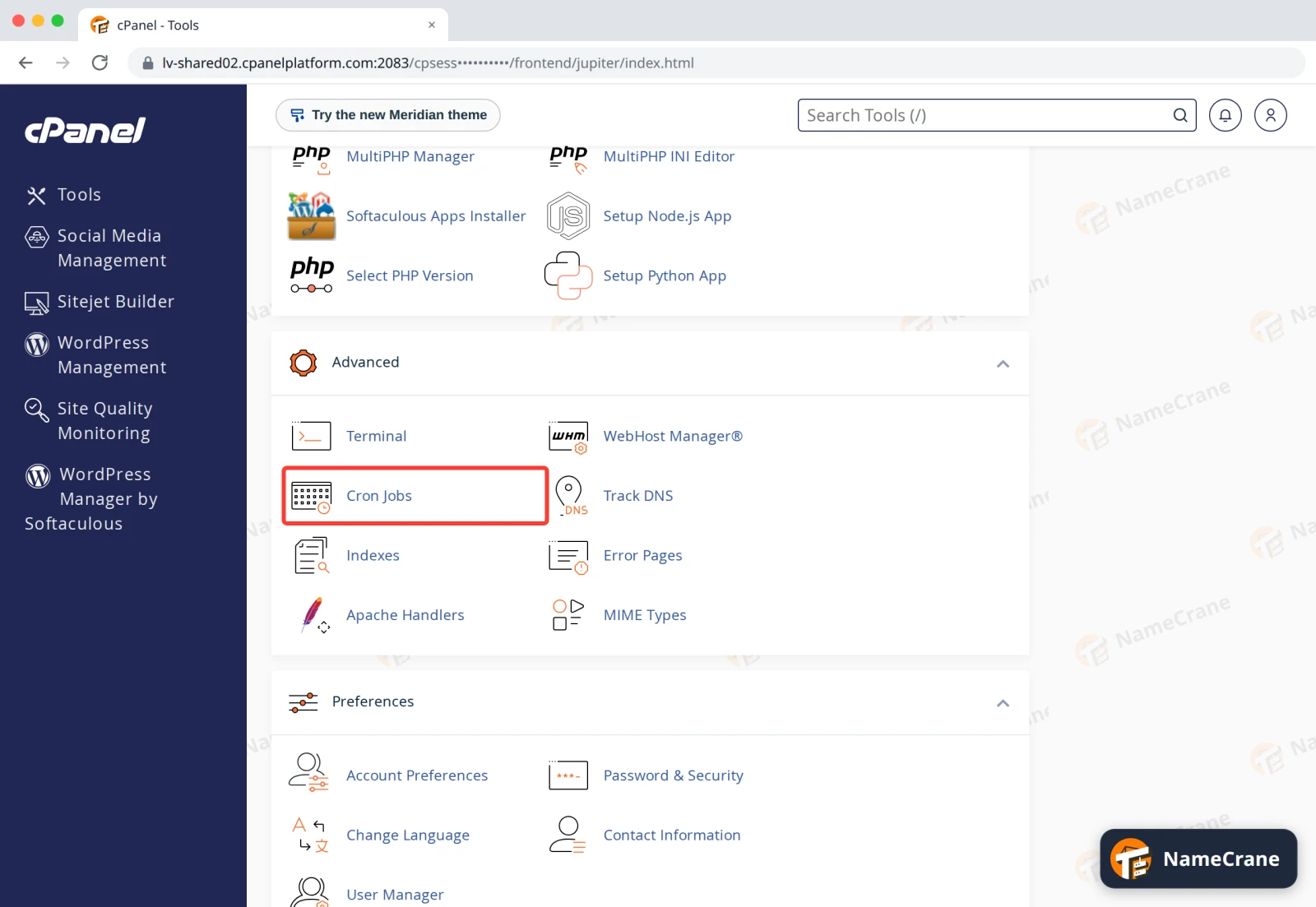
Log in to cPanel. In the Advanced section, click Cron Jobs.
-
Under Add New Cron Job, pick how often to run it from Common Settings. We chose Twice Per Hour, which fills in the boxes below for you (minute
0,30, everything else*).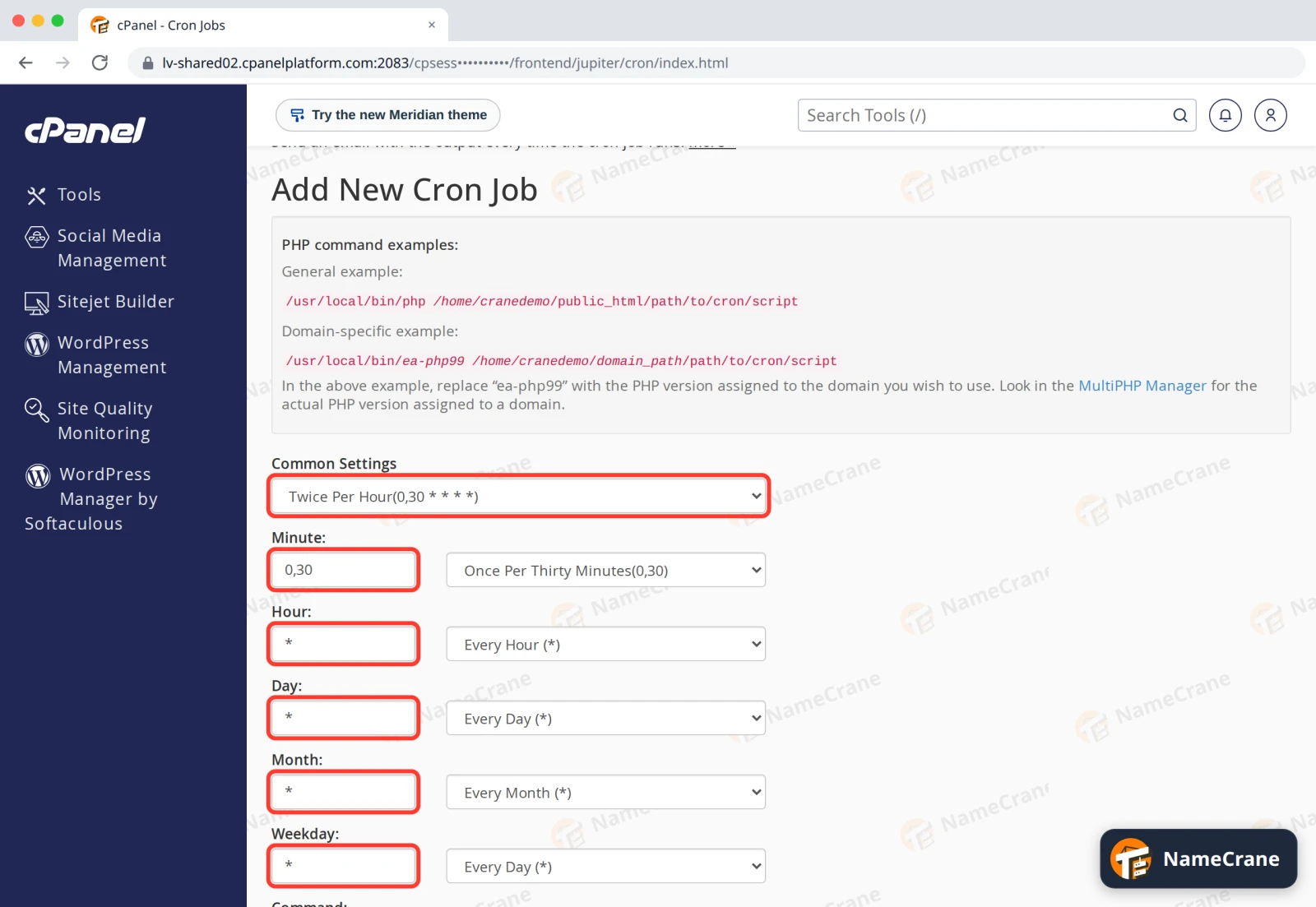
-
In Command, type the command to run, then click Add New Cron Job. For WordPress:
/usr/local/bin/php /home/cranedemo/public_html/wp-cron.php >/dev/null 2>&1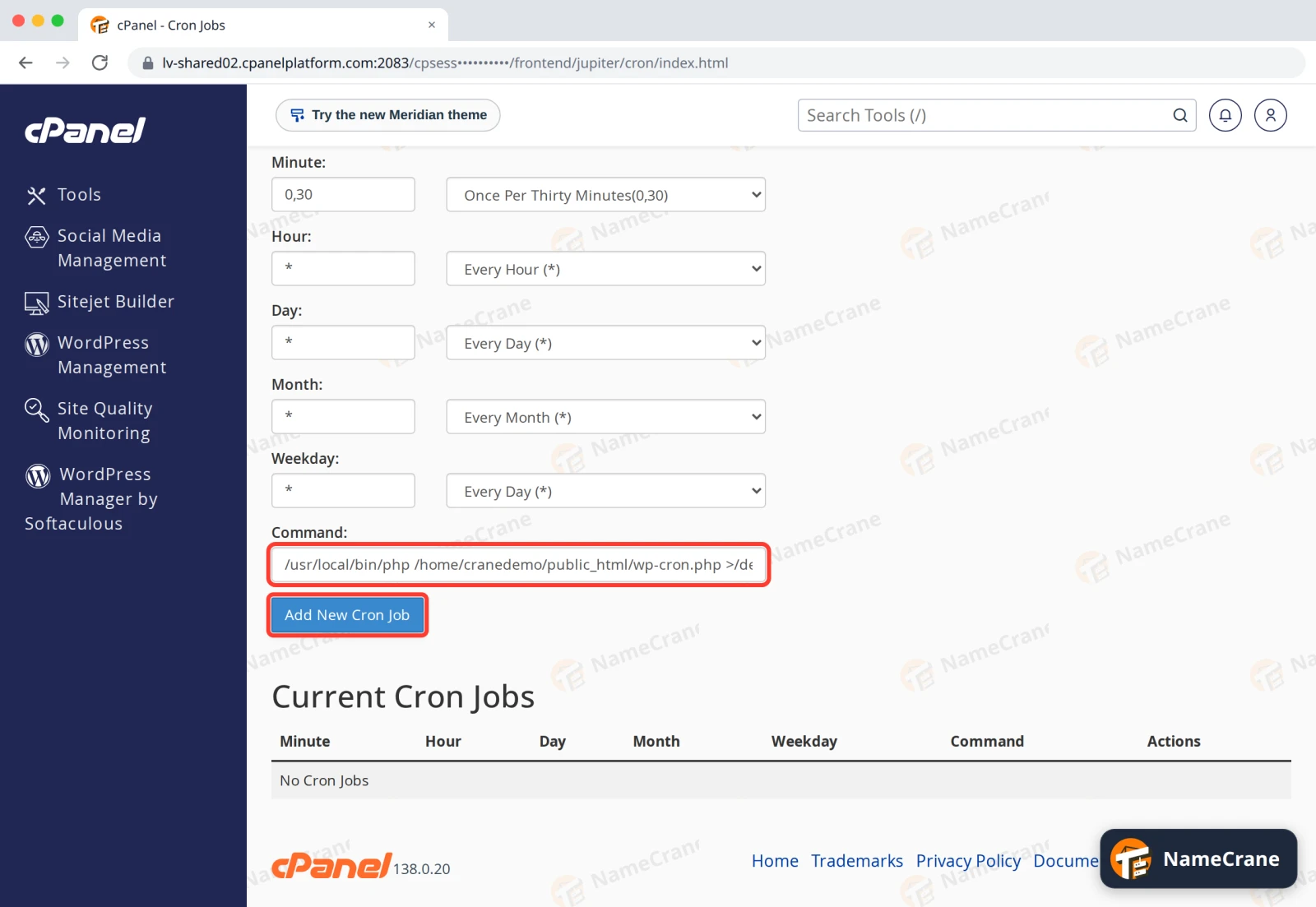
-
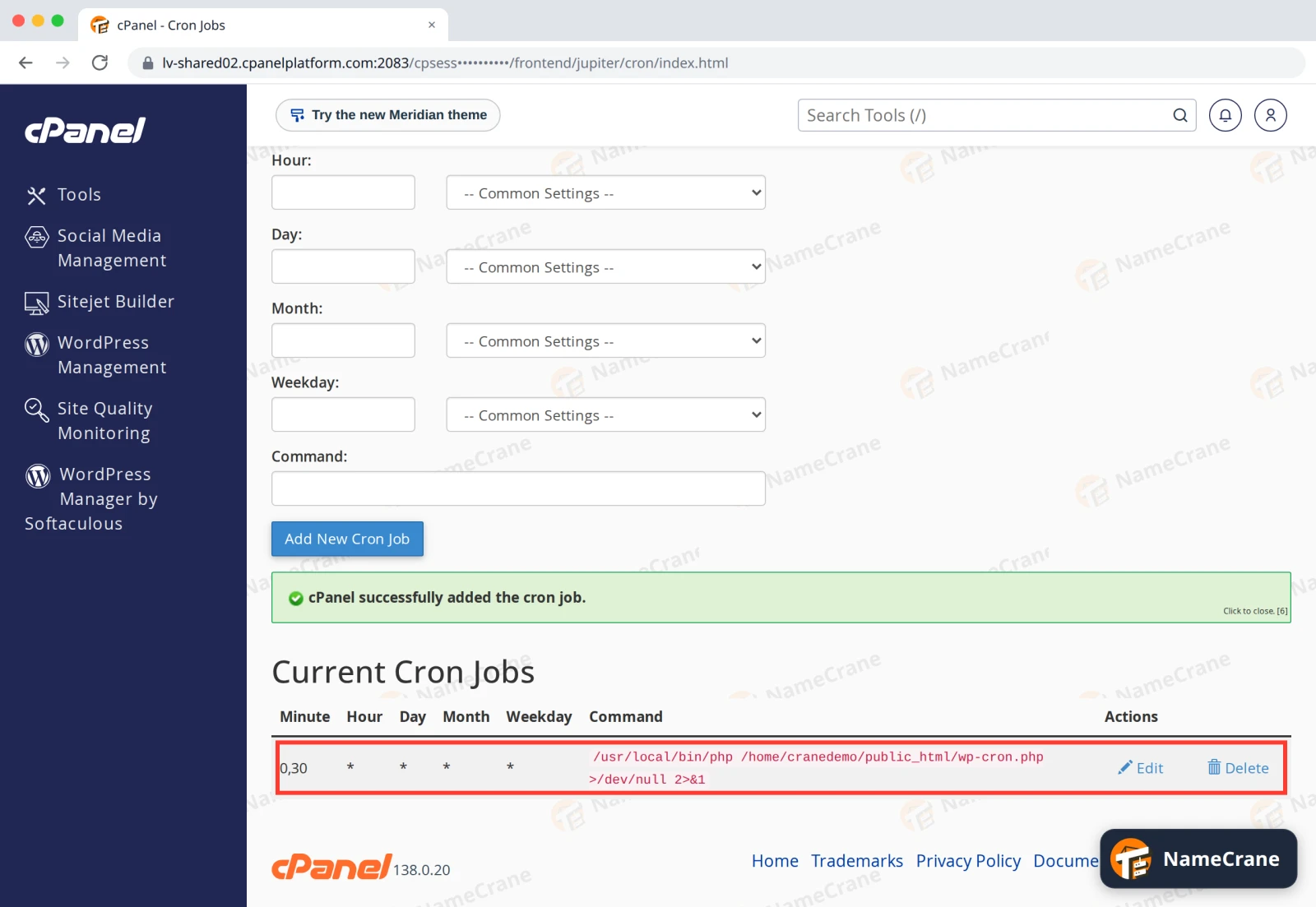
cPanel shows cPanel successfully added the cron job, and the job appears under Current Cron Jobs. Use Edit or Delete there to change or remove it later.
What the command means
| Part | What it does |
|---|---|
/usr/local/bin/php |
Runs PHP, using the version you picked in Select PHP Version. |
/home/cranedemo/public_html/wp-cron.php |
The script to run. Replace cranedemo with your own cPanel username. The PHP command examples box at the top of the page shows your own path. |
>/dev/null 2>&1 |
Throws away the output, so you don’t get an email every time the job runs. |
Note: Times use the server’s time zone, which may not be yours.
Troubleshooting
| Problem | What to do |
|---|---|
| I get an email every time the job runs | Add >/dev/null 2>&1 to the end of the command, or clear the address under Cron Email. |
| The job doesn’t seem to run | Remove >/dev/null 2>&1 for a while and put your address in Cron Email. The email shows any error. |
| “Could not open input file” | The path to the script is wrong. Check where the file is in File Manager. |
| The script needs a different PHP version | Change it in Select PHP Version. /usr/local/bin/php follows that setting. |
Snagged on something? Contact support and we’ll get you sorted.