How to Check Your Disk Space Usage in cPanel
Last updated Changelog
On this page
Your hosting plan has a disk space limit, shared by your website files, your email and your databases. Disk Usage shows how much you’ve used and what’s using it, so you know where to tidy up before you run out.
Steps
-
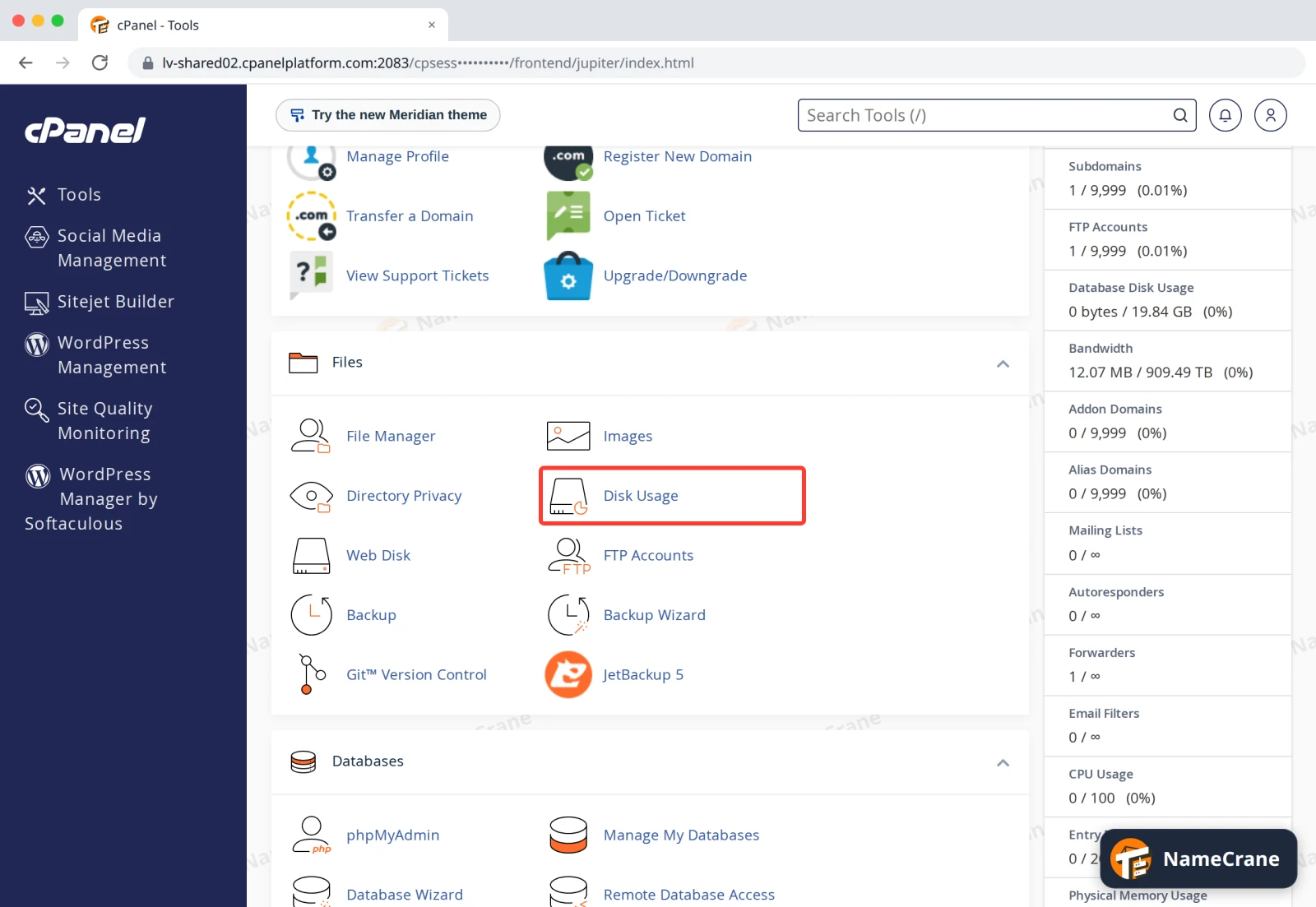
Log in to cPanel. In the Files section, click Disk Usage.
-
The first table lists your main folders, then Databases, Email Accounts and Other Usage, each with its size and a bar. Your website lives in
public_html/. Underneath, you’ll see the total used and your plan’s quota limit.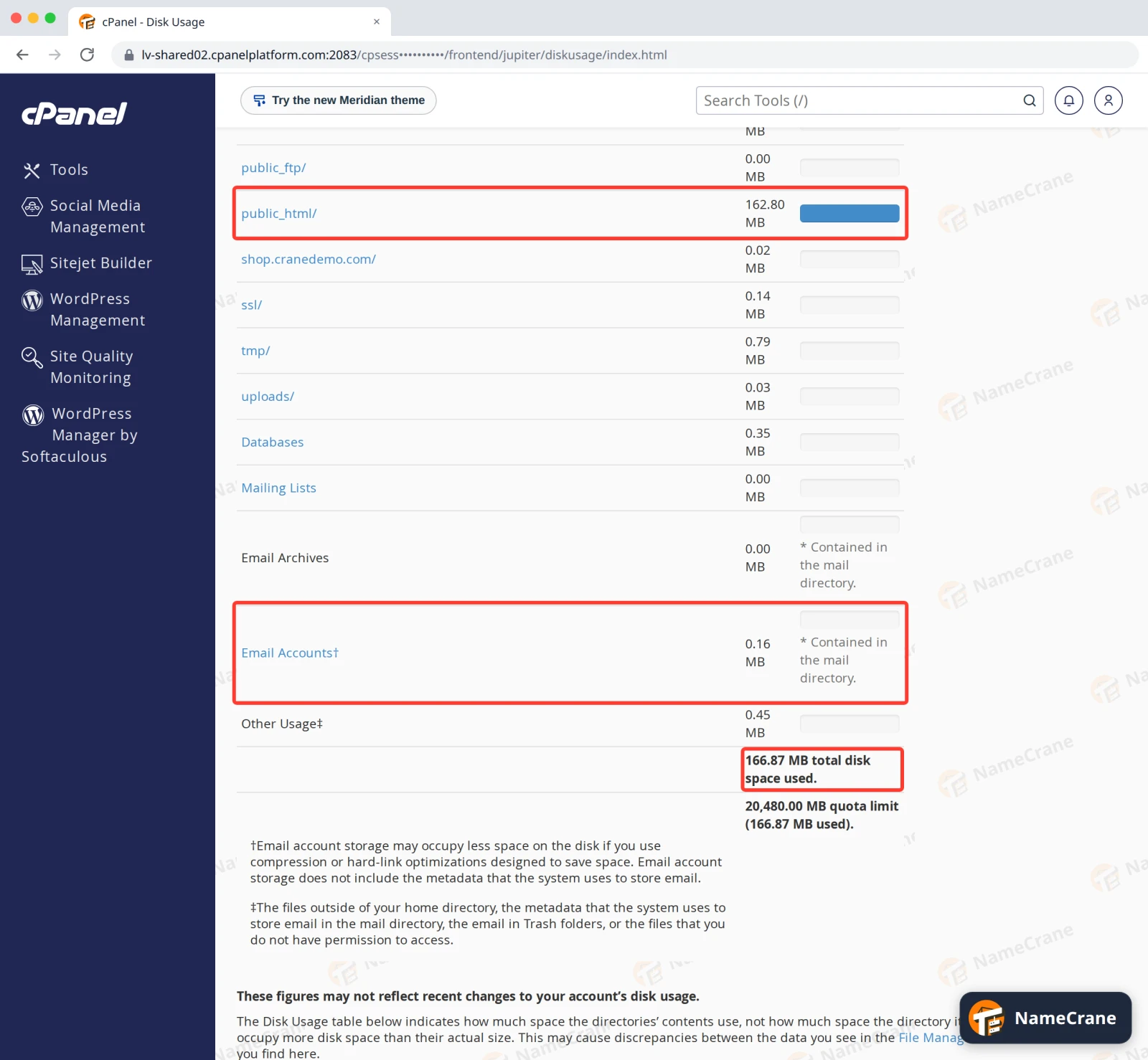
-
To find the biggest folders, scroll down to the second table and set Sort directories by to Disk Usage. Click the arrow next to a folder to see the folders inside it. Here,
wp-includesandwp-contentuse most of the space inpublic_html. Clicking a folder’s name opens it in File Manager.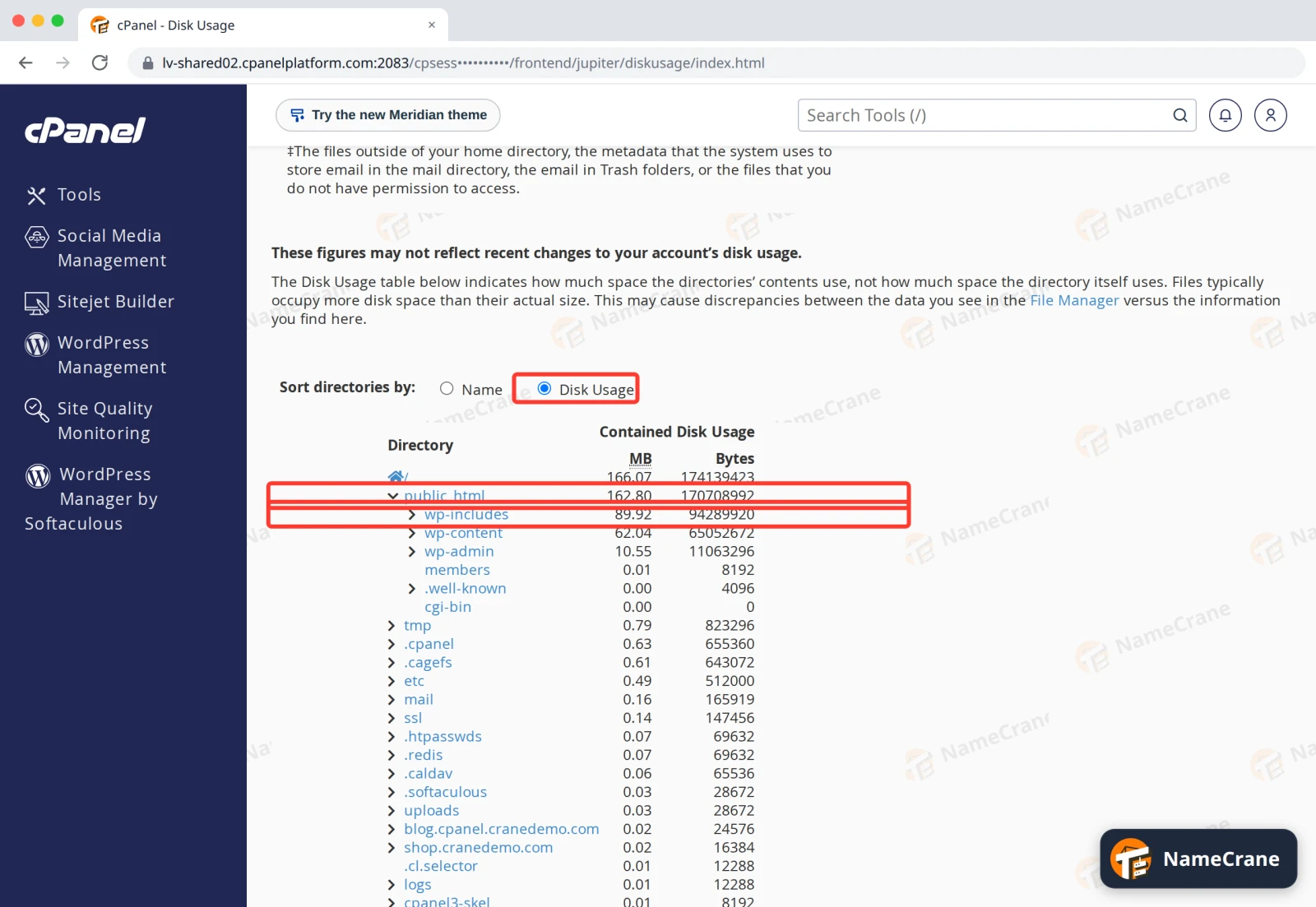
What usually uses the space
| What | Where to look |
|---|---|
| Website images and uploads | public_html. On WordPress, mostly wp-content/uploads. |
| The Email Accounts row. Open Email Disk Usage in the Email section to see each mailbox. Email in Trash folders counts too (under Other Usage). | |
| Backups you made yourself | Backup files (.tar.gz) in your home folder. Download them, then delete them from the server. See Download a backup. |
| Deleted files | File Manager moves deleted files to Trash (.trash) first. Empty the Trash to free the space. |
Troubleshooting
| Problem | What to do |
|---|---|
| The numbers don’t match File Manager | Disk Usage counts the space files take on the disk, which is often a little more than their size, and it may not show changes you made in the last few minutes. |
| I’ve deleted files but the total hasn’t dropped | Empty the Trash in File Manager, then check again a little later. |
| I keep running out of space | Clear out old backups, big email attachments and unused files. If you still need more, upgrade your plan from your NameCrane client area. |
Snagged on something? Contact support and we’ll get you sorted.