How to Create an Email Alias in MXFilter
Last updated Changelog
On this page
An email alias is an extra address that delivers to someone who already has a mailbox. For example, you could have sales@yourdomain.com go straight to Jane. The alias doesn’t need its own mailbox, and its email gets the same spam filtering as Jane’s.
Before you start
- Open MXFilter from your control panel: from cPanel or from DirectAdmin.
- The person receiving the email needs to be listed under Users. Mailboxes are added there automatically once they’ve received an email. See Team logins.
Steps
-
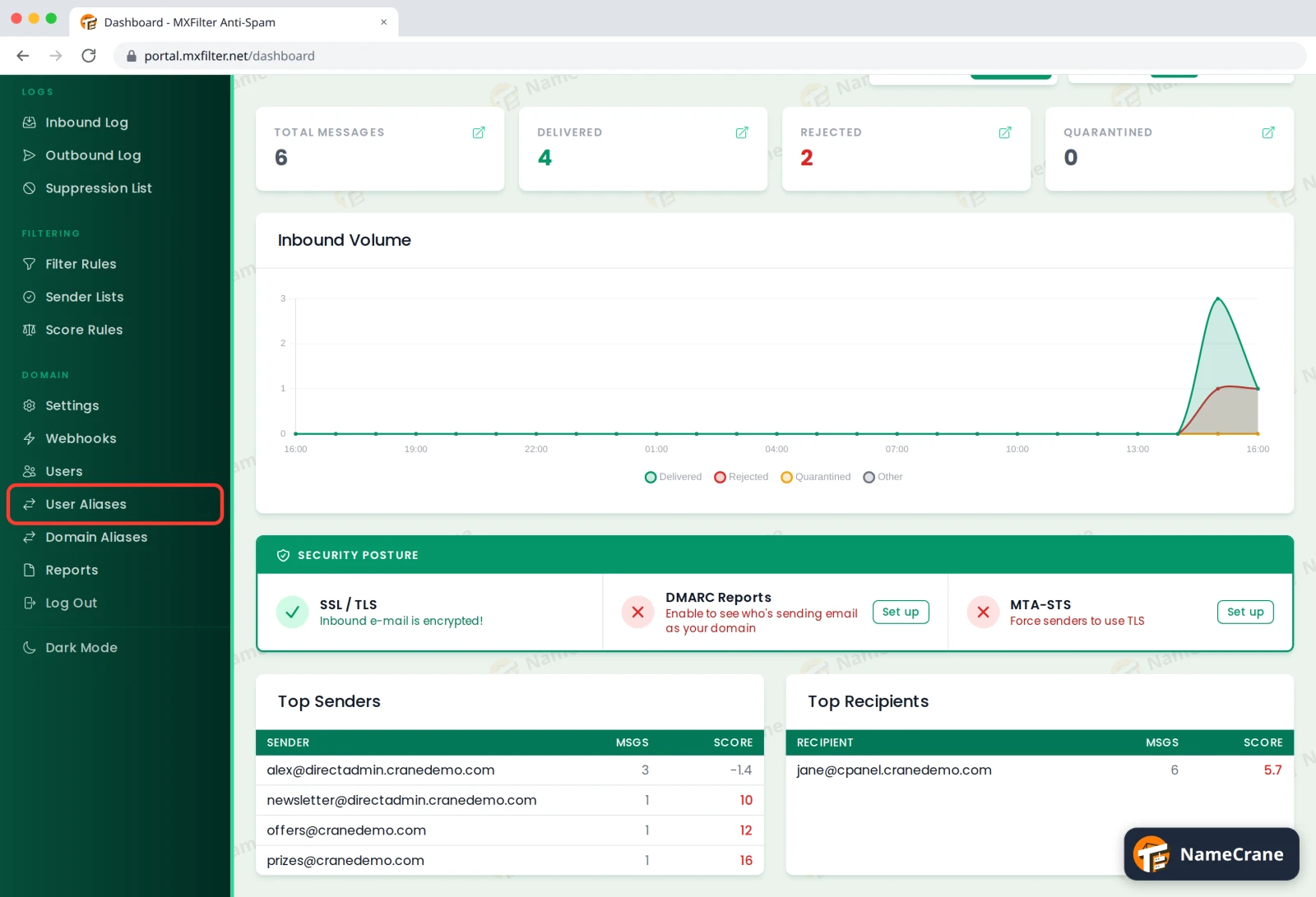
In the MXFilter menu, under Domain, click User Aliases.
-
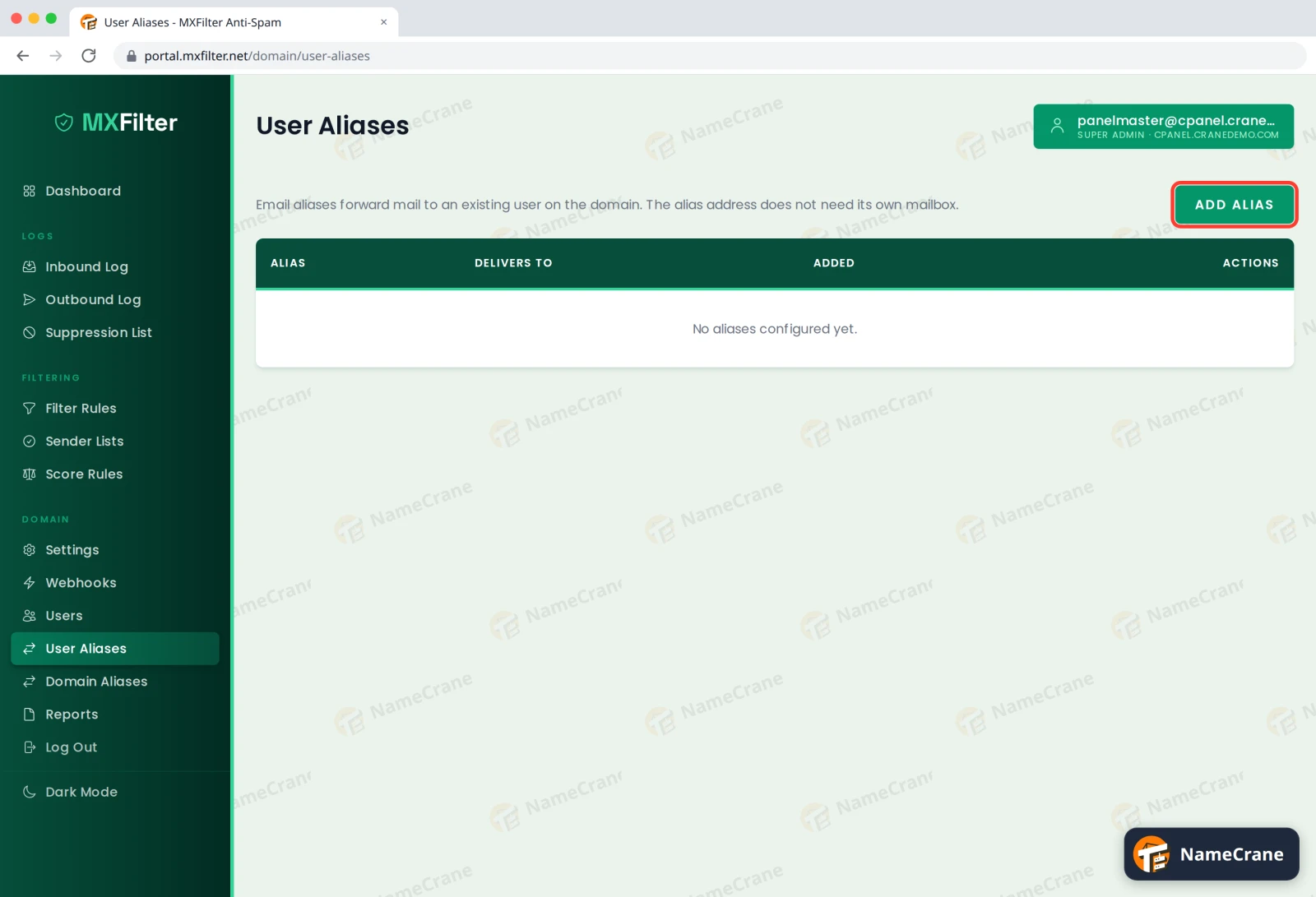
Click Add Alias.
-
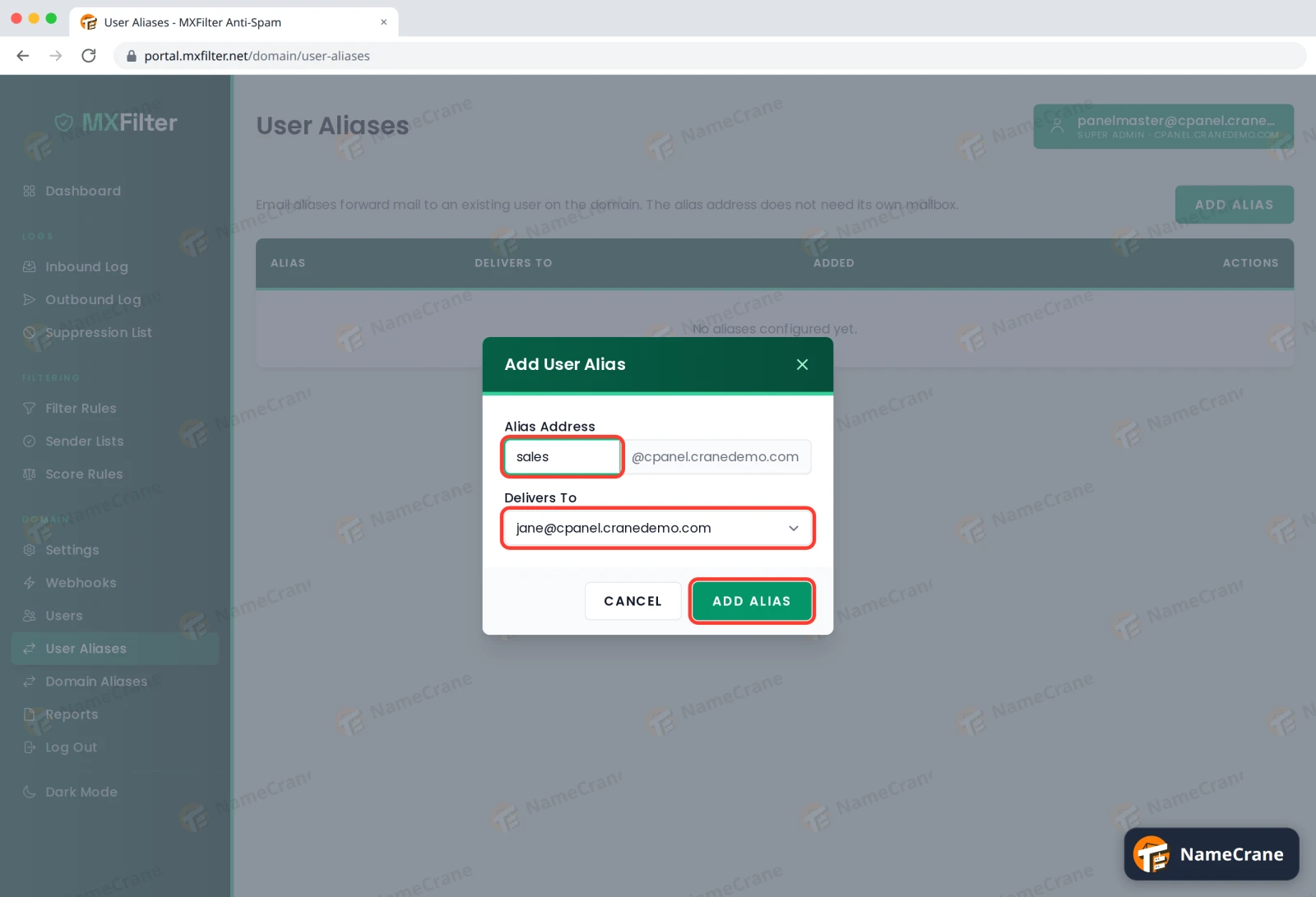
Type the Alias Address (just the part before the @), choose who it Delivers To, and click Add Alias.
-
The alias is listed and works straight away.
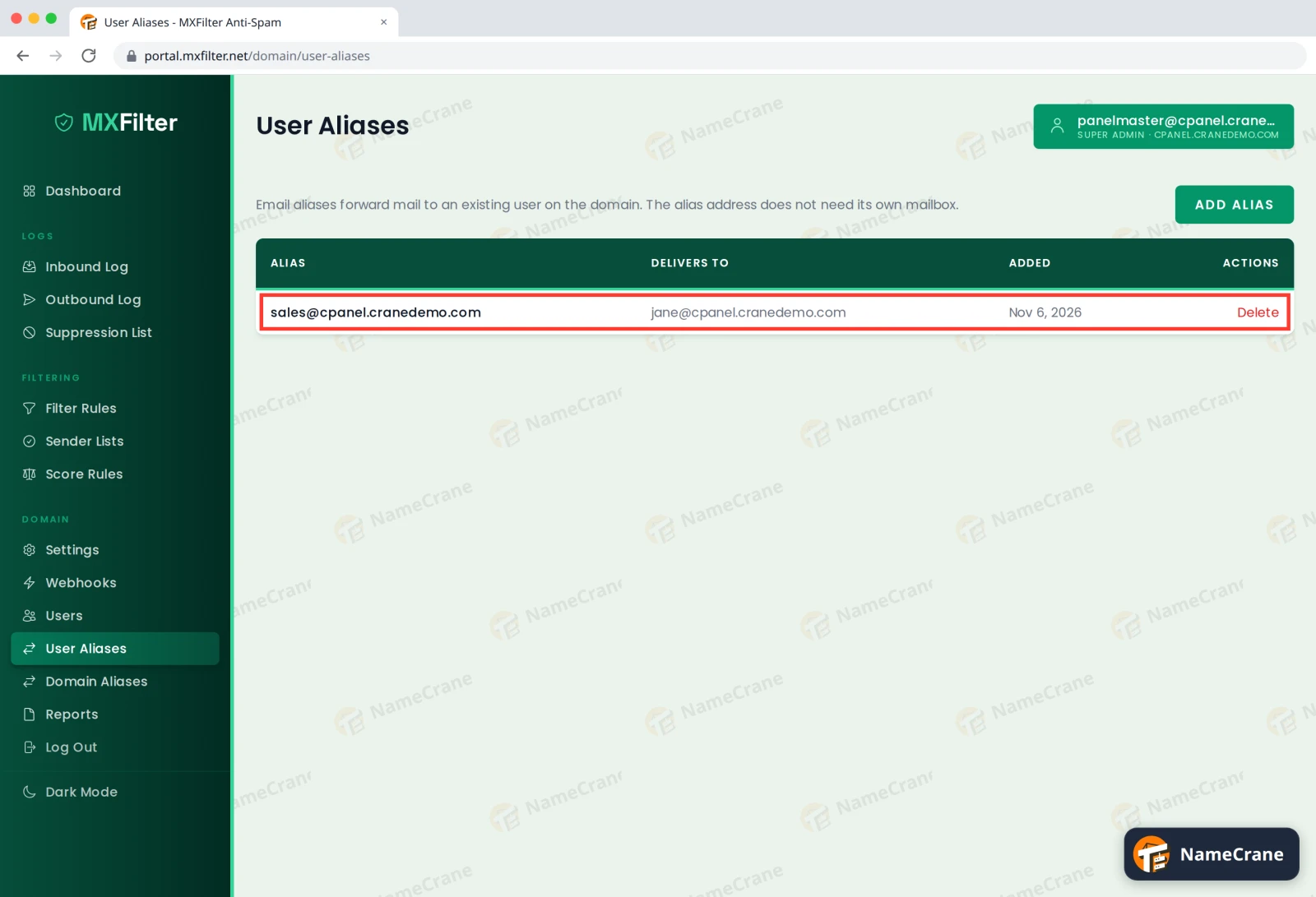
We tested this by emailing sales@cpanel.cranedemo.com. It arrived in Jane’s inbox a few seconds later, and showed in the Inbound Log with an AL (alias) tag.
Note: Aliases only work while your domain’s MX records point at MXFilter. If you might switch filtering off later, set up a forwarder in your control panel instead.
Troubleshooting
| Problem | What to do |
|---|---|
| The person isn’t in the Delivers To list | They need to be a user. Send them a test email so they’re added automatically, or add them. |
| Email to the alias bounces | Check your MX records point at MXFilter, and that the alias is spelled correctly. |
| I want to remove an alias | Click Delete next to it. |
Snagged on something? Contact support and we’ll get you sorted.