How to Restore Your Whole Account with JetBackup
Last updated Changelog
On this page
A full account restore brings back everything at once: website files, databases, emails and settings. If only one thing is broken, restore just that instead: files, a database or emails.
In this example we deleted the homepage of customer.cranedemo.com, then restored the whole account from that morning’s backup. Our screenshots are from DirectAdmin this time; it works the same in cPanel.
Before you start: Merge or not?
The restore asks whether to Merge backup data with live account data:
- Tick it to put back what’s missing and keep everything newer, such as emails received since the backup.
- Leave it unticked to put the whole account back exactly as it was. Use this after a hack, so that files added since the backup are removed too. Anything newer than the backup is lost, so download copies of anything you need first.
Steps
-
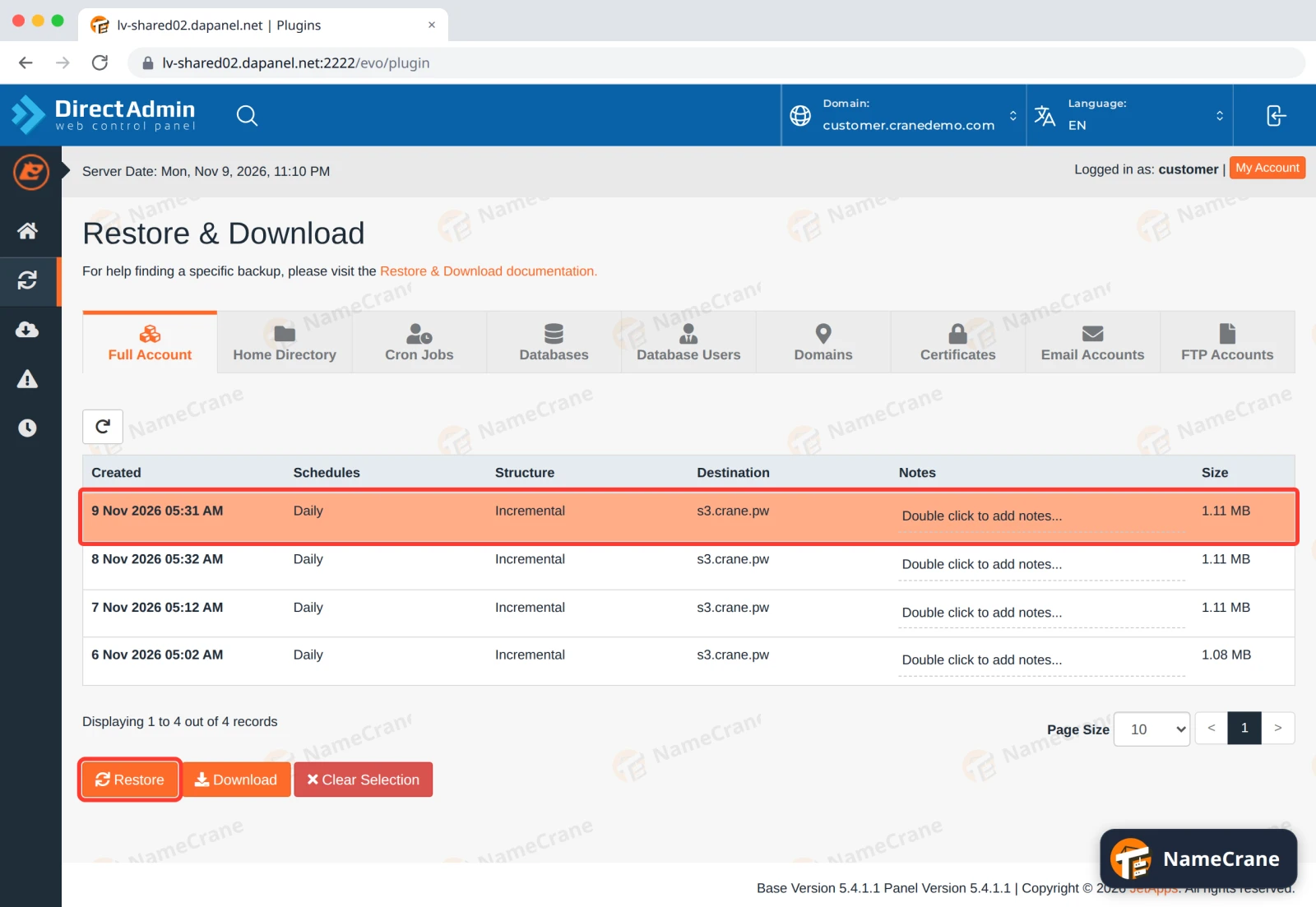
Open JetBackup (see how to open it) and click Full Backups. Click the backup you want, from before the problem started. It turns orange. Click Restore.
-
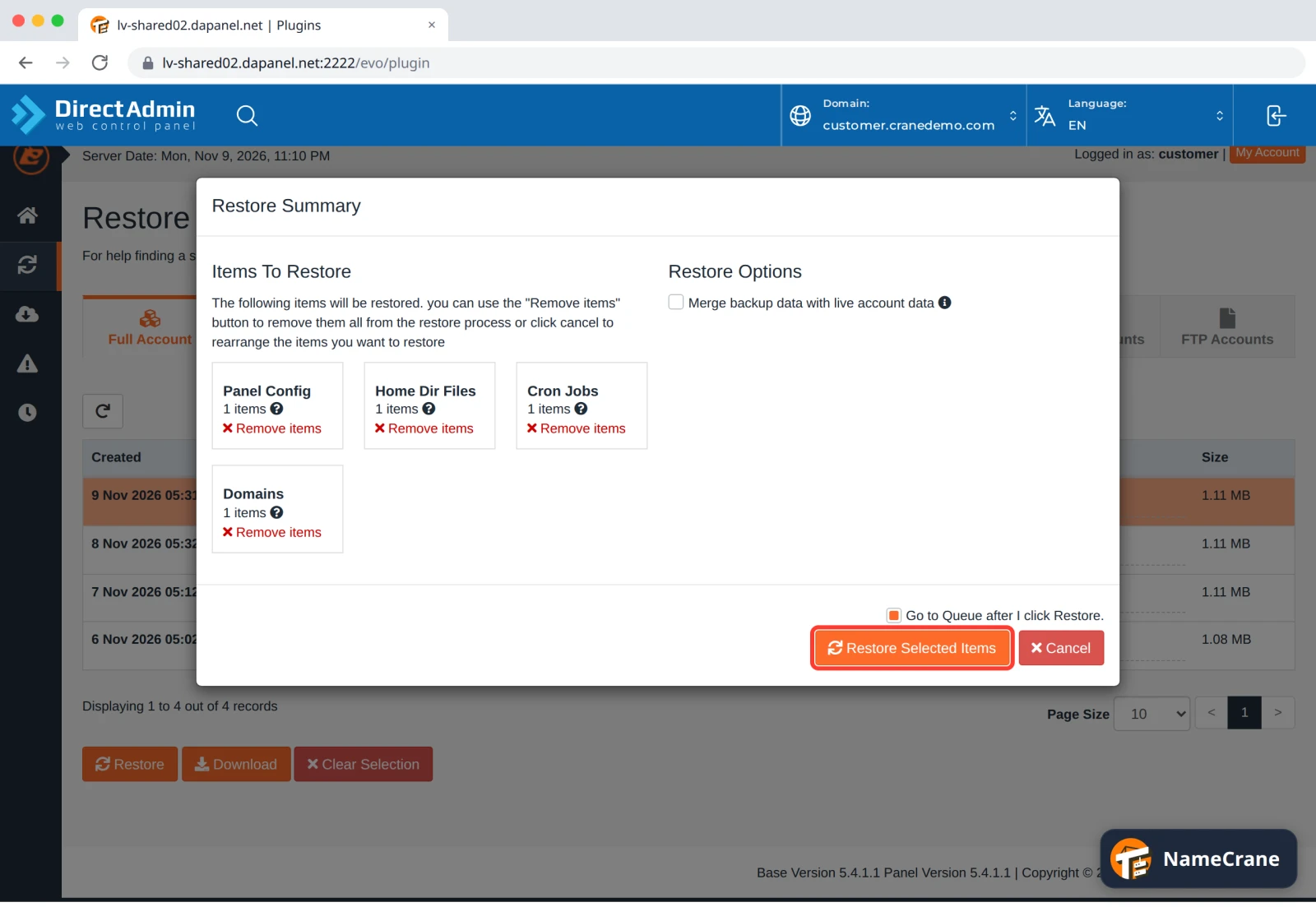
The Restore Summary lists everything that will be restored. Ours listed Panel Config, Home Dir Files, Cron Jobs and Domains; yours also lists databases and email accounts if you have them. Tick Merge backup data with live account data or leave it unticked (see above), then click Restore Selected Items.
-
JetBackup opens the Queue and shows the progress, such as Restoring Panel Configurations. When the Status says Completed, your account is back. Ours took 30 seconds; bigger accounts take longer.
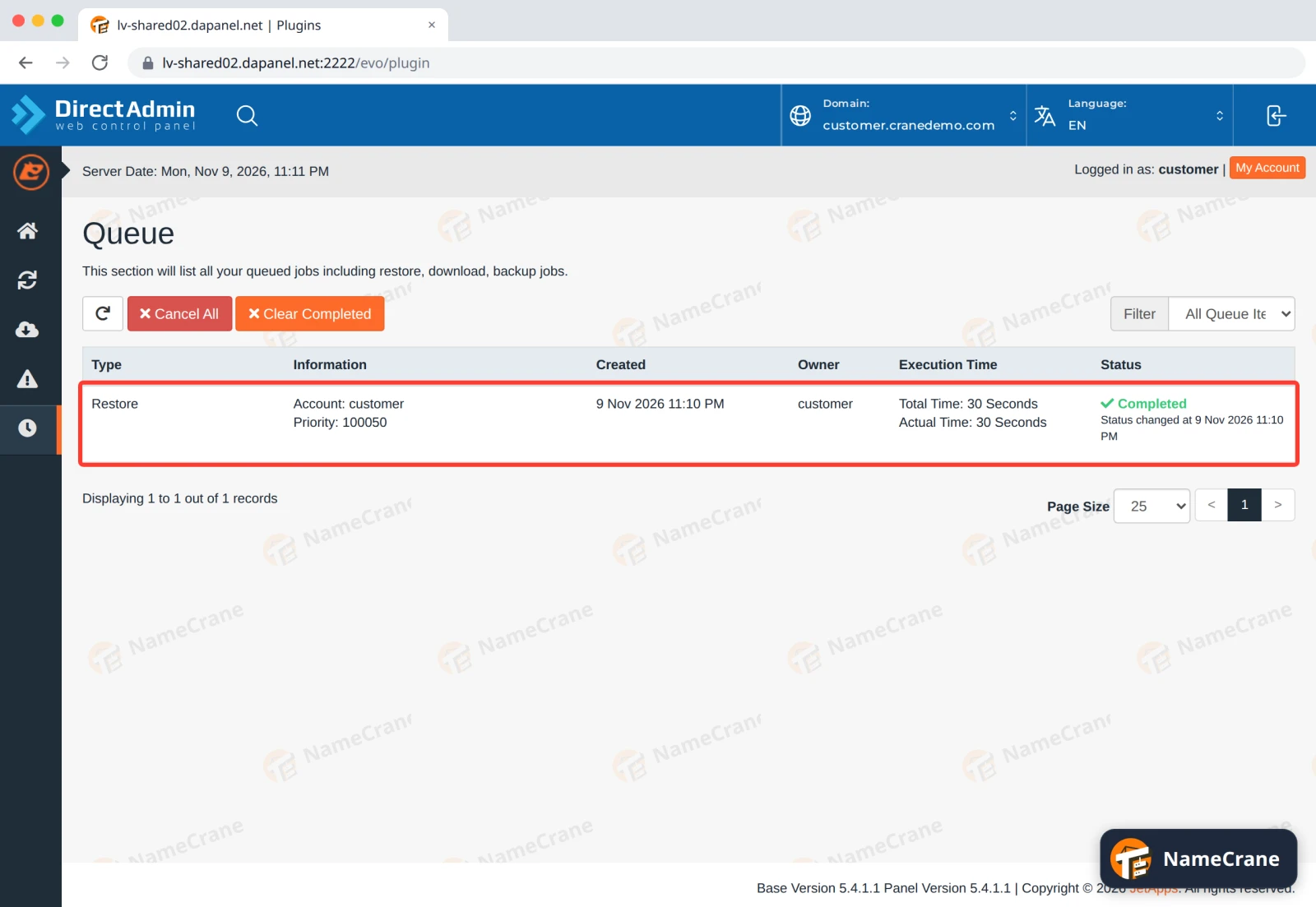
Our homepage was back, identical to the original, and we could still log in as normal.
Troubleshooting
| Problem | What to do |
|---|---|
| The restore is still running after a long time | Large accounts can take a while. Leave the page open or come back later; the Queue keeps going without you. |
| The site was hacked again after restoring | Restore an older backup, from before the hack started, without Merge. Then change your passwords, and update WordPress and its plugins. |
| The restore shows Failed in the Queue | Contact support with the backup date. |
Snagged on something? Contact support and we’ll get you sorted.