How to Fine-Tune Spam Scores with Score Rules in MXFilter
Last updated Changelog
Every email MXFilter checks gets a spam score: the higher it is, the more likely it’s spam. With the default settings, a score of 9 or more is quarantined and 12 or more is rejected. Score rules let you adjust that score for particular senders or messages. They’re useful when you trust a sender but don’t want to skip the checks completely, or when you’re wary of one but don’t want to block them.
Before you start
- Open MXFilter from your control panel: from cPanel or from DirectAdmin.
Steps
-
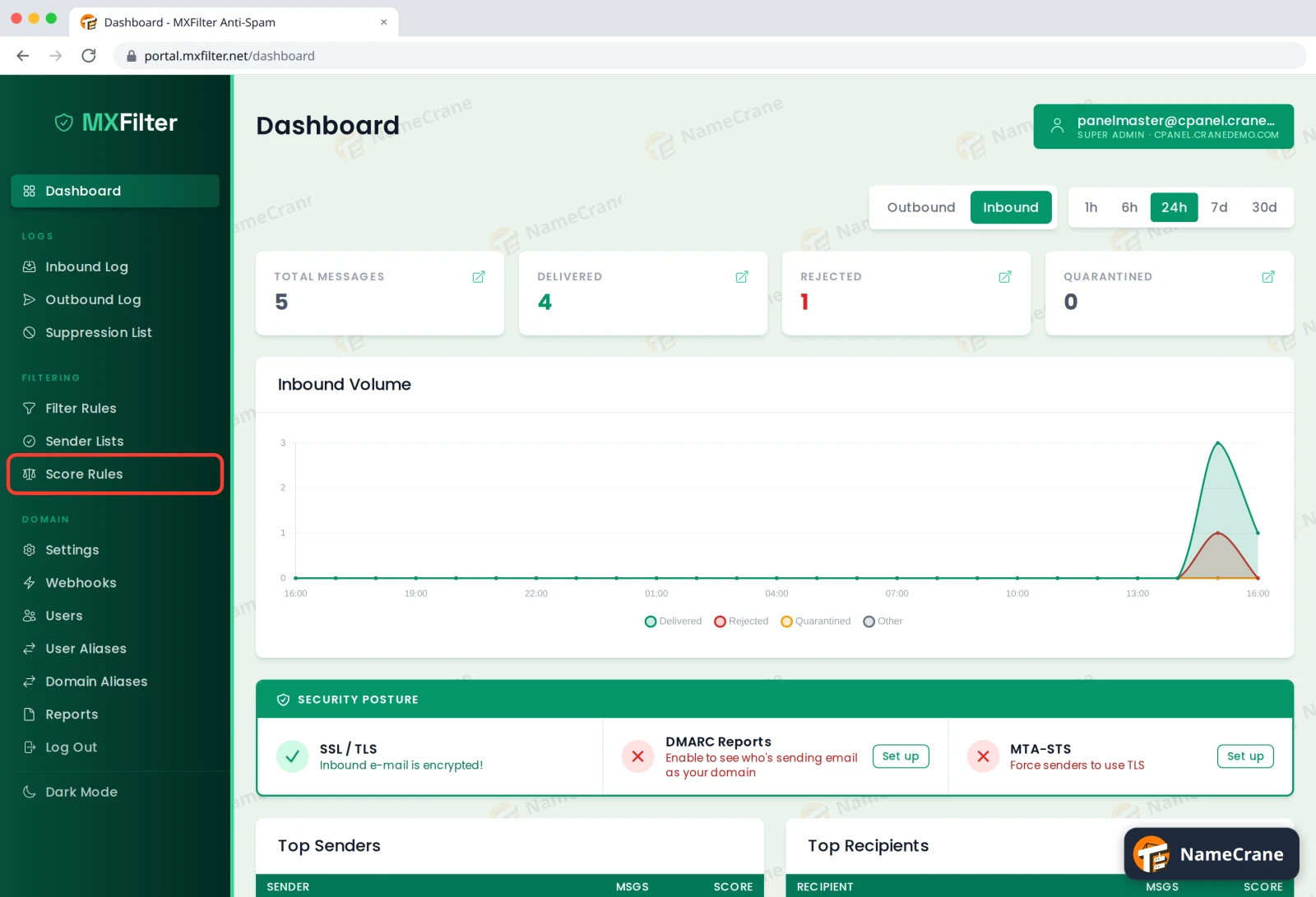
In the MXFilter menu, under Filtering, click Score Rules.
-
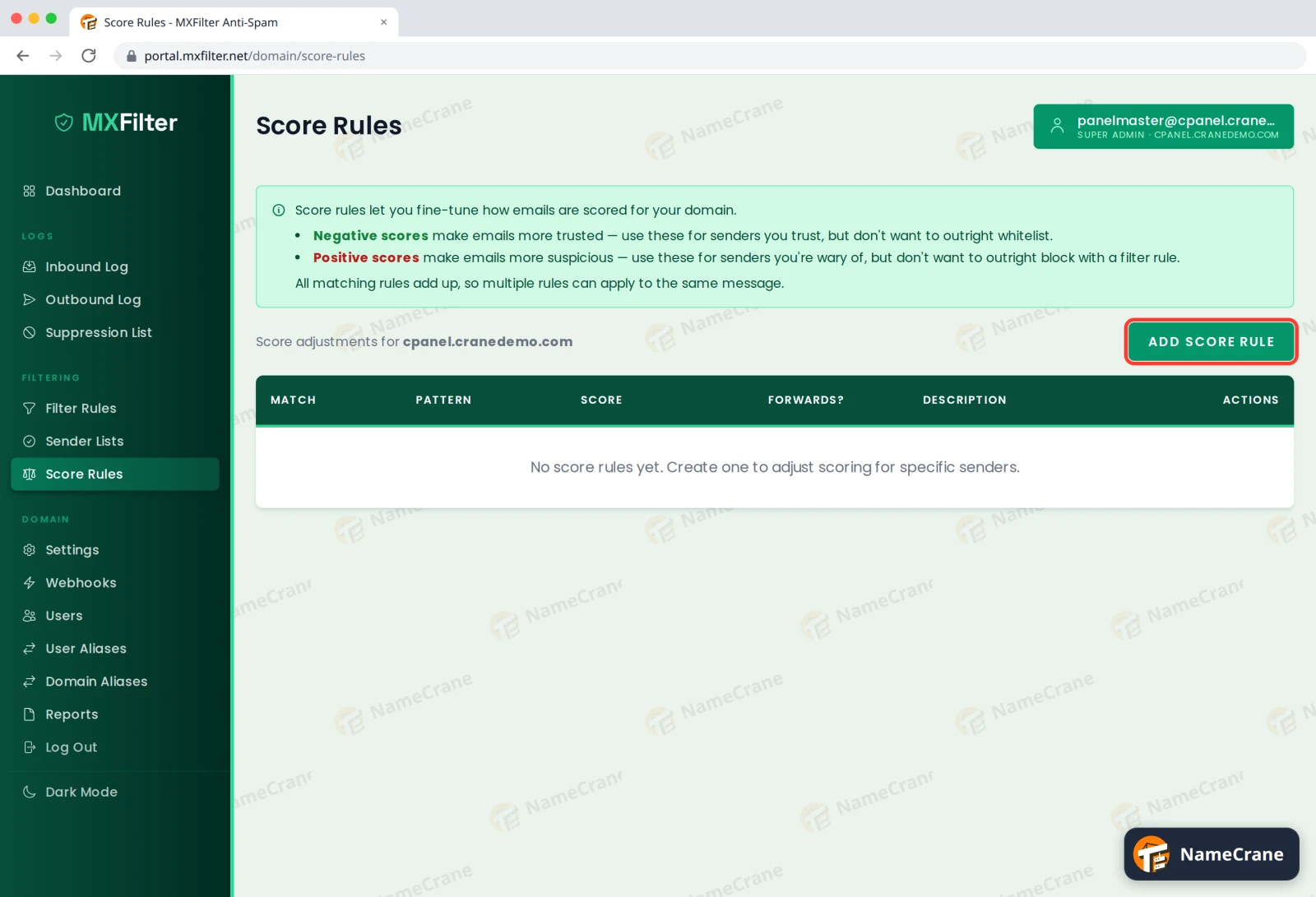
Click Add Score Rule.
-
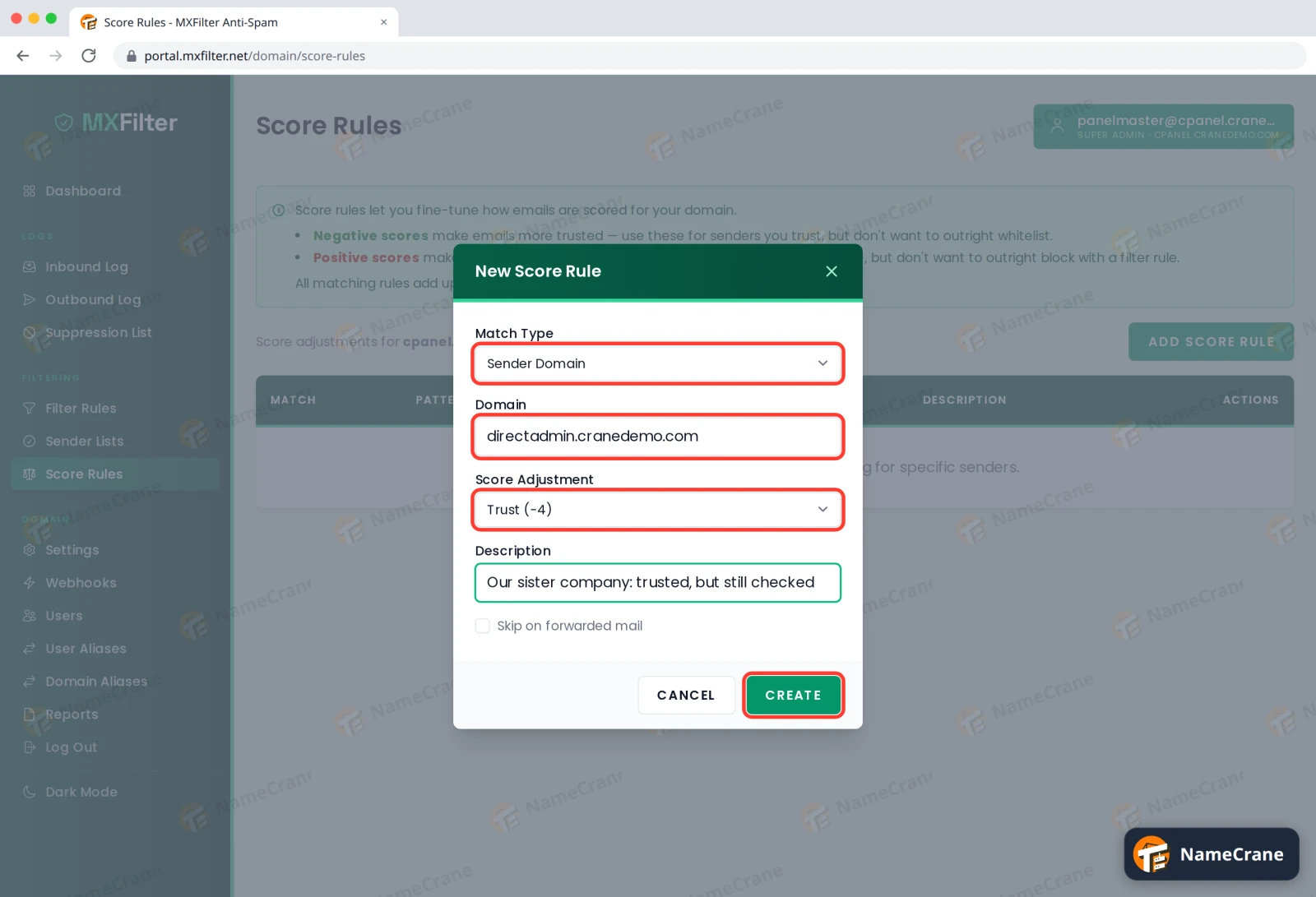
Fill in the rule and click Create:
- Match Type: what to look at (see the table below).
- The value to match, such as a domain, an address or some subject text.
- Score Adjustment: how much to raise or lower the score.
- Description: a note to remind you why it’s there.
-
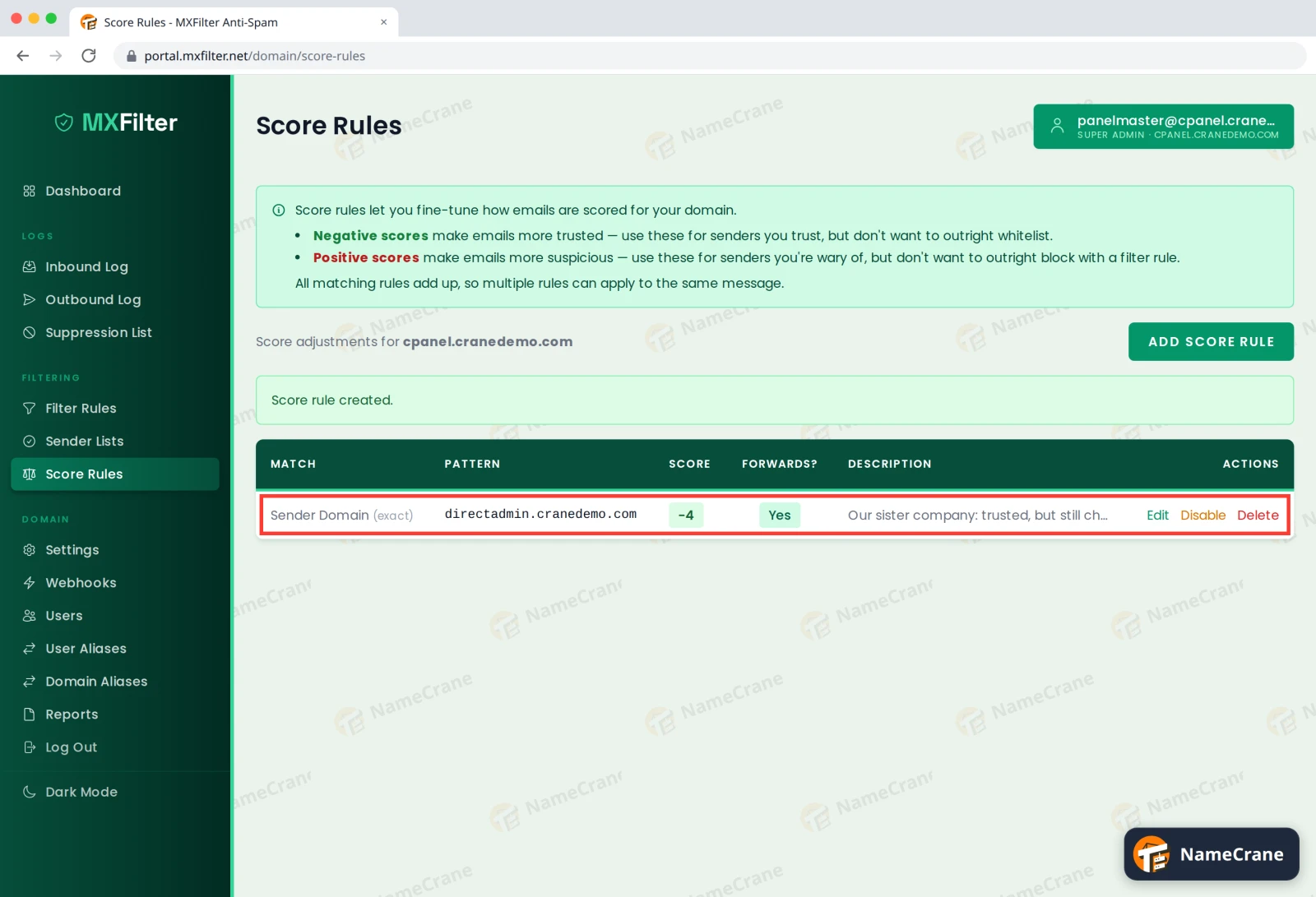
The rule appears in the list and applies to new email straight away.
Choosing a match type and adjustment
| Match type | Matches |
|---|---|
| Sender Domain | Everything from a domain, such as example.com. |
| Sender Address | One sender, such as billing@example.com. |
| Subject | Messages whose subject contains your text. |
| Header | A specific email header. |
| Filter Signal | One of the spam filter’s own checks (the symbols you see in a message’s details). |
| Adjustment | Use it for |
|---|---|
| Trust Slightly (-2) to Trust Strongly (-6) | Senders you trust whose email sometimes scores a bit high, such as newsletters you signed up for or a partner’s invoicing system. |
| Distrust Slightly (+2) to Distrust Strongly (+6) | Senders or subjects you’re suspicious of, but not enough to block. |
Tip: All matching rules add up, so two rules can both apply to one message. If you find yourself adding a big adjustment, consider allowing or blocking the sender instead.
Troubleshooting
| Problem | What to do |
|---|---|
| The rule doesn’t seem to change anything | Score rules only affect new email. Open a new message’s details in the Inbound Log to check the rule is listed in its symbols. |
| A trusted sender is still quarantined | Their score may be very high. Use a stronger trust level or allow the sender. |
| I want to pause a rule | Click Disable next to it. Delete removes it completely. |
Snagged on something? Contact support and we’ll get you sorted.