How to Catch Email Sent to Addresses That Don't Exist in cPanel
Last updated Changelog
On this page
The Default Address (often called a catch-all) decides what happens to email sent to an address at your domain that doesn’t exist, such as a typo like jnae@ instead of jane@. You can send those emails back to the sender with an error, or collect them in one mailbox so nothing gets lost.
Steps
-
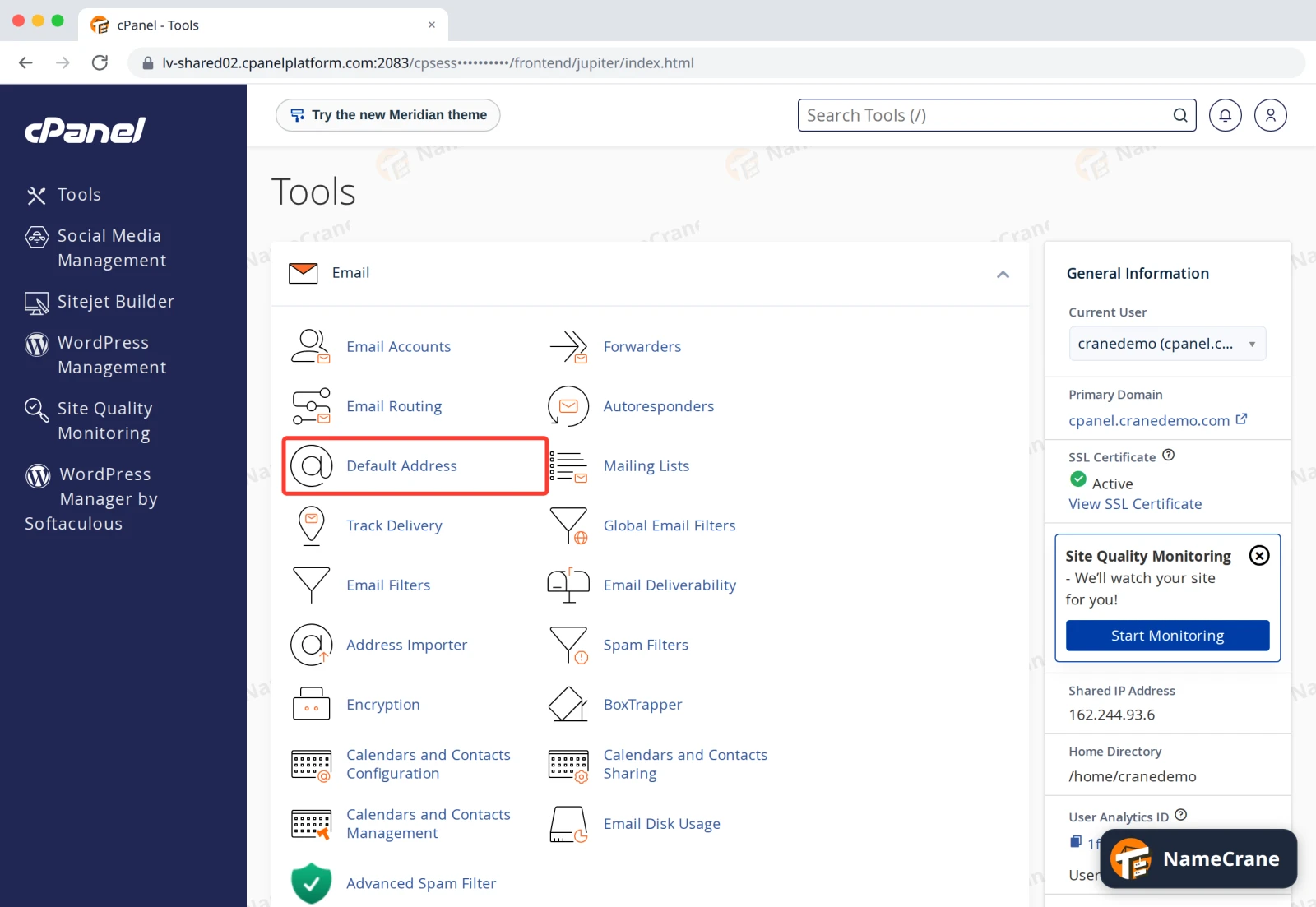
Log in to cPanel. In the Email section, click Default Address.
-
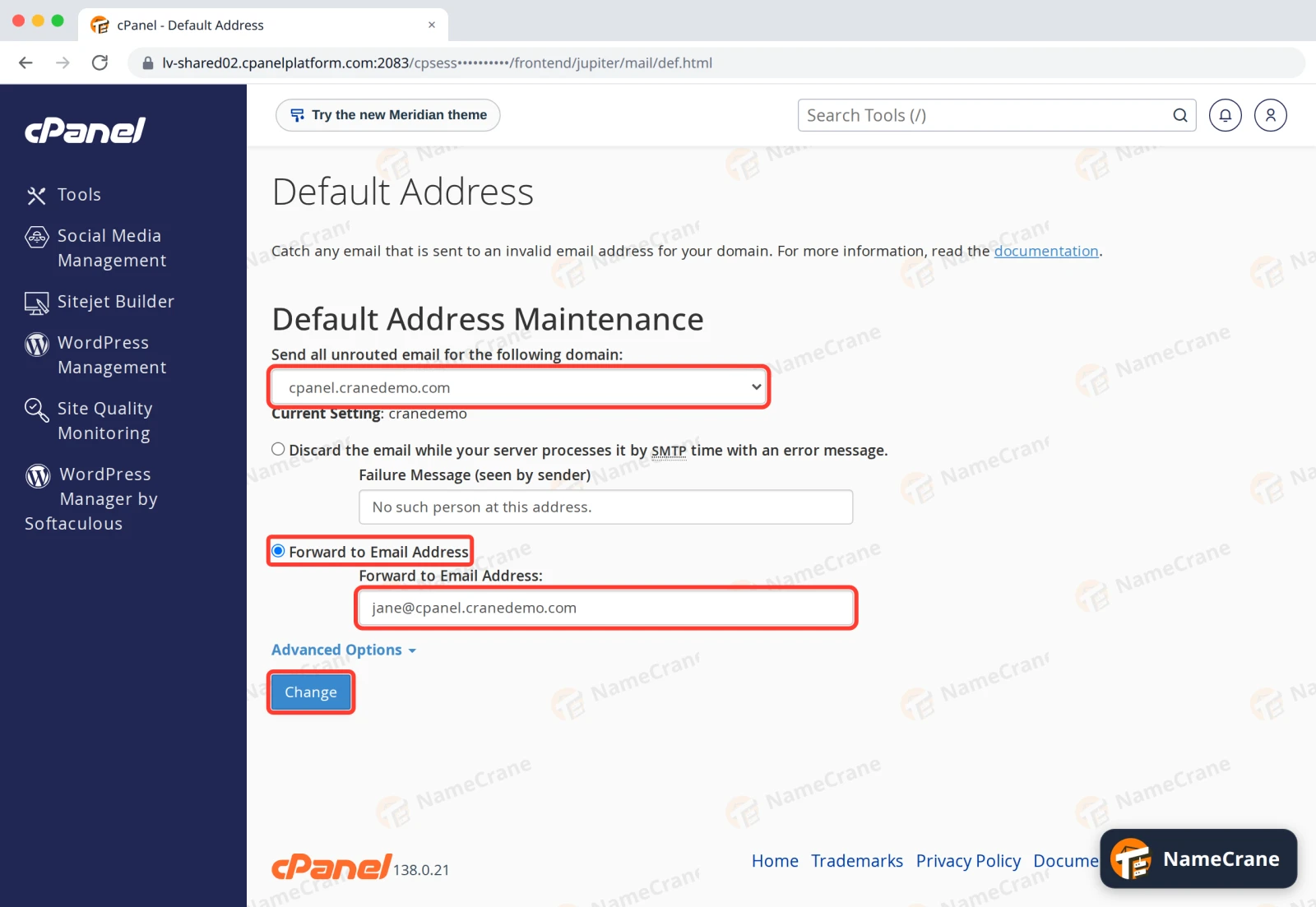
Pick your domain under Send all unrouted email for the following domain. Current Setting shows what happens now. Select Forward to Email Address, type the address that should receive these emails, and click Change.
-
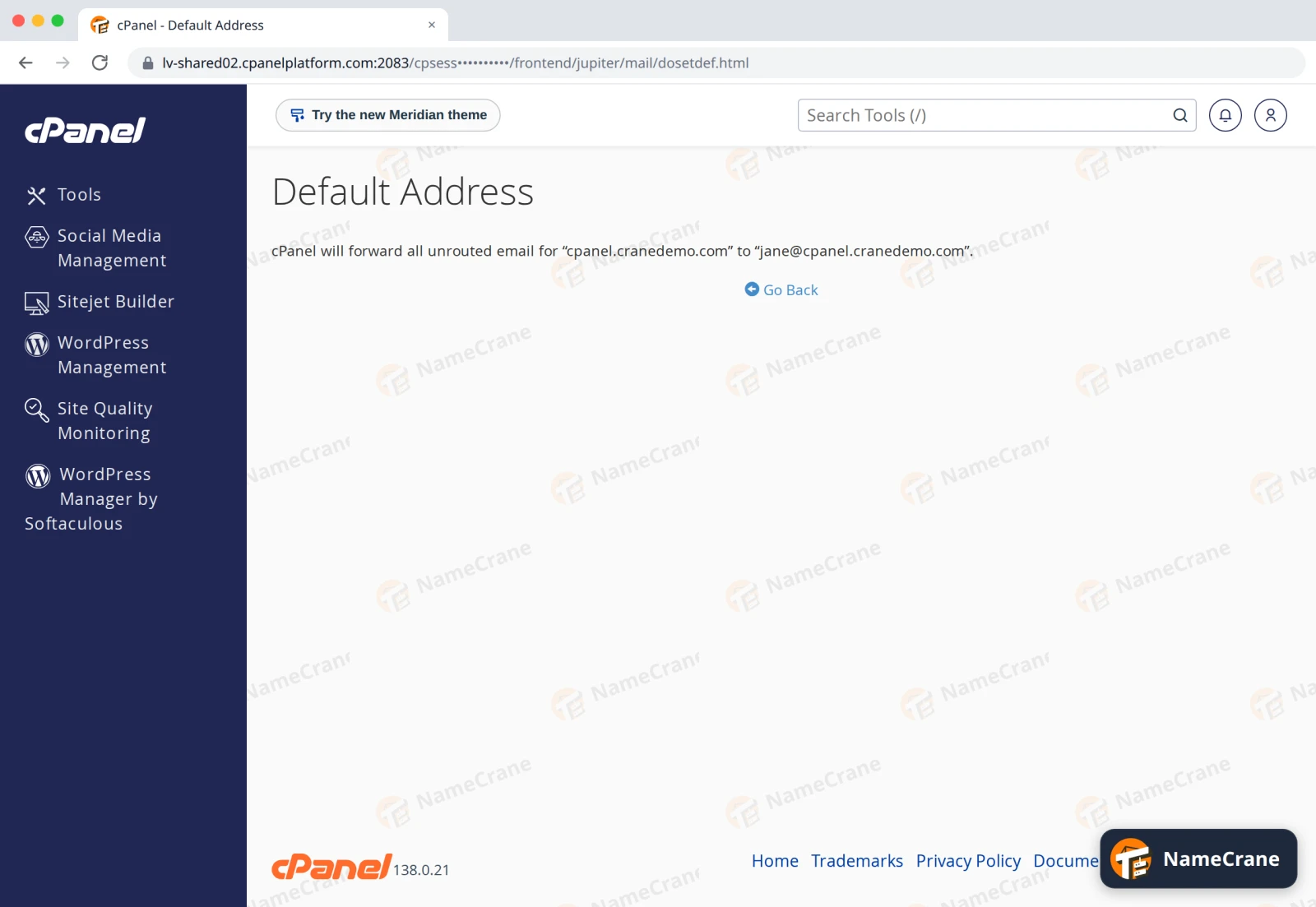
cPanel confirms where the emails will go.
In our test, an email to a made-up address at cpanel.cranedemo.com arrived in Jane’s inbox within a minute.
The options
| Option | What happens to email for an address that doesn’t exist |
|---|---|
| Discard the email … with an error message | It’s refused, and the sender gets your Failure Message back, so they know it didn’t arrive. |
| Forward to Email Address | It goes to the address you type, which can be at any provider. |
| Forward to your system account (under Advanced Options) | It goes to your account’s main mailbox, named after your cPanel username. |
| Pipe to a Program (under Advanced Options) | It’s handed to a script. This is only for developers. |
| Discard (Not Recommended) | It’s deleted without telling the sender. |
Tip: Spammers often send to made-up addresses. If you forward everything, you get that spam too. Once you’ve caught the emails you were missing, consider creating a proper email account or forwarder for them, and switching back to Discard the email … with an error message.
Troubleshooting
| Problem | What to do |
|---|---|
| I can’t see Forward to your system account | Click Advanced Options under the forwarding box. |
| I have more than one domain | The setting is per domain. Choose each domain in the list and set it separately. |
| Emails to a real address are going to the catch-all | The catch-all only gets email for addresses with no mailbox or forwarder. Check the spelling of the account under Email Accounts. |
Snagged on something? Contact support and we’ll get you sorted.