How to Change an Email Account's Storage Space in cPanel
Last updated Changelog
On this page
Every email address has its own storage limit, called its quota. When a mailbox reaches it, new email to that address can’t be delivered. You can raise the limit at any time, as long as your hosting plan has space left.
Steps
-
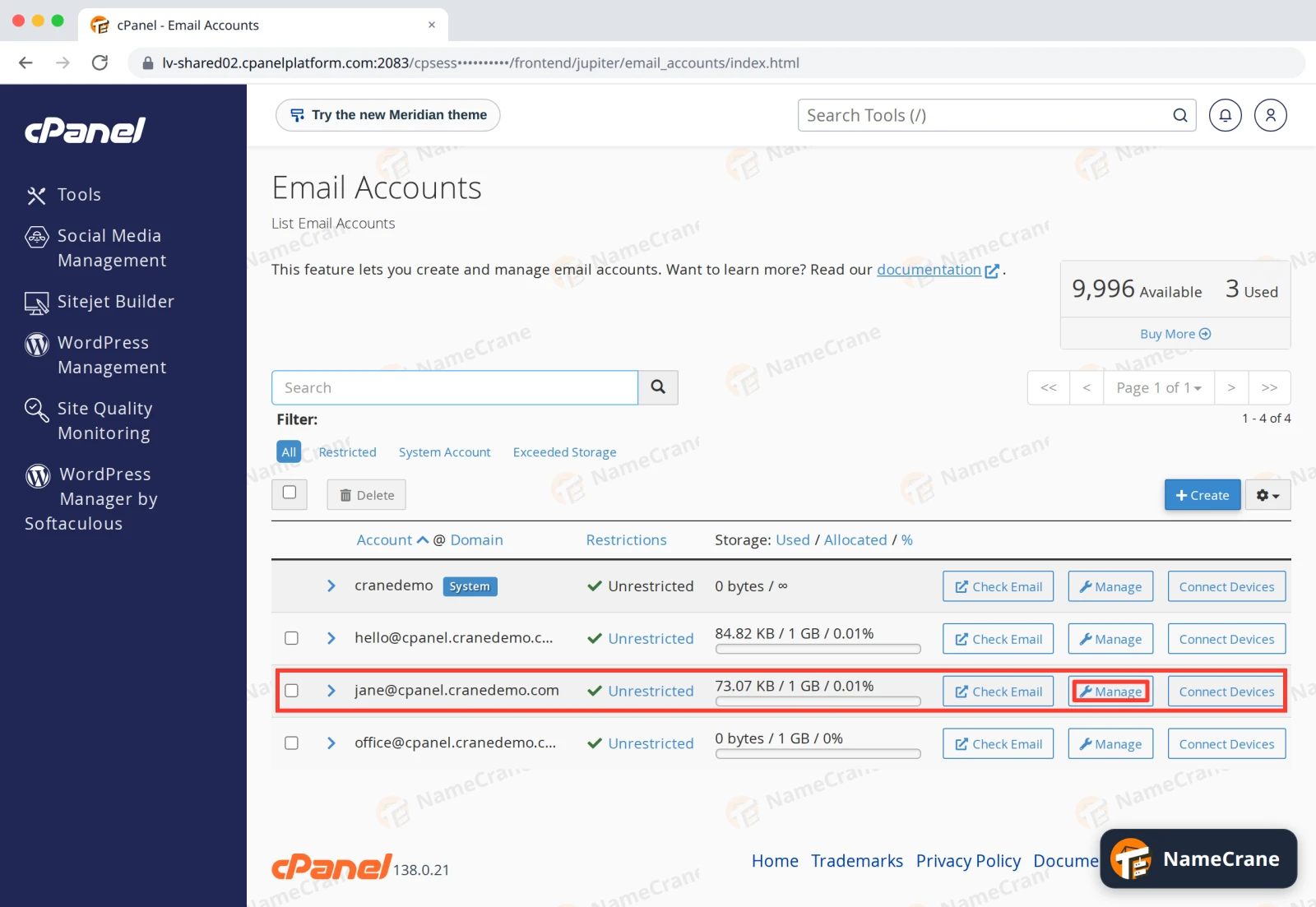
Log in to cPanel and open Email Accounts. The Storage column shows how much each address uses out of its limit. Click Manage next to the address you want to change.
-
Under Storage, Current Storage Usage shows how full the mailbox is. Type the new limit into Allocated Storage Space, such as
2048MB for 2 GB. Unlimited lets the mailbox use as much space as your plan has left.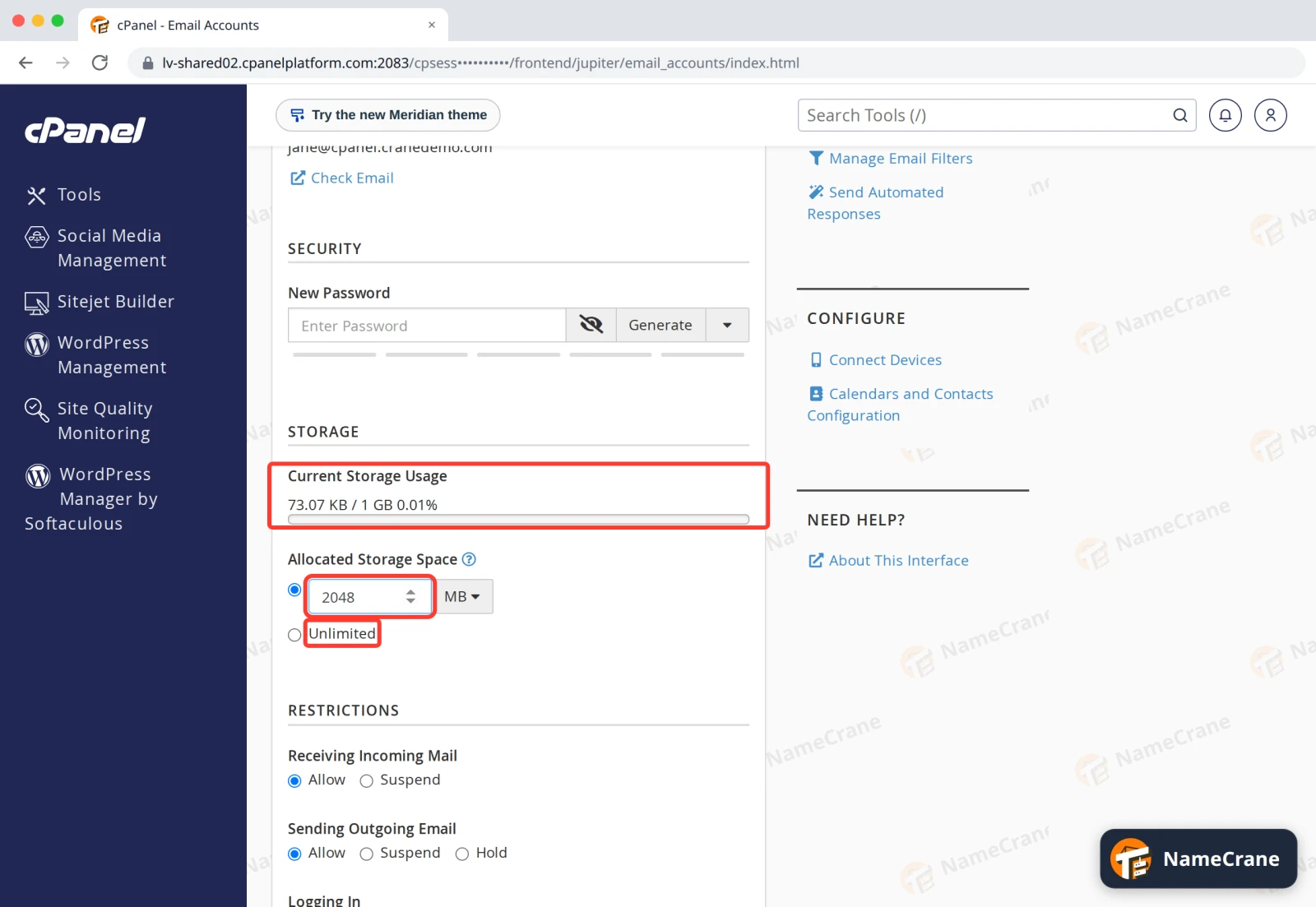
-
Scroll down and click Update Email Settings. cPanel confirms All of your changes … are saved, and the Storage column shows the new limit.
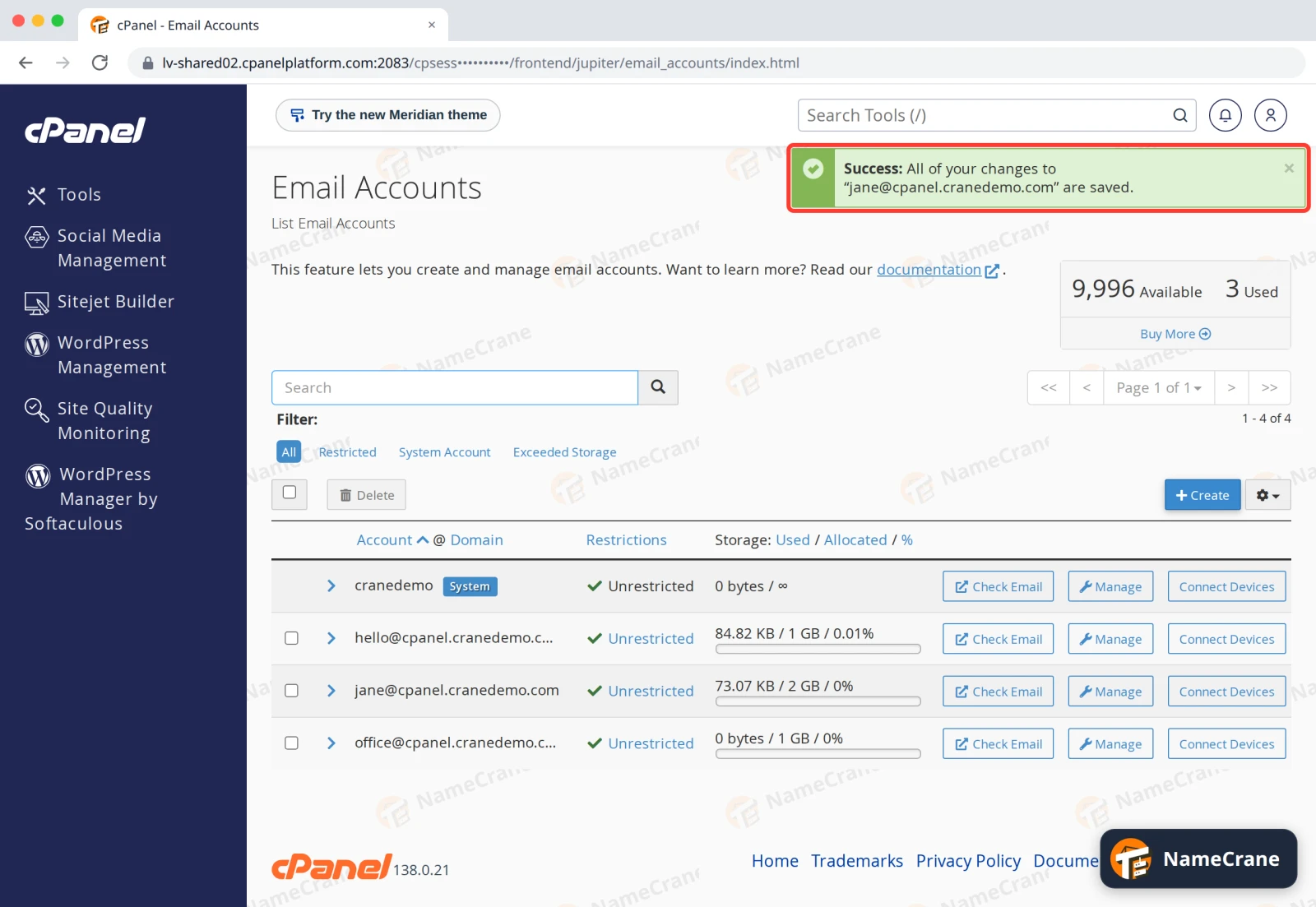
Tip: Click Exceeded Storage above the list to show only the mailboxes that are full.
Make room instead
If you’d rather not raise the limit, free up space in the mailbox:
- Empty its Trash and Junk folders in Webmail.
- Delete or save elsewhere old emails with big attachments.
- In an email app, use IMAP rather than POP3 with “leave a copy on the server”, so the server copy isn’t kept forever. See Set up your email on your devices.
Troubleshooting
| Problem | What to do |
|---|---|
| People say their email to me bounced with “mailbox full” or “quota exceeded” | Raise the limit or make room, as above. Then ask them to send it again. |
| I can’t raise the limit any further | All your mailboxes share your hosting plan’s disk space. See Check your disk space, or upgrade your plan from your NameCrane client area. |
Snagged on something? Contact support and we’ll get you sorted.