How to Log In to cPanel
Last updated Changelog
On this page
cPanel is where you manage your NameCrane hosting: email, domains, files, databases, SSL and more. You can reach it directly in your browser, or from our client area, where the button is simply labelled cPanel.
Where to log in
Any of these work, with a valid security certificate:
| Address | Example |
|---|---|
| Your server’s address, on port 2083 | https://lv-shared02.cpanelplatform.com:2083 (your server is in your welcome email) |
Your domain, followed by /cpanel |
https://yourdomain.com/cpanel |
cpanel. in front of your domain |
https://cpanel.yourdomain.com |
Tip: Your own domain only works once it points at your NameCrane hosting. For a brand-new account, use the server address from your welcome email.
Steps
-
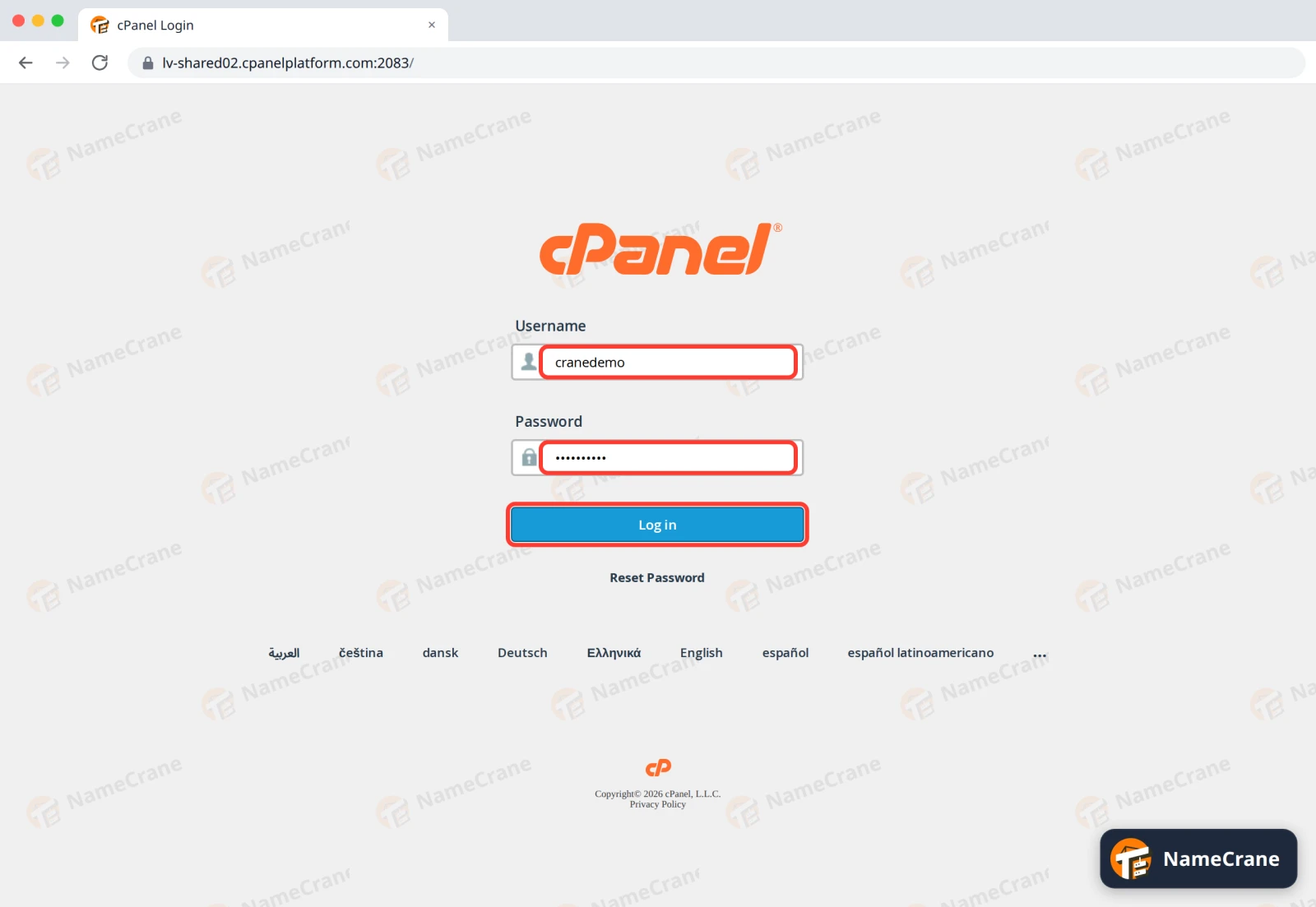
Open one of the addresses above. Enter your cPanel Username and Password, then click Log in.
-
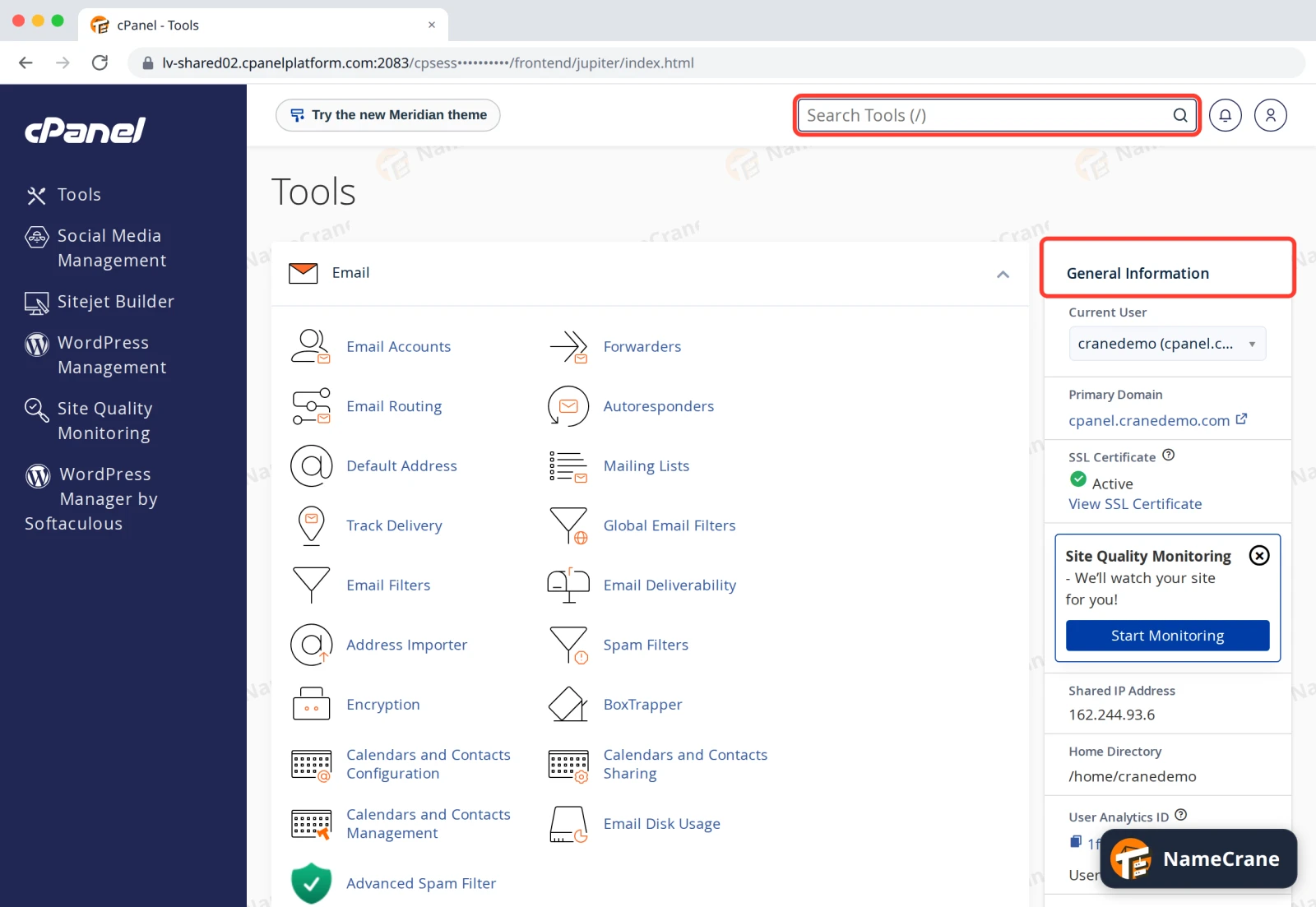
You’ll land on the cPanel home page. Use Search Tools at the top to jump to any feature, and check General Information on the right for your username, main domain and SSL status.
Troubleshooting
| Problem | What to do |
|---|---|
| It says the login is invalid | Check your username. It’s your cPanel username, not your email address. Passwords are case-sensitive. |
| I’ve forgotten my password | Click Reset Password under the login button, or log in to our client area and open cPanel from there. |
| The page won’t load | Try the server address with :2083. Some workplace networks block unusual ports, so try another network if it still won’t load. |
| I’m locked out after several tries | After repeated failed logins your IP address may be blocked for a while. Wait, or contact support to unblock it. |
Snagged on something? Contact support and we’ll get you sorted.