A Quick Tour of Your cPanel Dashboard
Last updated Changelog
On this page
When you log in, cPanel opens on its home page, Tools. Everything you need is reachable from here. This tour shows where things are, so the rest of our guides make sense straight away.
Find a tool
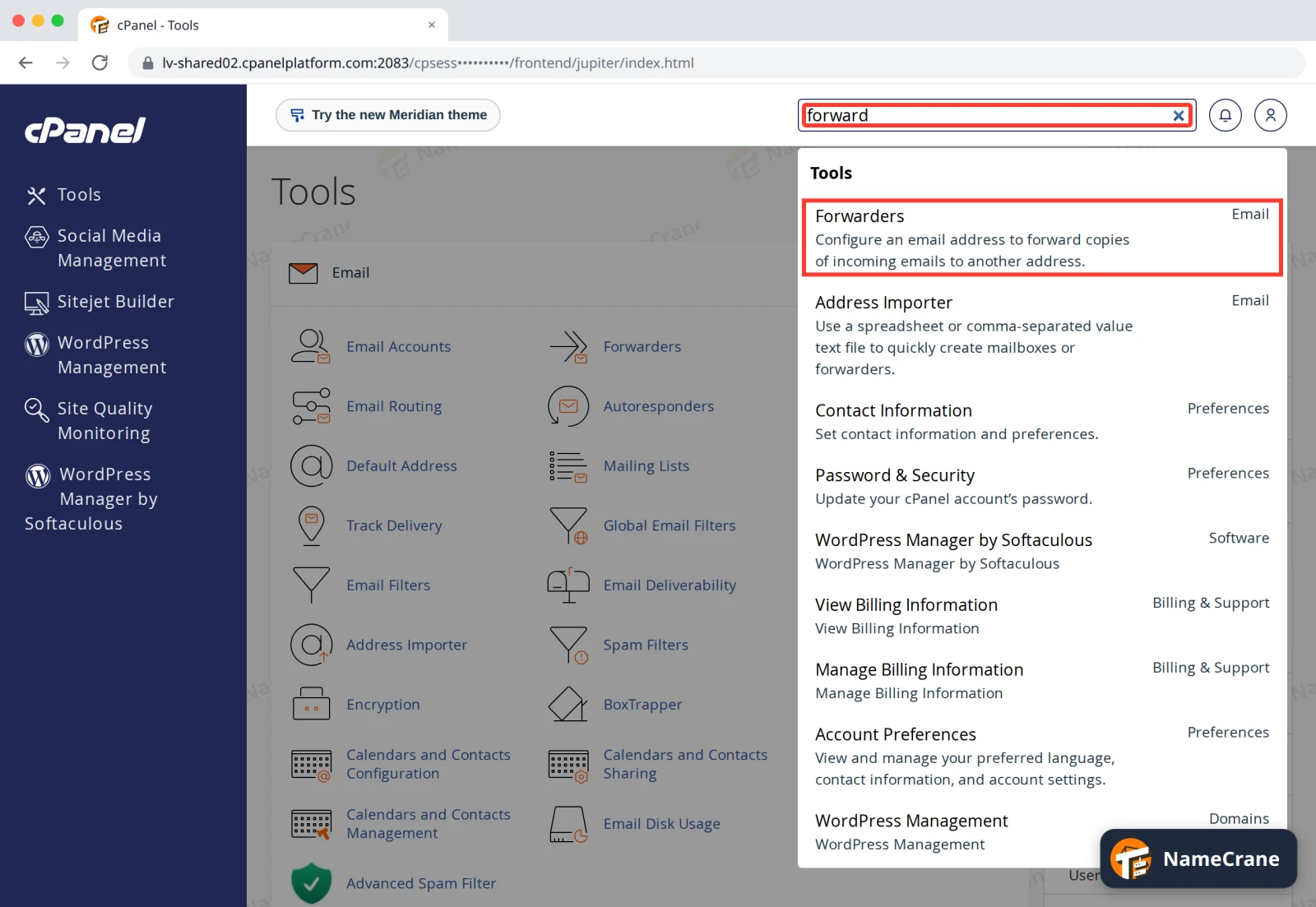
Search Tools at the top is the quickest way to anything. Start typing what you want, such as forward, and click the tool in the list. You can also press / on your keyboard to jump to the search box.
Browse the sections
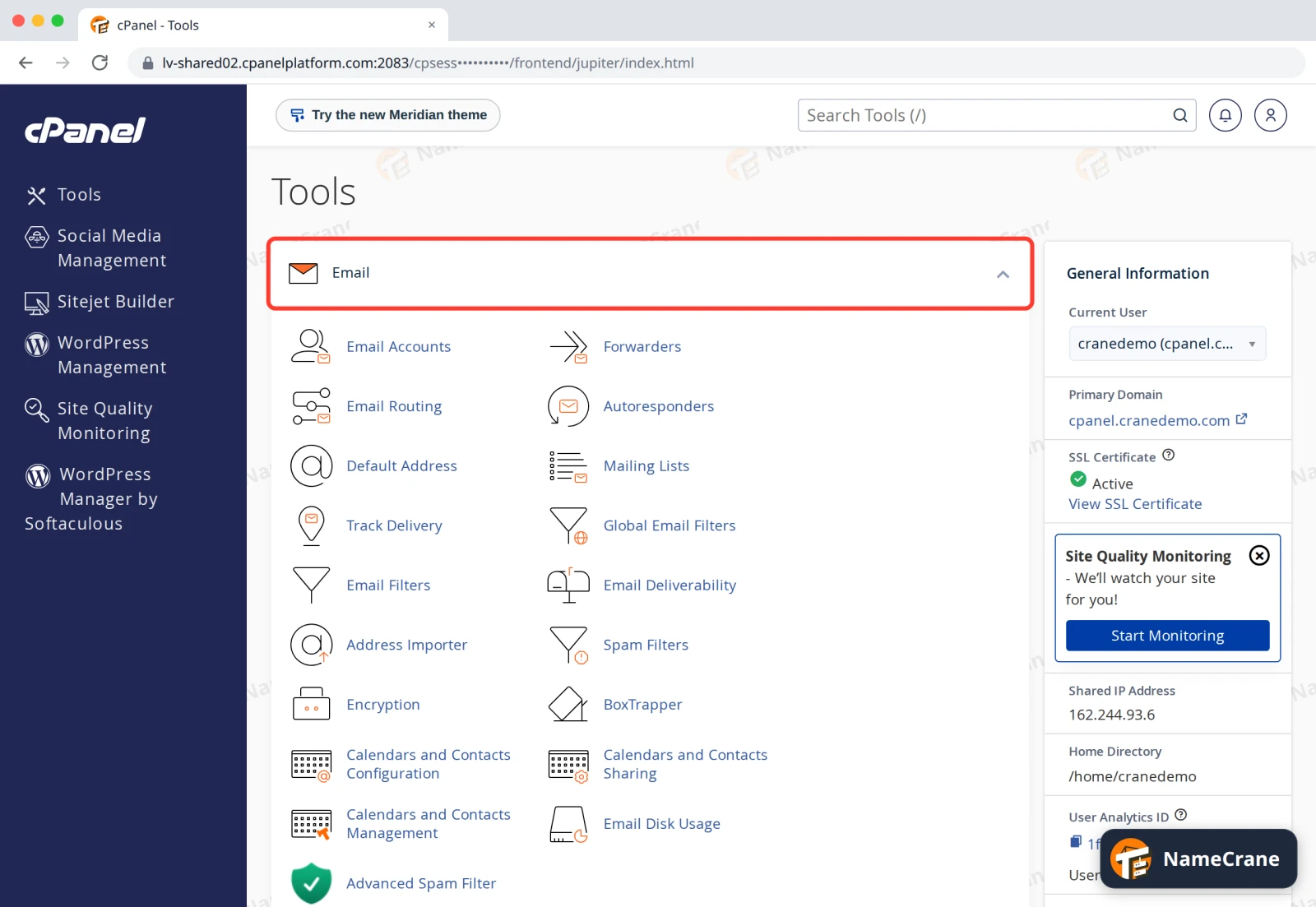
The tools are grouped into sections: Email, Files, Databases, Domains, Metrics, Security, Software, Advanced and Preferences. Click the − at the right end of a section’s title bar to fold it away, and + to open it again. The menu on the left has shortcuts to tools like WordPress Management and Sitejet Builder.
Your account details
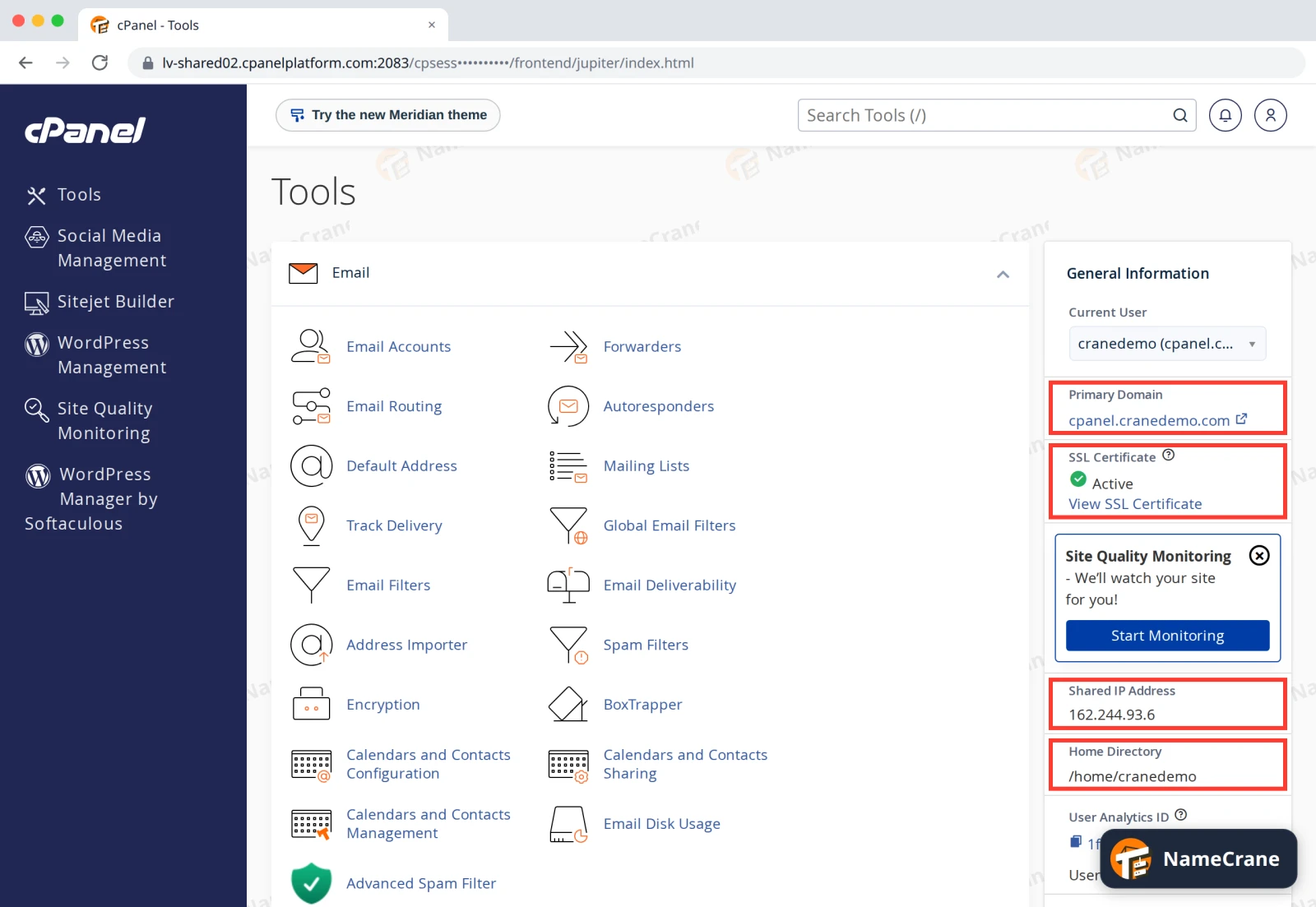
General Information on the right shows your main domain, whether its SSL certificate is active, your server’s Shared IP Address (you need it when you point a domain to us) and your Home Directory.
What you’ve used
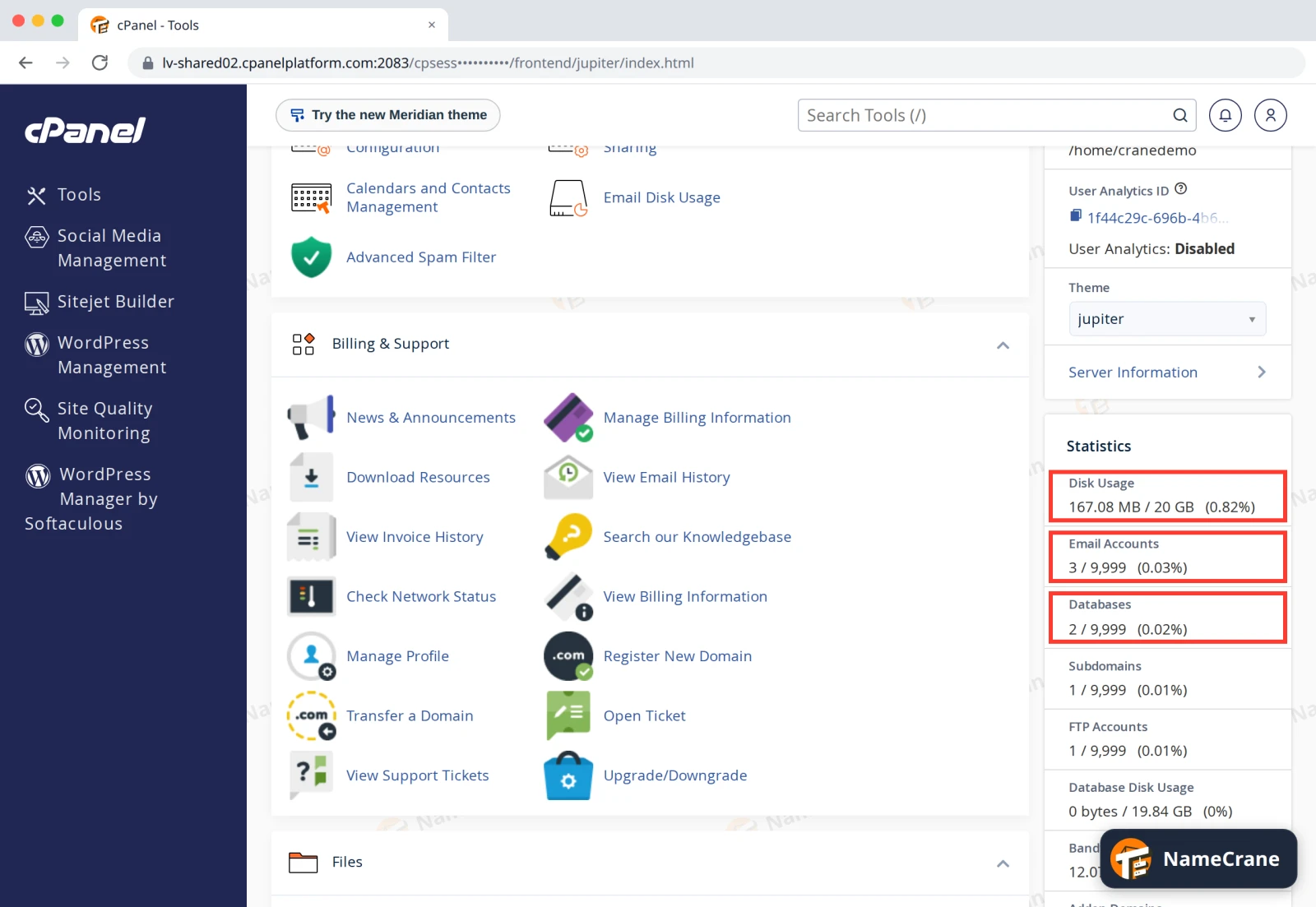
Further down, Statistics shows how much of your plan you’ve used, such as disk space, email accounts and databases. For more detail, see Check your disk space.
Billing and support
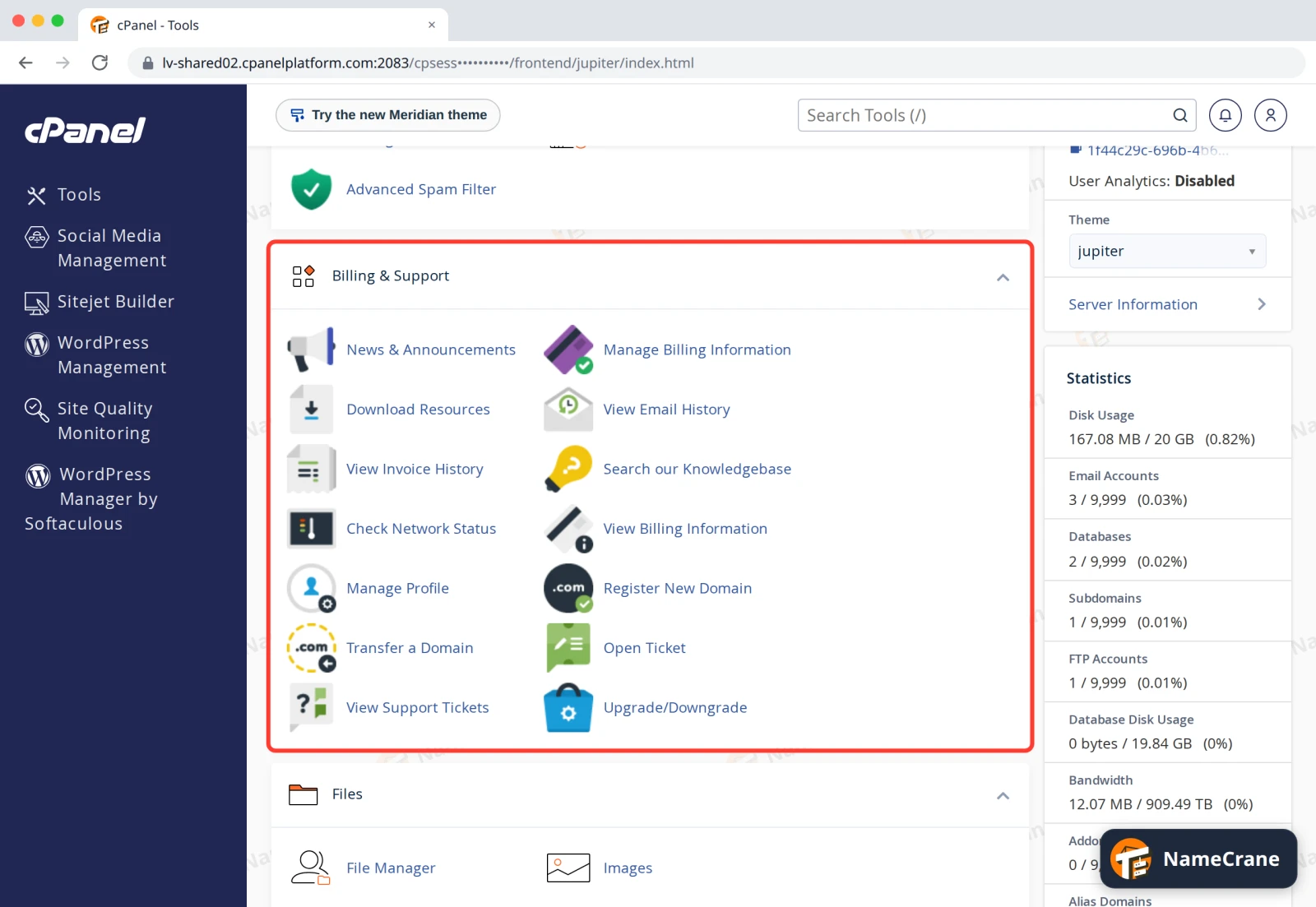
The Billing & Support section links to your NameCrane client area: invoices, support tickets, registering or transferring domains, and Upgrade/Downgrade for your plan. These links open in a new tab.
Your account menu
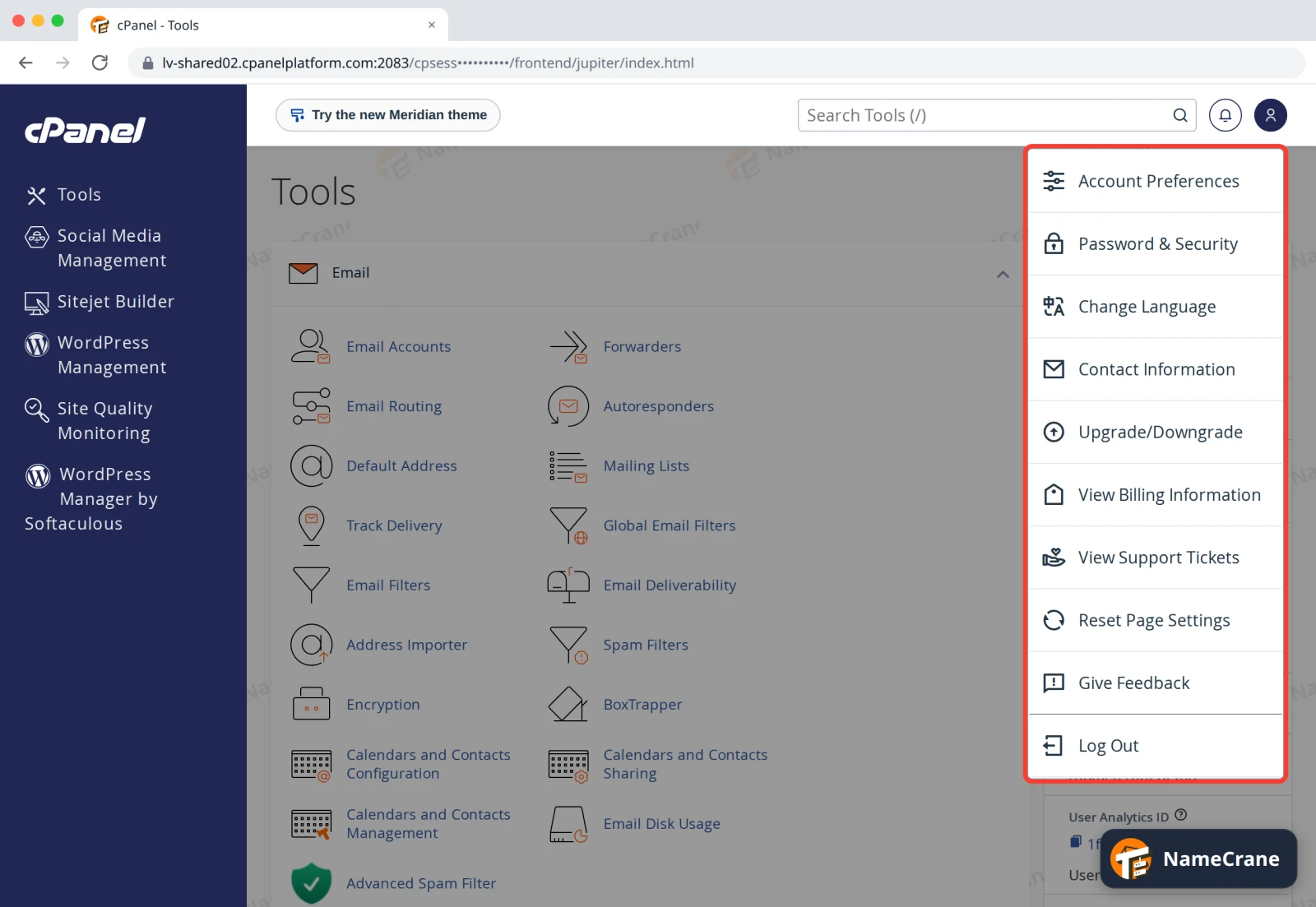
Click the person icon at the top right for Password & Security, Change Language, Contact Information and Log Out.
Note: You may see a Try the new Meridian theme button at the top. It switches cPanel to a different look. Our guides show the standard Jupiter look, so the steps match best if you stay on it.
Troubleshooting
| Problem | What to do |
|---|---|
| A section seems to be missing | It may be folded away. Click the + on its title bar, or search for the tool by name. |
| The layout looks different from our pictures | Check you’re not on the Meridian theme. Account menu › Reset Page Settings opens any sections you’ve folded away. |
| I can’t find a tool our guide mentions | Type its name into Search Tools. Some tools only appear if your plan includes them. |
Snagged on something? Contact support and we’ll get you sorted.