How to Upgrade or Downgrade a Customer's Package as a DirectAdmin Reseller
Last updated Changelog
On this page
When a customer needs more room, or wants to pay for less, move them to another package. Their website, email and files stay where they are; only their limits change. In this example we move our demo customer, customer, from Starter (5 GB) to Business (10 GB).
Before you start
The package you’re moving them to must already exist. See Create a hosting package.
Steps
-
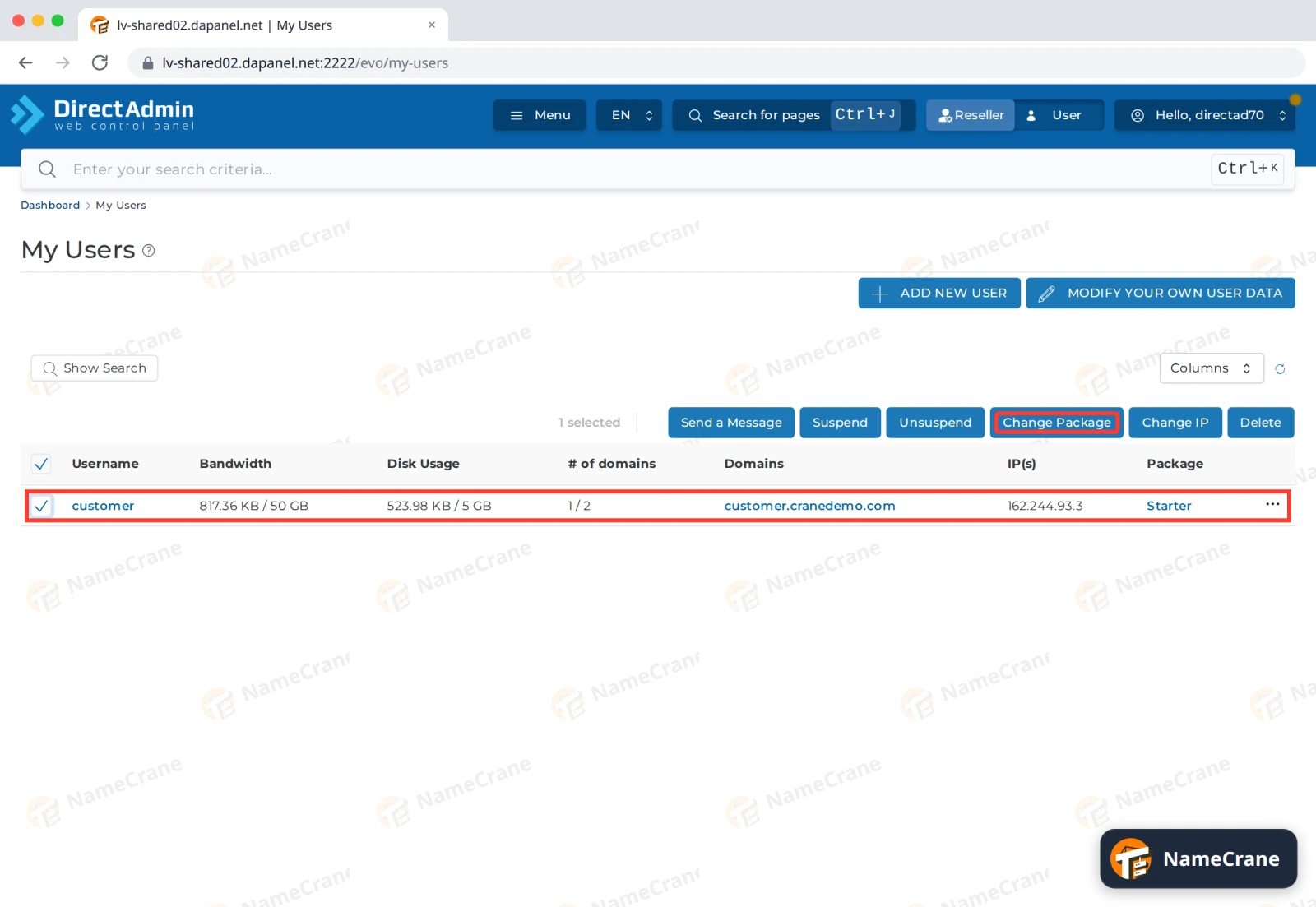
Log in to DirectAdmin, click Reseller in the top bar and open My Users. Tick the customer’s row and click Change Package.
-
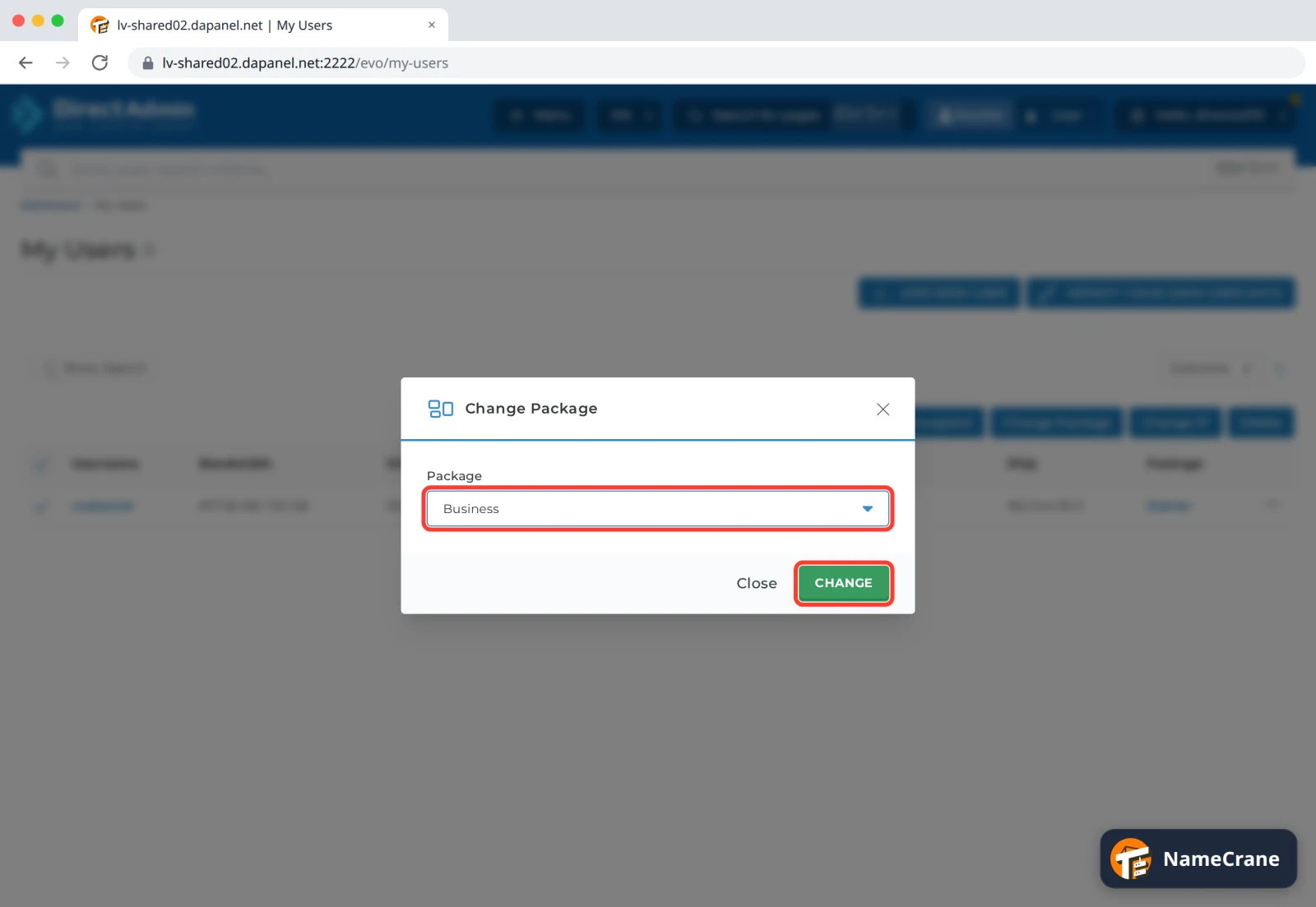
Choose the new Package and click CHANGE.
-
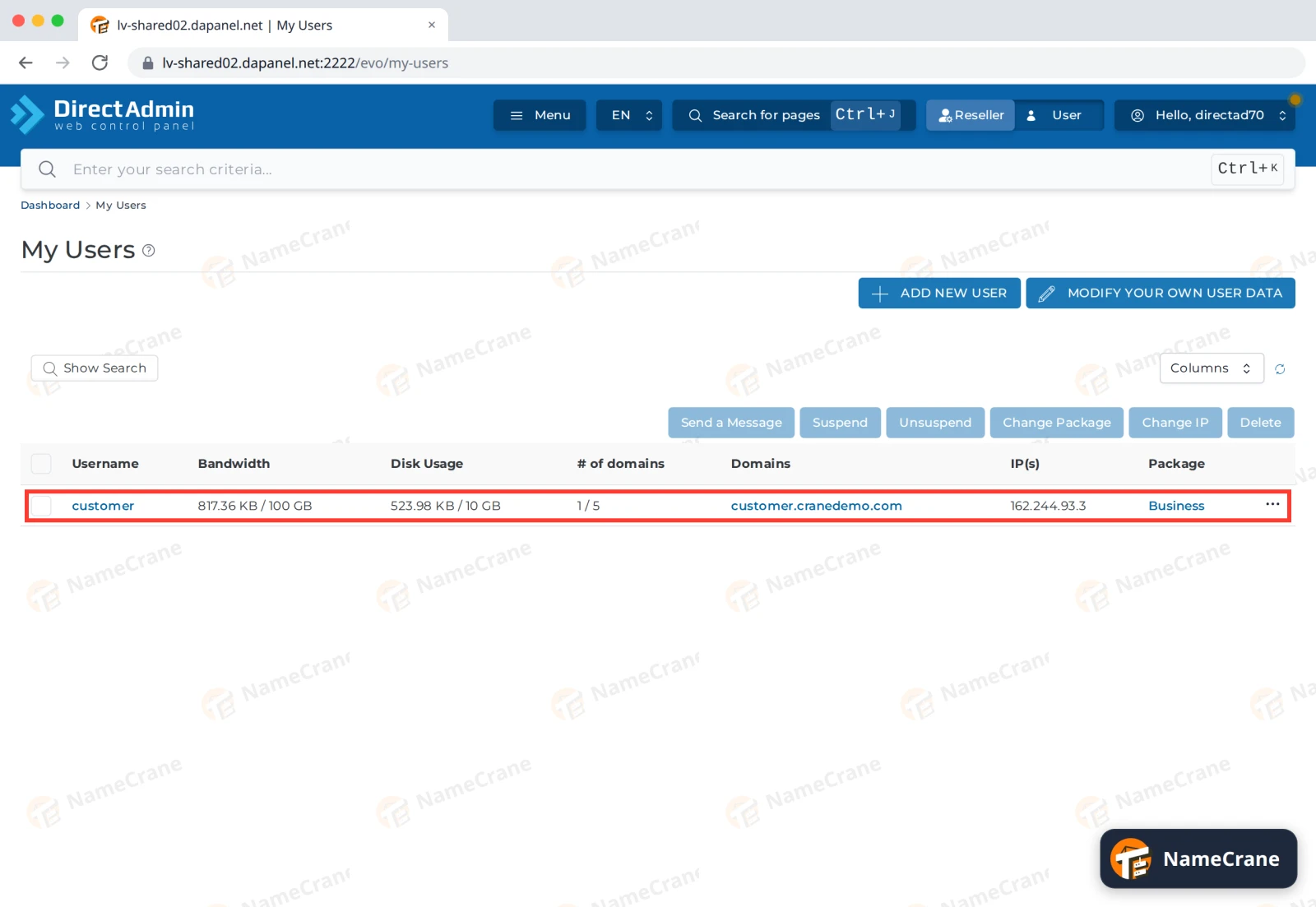
DirectAdmin confirms with Success. The customer’s row shows the new package and limits straight away.
-
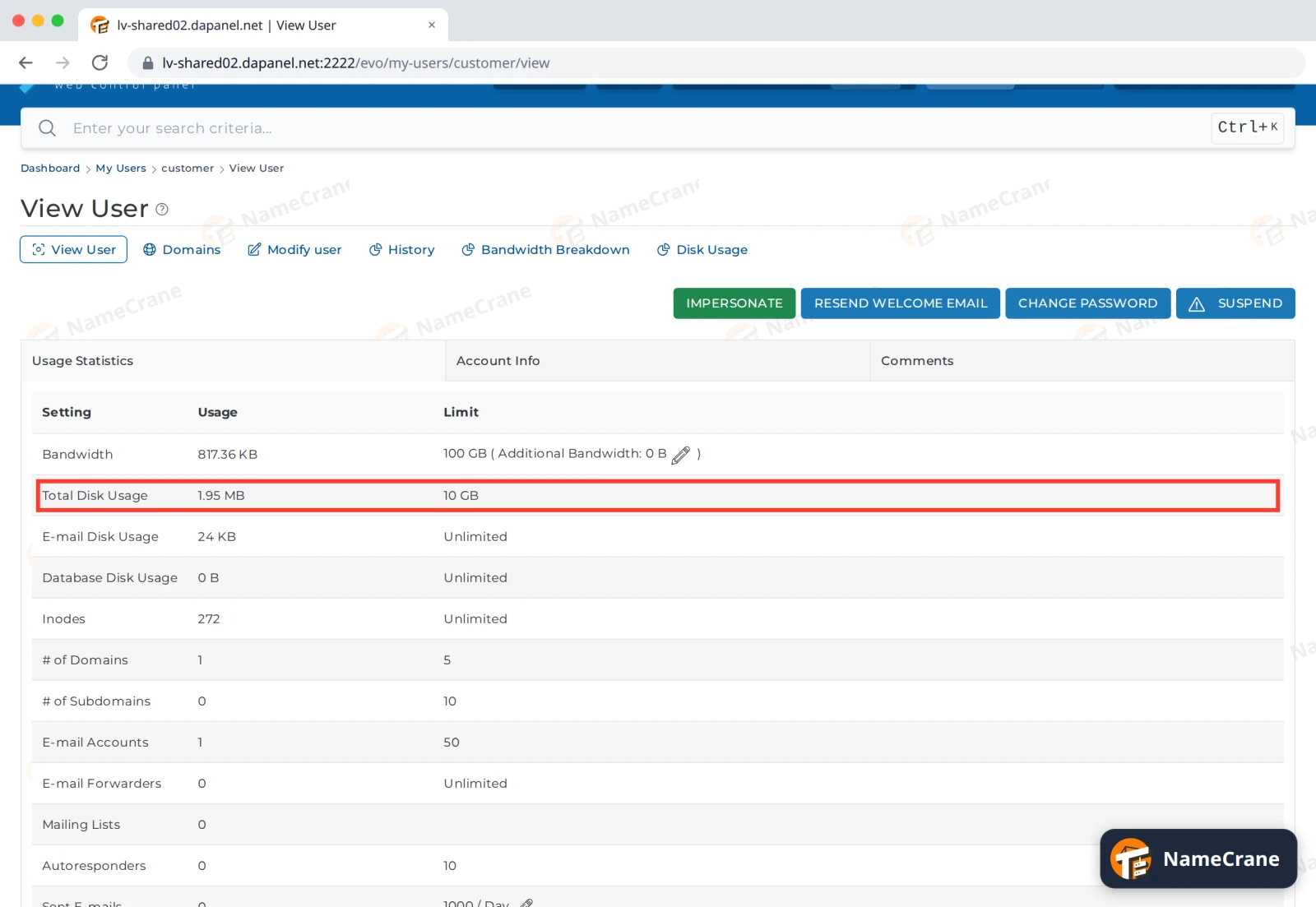
To check every limit, click the username. View User lists what they use against their new limits.
Note: Before you downgrade, check the customer’s usage on View User. If they already use more than the smaller package allows, they’ll be over their limits. With Suspend at Limit on in the package, DirectAdmin can suspend them.
Troubleshooting
| Problem | What to do |
|---|---|
| The package I want isn’t in the list | Create it first under Manage User Packages. |
| Change Package is greyed out | Tick the customer’s row first. |
| I want to change one limit for one customer only | Click the username, open Modify user and change that limit there. |
Snagged on something? Contact support and we’ll get you sorted.