How to Fix Common Website Errors (404, 403, 500, 508)
Last updated Changelog
On this page
When something’s wrong with a website, the browser shows an error page with a number. Here’s what the common ones look like on our servers, and how to fix them. We made each error on purpose on our test site, blog.cpanel.cranedemo.com.
404 Not Found
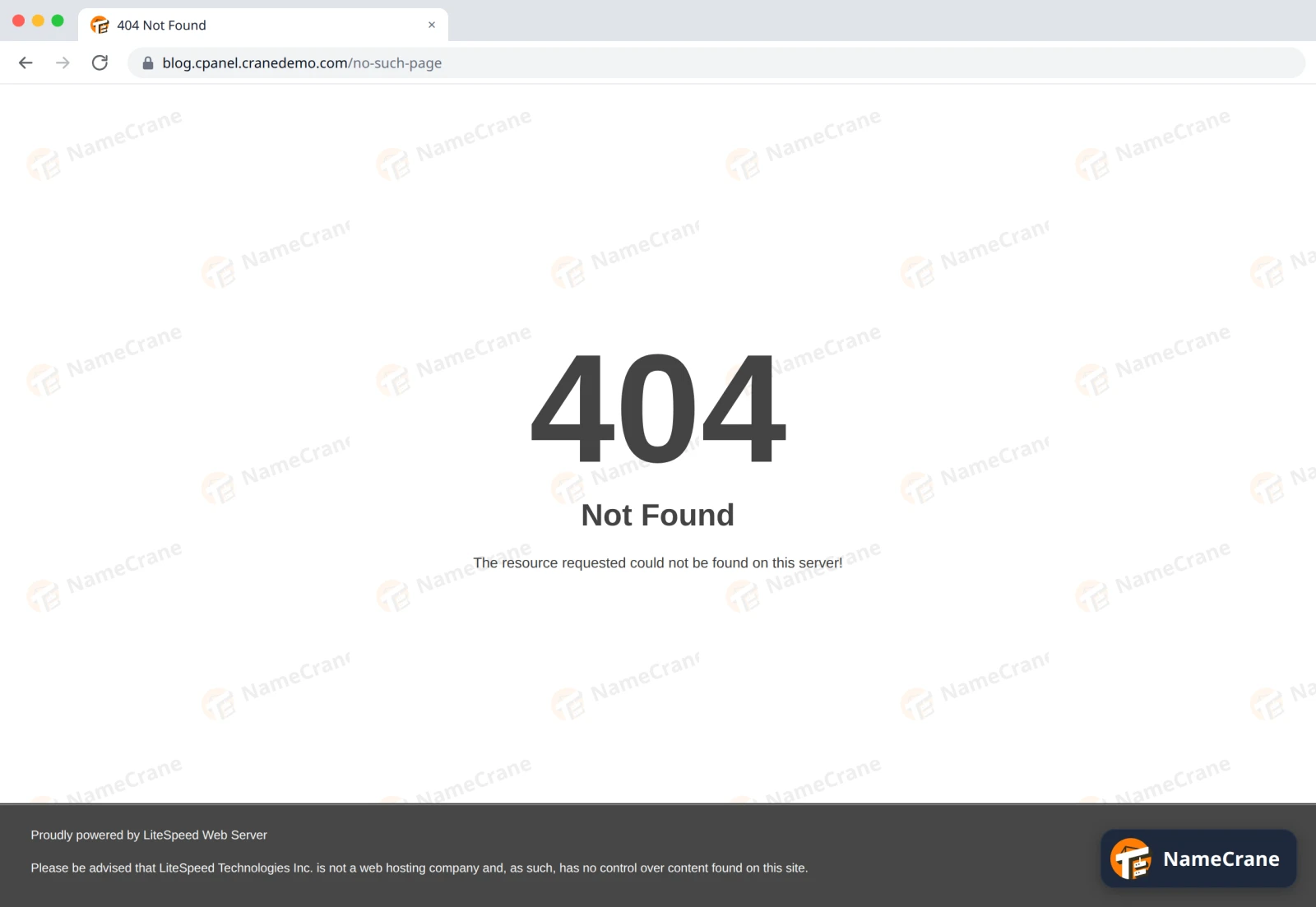
The page or file doesn’t exist at that address.
- Check the address for typos. Capital letters matter:
About.htmlandabout.htmlare different files. - Check the file is in the right folder. Your main domain’s files go in
public_html. Other domains have their own folder: see File Manager. - On WordPress, if every page except the home page shows 404, log in to WordPress, go to Settings › Permalinks and click Save Changes. That rewrites the
.htaccessfile WordPress needs.
403 Forbidden
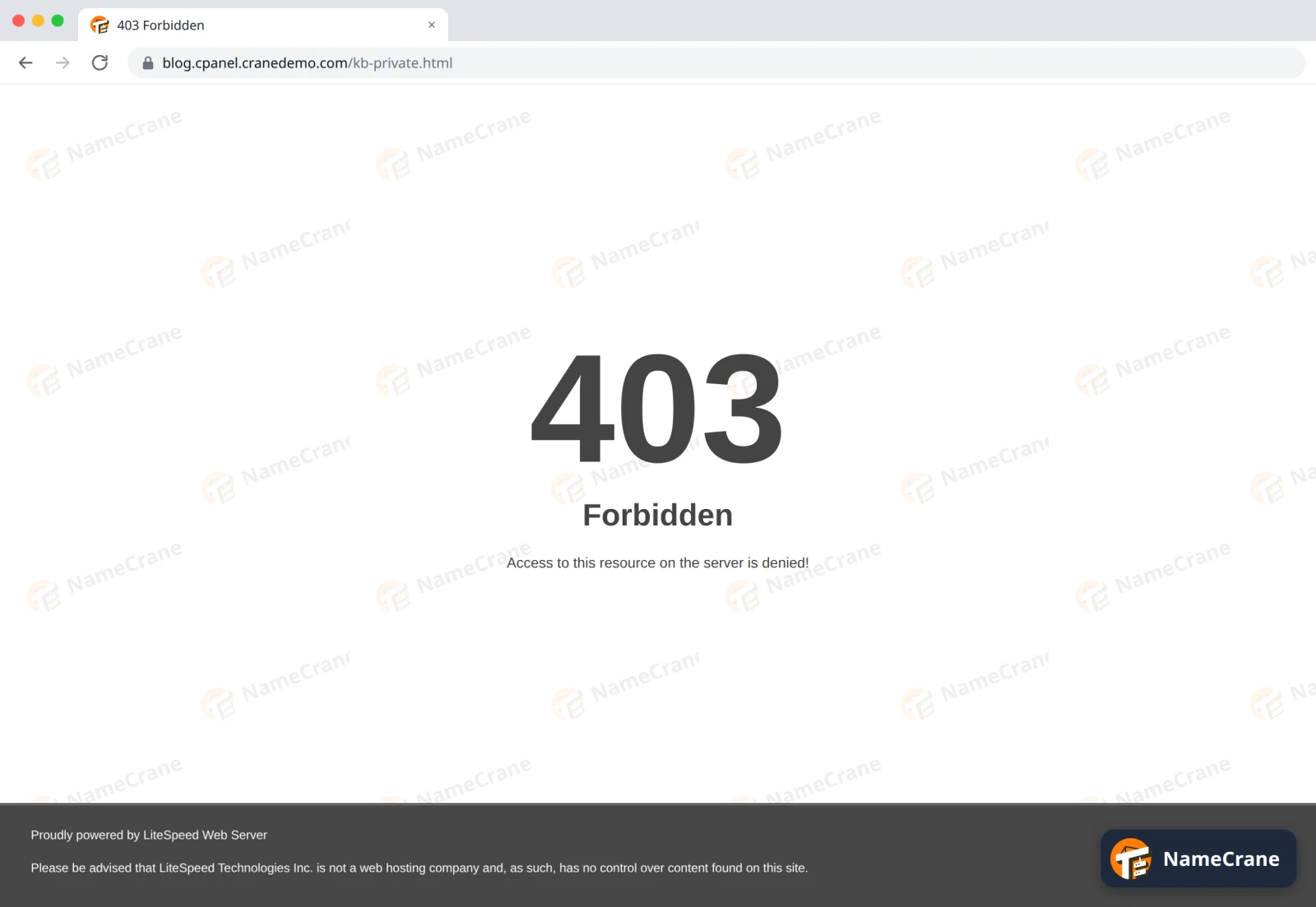
The file exists, but the server won’t show it. We caused this one by removing all permissions from a file.
- Check the permissions. In File Manager, right-click the file and choose Change Permissions. Files should be
644and folders755. - Check you haven’t blocked yourself. A blocked IP address gets 403 on every page. See Block an IP address.
- Check
.htaccess. ADenyorRequireline in the folder’s.htaccessfile can block everyone.
500 Internal Server Error
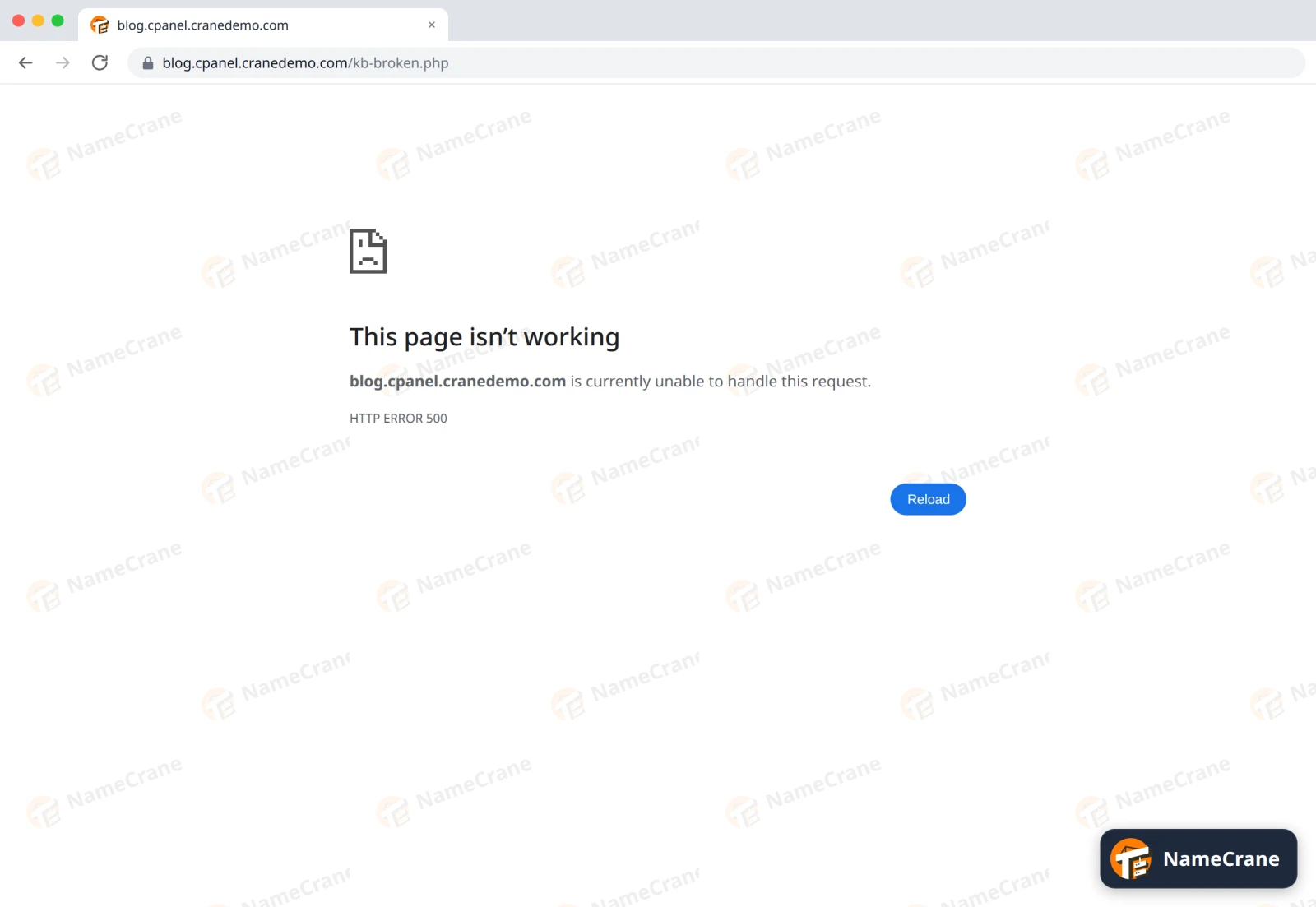
The website’s code crashed. In Chrome it looks like this; other browsers show a plain 500 Internal Server Error. We caused it with a PHP file that calls a function that doesn’t exist.
- Find the error message. Open File Manager, go to the
logsfolder in your home folder and openphp.error.log. The newest lines are at the bottom. In our test it saidPHP Fatal error: Uncaught Error: Call to undefined functionwith the file name and line number. - Undo the last change. On WordPress, the error usually names a plugin or theme folder. Rename that folder in File Manager to switch the plugin off, and the site comes back.
- Check your PHP version. If the site broke right after you changed PHP version, switch back: see PHP version and settings.
508 Resource Limit Is Reached
Your site used all the memory or processes your plan allows, so the server turned some visitors away for a moment. See Check your CPU and memory usage for which limit it hit and what to do. In our test, a burst of 30 slow page requests made the site wait rather than fail, so you may notice a slow site before you ever see this error.
Troubleshooting
| Problem | What to do |
|---|---|
| “Error establishing a database connection” (WordPress) | The database details in wp-config.php don’t match. Check the database name, user and password in Manage My Databases, and that the user is added to the database. |
| “Your connection is not private” | The site’s SSL certificate is missing or doesn’t cover that address yet. See Free SSL. |
| “Index of /” and a list of files | The folder has no home page. Upload an index.html or index.php. |
| “ERR_TOO_MANY_REDIRECTS” | Two redirects send visitors back and forth. Check your redirects, and that your WordPress address under Settings › General starts with https://. |
| The error only shows for you | Clear your browser cache, or try a private window or another network. If others can see the site, your IP address may be blocked. |
Snagged on something? Contact support and we’ll get you sorted.