How to Put Your Own Logo and Colours on DirectAdmin as a Reseller
Last updated Changelog
On this page
Your customers use DirectAdmin every time they manage their site, so it’s a good place for your brand. With Customize Evolution Skin you can replace the DirectAdmin logo with your own and use your colours, for every customer you host. In this example we brand DirectAdmin for our demo reseller, Crane Demo Hosting.
Before you start
Have these images ready. PNG, JPG, SVG, WebP, GIF and ICO files all work.
| Image | Size | Where customers see it |
|---|---|---|
| Logo | About 580 × 130 pixels or bigger | The top bar in layouts that have one. Make one version for a light background and one for a dark background. |
| Symbol | At least 130 × 130 pixels, square | The top of the menu column, in layouts without a top bar. Again, one for light and one for dark. |
| Favicon | At least 64 × 64 pixels, square | The small icon in the browser tab. |
Steps
-
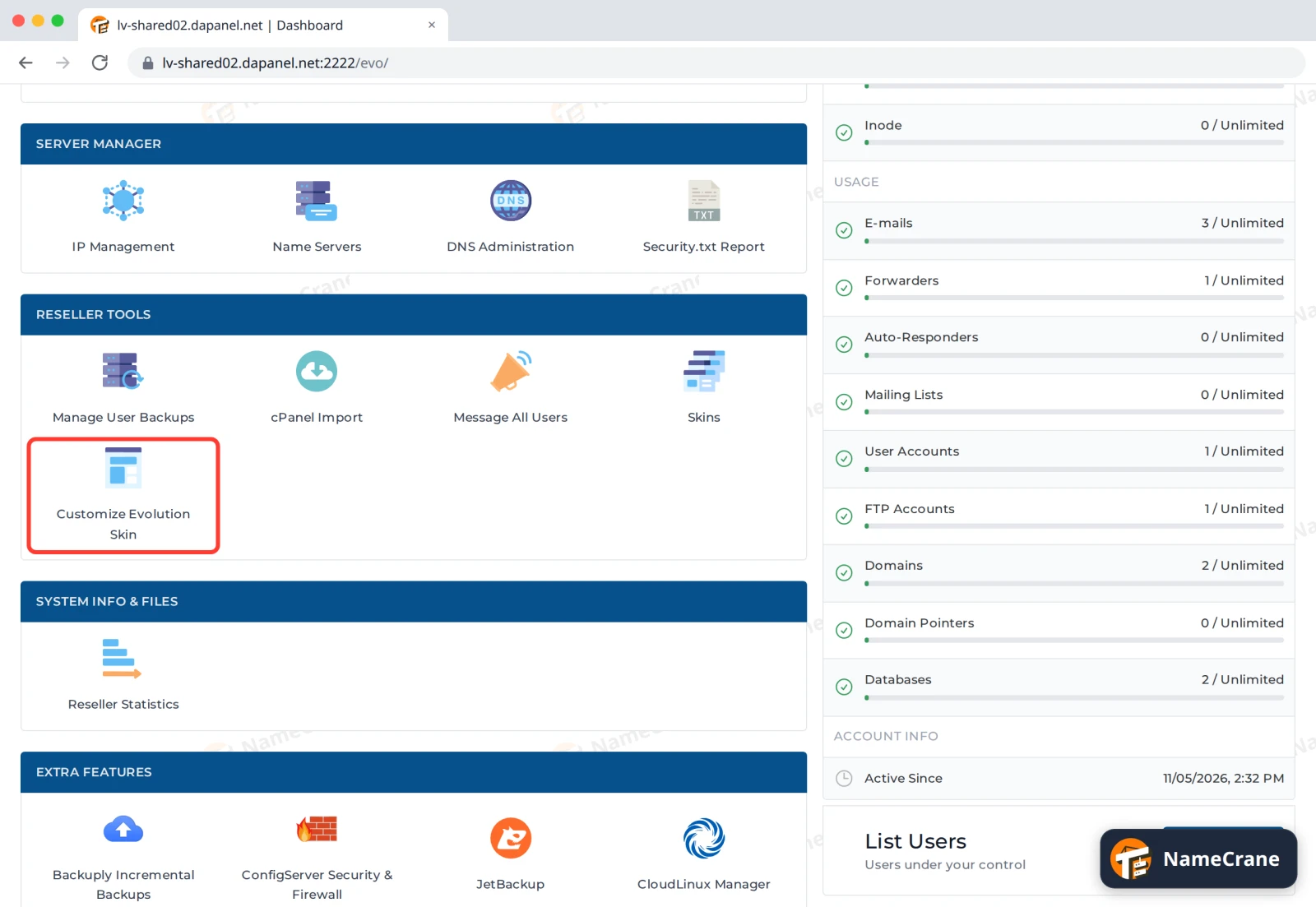
Log in to DirectAdmin and click Reseller in the top bar. In the Reseller Tools section, click Customize Evolution Skin.
-
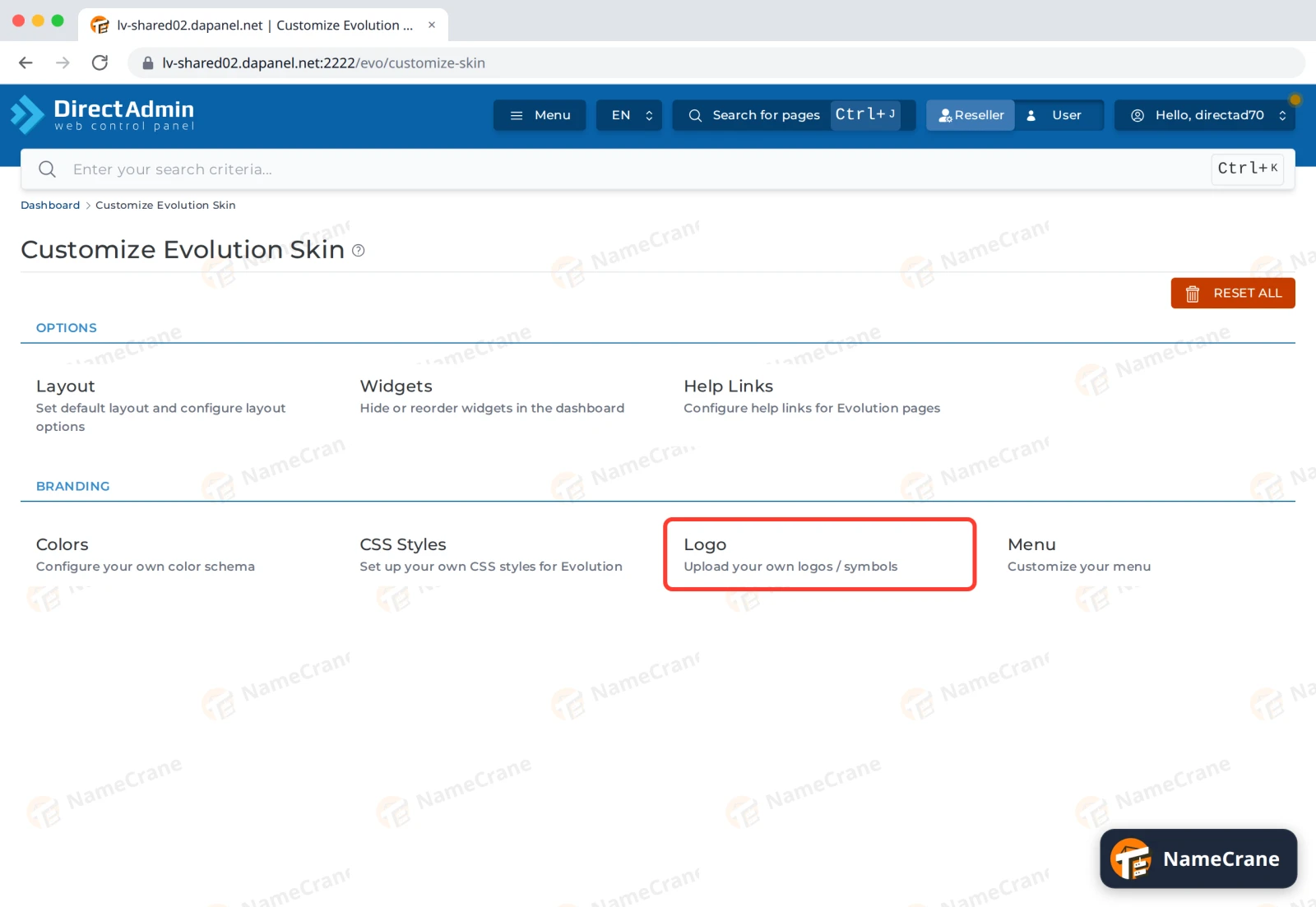
Under Branding, click Logo.
-
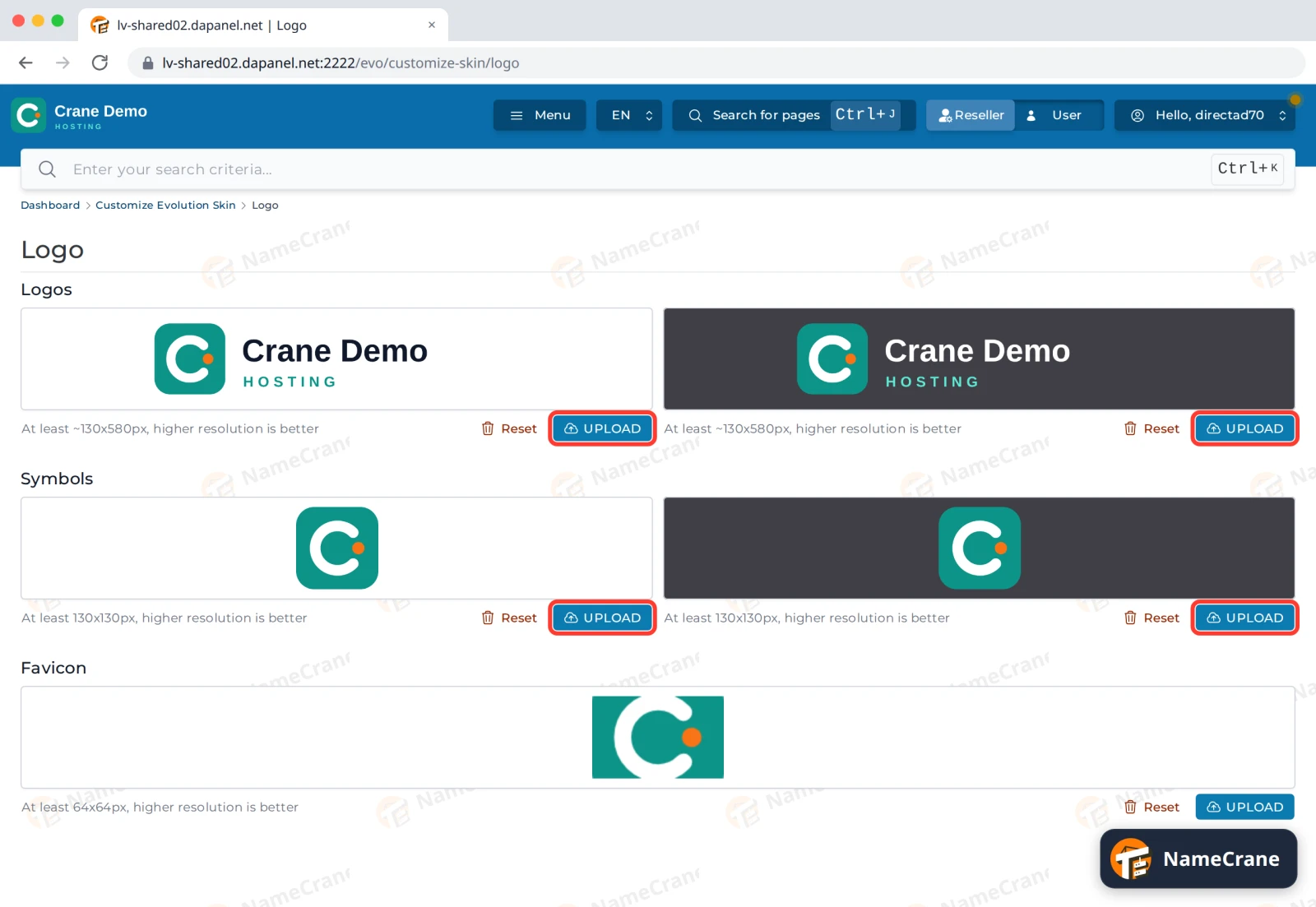
Click UPLOAD under each picture and choose your image: the logo for a light background on the left, the dark one on the right, then the two Symbols and the Favicon. Each one saves as soon as it uploads. If DirectAdmin says the image size exceeds the recommended limit, click CONFIRM to upload it anyway.
-
Go back to Customize Evolution Skin and click Colors. Under Layouts, enter your brand colour as a hex code, such as
#134E4A, for Standard, Sidebar, Grid and Refreshed. Customers can switch layouts, so set all four. DirectAdmin uses this colour for the menus and other parts of the layout.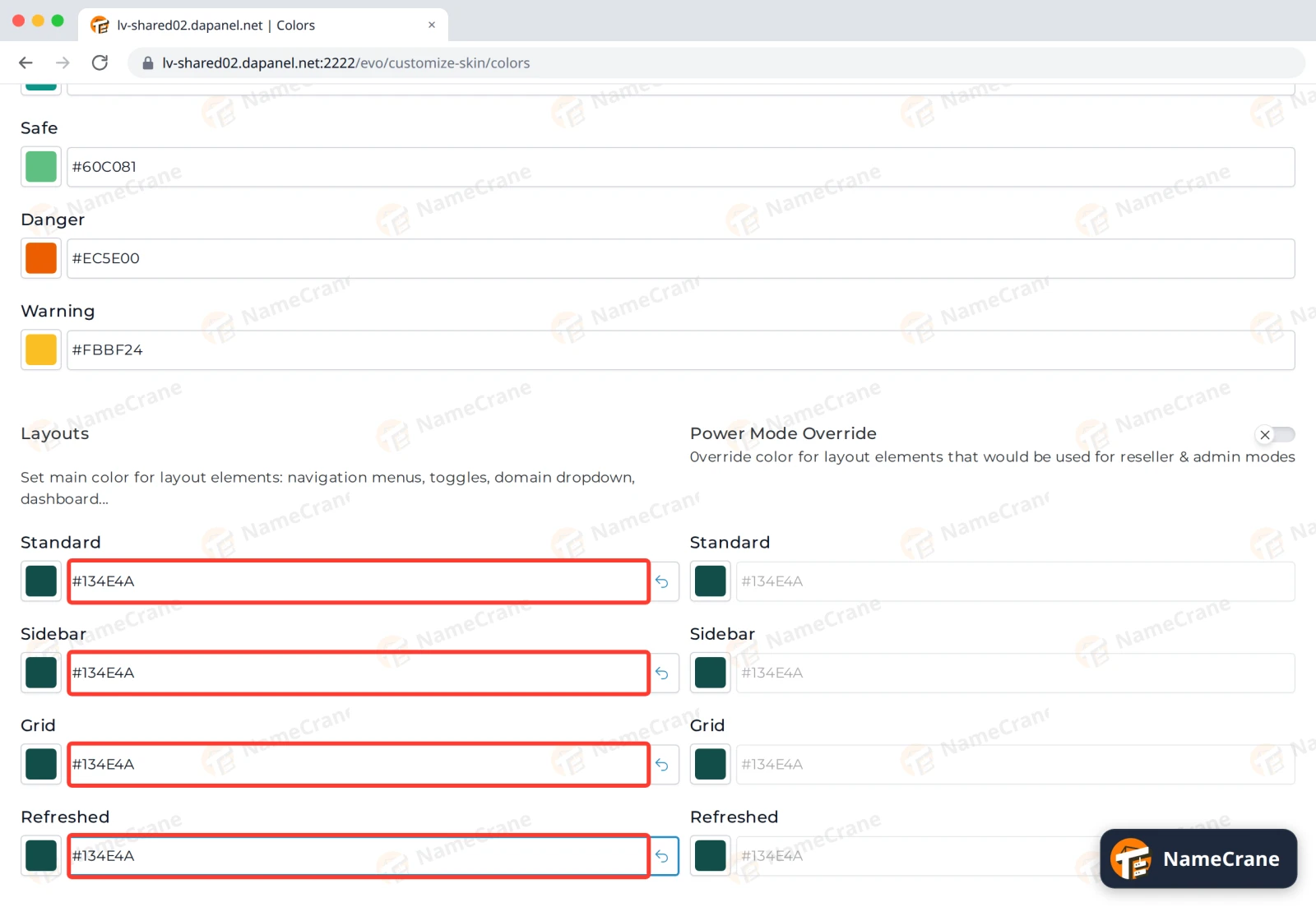
-
At the top, set Primary if you want buttons and highlights in your colour too, such as
#0D9488. Then click SAVE CHANGES.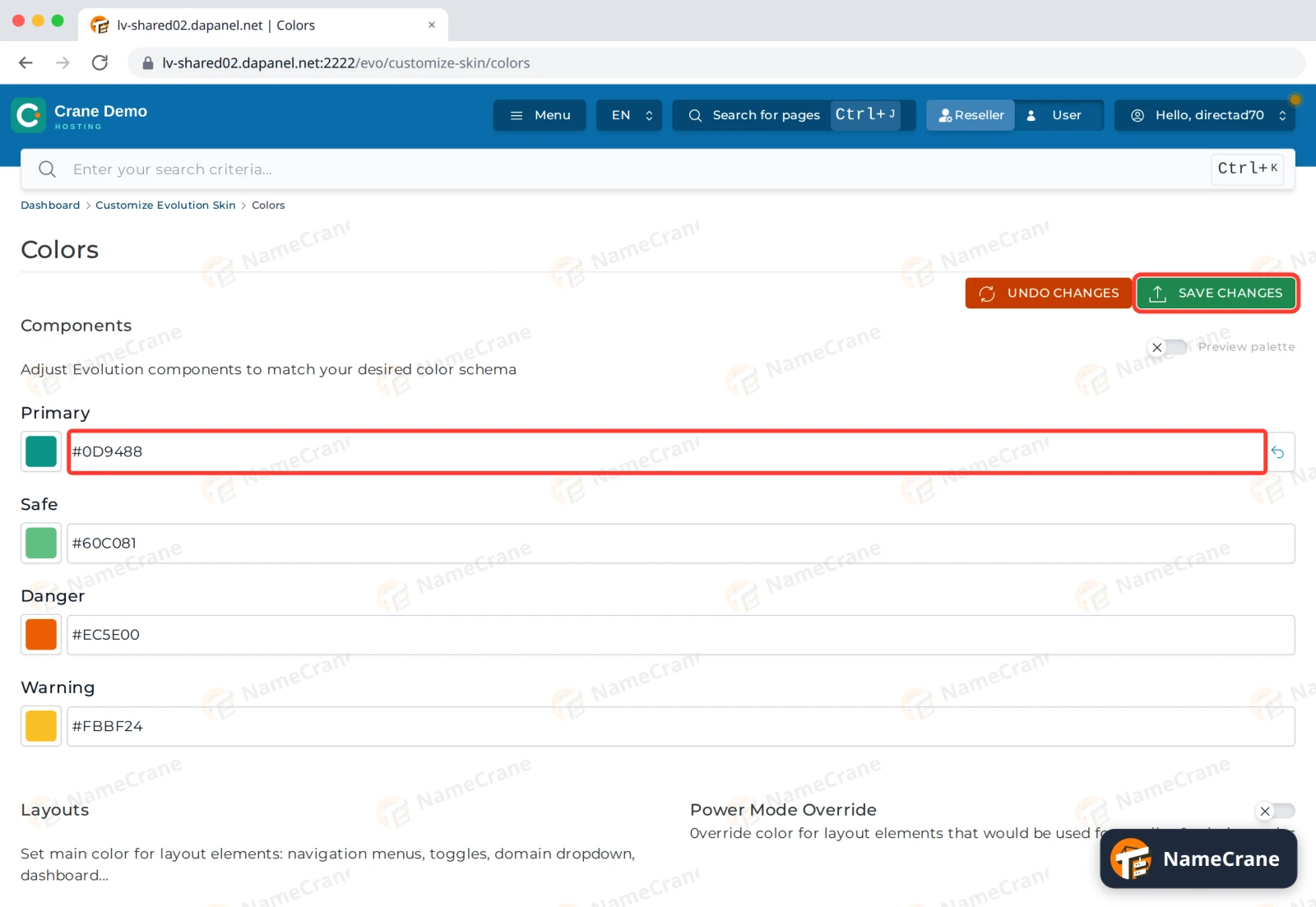
-
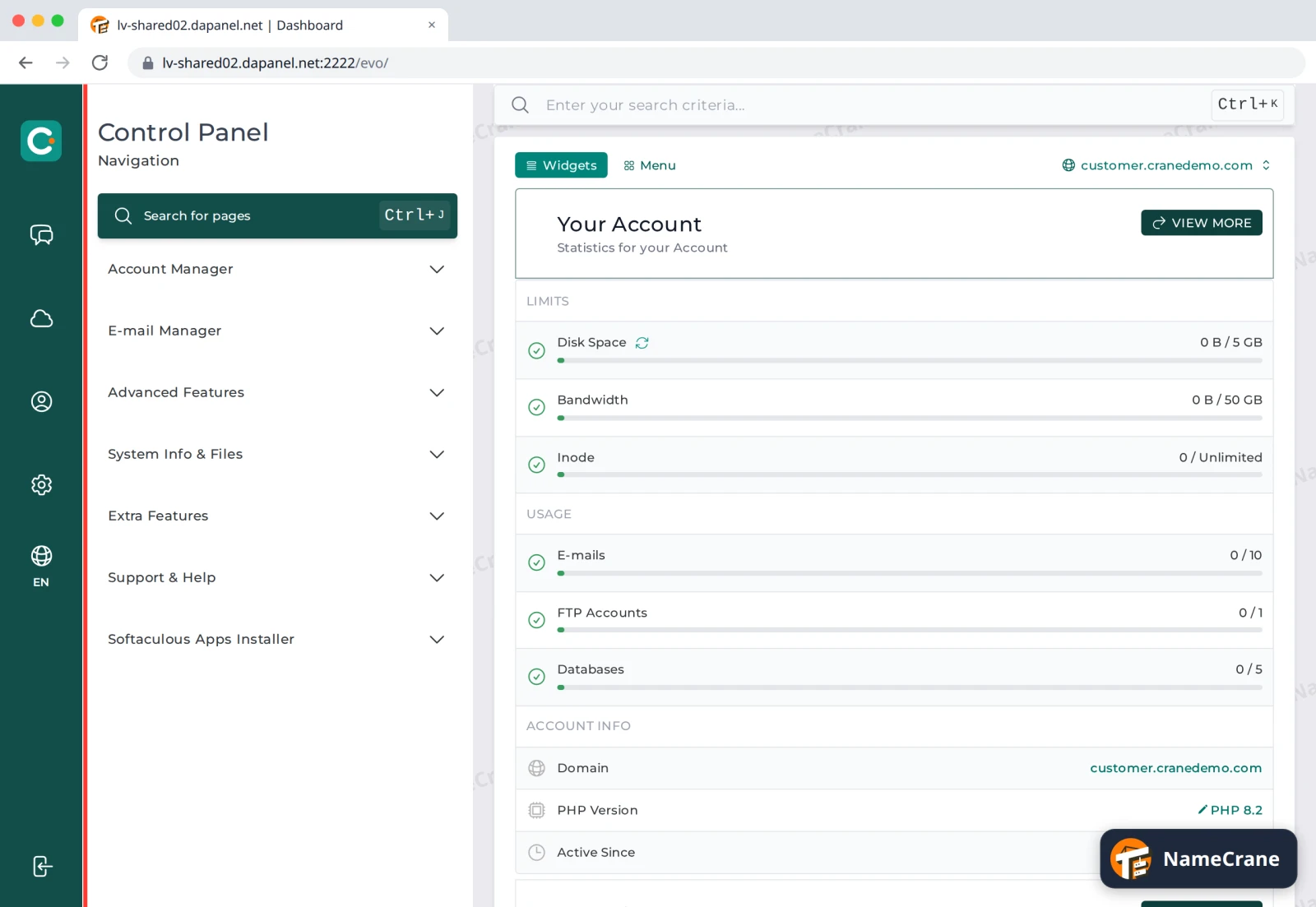
Your customers see your brand the next time they log in. Here’s a customer account in DirectAdmin’s default Refreshed layout, with the menu in our colour and our symbol at the top.
Tip: Paste each colour code in one go, or click the coloured square next to the box to pick a colour. If you type the Primary code one character at a time, DirectAdmin can hide the box halfway through.
Troubleshooting
| Problem | What to do |
|---|---|
| The Primary box disappeared while I typed | Reload the page, then paste the whole code (for example #0D9488) into the box instead of typing it. |
| My colours were gone when I came back | Colours only save when you click SAVE CHANGES at the top of the Colors page. |
| I want the standard DirectAdmin look back | On Logo, click Reset under each picture. On Colors, click RESET TO DEFAULTS. |
Snagged on something? Contact support and we’ll get you sorted.