How to Password Protect a Folder on Your Website in cPanel
Last updated Changelog
On this page
Directory Privacy puts a password on a folder of your website. Anyone who opens a page in that folder sees a login box and needs a username and password to get in. It’s a quick way to hide a staging site, a members area or files for one client. In this example we’ll protect yourdomain.com/members.
Steps
-
Log in to cPanel. In the Files section, click Directory Privacy.
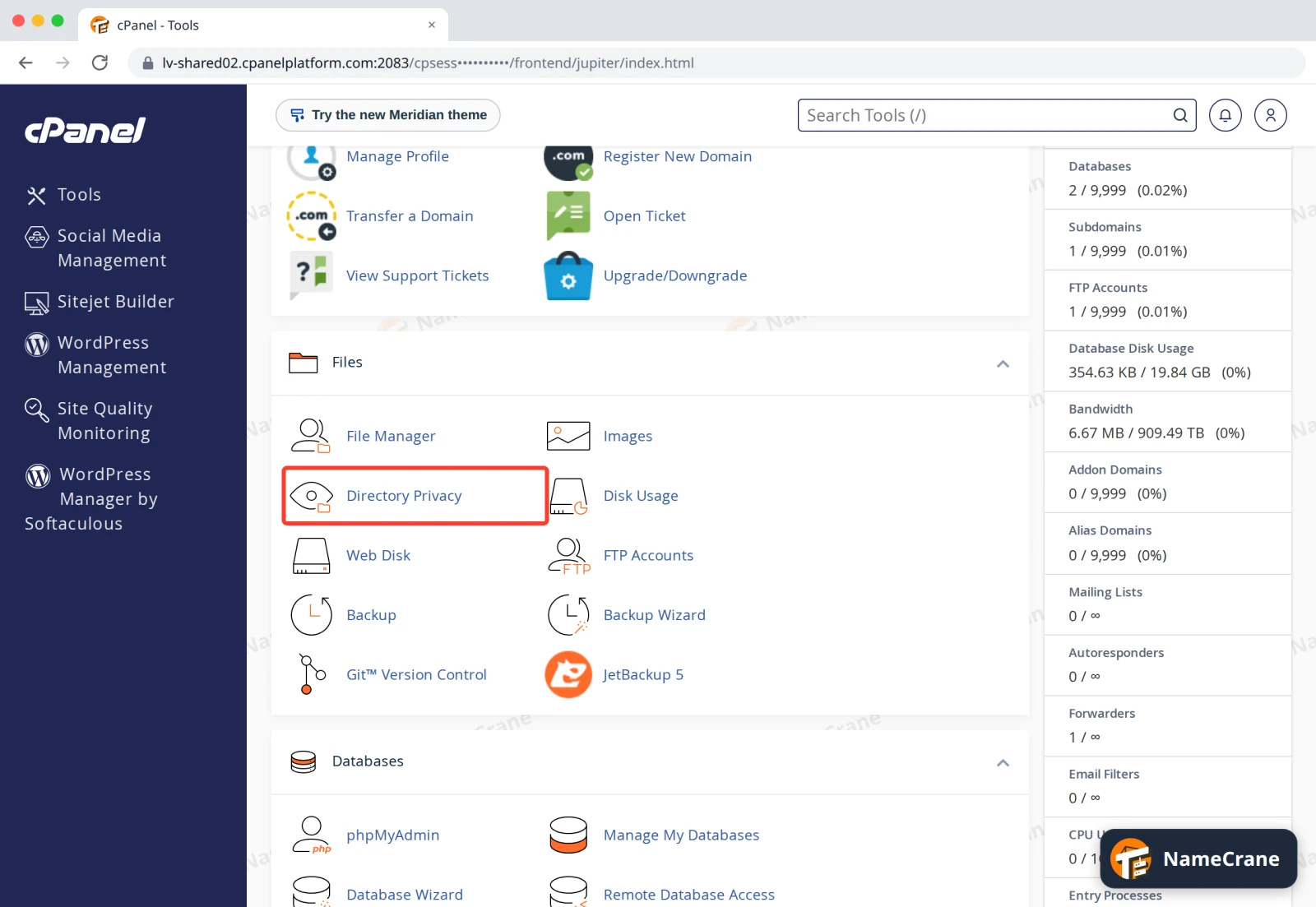
-
Click public_html to open your website’s folder. Find the folder you want to protect and click Edit next to it.
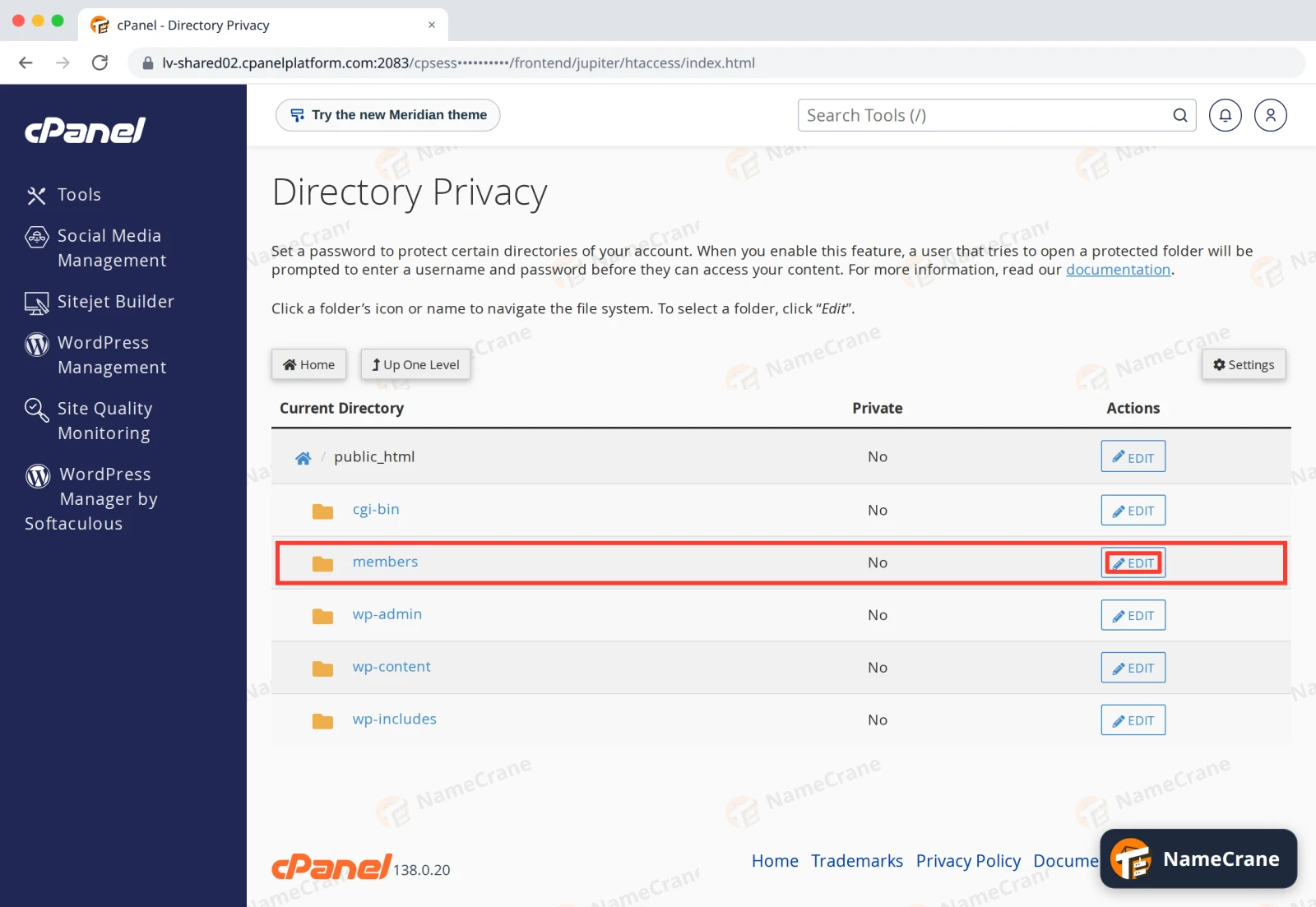
-
Tick Password protect this directory. Type a name for the protected area: visitors see it in the login box. Click Save, then Go Back.
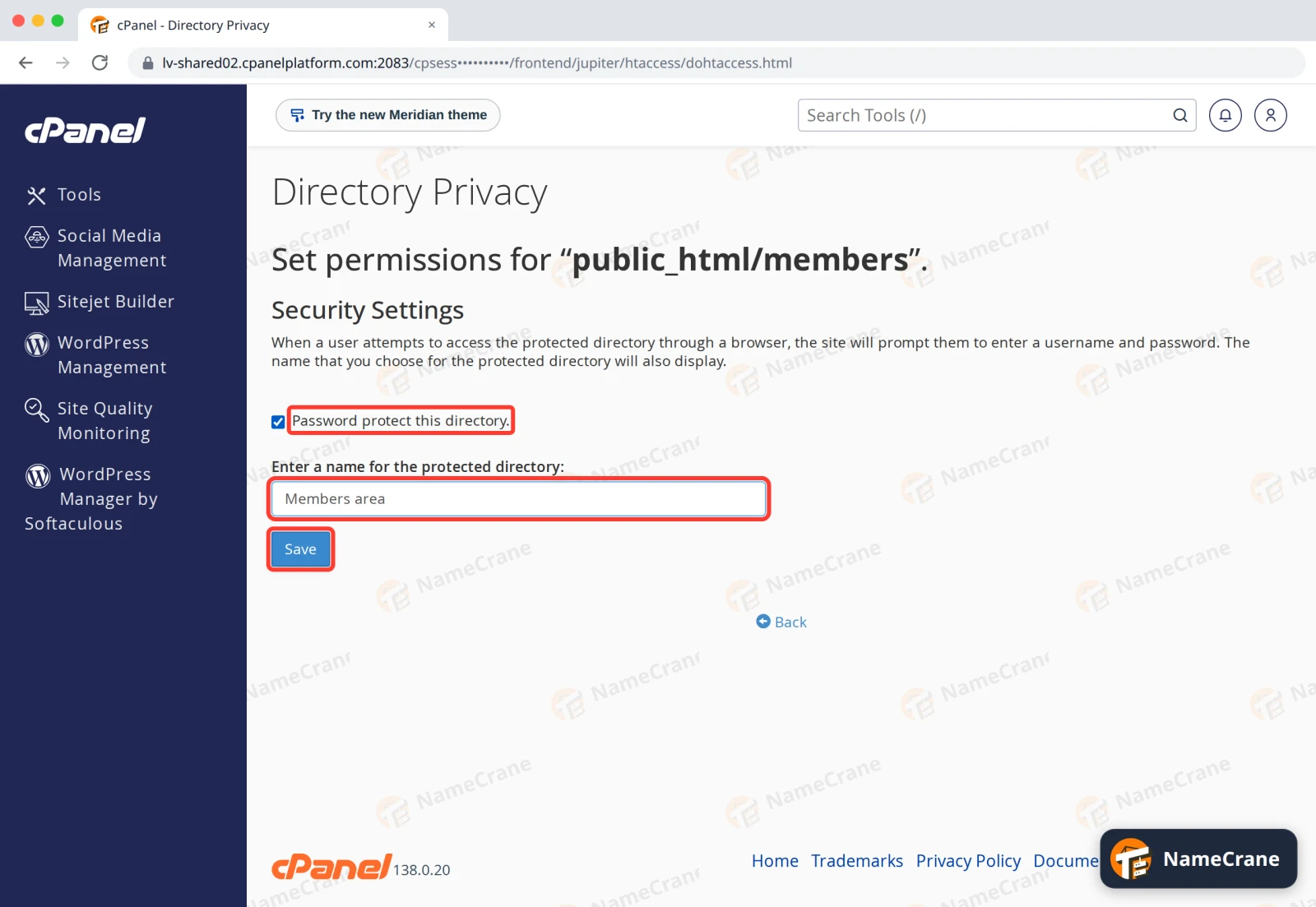
-
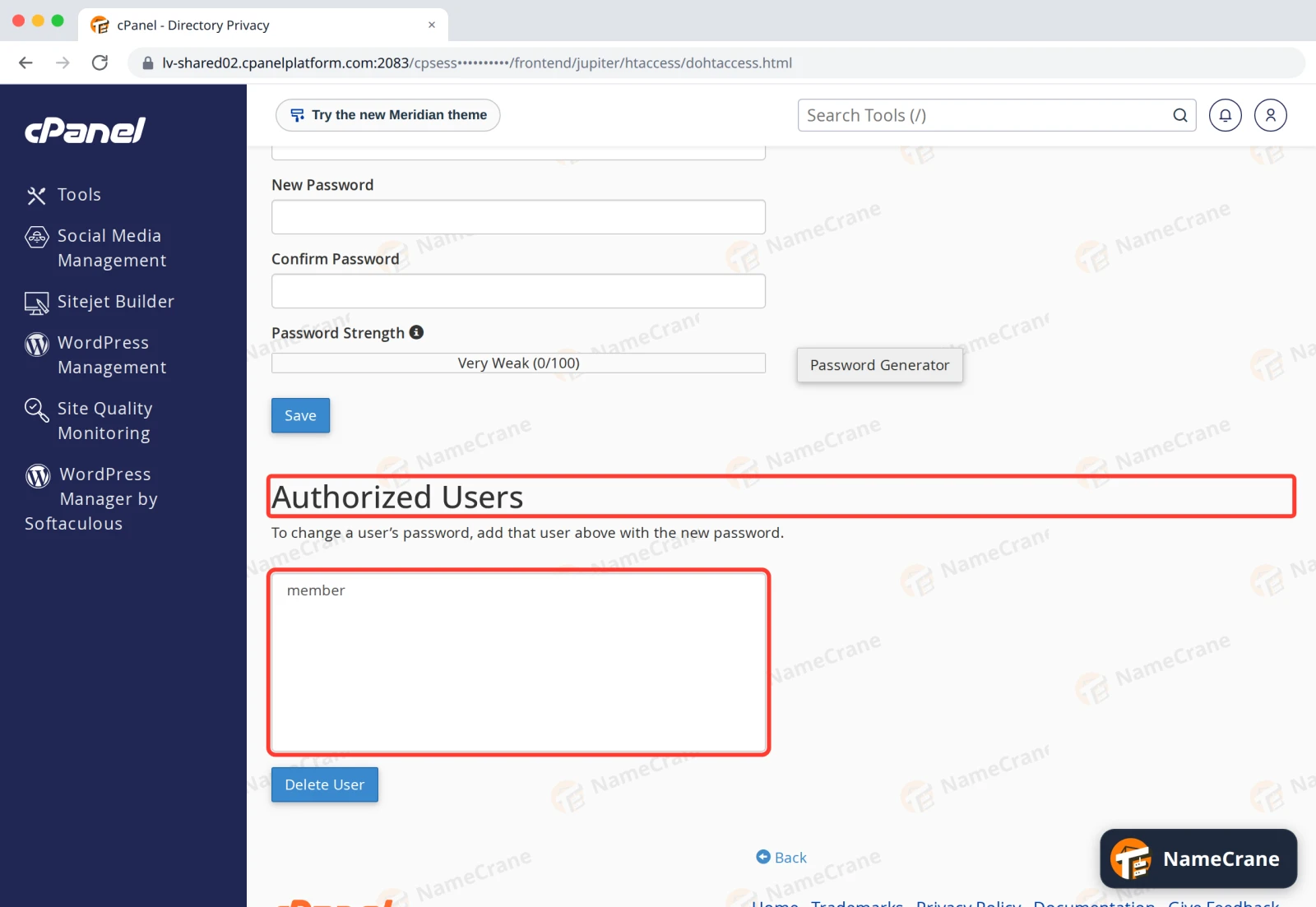
Under Create User, choose a Username, then enter a New Password twice (or use Password Generator). Click Save, then Go Back.
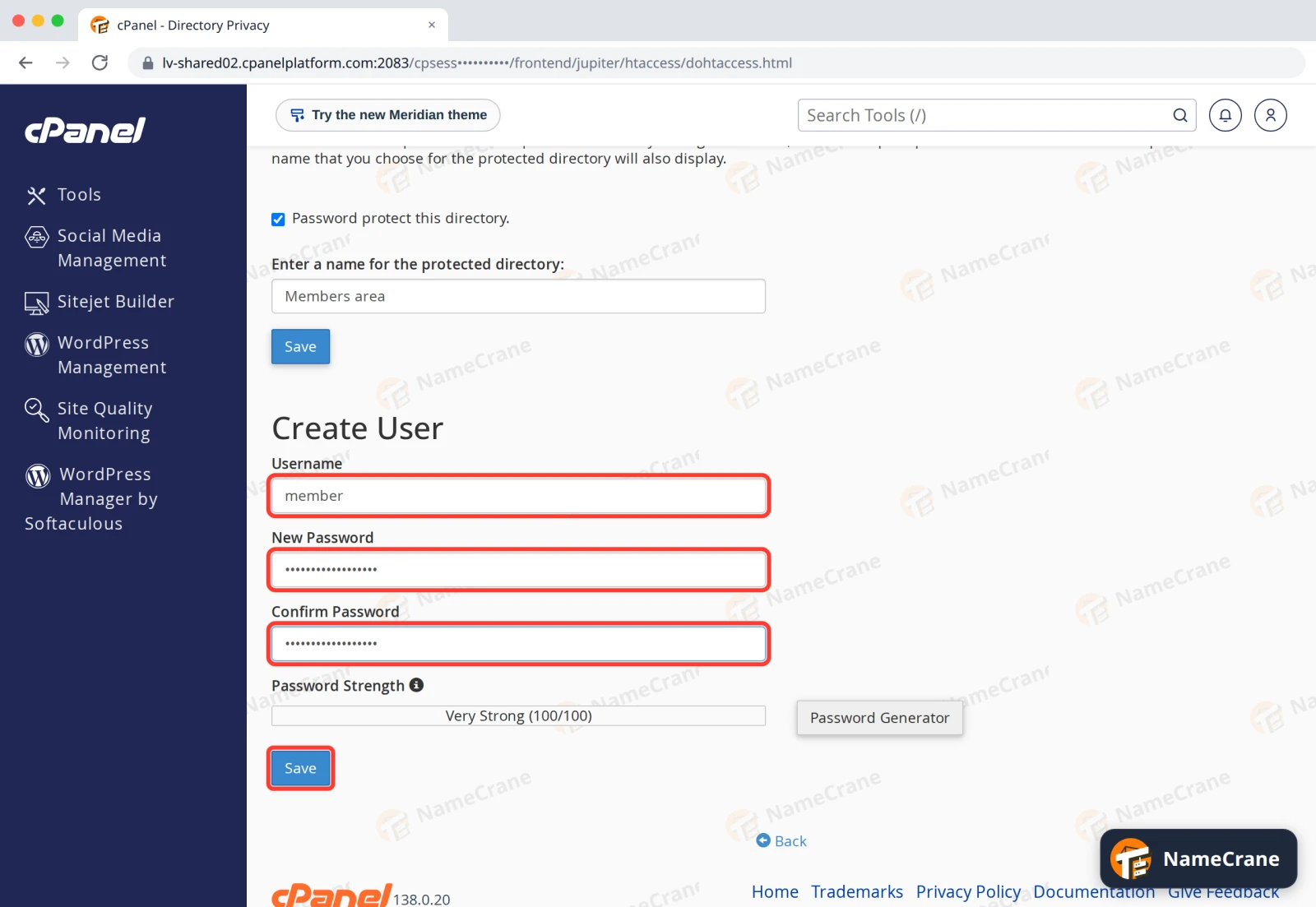
-
The user is listed under Authorized Users. Add more users the same way if more than one person needs to get in.
In our test, https://cpanel.cranedemo.com/members/ showed a login box straight away and only opened with the right username and password.
Note: The username and password are only for this folder. They’re not an email or cPanel login, so you can give them out without sharing anything else.
Troubleshooting
| Problem | What to do |
|---|---|
| I want to change a user’s password | Under Create User, enter the same username with the new password and click Save. |
| I want to remove someone’s access | Select them under Authorized Users and click Delete User. |
| I want to remove the password completely | Click Edit next to the folder, untick Password protect this directory and click Save. |
| The login box keeps coming back | Check you’re typing the username exactly as you created it. Passwords are case-sensitive. |
Snagged on something? Contact support and we’ll get you sorted.