Follow Your Restores and Get Email Alerts in JetBackup
Last updated Changelog
On this page
JetBackup runs restores and downloads one after another in a Queue. You can watch them there, look back at everything in Alerts, and have JetBackup email you when each one finishes. Our screenshots are from cPanel; it works the same in DirectAdmin.
Check the Queue
-
Open JetBackup (see how to open it) and click Queue. The clock icon in JetBackup’s left-hand menu opens it too.
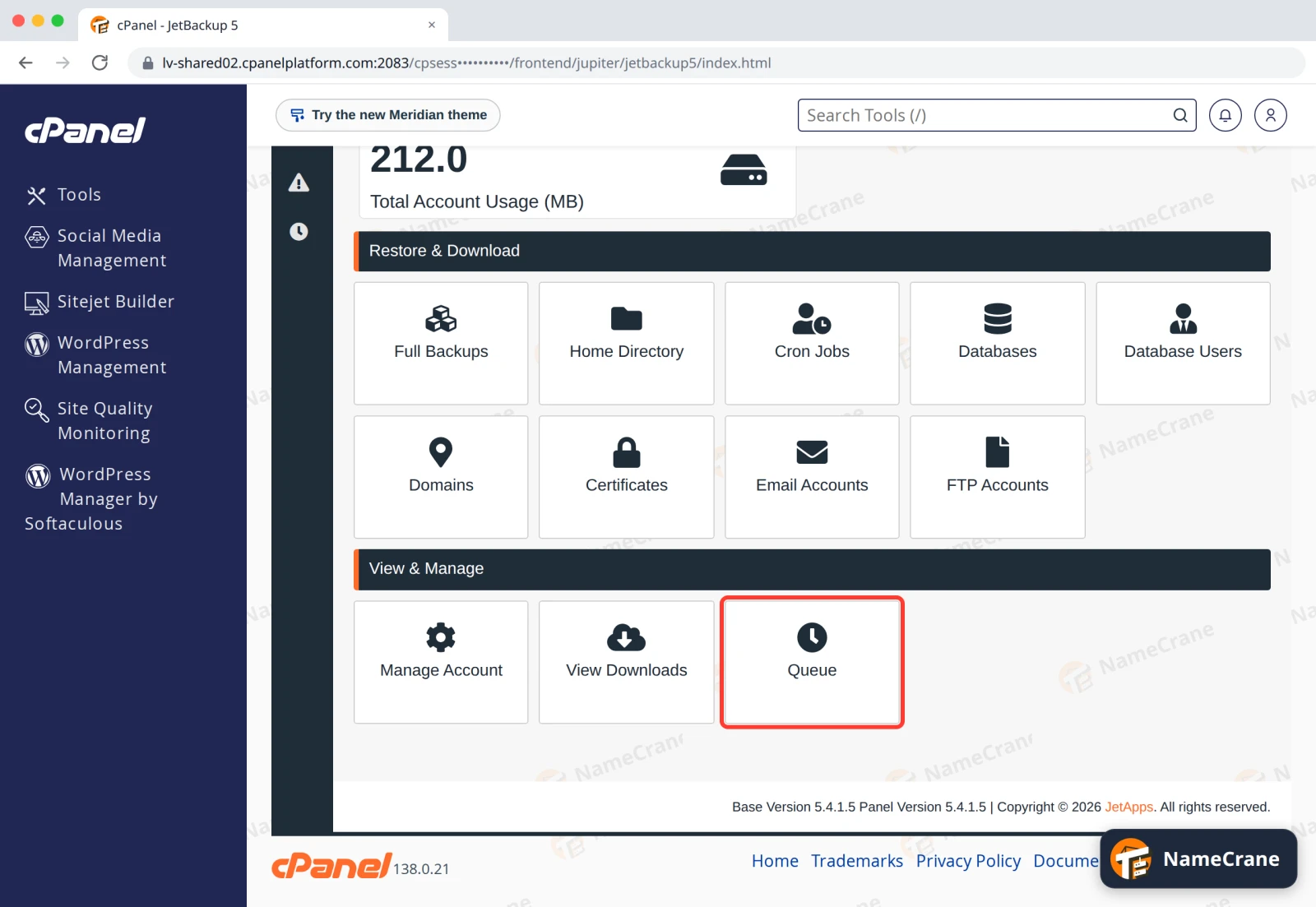
-
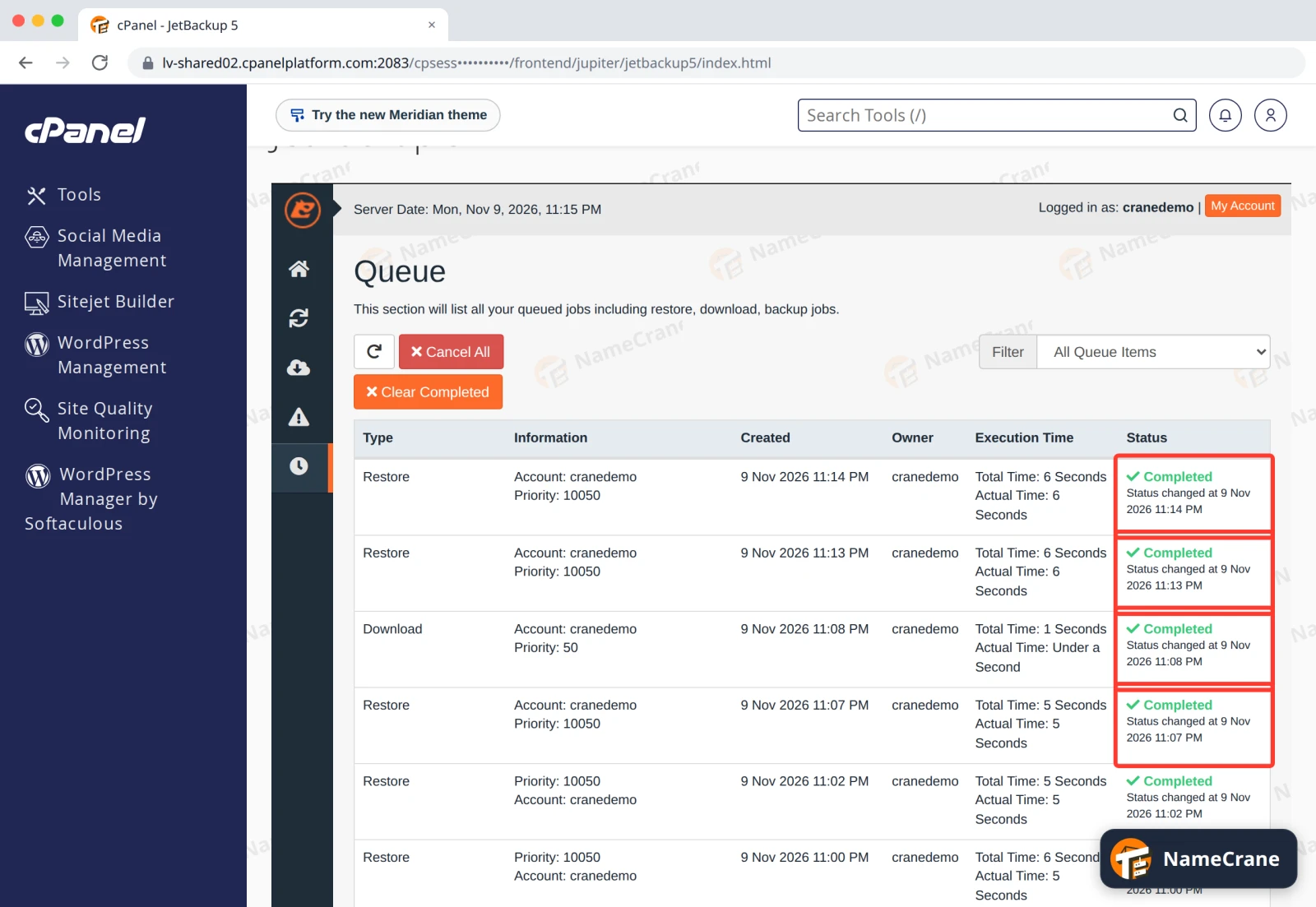
Each restore and download is listed, newest first. The Status column shows its progress, such as 3 out of 4 (75%), and then Completed or Failed.
Look back in Alerts
-
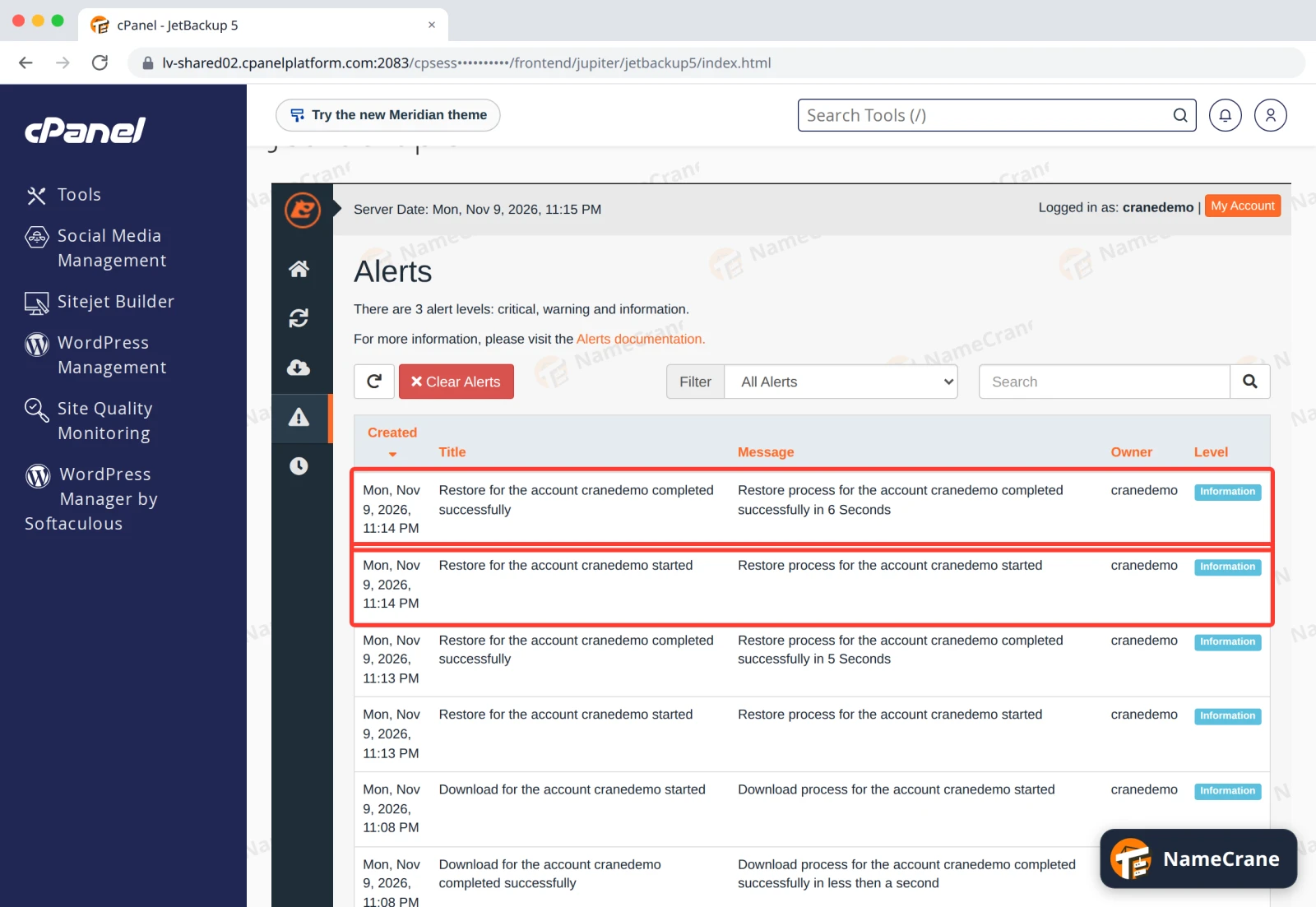
Click the warning-sign icon in JetBackup’s left-hand menu to open Alerts. It lists when each restore and download started and finished, and how long it took.
Get an email when a restore or download finishes
-
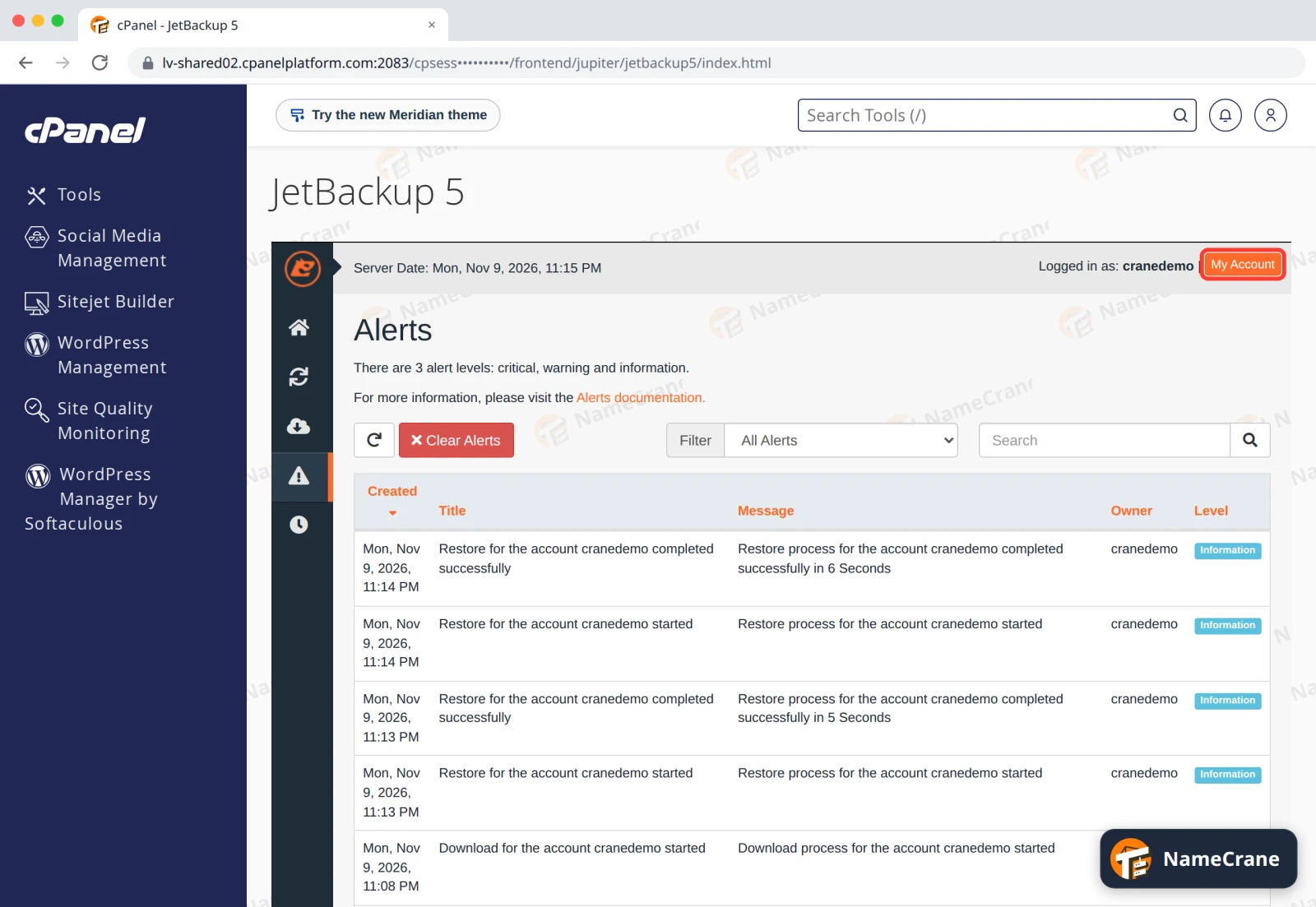
Click My Account at the top right of JetBackup.
-
Type your email address in Email Address and click Save.
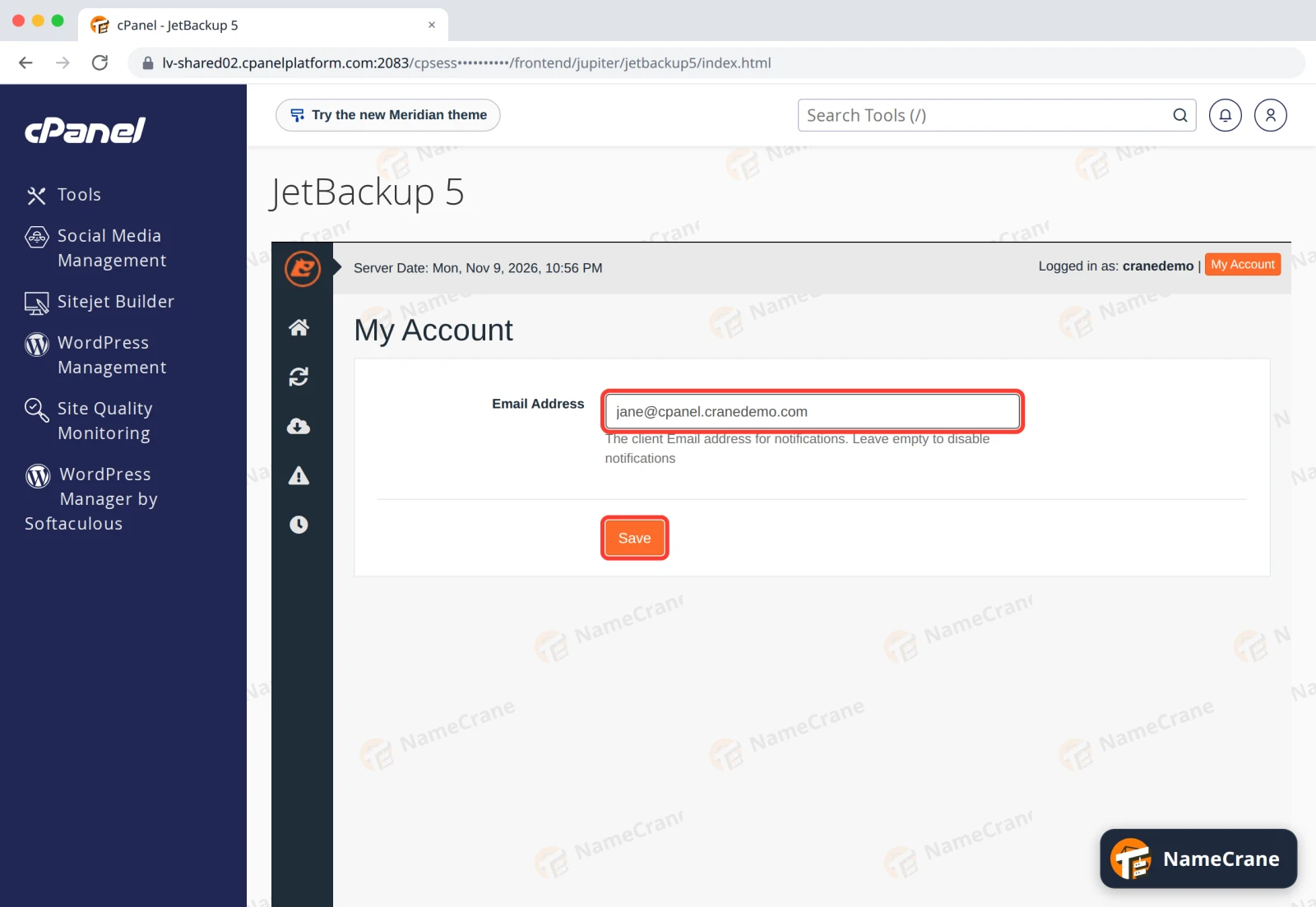
From then on, JetBackup emails you when each restore or download finishes, for example Restore for the account cranedemo has been completed successfully. Ours arrived within a minute. The email comes from your server’s name, such as lv-shared02.cpanelplatform.com.
To stop the emails, empty the Email Address box and click Save.
Troubleshooting
| Problem | What to do |
|---|---|
| A restore hasn’t started after a long time | Another job may be ahead of it in the queue. Give it a few minutes; if it still doesn’t move, contact support. |
| I don’t get the emails | Check your spam folder, and that the address in My Account is right. |
| Something says Failed | Click Alerts for the details, then contact support with the date and what you were restoring. |
Snagged on something? Contact support and we’ll get you sorted.