How to Put Your Own Logo and Colours on cPanel in WHM
Last updated Changelog
On this page
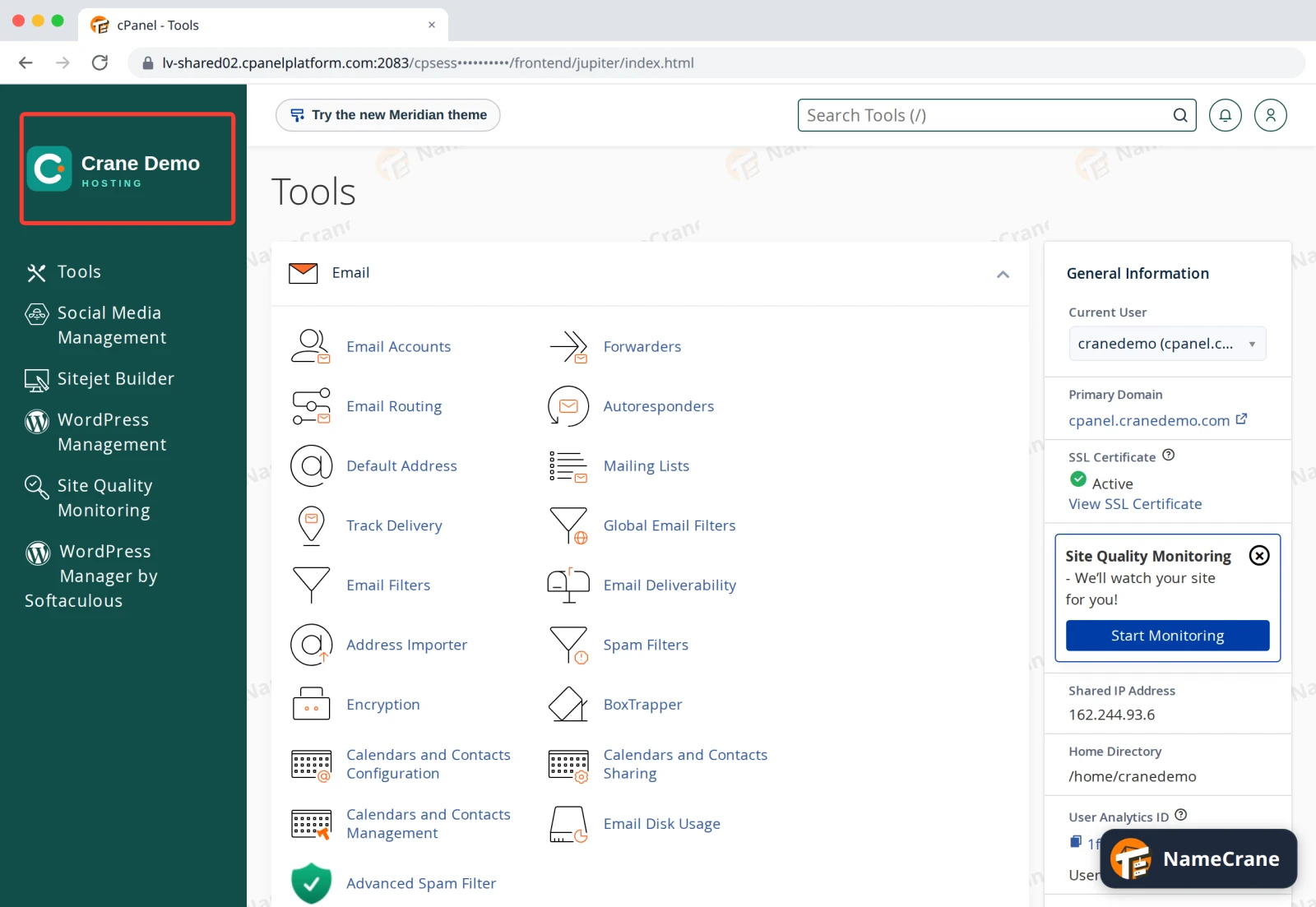
Your customers use cPanel every time they manage their site, so it’s a good place for your brand. With WHM’s Customization tool you can put your logo and menu colour on the cPanel of every account you own, including your own, and publish your company’s contact details. In this example we brand cPanel for our demo reseller, Crane Demo Hosting.
Before you start
- cPanel only accepts logos in SVG format. Make the file 200 × 100 pixels, with the width and height set in the file.
- Make two versions if you can: one with light text for dark backgrounds, and one with dark text for light backgrounds. If you only upload one, cPanel uses it for both.
Steps
-
Log in to WHM. Type
Customizationin the search box at the top left, then click Customization under cPanel.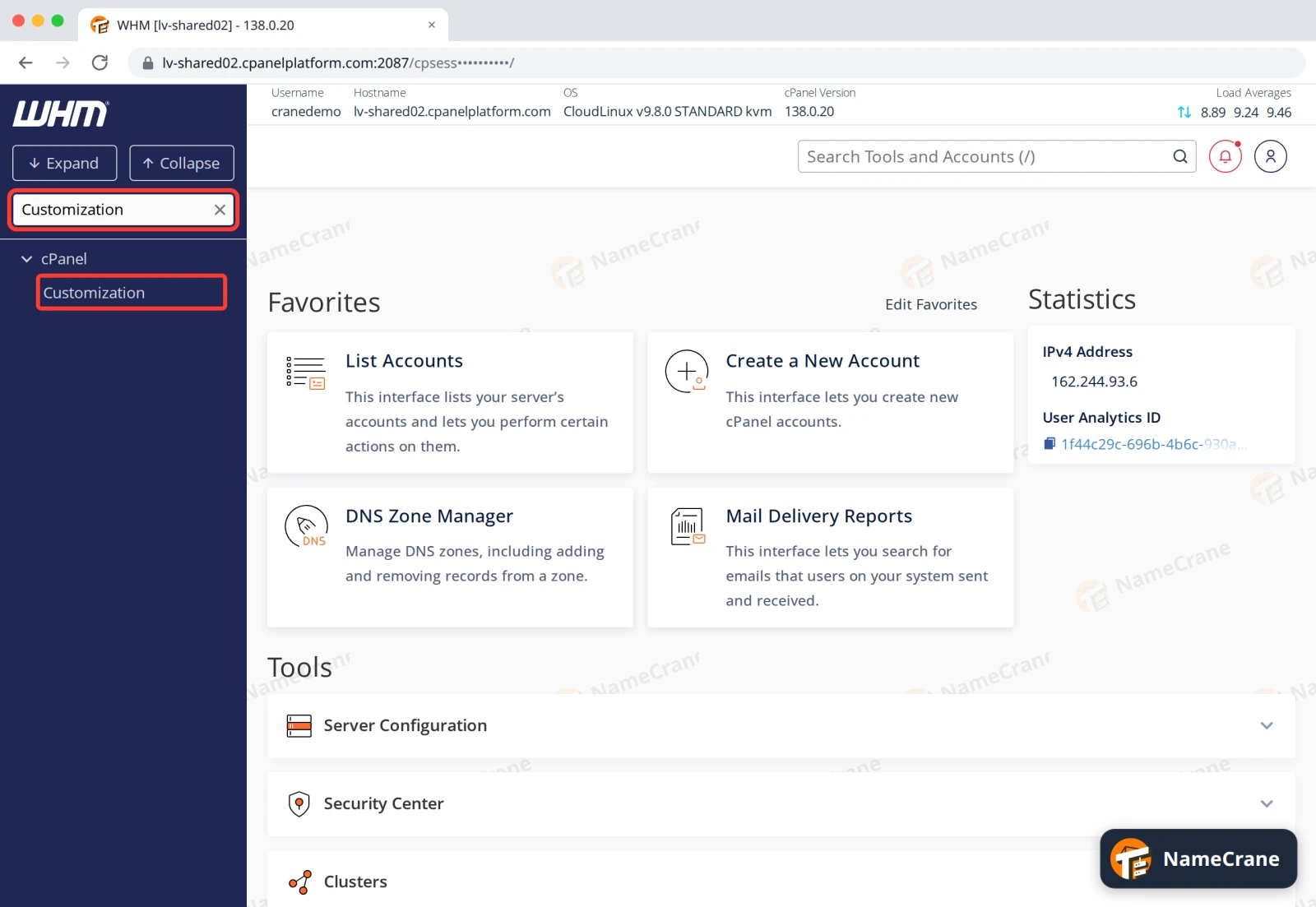
-
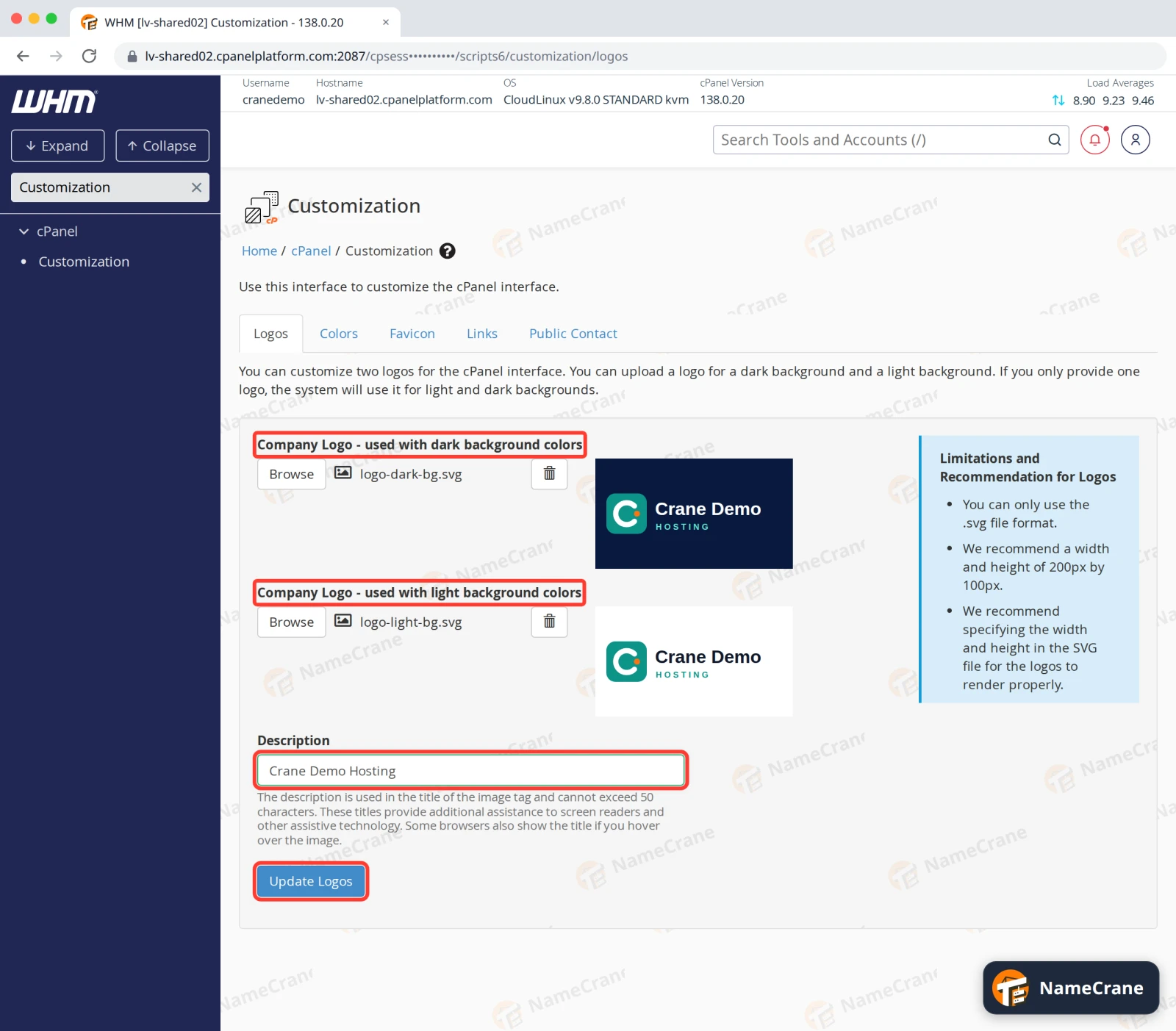
On the Logos tab, click Browse under Company Logo - used with dark background colors and choose your logo for dark backgrounds. Do the same under Company Logo - used with light background colors. Type your company name in Description (screen readers read it out), then click Update Logos.
-
Open the Colors tab. Type your brand colour as a hex code in Main Menu Background Color, such as
#134E4A, and click Update Colors. Your logo for dark backgrounds sits on this colour, so a dark shade works best.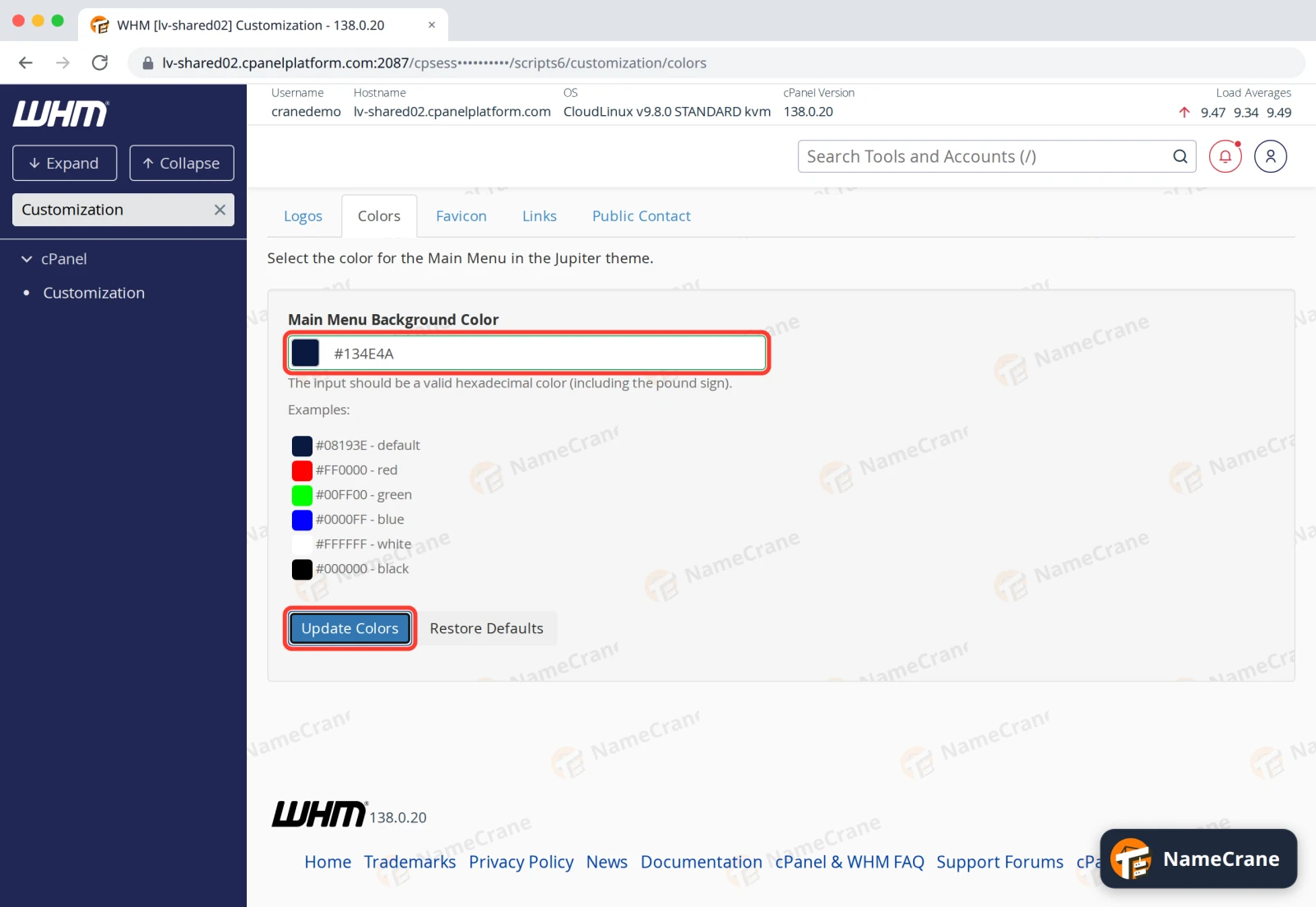
-
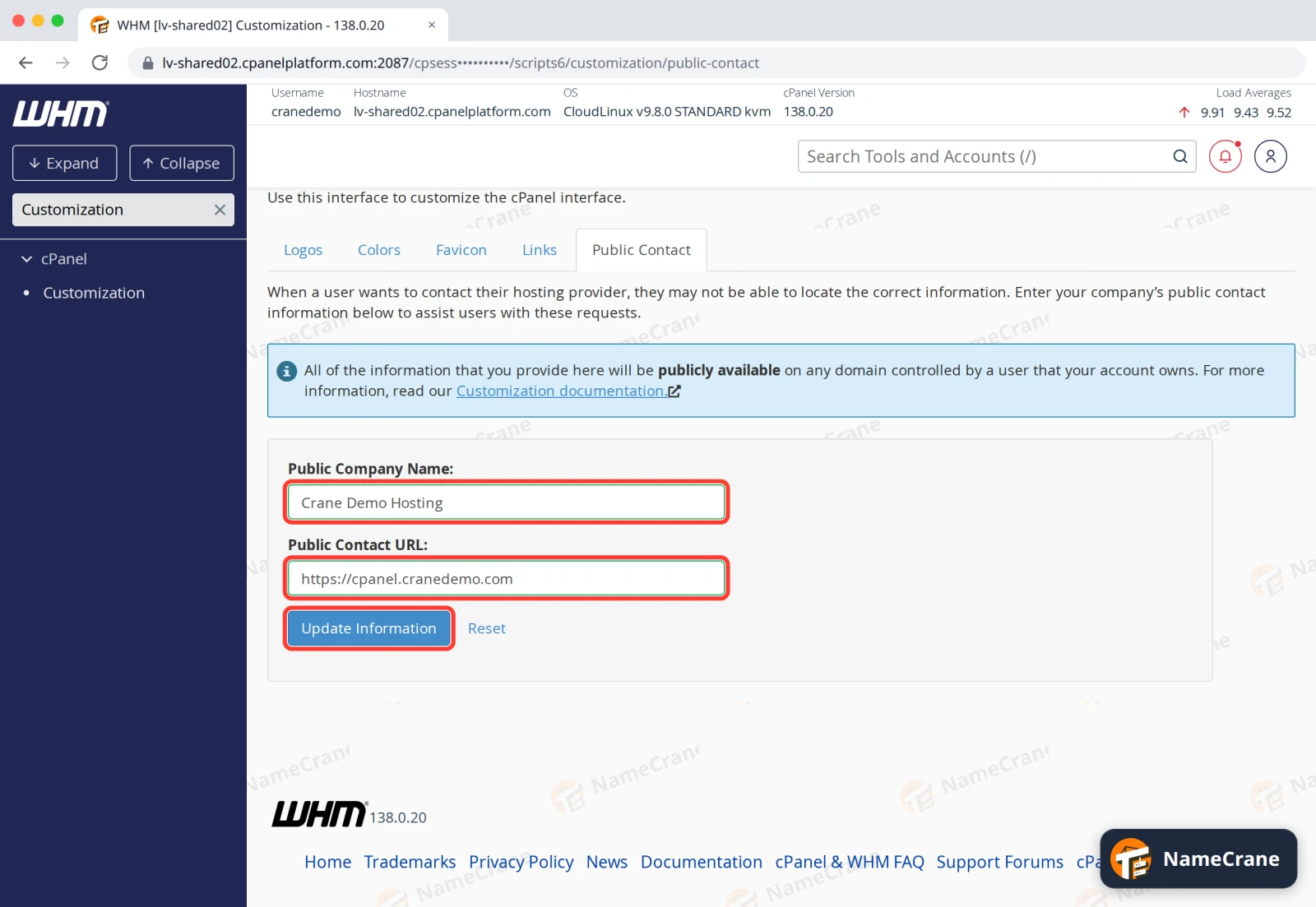
Open the Public Contact tab. Enter your Public Company Name and a Public Contact URL, such as the contact page on your website, then click Update Information. WHM makes these details public on every domain your customers host, so people can find out how to reach you.
-
Log in to cPanel to check. The main menu now shows your logo and colour. Your customers see it the next time they open cPanel.
The other tabs
| Tab | What it changes |
|---|---|
| Favicon | The small icon in the browser tab. It must be a 32 × 32 pixel .ico file. |
| Links | Adds a Help link to cPanel’s footer and changes where Documentation goes, for example to your own help pages. Both need the full address, starting with https://. |
Troubleshooting
| Problem | What to do |
|---|---|
| WHM won’t take my logo | Only .svg files work. Export your logo as SVG from your design tool and upload it again. |
| Part of my logo is cut off | cPanel cuts off anything outside the width and height set in the SVG file. Make sure the whole logo, text included, fits inside them. |
| I want the standard cPanel look back | On Logos, click the bin icon next to each file, confirm with Delete and click Update Logos. On Colors, click Restore Defaults. On Public Contact, empty both boxes and click Update Information. |
Snagged on something? Contact support and we’ll get you sorted.