How to Import and Export a Database in DirectAdmin
Last updated Changelog
On this page
The two database jobs people do most are importing (for example when moving a site to NameCrane) and exporting (to take a copy or move it elsewhere). DirectAdmin can do both from the database’s own page, without opening phpMyAdmin.
Warning: Importing adds to, or replaces, what’s in the database you choose. Make sure you’ve picked the right one, and export a copy first if it already has data you care about.
Before you start
- To import, you need an empty database to import into. See Create a database.
Import a database
-
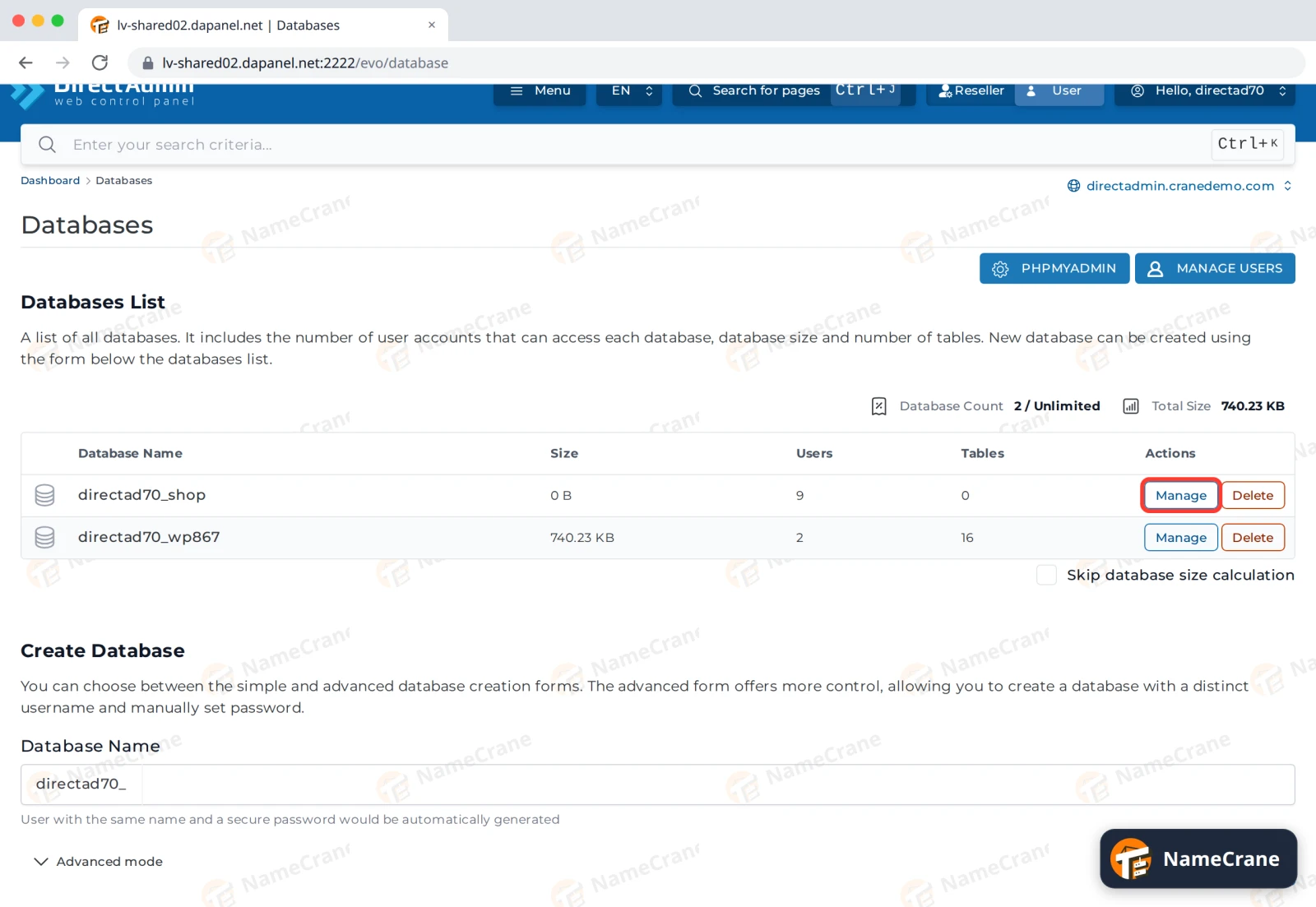
Log in to DirectAdmin and click Databases in the Account Manager section. Click Manage next to the database you want to import into.
-
Scroll down to Database Operations and click Import. Pick your
.sqlfile, or a compressed.gzone.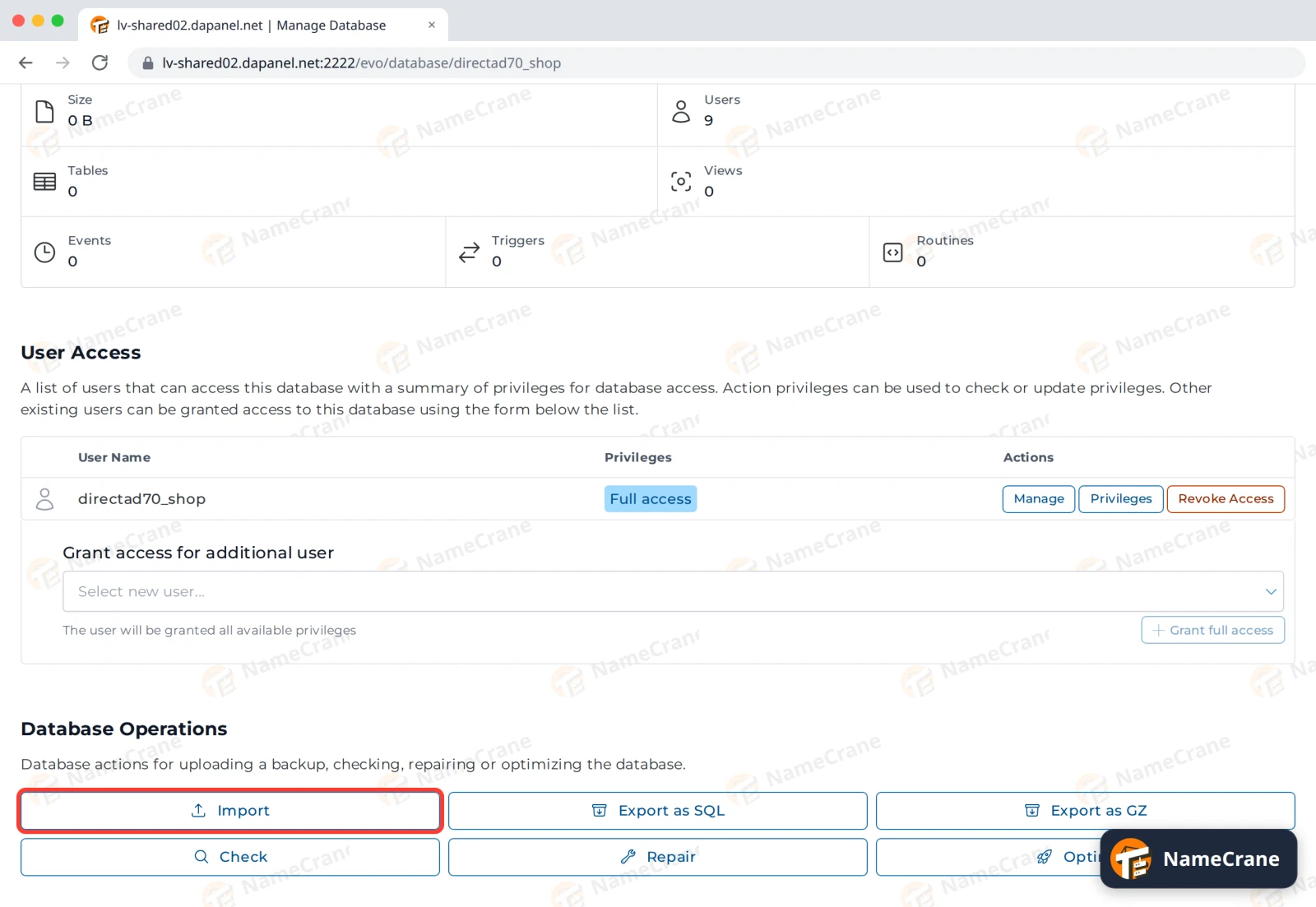
-
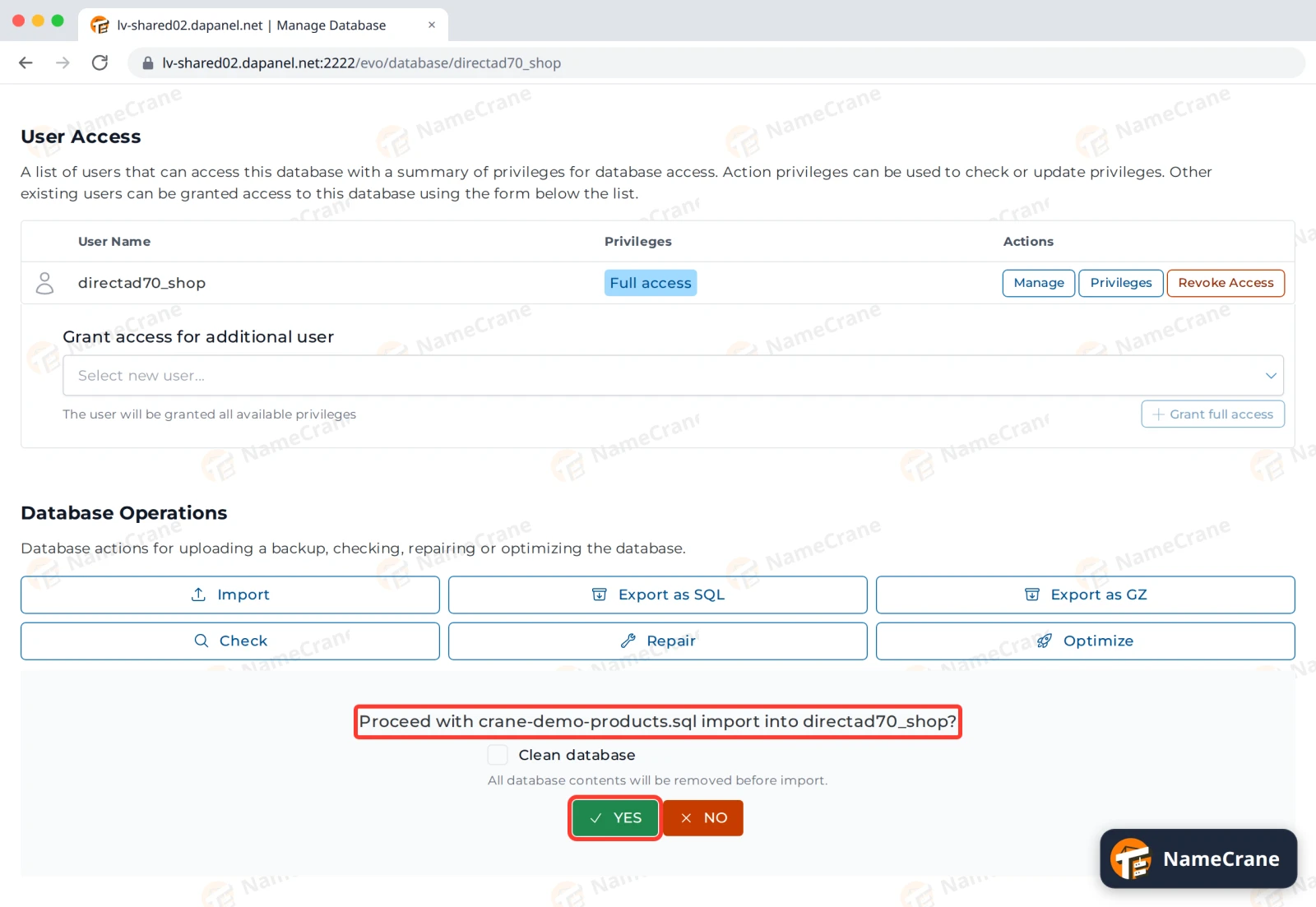
DirectAdmin asks you to confirm. Leave Clean database unticked when you’re importing into an empty database. Only tick it if you want everything already in the database deleted first. Click Yes.
-
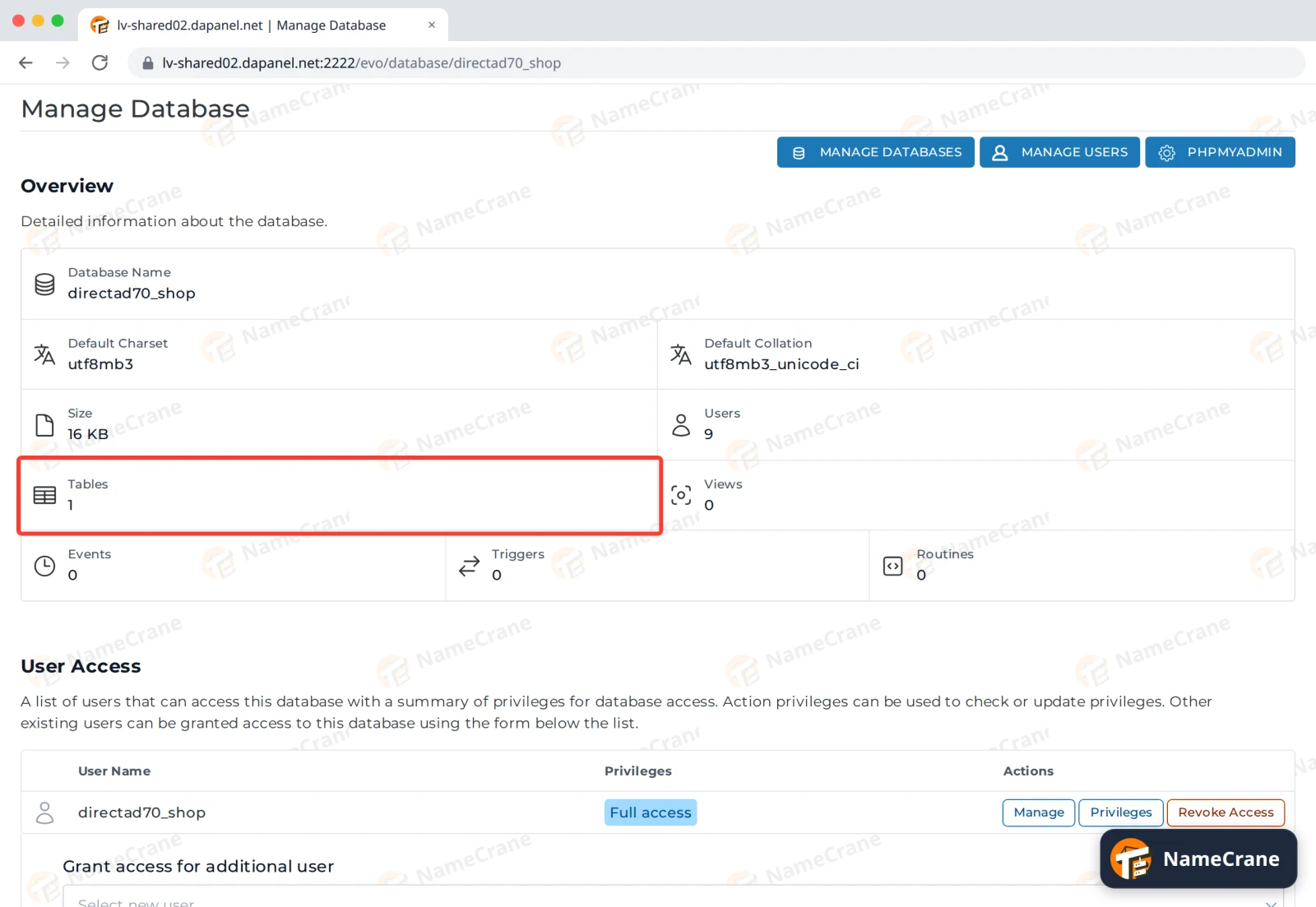
Once the import is done, refresh the page. Tables in the Overview shows how many tables the database now has.
Export a database
-
On the same Manage Database page, click Export as SQL to download a
.sqlfile named after the database. Export as GZ downloads a compressed copy, which is much smaller for big databases.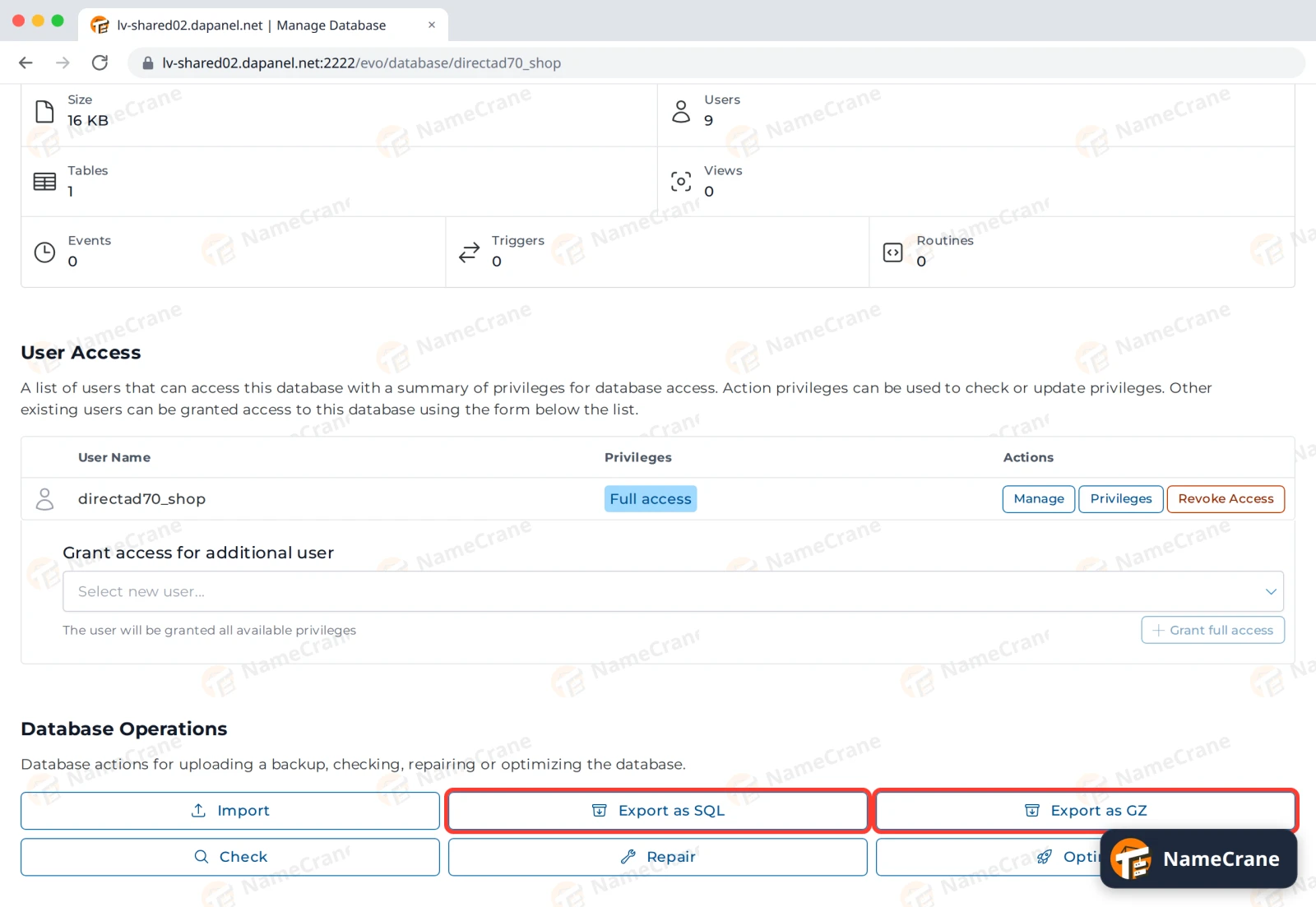
Tip: An exported database contains everything in it, including user accounts and email addresses for a WordPress site. Store it somewhere safe and don’t email it around.
Using phpMyAdmin instead
phpMyAdmin is handy for looking inside your tables, or if you’re following an app’s instructions that use it.
-
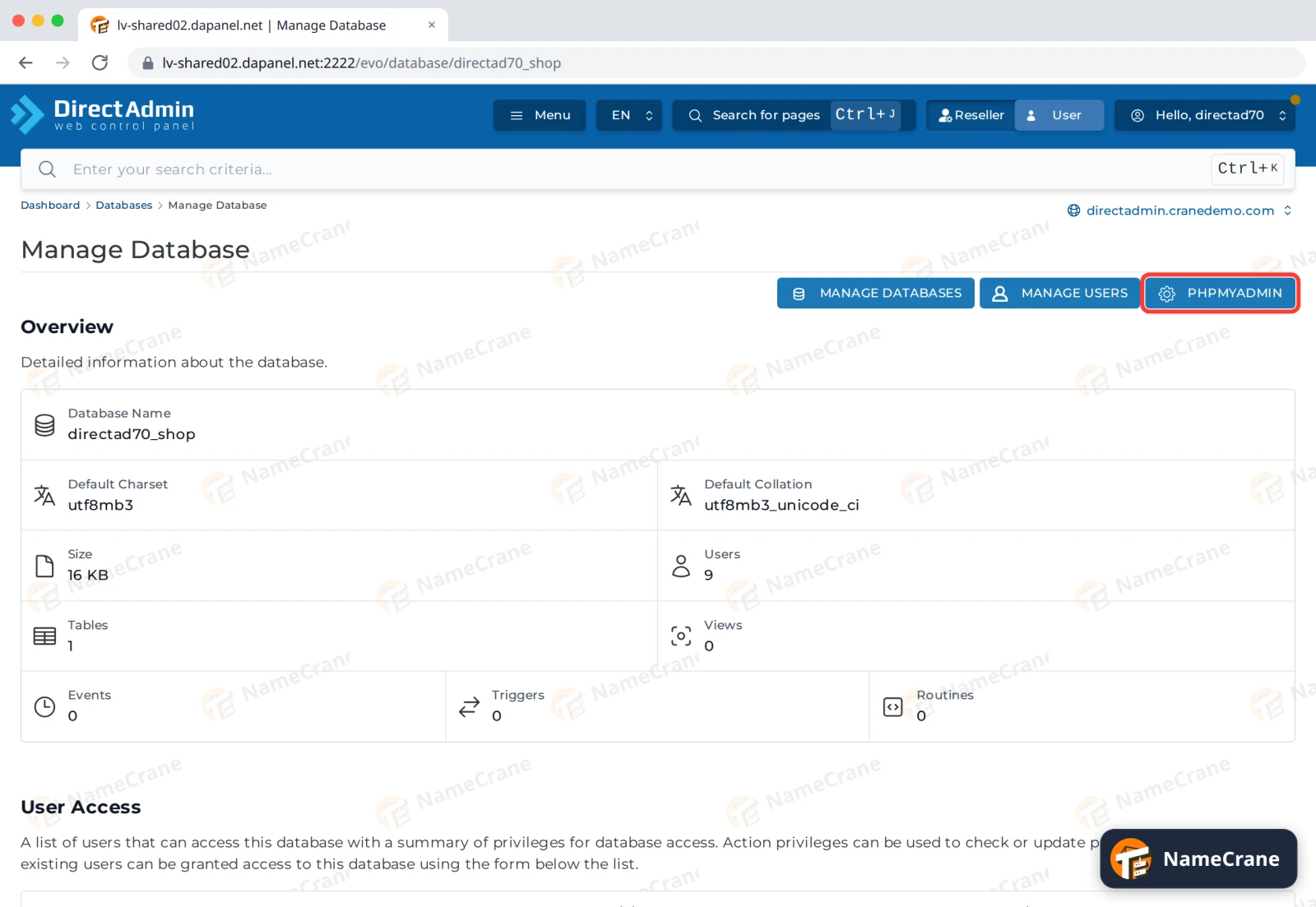
Click phpMyAdmin at the top of the Databases or Manage Database page. It opens in a new tab, already logged in.
-
Click your database in the list on the left. The Import and Export tabs work much like the buttons above: choose a file and click Import, or click Export to download a
.sqlfile.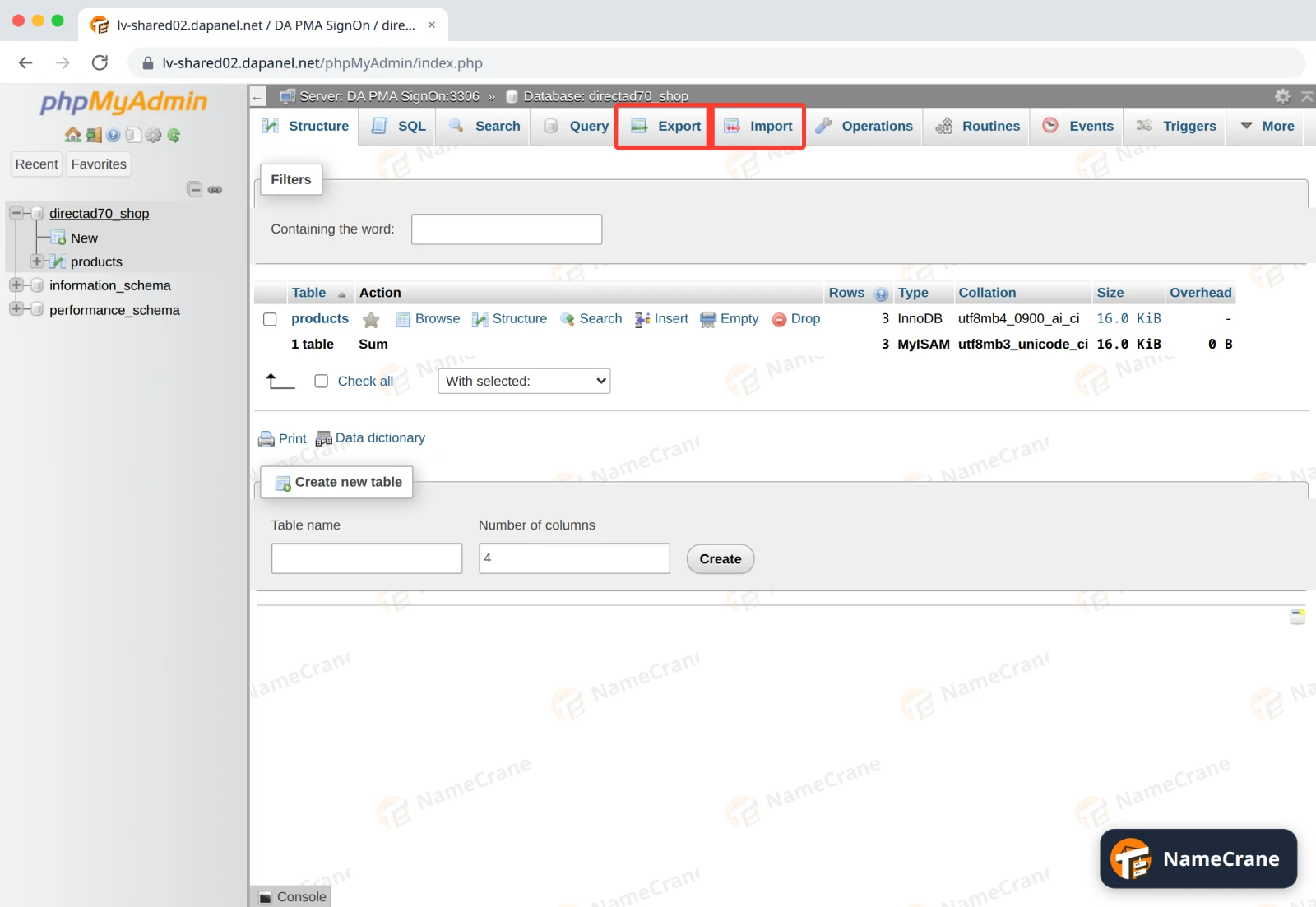
Troubleshooting
| Problem | What to do |
|---|---|
| The file is too big to import | Compress it to .sql.gz first, which often makes it ten times smaller. If it’s still too big, contact support for help. |
| The import fails with “CREATE DATABASE” or “Access denied” errors | Your file tries to create its own database. Remove the CREATE DATABASE and USE lines from the top of the file, or ask whoever made the export to export just the tables. |
| The import fails because a table already exists | The database isn’t empty. Import again with Clean database ticked, but only if you’re sure you don’t need what’s in it. |
| My site shows the old content after importing | Check your site’s settings (for WordPress, wp-config.php) point at the database you imported into. |
Snagged on something? Contact support and we’ll get you sorted.