How to Connect to Your cPanel Database From Another Computer (Remote MySQL)
Last updated Changelog
On this page
Your databases only accept connections from your own hosting. To use one from somewhere else, such as an app like HeidiSQL, DBeaver or MySQL Workbench on your computer, or a website on another server, allow that IP address first. In this example we allow our app server, 162.244.93.3.
Allow an IP address
-
Find the IP address you’ll connect from. For your own computer, search for “what is my IP” in your browser. For another server, check with whoever hosts it.
-
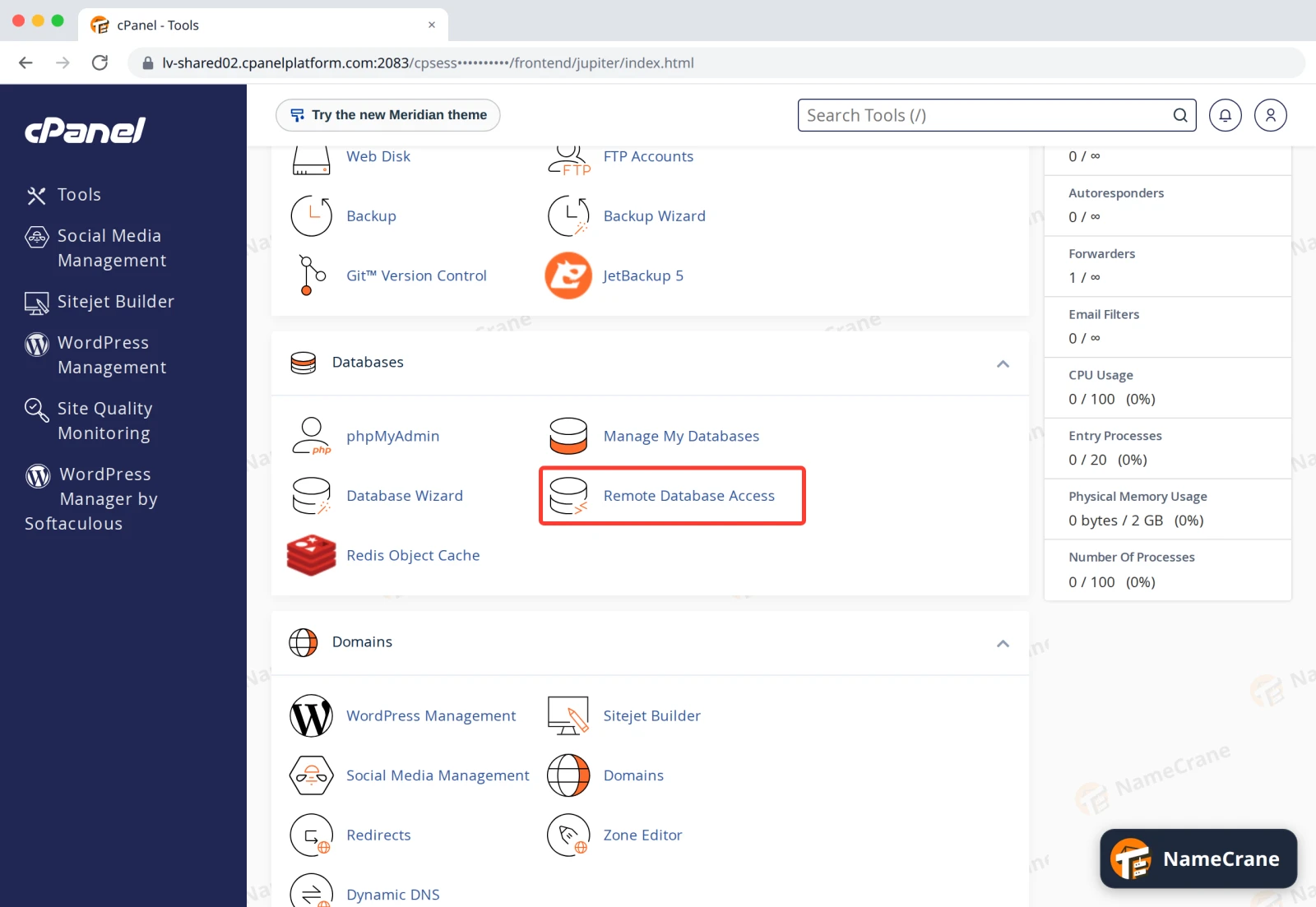
Log in to cPanel and click Remote Database Access in the Databases section.
-
Type the IP address into Host, add a comment so you remember what it is, and click Add Host.
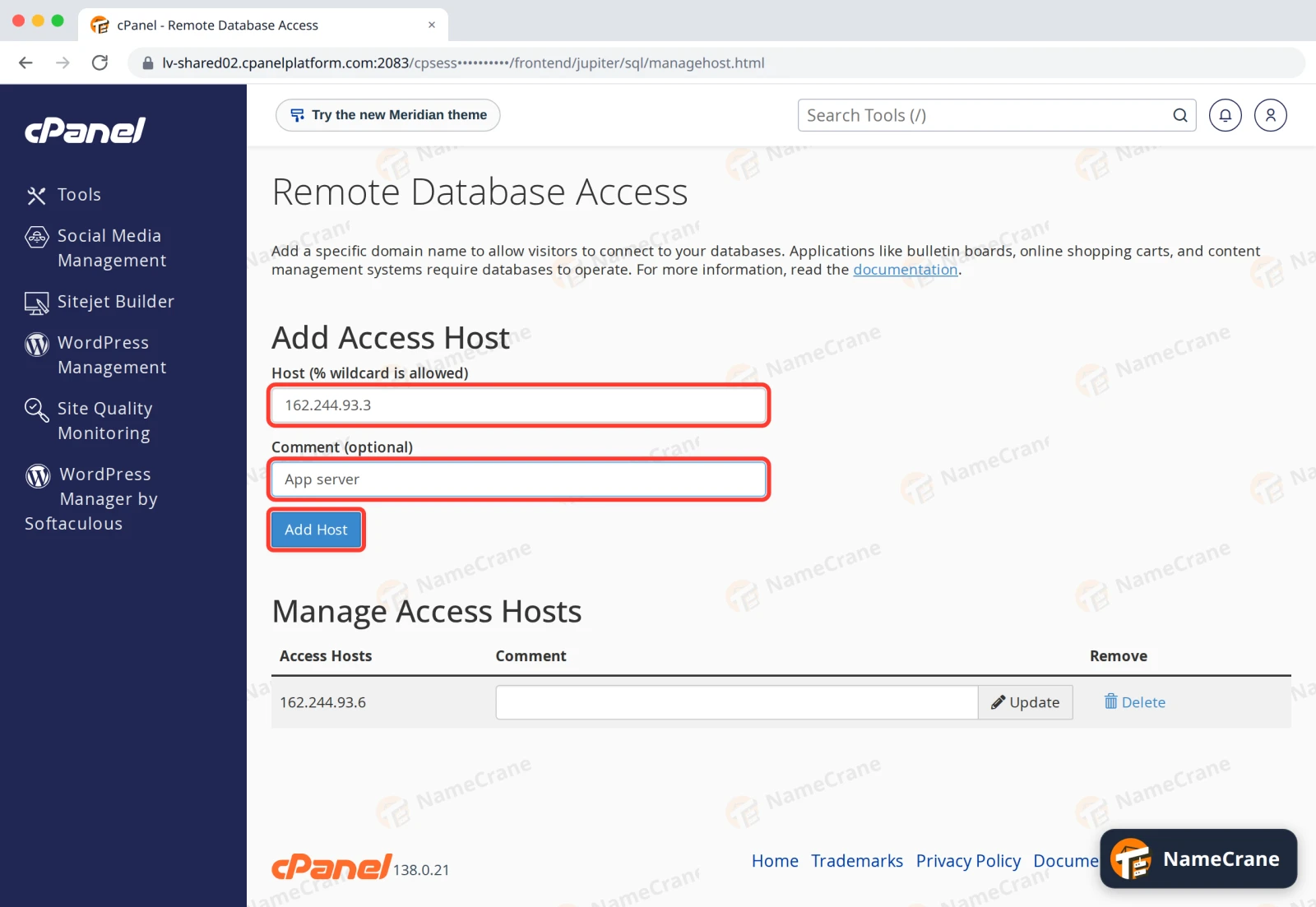
Warning: Avoid adding
%on its own. It lets anyone on the internet try to log in to your databases. -
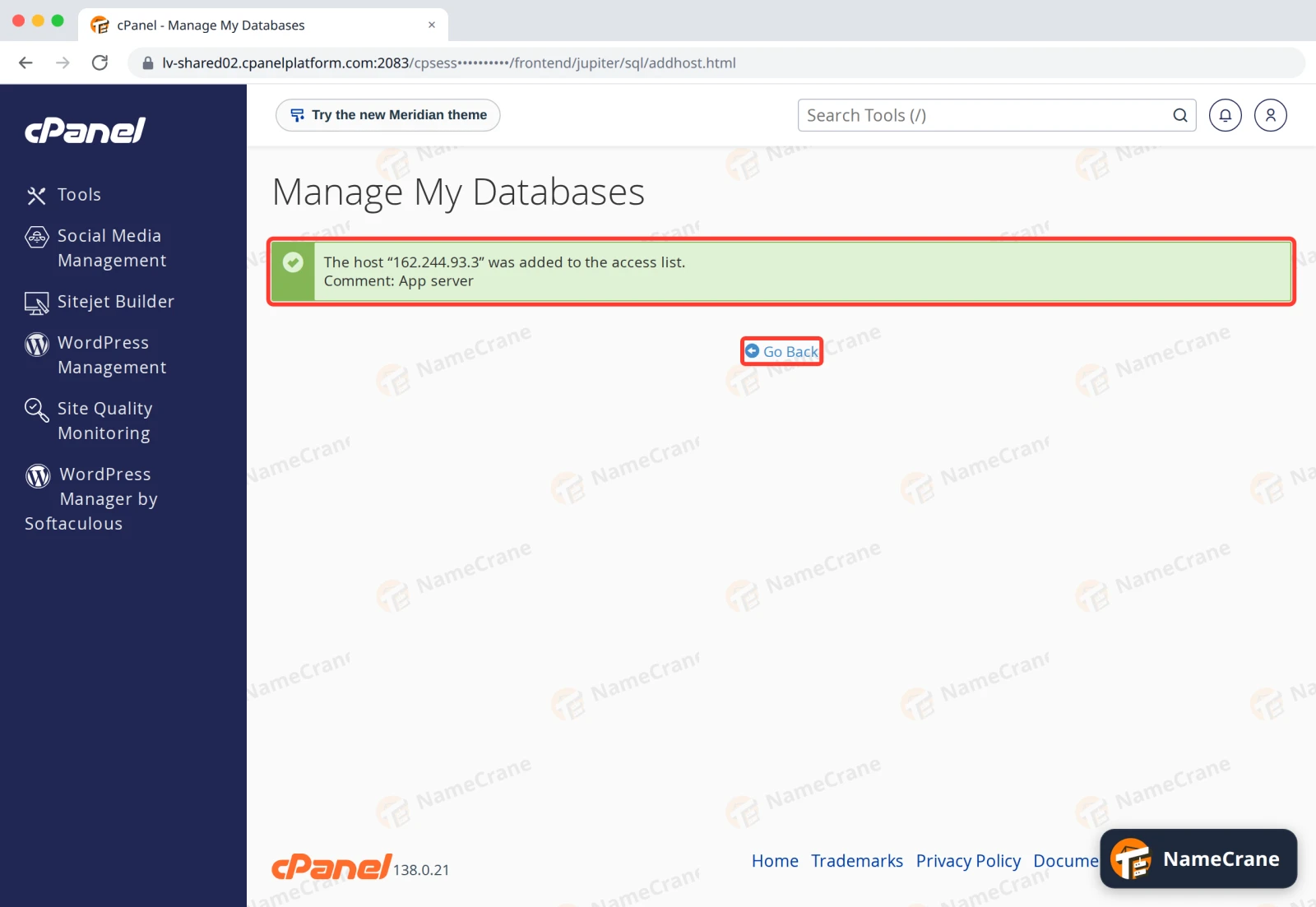
cPanel confirms the host was added. Click Go Back.
-
The address is now listed under Manage Access Hosts, and it works for all your databases. Leave the server’s own address (here
162.244.93.6) in place.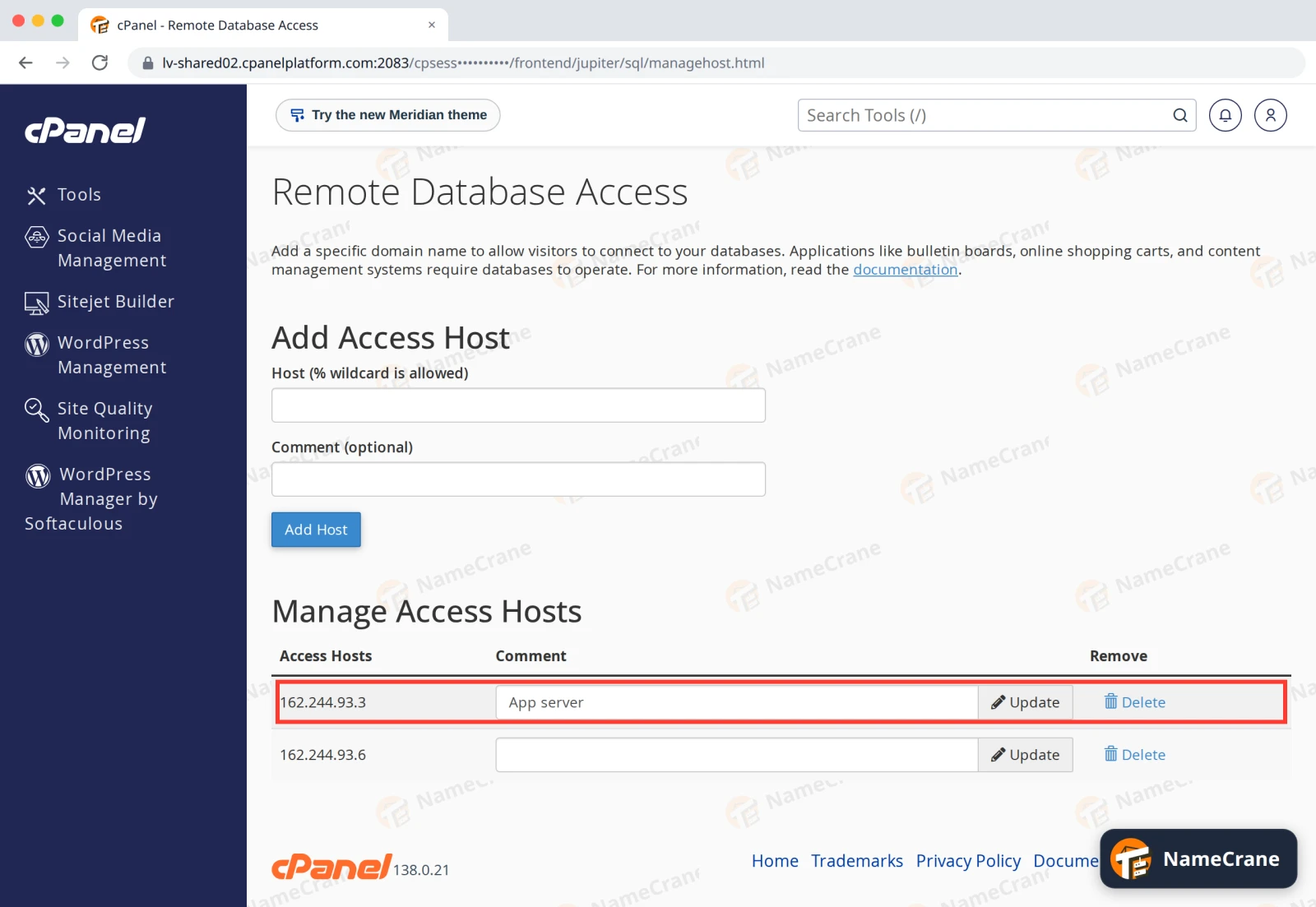
To remove access later, click Delete next to the address.
Connect to your database
Use these details in your app:
| Setting | What to use |
|---|---|
| Host | Your server’s name: the address you log in to cPanel with, without :2083. For example lv-shared02.cpanelplatform.com |
| Port | 3306 |
| Database | The full name, with your username in front, for example cranedemo_shop |
| Username and password | The database user’s, for example cranedemo_shop. See Create a database. |
In our test, our app server was refused before step 3 and connected straight away after it.
Note: Use your server’s name as the Host, not your domain. Your domain may also have an IPv6 address. Then your computer connects over IPv6 instead, and is refused because you only allowed its IPv4 address. That’s what happened when we used
cpanel.cranedemo.com.
Troubleshooting
| Problem | What to do |
|---|---|
Access denied for user 'cranedemo_shop'@'…' |
The part after the @ shows where our server sees you connecting from. If it isn’t the address you allowed, allow it too, or use your server’s name as the Host. If it is, check the username and password. |
| The connection times out | Check the Port is 3306, and that your network or office firewall allows outgoing connections on that port. |
| It worked yesterday but not today | Your home or office IP address may have changed. Check it again and add the new one. |
| I can’t remember the database password | Set a new one in Manage My Databases › Current Users › Change Password. Update your website’s settings too if it uses the same user. |
Snagged on something? Contact support and we’ll get you sorted.