How to Troubleshoot Email in cPanel
Last updated Changelog
On this page
Your email passes through MXFilter, our spam filter, on its way in and out. When an email goes missing, these three places tell you what happened. We tested them by emailing a mistyped address: alex@directadmin.cranedemo.con (.con instead of .com).
1. Read the bounce message
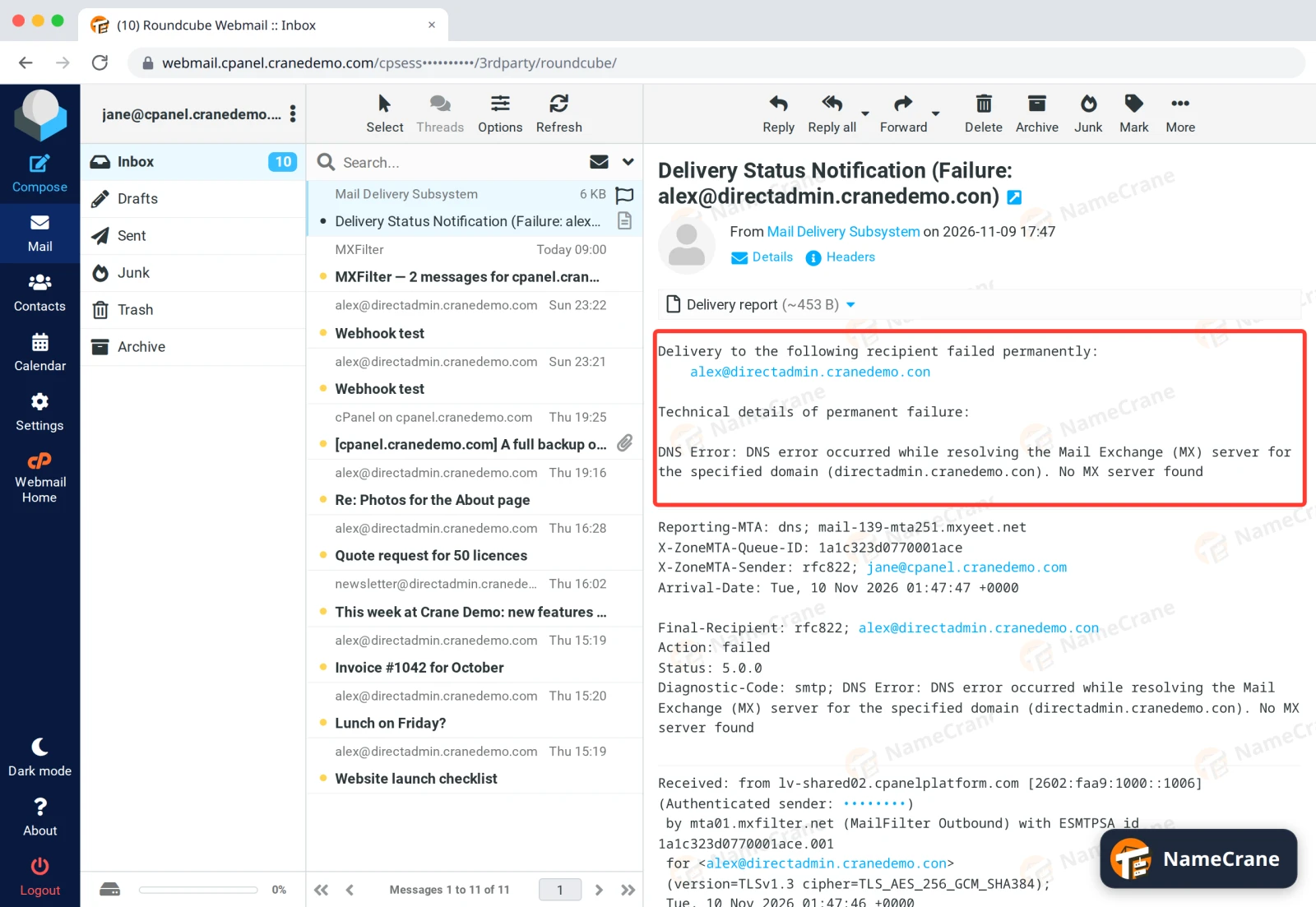
If an email can’t be delivered, you get an email back from Mail Delivery Subsystem. The reason is under Technical details of permanent failure.
| The bounce says | What to do |
|---|---|
| “No MX server found” or “Domain not found” | The part after the @ is wrong or doesn’t exist. Check the spelling. |
| “User unknown” or “No such user” | The part before the @ is wrong, or that mailbox no longer exists. Check the address with the person. |
| “Mailbox full” or “Quota exceeded” | The recipient’s mailbox is full. They need to make space before you try again. |
| “Spam”, “SPF”, “DKIM” or “DMARC” | The other server doesn’t trust your email. Set up your domain’s SPF, DKIM and DMARC records. |
| “Please turn on SMTP Authentication” | Your mail app is sending without logging in. Turn on authentication for the outgoing server: see Set up email on your device. |
2. Check the email left your account
-
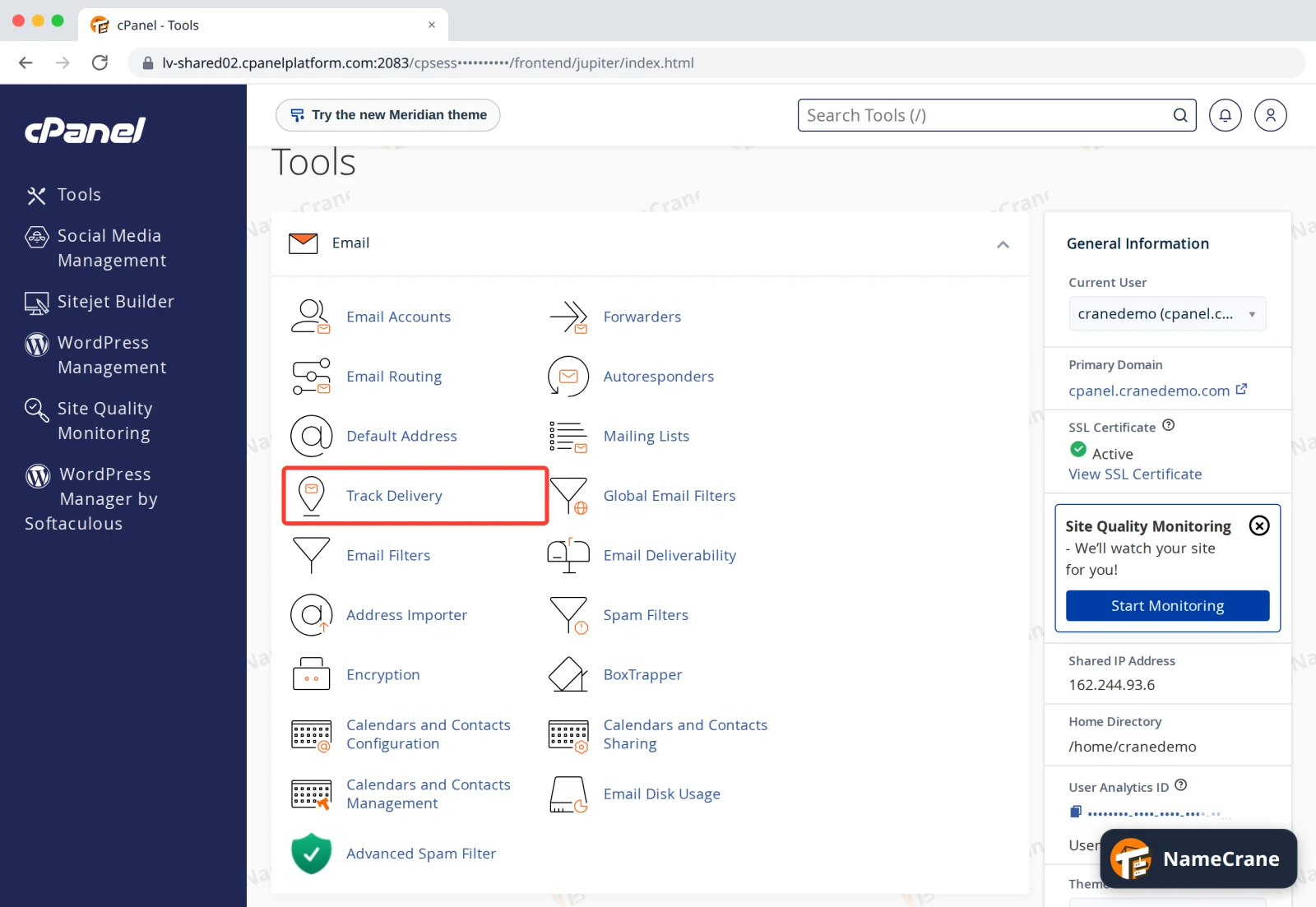
Log in to cPanel. In the Email section, click Track Delivery.
-
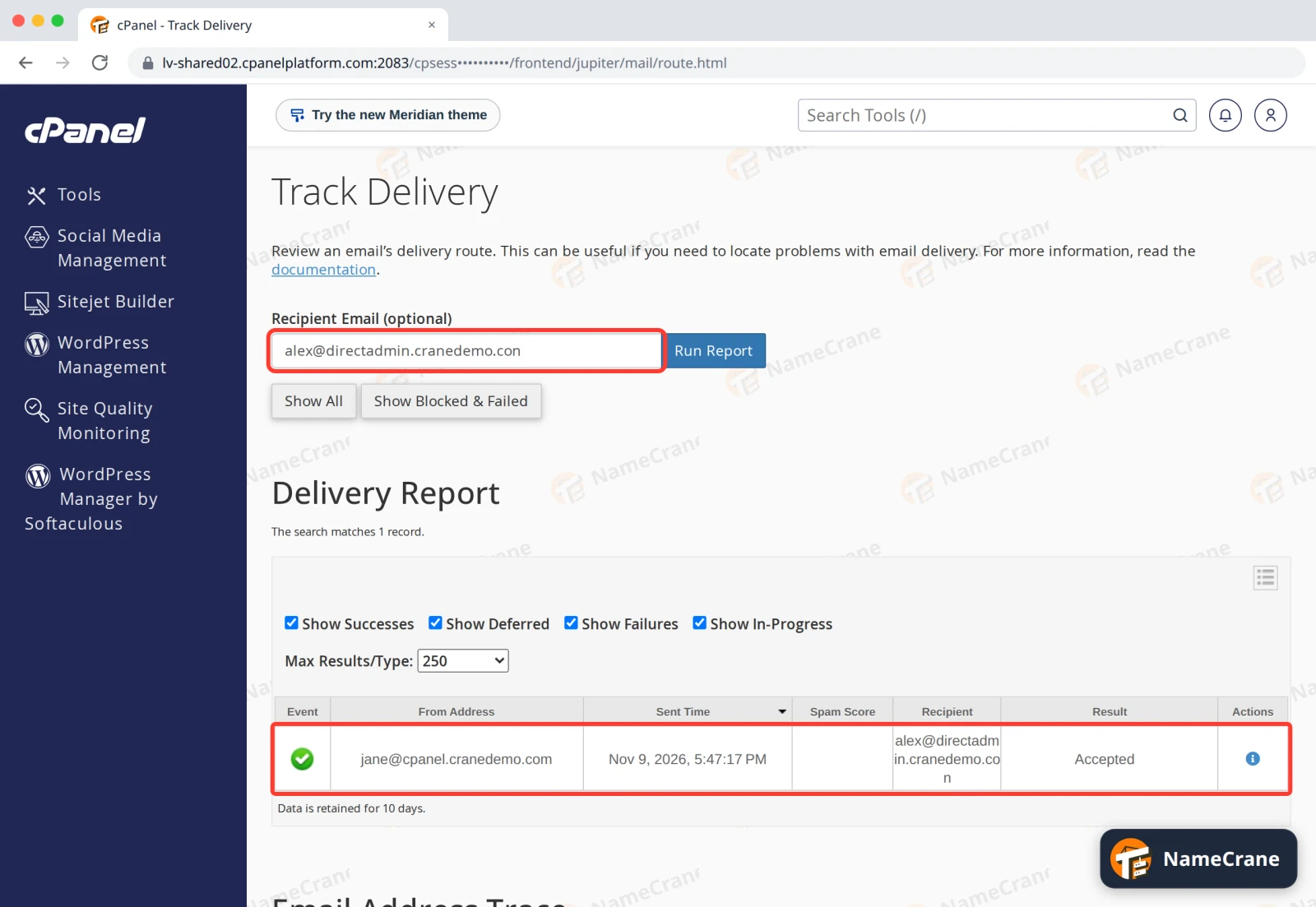
Type the recipient’s address in Recipient Email and click Run Report. Accepted means your account handed the email over to MXFilter. It doesn’t tell you whether it reached the recipient: our test shows Accepted even though it bounced.
3. See what happened next in MXFilter
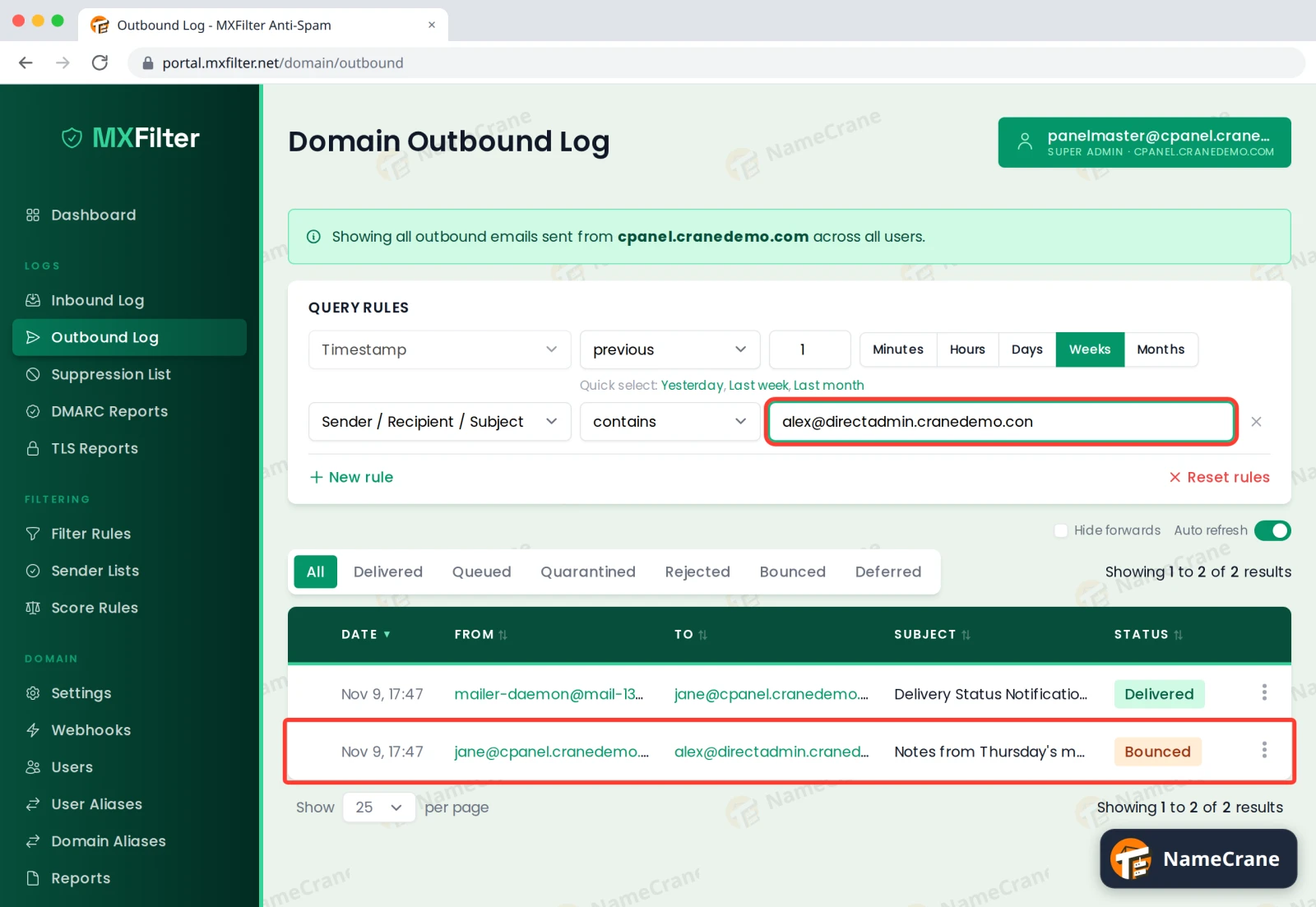
Open MXFilter from cPanel (here’s how), click Outbound Log and type the recipient’s address in the search box. The Status column gives the final answer:
- Delivered: the recipient’s server accepted it.
- Deferred: their server is busy or having trouble. MXFilter keeps trying.
- Bounced: their server refused it. You’ll get a bounce message saying why.
More detail: Check sent email and bounces in MXFilter.
An email sent to you didn’t arrive
- Look in your Junk folder in webmail.
- Search for it in MXFilter’s Inbound Log. If it says Quarantined, MXFilter held it as spam: release it. See Find an email in the Inbound Log.
- Not there at all? The sender’s server never sent it to us. Ask them whether they got a bounce message.
Troubleshooting
| Problem | What to do |
|---|---|
| The emails I send land in the recipient’s spam folder | Set up your domain’s SPF, DKIM and DMARC records. Avoid sending to old or bought mailing lists. |
| People who email me get “mailbox full” | Your mailbox has reached its size limit. Delete old email, or raise the limit: see Change an email account’s storage space. |
| Nothing new arrives, and MXFilter’s Inbound Log is empty | Your domain’s MX records must point to MXFilter: mx1 to mx4.cpanelplatform.com. Check them in Zone Editor. |
| My mail app keeps asking for my password | The password is wrong or was changed. Set a new one in Email Accounts, then type it into the app. |
| Track Delivery shows nothing | It keeps 10 days of history. Older email only appears in MXFilter’s logs. |
Snagged on something? Contact support and we’ll get you sorted.