How to Create an Advanced (Regex) Rule in MXFilter
Last updated Changelog
On this page
Basic filter rules match a sender or recipient. Advanced rules go further: they can match the subject, the message body, any header, the sending IP address or the server’s HELO name, using a regular expression (a pattern). In this example we’ll reject “you’ve won” prize scams by their subject line.
Note: Regular expressions are powerful, and a loose pattern can catch genuine email. Always use the Test String box before saving.
Before you start
- Open MXFilter from your control panel: from cPanel or from DirectAdmin.
Steps
-
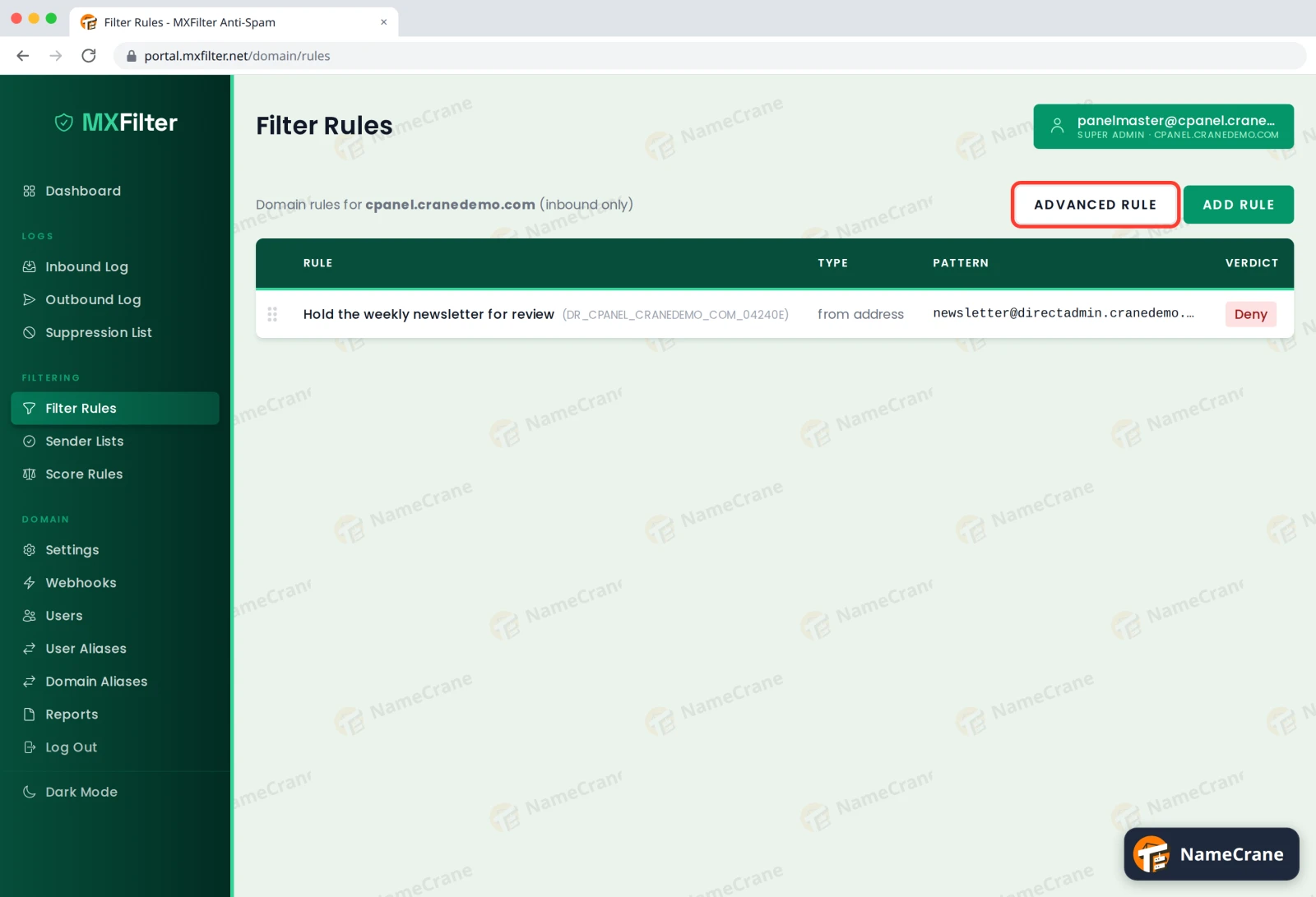
Click Filter Rules in the menu, then click Advanced Rule.
-
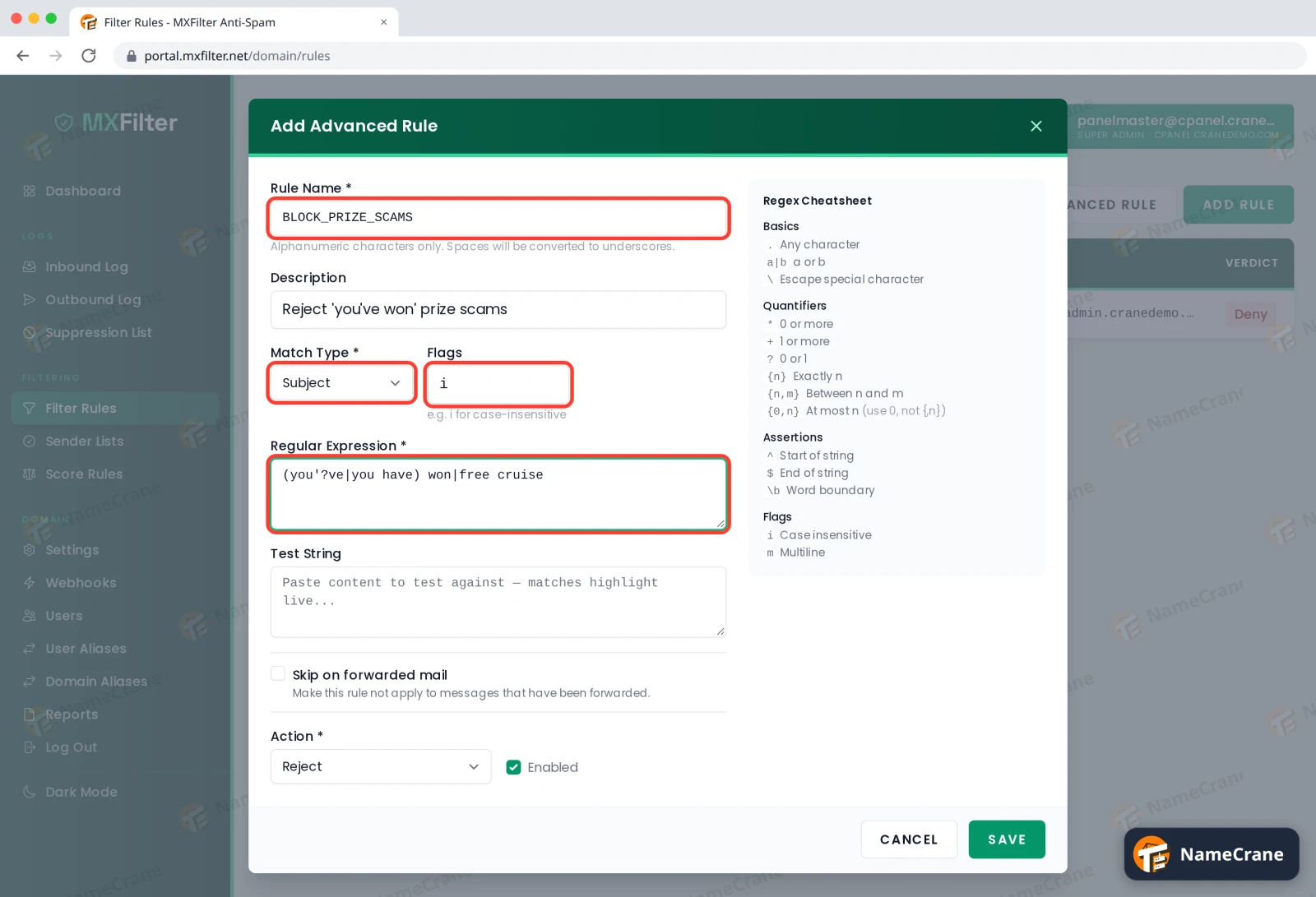
Fill in the top of the form:
- Rule Name: letters and numbers only (spaces become underscores), such as
BLOCK_PRIZE_SCAMS. - Description: what the rule is for.
- Match Type: where to look. We’ve chosen Subject.
- Flags:
imakes the pattern ignore upper and lower case. - Regular Expression: the pattern. Ours is
(you'?ve|you have) won|free cruise.
- Rule Name: letters and numbers only (spaces become underscores), such as
-
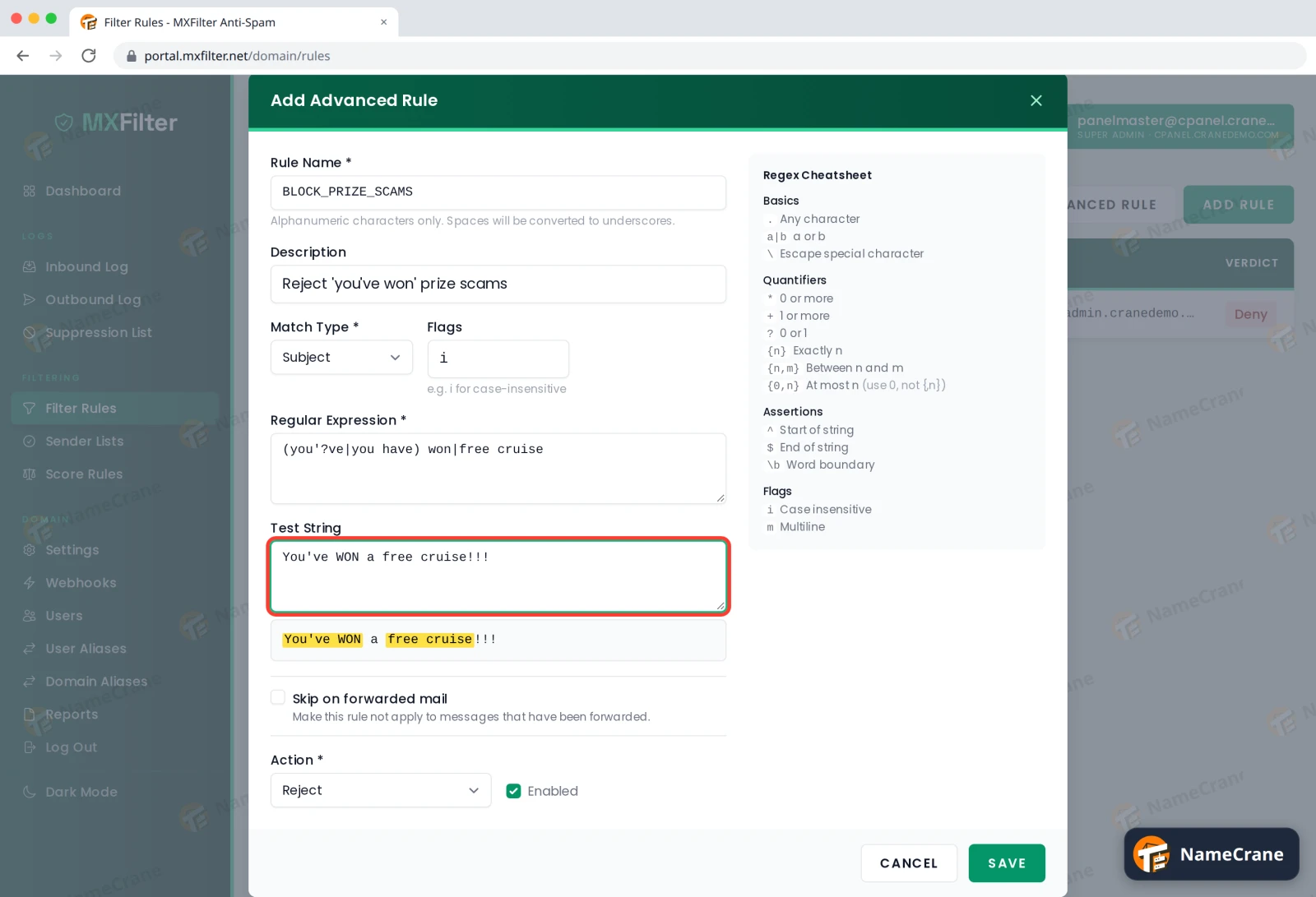
Paste an example into Test String. Anything your pattern matches is highlighted in yellow underneath, so you can see straight away whether it works.
-
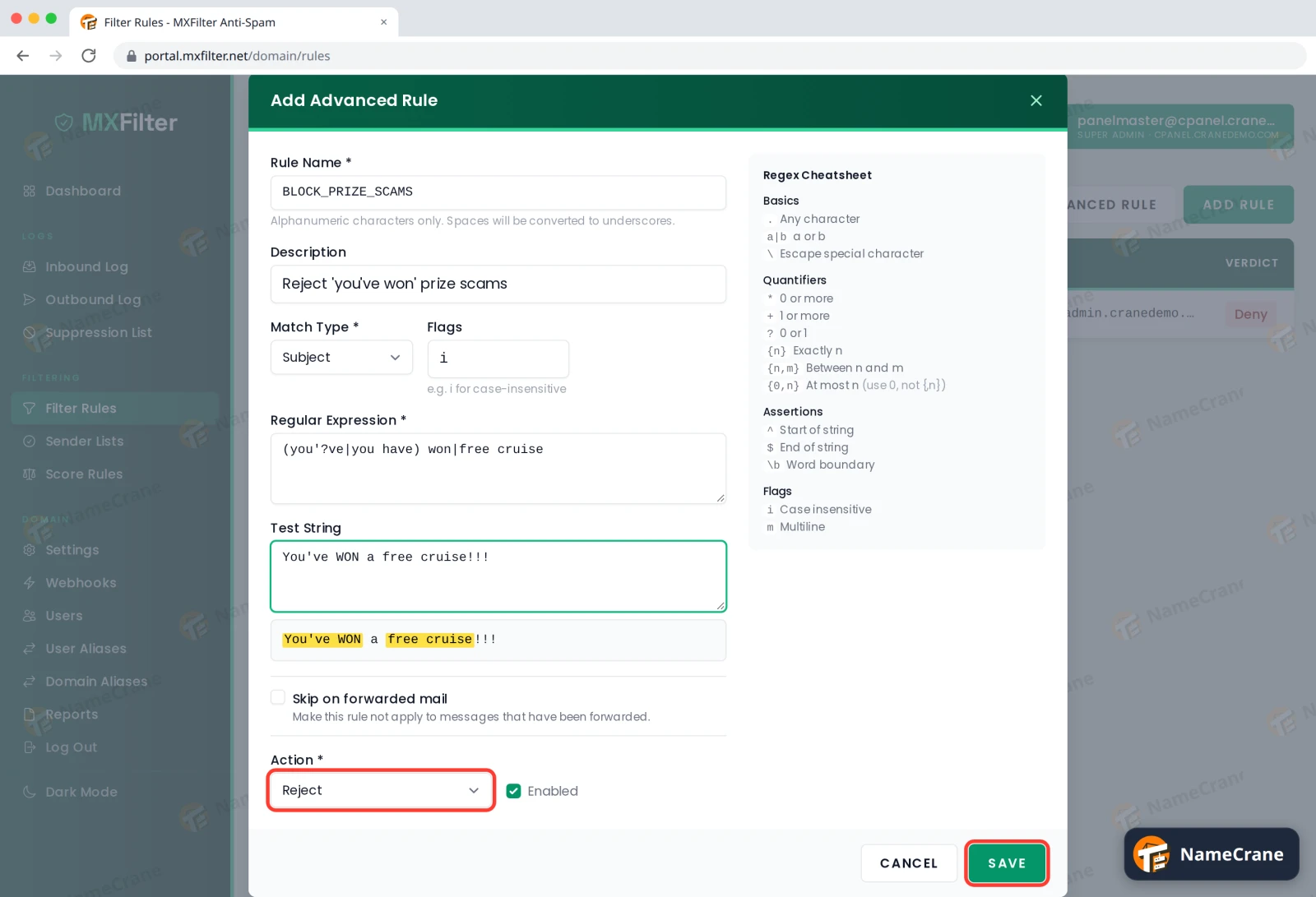
Choose an Action (see the table below), make sure Enabled is ticked, and click Save.
-
The rule appears in your list with an ADV label. It’s listed with a type of header, because the subject is one of the email’s headers.
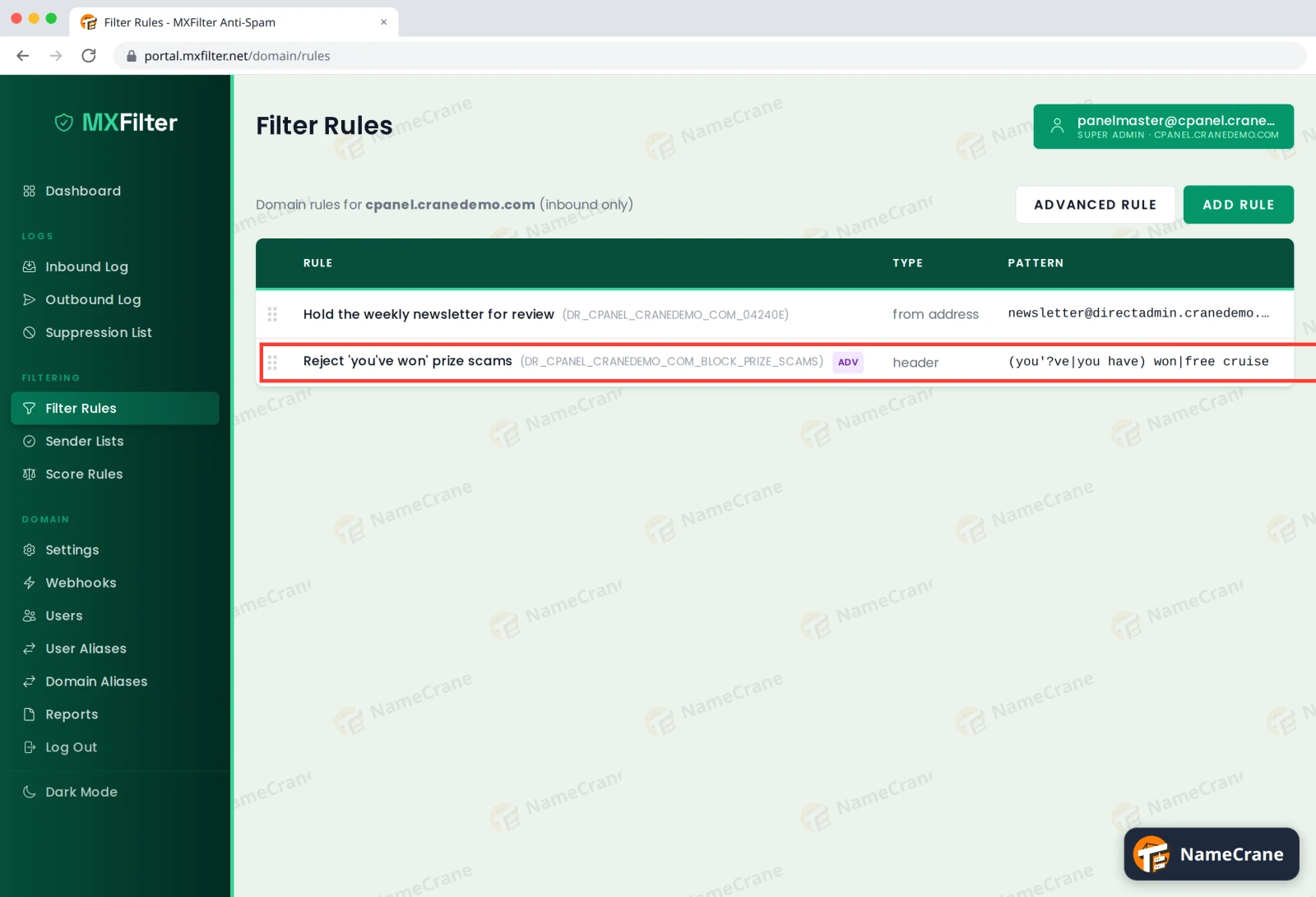
When we sent a test email with the subject “Congratulations, you’ve won a holiday”, it was rejected straight away.
Actions
| Action | What happens to matching email |
|---|---|
| Reject | Refused, and the sender gets a bounce message. |
| Soft Reject (Hold) | Held in quarantine for you to review. |
| Add Header | Delivered with an extra header that marks it, so your mail app can filter it. |
| No Action (Whitelist) | Let through. Use this to rescue mail that’s being caught wrongly. |
What you can match
Subject, From domain, From address, Recipient, Header (custom), Message body, Sender IP and HELO/EHLO (the name the sending server gives itself). The form includes a Regex Cheatsheet with the most useful symbols.
Troubleshooting
| Problem | What to do |
|---|---|
| Nothing is highlighted in the test box | The pattern doesn’t match. Check the Flags (add i to ignore case) and look for typos, then try a simpler pattern first. |
| Genuine email is being caught | Make the pattern more specific. \b matches a word boundary, so \bwon\b won’t match “wonderful”. If the rule uses Soft Reject (Hold), you can release anything it caught. Rejected email can’t be recovered. |
| I want to switch it off for now | Untick Enabled by editing the rule, or click Delete to remove it. |
Snagged on something? Contact support and we’ll get you sorted.