How to Restore a Database with JetBackup
Last updated Changelog
On this page
Your site’s content, such as WordPress posts or shop products, lives in a database. If something in it goes wrong, put back a copy from one of our nightly backups. In this example we deleted a product from the products table in our cranedemo_shop database, then restored last night’s backup to get it back. Our screenshots are from cPanel; it works the same in DirectAdmin.
Warning: The database goes back to how it was when the backup was made. Anything saved to it since, such as new orders, comments or posts, is lost. If you’re not sure, download a copy of the backup first and look inside.
Steps
-
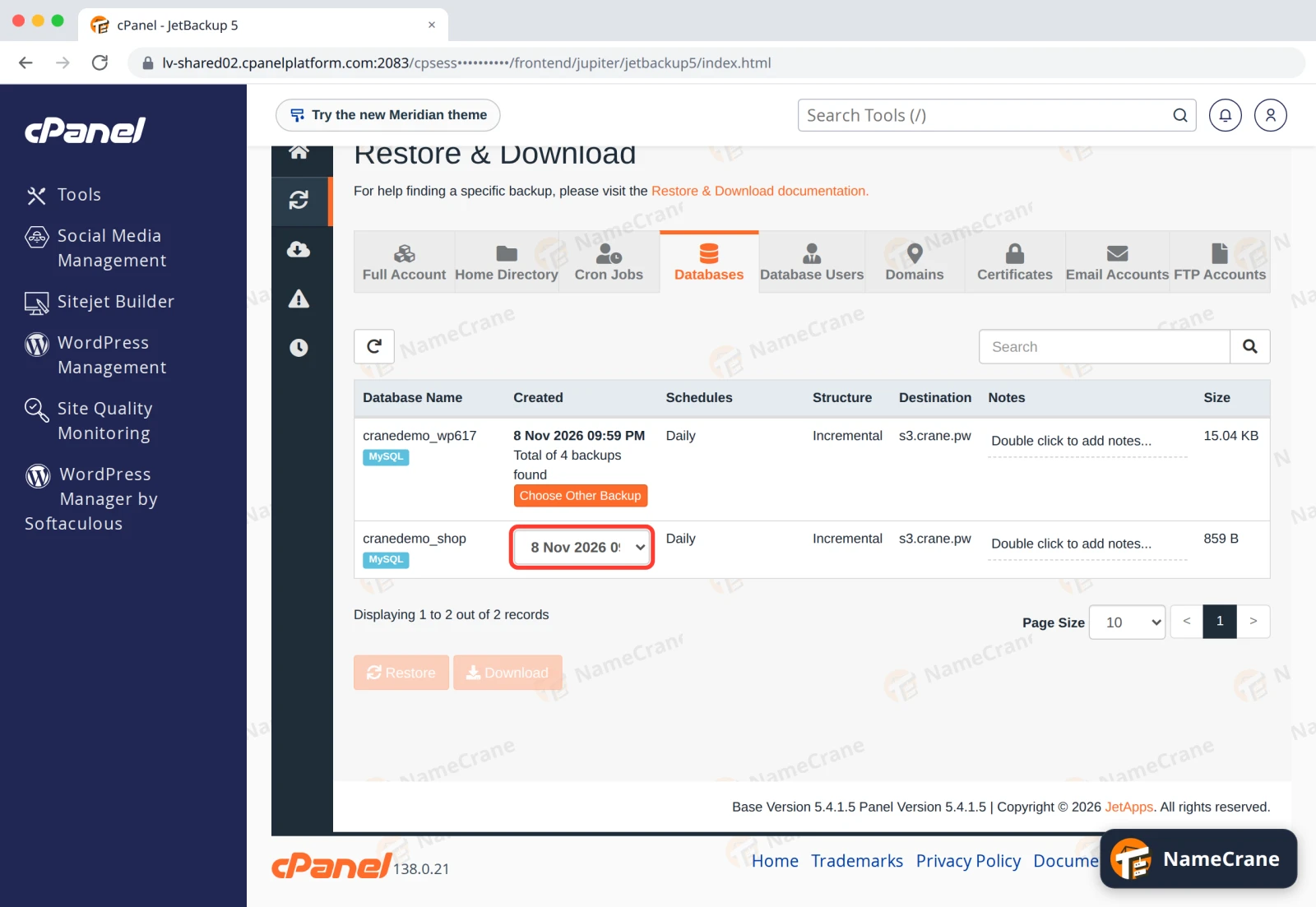
Open JetBackup (see how to open it) and click Databases. Each database shows its newest backup. To use an older one, click Choose Other Backup and pick the date from the list.
-
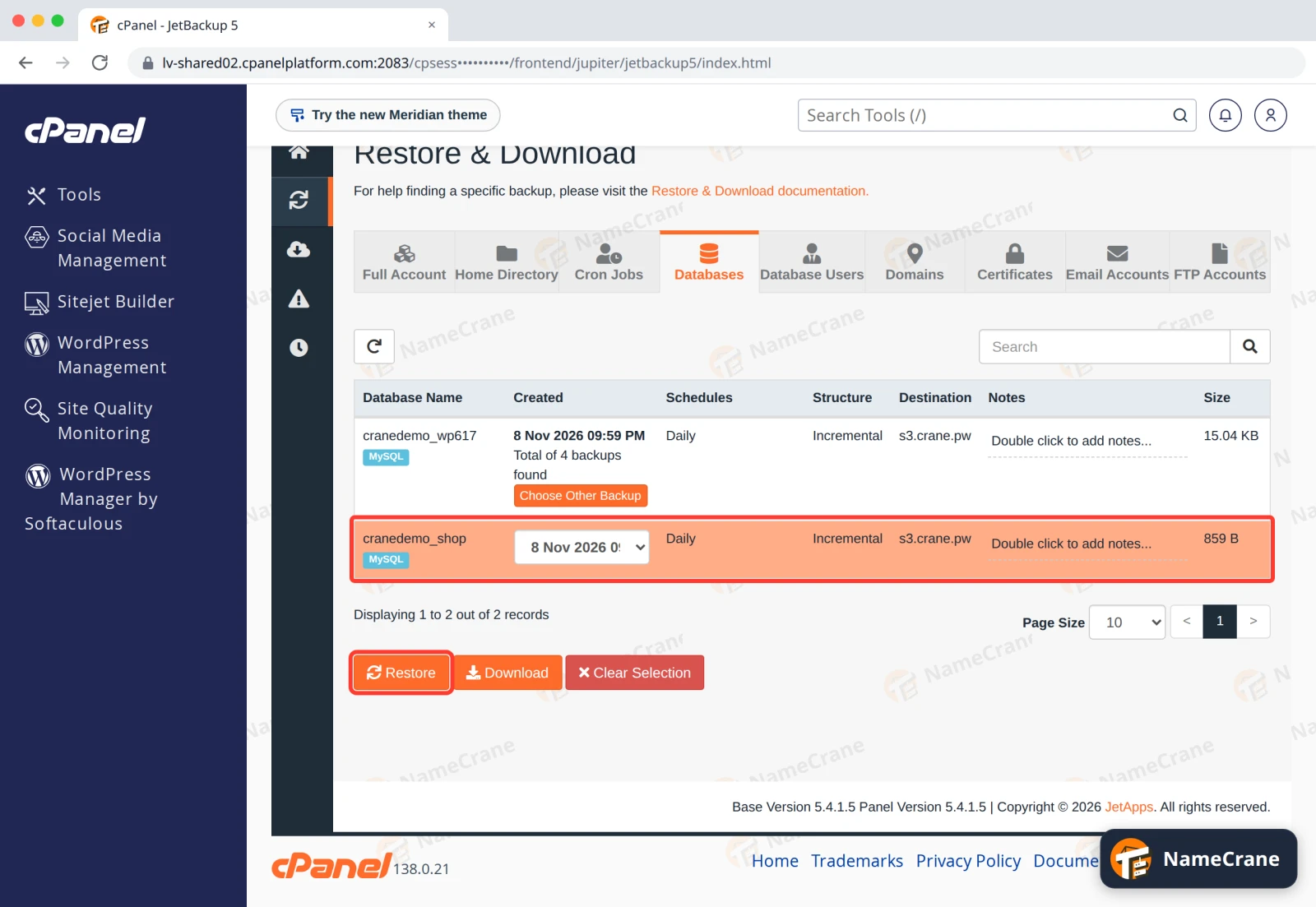
Click your database’s row. It turns orange. Click Restore.
-
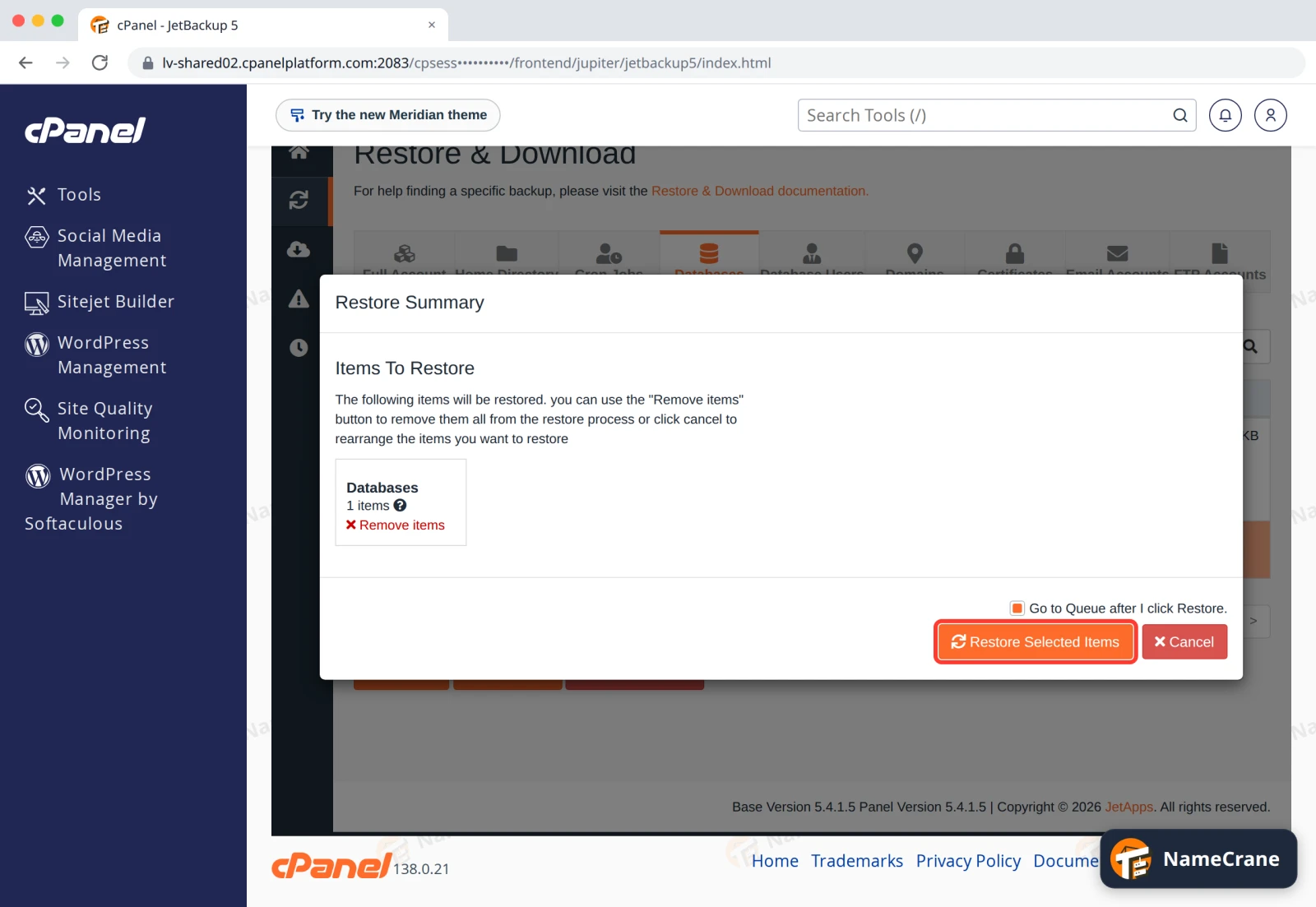
The Restore Summary lists the database under Databases. Click Restore Selected Items.
-
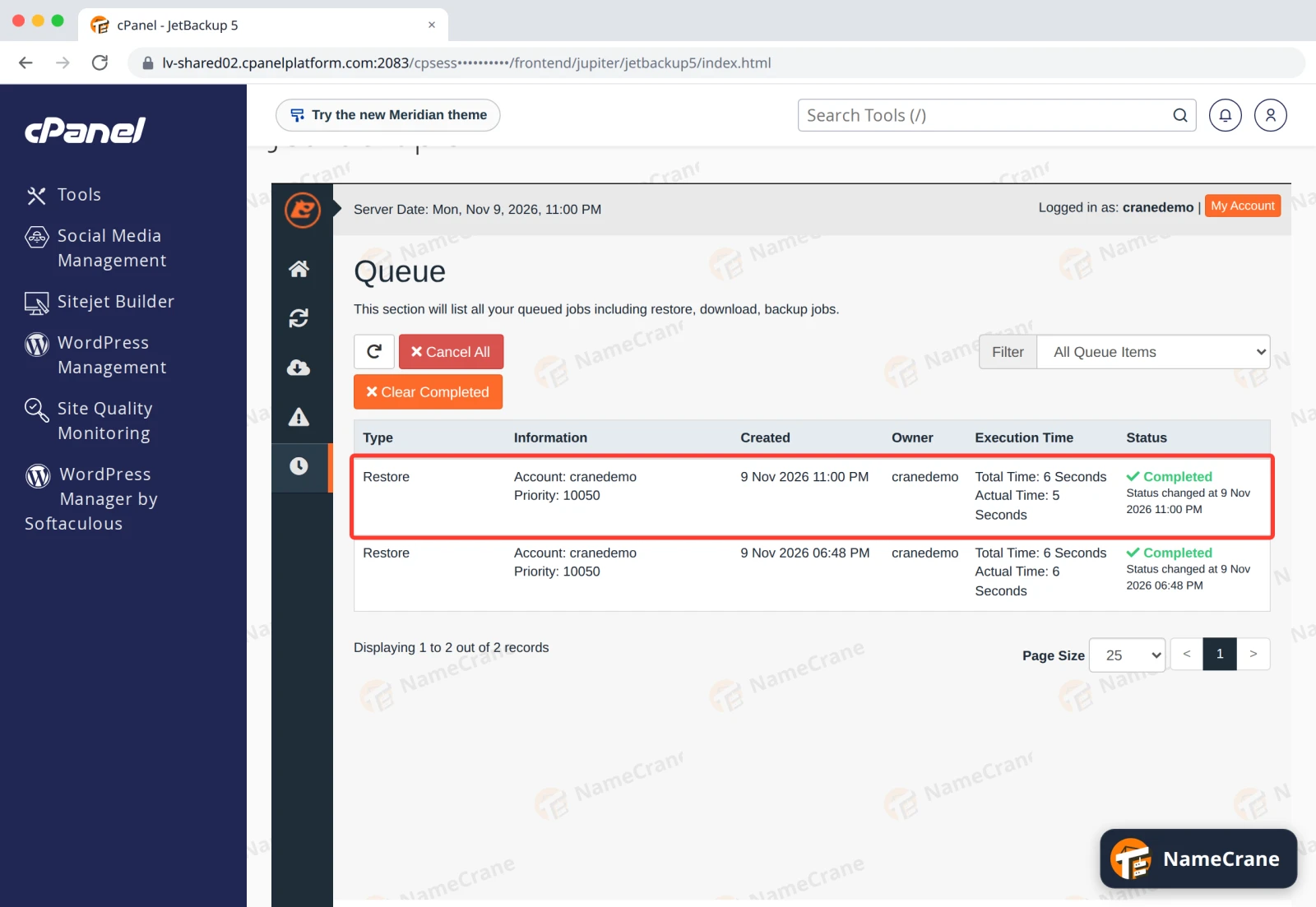
JetBackup opens the Queue. When the Status says Completed, the database is back. Ours took 5 seconds.
The deleted product was back, and the whole table was identical to how it was before we deleted it.
Restoring a WordPress site
To put a whole WordPress site back to an earlier day, restore both parts from the same date:
- its database here, and
- its files from Home Directory. See Restore files and folders.
Not sure which database belongs to your site? Open wp-config.php in your site’s folder: the name after DB_NAME is the database.
Troubleshooting
| Problem | What to do |
|---|---|
| My database isn’t in the list | It was created after the last backup ran. It’ll be in tonight’s backup. |
| I only need one table or a few rows back | Download the backup instead, and copy what you need with phpMyAdmin. |
| The site still shows the old content | Clear your site’s cache, such as a WordPress caching plugin, and your browser’s cache. |
| The restore shows Failed in the Queue | Contact support with the database name and the backup date. |
Snagged on something? Contact support and we’ll get you sorted.