How to Find an Email in MXFilter's Inbound Log
Last updated Changelog
On this page
Waiting on an email that never turned up? MXFilter’s Inbound Log lists every message sent to your domain, what happened to it, and the spam score that decided it. It’s the first place to look before asking the sender to try again.
Before you start
- Open MXFilter from your control panel: from cPanel or from DirectAdmin.
Steps
-
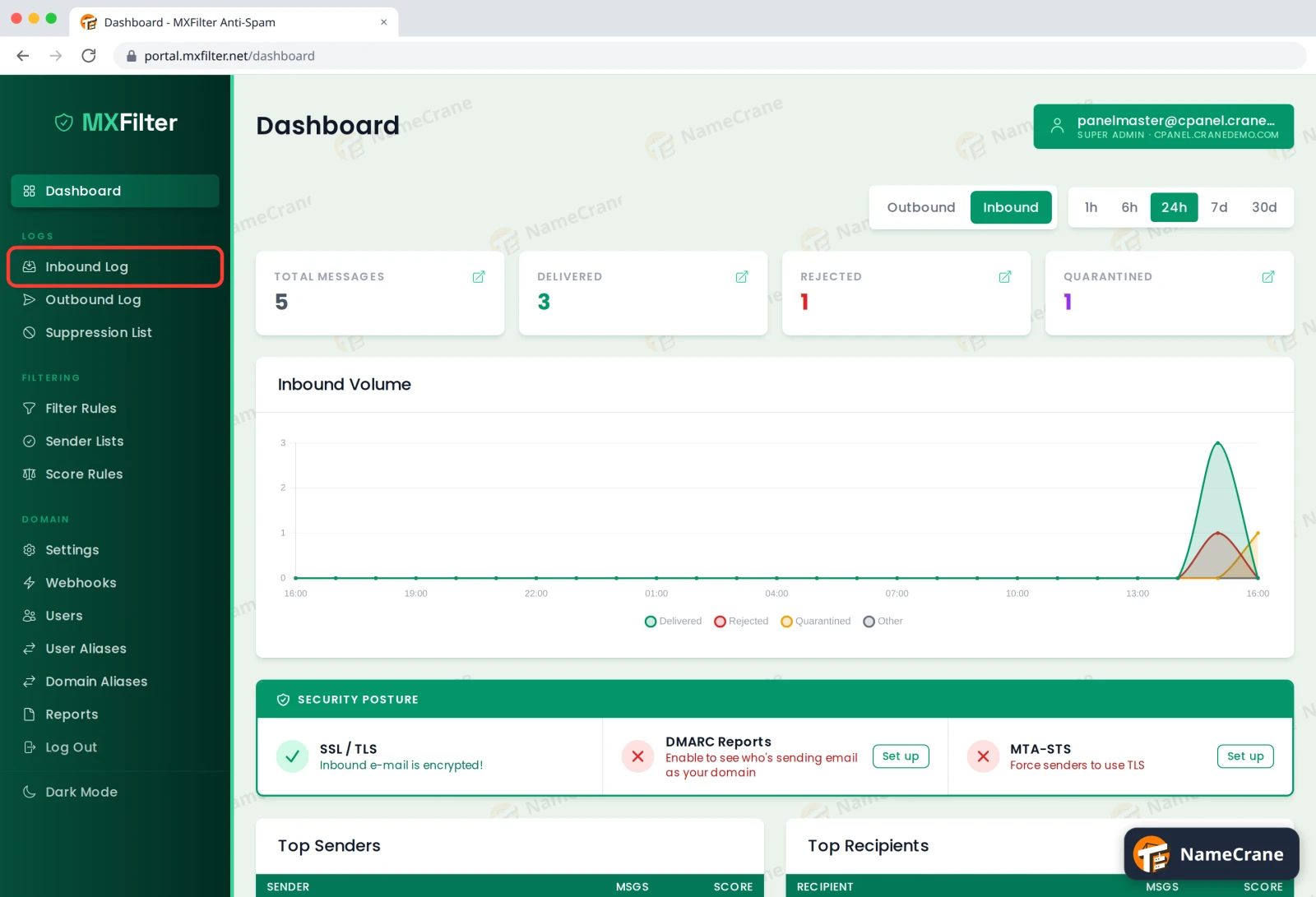
In the MXFilter menu, under Logs, click Inbound Log.
-
Type part of the sender’s address, your address, the subject or the sending IP into the Sender / Recipient / Subject box and press Enter. Only matching messages are shown.
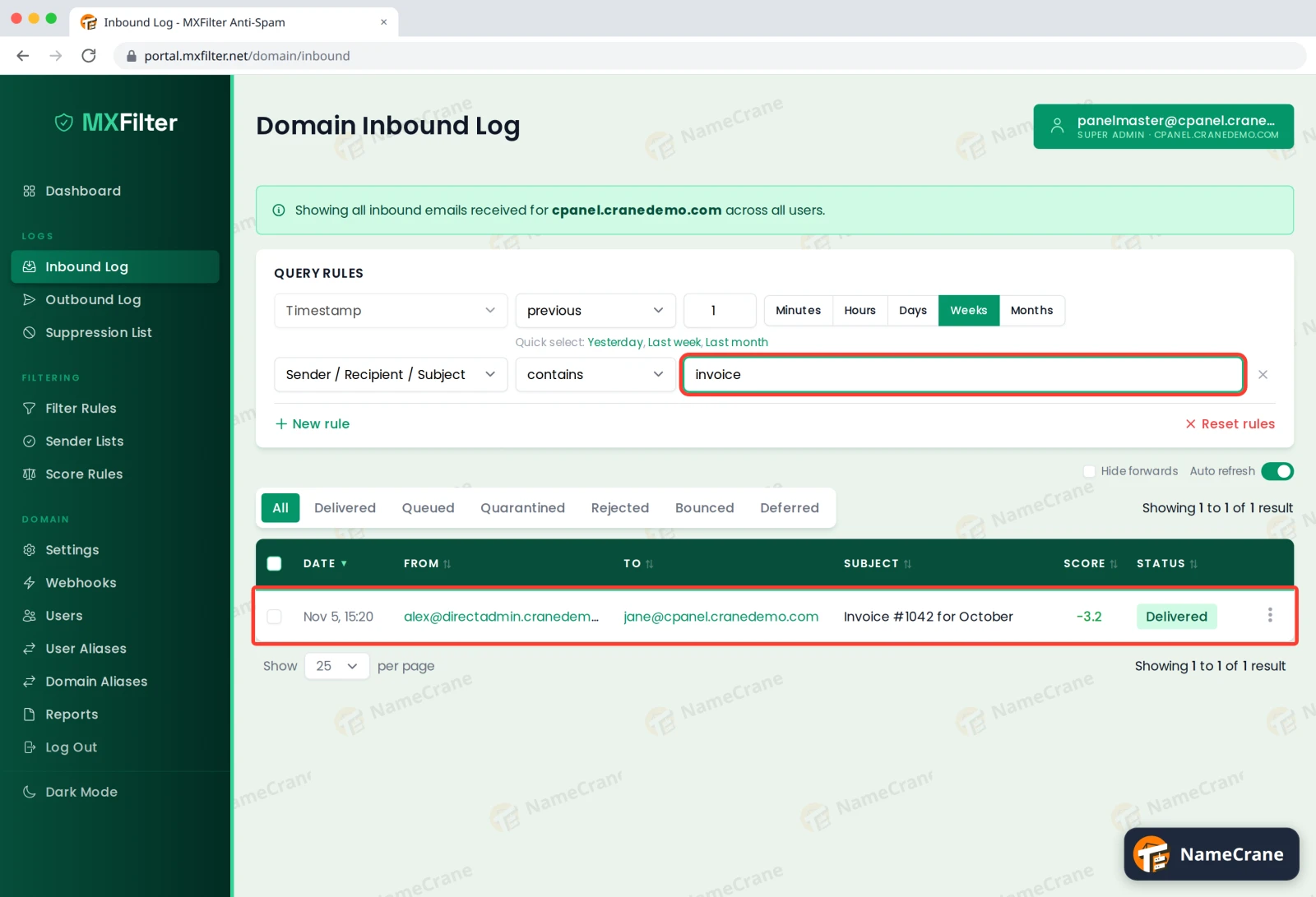
The Timestamp rule above it sets how far back to look (the last week by default). Change the number or click Minutes, Hours, Days, Weeks or Months, or use Quick select for yesterday, last week or last month.
-
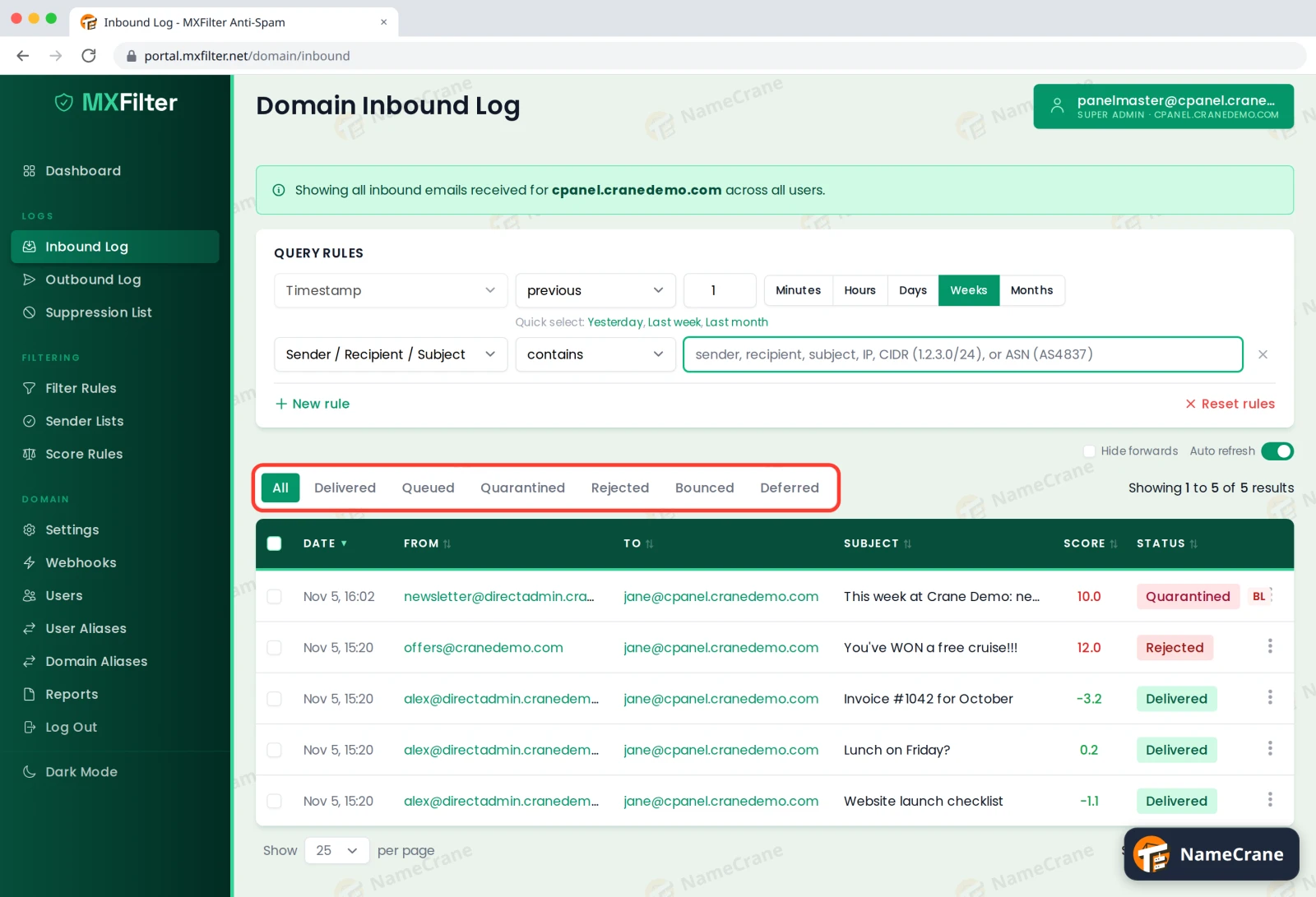
To see only one kind of message, click a status button above the table (see the table below).
-
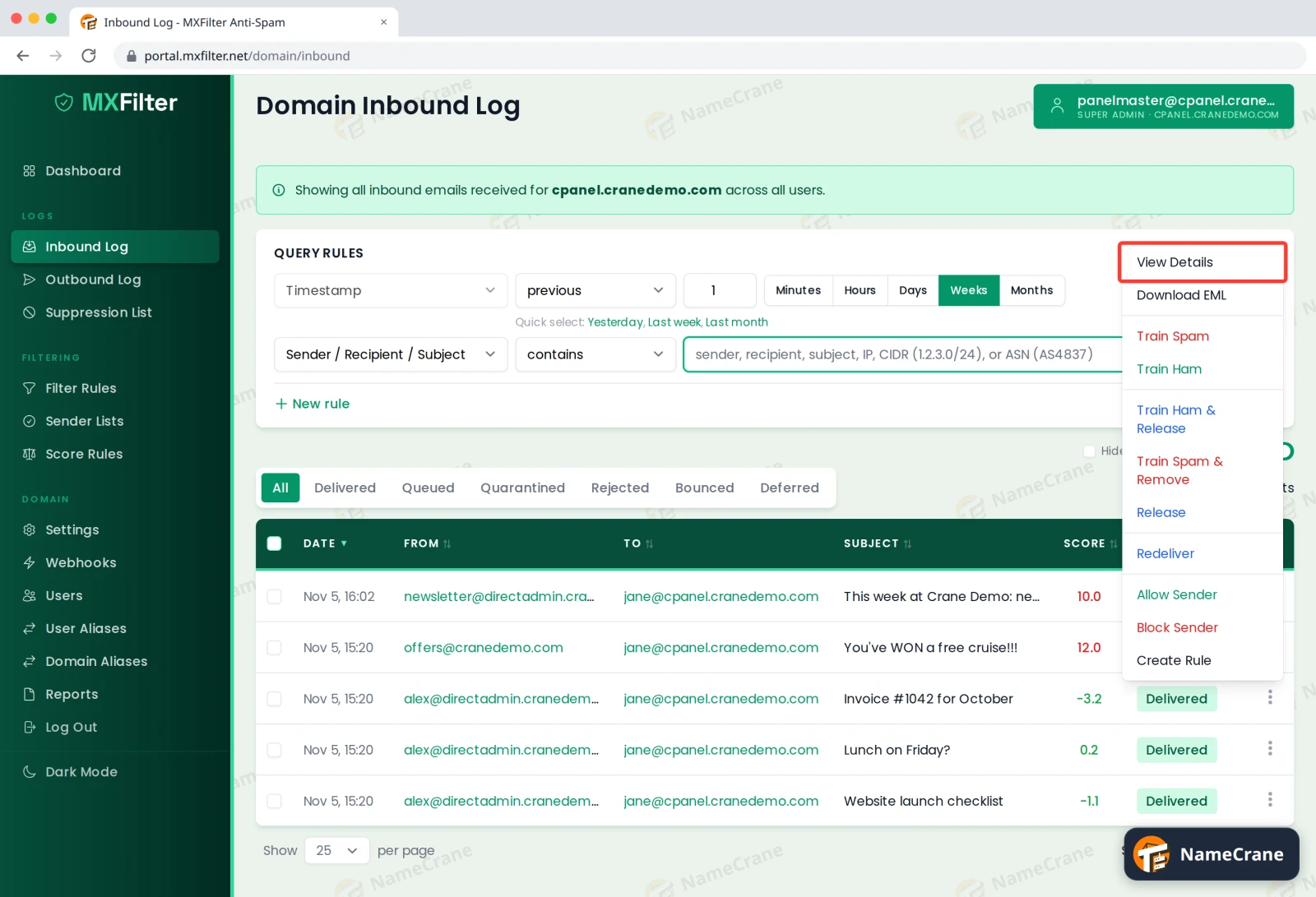
To see everything about a message, click the ⋮ menu at the end of its row and choose View Details.
-
The details show who sent it, when, from which IP address, and its Score. Under Rspamd Symbols you can see exactly why it scored that way: green symbols are good signs that lower the score, and red ones raise it.
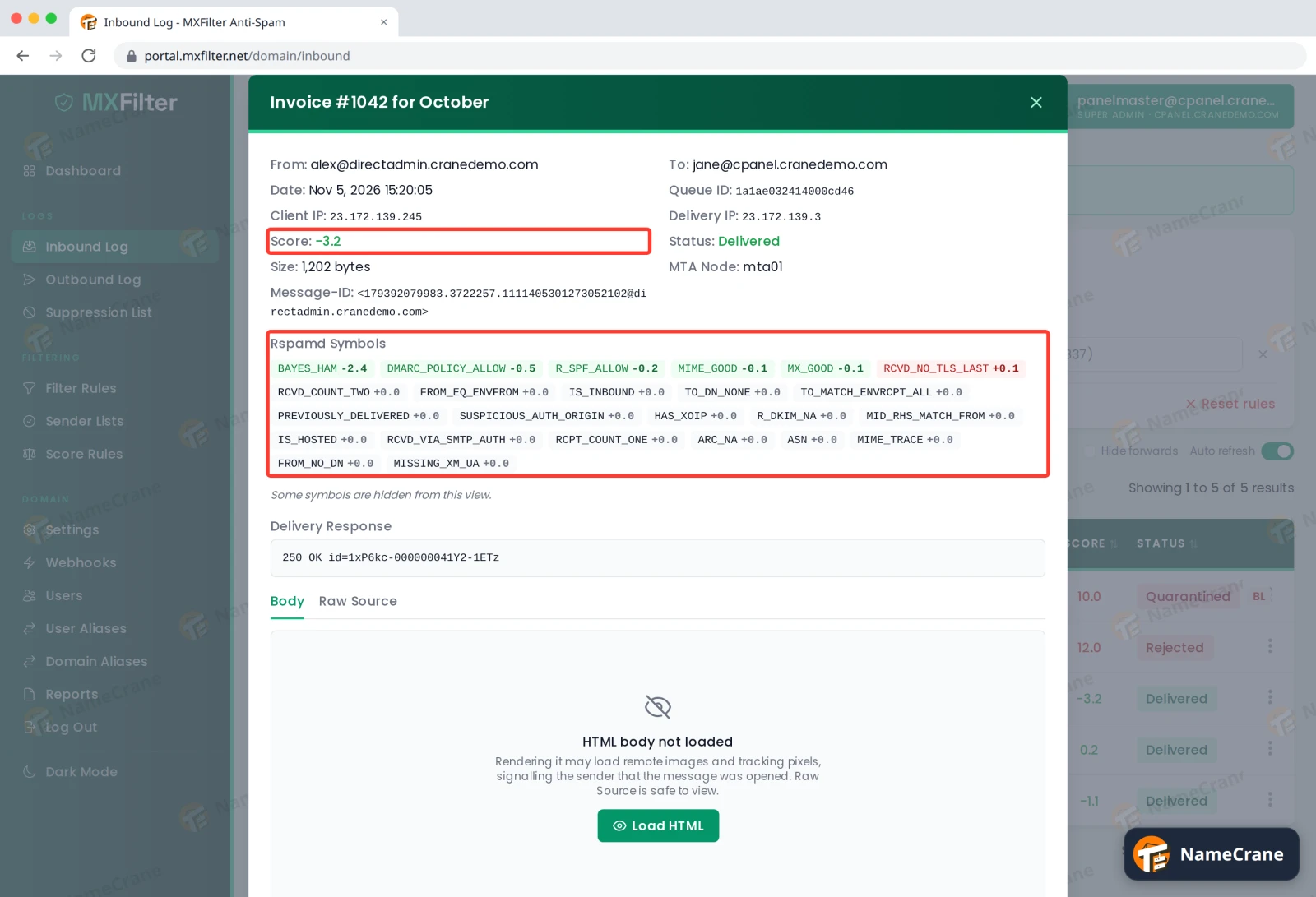
Note: For your safety, the message body isn’t shown straight away, because opening it could load tracking images. Click Load HTML to view it, or open the Raw Source tab, which is always safe.
What each status means
| Status | What happened |
|---|---|
| Delivered | It passed the checks and was handed to your mailbox. |
| Queued | It’s still being processed or waiting to be delivered. |
| Quarantined | It’s being held for review. You can release it. |
| Rejected | It was refused and the sender got a bounce message. Nothing was kept. |
| Bounced | It couldn’t be delivered and MXFilter gave up. |
| Deferred | Delivery failed temporarily and will be tried again. |
With the default Normal filter setting, a score of 9 or more is quarantined and 12 or more is rejected. You can change this in spam sensitivity.
Other things you can do from the ⋮ menu
| Option | What it does |
|---|---|
| Download EML | Saves the original message, which you can open in most mail apps. |
| Train Spam / Train Ham | Teaches the filter that this kind of message is spam (or isn’t). |
| Release / Train Ham & Release | Delivers a quarantined message. See Release an email from quarantine. |
| Train Spam & Remove | Teaches the filter it’s spam and deletes it from quarantine. |
| Redeliver | Sends a delivered message to your mailbox again. |
| Allow Sender / Block Sender | Adds the sender to your sender lists. |
| Create Rule | Starts a filter rule based on this message. |
Troubleshooting
| Problem | What to do |
|---|---|
| The email isn’t in the log at all | Widen the Timestamp range and check the spelling. If it still isn’t there, it never reached us: ask the sender to check the address and whether they got a bounce. |
| It shows as Delivered but isn’t in my inbox | Check your mail app’s spam or junk folder and any mail filters you’ve set up. |
| It was Rejected but I want it | Rejected email can’t be recovered. Allow the sender, then ask them to send it again. |
| New messages aren’t appearing | The log refreshes itself while Auto refresh is on. You can also reload the page. |
Snagged on something? Contact support and we’ll get you sorted.