How to Route Your Email Through MXFilter in DirectAdmin
Last updated Changelog
On this page
NameCrane’s Advanced Anti Spam (MXFilter) checks every incoming email for spam and viruses before it reaches your mailbox. For that to happen, your domain’s MX records (the DNS records that tell the world where to deliver your email) need to point at MXFilter. DirectAdmin can set this up for you in one click with an MX template.
Note: Only do this if your email is hosted with NameCrane. If you use Google Workspace or Microsoft 365 for email, keep their MX records instead.
Before you start
- Your domain should use NameCrane’s nameservers, so the DNS records in DirectAdmin are the live ones. If your DNS is managed somewhere else (Cloudflare, your registrar, etc.), add the four records listed in step 6 there instead.
Steps
-
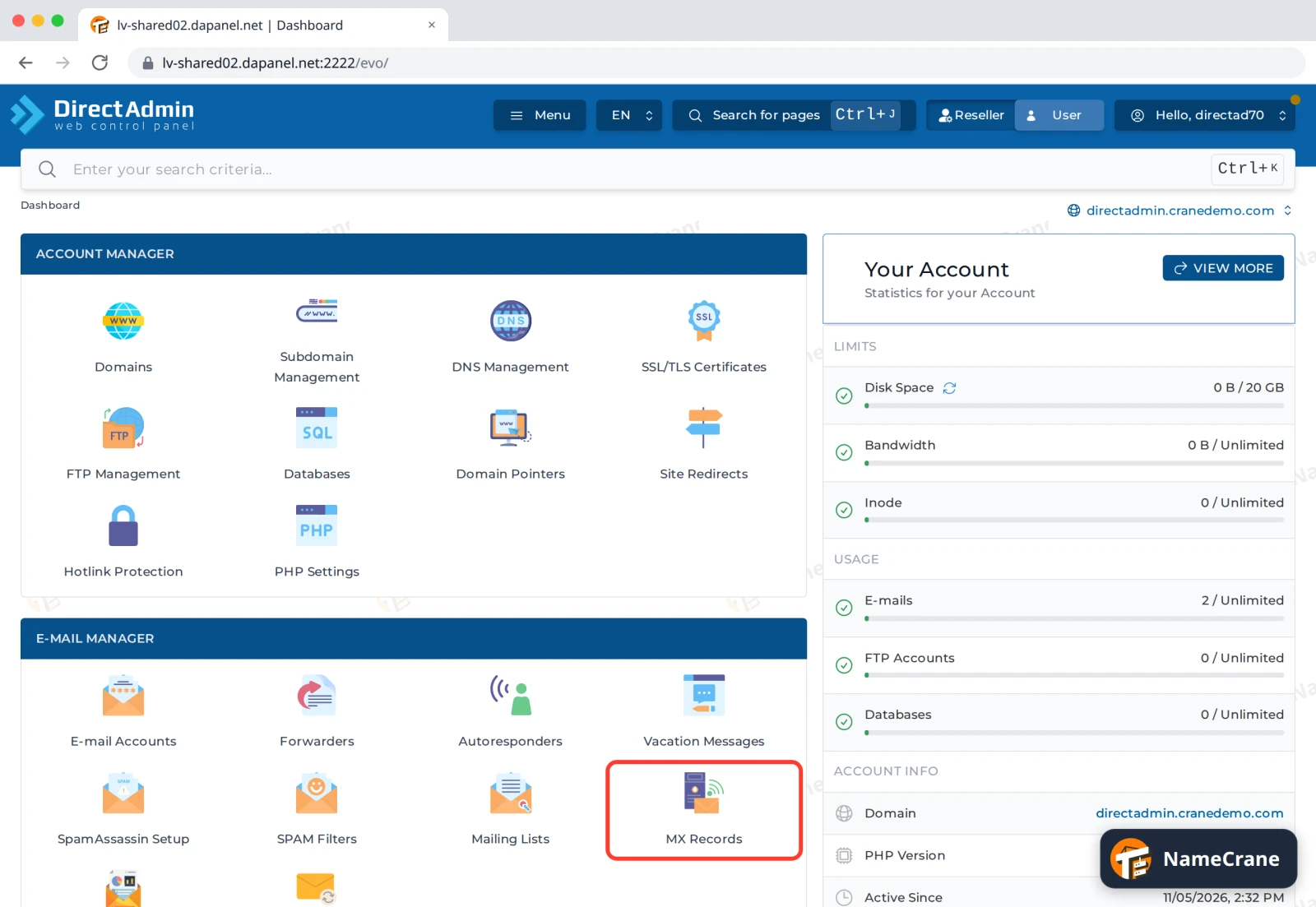
Log in to DirectAdmin. Under E-mail Manager, click MX Records.
-
You’ll see your current MX record. On a new account it points at your hosting server,
mail.yourdomain.com.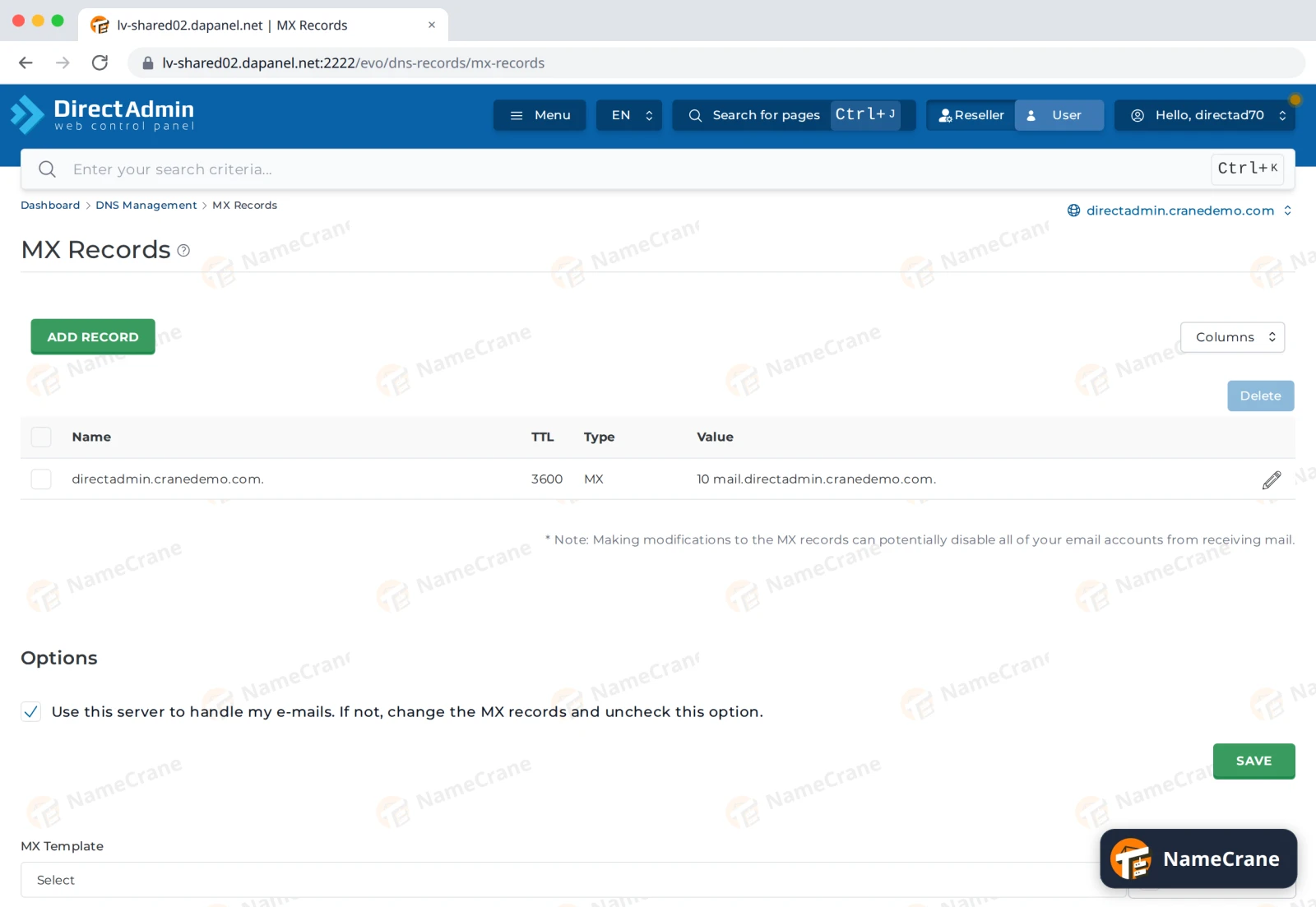
-
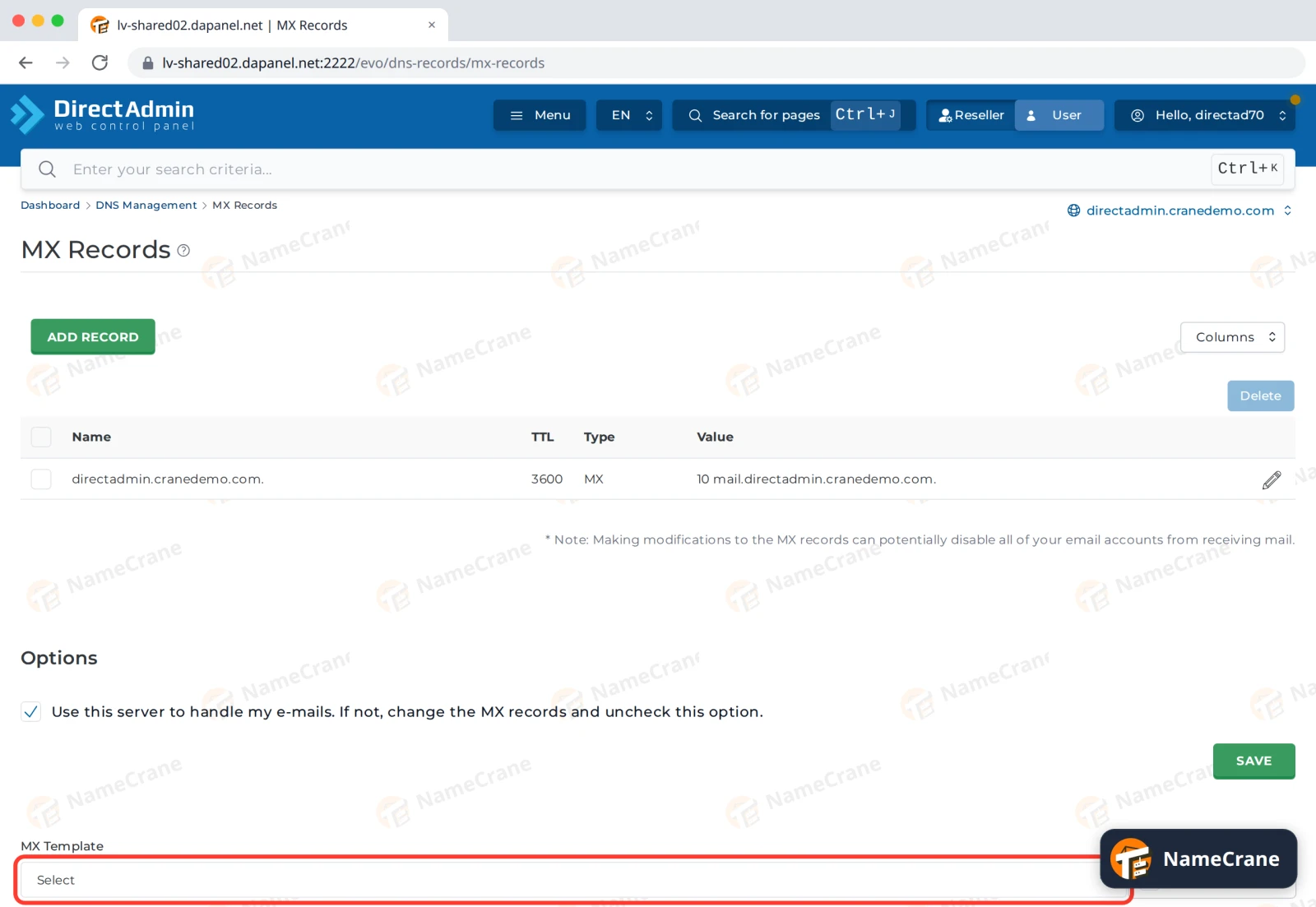
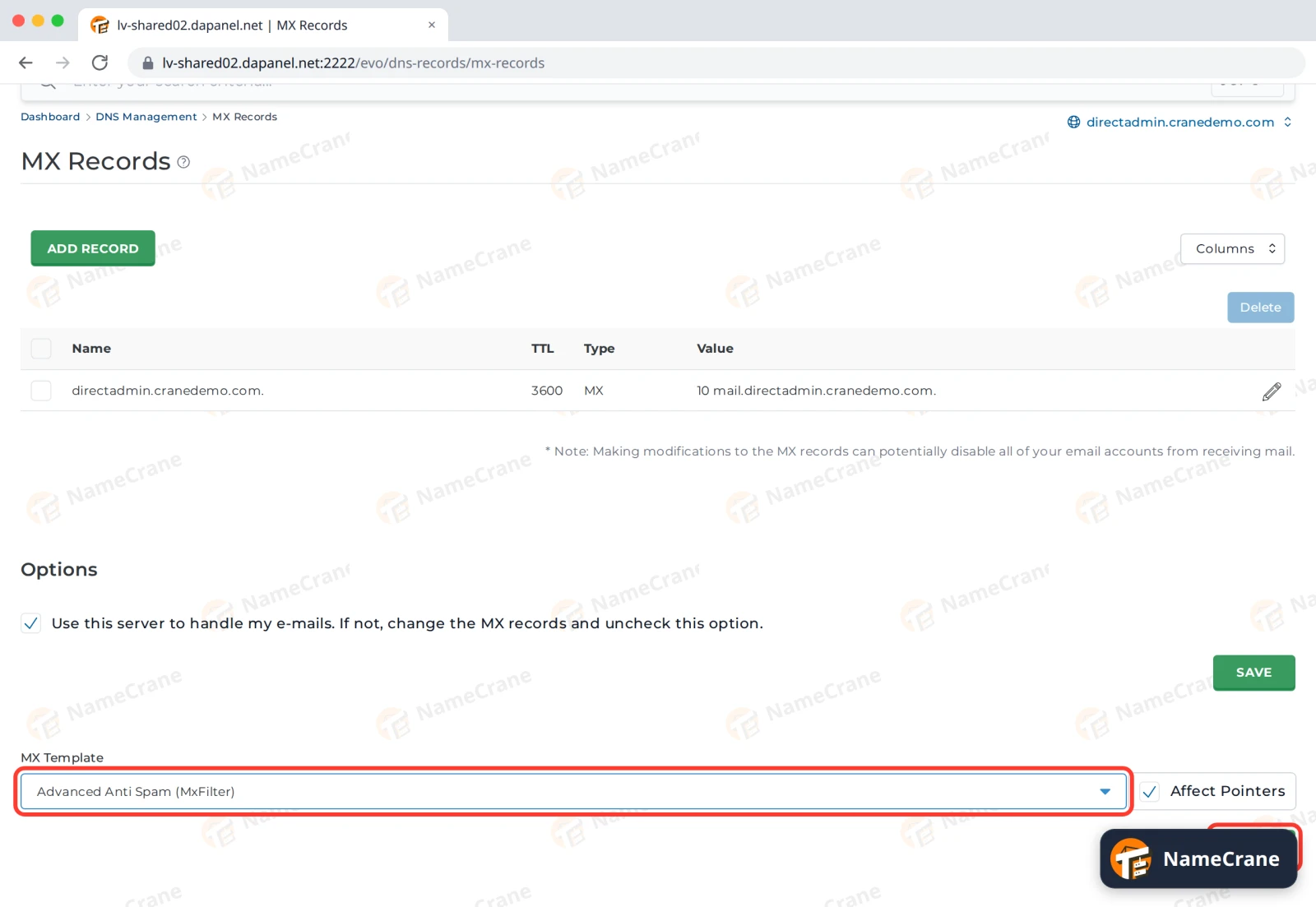
Scroll down to Options and find MX Template.
-
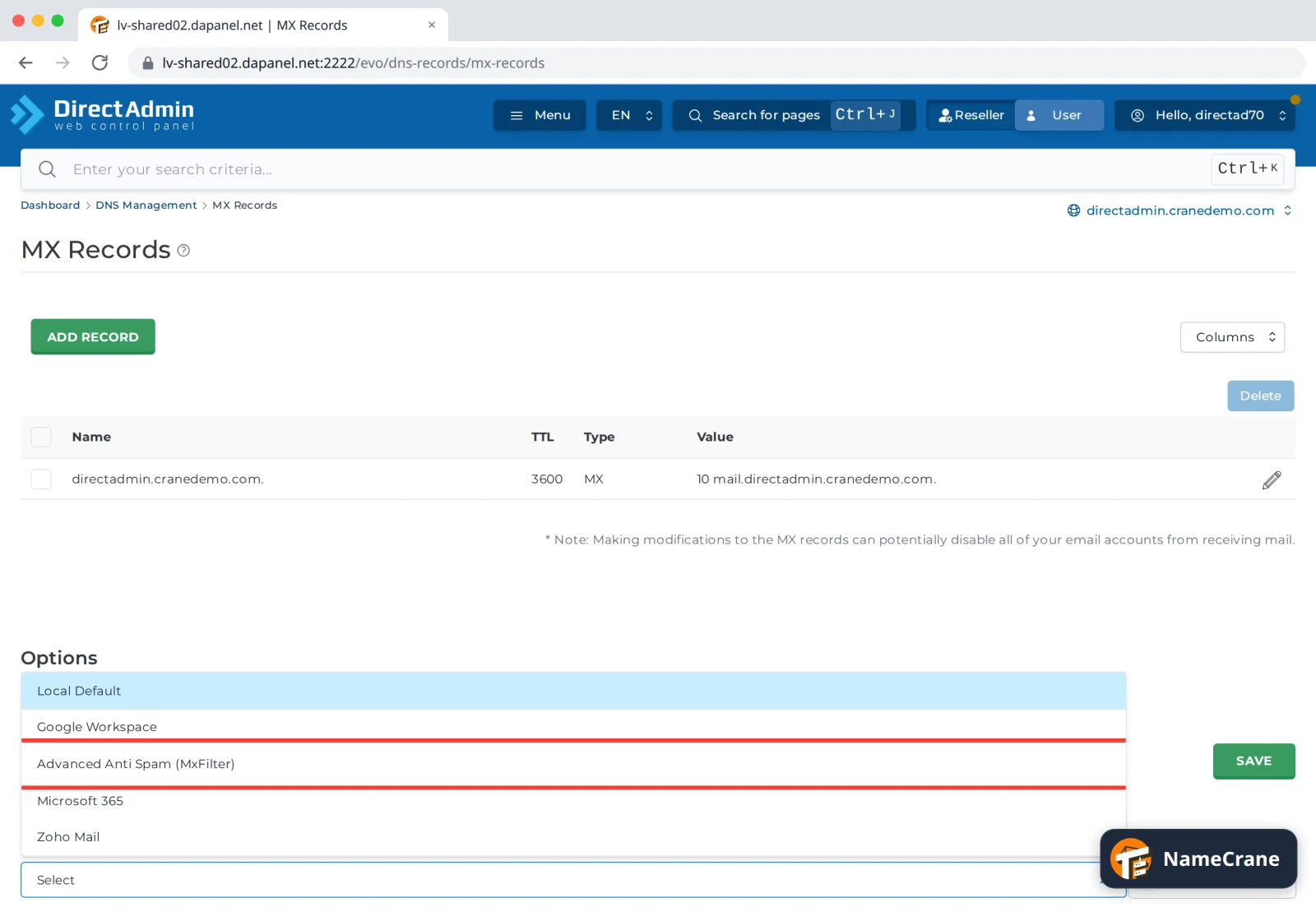
Click the box and choose Advanced Anti Spam (MxFilter).
-
Leave Affect Pointers ticked, so any domain pointers (alias domains) get the same records. Then click the Save button under the template.
-
After a few seconds, your MX records are replaced with the four MXFilter servers:
Priority Mail server 10 mx1.dapanel.net10 mx2.dapanel.net20 mx3.dapanel.net20 mx4.dapanel.net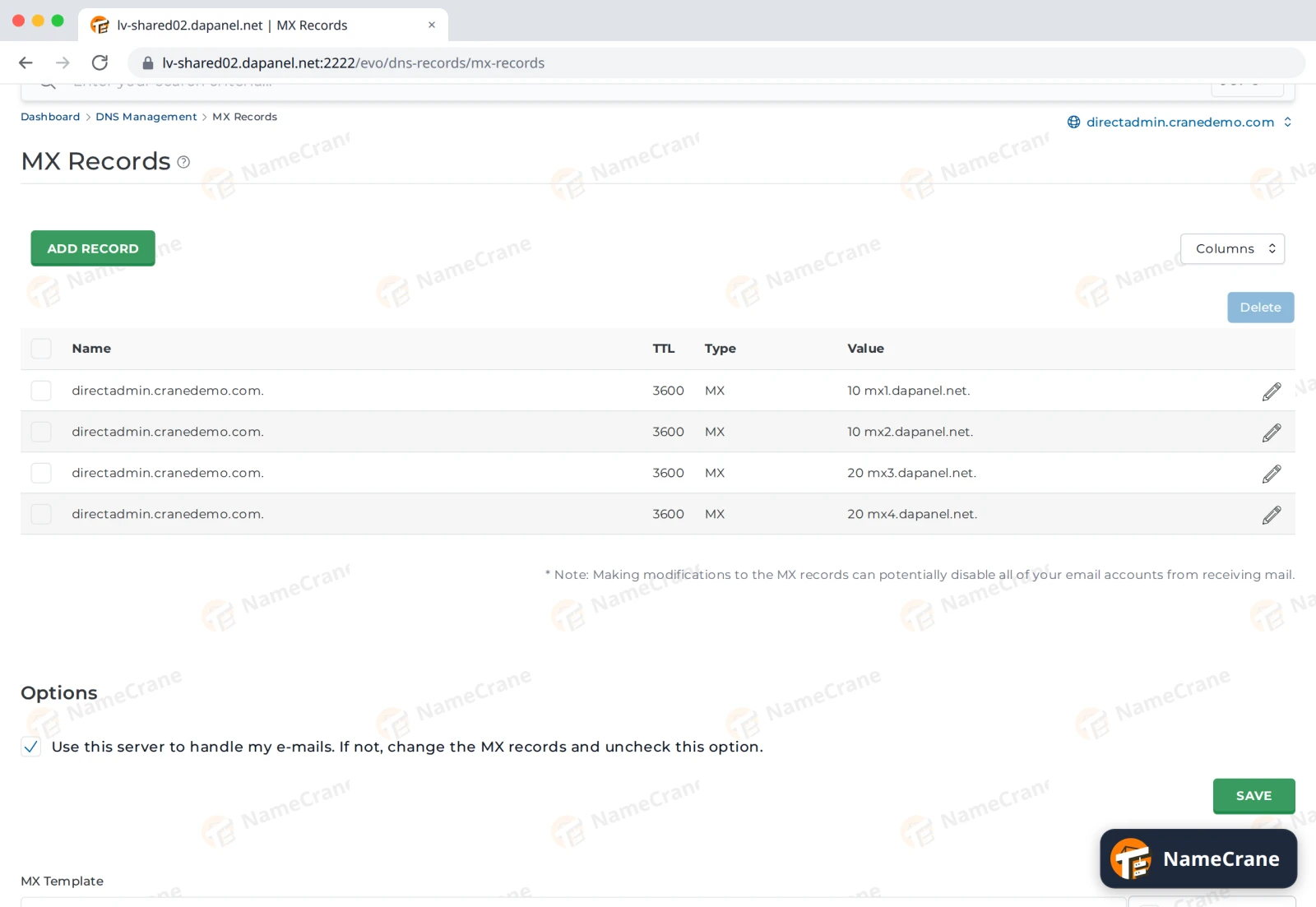
That’s it. DNS changes can take up to an hour to reach everyone, so a few emails may still arrive the old way for a little while.
Tip: Keep Use this server to handle my e-mails ticked. MXFilter cleans your email and then passes it on to your mailbox on this server.
Check it’s working
Send yourself an email from another account (a Gmail address, for example). Then open MXFilter and look in the Inbound Log. Your test message should be listed as Delivered. See Find an email in MXFilter for more on the log.
Troubleshooting
| Problem | What to do |
|---|---|
| Email has stopped arriving | Check that Use this server to handle my e-mails is still ticked and the four records from step 6 are listed. Then look up the message in the MXFilter Inbound Log to see if it was rejected or quarantined. |
| My DNS is managed somewhere else | At your DNS provider, delete your old MX records and add the four from step 6 with the same priorities. |
| I want to undo this | Go back to MX Records, choose Local Default under MX Template, and click Save. Email will go straight to the server again, without MXFilter’s checks. |
Snagged on something? Contact support and we’ll get you sorted.